Credit: Sydney Louw Butler / Plex
For many Plex users, “transcoding” is a dirty word. Only the pristine, untouched original file will do. I was like that, trying to avoid transcoding as much as possible.
Unfortunately, that often meant spending time in apps like Handbrake, painstakingly converting files to the most compatible formats. But the truth is that most of the time, transcoding doesn’t really affect quality in a noticeable way, though it does have some other downsides.
What’s the deal with “Direct Play” anyway?
It sounds like a video game mode
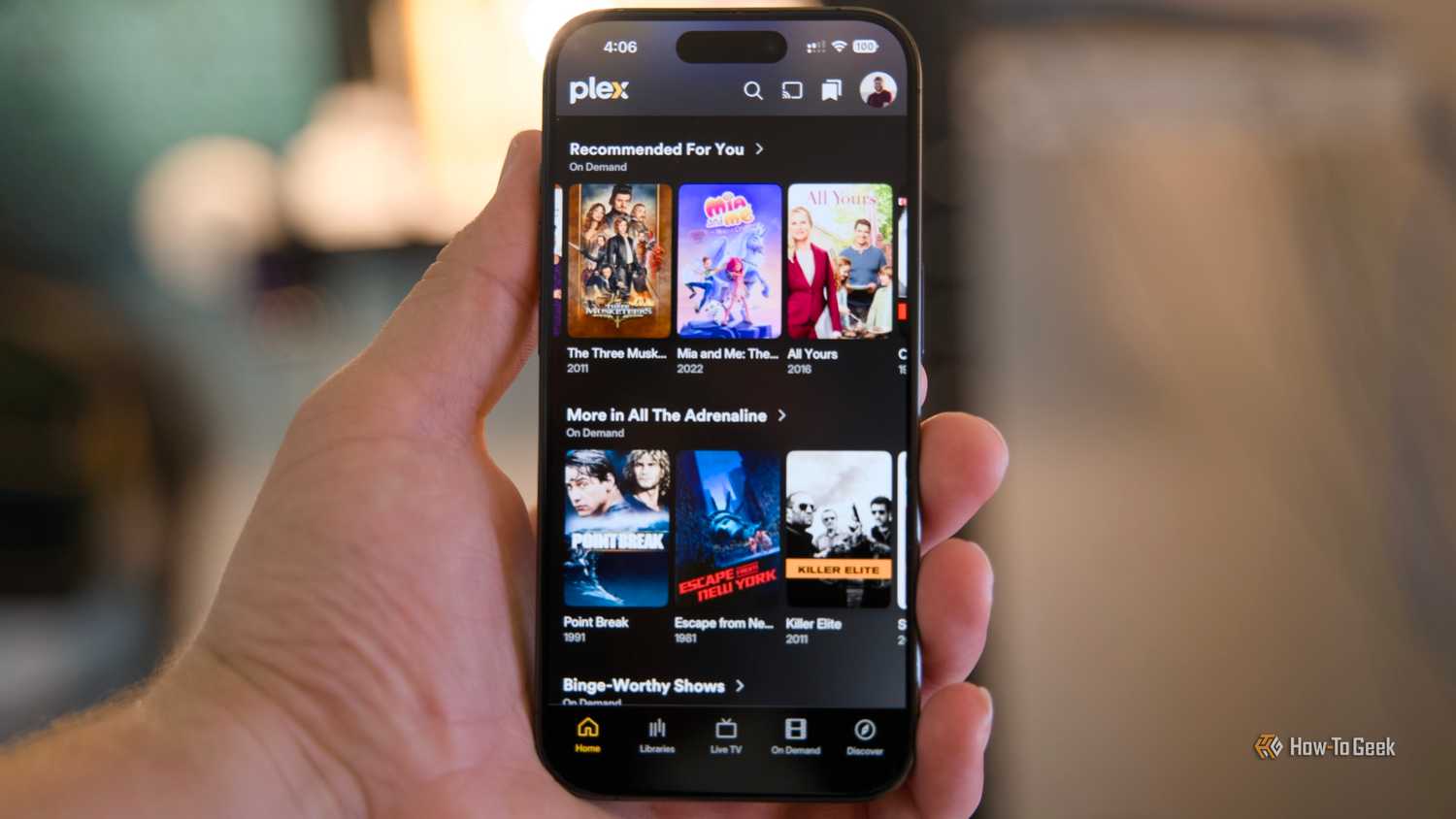
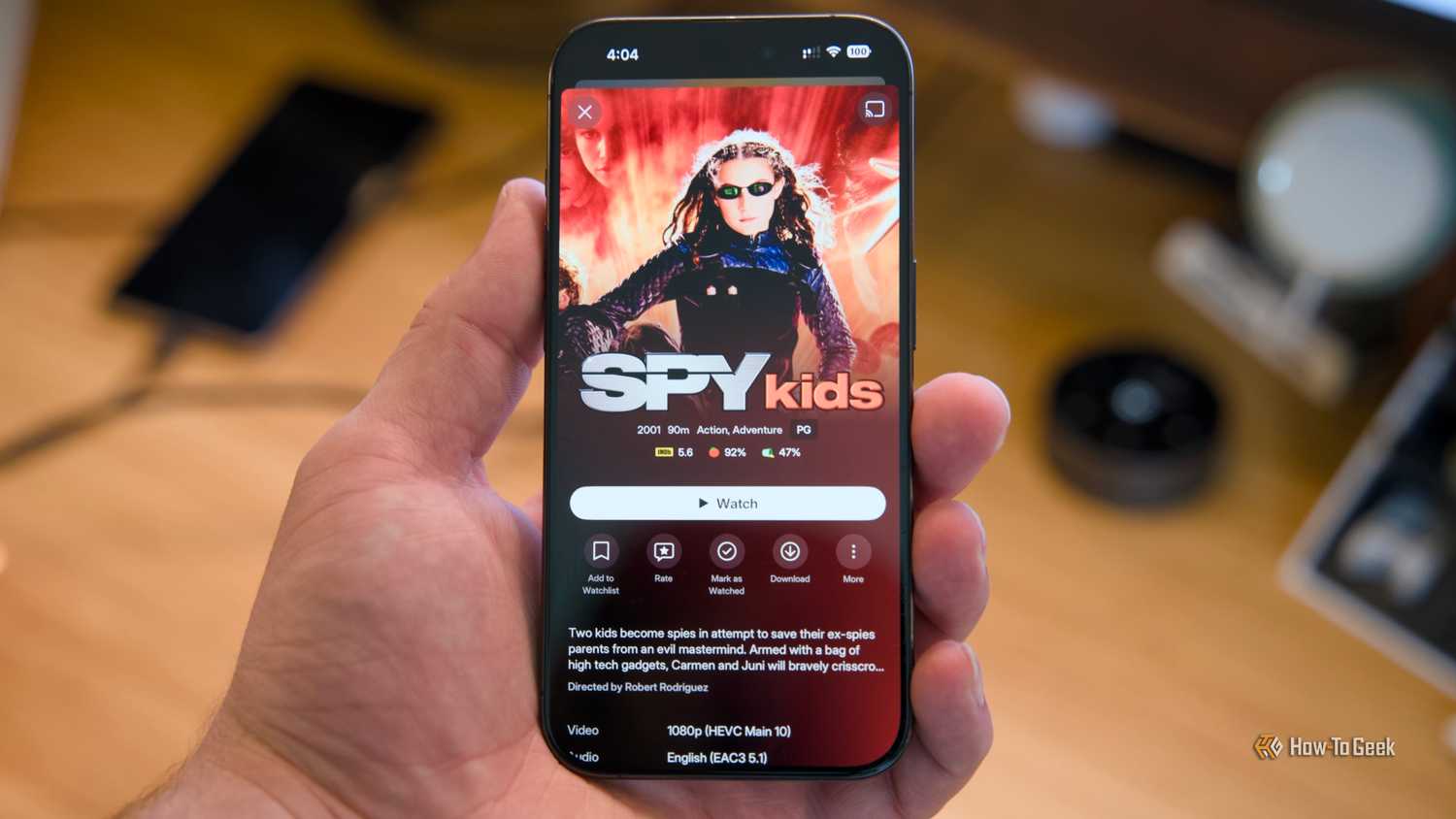
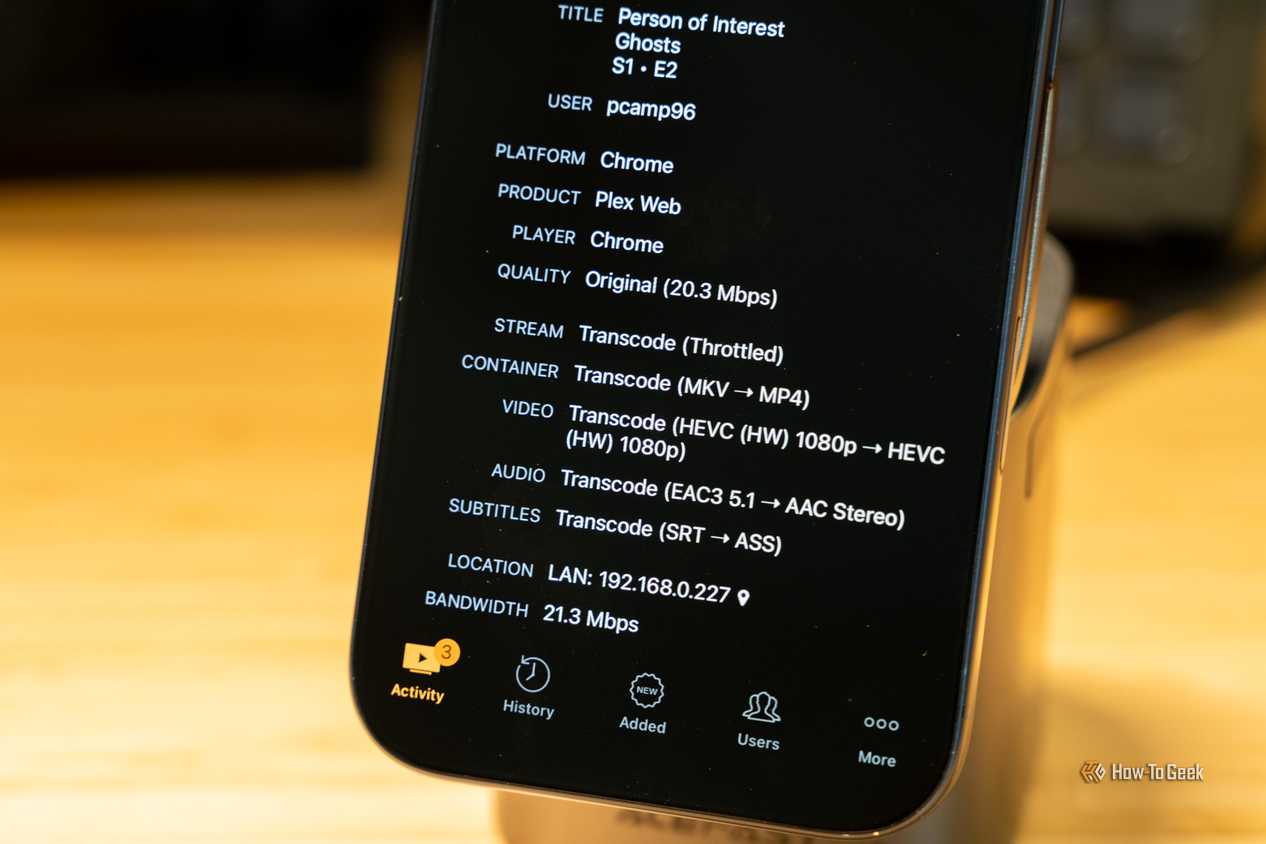
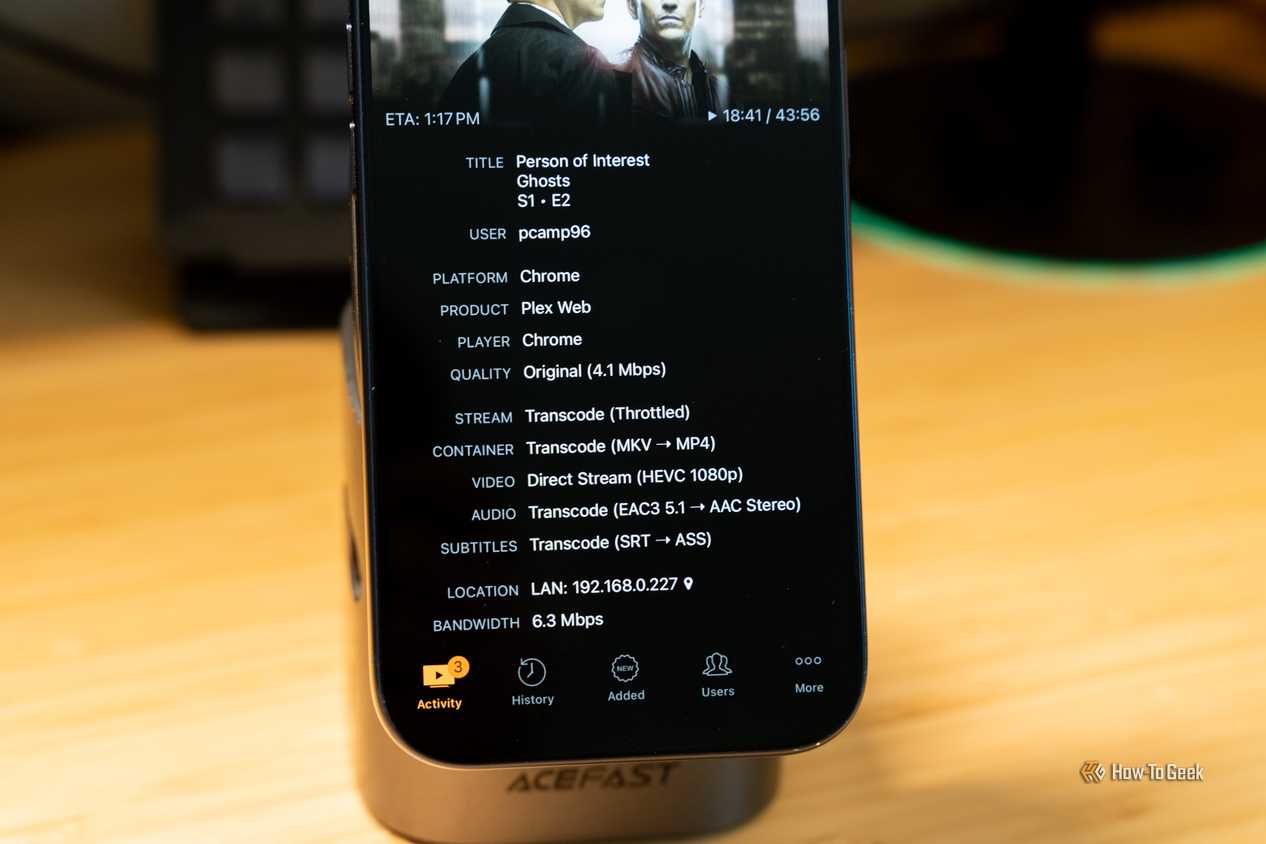




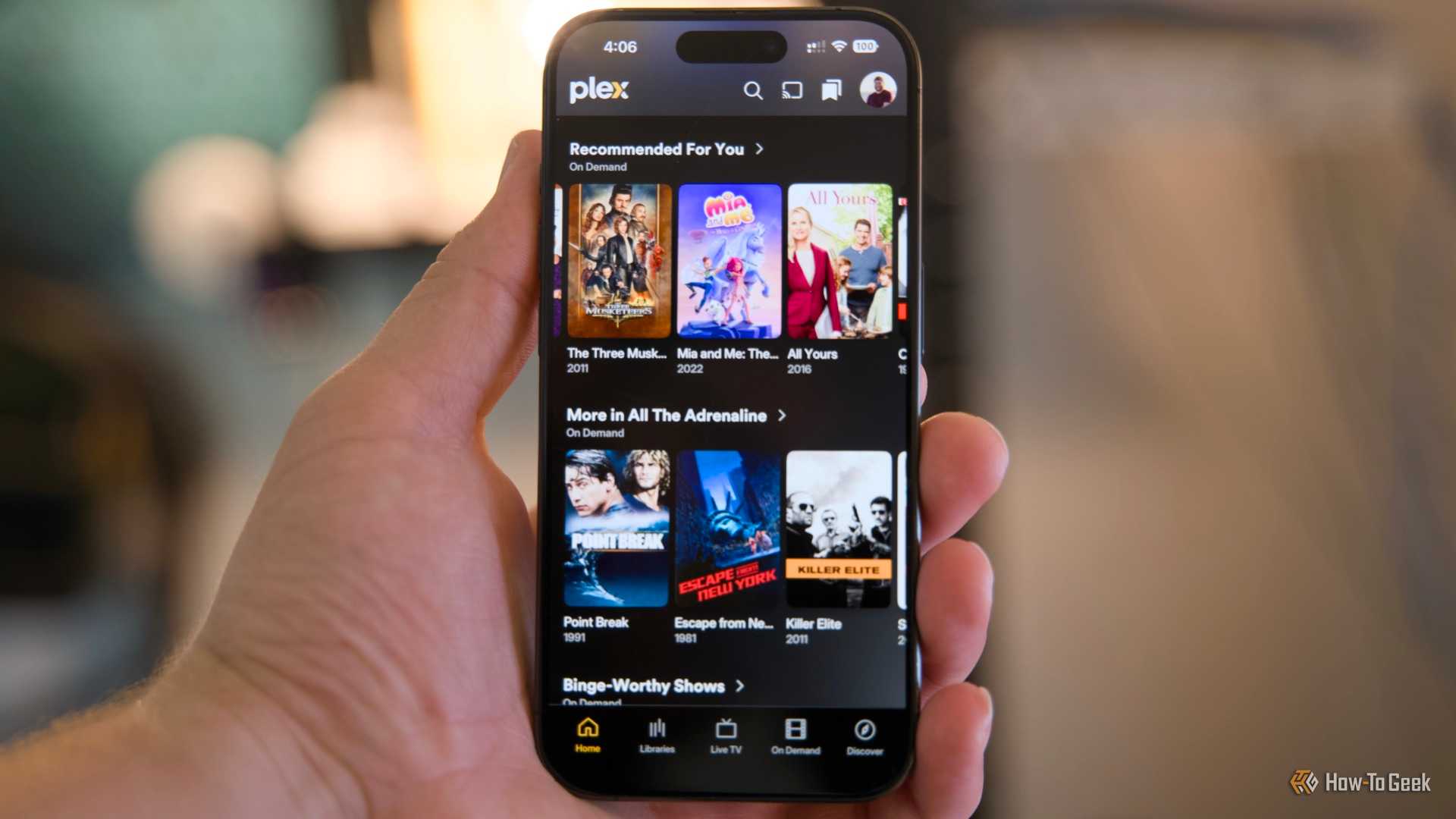
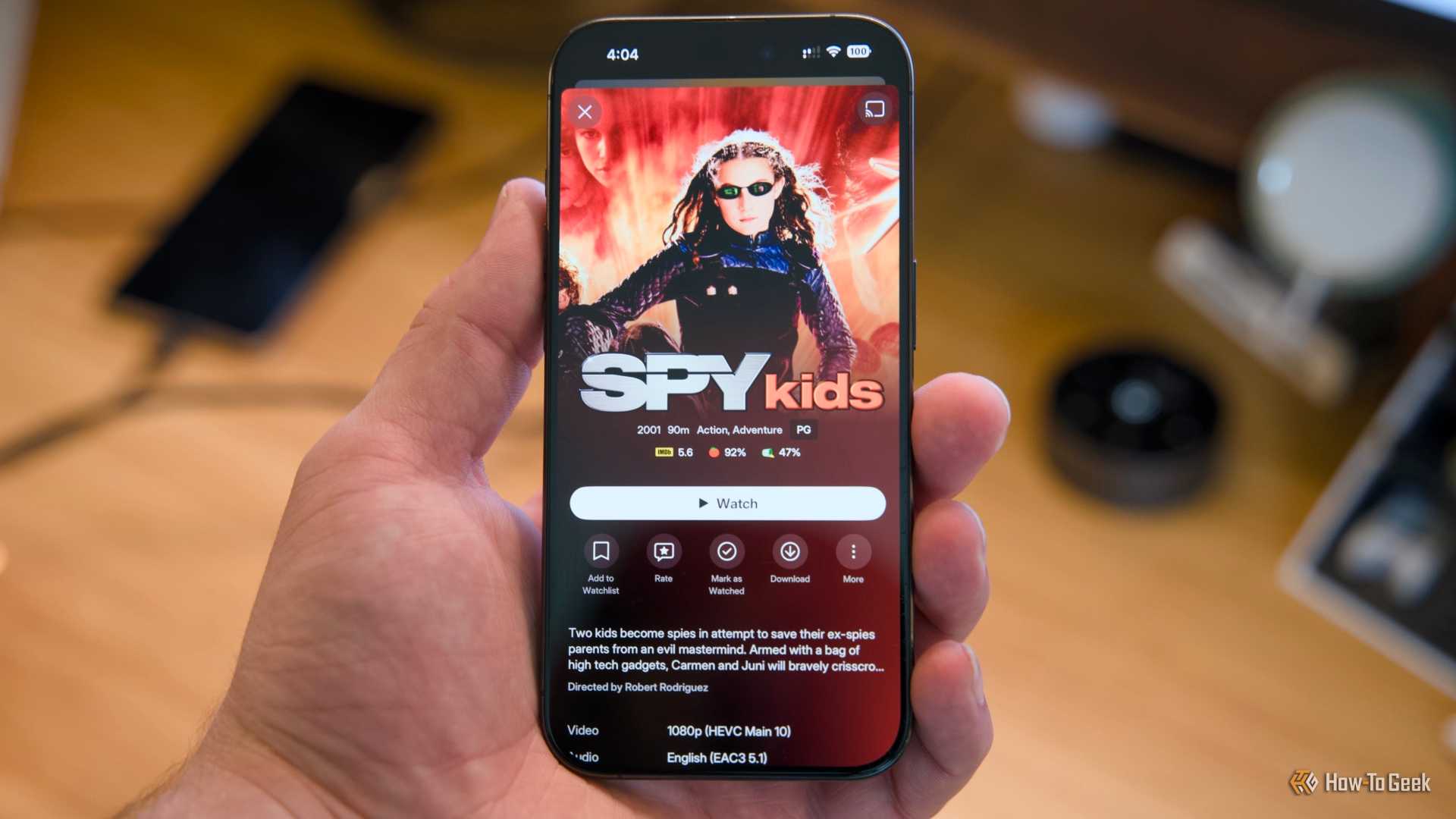

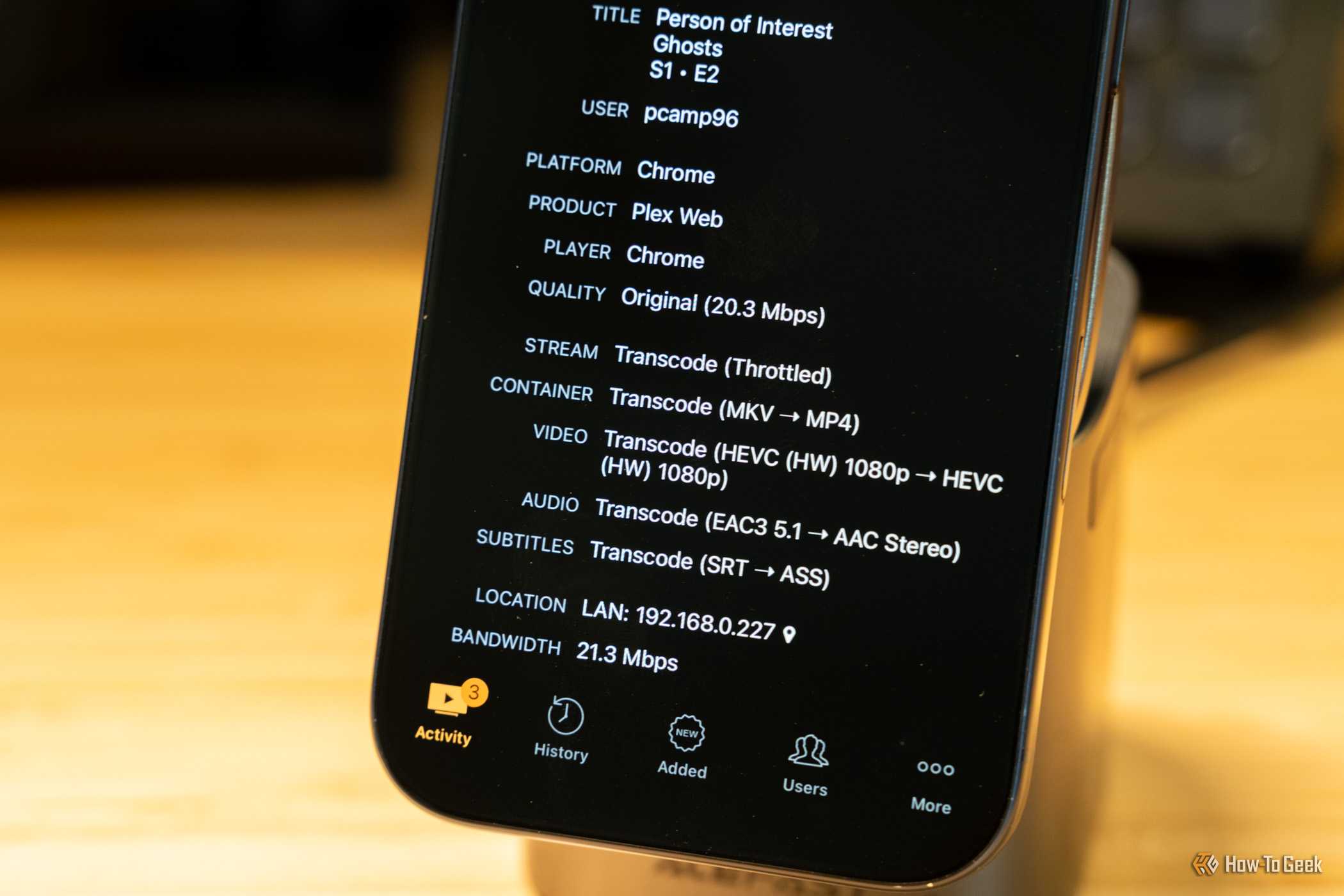






If none of it makes sense to you, it’s worth taking a minute to go over the different ways that Plex can send a video to the “client,” which is what the device playing back the video is called. This can be a web browser, a smartphone, a streaming box, and so on.
When Plex uses Direct Play to send a video to a client device, it’s sending the file as it is on your Plex server’s drive. It works if your client device can decode and play back the video file natively. So it has to support the codecs used to encode the audio and video, and it has to have the processing power to handle the file’s native quality. Direct Play represents the maximum quality that the file can offer, but rather counterintuitively, it requires very little from the Plex Server itself. After all, from the server’s view, it’s really just a network file transfer.
Then there’s “Direct Stream,” which is actually a little confusing at first. You see, a video has a “container” (such as .MKV) and then specific codecs for the actual media, such as HEVC or H.264. Direct Stream is what Plex calls “remuxing.” This is where you take the video, audio, and subtitle data in one container, and just package them in another. This takes a little more processing power from the server than Direct Play, but it’s negligible.
Transcoding is a whole other beast. Here, the server has to perform an on-the-fly re-encoding of the video, audio, or sometimes both. Depending on the quality of the original file and the target encoding quality, that can take a substantial amount of processing power, and such rapidly encoded video will objectively have worse quality than the original.
This is why we tend to treat Direct Play as the target, but maybe being too precious about it is counterproductive?
Sometimes, transcoding just makes sense
Don’t fight it, embrace it
 Credit: Lucas Gouveia/How-To Geek
First, let’s get the sad facts about Plex paywalls out of the way. If you want to use the iGPU or dedicated GPU in your Plex server to do the transcoding, you need to pay for a Plex subscription or buy a lifetime pass. Most GPUs will absolutely shred this job, and you’ll never have to worry about it, but access to your own hardware is locked behind a paywall. If you don’t want to pay, you’ll have to rely on the regular CPU cores on your server to do the job. Whether they are up to it depends entirely on the workload and the per-core performance.
However, remote streaming of your Plex library outside your home network is one of the prime situations where transcoding makes sense. Unlike your home network, you have no control over the bandwidth out in the world, so your server has to adapt on the fly. However, remote play is also a subscription feature, albeit one that you can pay for separately and as part of a Plex Pass. I’d say if you were paying for remote streaming anyway, you might as well pay for hardware-accelerated transcoding.
The other two situations where transcoding is perfectly acceptable are when you’re using a client device with too little horsepower to handle the original file quality or the client device just doesn’t understand the format the video or audio uses. While it might be worth it to hand re-encode one or two files, believe me when I say that it’s not worth processing long queues of files on your PC for transfer to your Plex server later. Just take the small quality dip on the chin, and enjoy your extra free time.
The Plex Media Optimizer might be the solution you’re looking for
As per the official Plex documentation, the Media Optimizer “pre-transcodes” media into various quality levels and formats. So, while your Plex server is idle, it will convert video files so that they can be streamed without the real-time processing power needed to do so smoothly.
If you’re not willing to pay for hardware-accelerated transcoding, and your Plex server’s CPU is too slow to handle it, it could be an easy way to get around it. The catch? Obviously, having multiple copies of the same video file at different quality levels takes up more storage space. However, it might not take up as much as you think, since those lower-quality encodes can take up much less space than the high-quality original. If you’re high on storage but low on processing power, this is one way to work around the problem without spending extra money. Also, you can be selective about which videos get this treatment.