AI tools have made it possible for almost anyone to do incredible things with hardware they already own. Tools such as Claude Code and Codex can look at the code running on devices and create new software to make those devices do new and wonderful things.
I saw a couple of examples on Reddit recently where people had managed to use ordinary AirPods as a way to control the pointer on a Mac. I decided to give them a try to see if it could really work.
How an AirPods case can act as a pointing device
Motion sensors are already built in
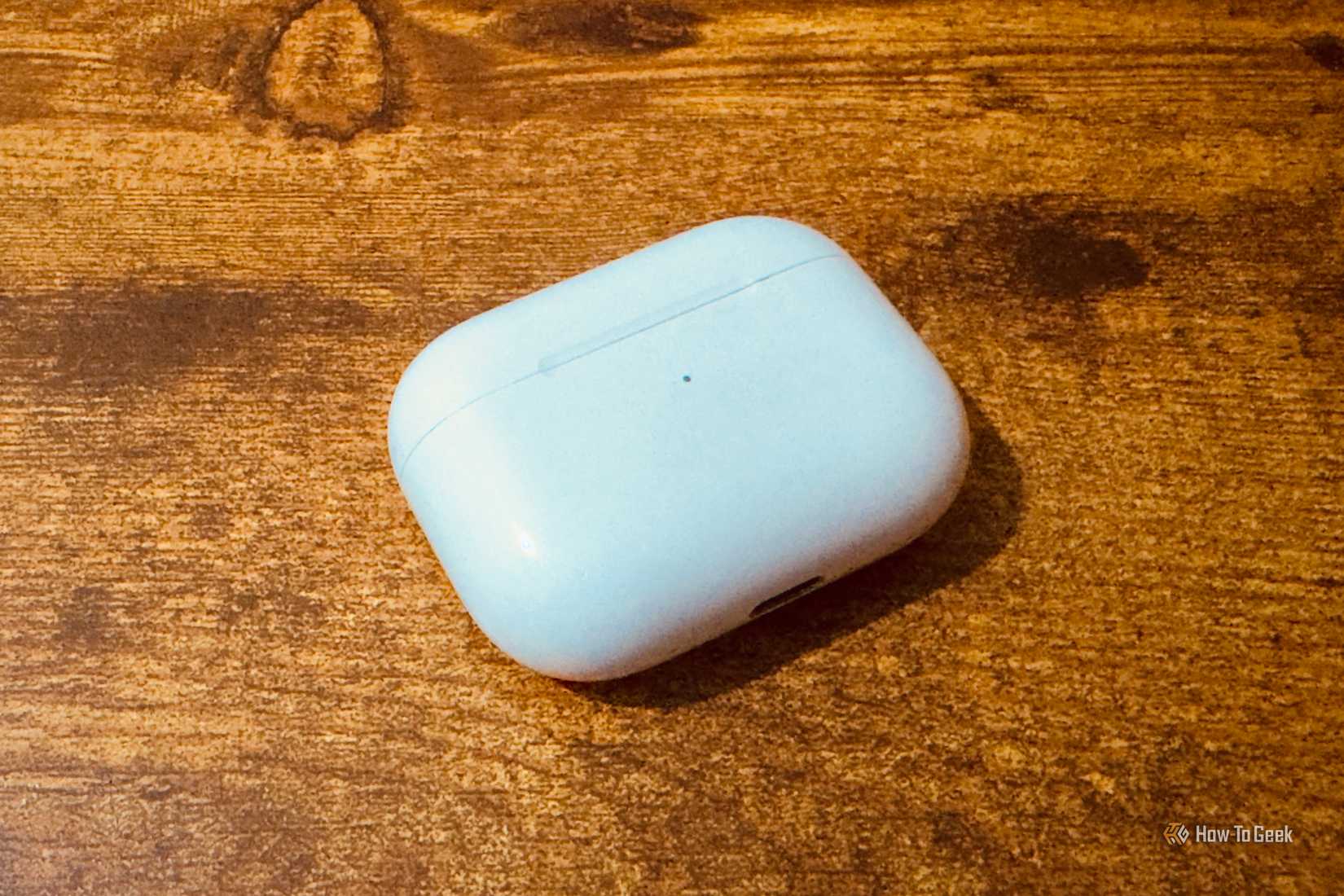
At first, the idea seems insane. How could you control your Mac’s pointer with your AirPods? However, the idea isn’t quite as crazy as it sounds.
Modern AirPods have motion sensors built into them. These sensors enable features such as Spatial Audio, where the direction of the sound through your AirPods can appear to remain the same, even as you turn your head.
This motion sensing is what powers the apps that can use your AirPods to move your pointer. One app uses the AirPods when they’re in your ears, and the other tracks their motion when they’re inside the case, effectively making it seem as if it’s the position of the case being tracked.
All these apps are really doing is taking the positional data that the AirPods already collect and putting it to a different use. It’s a clever idea, so I wanted to see if it could really work.
AirCursor uses head tracking to move the pointer
Selecting by nodding isn’t ideal
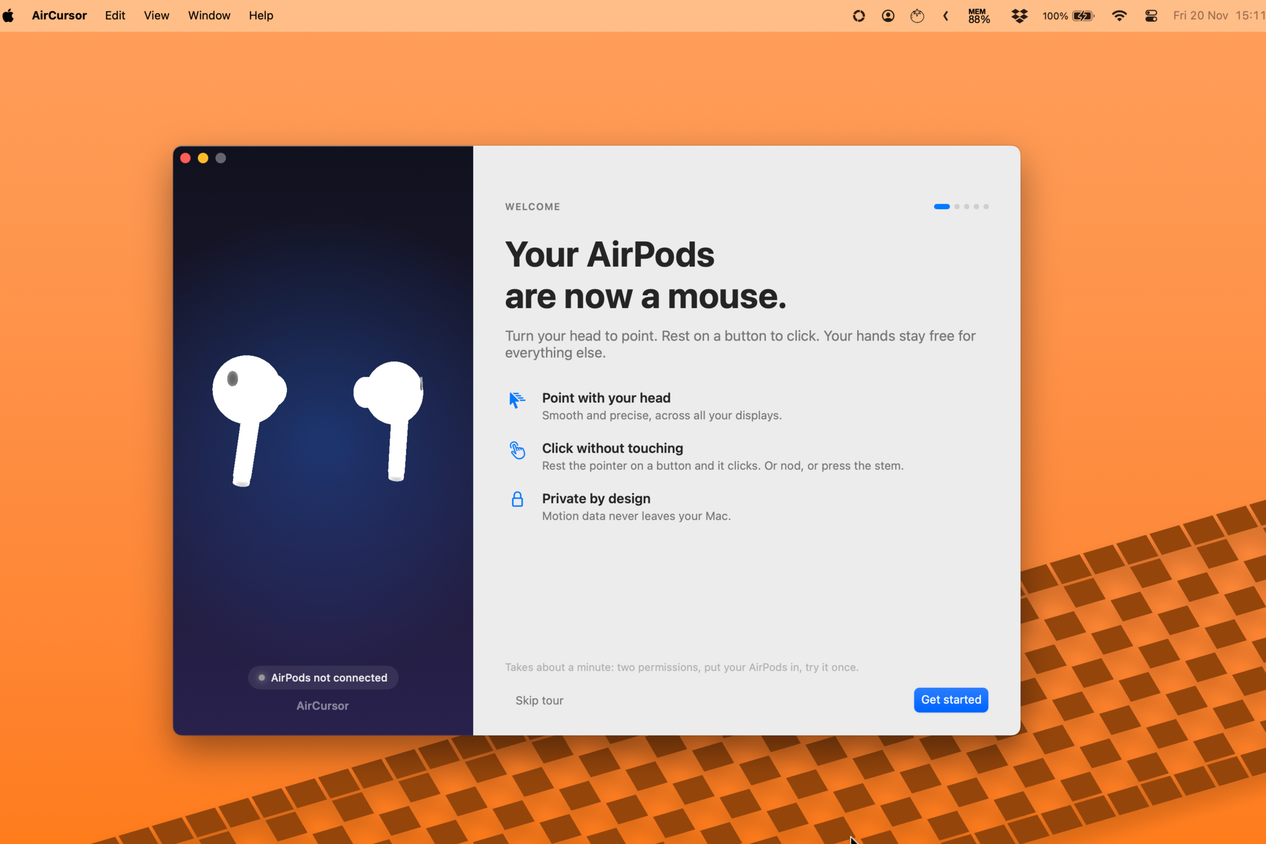


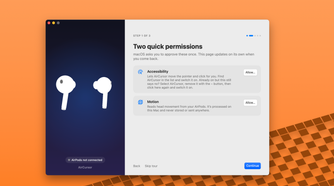

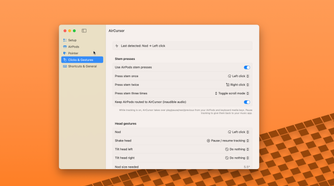

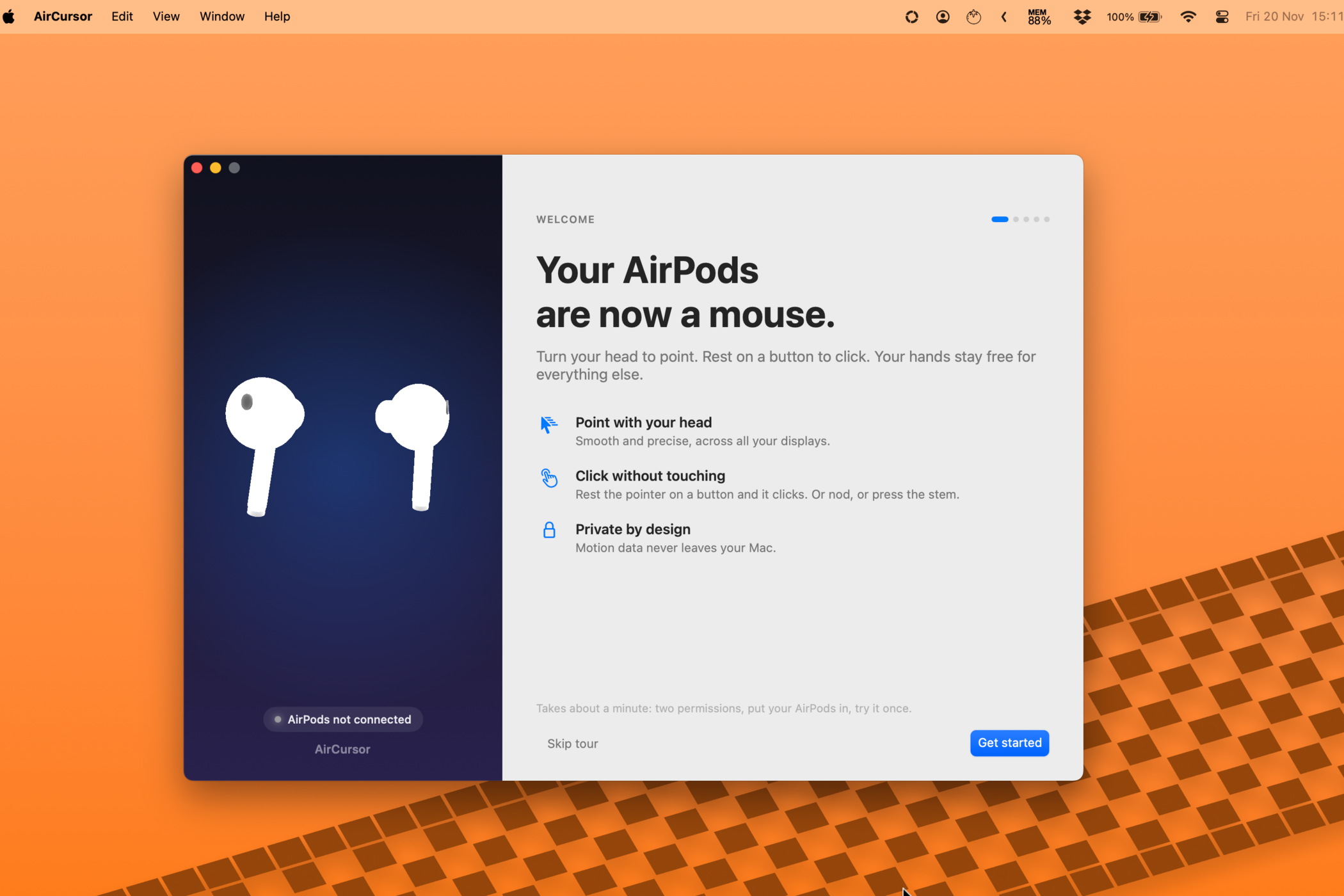
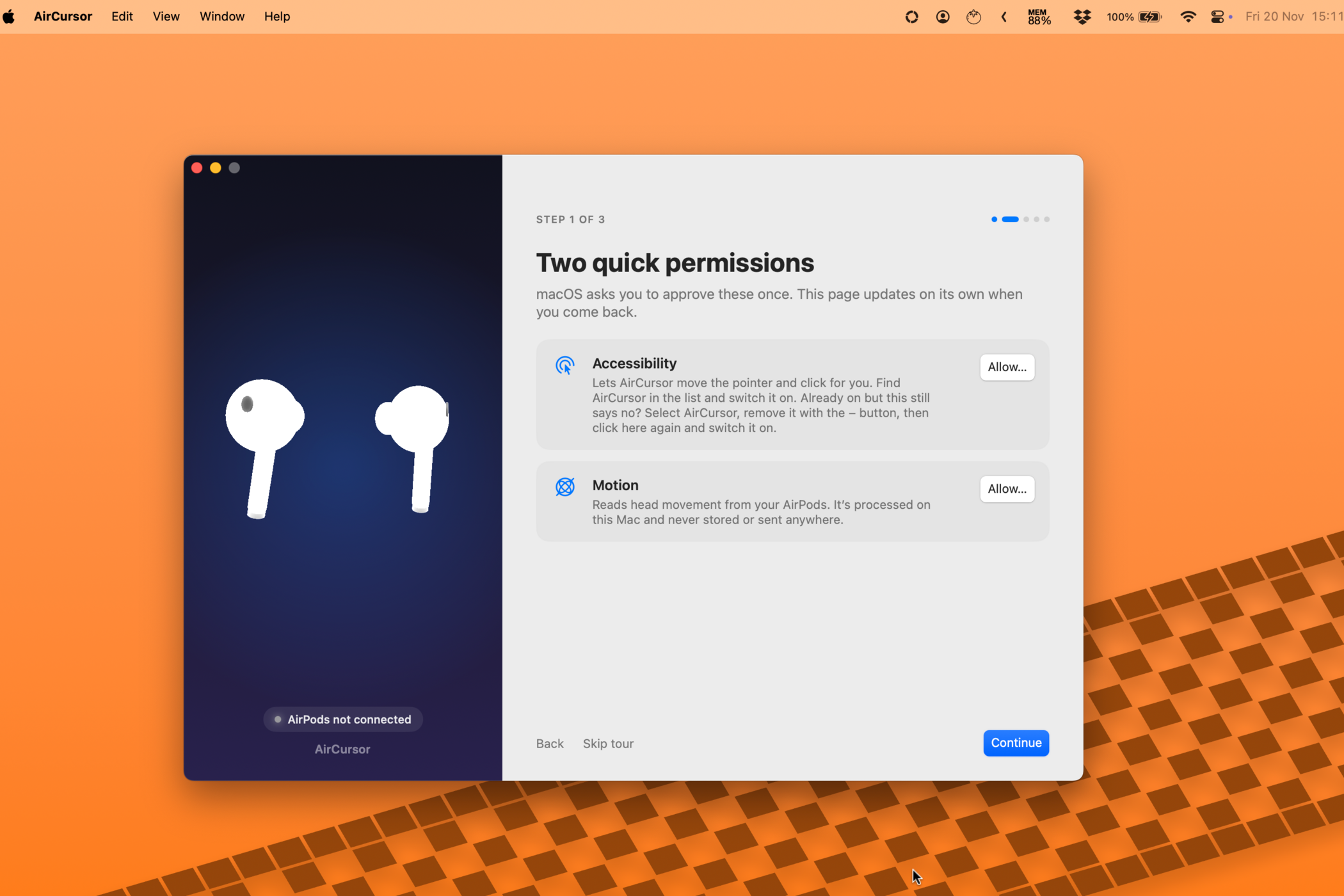


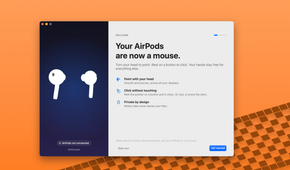
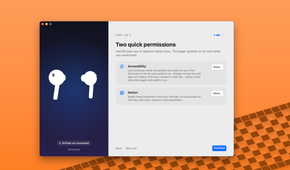

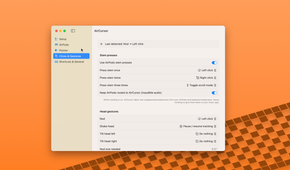

Setting up AirCursor was fairly simple to do. You need to grant the app Accessibility permission, which allows it to take control of the pointer. You also need to allow it to read head movements from your AirPods.
Once you’ve granted those permissions, you can use your AirPods in your ears to control the pointer. Moving your head around moves the pointer, and dwelling on a particular thing such as a file or a button selects it.
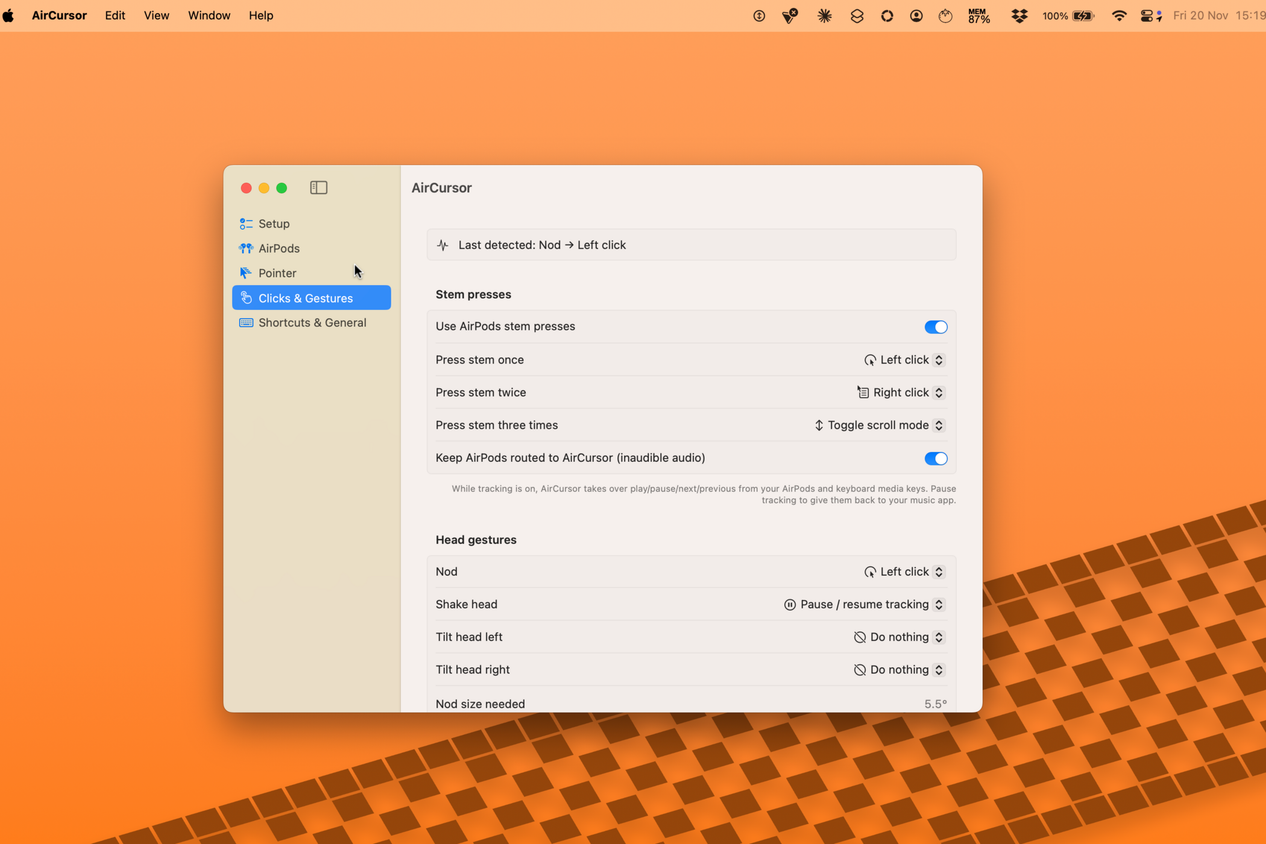
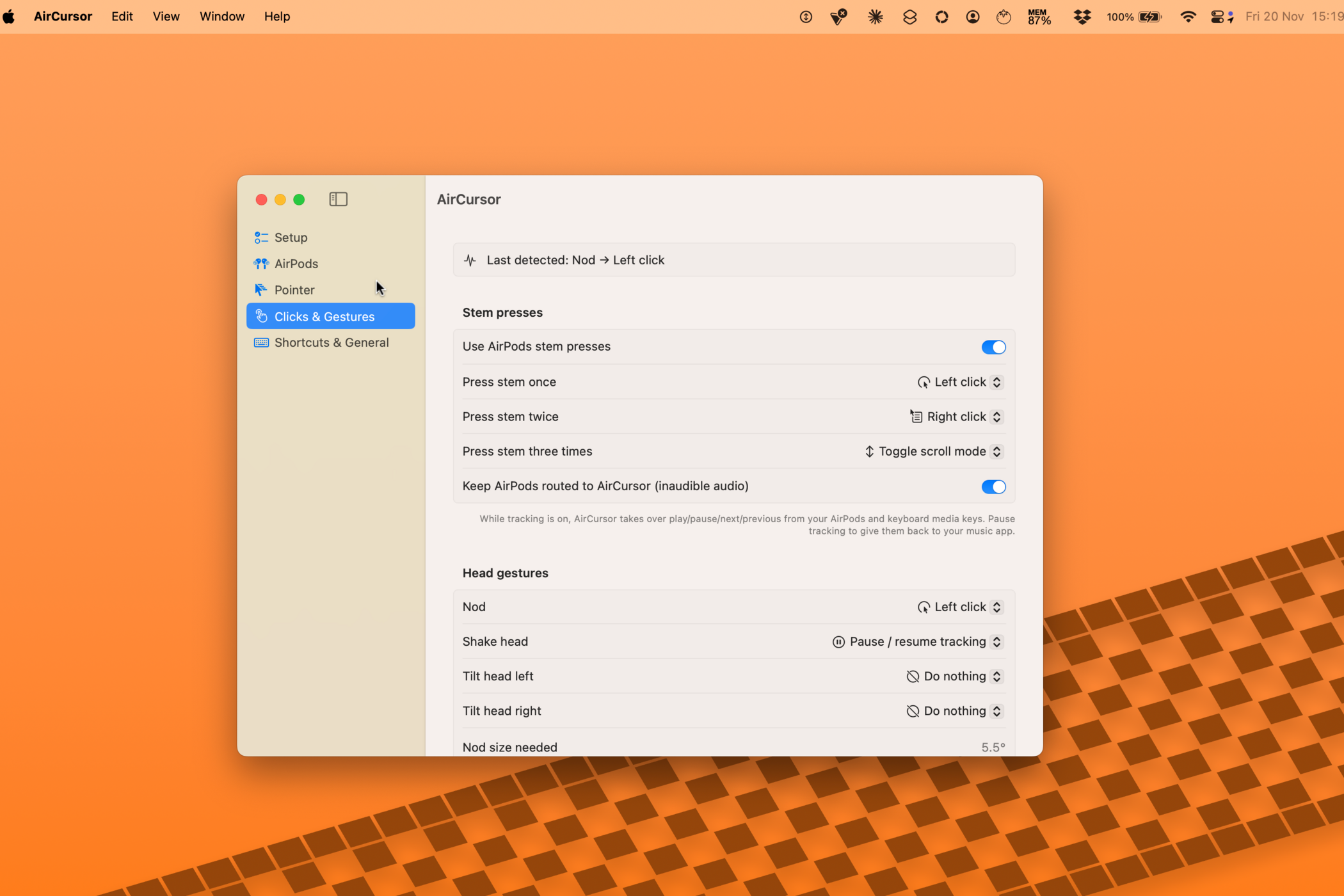
You can also replace this dwelling method with a nod. Nodding your head acts the same as a click, remembering where the pointer was before you started the nod so that it doesn’t click the wrong thing. It works, but it’s awkward to use, as is the third option of pressing the AirPod stem.
What I found more useful was the option to use head tracking for scrolling instead. You control the pointer as usual, but if you want to scroll, you move your head up and down. This felt far more natural.
AirPointer takes the idea one step further
The case is the pointer, and you can tap it to click
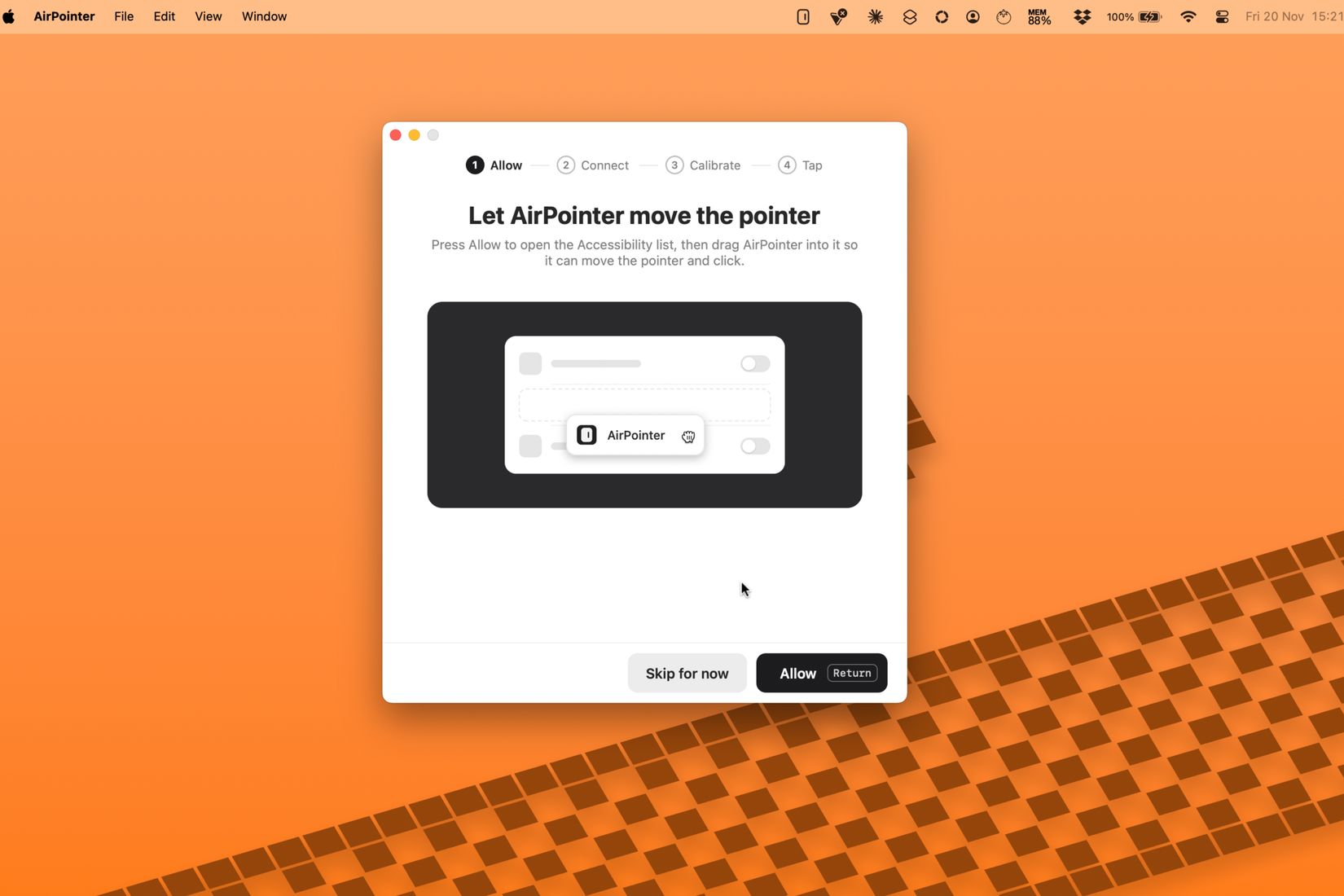
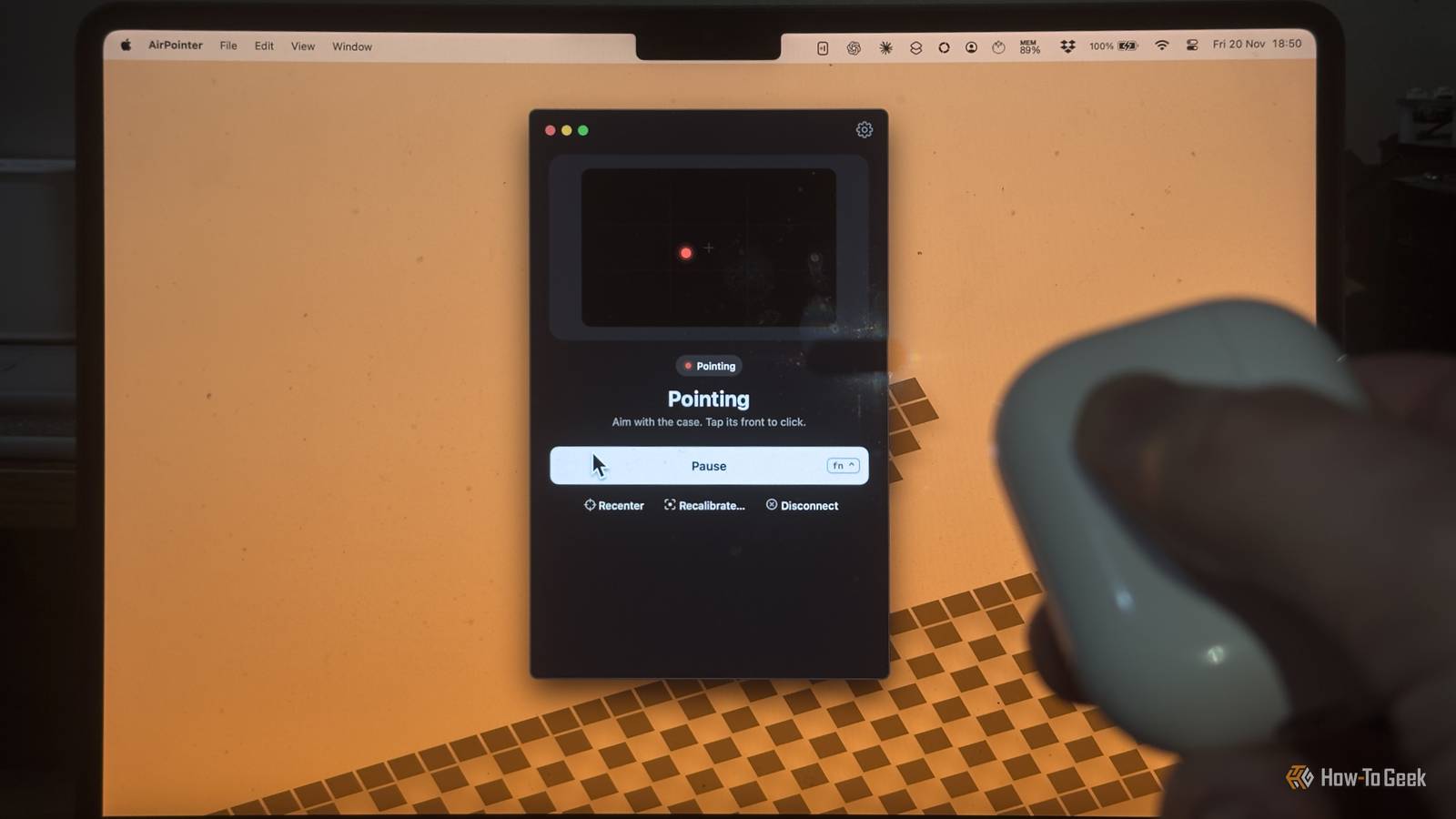
AirCursor relies on your wearing your AirPods in your ears and moving your head. AirPointer allows you to use them when they’re inside the charging case. You can then move the case around in your hand to move the pointer across the screen.
When you want to select something, all you need to do is tap the case to click. The motion of the tapping action is translated into a command to click whatever you’re pointing at.
Setting this one up was a little more challenging. For some reason, my AirPods kept disconnecting throughout the setup process. You need to connect the AirPods, then point at three different regions of the screen to calibrate the pointer position and finally tap the case three times to teach the app what your tap feels like.
I finally managed to get through the setup and was able to move the pointer by waving the AirPods case around and click by tapping the case. It’s pretty crazy that my Mac’s pointer was being controlled purely by waving my AirPods case around.
The concept works, but I won’t be selling my mouse any time soon
The AirPod mouse isn’t that easy to use
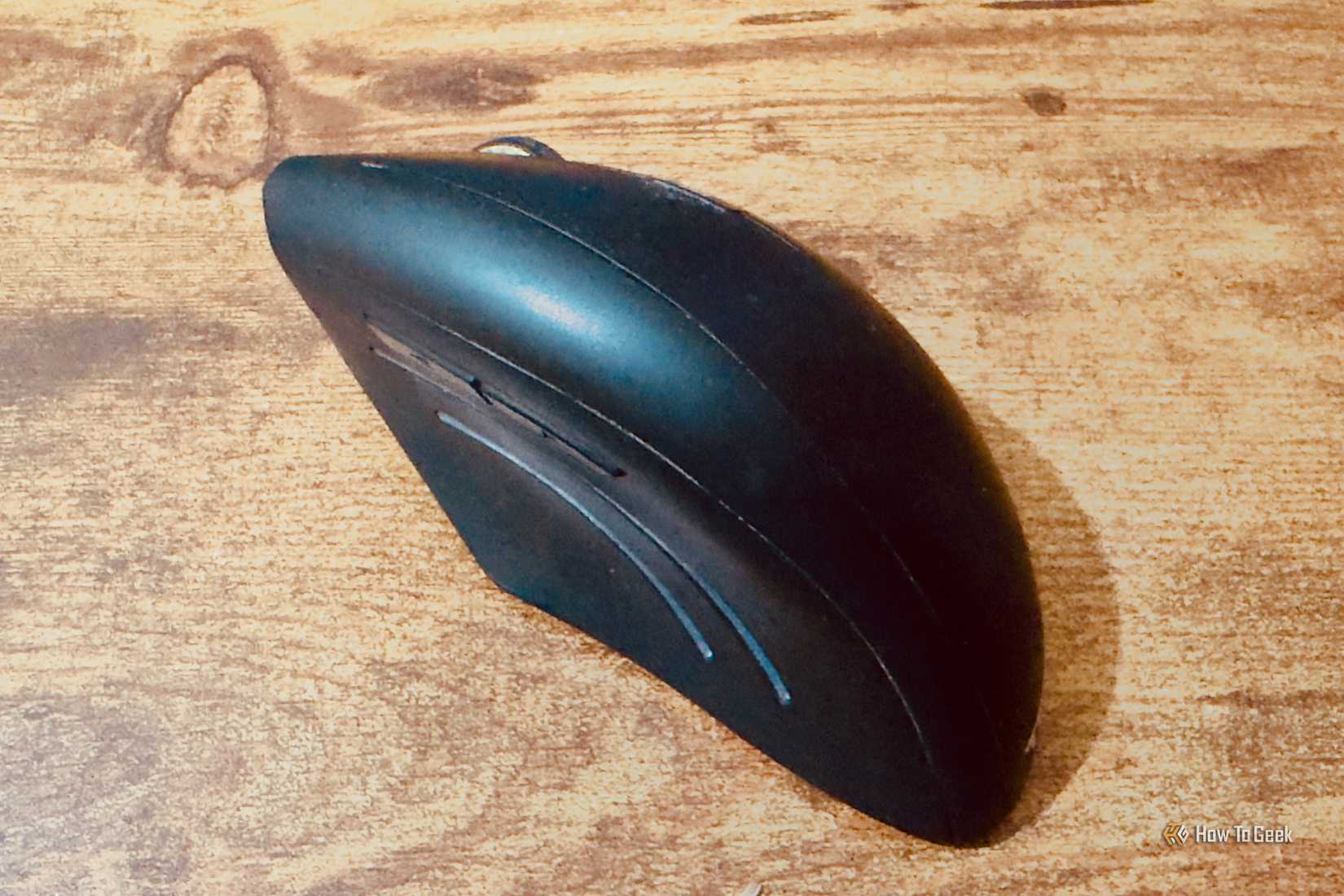
When I see someone demonstrating something on Reddit, I always take it with a pinch of salt. However, having tested both AirCursor and AirPointer, I managed to get both of them working with my second-generation AirPods Pro.
This is really more of a proof of concept than anything else, however. Using both apps to control my Mac was far from ideal; AirCursor made it hard to select items accurately without waving my head around, and it was tricky to select the exact thing I wanted to click using AirPointer.
The reality is that I won’t be using either method to control my Mac in the future. That doesn’t stop both ideas from being very cool.
Vibe-coding is allowing us to do more with the hardware we already own
Whether you’re a fan of vibe-coding or you detest it to the bottom of your soul, it’s allowing people to add new features to hardware that they already own. I’ve added a ton of great features to my rooted TV, from a dialogue recall system to my own teletext service. It’s genuinely amazing what’s possible.