Overclocking used to be a hobby reserved for enthusiasts willing to sink hours into tweaking voltages and clock speeds before testing stability to squeeze every last bit of performance out of their hardware.
Over the years, overclocking has become considerably more accessible, and we’ve now reached a point where you can overclock your whole PC with just a few simple tools. They take all the guesswork out of overclocking, allowing you to achieve meaningful performance gains with a few simple clicks.
Overclocking your hardware may void your warranty, and it carries some risk of instability or permanent damage. Check your manufacturer’s warranty terms and proceed at your own risk.
The Nvidia App takes the guesswork out of GPU overclocking
Nvidia makes automatic GPU tuning surprisingly simple
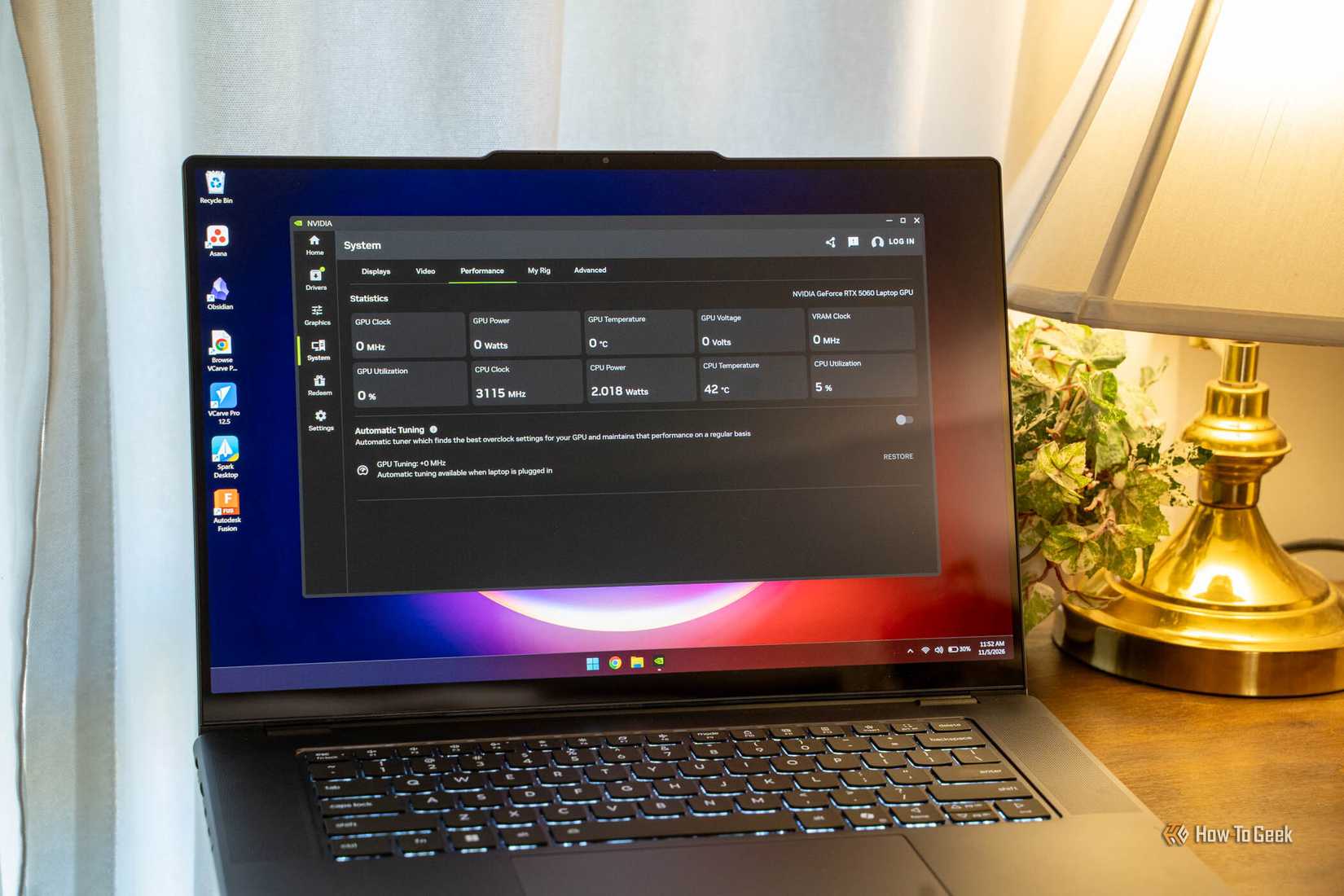
Overclocking your graphics card is often the single best and easiest way to get more performance in games for free. Thankfully, Nvidia has finally embraced overclocking in its first-party Nvidia App.
Most gamers typically use this app to adjust their various DLSS settings, but there’s also a one-click overclocking feature called Automatic Tuning. It can take up to 20 minutes to scan your hardware before determining a suitable GPU overclock. You can set your preferred voltage, power, maximum temperature, and fan speed targets to fine-tune how the card behaves.
It applies a very conservative tune designed to keep your graphics card within its thermal and power limits, and apparently it doesn’t void your warranty either. The actual performance benefits from this app are fairly modest compared to what you could achieve with a manual overclock (expect a performance boost of under 5%), but it’s still absolutely worth doing because it’s free performance.
AMD Adrenalin has everything you need to tune a Radeon GPU
It’s as easy as it gets
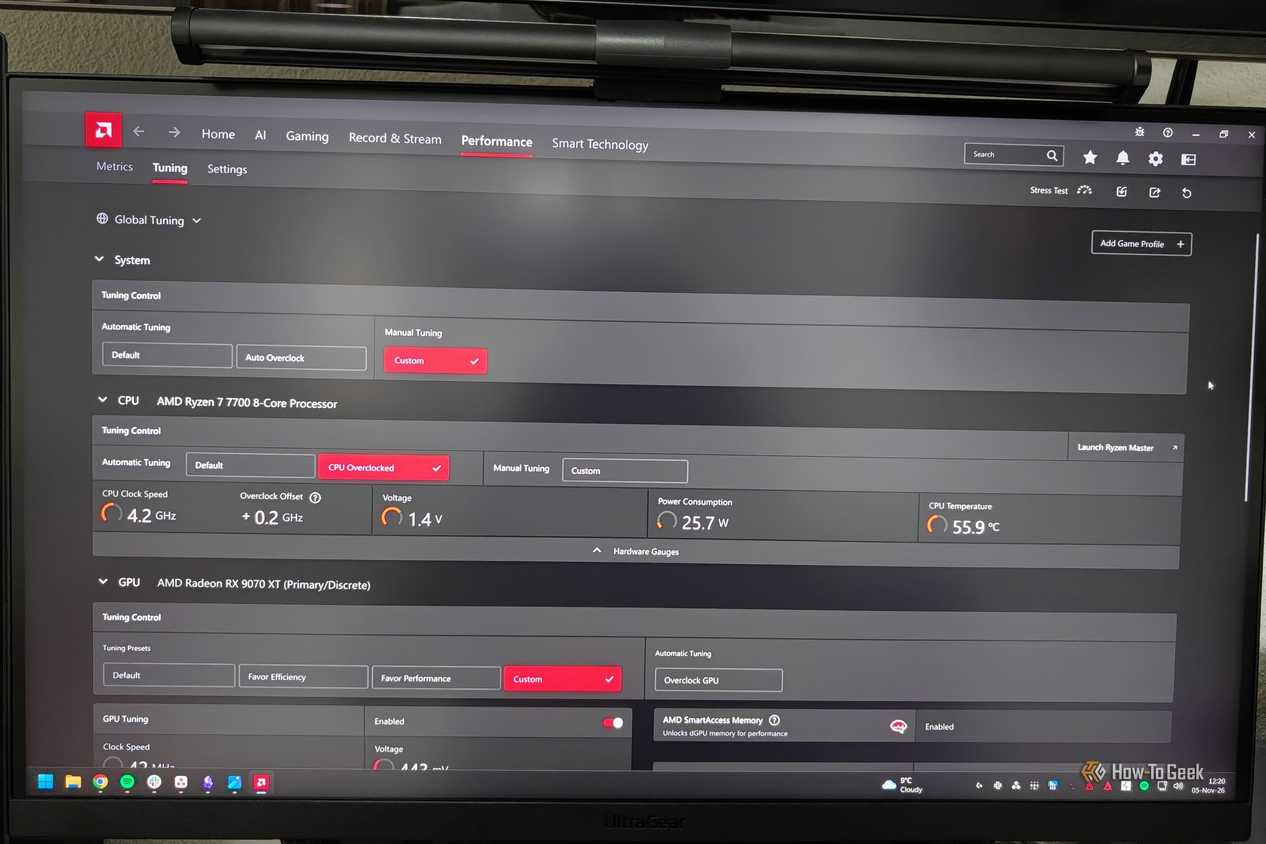
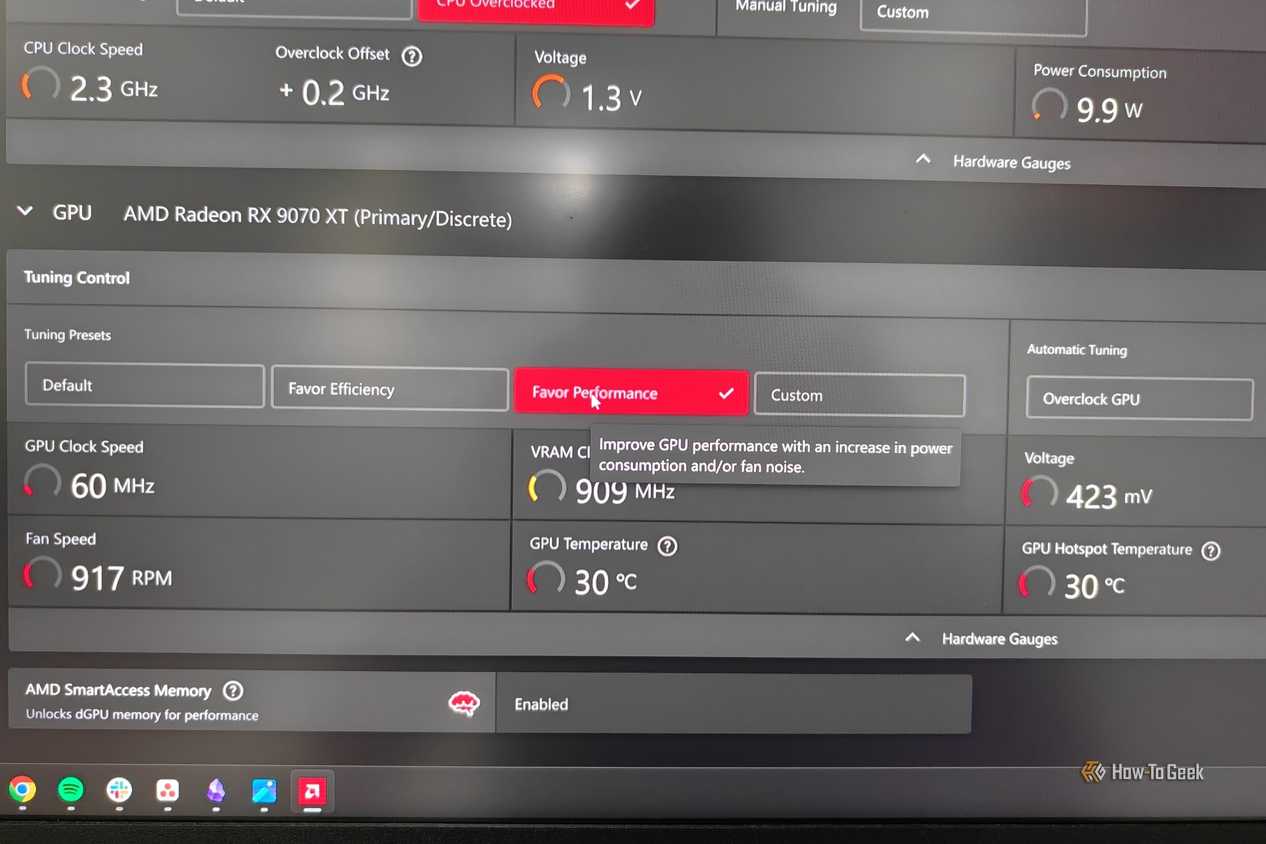
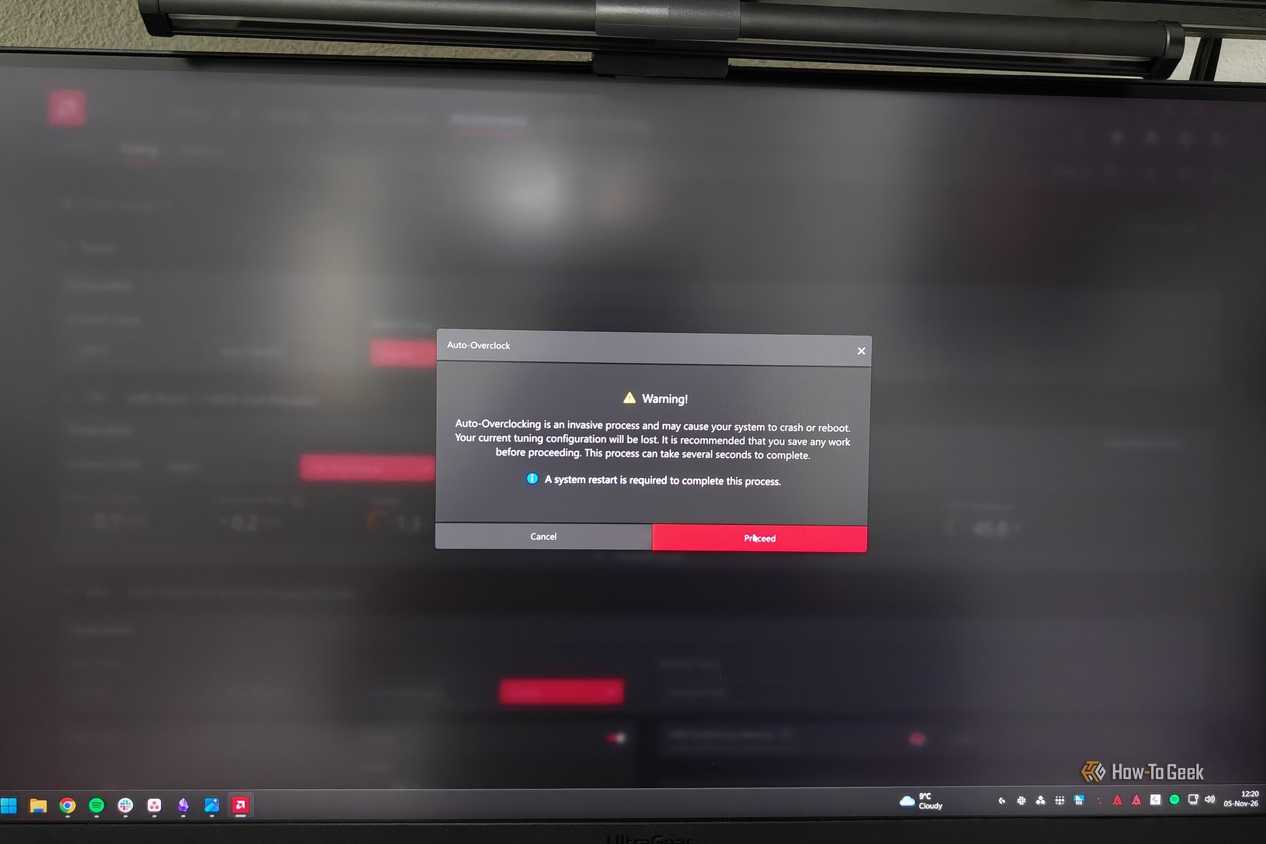
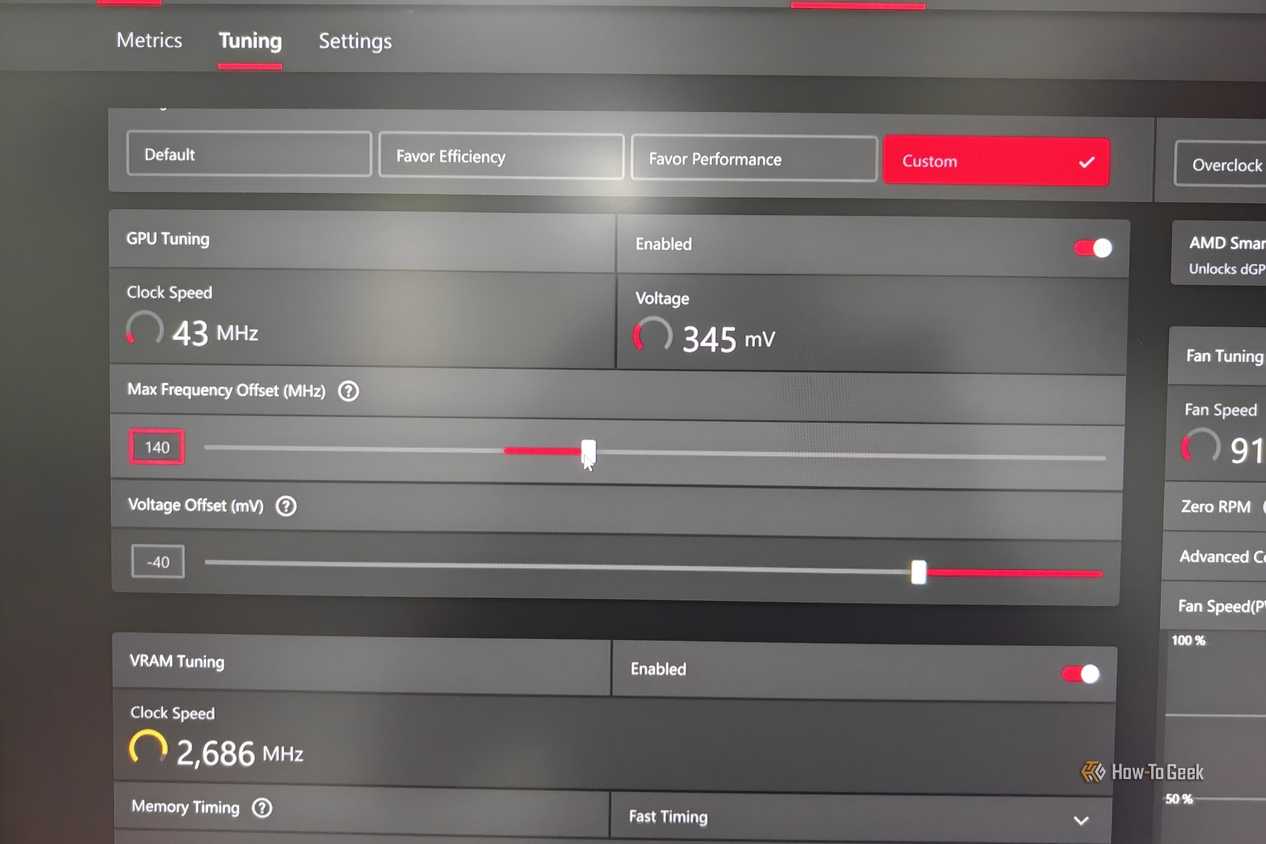
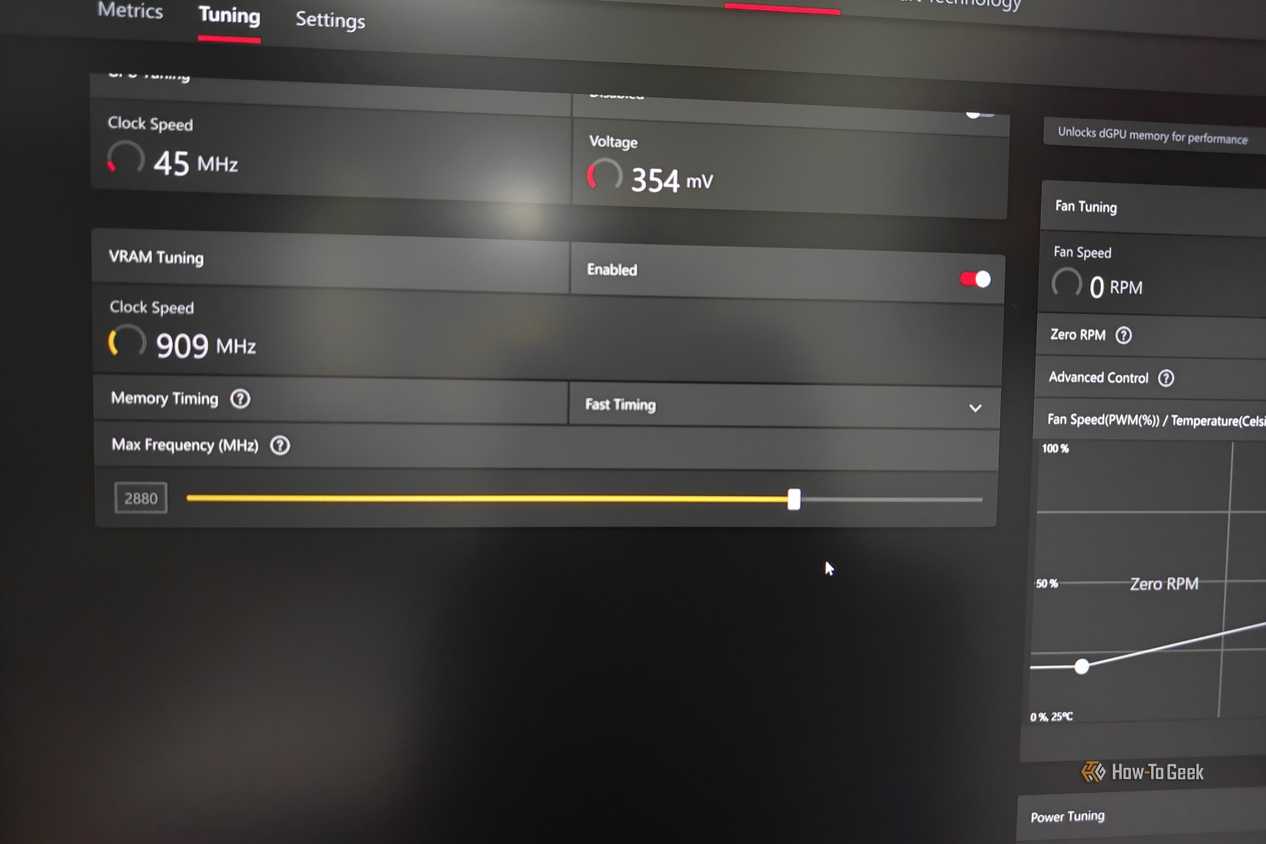
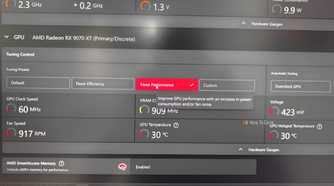
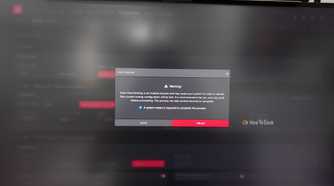
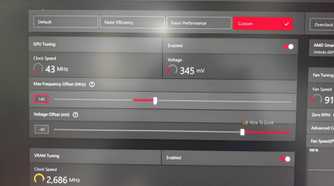
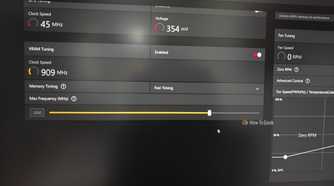
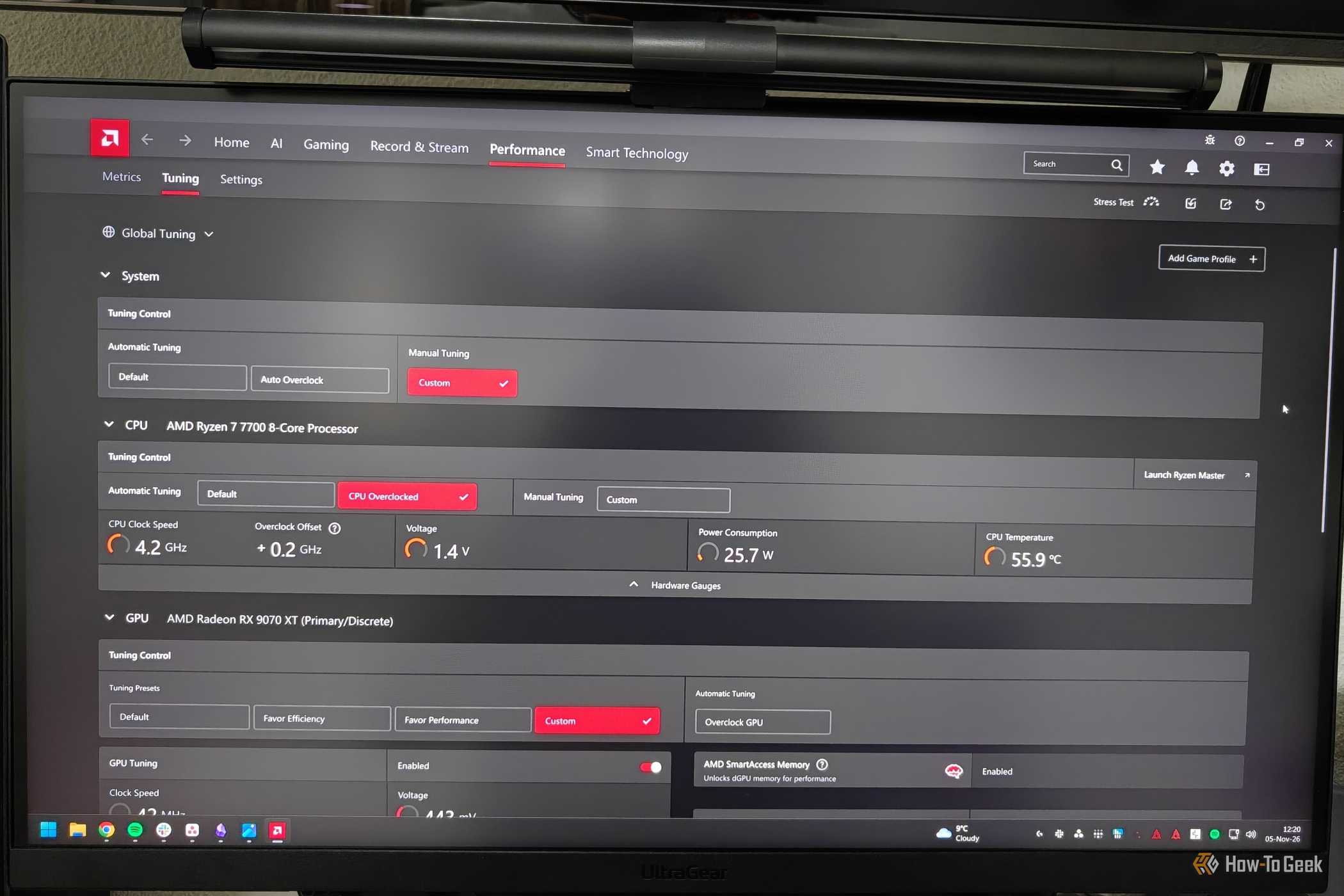
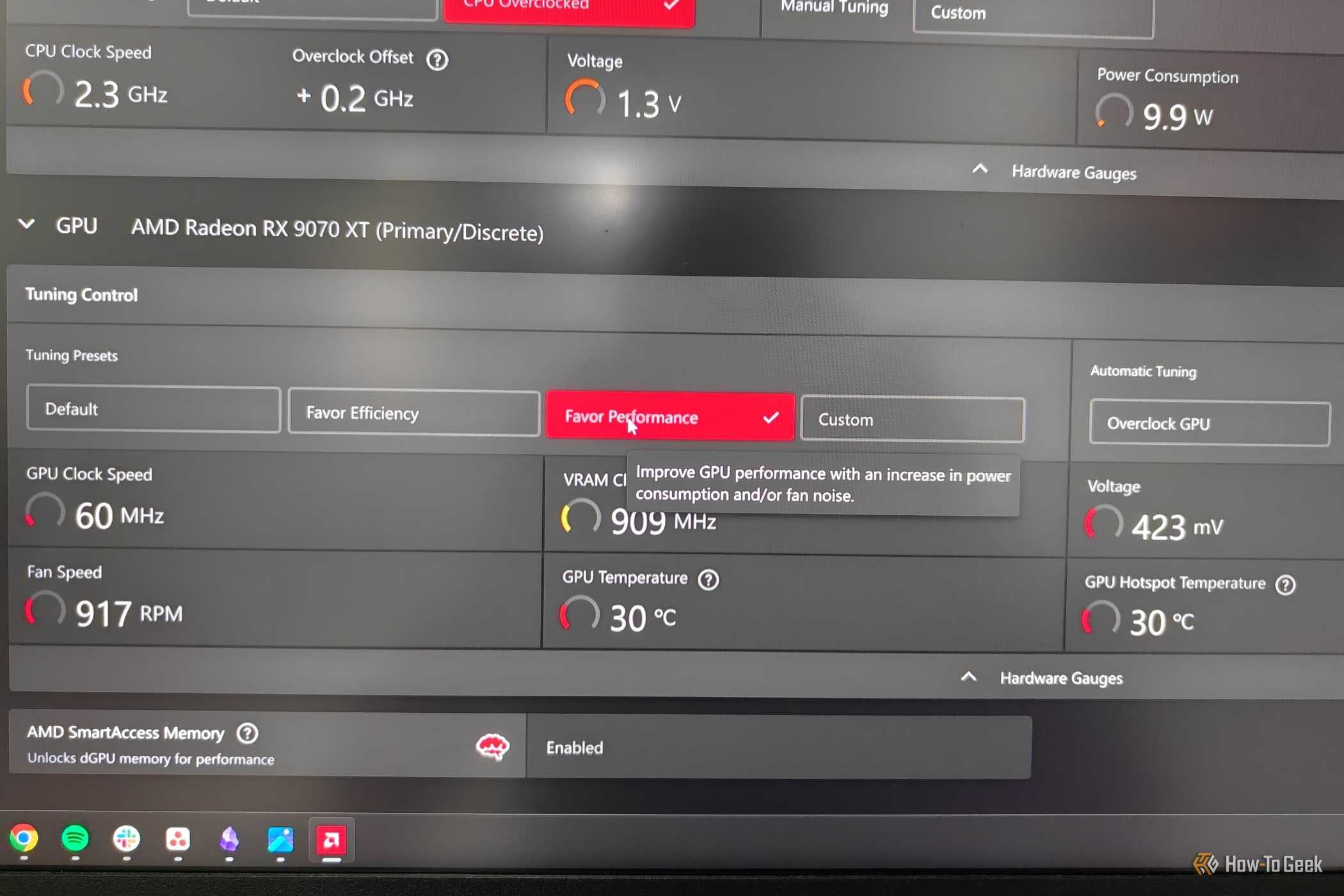
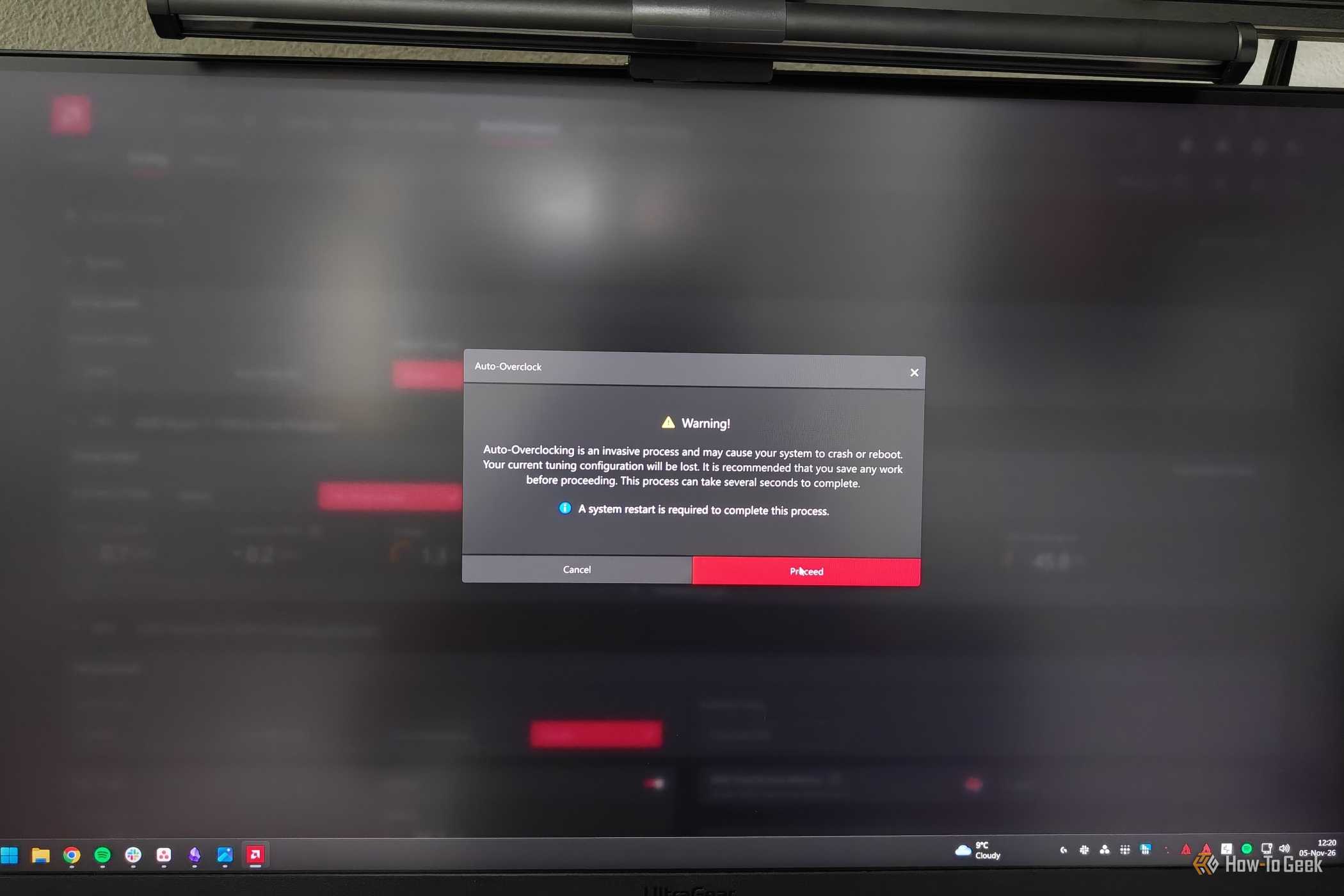
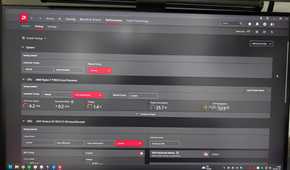
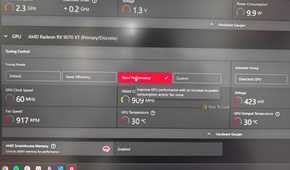
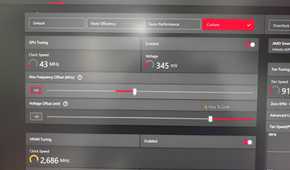
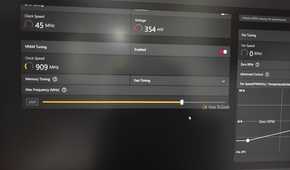
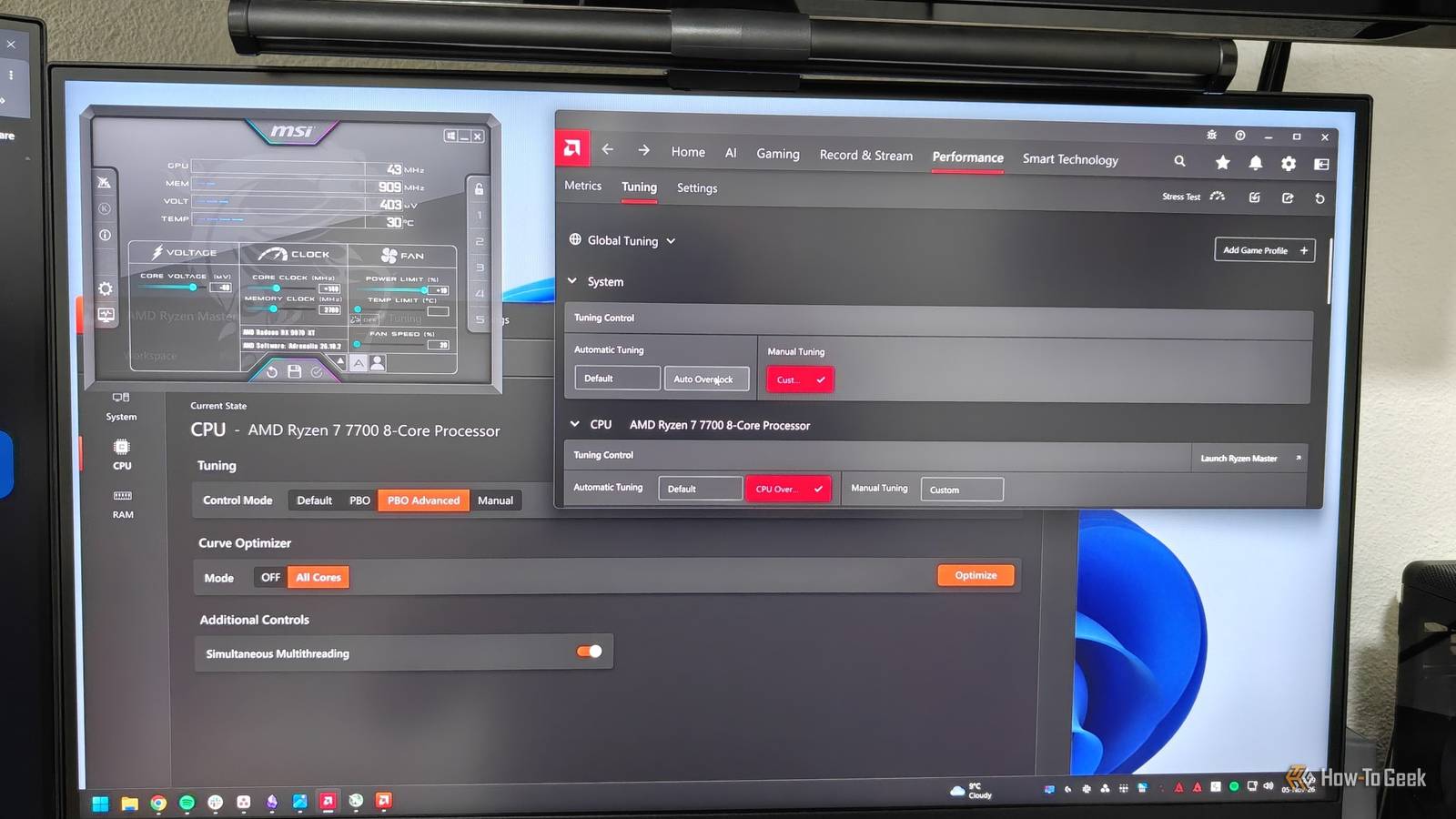
Just like Nvidia, AMD offers a similar one-stop shop for GPU overclocking in AMD Software: Adrenalin Edition. In fact, AMD beat Nvidia to automatic overclocking by several years, as the first version of the feature launched in late 2018 with the built-in Radeon WattMan tool, whereas Nvidia’s first auto-overclocking feature came out in 2021.
Despite being a first-party overclocking solution like Nvidia’s, AMD’s performance menu is actually significantly more advanced.
There’s the one-click Overclock GPU option and a few other automatic options, including Undervolt GPU and Overclock VRAM, which offer a similar, modest performance boost or improved efficiency compared to Nvidia’s Automatic Tuning.
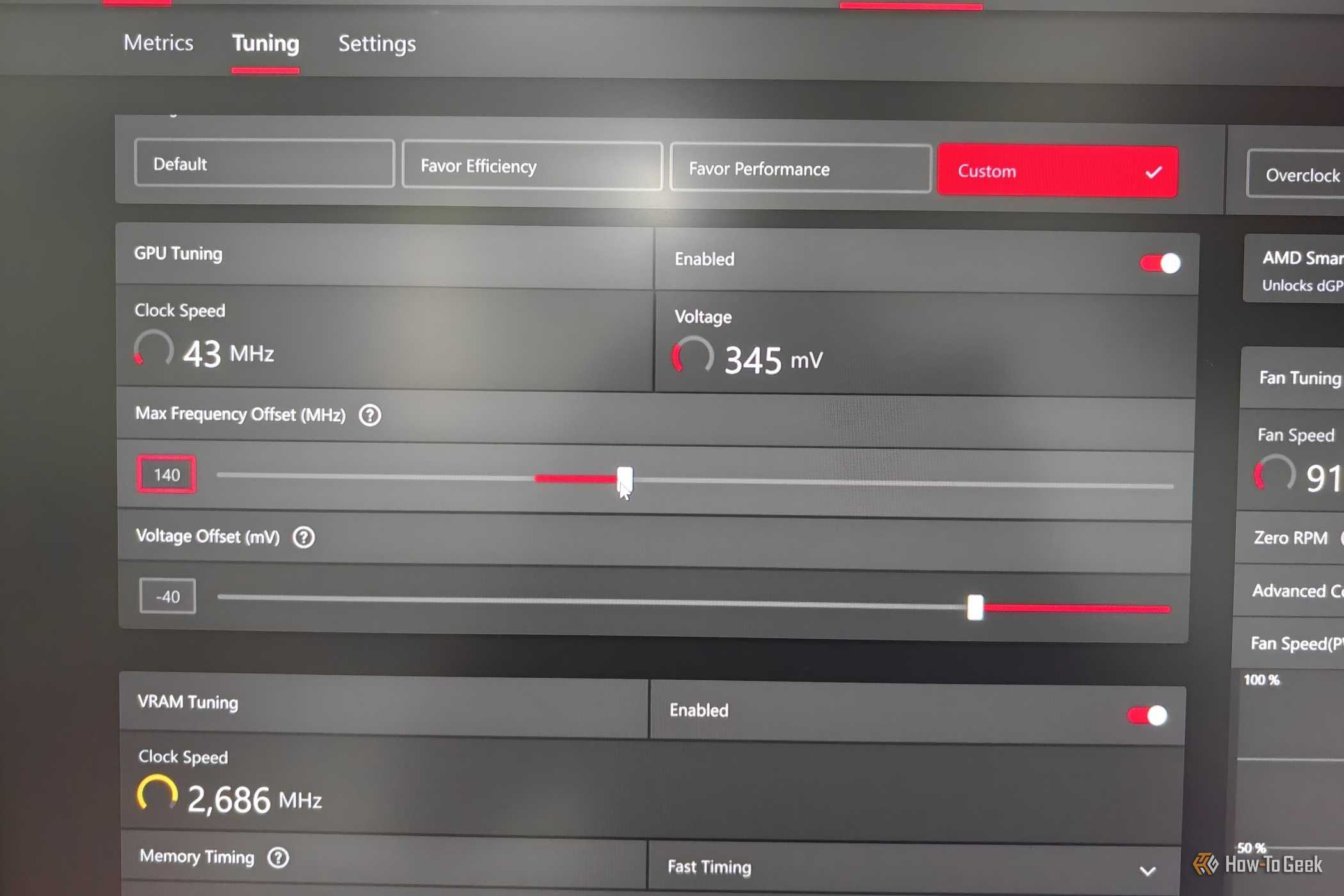
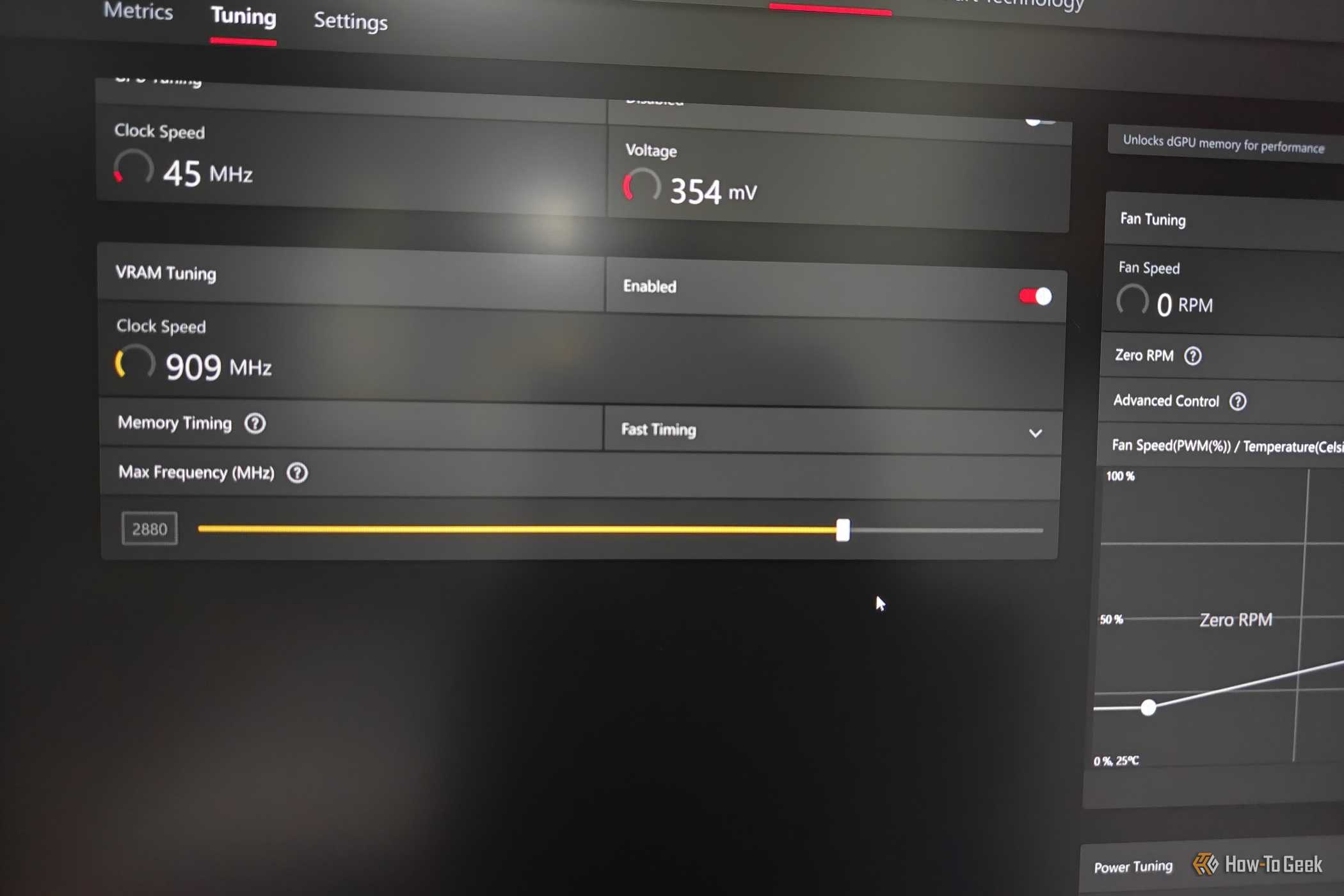
The best part is that AMD lets you take the training wheels off almost completely in manual mode. You can adjust the GPU’s maximum frequency and voltage offset, tune the VRAM frequency and timings, adjust the power limit, and create a custom fan curve.
I’m taking advantage of AMD’s flexibility here by running a fully custom overclock combined with a mild undervolt on my RX 9070 XT, and it works great.
MSI Afterburner can automatically overclock graphics cards from virtually any manufacturer
A powerful alternative to the first-party solutions
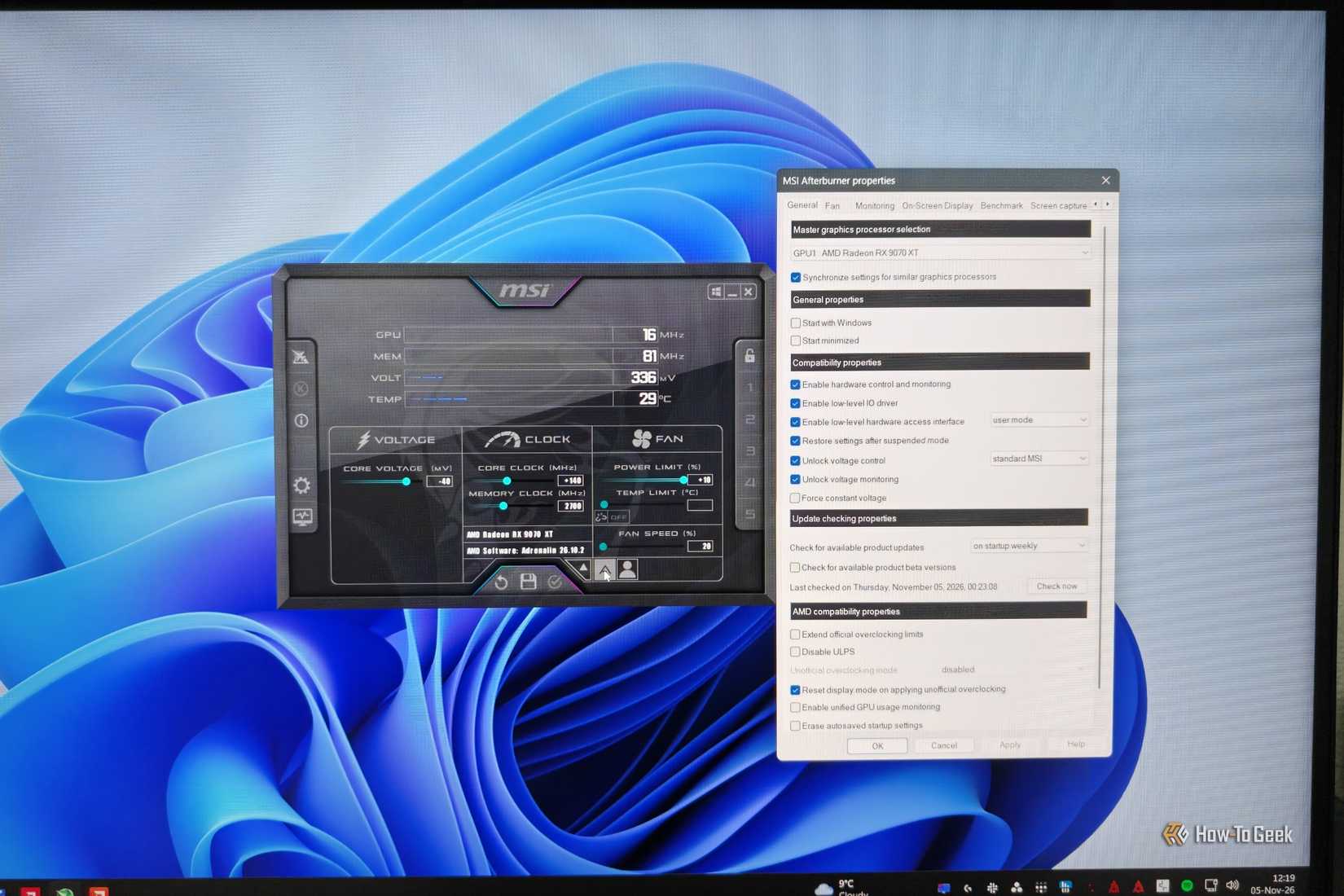
If you tried Nvidia’s auto-overclocking feature and found it underwhelming, or you just want to try your hand at manual tuning, MSI Afterburner remains the best third-party app after all these years.
The great thing about MSI Afterburner is that you can use it to overclock graphics cards from virtually any manufacturer, which makes it more versatile than the first-party solutions. However, the one-click overclocking feature called OC Scanner only works with Nvidia GPUs.
This is because it uses the Nvidia OC Scanner API, making its underlying principle and potential performance gains essentially the same as Nvidia’s own solution.
Apart from tuning, MSI Afterburner also provides extensive hardware monitoring features and an in-game overlay through its integration with RivaTuner Statistics Server, making it easier to keep track of your overclocking settings and performance gains.
fit, with current prices.
AMD Ryzen Master brings CPU overclocking out of the BIOS and into Windows
PBO goes a long way
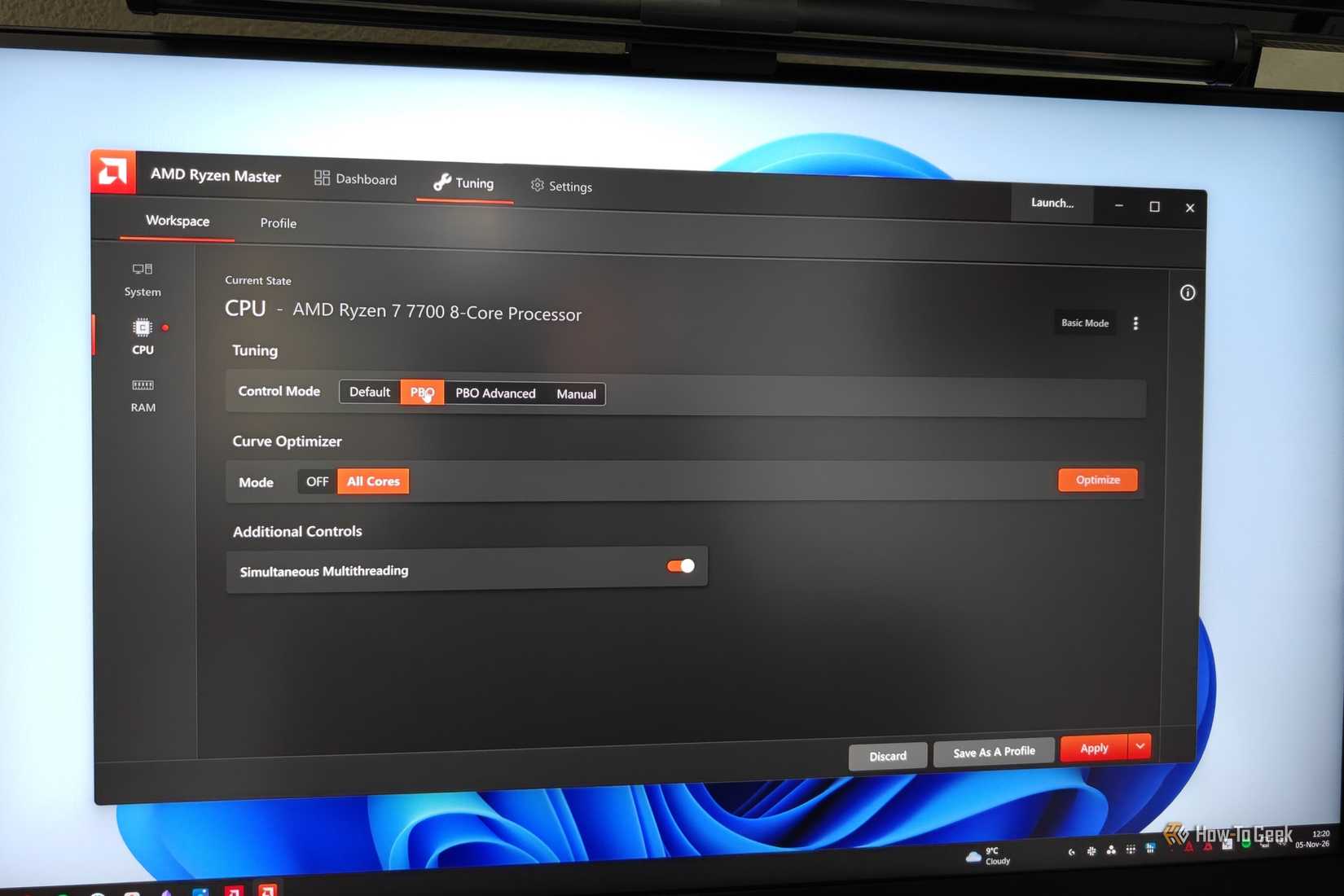
If you’ve always been curious about overclocking your AMD CPU but don’t want to dive into your motherboard’s BIOS to mess with the settings, AMD Ryzen Master has everything you need to get started.
This is a first-party tuning tool that lets you monitor and adjust various CPU and RAM parameters from Windows.
The best way to use Ryzen Master as a beginner is to enable PBO (Precision Boost Overdrive), AMD’s automatic CPU overclocking feature. It overrides the CPU’s default power and current limits with the motherboard’s (often more generous) limits or custom parameters, potentially allowing the CPU to reach higher sustained clock speeds. You can also use the tool to undervolt your CPU to achieve cooler operating temperatures.
You can also overclock your RAM and Infinity Fabric through Ryzen Master on supported hardware. For memory, the easiest solution is to enable EXPO, which applies the predetermined memory speed and timings stored on your RAM kit that were advertised on the packaging.
Intel XTU offers automatic overclocking and manual CPU tuning in one package
Intel’s unlocked processors get special treatment
 Credit: Intel
Intel owners aren’t left behind, as Intel XTU (Extreme Tuning Utility) is yet another first-party overclocking tool. Just like AMD offers PBO for easy, automatic overclocking, you can overclock supported, unlocked Intel CPUs with a single click using the Intel Speed Optimizer feature in this utility.
If you want to go a step further, you can open Advanced View and use Intel’s AI Assist overclocking mode. It characterizes your system, including its processor, motherboard, power delivery, and cooling, before suggesting suitable clock speed and voltage settings.
Once that’s done, you can stress-test your new configuration directly in the tool and monitor the CPU’s parameters at the bottom of the screen.
Your motherboard’s UEFI turns RAM overclocking into a one-click solution
Enable your RAM’s advertised speeds
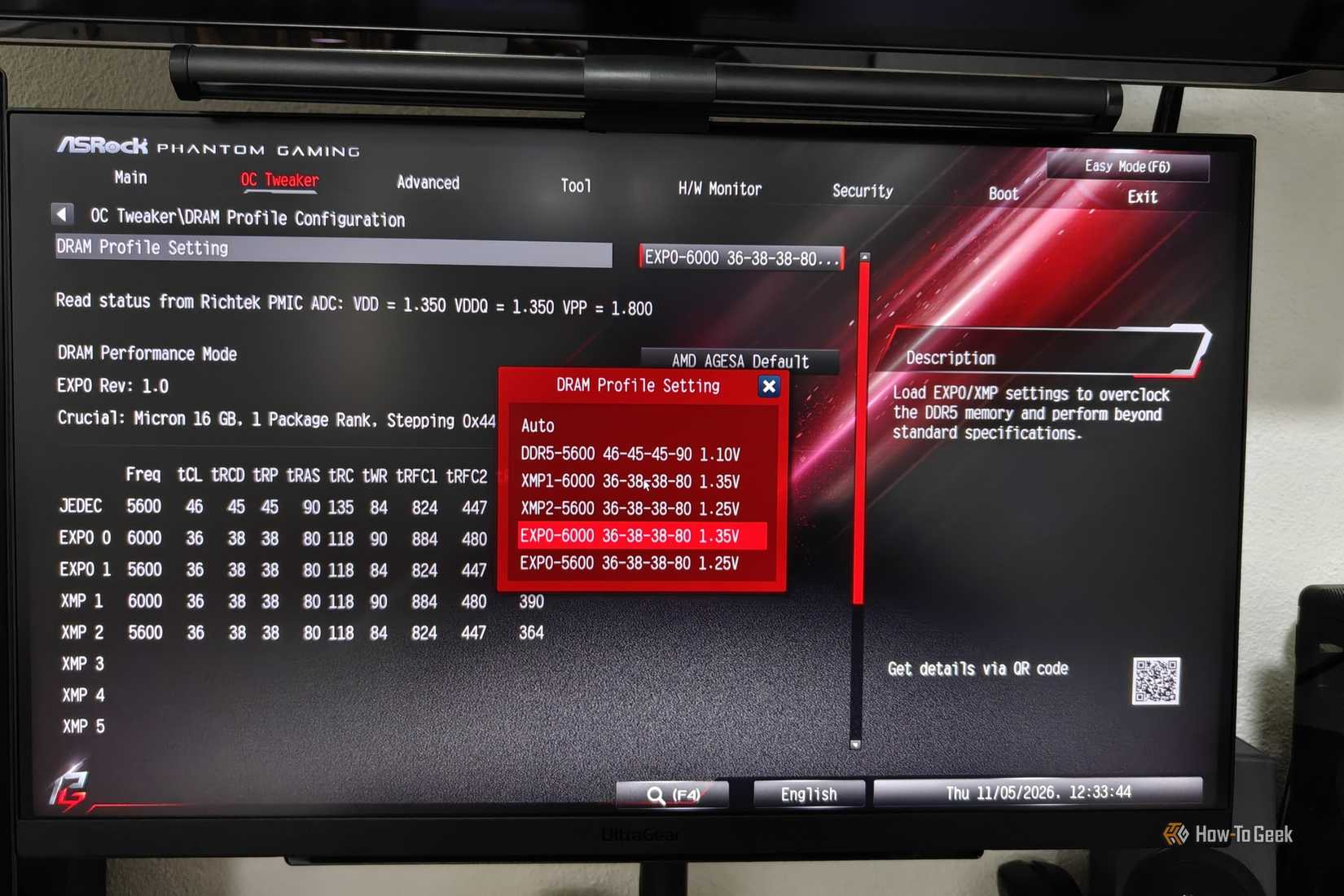
The tools I’ve discussed up to this point all run in the operating system, but there’s one extremely important one-click overclocking step you shouldn’t skip: setting your RAM profile to XMP (Intel) or EXPO (AMD).
These are preconfigured memory speeds, timings, and voltage settings that the memory manufacturer has tested on your RAM kit. They generally work without issue on compatible hardware, but they’re disabled by default because stability isn’t guaranteed with hardware combinations.
Although Ryzen Master technically lets you enable EXPO, doing it directly from the UEFI is often more straightforward. The motherboard handles memory training during startup and can retry the process if the initial settings don’t work. As a side note, some motherboard utilities also support memory overclocking directly from the operating system.
If you’ve never enabled XMP or EXPO before, take a few minutes to check your motherboard’s instruction manual or find a video online showing you how it’s done. It’s usually as simple as entering the UEFI during startup, changing the RAM profile, and saving your settings.
Manual overclocking can take your hardware even further
It’s easy to see the appeal of one-click overclocking. These tools take much of the guesswork and extensive testing out of the equation, allowing basically anyone to get free performance.
However, if you’re an enthusiast and aren’t satisfied with the modest gains these tools offer, you can always take things into your own hands with these utilities. Use automatic overclocking as a starting point, then tweak the configuration yourself to squeeze every ounce of performance out of your hardware.