Credit: Hannah Stryker / How-To Geek
While Microsoft used to denounce Linux in the 2000s, it can’t seem to stop itself from finding ways to run Linux programs on Windows today. While WSL, or Windows Susbsystem for Linux, has been the main way to run Linux utilities on Windows, the company has ported some common Linux command-line tools to Command Prompt and PowerShell. I decided to take them for a spin.
What is Coreutils for Windows?
Classic Linux/Unix utilities on the Windows Command Line
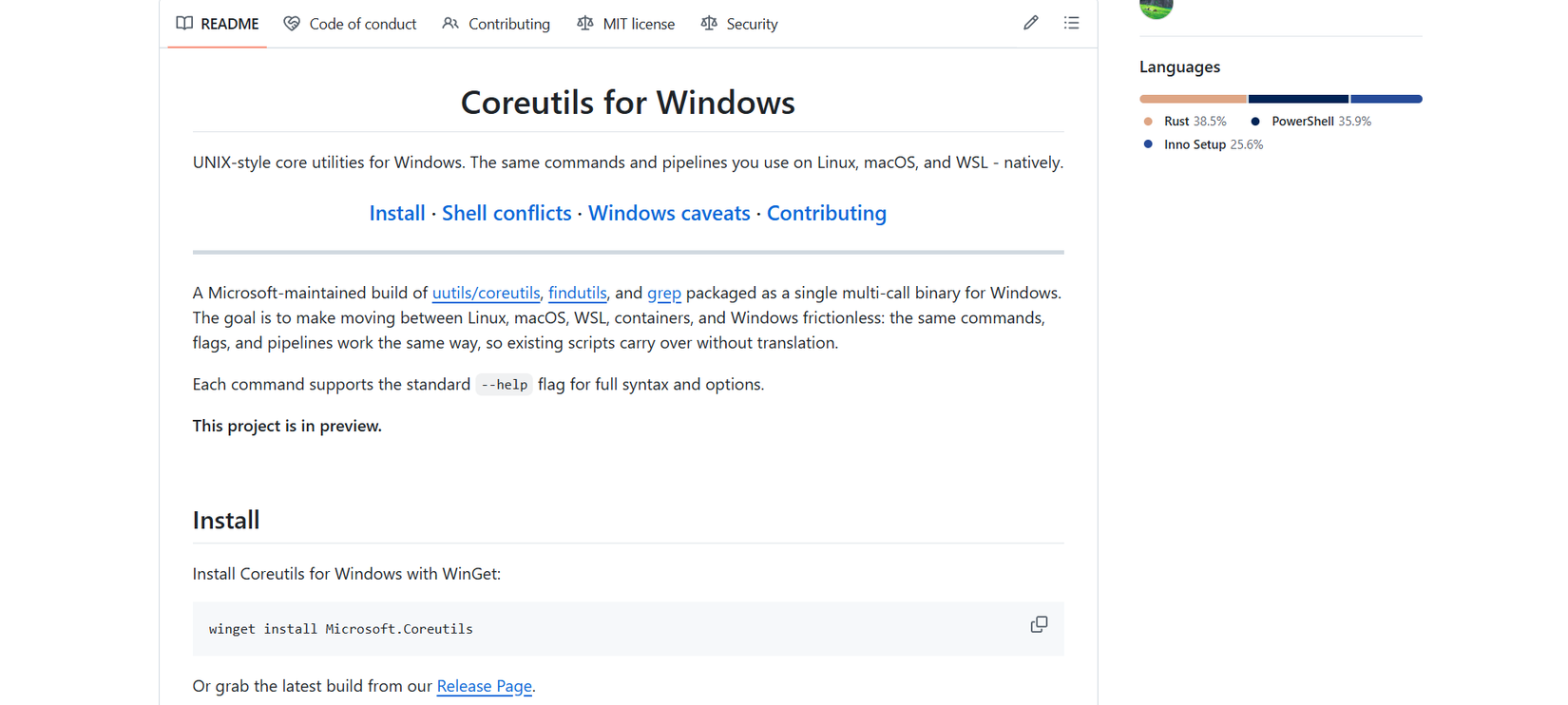
GNU Core Utilities, or coreutils, is a package that includes most of the familiar utilities that you find in Linux distributions. These are ports of standard Unix utilities. It includes over 100 tools, such as the ls, pwd, echo, and sort. This package is so ubiquitous that it’s one reason that Linux distributions could be justifiably called “GNU/Linux distributions.”
If a Linux distro doesn’t have Coreutils installed by default, it likely has a lightweight alternative, such as BusyBox, to implement basic commands instead. The shell will also implement its own utilities as “built-ins” because it’s faster to load them from memory than from the disk.
GNU’s version isn’t even the only version of coreutils available. Another project, uutils, has released its own version of coreutils written in Rust. Rust is increasingly popular for systems programming because it has memory safety and reduces the risk of serious bugs. It’s this version of coreutils that Microsoft has ported to Windows Command Prompt and PowerShell. The idea is that people who are more familiar with Linux won’t have to switch gears by learning new commands when they use the native Windows command lines instead of Linux distros with WSL.
Installing Coreutils for Windows
Easy installation with winget
Installing Coreutils for Windows was easy enough. I just had to use WinGet to install it. WinGet is a package manager for Windows that’s similar to package managers like apt or pacman you might have used on Linux machines.
All it takes is one command:
winget install Microsoft.Coreutils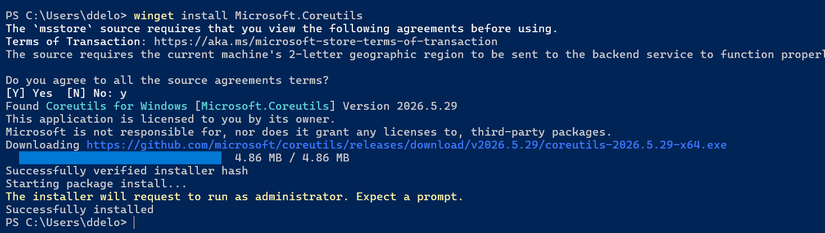
The nice thing was that I didn’t have to type sudo before installing it, since WinGet would automatically open up a UAC prompt to install it as the administrator.
Using Coreutils for Windows
Hope you don’t like PowerShell
With coreutils installed, it was now time to see how well it would fit in with my Windows command-line workflow.
I tried a few commands in PowerShell. That’s when I ran immediately into the downside of coreutils on Windows. Microsoft has already aliased a lot of common Linux commands to PowerShell, such as ls and pwd. These aliases already override many of the coreutils utilities.
The GitHub page for coreutils even lists the conflicts with the coreutils and PowerShell commands. Most of the commands happen to conflict with PowerShell commands and aliases.
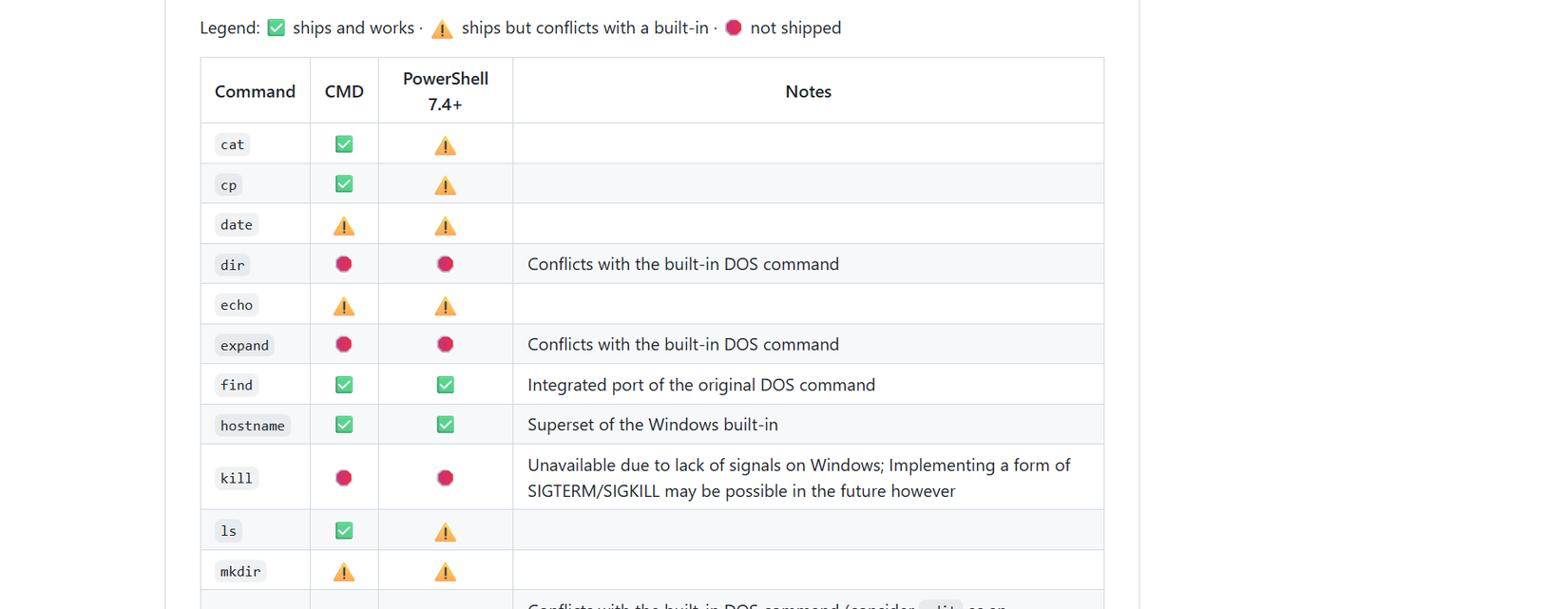
This means that if you want to use this new package, you’ll have to switch to Command Prompt. This is the older command-line interface on Windows, dating all the way back to Windows NT 3.1 in 1993. This interface is often called a “DOS box” because it resembles the old MS-DOS interface, but it’s really a different command prompt. While it’s been made a first-class citizen in Windows Terminal, it’s not the primary command-line interface on Windows. PowerShell is. Microsoft had announced that Command Prompt was deprecated in favor of PowerShell, but given how many programs rely on it for housekeeping tasks behind the scenes, it looks like it won’t go away anytime soon.
Actually using these utilities in Command Prompt felt familiar. These utilities performed mostly how I expected them to, including ls, cat, and others. That’s not really a surprise, since these are mainly straight ports of existing utilities.
Why I’m sticking with WSL
WSL already does Coreutils for Windows’ job much better
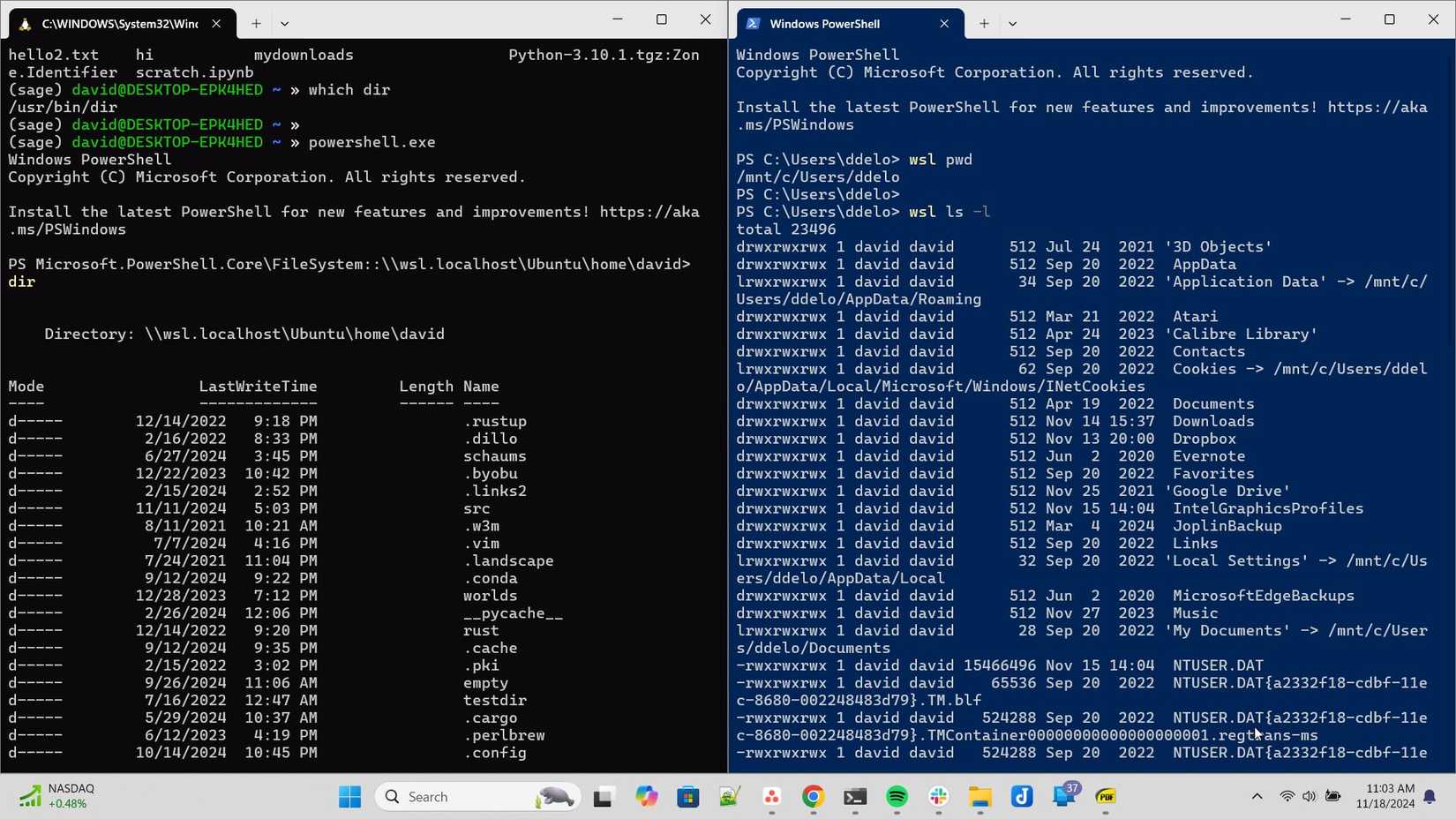
Even though Microsoft intended that this package would make it easier for people like me to switch between the Windows and Linux command lines, the disadvantages of this package mean that I’ll likely stay within WSL when I want to run Linux commands from Windows.
The main reason is that there was already a terminal-based tool on Windows where I could run Linux commands I was familiar with: WSL. With WSL, I can install common Linux distros like Ubuntu, Debian, Fedora, and Windows. I can already mix and match Windows and PowerShell commands from each other’s command lines. I can run a Linux command from PowerShell and run Windows commands from WSL by just appending an .exe to the command name.
This means that the coreutils package doesn’t add much new functionality to the command line for someone like me who’s already versed in Linux and likely has WSL installed already.
The other major disadvantage is the package’s reliance on the Command Prompt. While Microsoft seems to be keeping Command Prompt available in the future, since the company is well-known for supporting legacy technologies for its business customers, it’s not a priority. PowerShell and WSL seem to be the main command-line interfaces on Windows.
Even worse, Command Prompt is single-tasking, so there’s nothing like job control or terminal multiplexing available. I would rather have something like PowerShell or, better yet, a Linux shell available where I have full multitasking abilities.
There’s a tradition of Unix-like utilities on DOS and Windows, going back to the 1980s when Microsoft intended for its version of Unix, dubbed “Xenix,” to be the company’s future. Microsoft even made DOS utilities work more like their Unix counterparts in preparation for the move. History turned out differently, but the company’s efforts to blend Linux and Windows seem to be coming full circle.
I’ll stick with WSL for my Linux fix on Windows
Some ideas seem good until you actually try them. I liked the idea of running Unix-like utilities from the Windows command line, but they’ll need to run on PowerShell to be viable. Maybe in future versions, Microsoft could eliminate the conflicts and make coreutils more useful. I’ll continue to use WSL to bridge the gap between Linux and Windows.
Windows 11 Pro
$199
Save $169.01
Get Windows 11 Pro and elevate your PC experience while it’s available at a huge 88% discount.