Your Android device is doing a lot more in the background than you realize, with some pretty complex systems aiming to optimize your phone. Even more interesting is that you can take direct control of a lot of these functions if you know where to look. The background resources that an app draws, and by extension how much battery it drains, is one of these functions.
I have frequently struggled with battery life on my Android device and really appreciate having the option to manually control this. You can re-prioritize apps however you like, making sure that rogue apps aren’t drawing tons of resources and emptying your battery without you even realizing.
Android automatically prioritizes how much battery your apps draw
It affects more than just battery life too
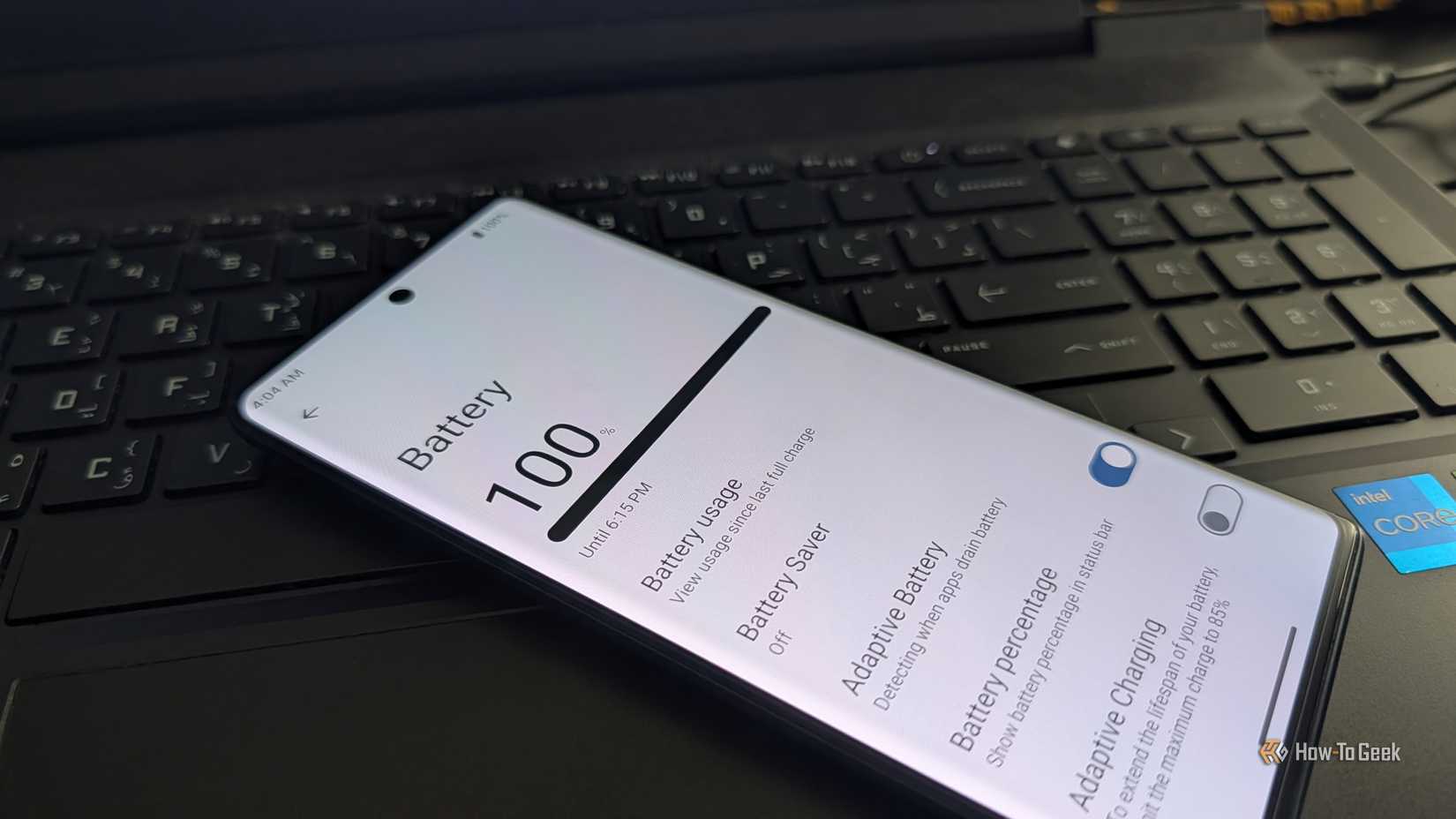
Android has introduced a ton of machine learning features over the last couple of years to optimize your device without you having to get involved. Unfortunately, these features don’t always work exactly how they’re supposed to. A great example of this is Android’s App Standby Buckets system. It was introduced with the release of Android 9 to classify apps based on how often you use them, put them into tiers, and limit their background usage to preserve battery life. Unfortunately, this classification can sometimes have some annoying unintended consequences.
This can significantly affect your battery life. You may use an app frequently but not particularly want it to take up a lot of resources in the background when you aren’t using it. If Android classifies the app as being high on the priority list, it can drain your battery life without you realizing. In the inverse situation, where you don’t open an app often but you rely on its notifications, Android sticking it low on the priority list can also be a problem. I don’t open my emails often on my phone, but the notifications are super useful. This might mean that notifications get delayed.
Thankfully, you can manually change the priority status of an app, but it isn’t exactly a straightforward process.
You need to activate your Android device’s developer mode
The feature is tucked away pretty deep in your phone’s settings
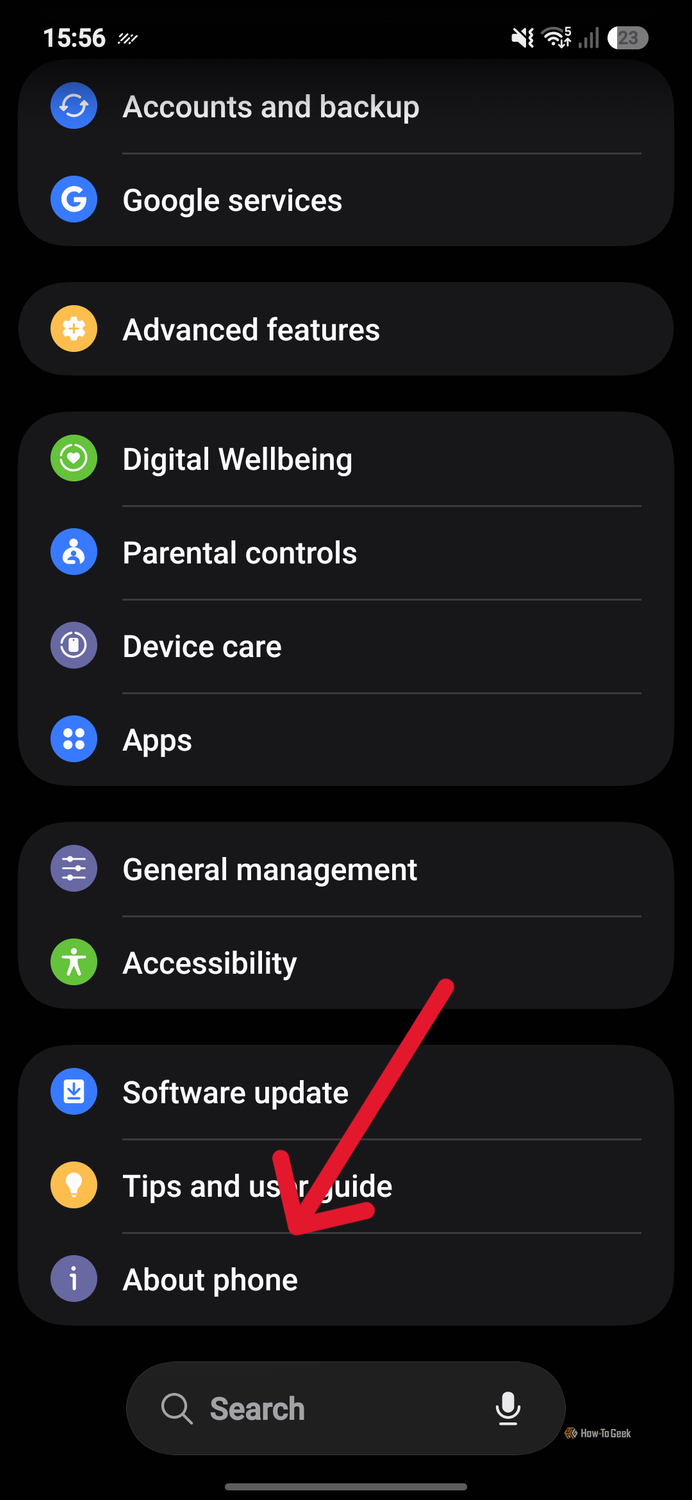
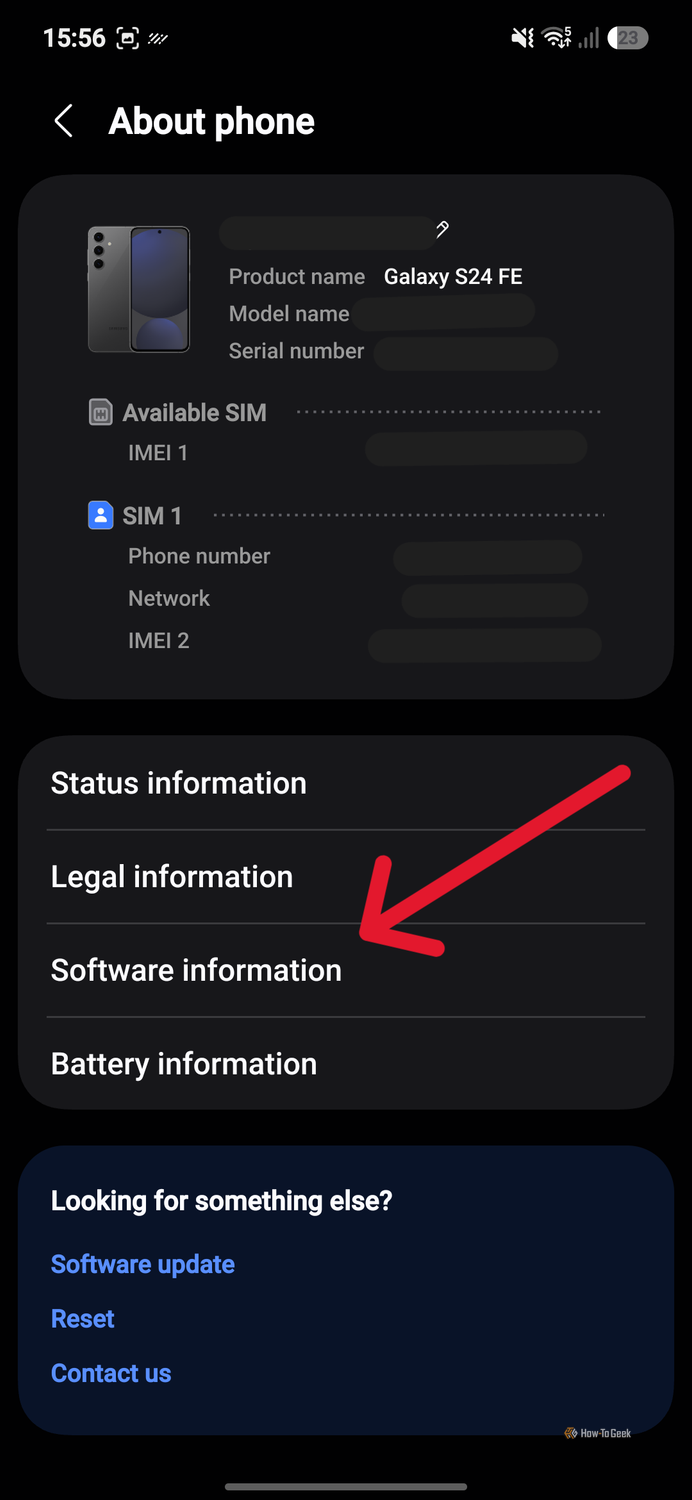
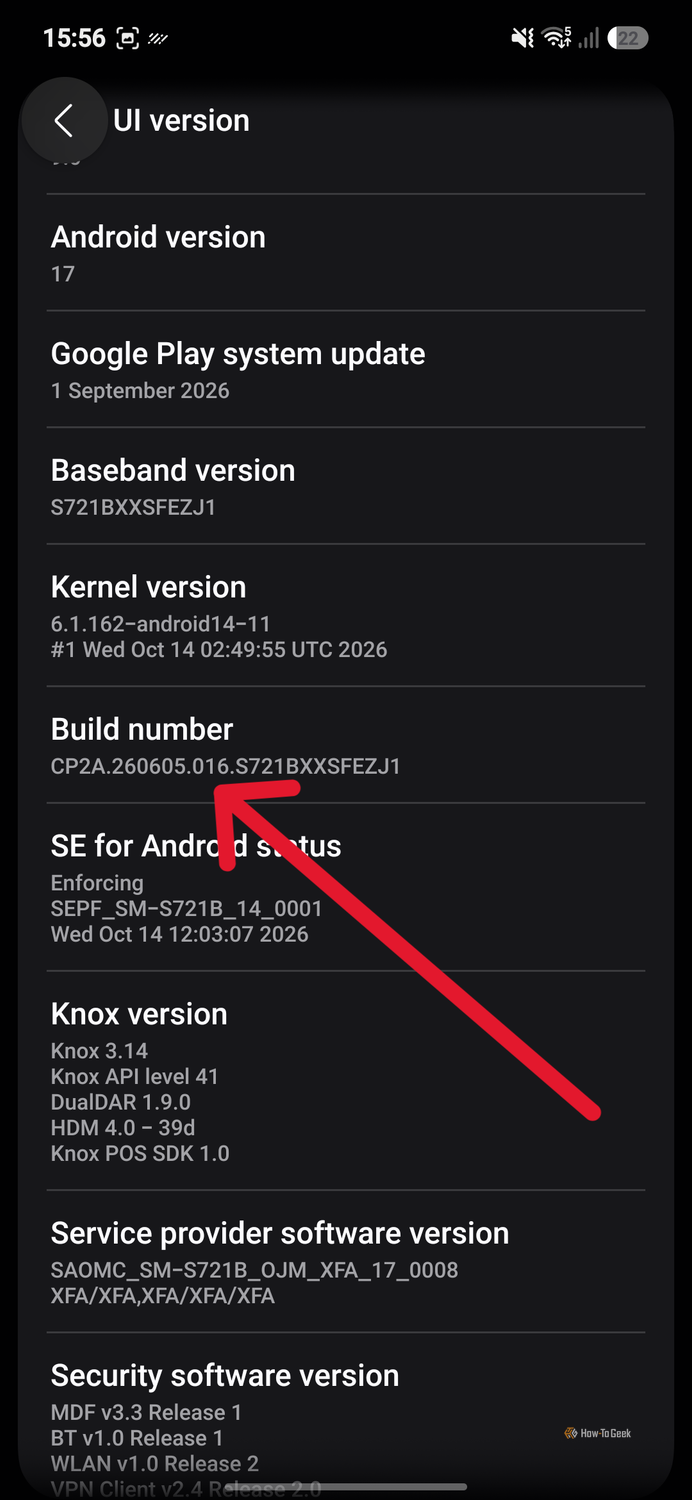
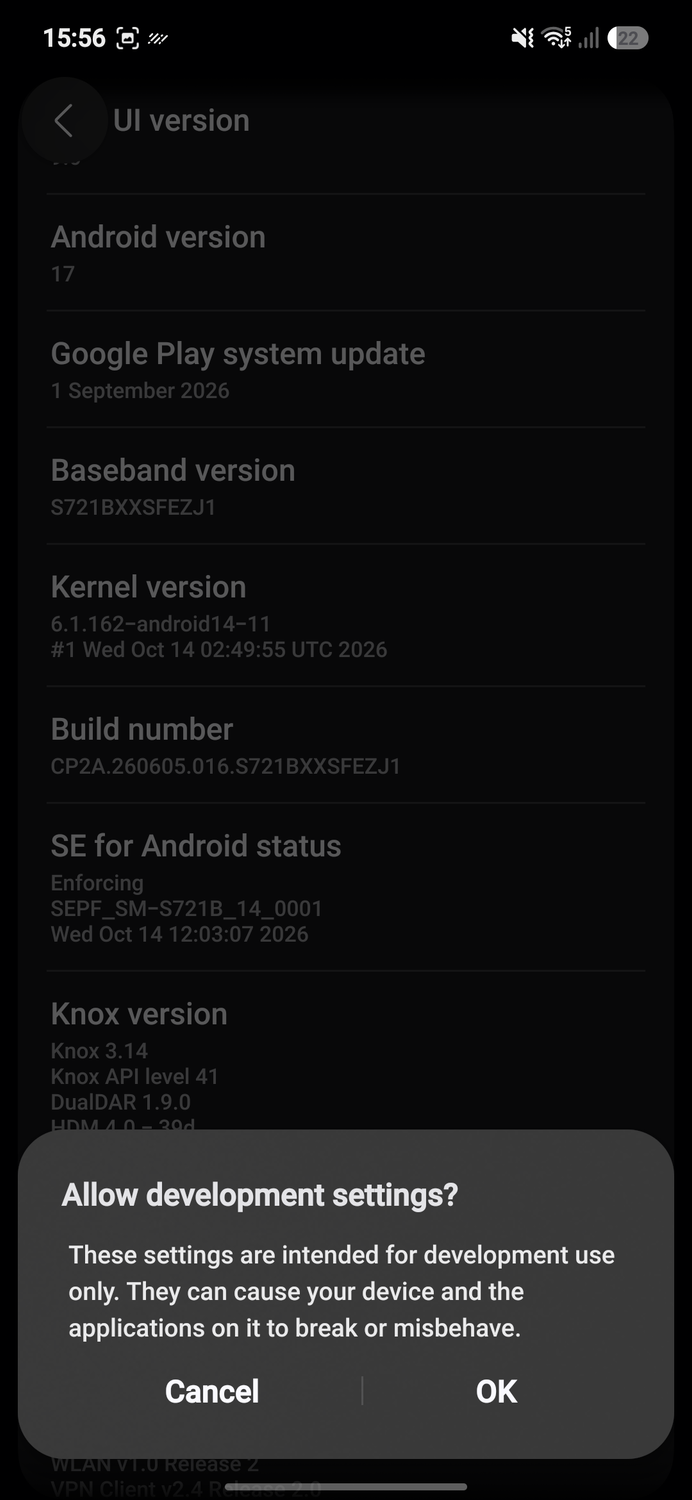
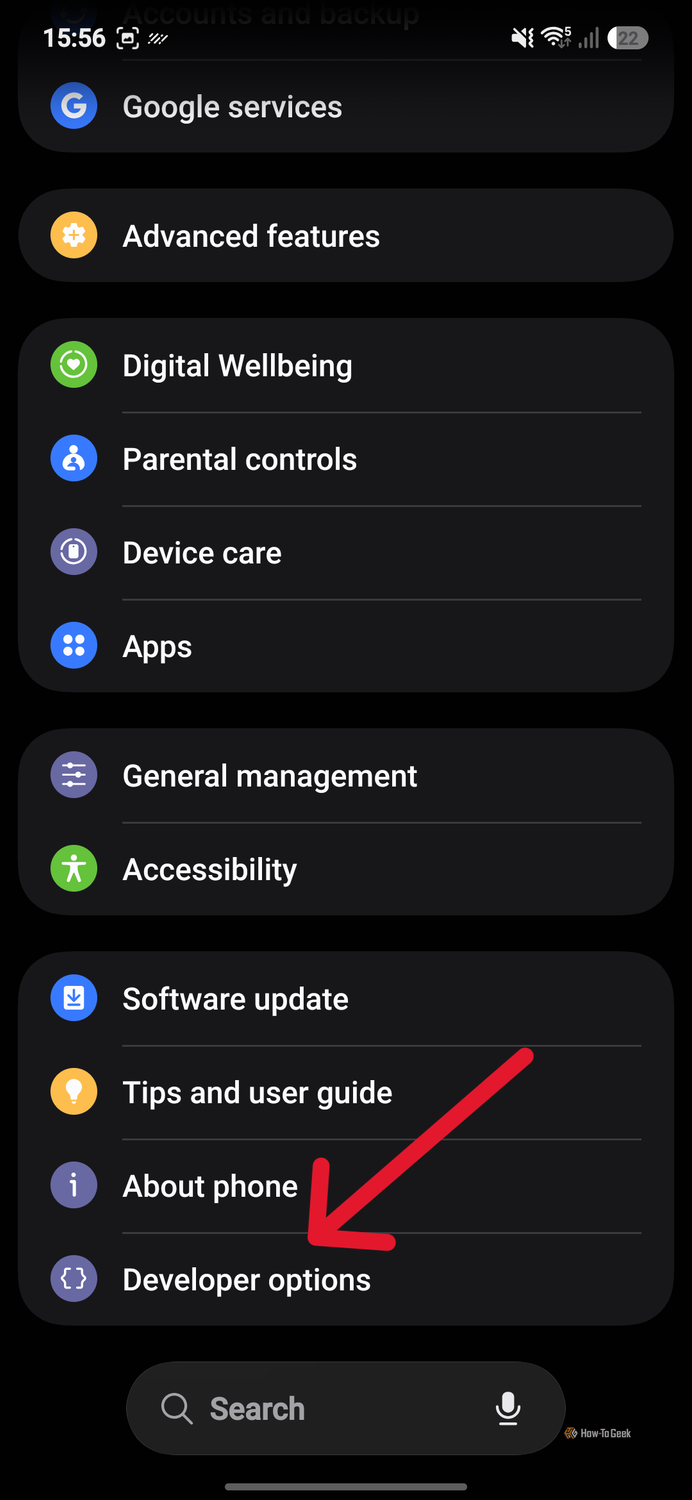
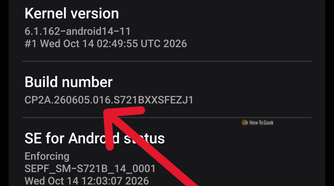
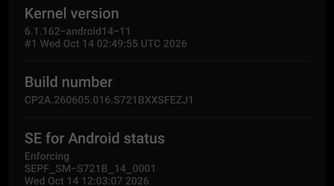
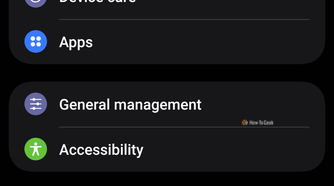
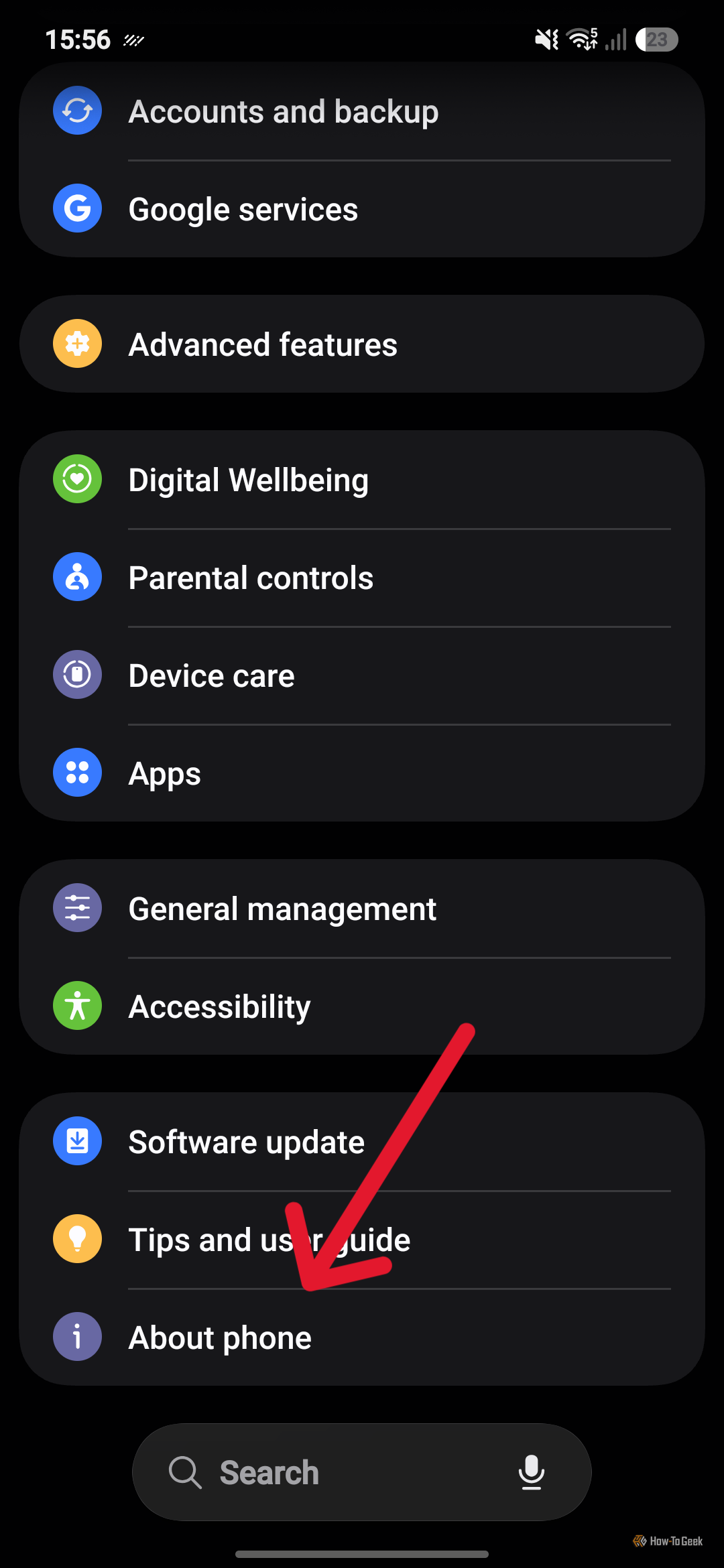
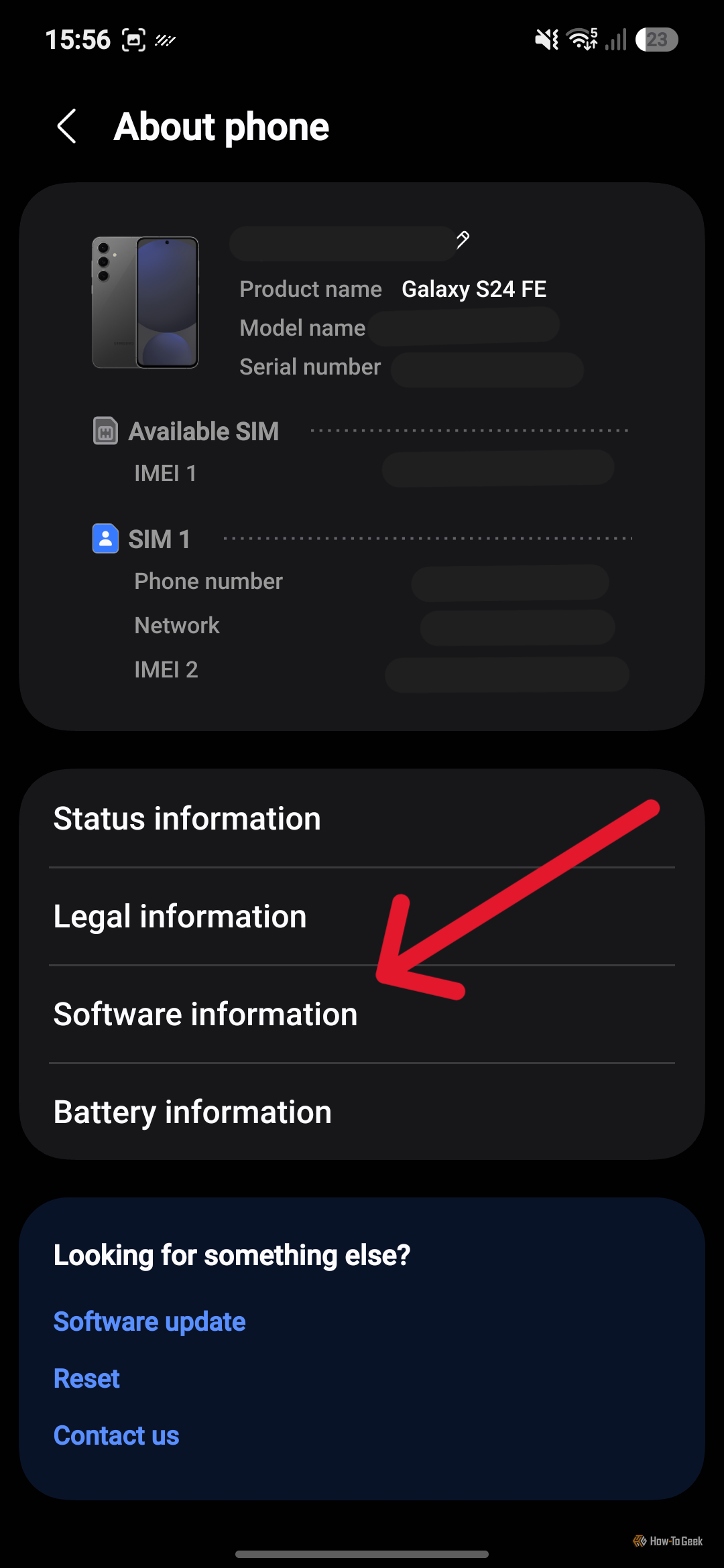
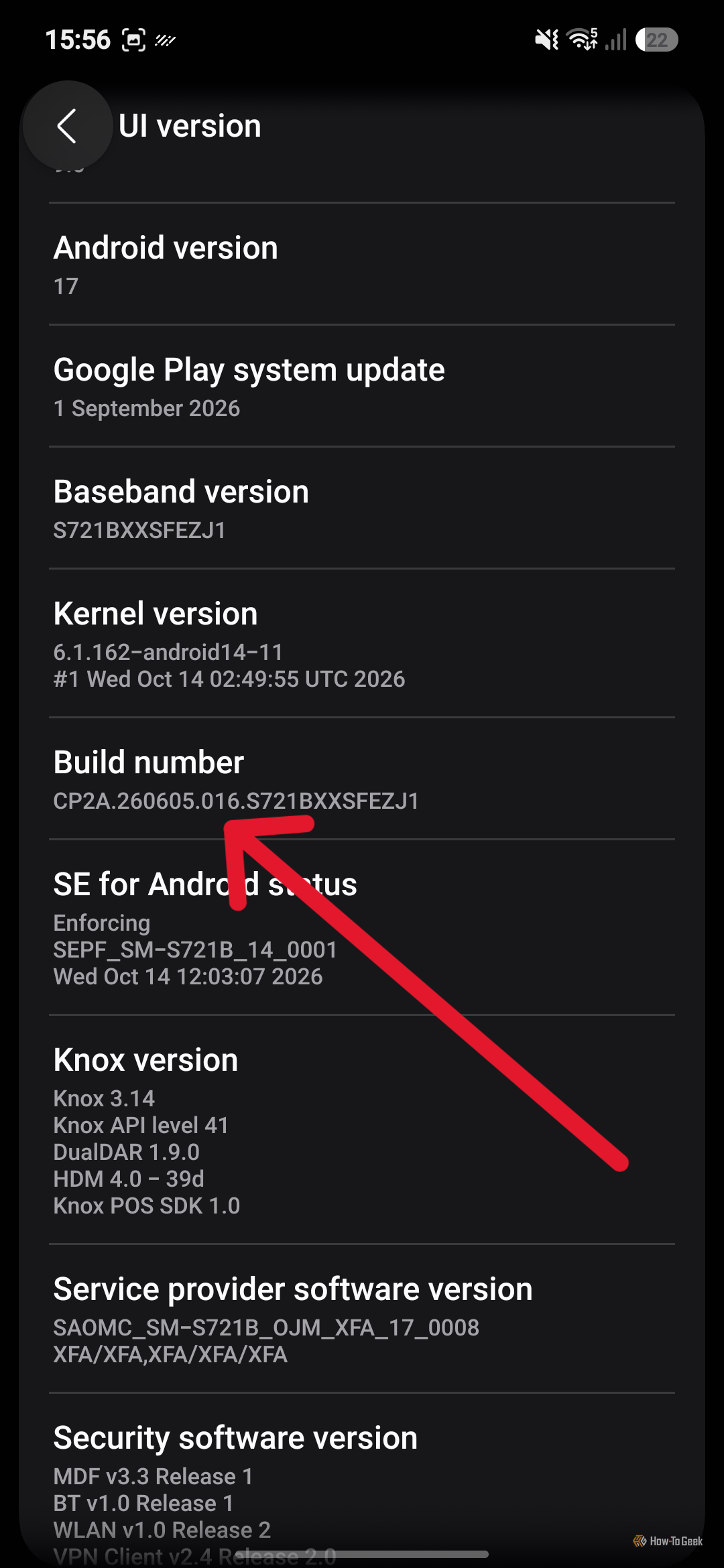
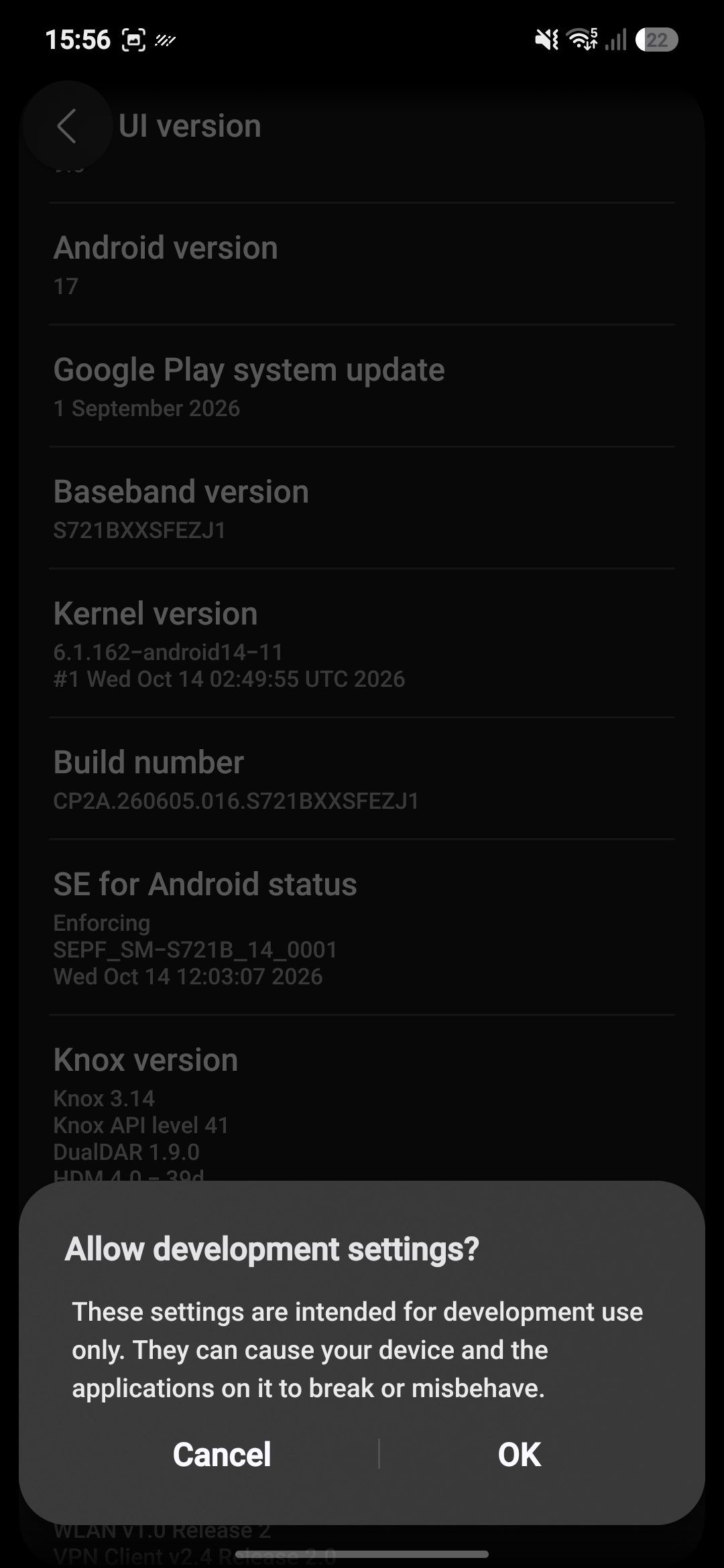
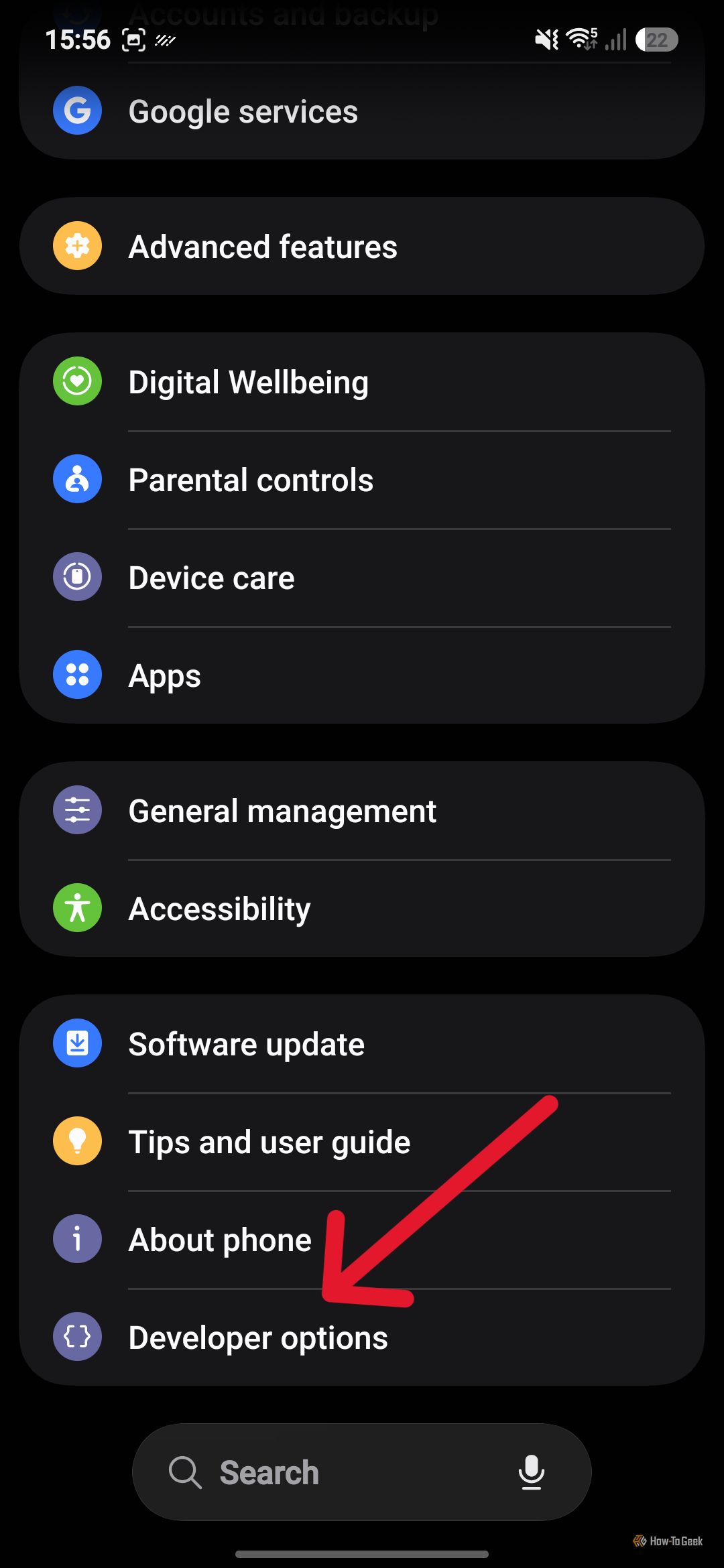
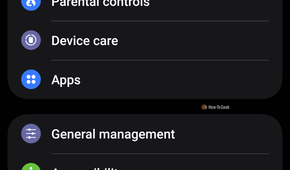
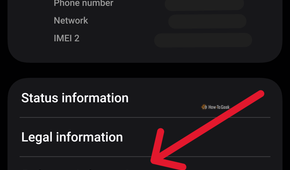
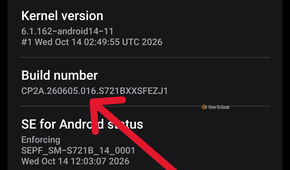
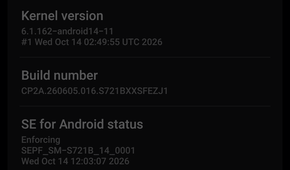
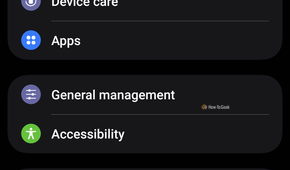
In order to take control of App Standby Priority, the first thing that you are going to need to do is activate developer mode on your Android device. This isn’t the most difficult thing in the world to achieve, but it is a little annoying that such a useful feature is tucked away so deep in your settings.
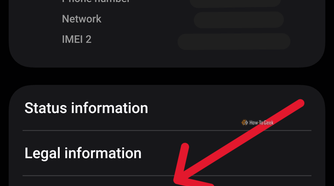
To enter developer mode, first go to your settings menu and scroll down until you see the About phone or About device tab, then tap it. The next step varies slightly based on what Android device you have. On my Samsung, I needed to go into Software information, and then I had to tap Build number seven times in a row. On other devices, you might see OS Version or Version number instead of Build number. In any case, once you tap this tab seven times, your phone will ask you for your PIN before it enters developer mode.
You’re then going to need to find Developer options. Again, this appears in different places depending on your device. On Samsung devices, it should be at the bottom of your main settings menu. You can also find the Developer Options menu under System settings or Additional settings. A quick search should let you know exactly where it is on your specific device.
The Developer Options menu is quite extensive
Find the right tab to change App Standby Priority
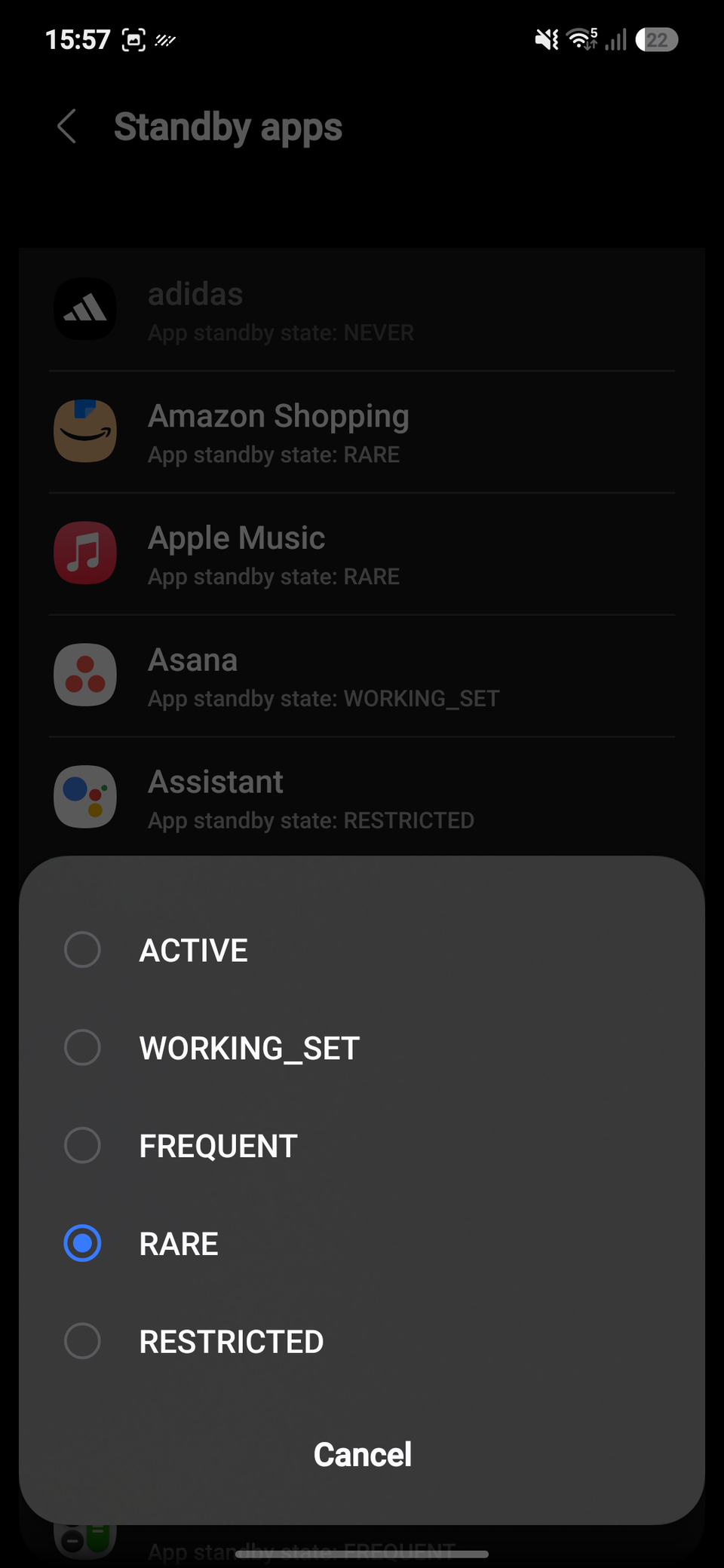
When I first found the Developer Options menu, I was pretty overwhelmed by all the extra features tucked away in my Android device. In this particular case, though, where the aim is to control how much battery each app is draining, we’re looking for ‘Standby apps’. Find it and tap the tab, and you’ll see a long list of your apps, each with a certain classification.
Tapping on each app will allow you to change how high it sits on the priority list. You can choose from five classifications, from highest to lowest priority: ACTIVE, WORKING_SET, FREQUENT, RARE, and RESTRICTED. There is a sixth category, NEVER, reserved for apps that were installed and then essentially never opened. These apps are slated for deep sleep and won’t pull any resources.
If you’ve noticed that an app you hardly use is drawing a lot of resources, with a high priority classification, you can change this here. The opposite is obviously true as well. Just don’t force apps that you open frequently into a lower class, as you’ll just end up using more resources every time you open it.
Take control of the resources that your apps use in the background
The developer mode on your Android device can give you a lot of control over your device, giving you access to a ton of hidden features. For an enthusiast, it is really nice to be able to alter the way your device operates in really specific scenarios. This feature in particular has practically helped me reduce how much battery apps use in the background, making my Samsung last a little bit longer.