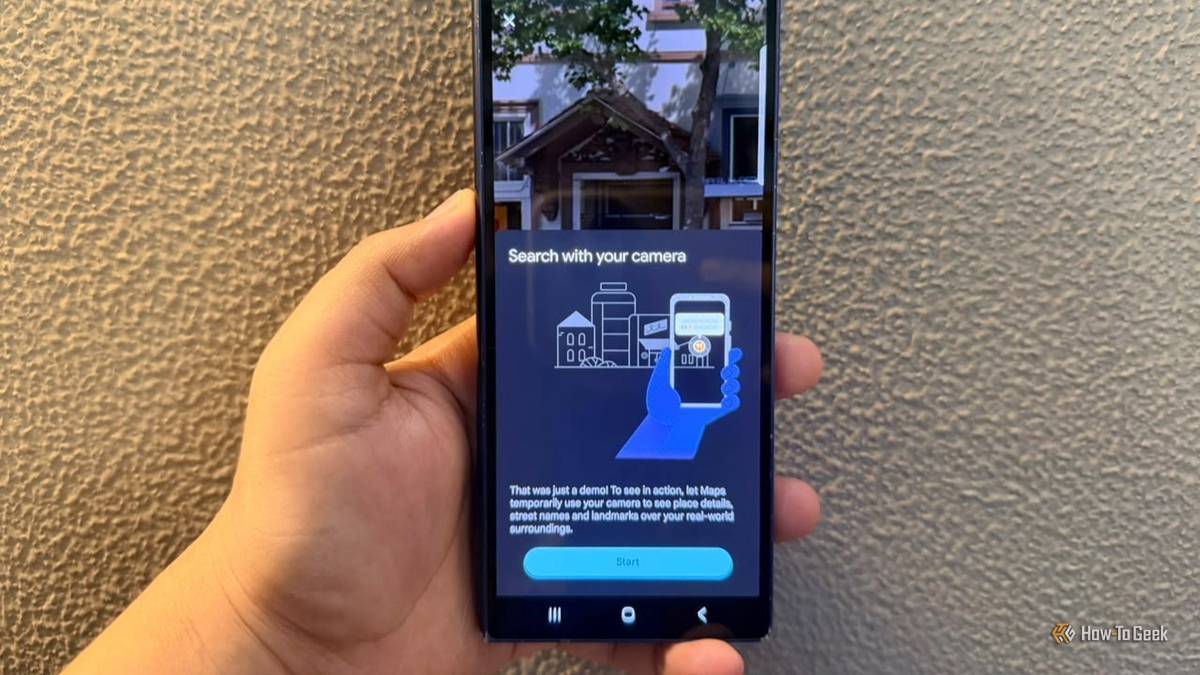
Hands up if you use Google Maps almost every day. Yep, same here. Between grocery runs, long drives with my husband, and picking up my daughter from school, I open it so often that I assumed I knew all the useful bits.
Turns out, I was barely scratching the surface.
I recently stumbled across a few features I’d completely overlooked because I was too busy searching for destinations and checking traffic.
Here are five Google Maps features to make the app more useful than ever.
This Maps trick is clever
I just point my camera at my surroundings
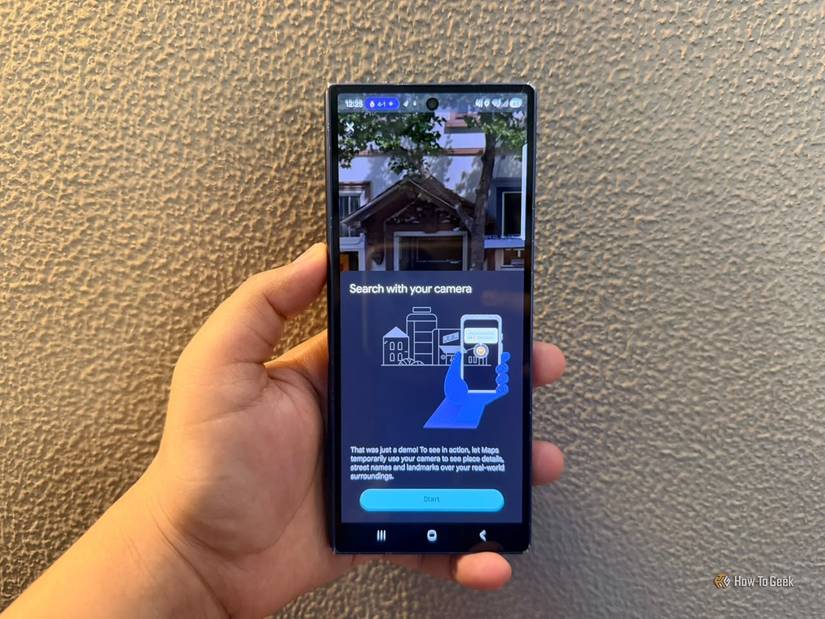
I taught this trick to my mom because she often spots shops or cafés she’d like to visit but doesn’t know their names.
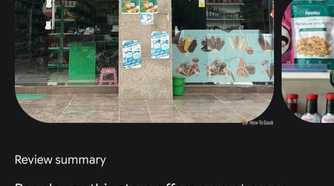
Instead of asking me to search for each shop, she can open Lens in Google Maps, point her camera at a nearby business, and discover what’s around her.
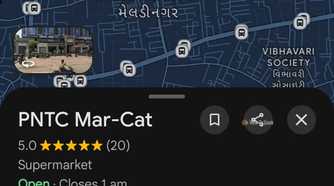
It’s easy when we’re exploring a new area and want to stop for coffee or check out a shop. She can also see details like ratings when available, which helps her decide where to go.
To try it, open Google Maps on your Android phone and tap the Lens icon in the search bar, if available.
I can finally ask Maps for help
This is more than a search bar
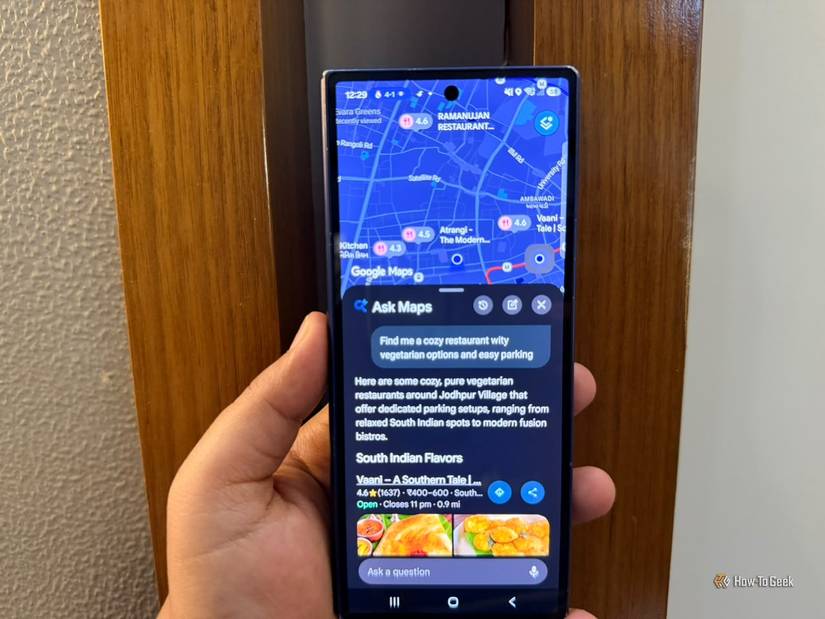
Ask Maps is one of those features that can save me from opening ten tabs just to plan an outing.
Say I’m meeting friends for dinner and want a cozy restaurant with vegetarian options and easy parking. Instead of searching for each thing separately, I can ask Maps for recommendations that match all three.
Unlike a general Gemini conversation, Ask Maps is designed around places and Maps data, so its answers can include recommendations and locations on the map. I can ask follow-up questions, save a spot, share it with friends, or get directions without starting my search over.
It can also help plan road trips by suggesting stops along the way. Less time comparing listings means more time deciding where to go.
Immersive Navigation makes driving easier
I can see the road before I get there
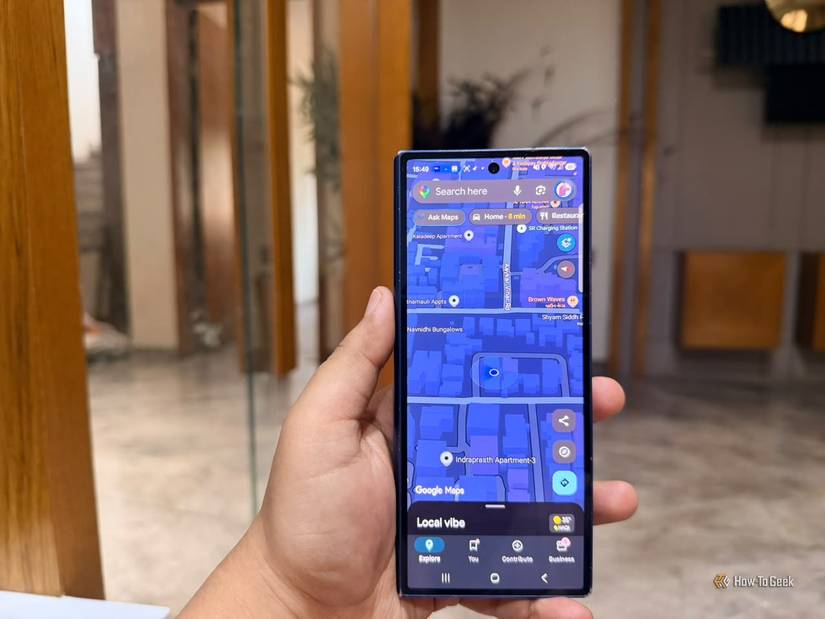
Immersive Navigation gives Google Maps a proper 3D makeover.
Instead of seeing just flat roads, I can see buildings, overpasses, and surrounding terrain, with details like lanes, traffic lights, and stop signs highlighted when needed.
This is useful when I’m approaching a confusing highway exit or trying to merge across several lanes. A flat line on a map doesn’t always tell me what the road actually looks like.
I can also preview my destination, check nearby parking, and spot the building entrance before arriving. That saves me from circling the block looking for the right place.
To try it, update Google Maps and start driving navigation. On supported U.S. devices, go to Profile picture -> Settings -> Navigation -> Map display -> 3D.
The rollout is gradual, so the option may not appear on every device yet.
I don’t have to memorize street names
Gemini uses landmarks to guide me
-
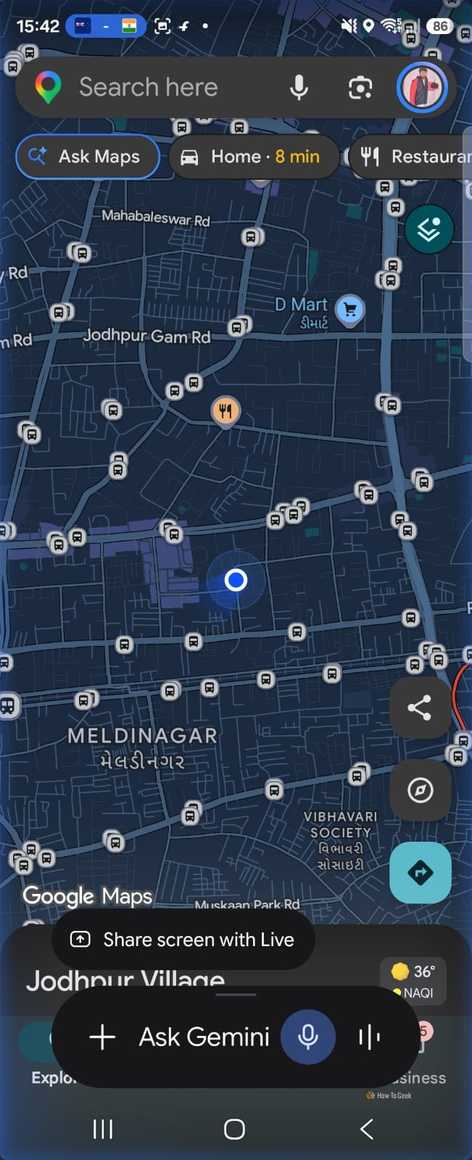
Using Gemini in Google Maps -
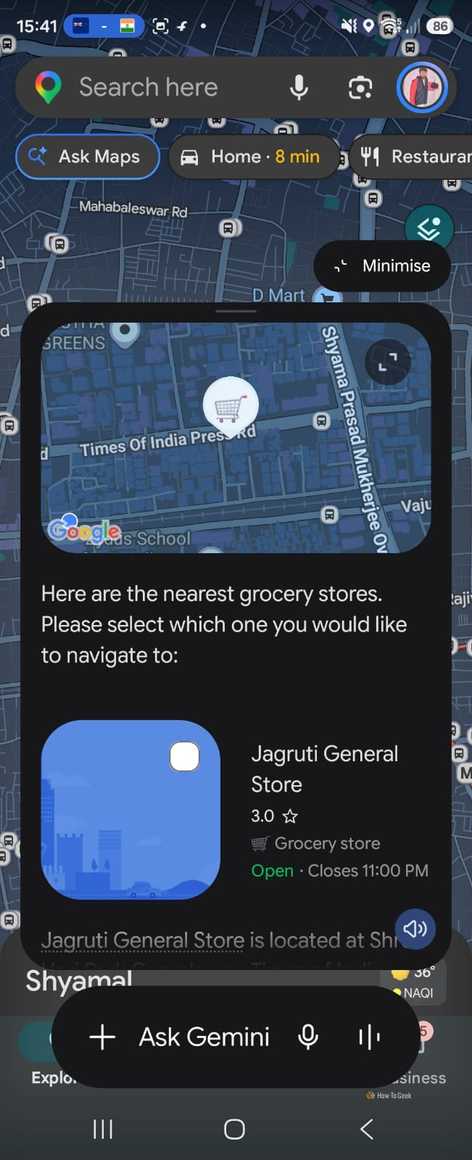
Using Gemini in Google Maps -
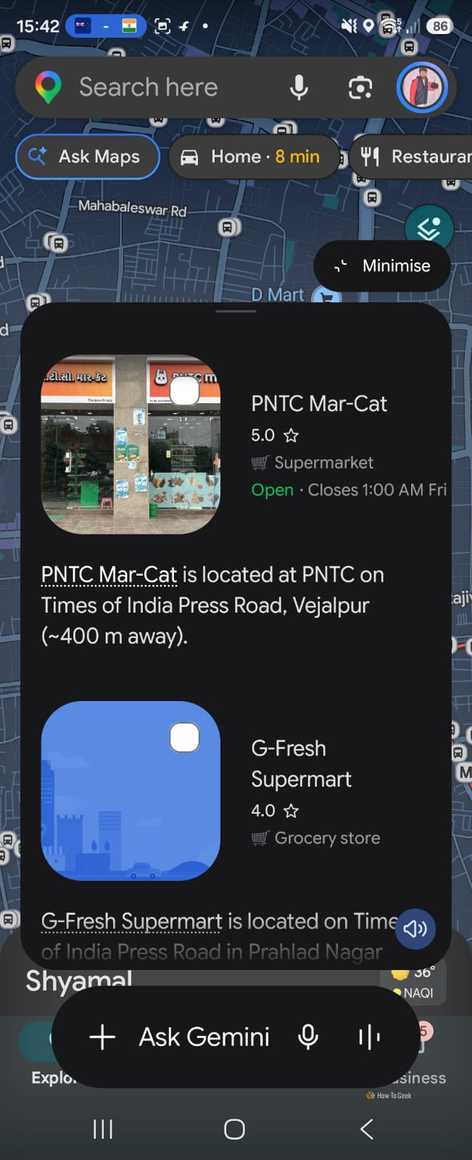
Using Gemini in Google Maps -
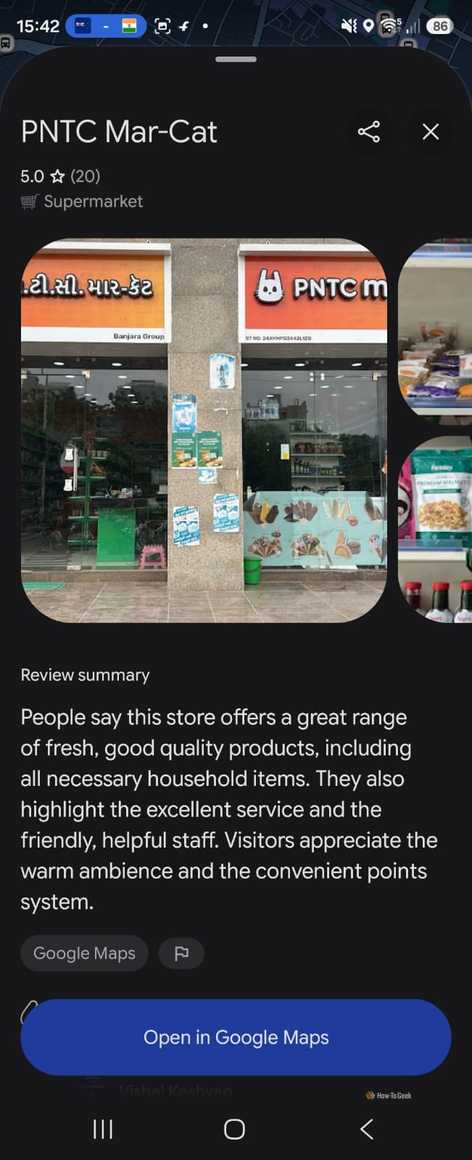
Using Gemini in Google Maps -
Using Gemini in Google Maps
-
Using Gemini in Google Maps -
Using Gemini in Google Maps -
Using Gemini in Google Maps -
Using Gemini in Google Maps -
Using Gemini in Google Maps
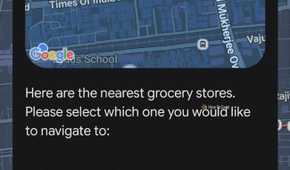

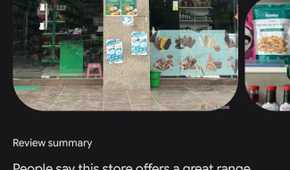
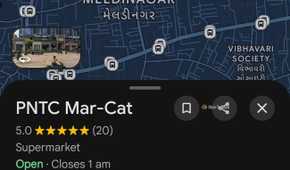
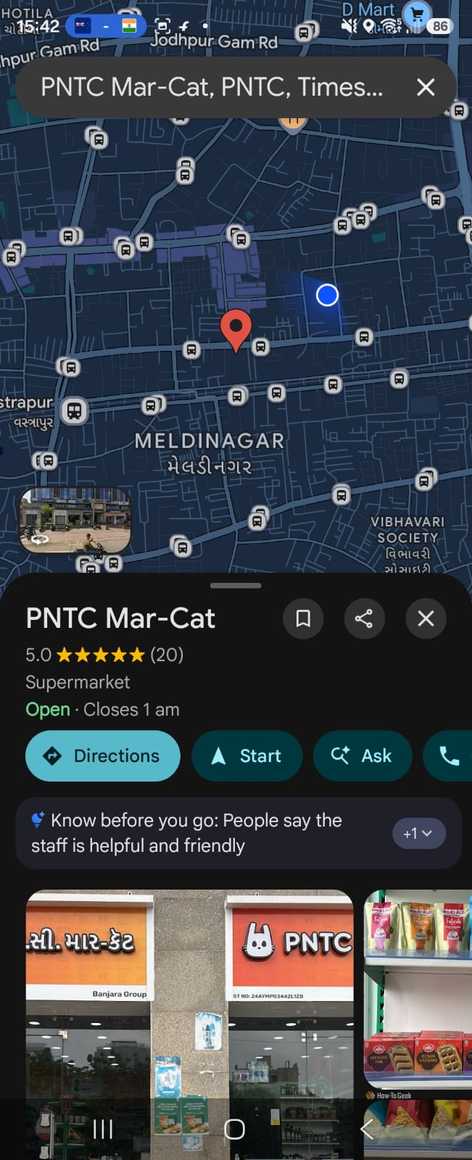
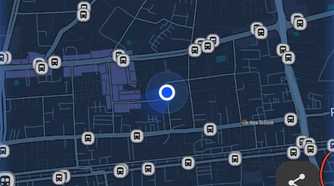
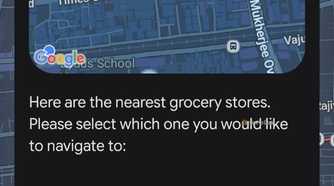
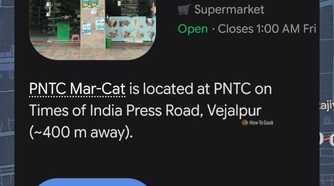
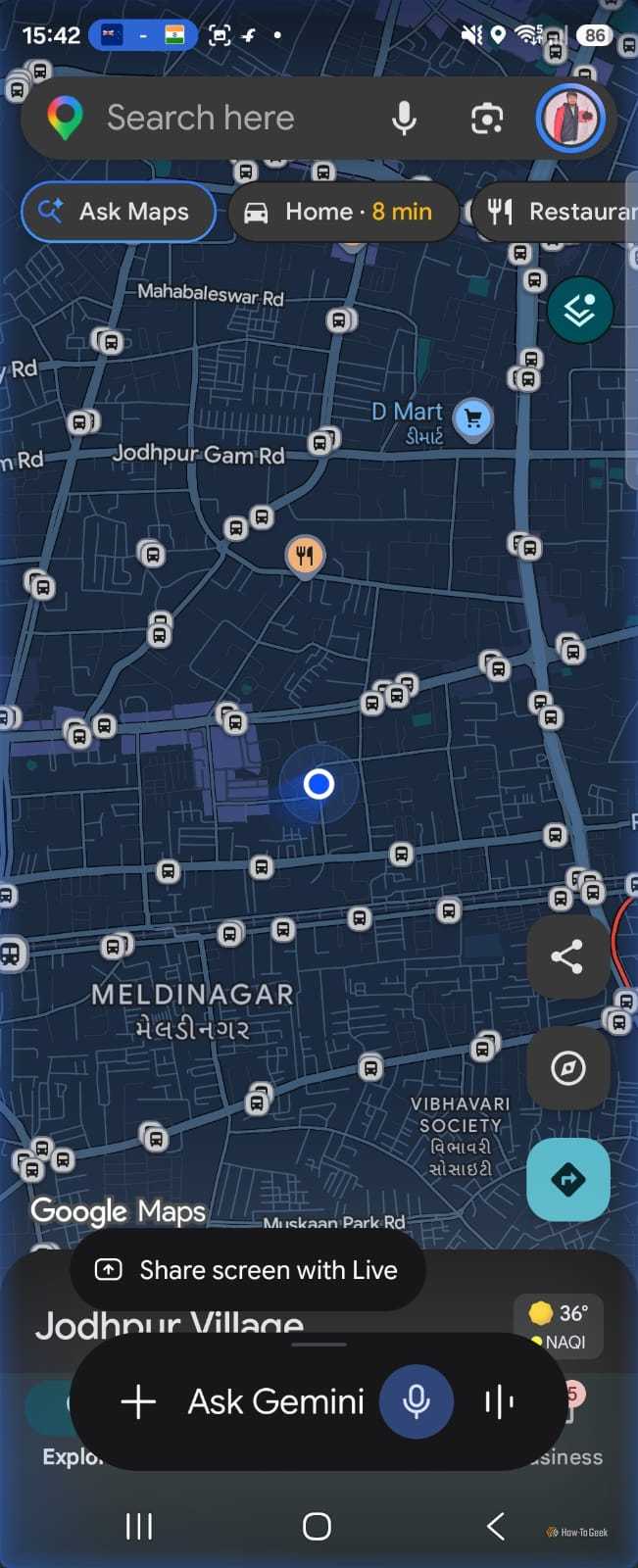
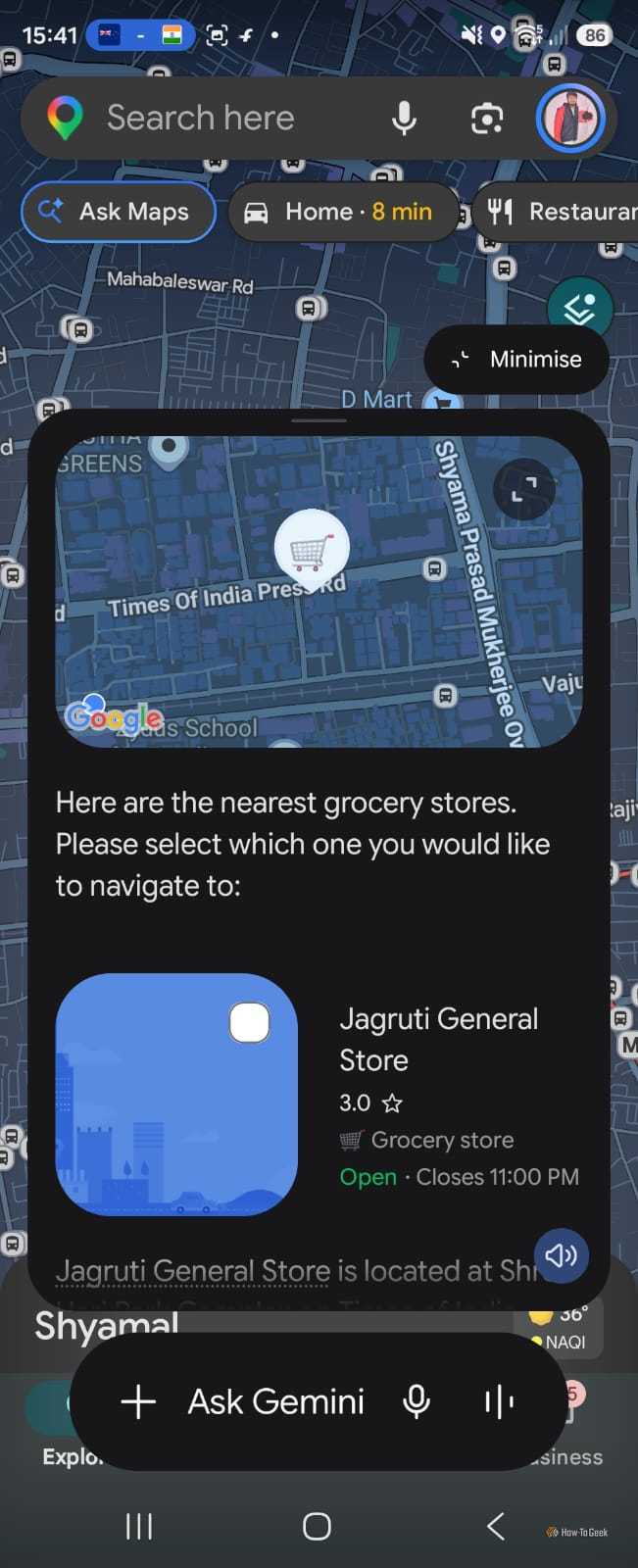
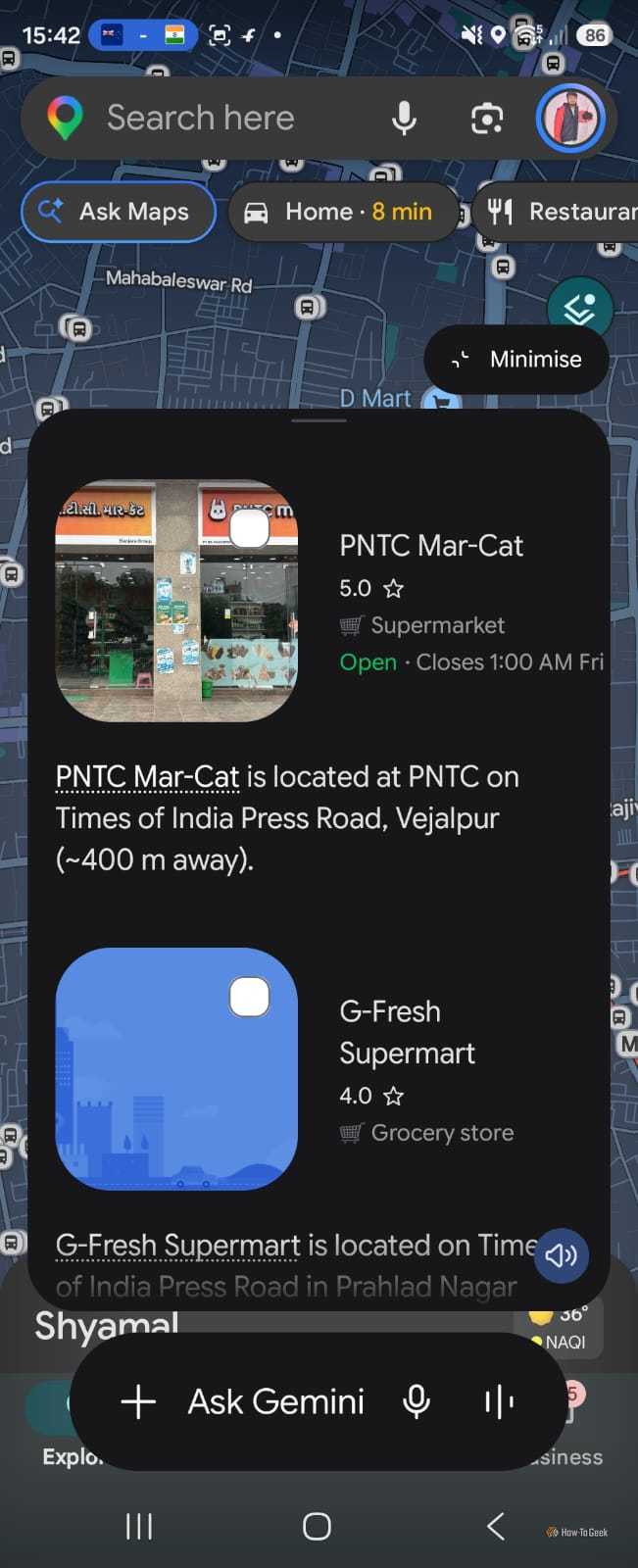
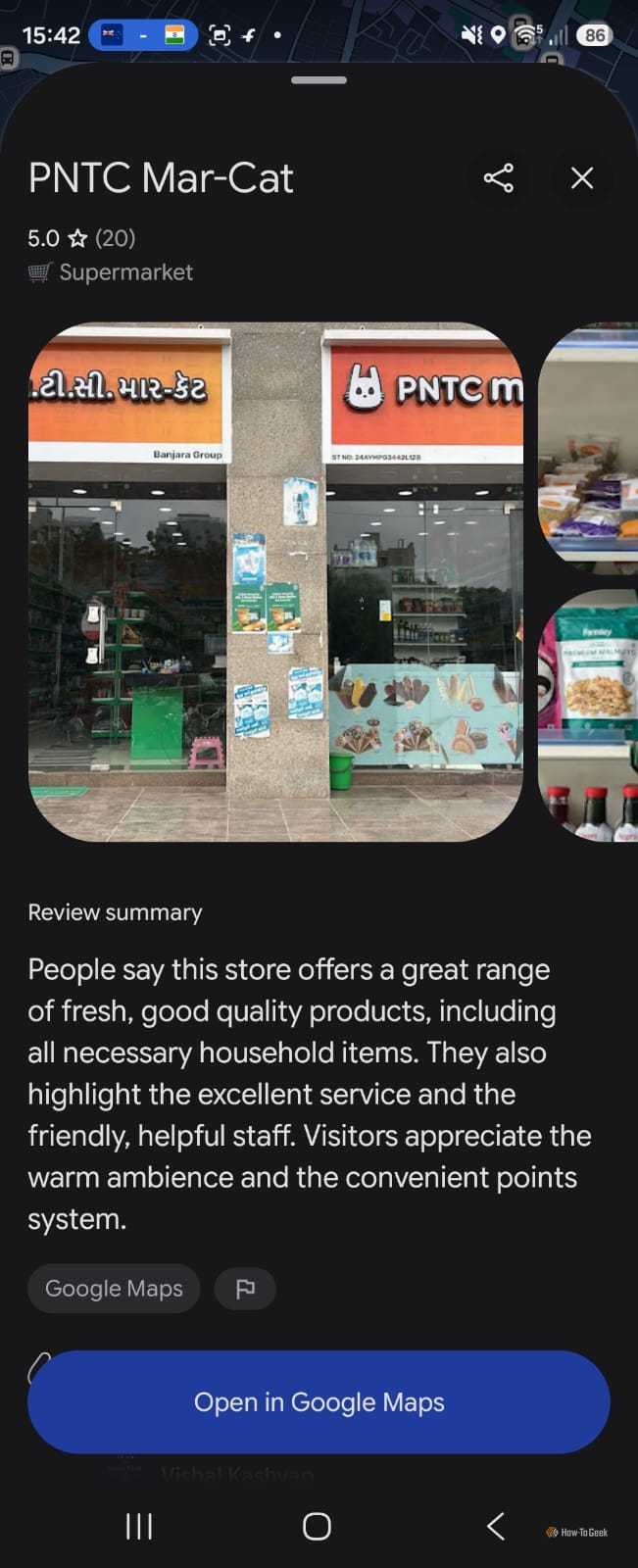
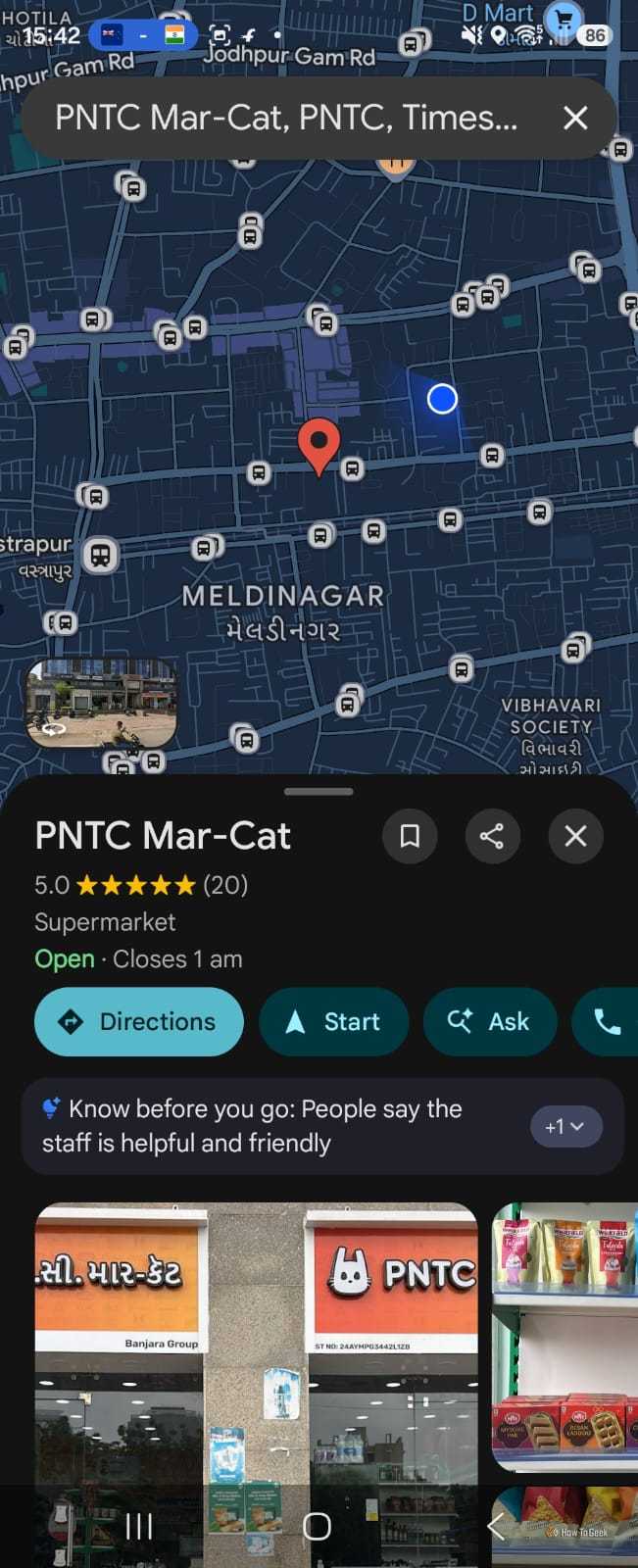
Gemini is a good addition to any app, and Google Maps is no exception. Instead of relying on the usual turn-by-turn instructions, I can use it to get more helpful directions while driving.
Recently, I wanted to find a place without getting distracted by my phone. With Gemini, I could ask for directions using everyday language instead of trying to remember street names.
The landmark feature is especially useful in unfamiliar areas. Maps can tell me to turn after a gas station or a restaurant, which is much easier to follow than “turn right at 500 feet.”
I can also ask Gemini to find ice cream along my route, check EV charging options, or share my ETA.
The Gemini icon is at the top-right of the screen. Tap it to ask a question, or say “Hey Google” if voice activation is enabled.
Google Maps warns me before I leave
This traffic alert could save my morning
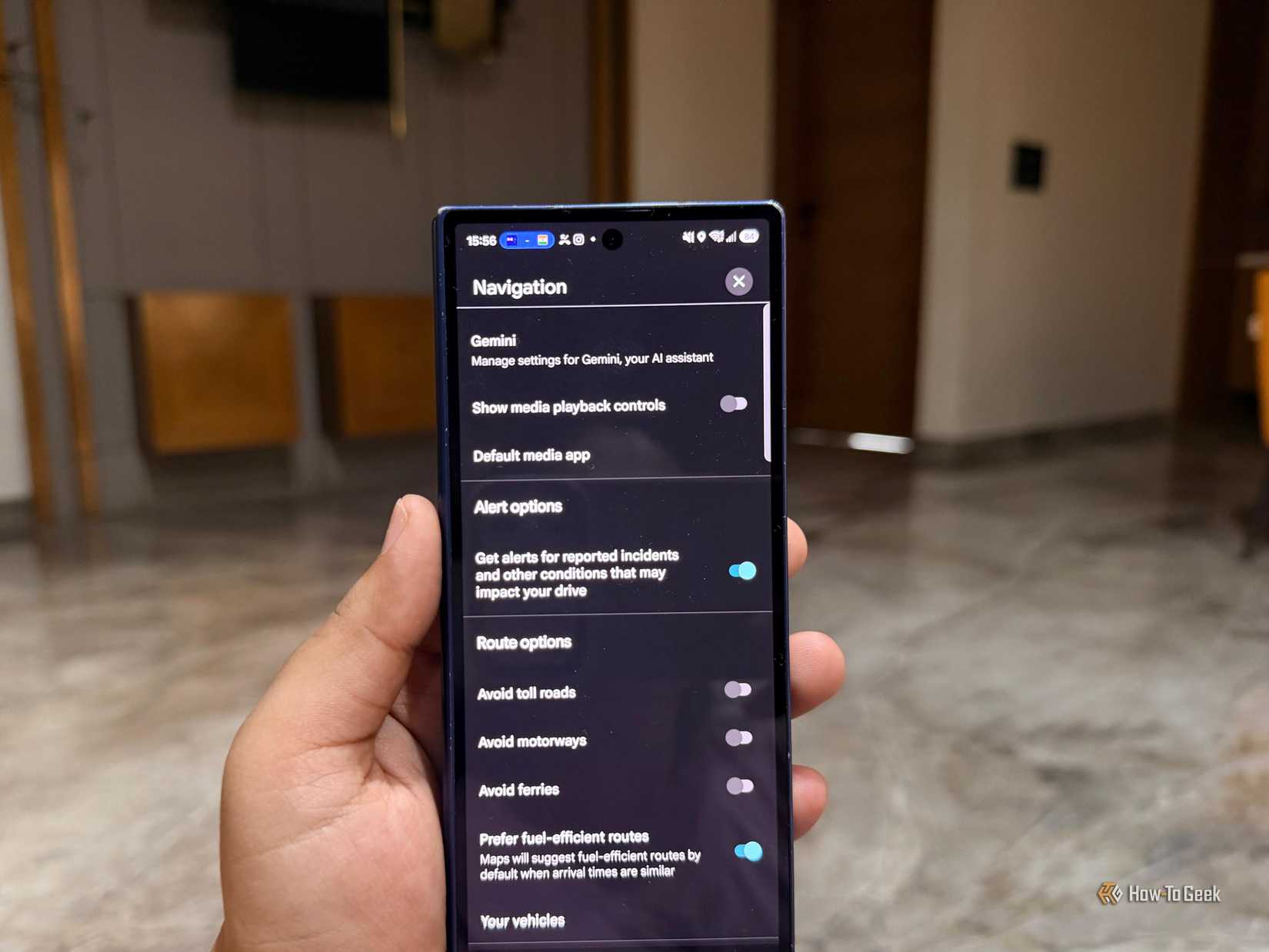
I don’t always open Google Maps before driving somewhere familiar, so proactive traffic alerts caught my attention. Maps can now warn me about major traffic jams and unexpected road closures on routes I travel regularly, even when I’m not navigating.
The alert appears as a notification on my phone’s screen. It tells me about the disruption ahead, including how severe the delay is and how much extra time it could add to my trip.
Say I’m heading out for groceries and a highway closure could slow me down. I can check the notification before leaving and decide whether to take another route.
This feature is going live for Android users in the U.S. It won’t appear for everyone, so availability may vary.
I wish I’d discovered these features sooner
I use Google Maps and Spotify all the time, but I rarely explore beyond the features I already use.
That’s probably why some of its most useful tools flew under my radar for so long.
I could have saved time planning outings, avoided confusing turns, and made better decisions before hitting the road. Now I’m curious what else I’ve missed.
Try these features, and you might find a new favorite.