
 Credit: Patrick Campanale / How-To Geek
Freeing up space on a PC sounds easy enough to do. Maybe you’ll delete some old files, or maybe you’ll bring an old drive back to life and let it deal with all the clutter while your main SSD deals with the important stuff. Both of those options are good, but they’re not exactly the first thing people tend to go for; at least not always.
The problem lies with cleanup tools. They’re so easy to use: click something, get some gigabytes back, you’re done. But the problem is that not everything labeled as junk is actually disposable. The biggest storage mistake isn’t letting your drive fill up, but rather, it’s trusting the wrong software to decide what your future self will need.
Cleanup tools are only as smart as their rules
Fast deletion is not the same thing as good judgment
I totally get the awful feeling that washes over you when you’re faced with the prospect of cleaning up your files. Unless you’re super tidy about it and have a system in mind (such as using a scratch drive for all kinds of clutter), it’s a tedious job, no doubt. But resorting to using cleanup tools can just land you in a bigger mess than the one you were in before you started.
Cleanup tools are tempting because they make storage management feel simple. They scan your drive, group everything into neat categories, and make it look like you can reclaim a chunk of space without thinking too hard about what you’re deleting.
The problem is that these tools don’t know the difference between junk and something you forgot you needed. A cache, a downloaded installer, an old ZIP file, or a duplicate-looking folder might be safe to remove, but they might also be tied to a project, an app, or a backup. You don’t want those files to get caught in the crossfire, but if you hand off disk cleanup to software, they very well might.
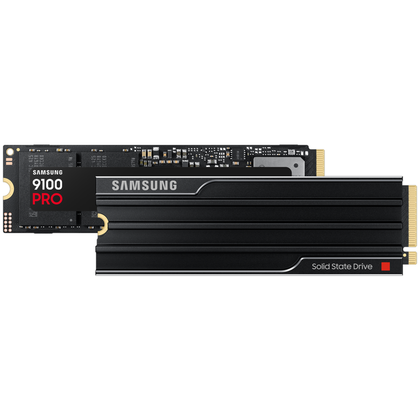
Samsung 9100 PRO
$680
Save $255

Storage capacity
1TB, 2TB, 4TB, 8TB
If you need more storage, you can’t go wrong with the Samsung 9100 Pro. While not cheap, it’s an excellent SSD with read speeds of up to 14.7GB/s.
Hardware Interface
M.2 NVMe
Your Downloads folder isn’t a trash can
Mine is, but do better than me
 Credit: Tim Rattray/How-To Geek
The Downloads folder is one of the worst places to let any cleanup run wild, even though it’s the one that may need it the most (or at least mine could do with a good cleanup).
The thing is that it’s almost never filled with junk and nothing else. It might have some old clutter, sure, but it can also have a lot of important stuff, such as bank statements, invoices, receipts, work documents, exported files, drivers, and things you only realize you still need once they’re gone.
Age alone is not a good reason to delete something from Downloads, so this is the one folder I’d always clean up manually, even if the rest of the drive is taken care of by a tool.
If your external drive is always plugged in, it isn’t a backup
Why your ‘backup’ drive is corrupting files: The danger of USB hubs and micro-disconnects
Duplicate file finders can be wildly overconfident
Wish I had that kind of confidence, to be honest
 Credit: Patrick Campanale / How-To Geek
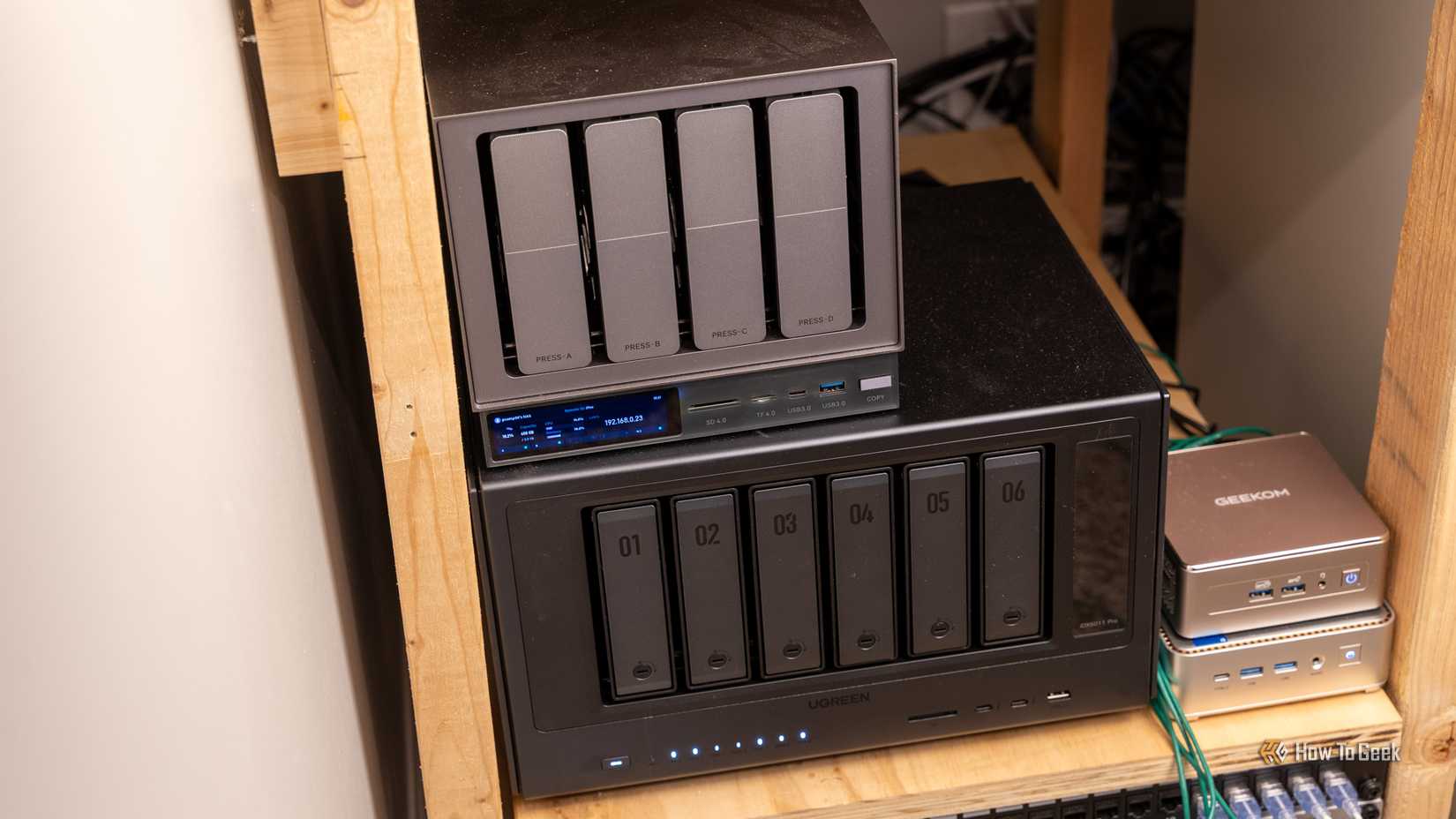
Duplicate file finders sound useful in theory, because nobody needs seven copies of some random installer or that work project you’re not sure you actually downloaded from Slack. But the problem is that “duplicate” can mean a few different things depending on the tool, and even files that really are identical might be sitting in two different places for a reason.
If a cleanup app starts removing things from project folders, game folders, app folders, cloud sync folders, or backups, you could end up with a whole lot of chaos. Broken paths, missing assets, broken sync software, and so on, are all best avoided.
Restore points and backups aren’t wasted space
You only miss them when something breaks
 Credit: Patrick Campanale / How-To Geek
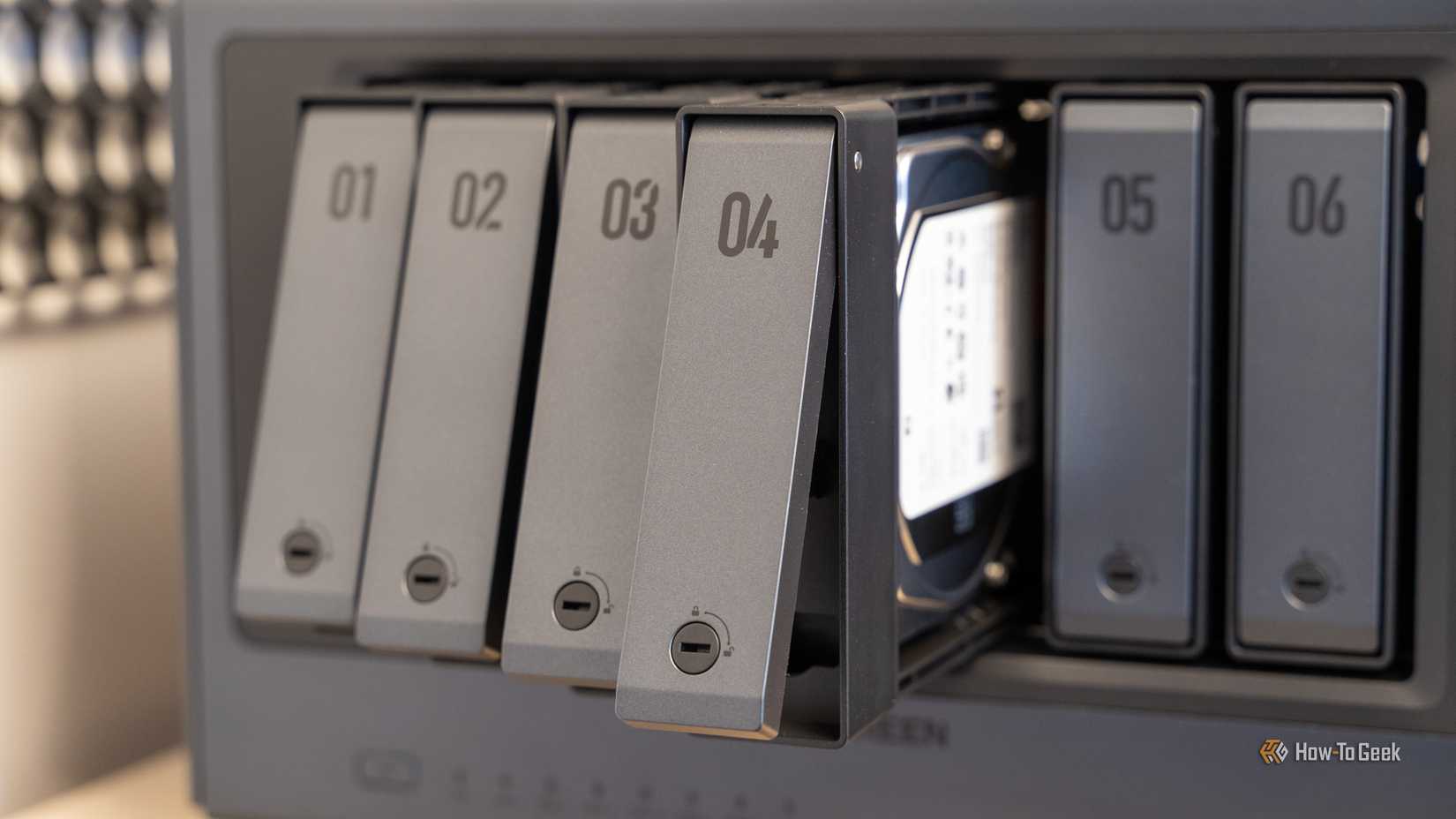
If you follow the 3-2-1 backup rule, you might have a bunch of restore points and backups sitting around on your drive (ideally, on a few drives). It’s easy to treat those like dead weight, because they just sit there taking up space until something goes wrong. But that’s also the entire point.
If a driver update, Windows update, app install, or random system change makes your PC act up, having a restore point can give you a way back that doesn’t involve undoing the damage yourself.
The same goes for backups, even if they’re taking up room you’d rather use for something else. They may look like clutter, but if you delete the wrong backup, you might regret it.
Caches and thumbnails aren’t always useless
Some space comes back with a catch
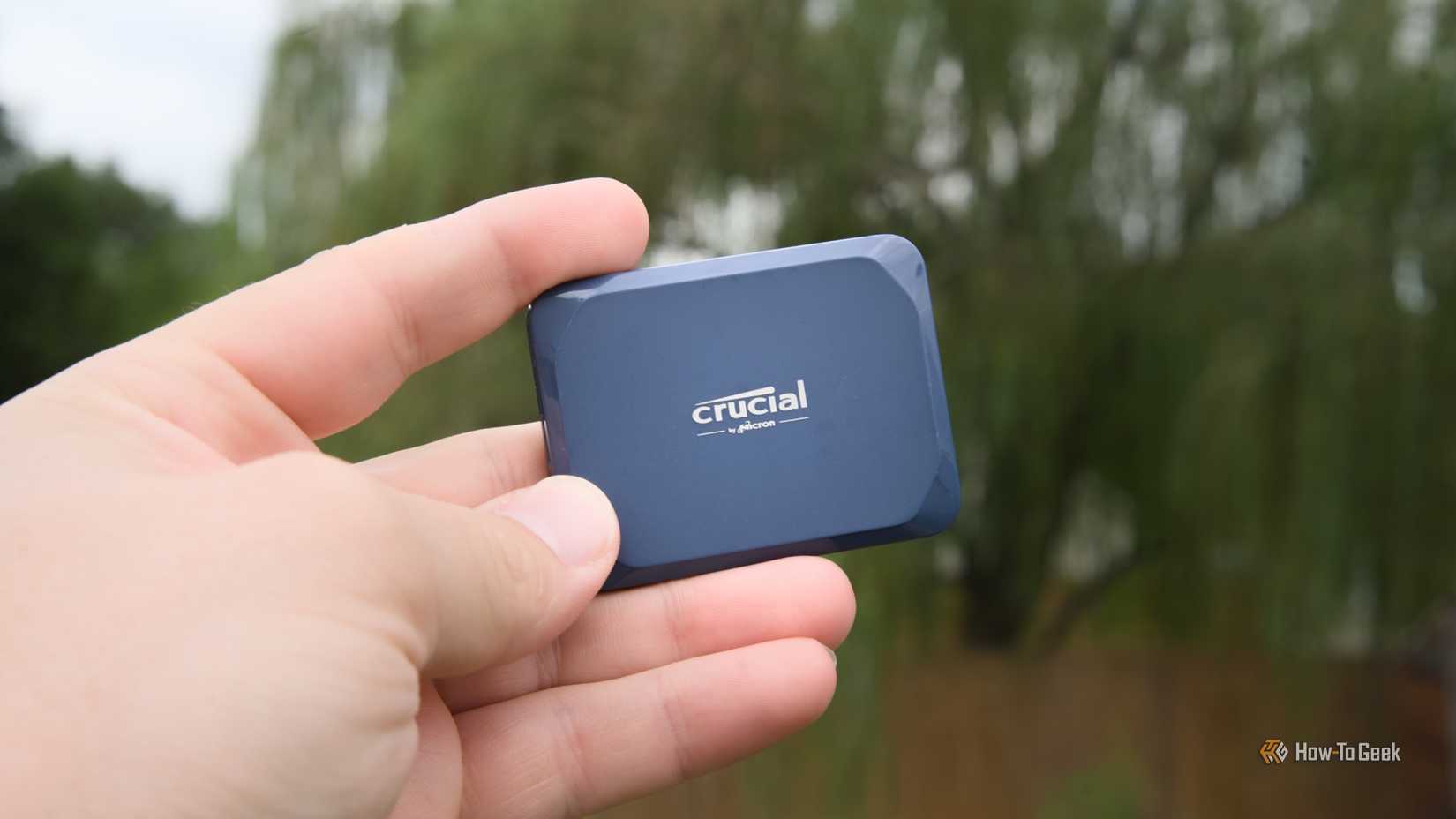 Credit: Patrick Campanale / How-To Geek
Caches and thumbnails are usually safer to clear than personal files, but I’m still not a fan of handing over the reins to an automated tool. Those files exist for a reason. They help your PC load things faster or avoid rebuilding previews from scratch, so deleting them can make folders, apps, or websites feel slower for a while afterward.
That’s not a disaster, but it is a tradeoff that’s better to control yourself.
The safest cleanup tool is the one you still control
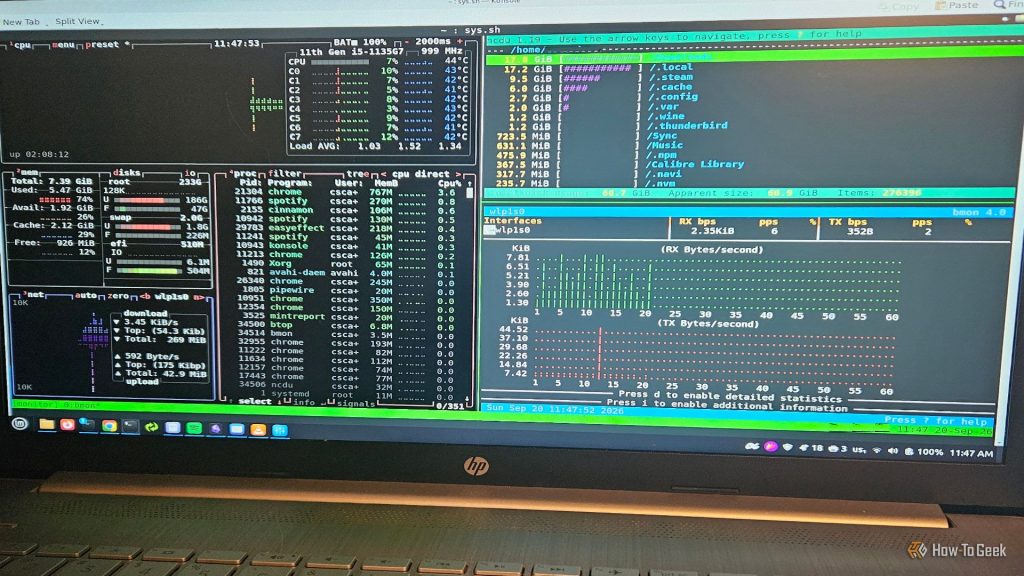
The better approach to disk cleanup is to use tools that show you what’s taking up space without making too many decisions for you.
Start with Windows’ own Storage settings, Storage Sense, Disk Cleanup, and Cleanup recommendations. You can also try tools like WinDirStat, WizTree, or TreeSize Free if you need to see which folders are eating your drive.
The difference lies in control: the software points out the issue, but you’re the one who makes the final call.
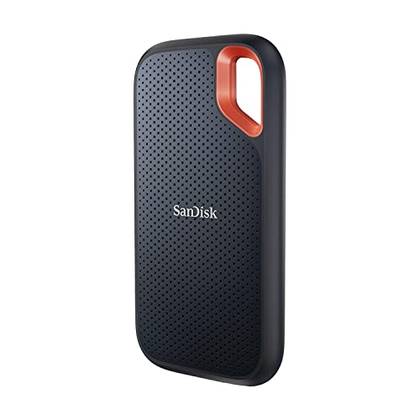
SanDisk Extreme Portable SSD
At a time when pretty much all storage for PCs is overpriced, the SanDisk Extreme is still decent value for your backups and files.






10