Credit: Justin Duino / How-To Geek
Growing up with stock Android on my first smartphone, the Mi A2, an Android One device, I never had issues with apps getting killed in the background, especially during multitasking. That’s because Android, in its original form, tries to retain apps in memory and prioritize performance over battery life.
I hate it when I open an app only to find it reloading all over again, even though I left it running in the background. Whether it’s a messaging app that needs to deliver notifications or a cloud storage service that’s supposed to sync my files in the background, I want my frequently used apps to work even when I’m not actively using them.
This changed as soon as I moved to Galaxy devices running One UI, as Samsung’s aggressive battery management didn’t allow that. Thankfully, the company lets users tweak One UI’s default behavior by locking apps in memory and excluding them from automatic sleep restrictions. I use the Never auto-sleeping apps setting and have experimented with Samsung’s own Battery Guardian app to get more control over background activity.
Samsung’s battery management can be a little too aggressive
One UI uses multiple ways to restrict background activity
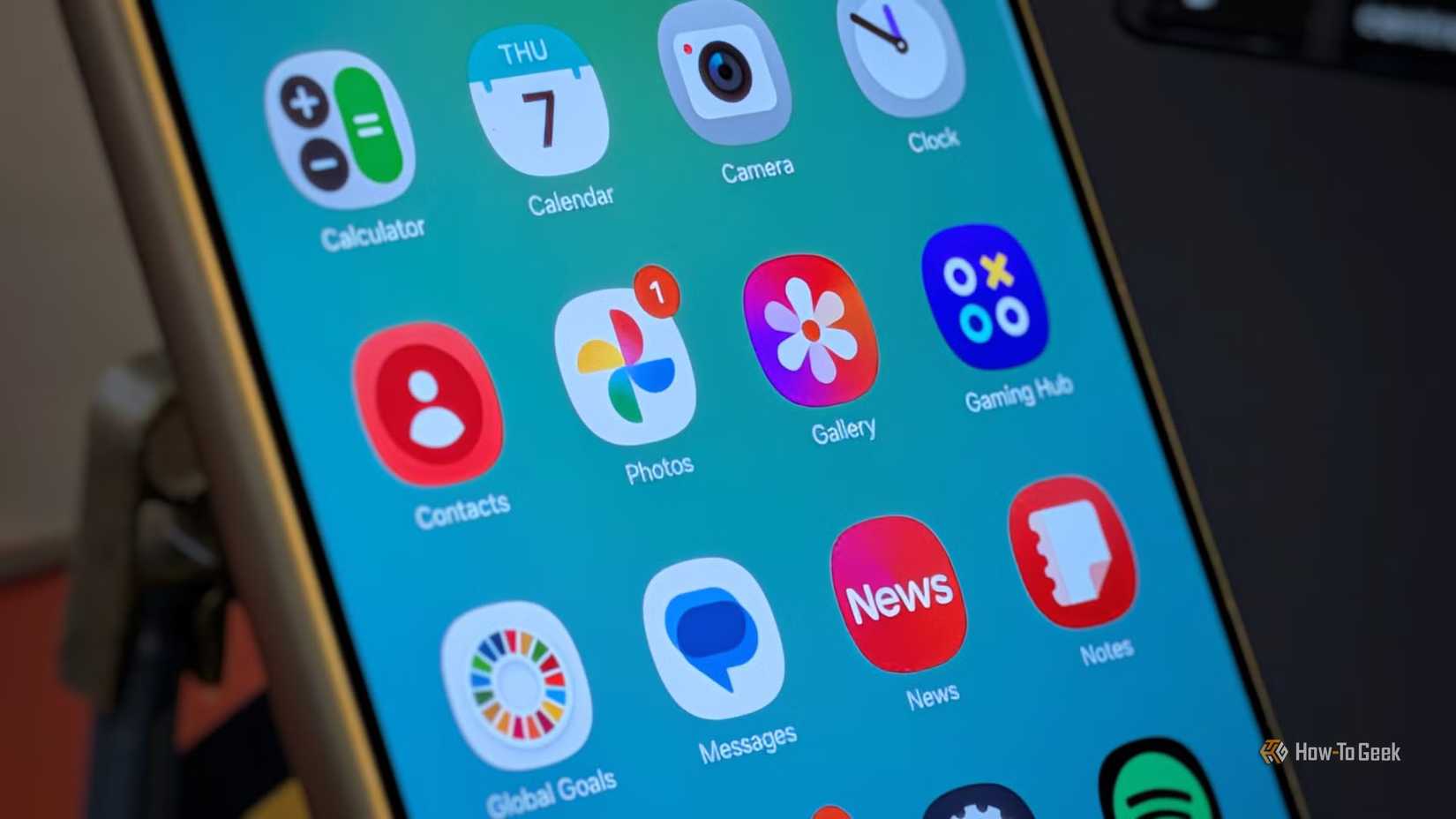
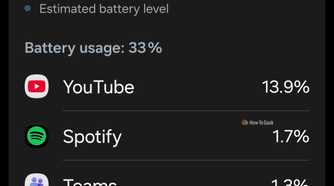
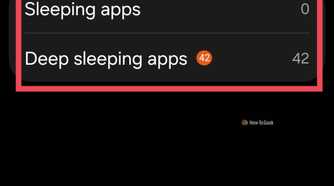
Samsung’s One UI intelligently manages background apps to reduce battery consumption. Based on how frequently you use an app and its background battery consumption, the system can move it into the Sleeping apps or Deep sleeping apps category.
Sleeping apps may occasionally run in the background, but their updates and notifications can be delayed. Deep sleeping apps, on the other hand, are placed in a more restricted state that prevents them from running in the background. They become active only when you open them.
These techniques can be counterproductive when you need your favorite apps to stay active in the background and deliver timely notifications.
Keep your favorite apps running in the background
The hidden “Never auto-sleeping apps” setting
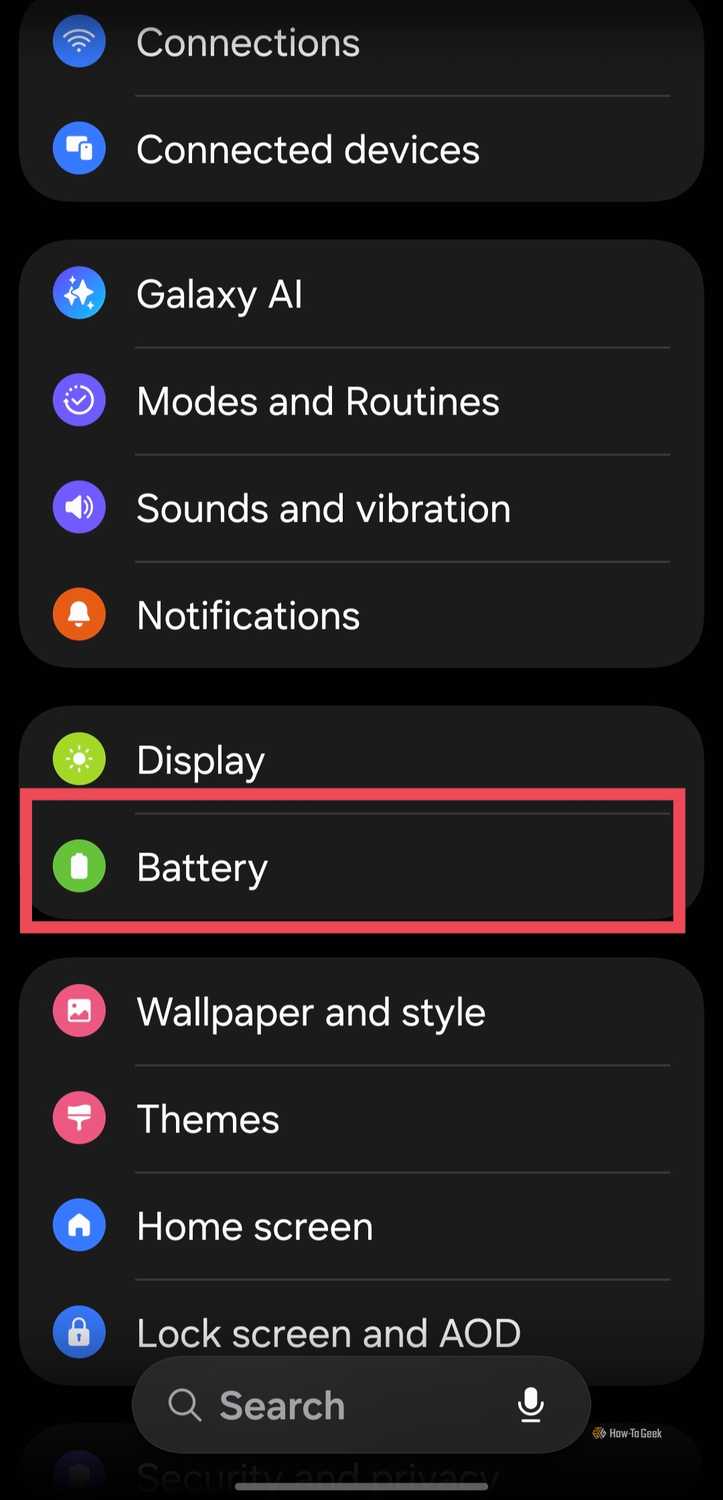
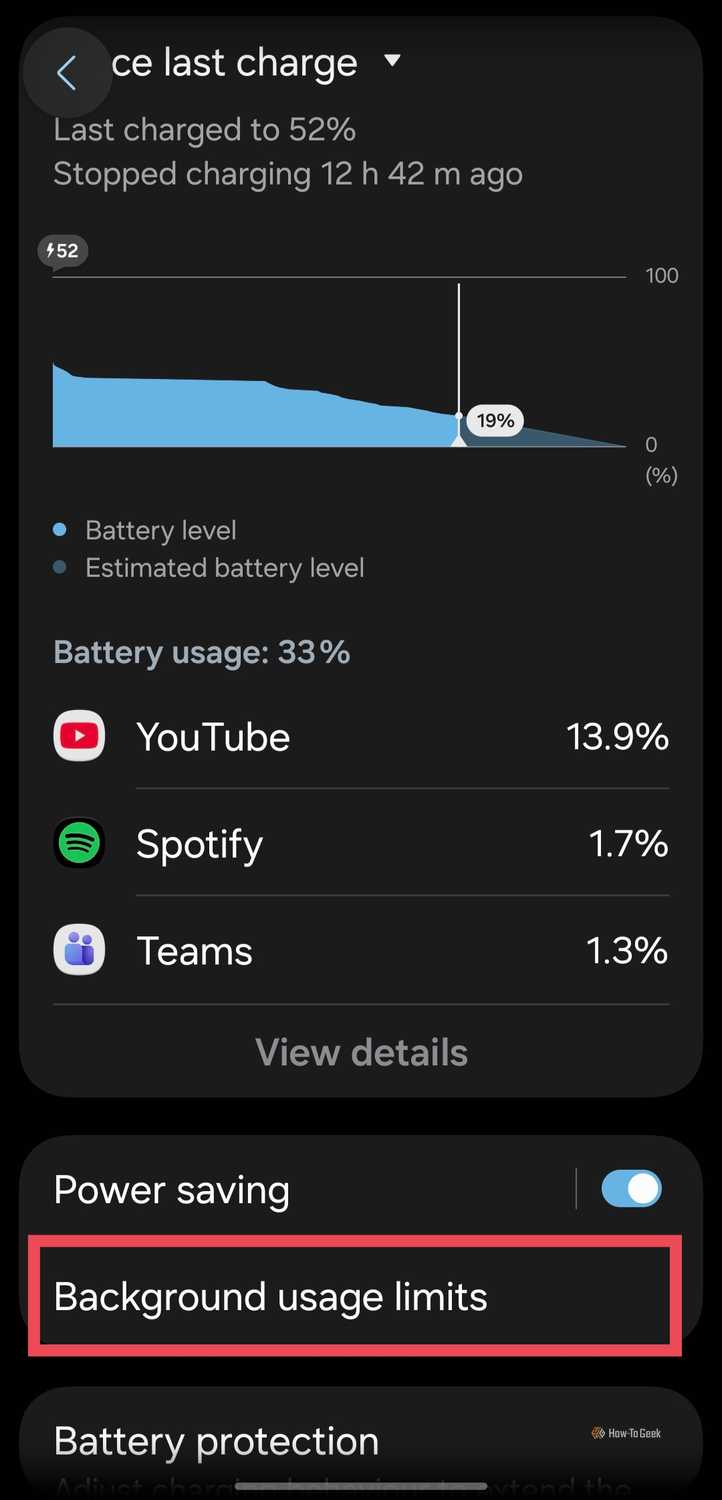
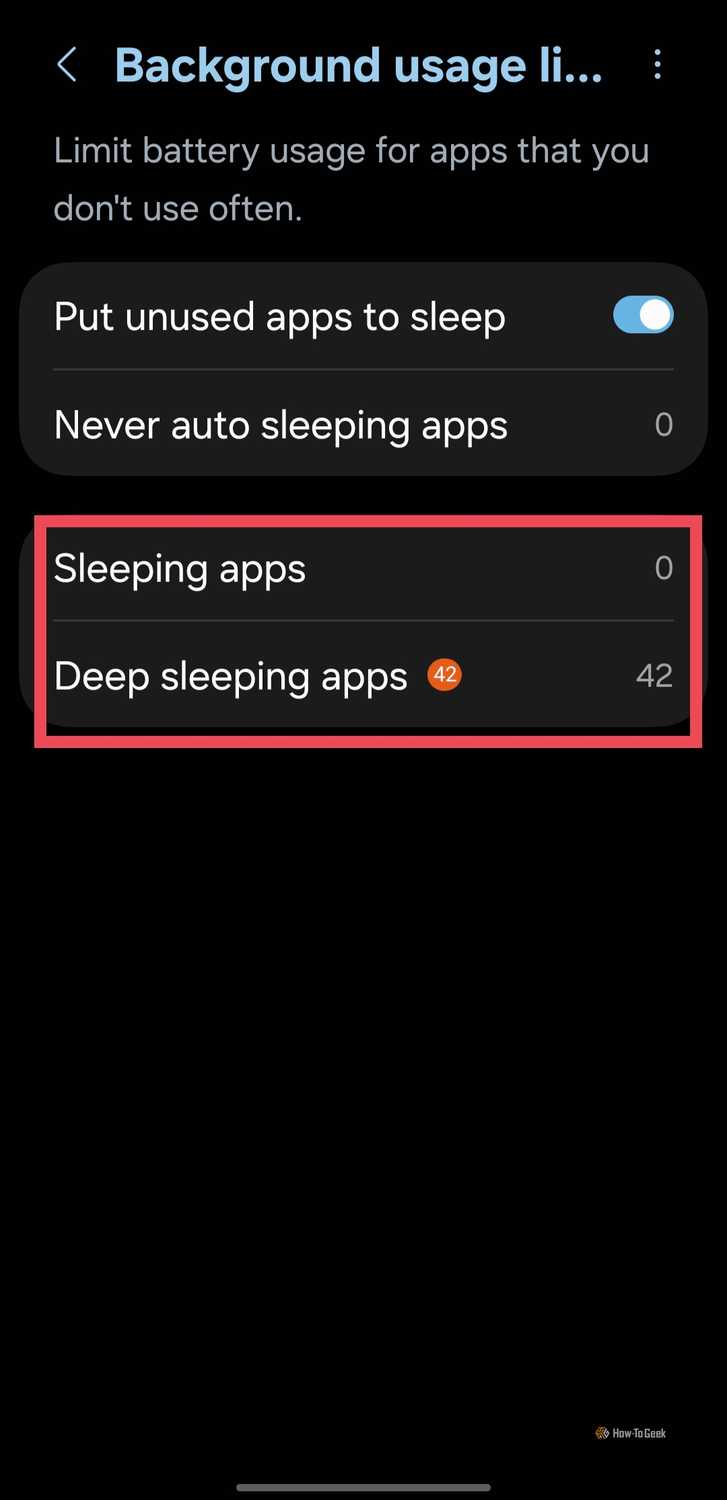
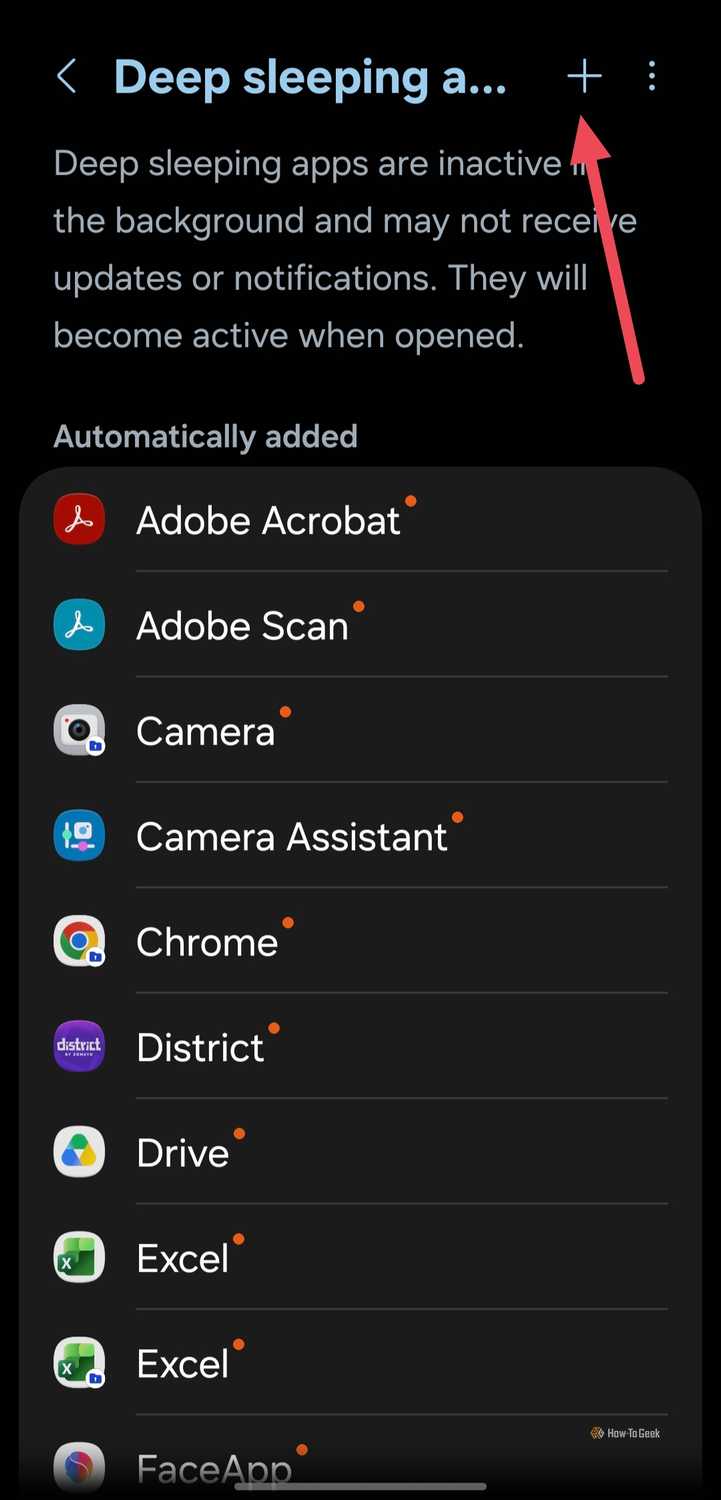
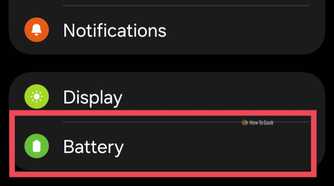
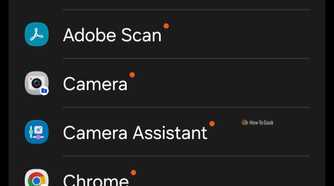
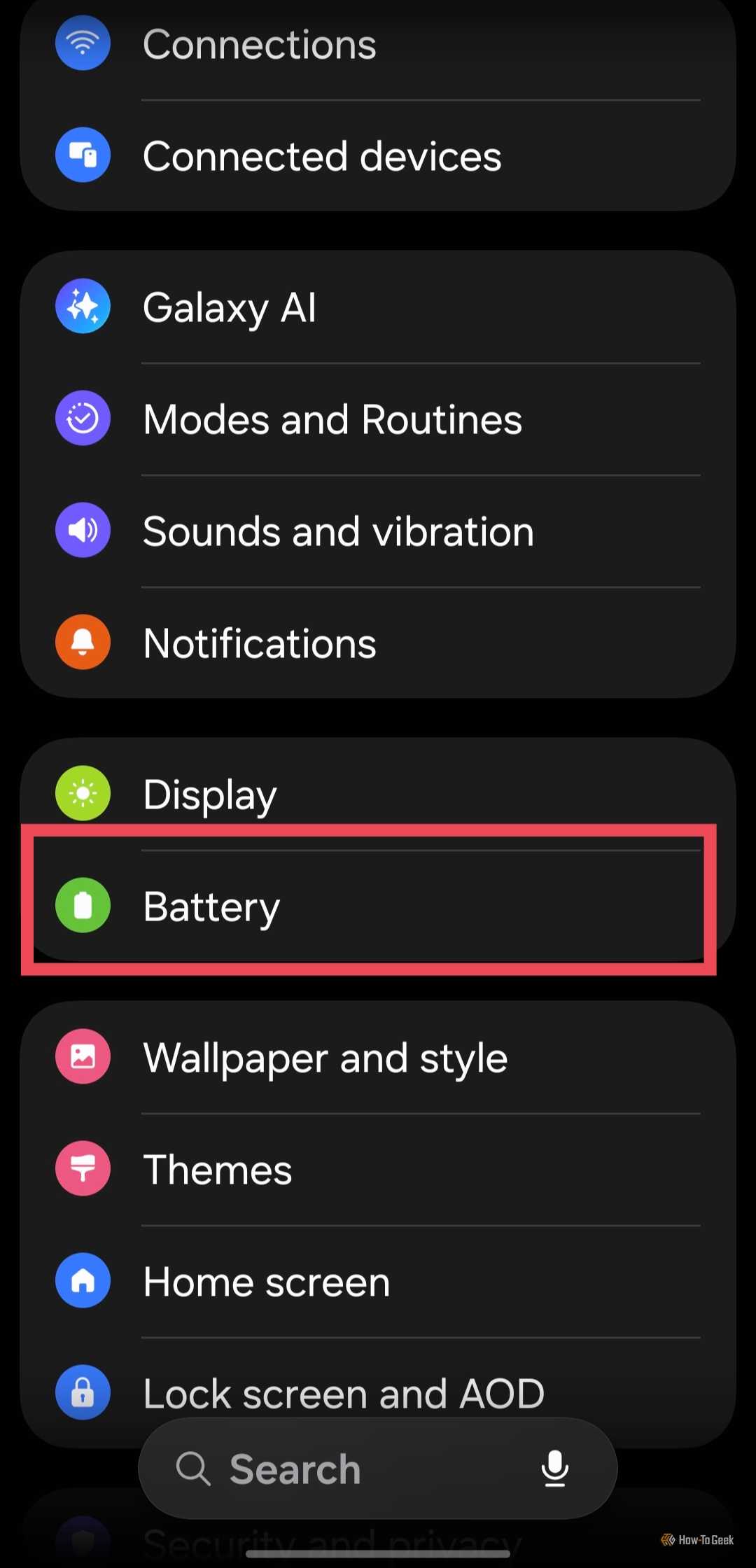
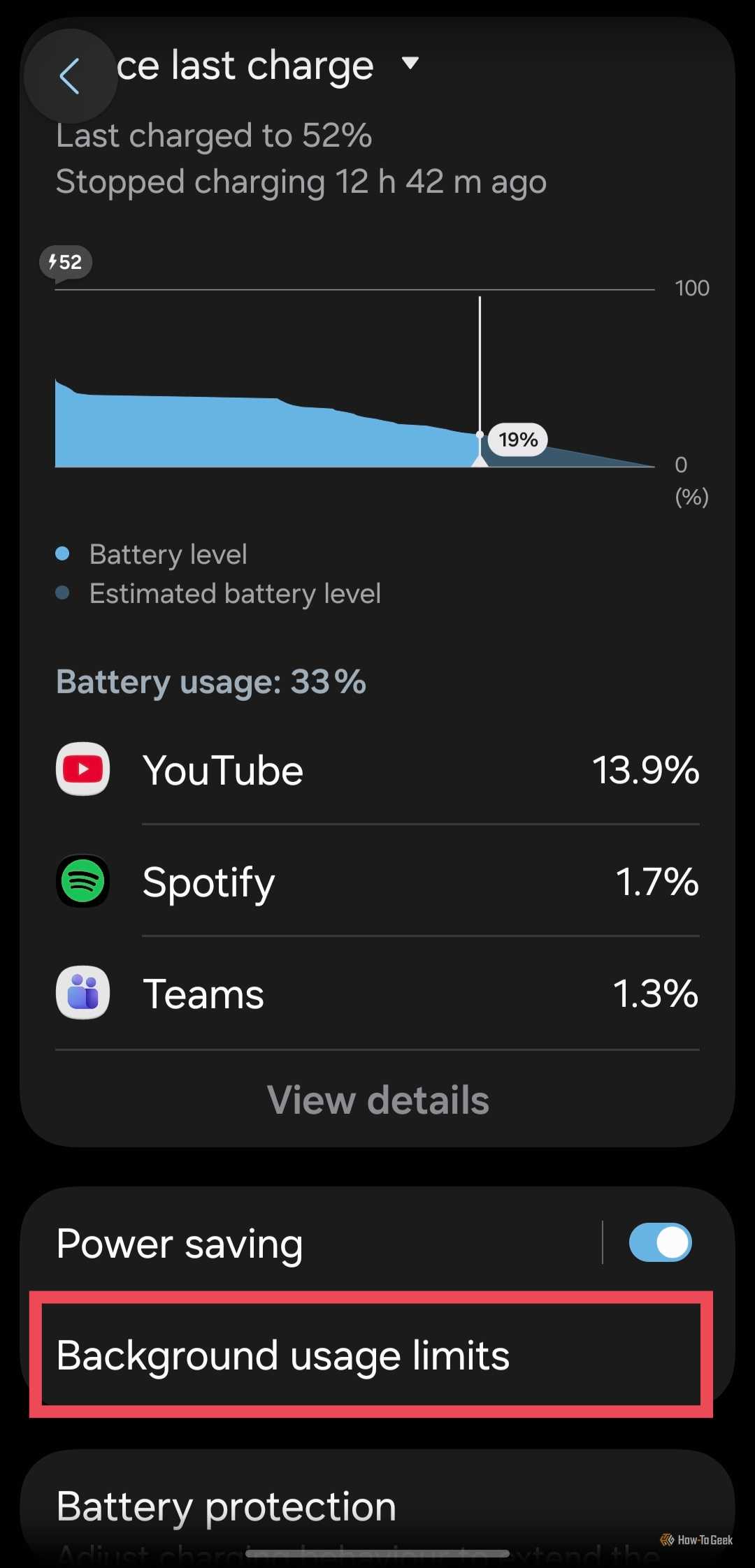
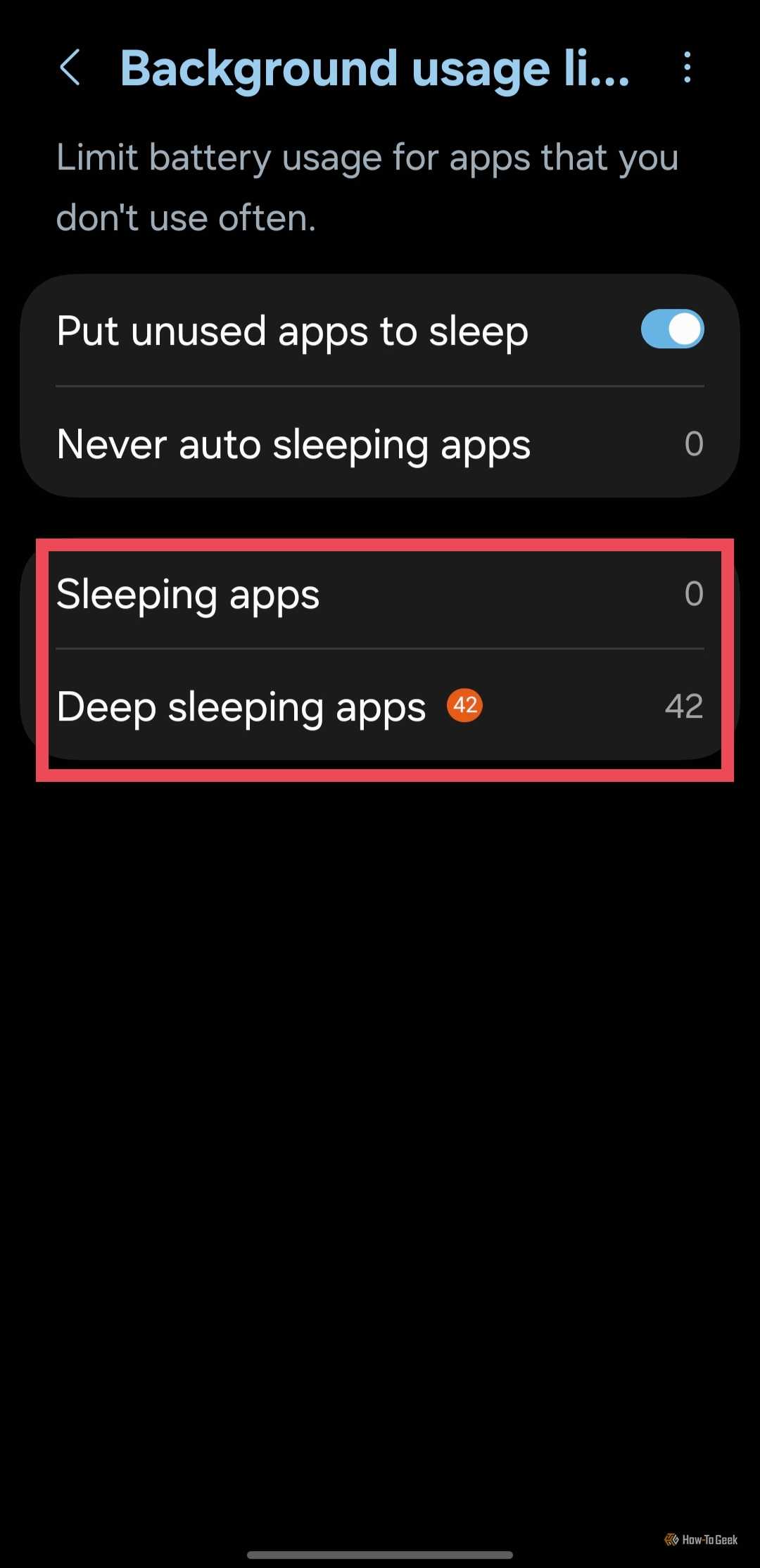
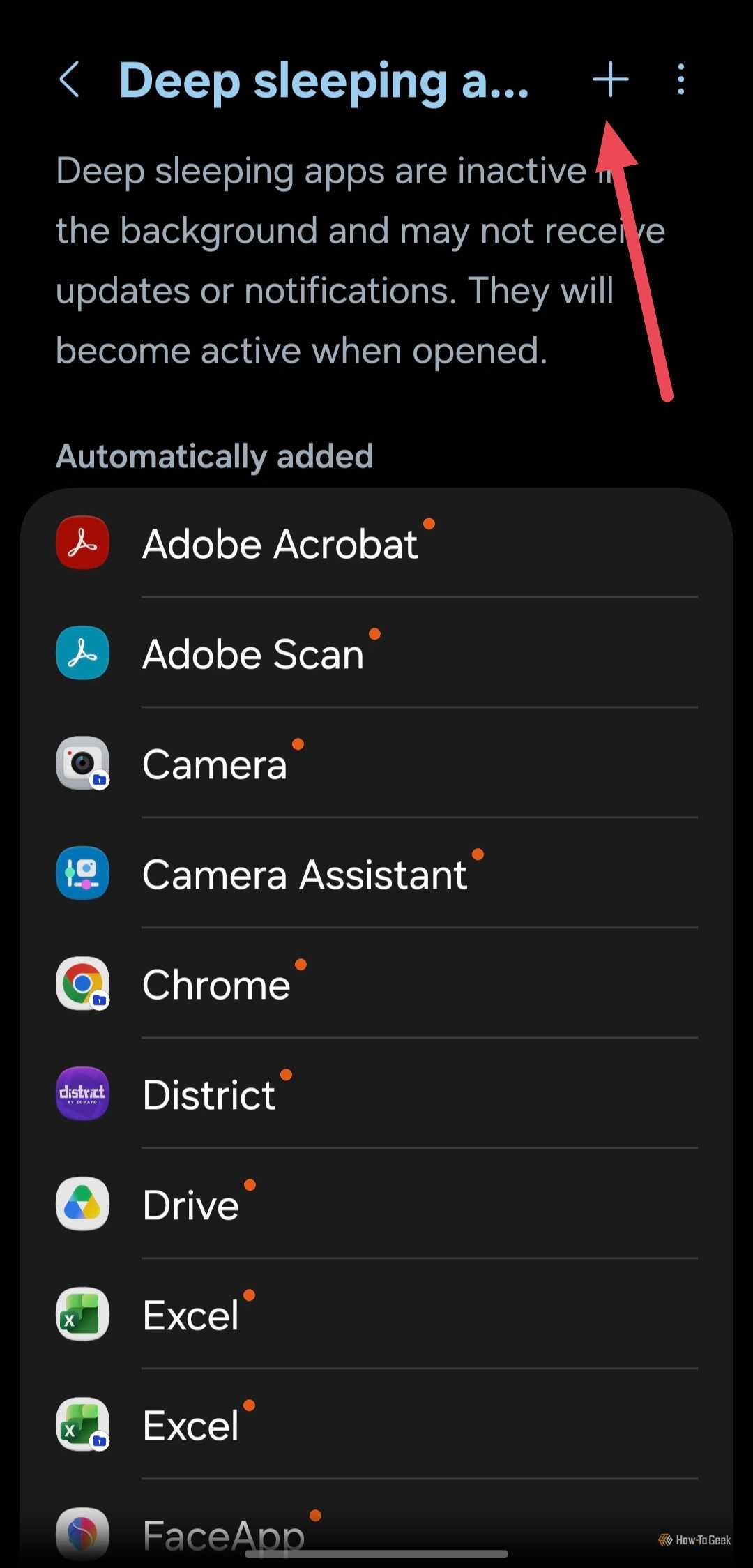
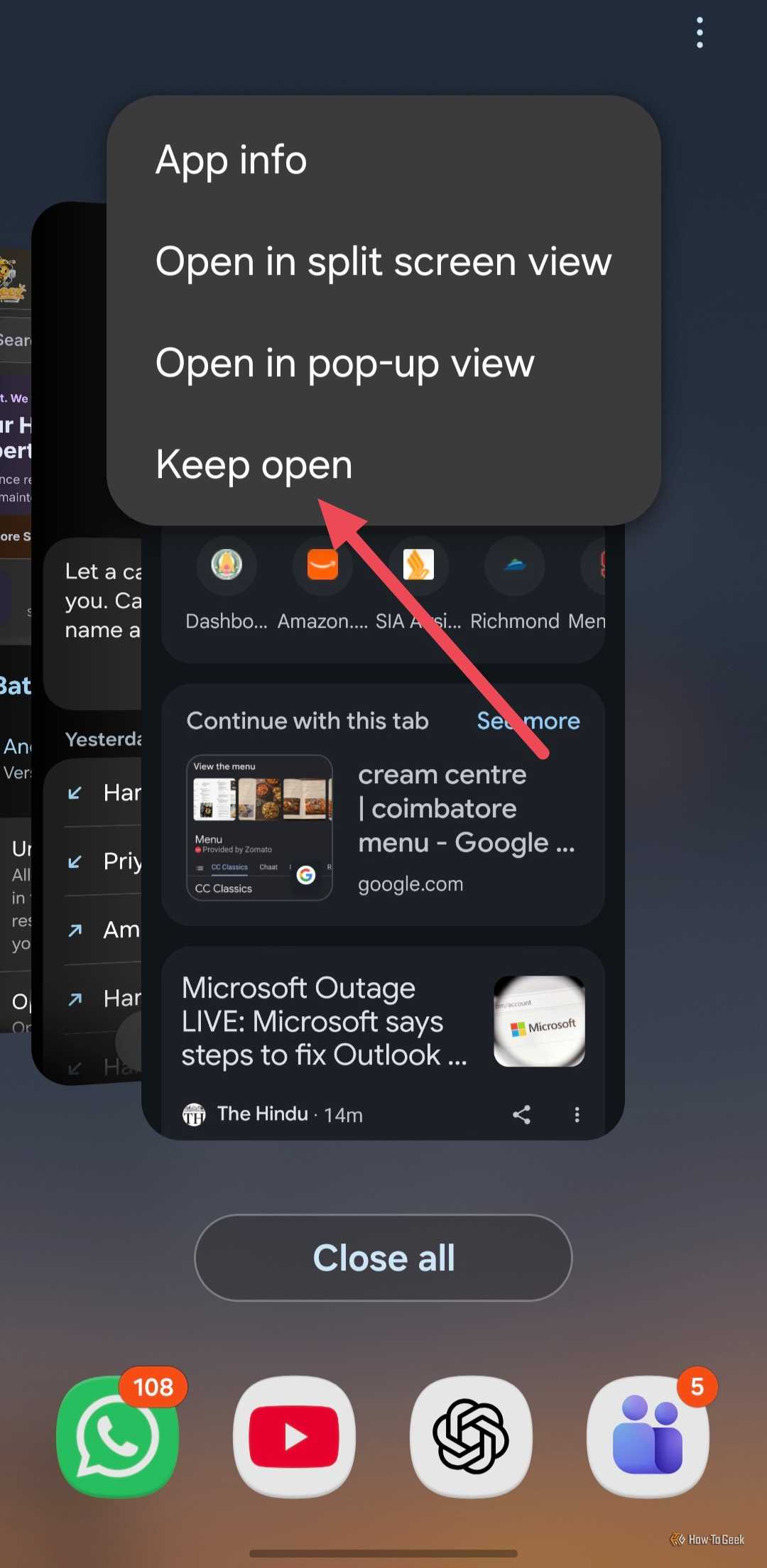
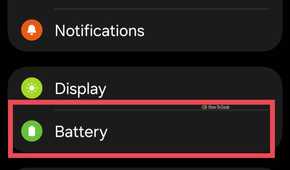
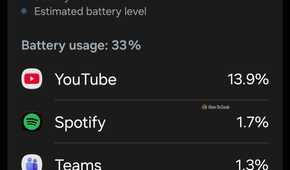
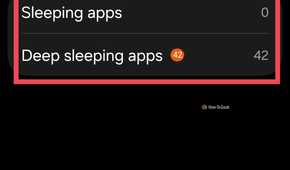
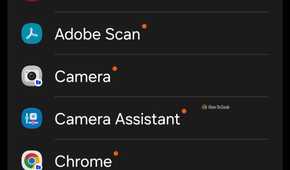
Fortunately, you can override Samsung’s default sleep management settings for apps you wish to keep running without interruption in the background. To access this, open the Settings app on your Galaxy phone and select Battery. Open Background usage limits and tap Never auto sleeping apps. Then, tap the + icon in the top-right corner, select the apps you want to exclude, and tap Add.
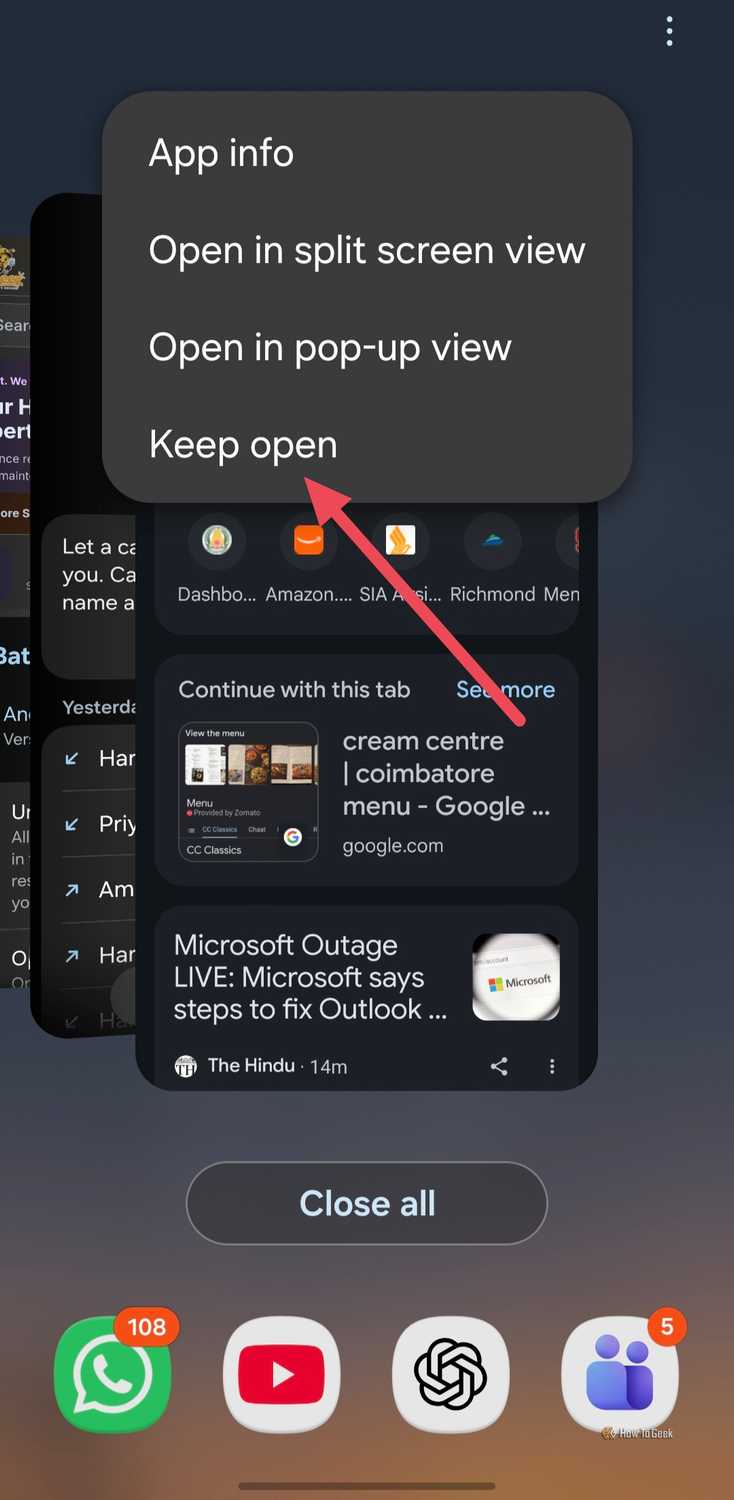
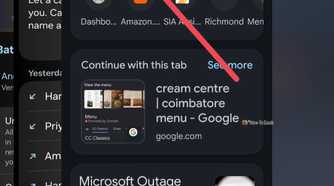
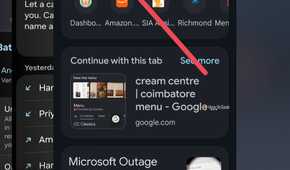
Apart from this, there are a couple of additional ways to prevent your favorite apps from being killed in the background. You can lock an app on the Recents screen by tapping its icon above the preview card and selecting Keep open. This setting is particularly helpful for health apps, which One UI may often kill in the background because they continuously access background sensors.
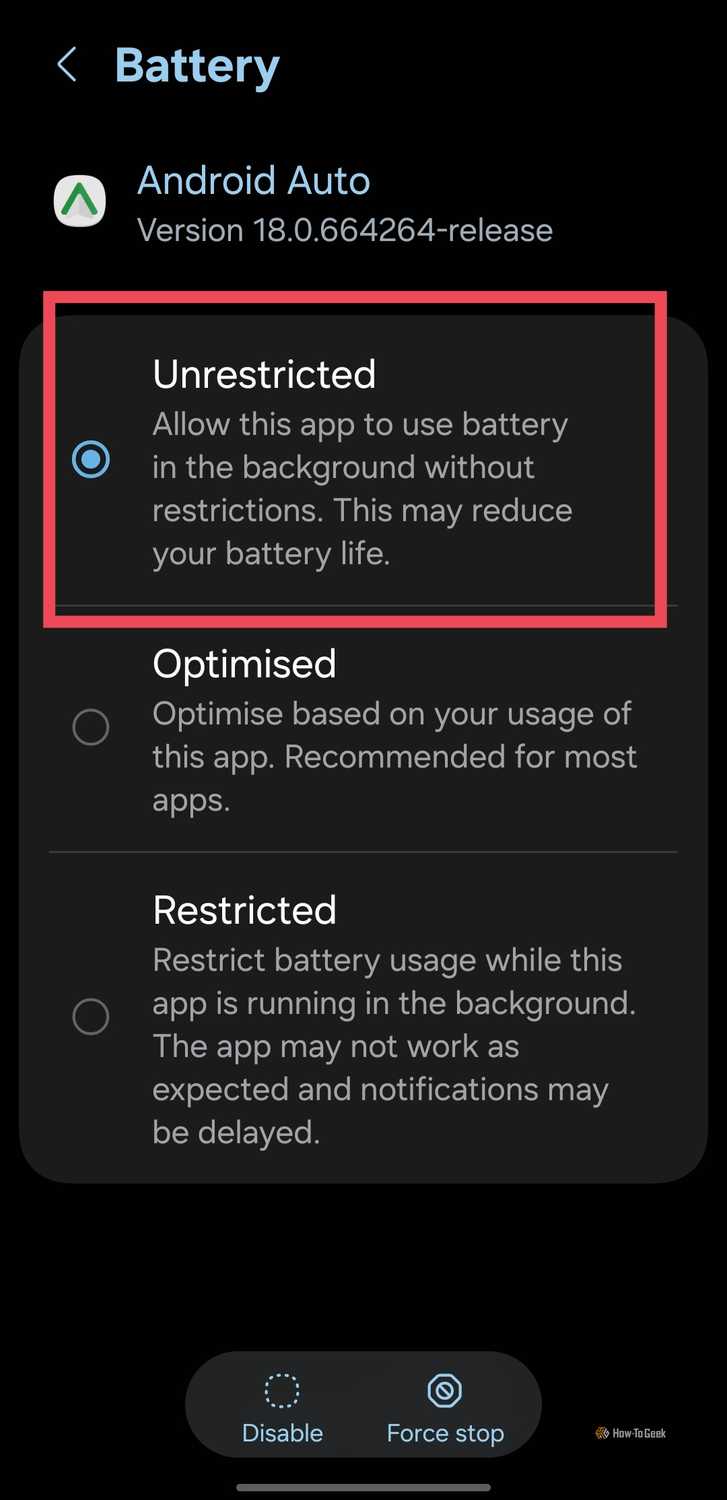
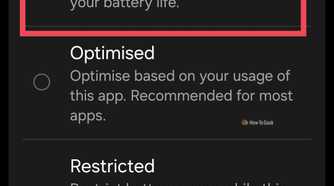
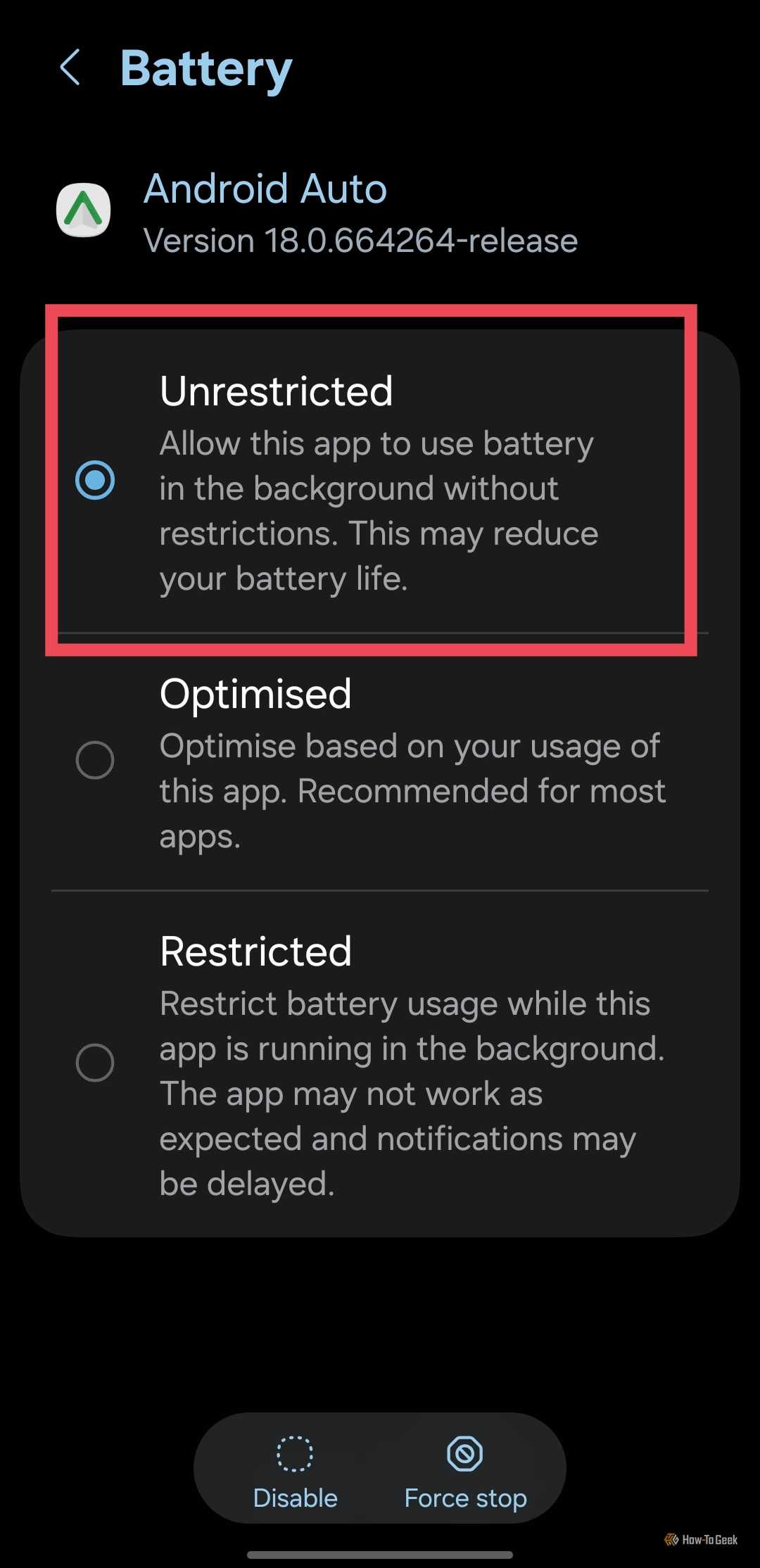
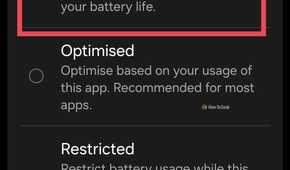
I also set apps such as Google Maps and Android Auto to Unrestricted battery usage to give them more freedom to run in the background. To do this, open Settings, select Apps, find the app you want to exempt, and open its Battery settings. Select Unrestricted to reduce Android’s battery-related restrictions on its background activity.
Keep in mind that offering an app Unrestricted battery usage can increase battery consumption, so I’d reserve it for apps that genuinely need it.
Get more battery life with Samsung’s Battery Guardian
Fine-tune your Galaxy phone’s power-saving settings
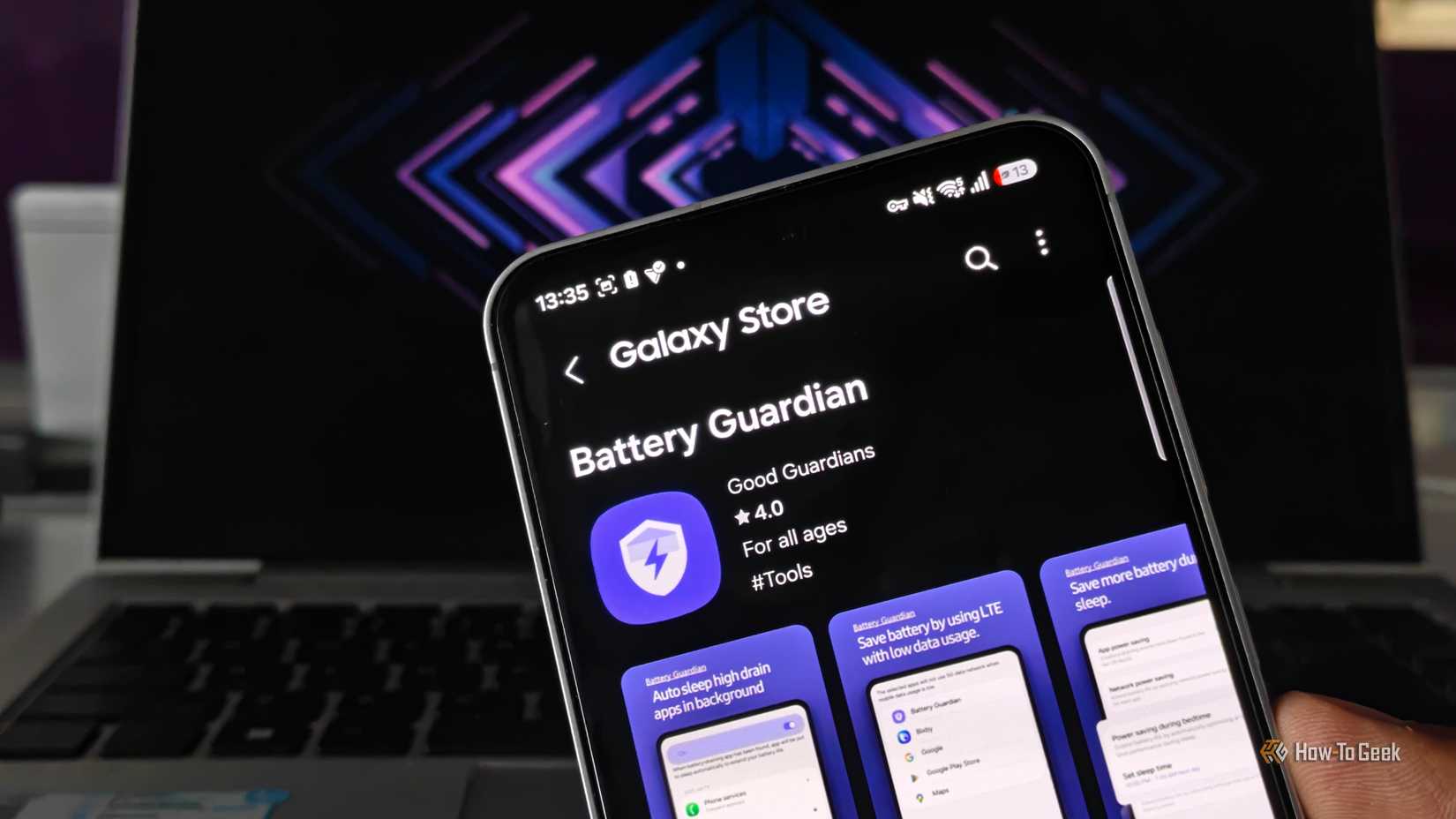
If you want more control over your Galaxy phone’s battery consumption, Samsung offers another utility app called Battery Guardian through its Galaxy Store. It’s part of the Good Guardians suite and provides additional options to optimize battery usage. Once installed, open Battery Guardian and explore the Extend battery life section to see which settings you can adjust.
The utility lets you optimize several power-hungry features, including screen brightness, motion smoothness, switching to standard refresh rates, and shortening the screen timeout to reduce display power consumption. It also offers options such as Dark mode and network power saving, which can help reduce power usage depending on how you can use your phone.
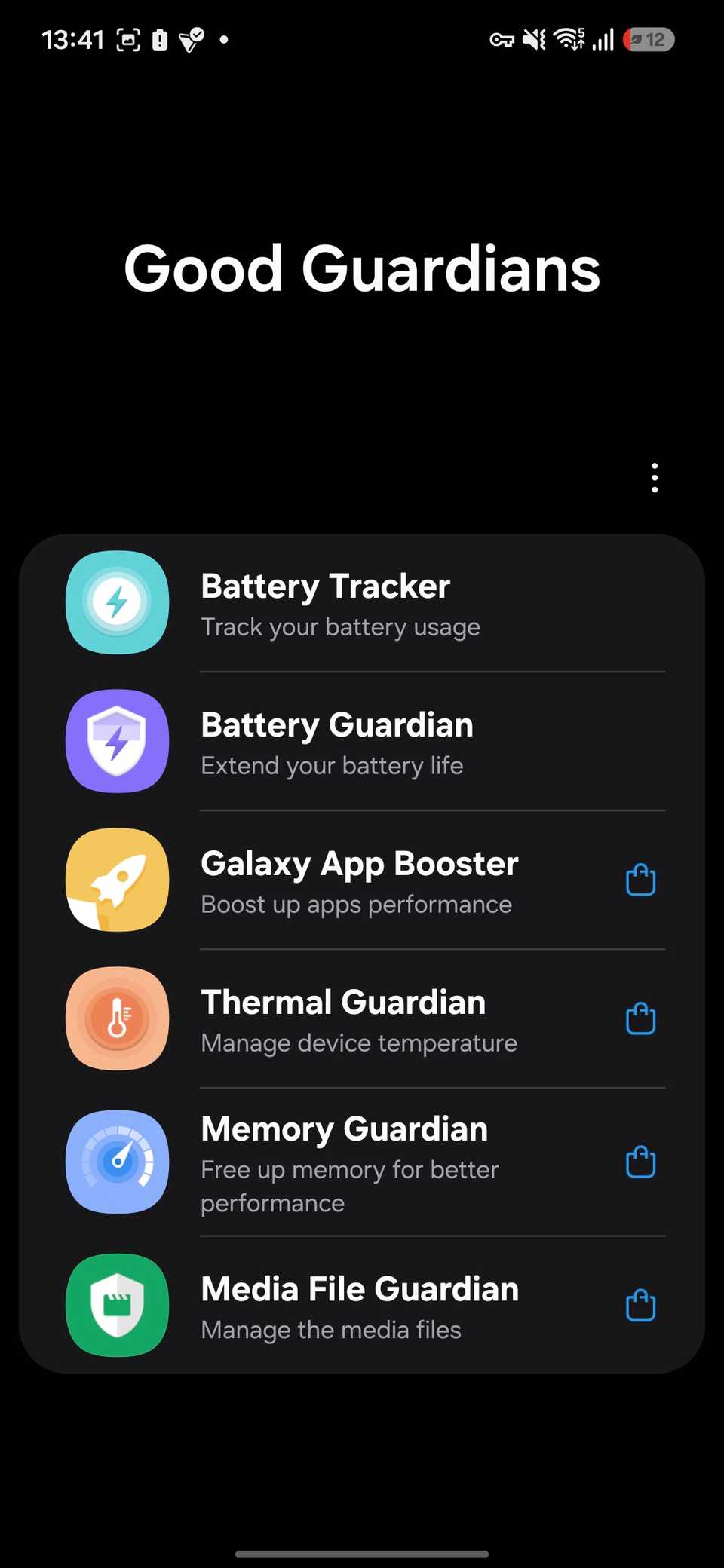
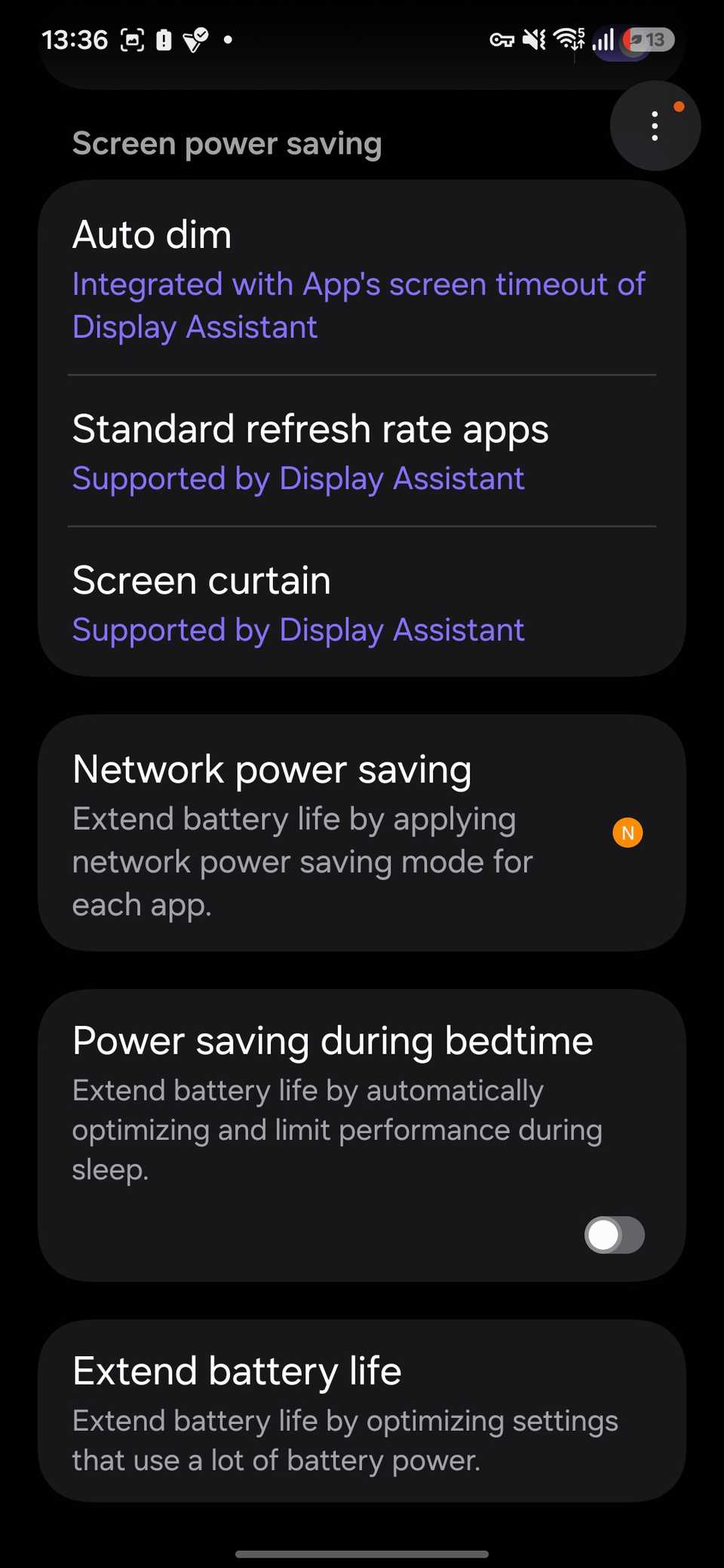
Battery Guardian also includes a Power saving during bedtime, which might come in handy for those who experience severe overnight battery drain. This setting automatically optimizes settings and limits performance while you sleep. It lets you set start and end times to match your sleep schedule.
Additionally, its screen power-saving options include Auto dim, Standard refresh rate apps, and Screen curtain. These controls let you fine-tune battery-saving behavior without constantly switching individual settings yourself.
You don’t have to sacrifice app functionality for battery life
Samsung’s battery management features can help extend battery life, but they’re not always a one-size-fits-all approach for the apps you rely on. Selectively excluding important apps from sleep restrictions, keeping them open in memory, and adjusting their battery usage settings help you stay on top of the apps you need. Battery Guardian also offers more ways to fine-tune power consumption.