Credit: Dibakar Ghosh | How-To Geek
Large language models entered the mainstream when OpenAI wrapped one in a chat window and called it ChatGPT. The interface was so intuitive that everyone copied it, and it’s still how most people think about AI: you type a question, you get an answer. But a lot has changed since then.
There’s now a whole ecosystem of tools around these models—file access, custom instructions, reusable skills, browser control—that turns them from chatbots into assistants that actually get work done. If you’re still using Claude like a simple chatbot, you’re leaving most of your subscription’s value on the table. Here’s what I changed to get the most out of mine.
Stop using the Claude web app
The chat window was never the whole product
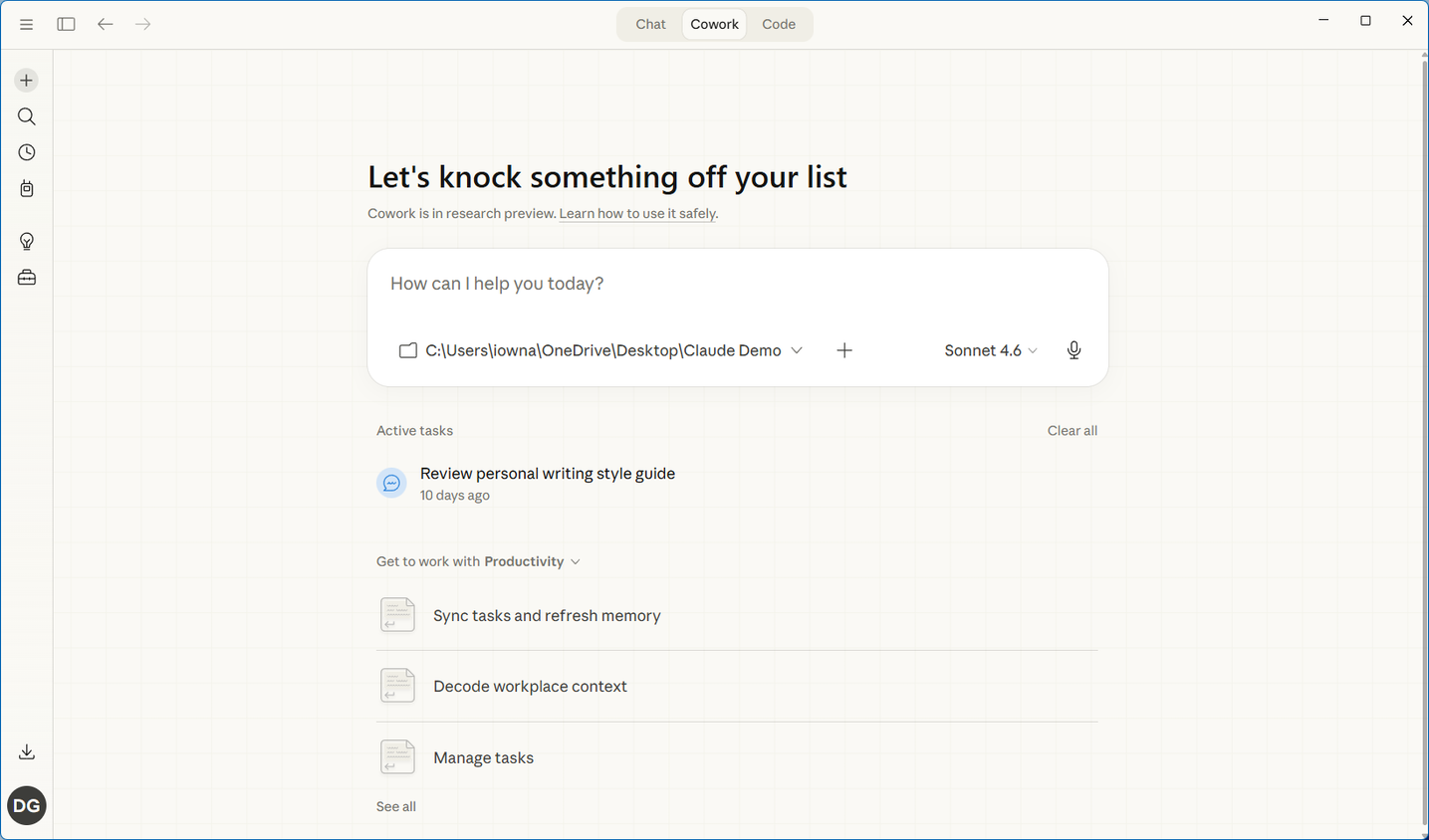
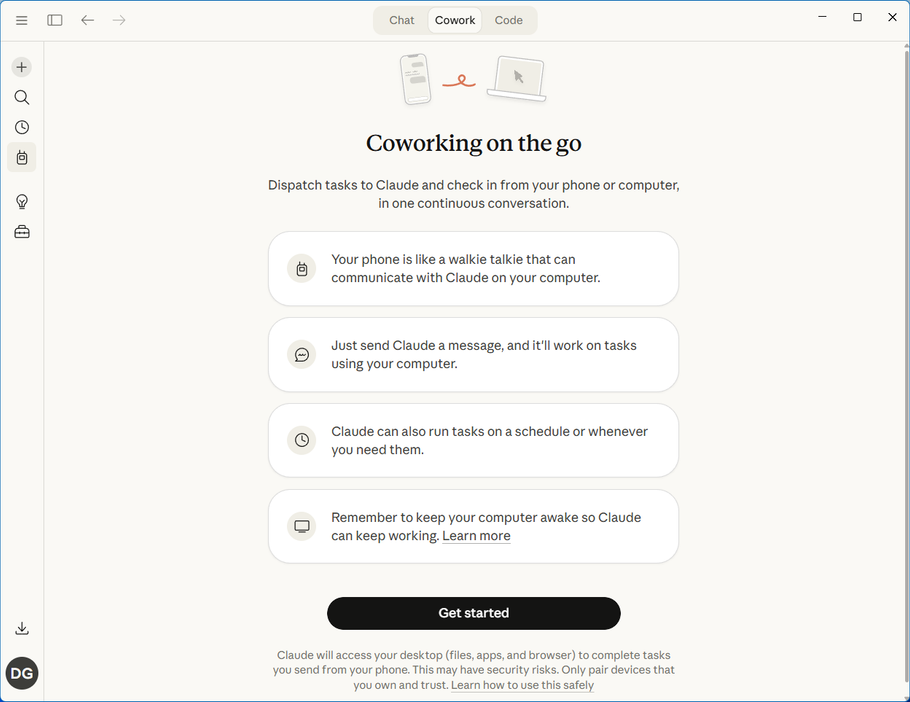
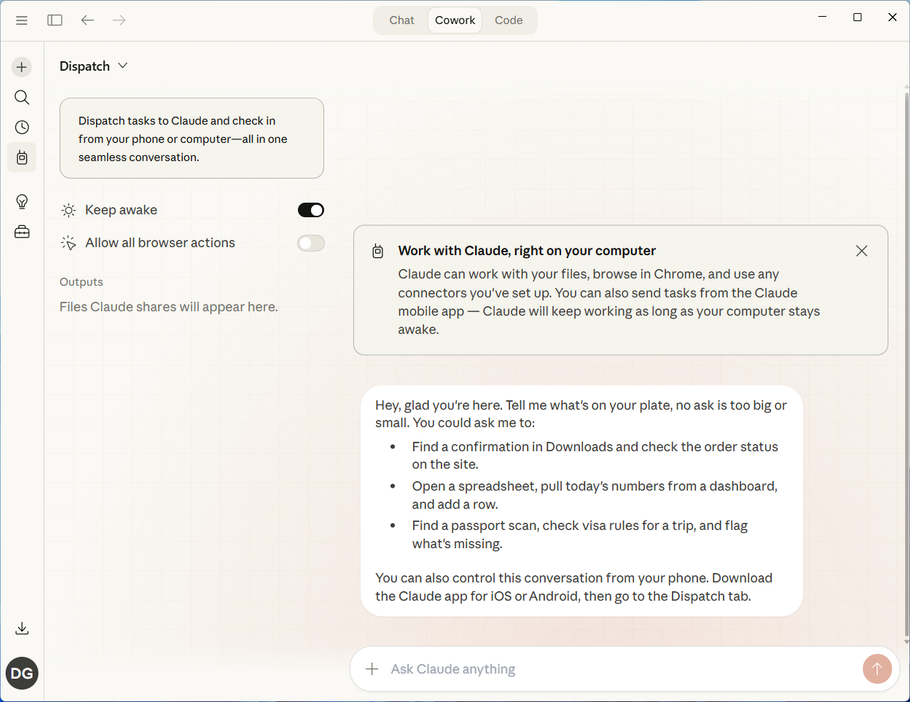
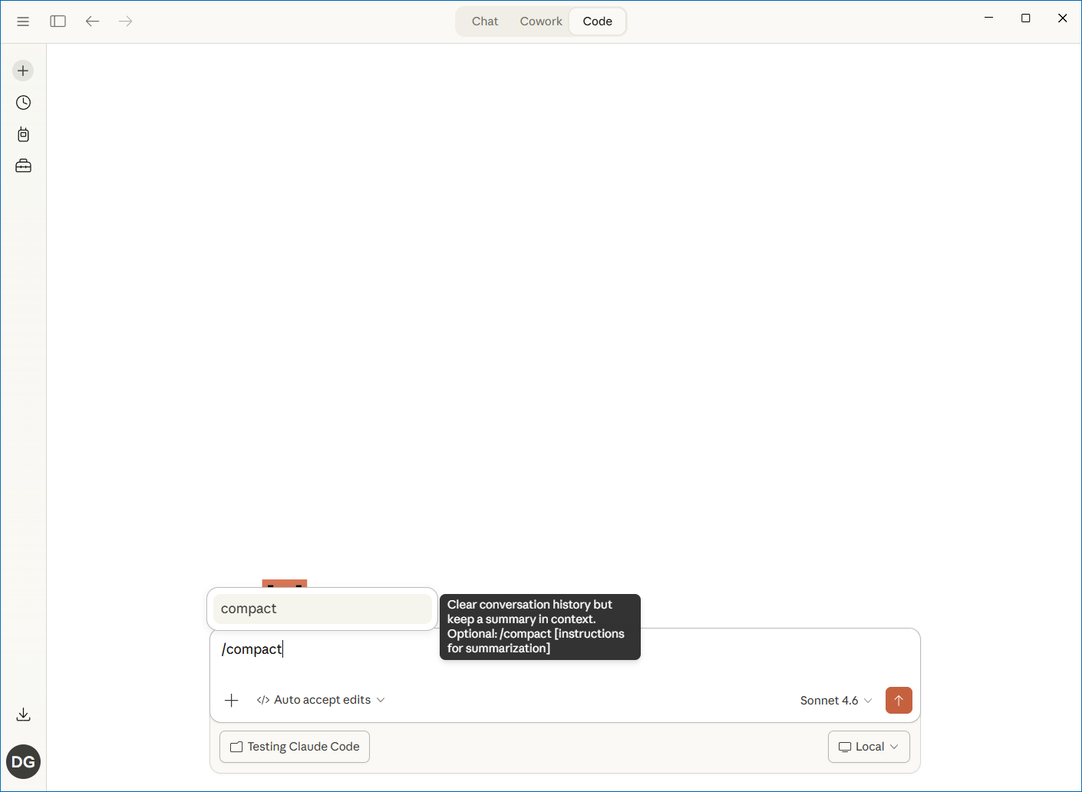
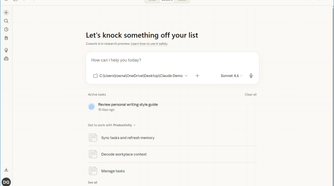
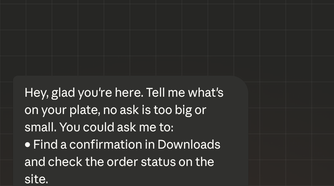
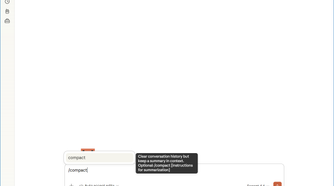
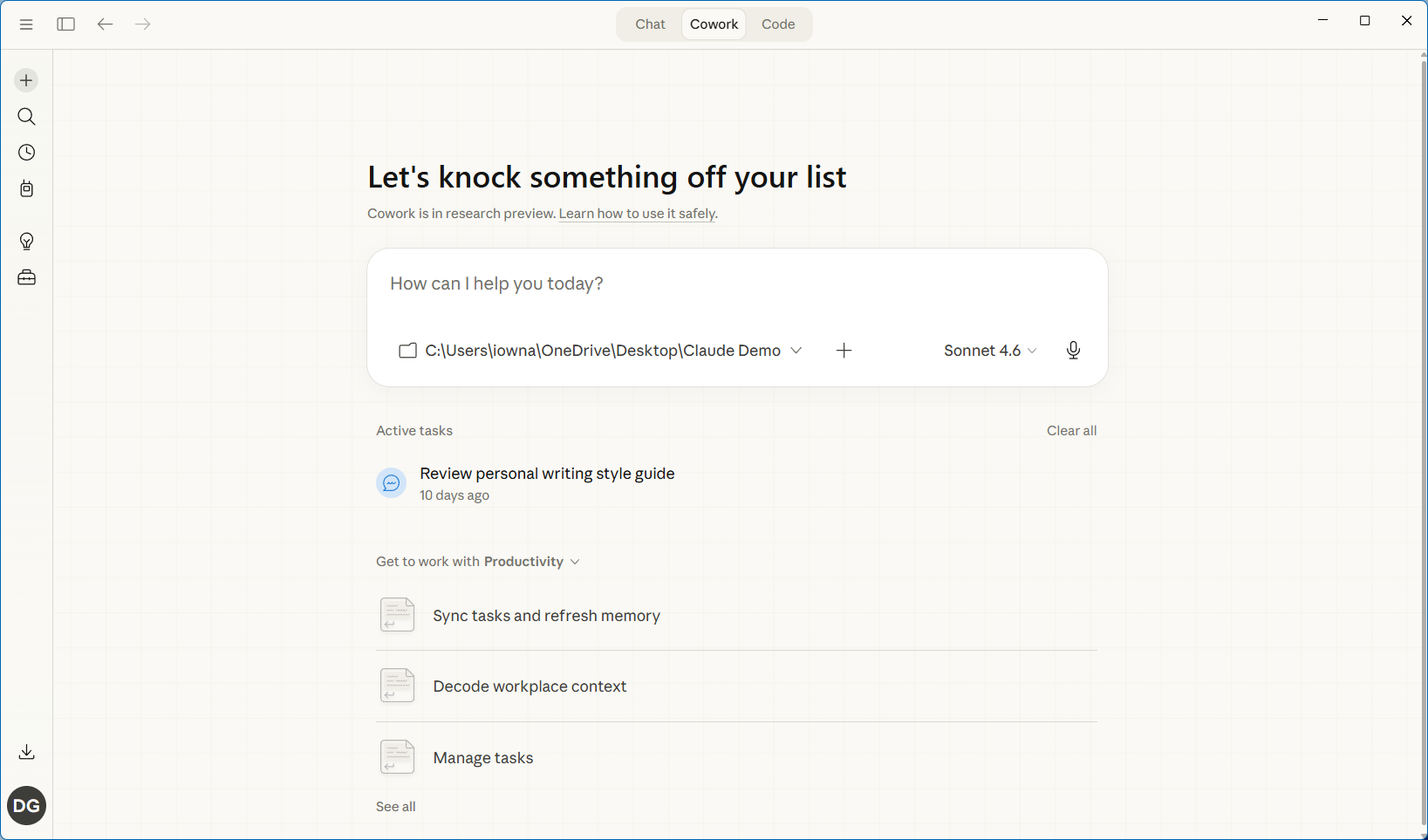
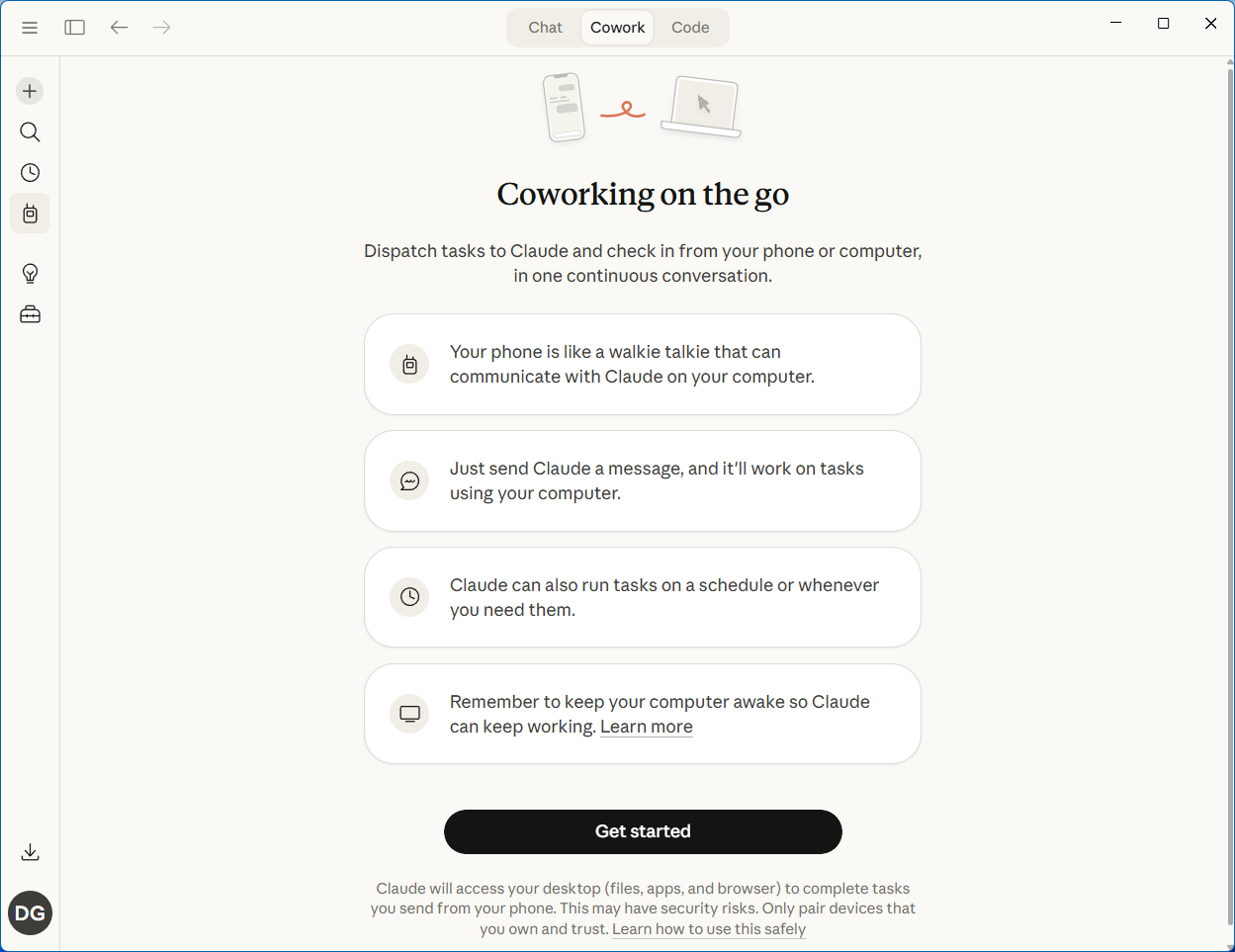
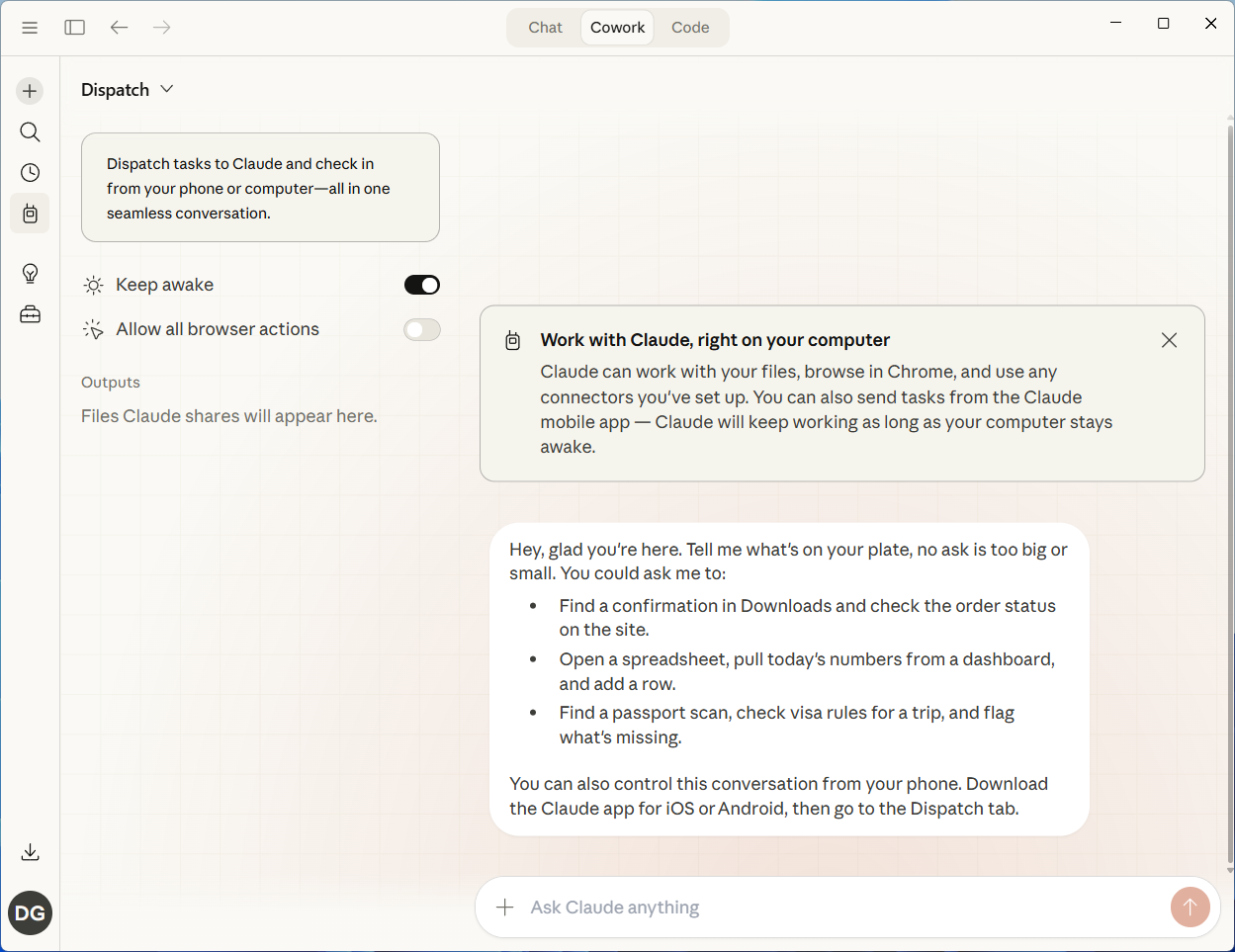
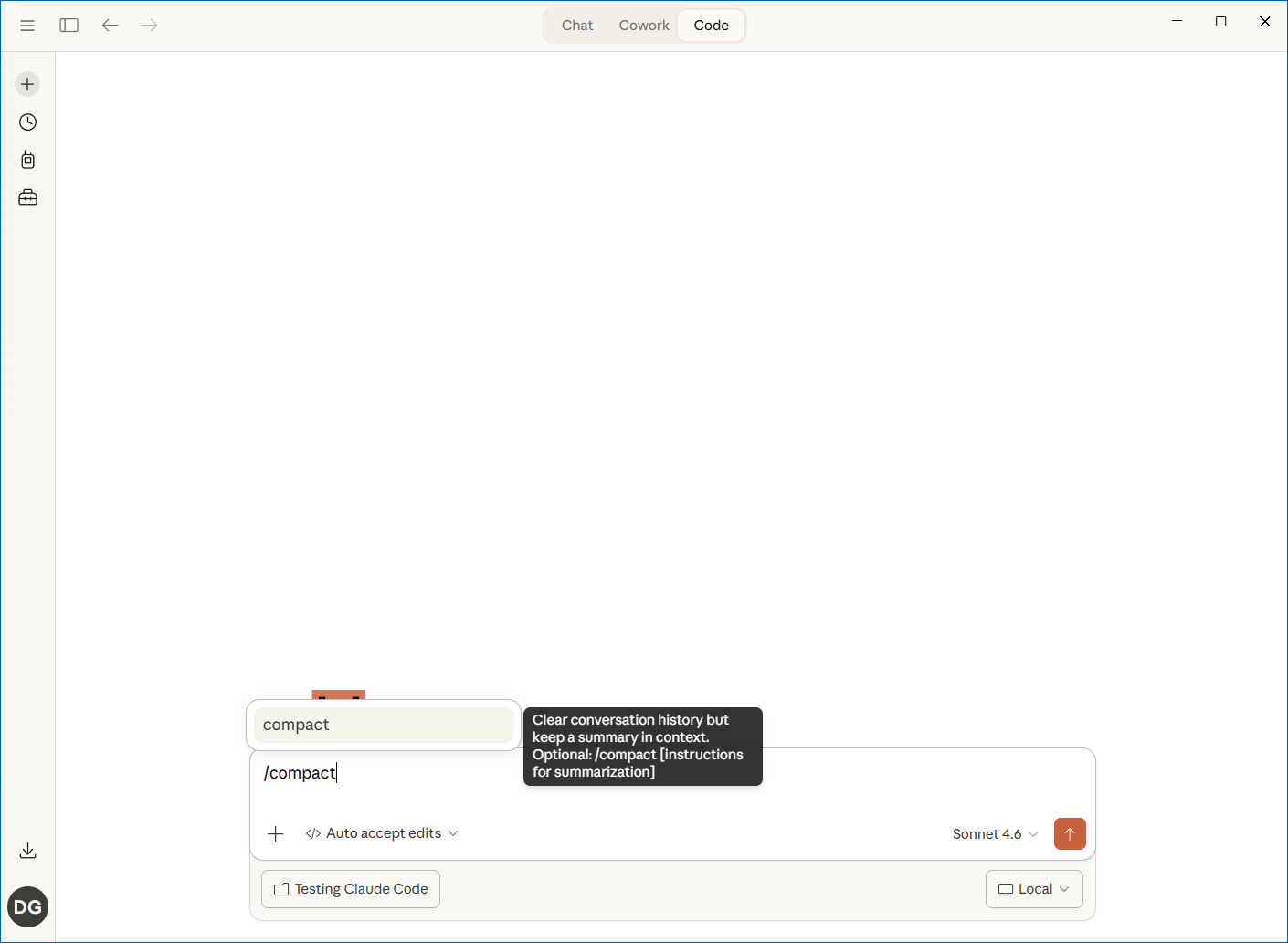
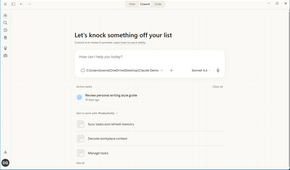
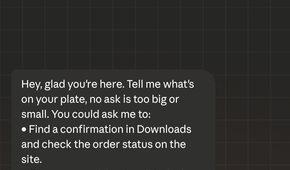
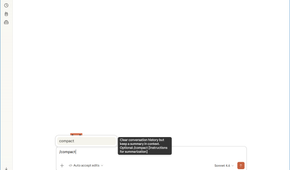
When you subscribe to Claude, you’re getting three core products: the Claude web app, the Claude desktop app with Cowork, and Claude Code, a CLI tool you run from a terminal. There’s also Claude Design, but it’s much more niche than the other products.
Now, the mistake I used to make—and one I still see plenty of people make—is sticking to the web app, or downloading the desktop app but only using the standard chat mode. It works, but it’s a very basic experience: you ask a question, get an answer, and everything you create stays isolated in that conversation. Cowork, which is exclusive to the desktop app, changes that.
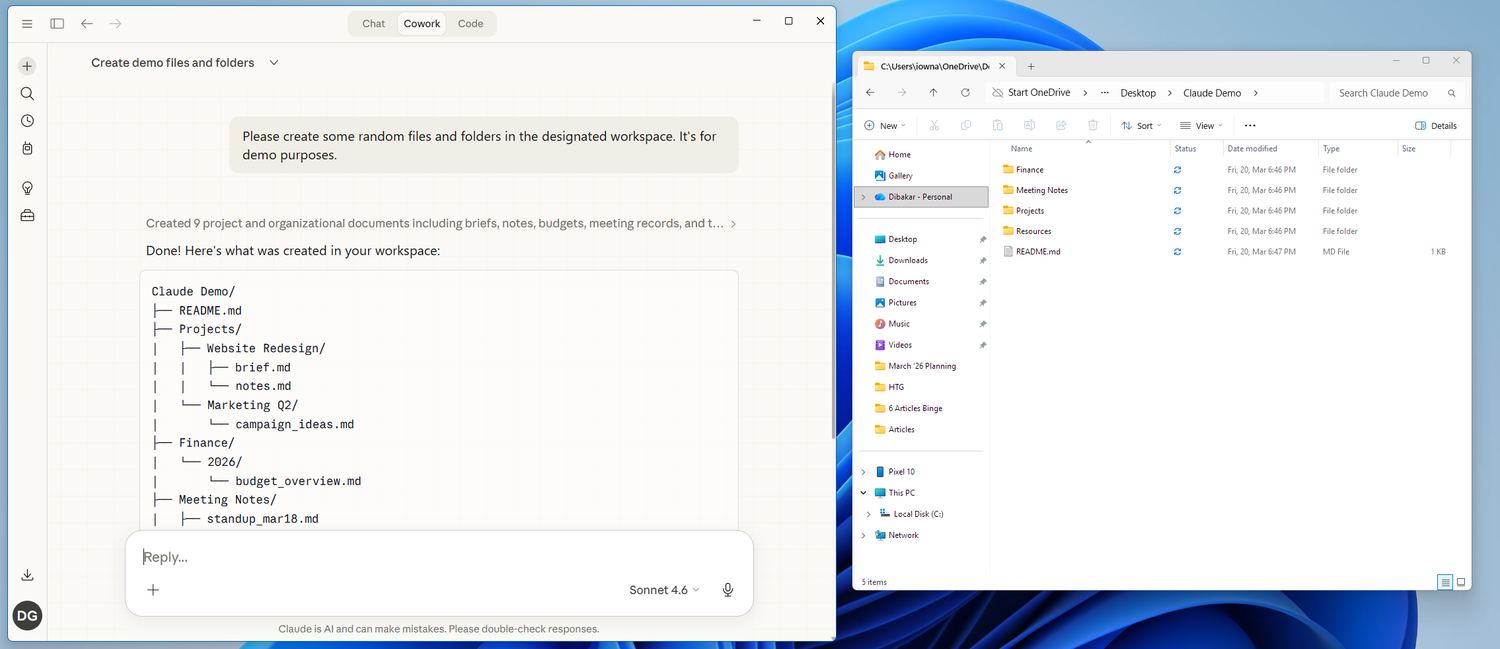
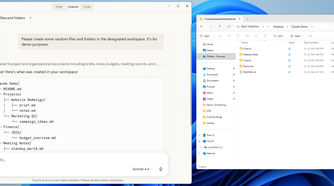
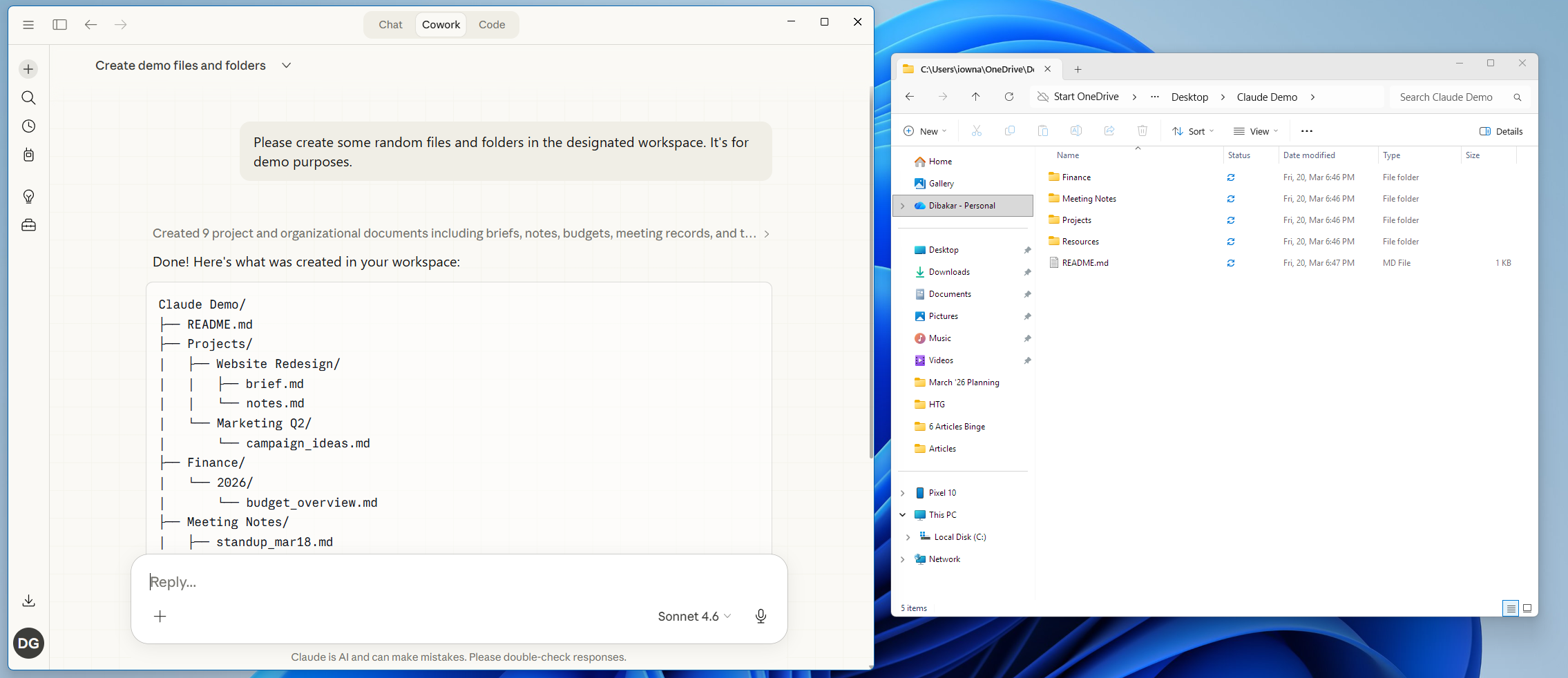
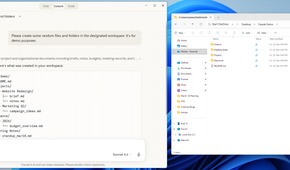
In Cowork, you give Claude access to a folder on your computer. Now, when you ask it to build a plan, create a spreadsheet, or handle any other task, it creates the file and saves it in that folder. Your next conversation can pick up right where the last one left off because everything is already there on disk. Likewise, you can drop your own files into the folder, and Claude can read and work with them as well.
You can also have Claude organize everything into a folder structure that it can navigate in future conversations. Over time, you end up with a system that grows alongside your work instead of a pile of disconnected chats where you’re always starting from scratch.
Claude Code works the same way but is optimized for software development. With Cowork, you’re mostly creating documents, spreadsheets, and PDFs—the kind of knowledge work most people do every day. With Claude Code, you’re creating HTML, JSON, and other code files, organizing them into projects, spinning up local instances, and pushing everything to GitHub—the usual developer-centric workloads.
Using Claude Code on your smartphone
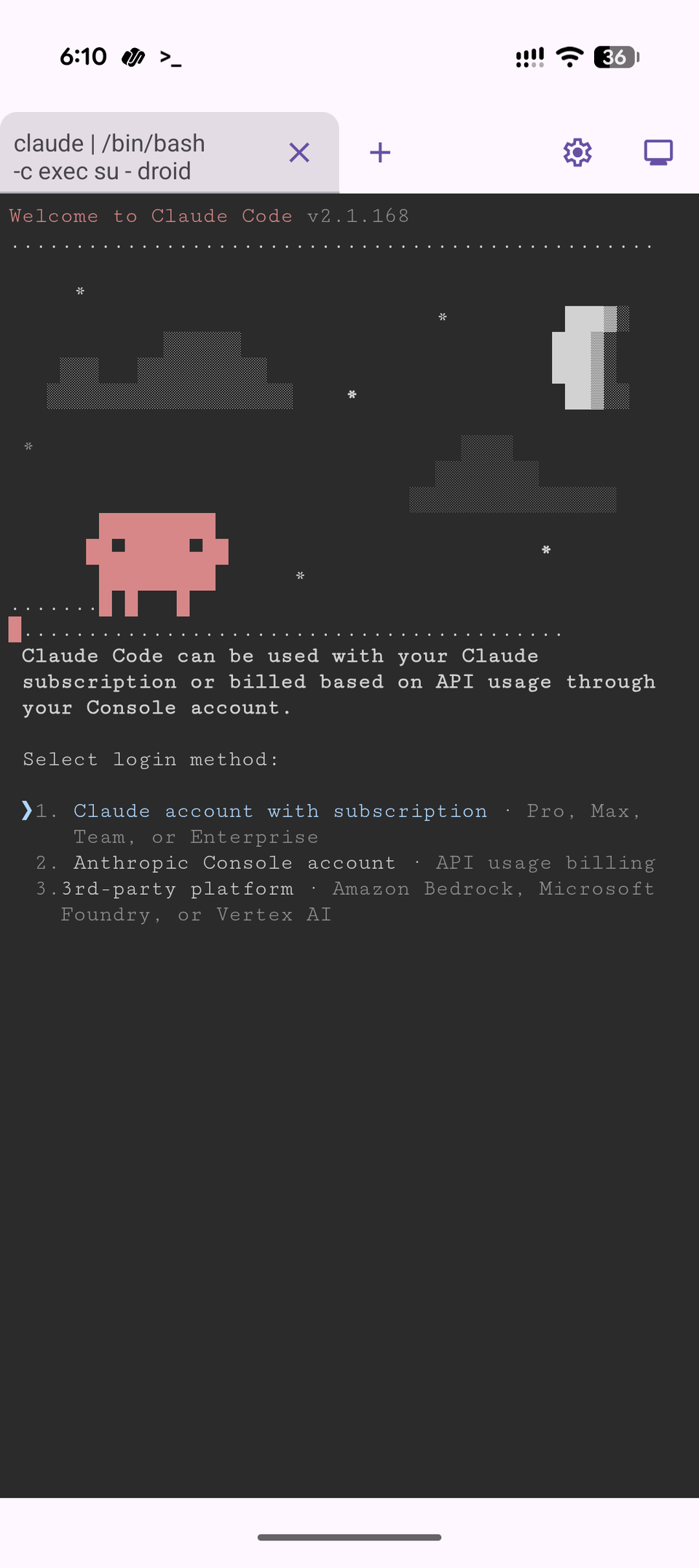
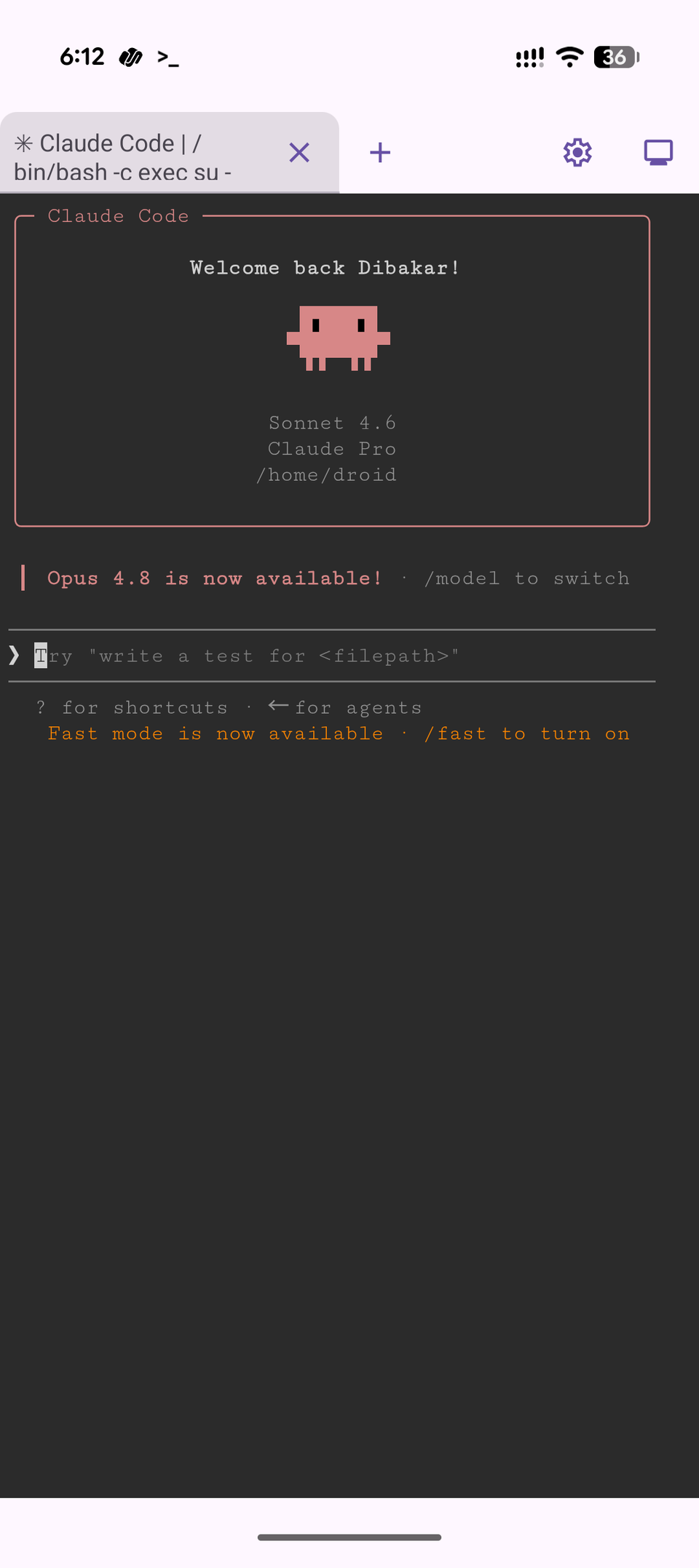
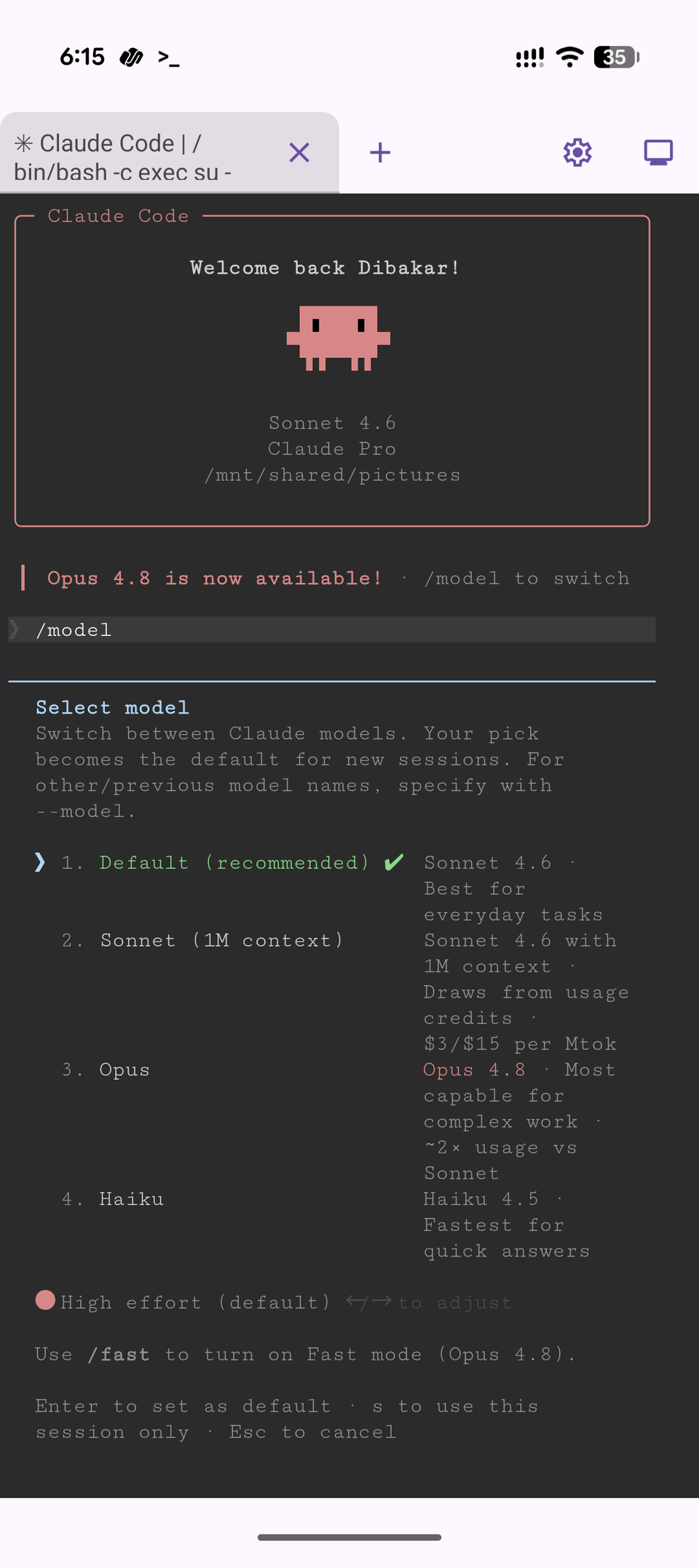
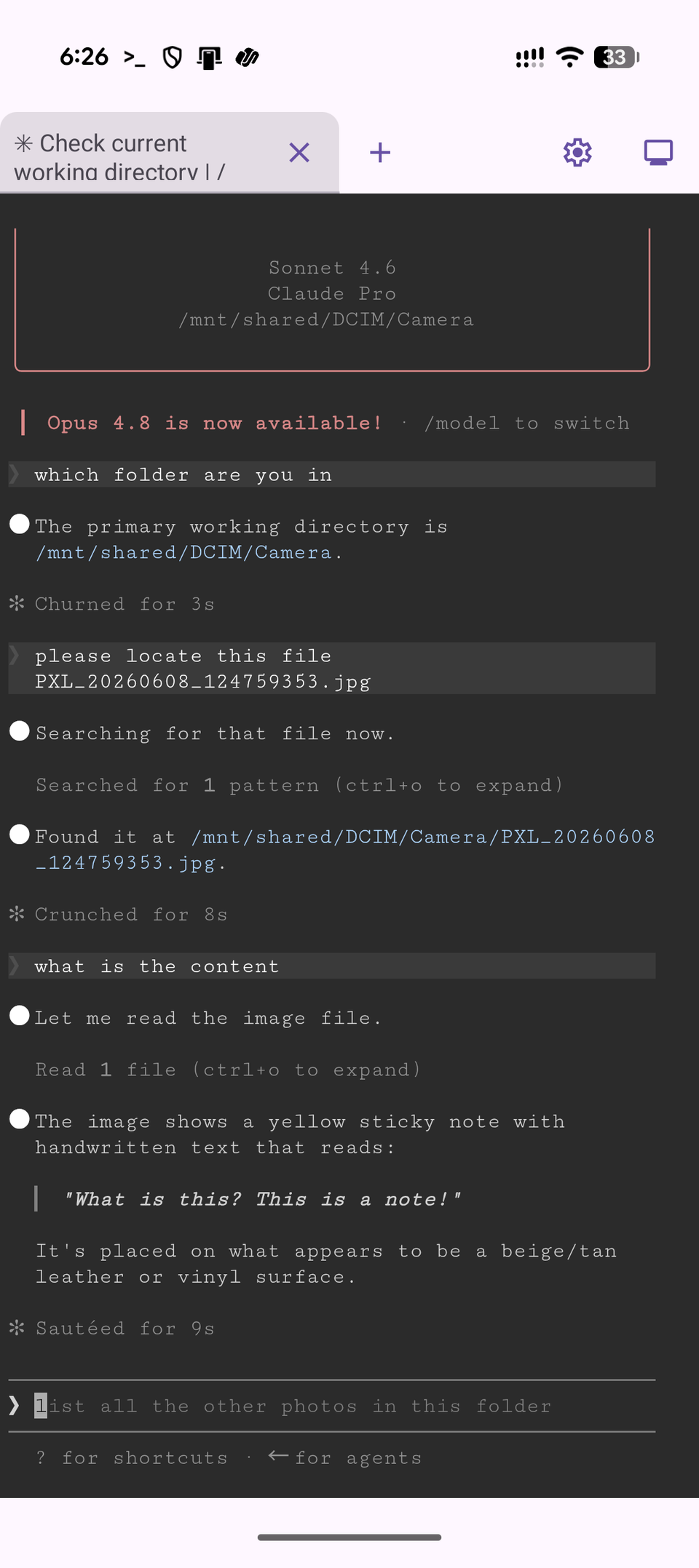
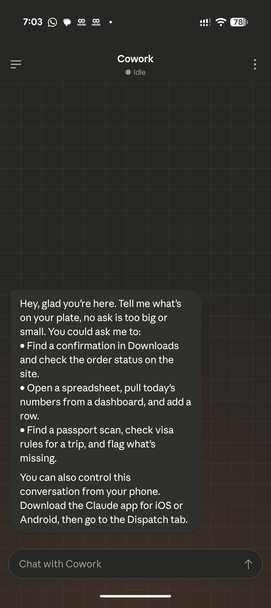
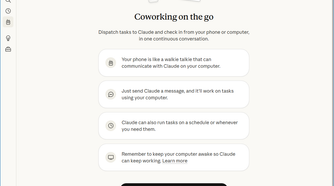
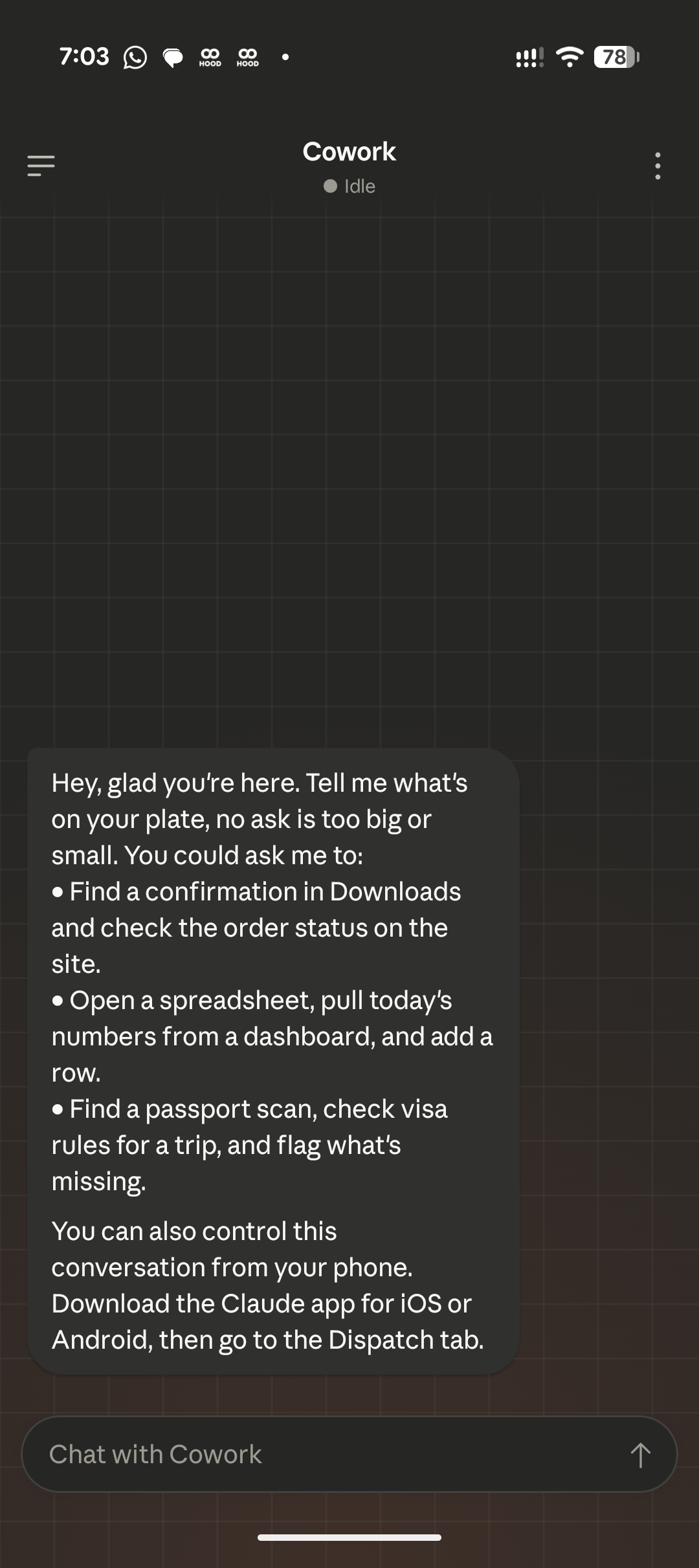
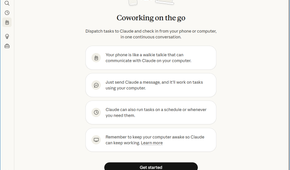
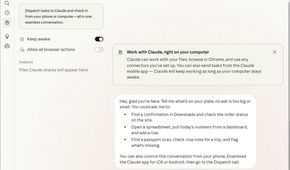
Unfortunately, Cowork and Claude Code are desktop-only. On mobile, you’re limited to the standard Claude app, which doesn’t have the file system access needed to support these workflows. Fortunately, there’s a workaround: if your phone has a terminal app, you can install Claude Code in it and give it access to your phone’s file system.
I use a Google Pixel 10, which ships with a built-in Terminal app, and I’ve installed Claude Code there with direct access to my files. It works surprisingly well and unlocks the same kind of natural-language automation you get on a desktop. That said, I can’t say whether terminal apps on other Android phones offer the same level of file system access, or whether anything comparable is possible on an iPhone. If your phone’s terminal can access the file system, though, it’s definitely worth trying.
Switch over to open-source and local-first apps
Locked-in data is dead weight for automation
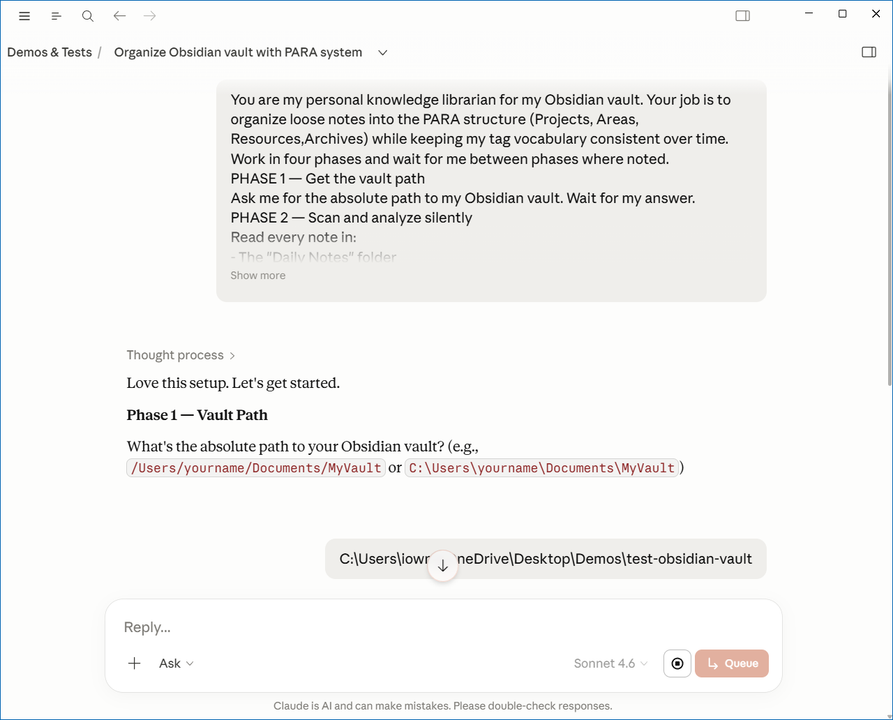
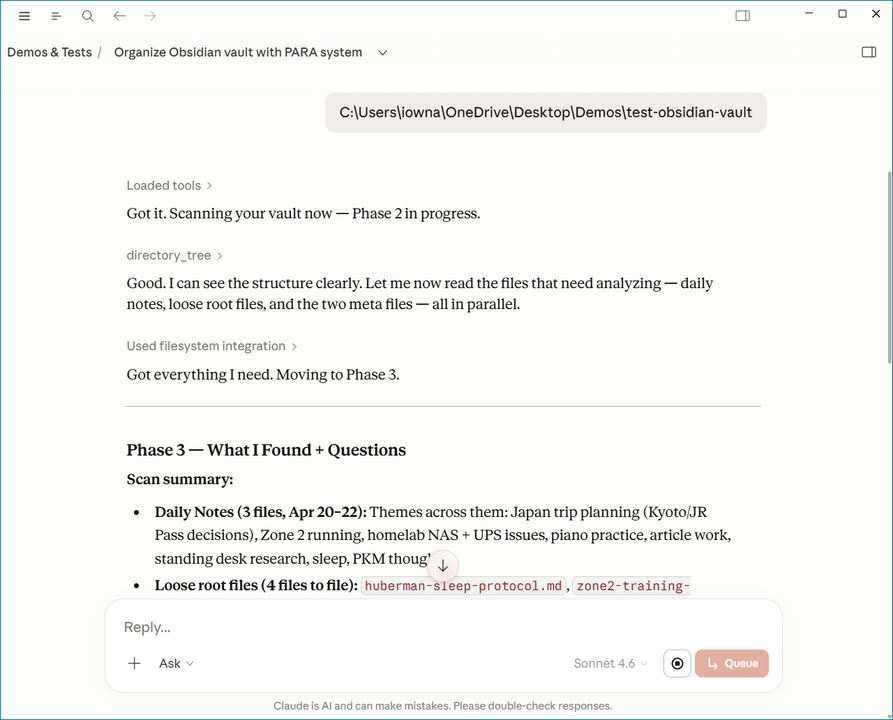
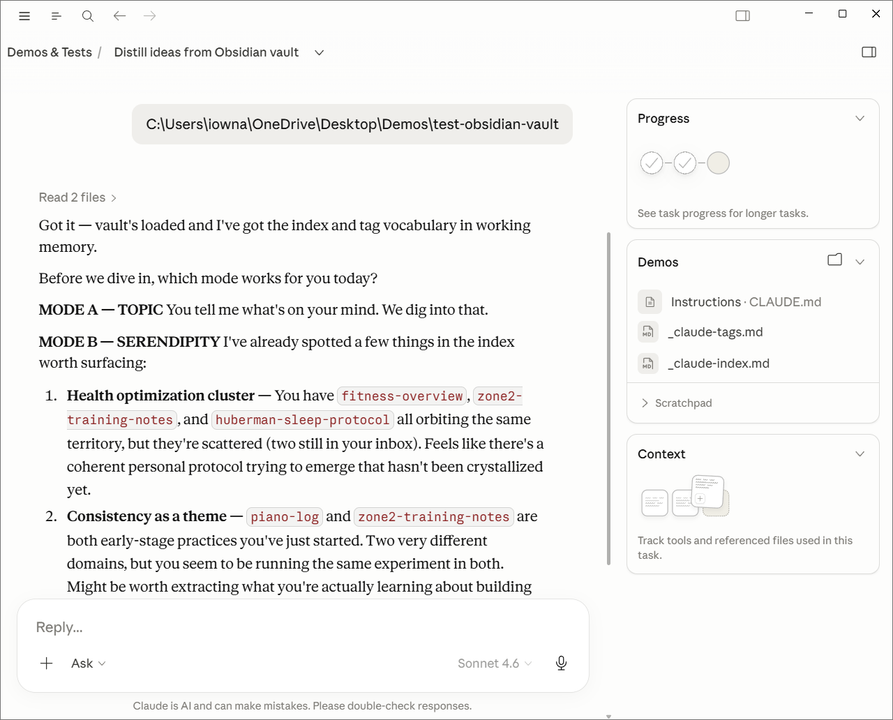
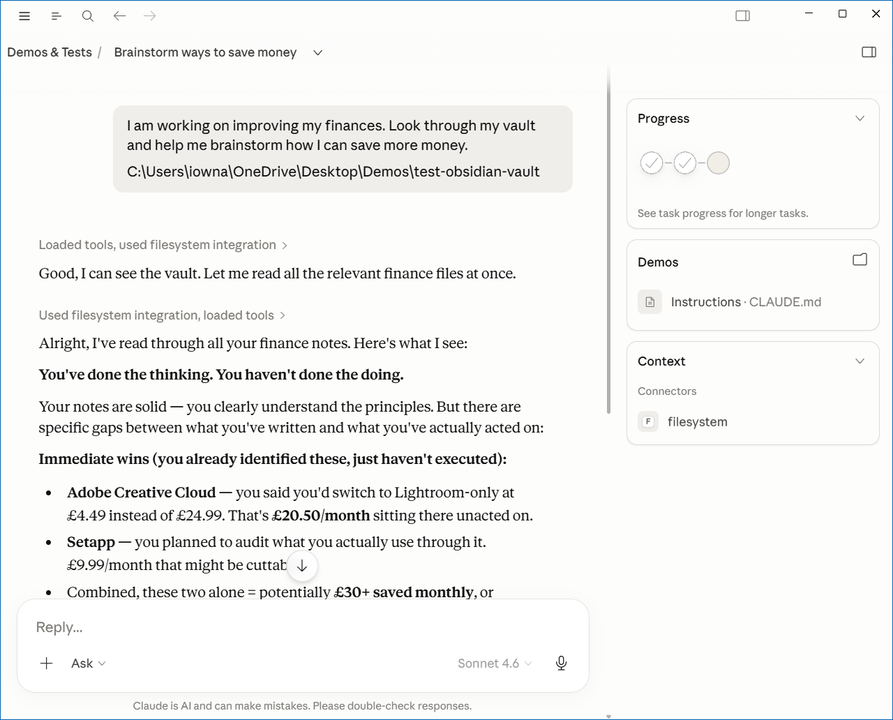
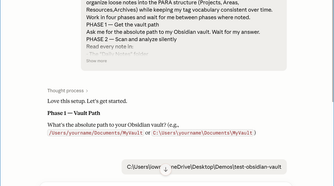
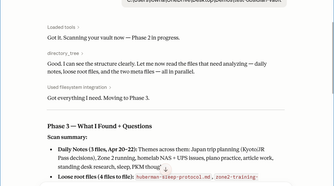
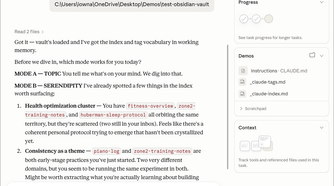
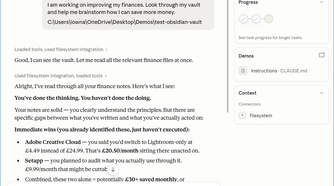
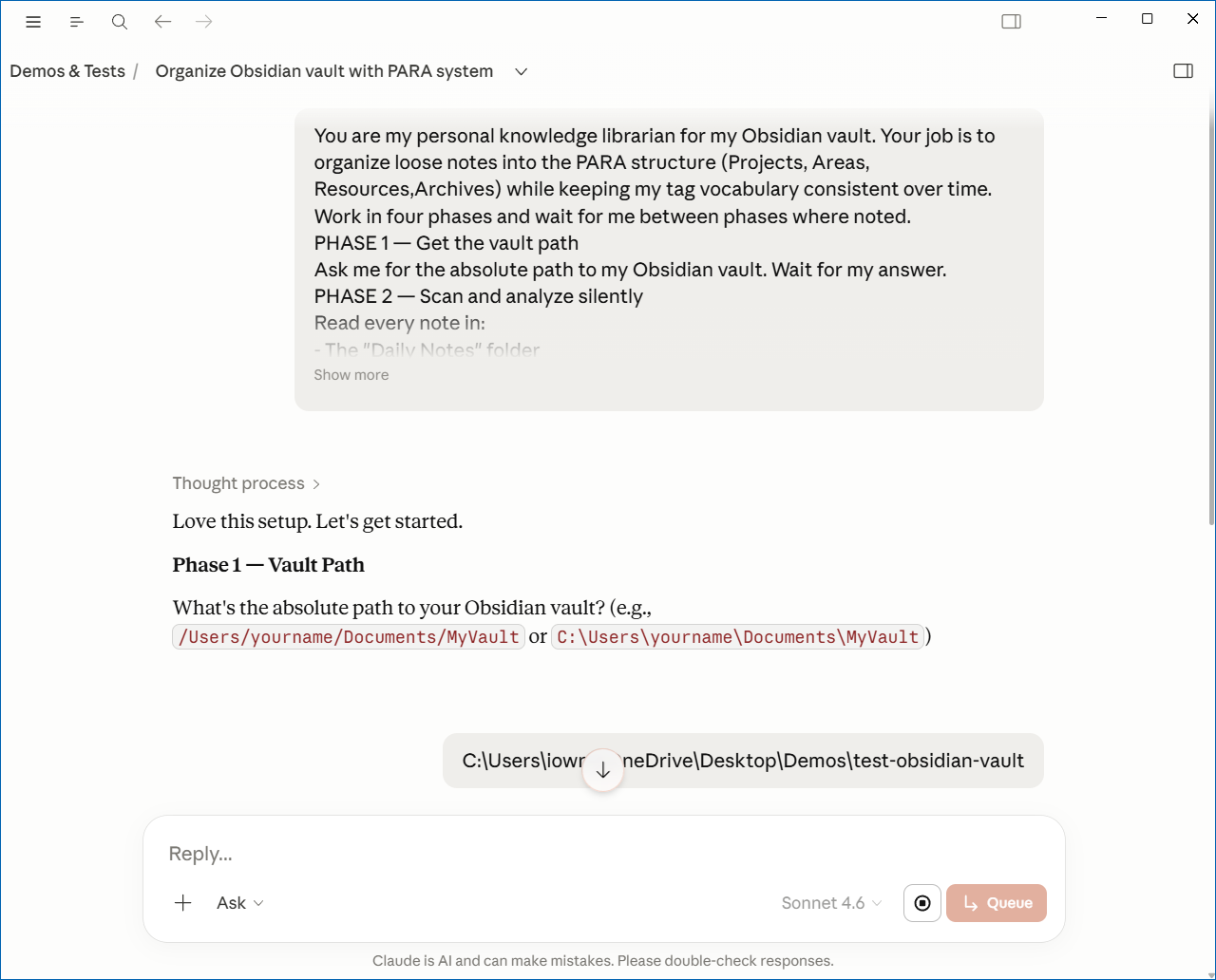
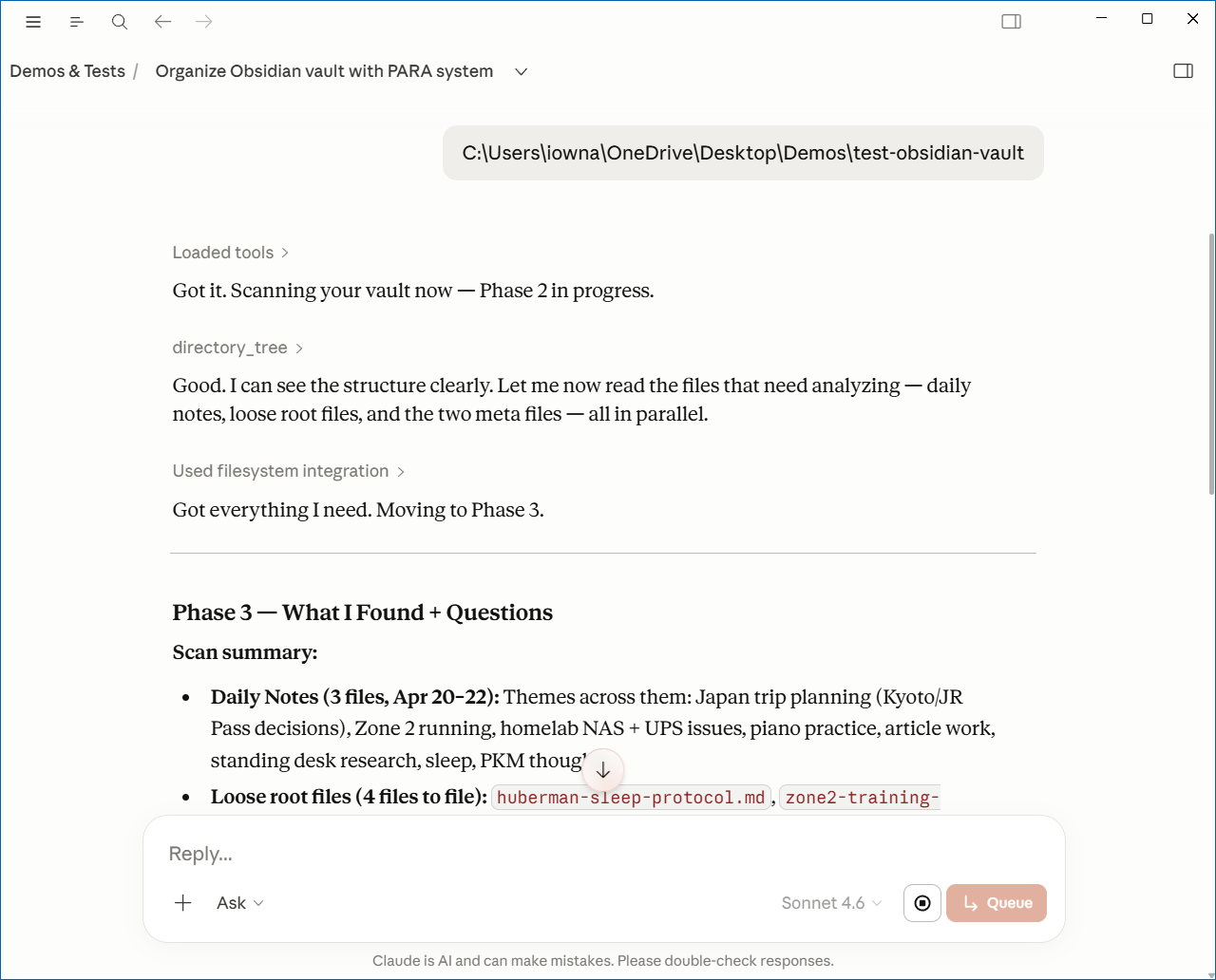
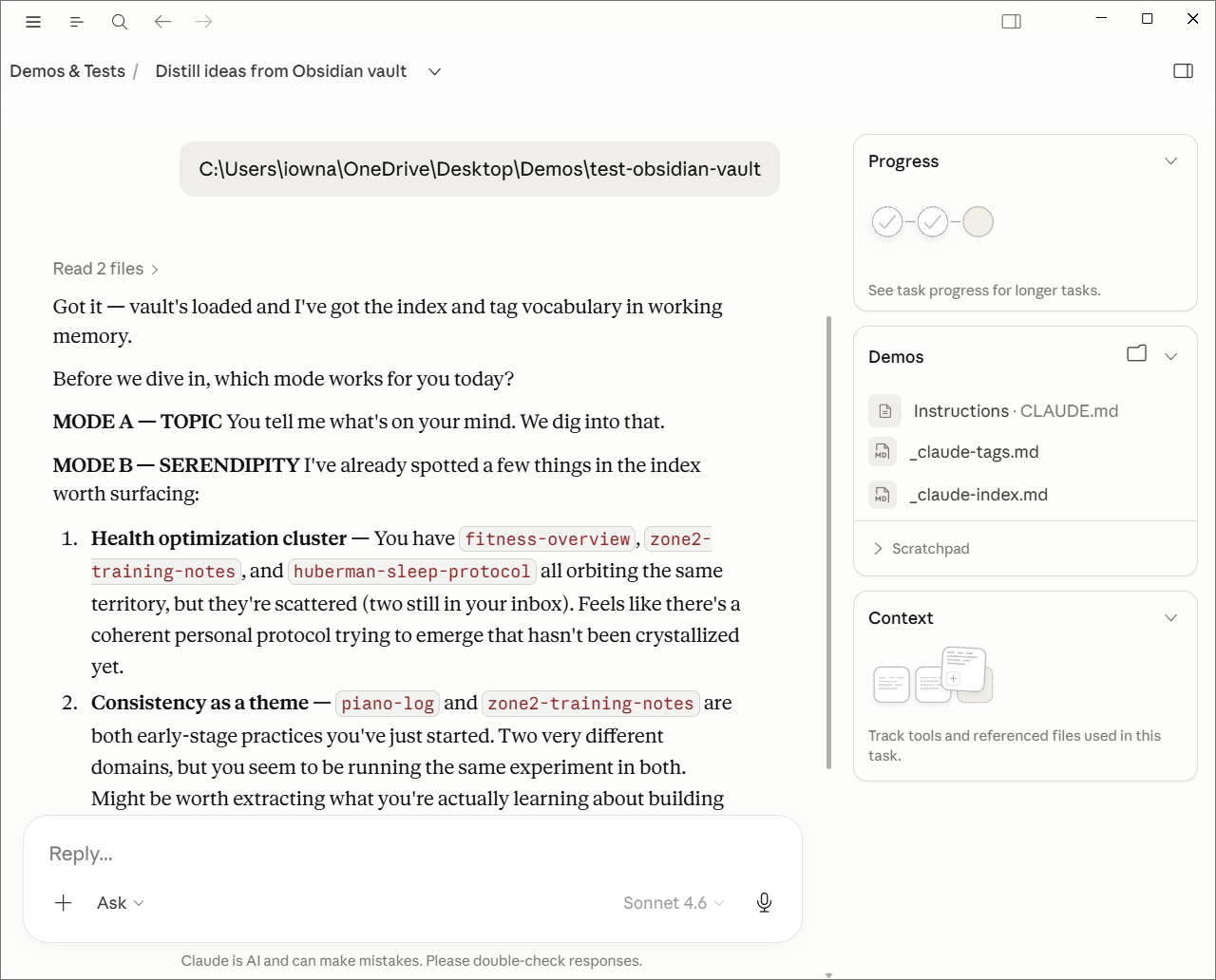
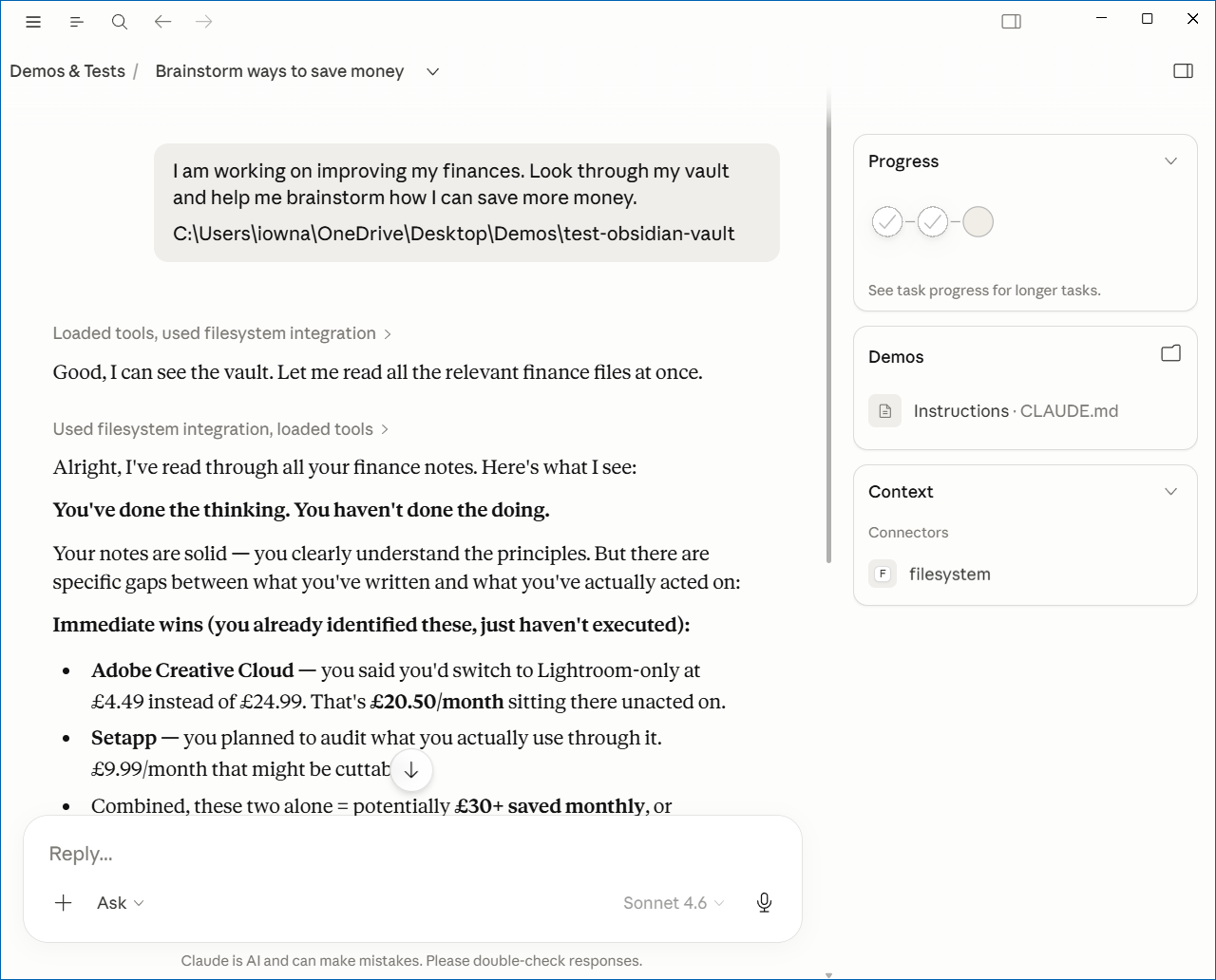
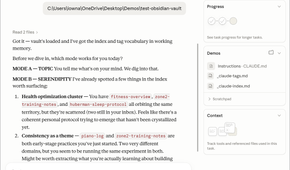
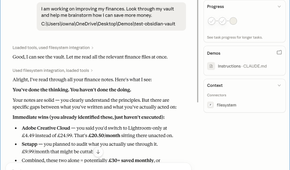
One of the first things people did after discovering that Claude Code and Cowork could create and manage files on your computer was pair them with Obsidian. The reason is simple: Obsidian stores your notes as plain Markdown files on your local drive. That means Claude can generate an entire collection of notes, while you can browse, edit, and link them in Obsidian. It’s a powerful combination, and it illustrates a broader idea: the value of keeping your data open and local.
Now compare that with Notion. Every note you create lives inside Notion’s ecosystem instead of as a regular file on your computer. If Claude needs to interact with those notes, it generally has to go through an API. That can work, but it’s nowhere near as simple, transparent, or flexible as giving Claude direct access to a folder full of Markdown files.
That’s why I’ve started prioritizing local-first apps and software that stores data in open, accessible formats. When your notes, tasks, and documents exist as ordinary files on your computer, Claude can read, organize, transform, and connect them without relying on proprietary integrations.
Utilize the CLAUDE.md file
The most important file that rarely gets talked about
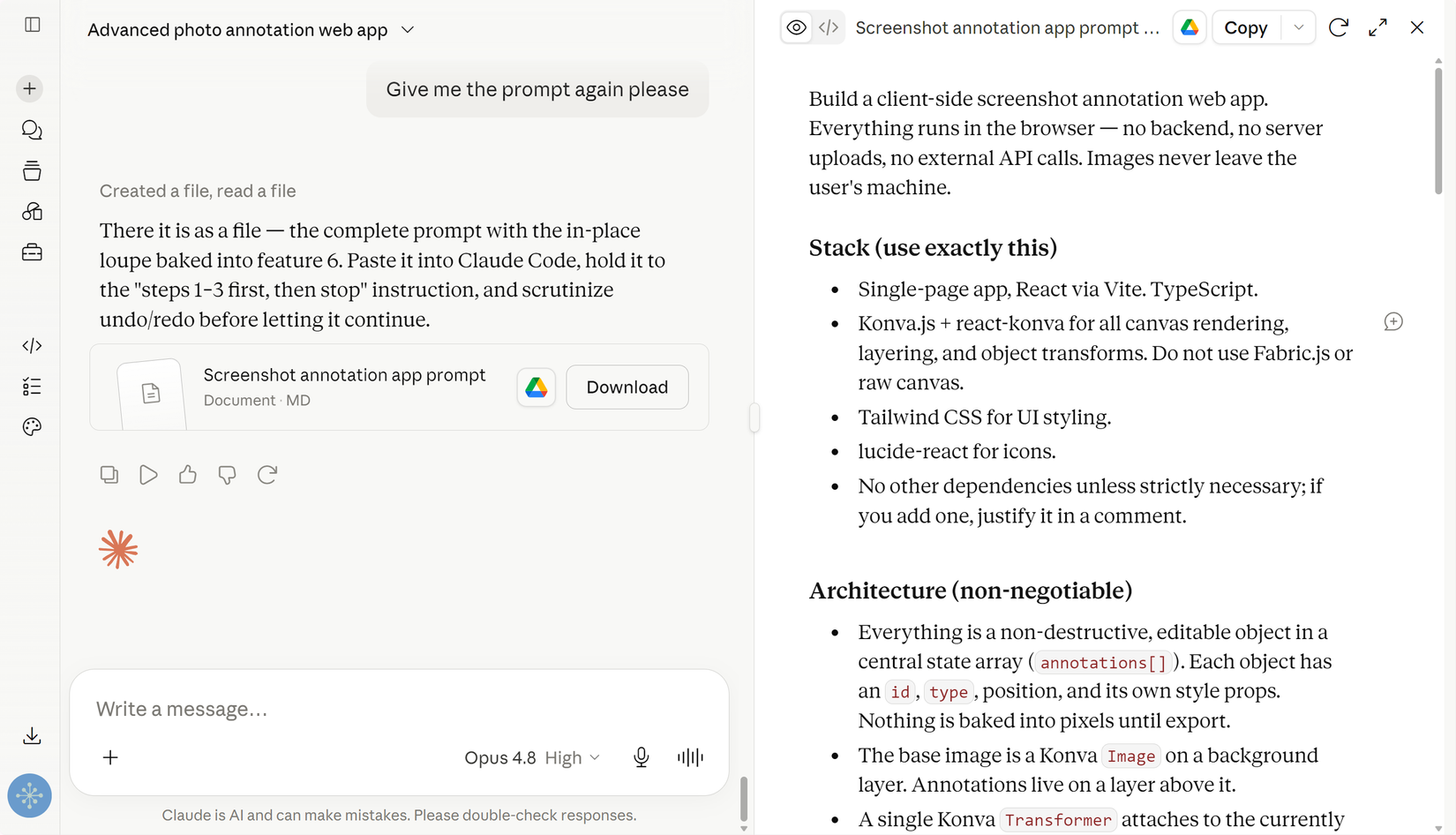
This is probably the most underrated feature in Claude Code and Cowork. You see, when you give Claude access to a folder, it doesn’t load the entire directory into its context the moment you start a conversation. That’s intentional—because if it did, every chat would begin with a context window full of redundant information, burning through your tokens faster and reaching the context limit much sooner. Instead, Claude only reads files when it needs them.
However, there’s usually some information that you want Claude to know before you even ask your first question. That’s exactly what the CLAUDE.md file is for. Think of it as the equivalent of Custom Instructions in Claude or ChatGPT—a persistent prompt that Claude automatically reads whenever it starts working in that directory. The difference is that CLAUDE.md is directory-specific.
When Claude starts working in a folder, it reads that folder’s CLAUDE.md and follows its instructions. Now if the workflow requires it to move into a subdirectory, it will read that subdirectory’s CLAUDE.md as well, updating its behavior based on the new instructions. That lets you organize your projects with different guidance for different folders, so you rarely have to explain the same things twice.
It’s not just for instructions, either. I also use CLAUDE.md as a hot cache for information Claude should always have on hand. This includes the people I work with, a glossary of terms and acronyms, details about my setup, and my preferred workflows. That way, every new conversation starts with the context that actually matters. The only rule of thumb is to keep it short—ideally under 200 lines. Beyond that, it starts consuming too much of your context window and becomes more of a liability than a benefit.
Use and create custom Skills
Build the workflow once, reuse it forever
Prompts are essential if you want Claude to work a certain way, and you probably already have a collection of them for your regular workflows. For a long time, the primary way to reuse those prompts was through Claude Projects—the equivalent of custom GPTs in ChatGPT. Save a prompt in a Project, and every conversation you start there automatically includes it.
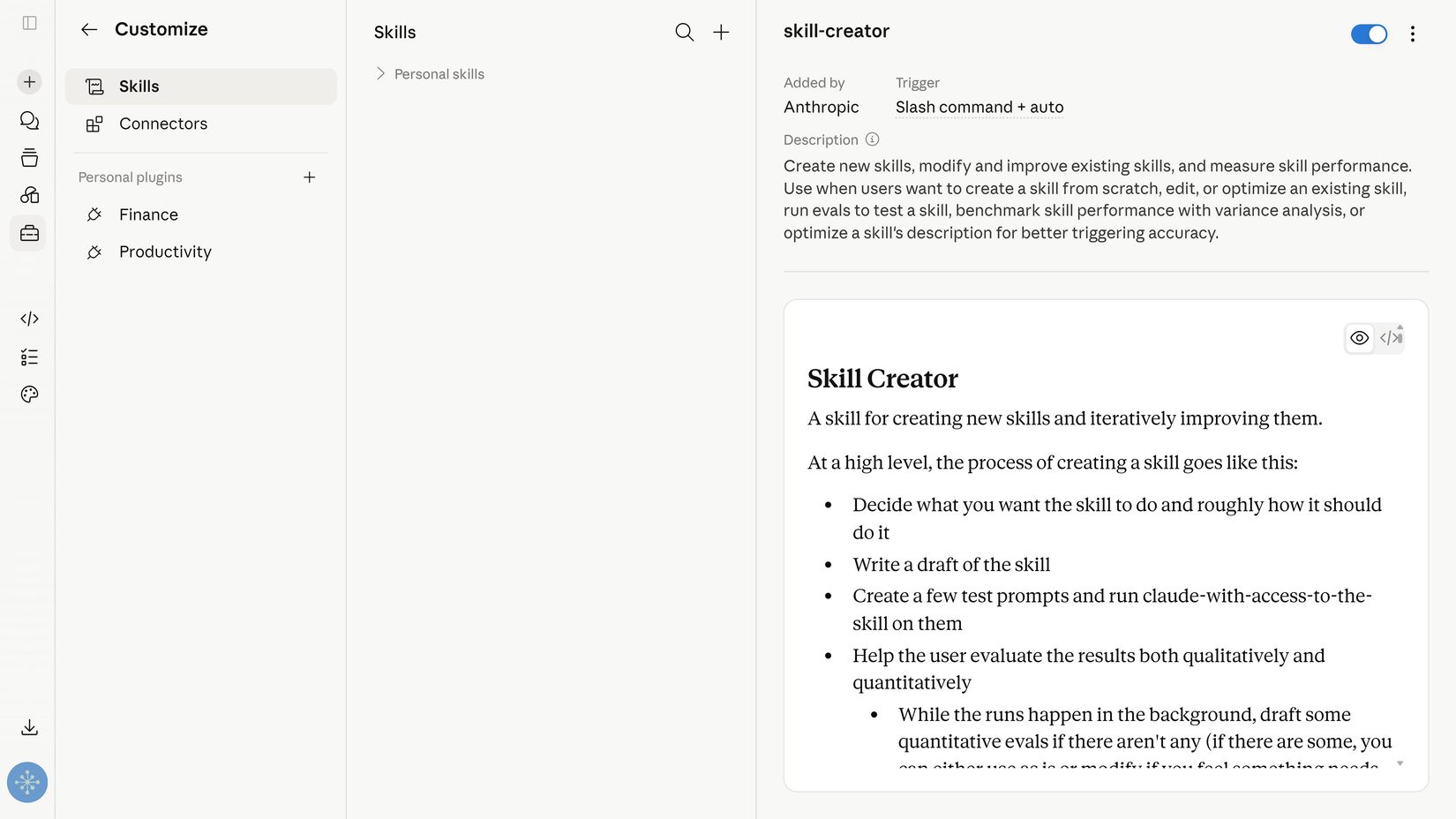
Skills (stored as SKILL.md files) take that idea to the next level. A Skill is essentially a prompt paired with instructions describing when and how it should be used. Instead of switching to a dedicated Project or starting a separate conversation, you can invoke a Skill at any point during a chat. Just press /, type the Skill’s name, and press Enter. Claude loads the Skill into the active conversation. Better yet, Claude can also invoke the appropriate Skill automatically when it recognizes that the current task matches one.
The biggest advantage Skills have over Projects is “chaining.” Imagine you have one prompt for research, another for turning that research into a long-form article, and a third for repurposing it into social media posts. Previously, that meant jumping between multiple Projects and repeatedly copying context from one to another. With Skills, you can invoke all three in the same conversation, letting Claude carry the context through the entire workflow from start to finish.
There are already plenty of Skills available from both Anthropic and the community, but the real value comes from creating your own. Whenever I develop a workflow with Claude, I refine it until I’m consistently happy with the results. Then I ask Claude to review the conversation and turn everything we learned into a reusable Skill. Anthropic even includes a built-in Skill called Skill Creator that automates much of this process. After doing this a few times, you end up with a library of reusable workflows tailored to the way you work.
Give Claude access to your browser
When there’s no connector, there’s still a browser
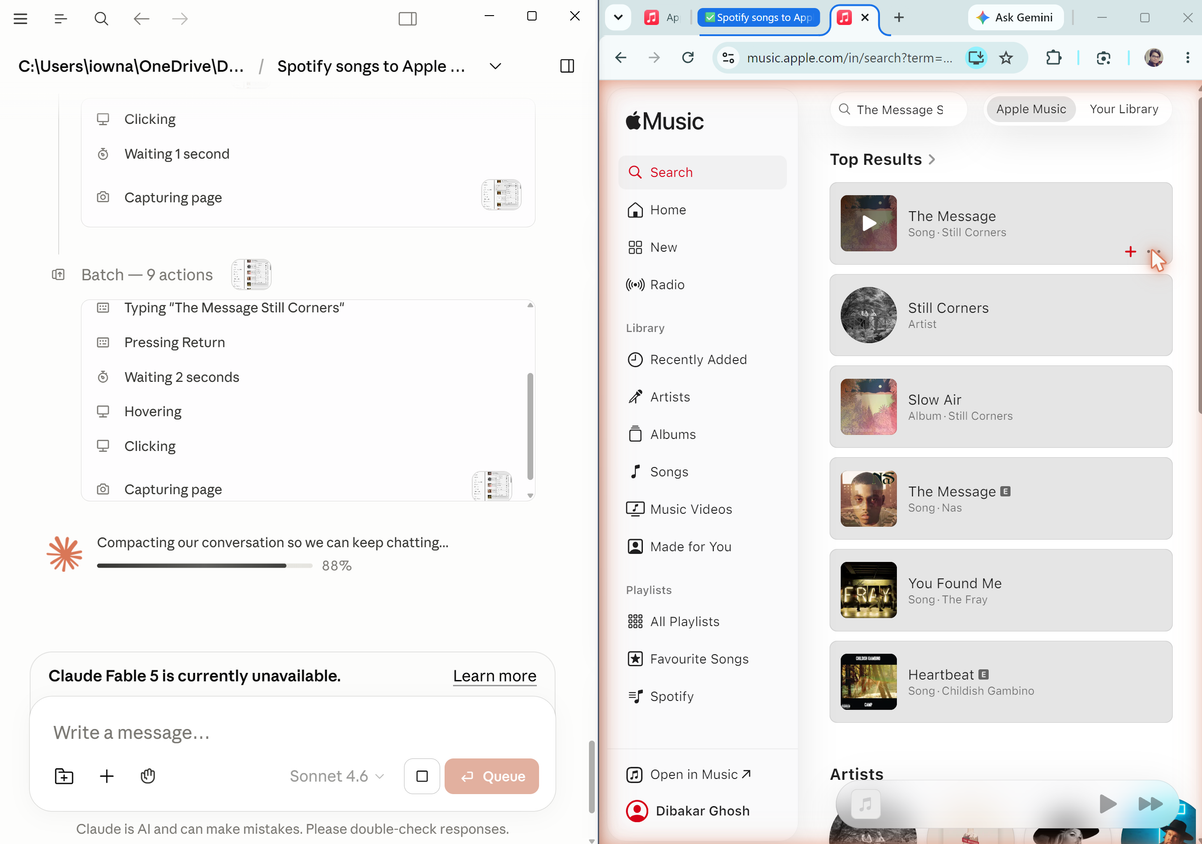
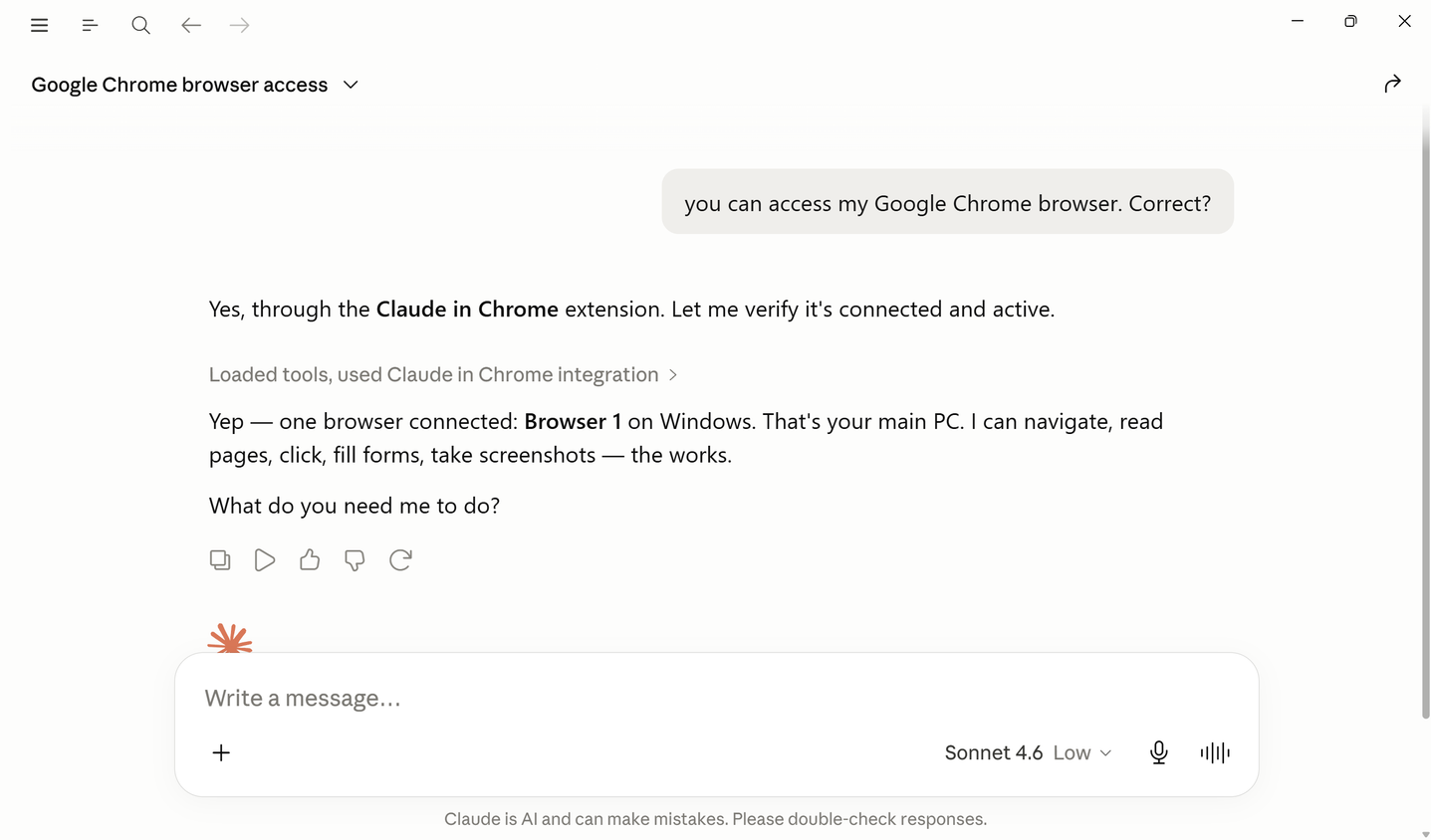
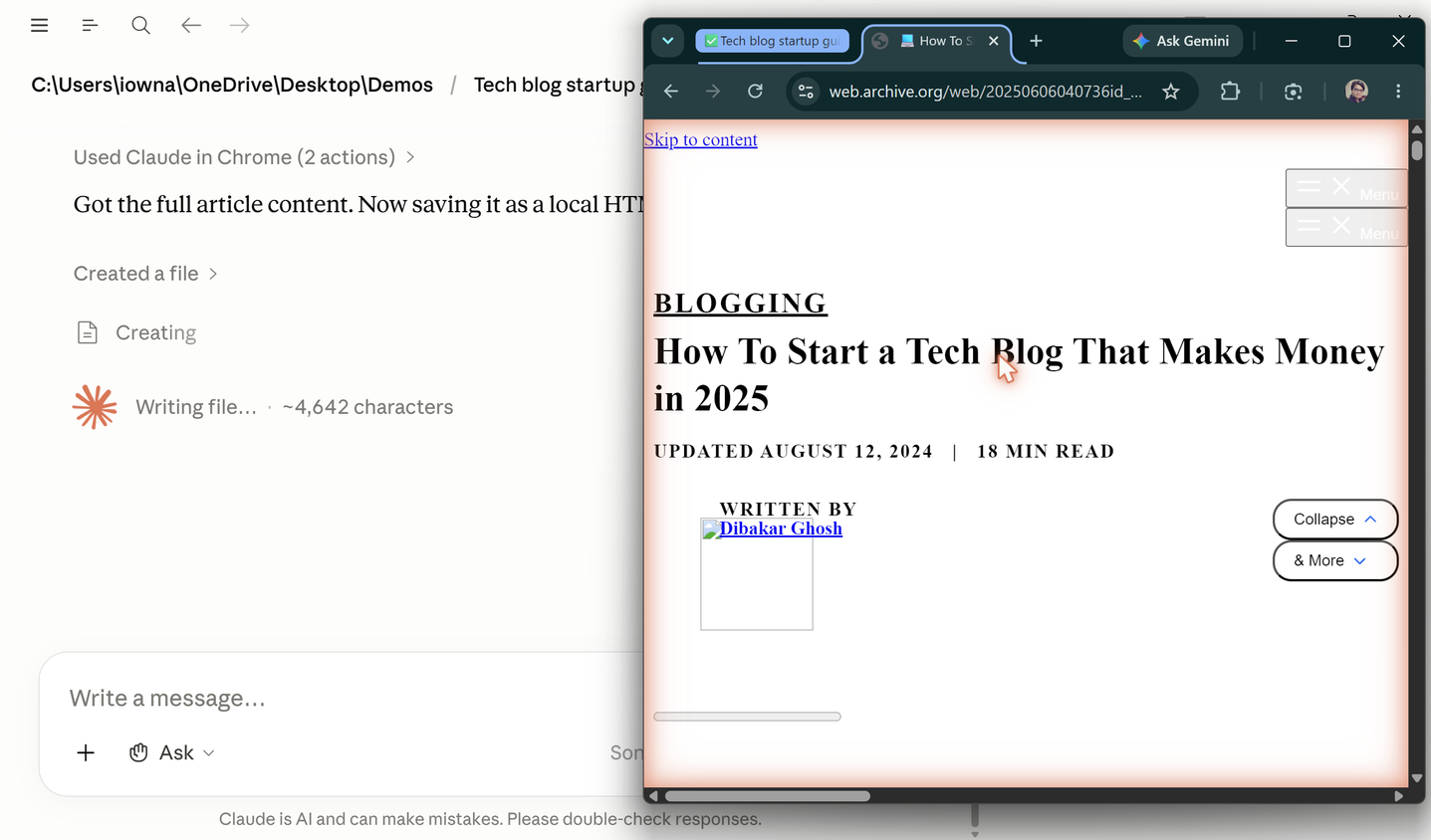
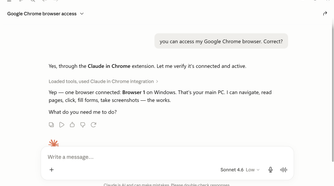
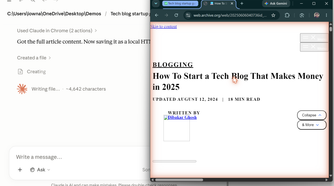
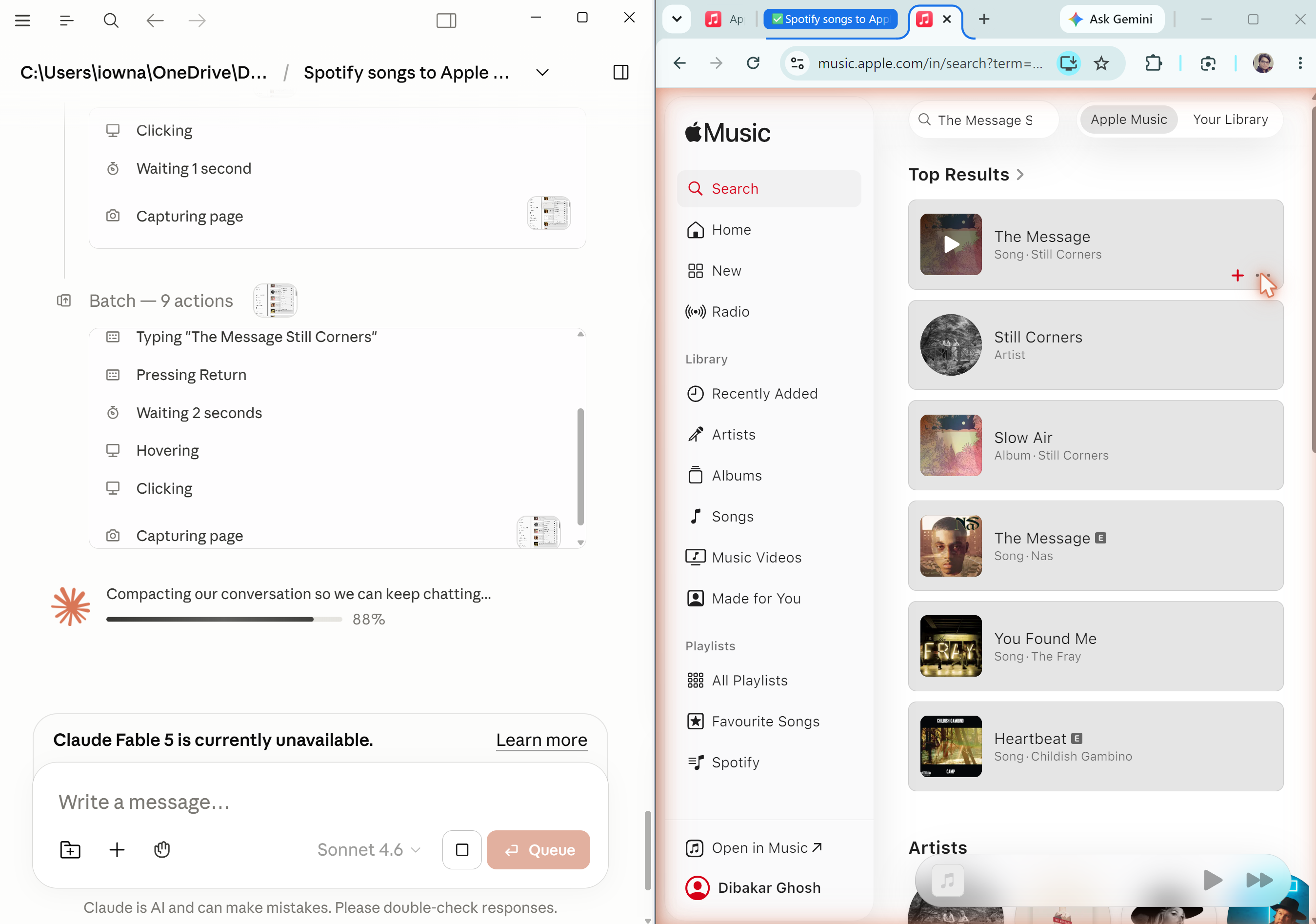
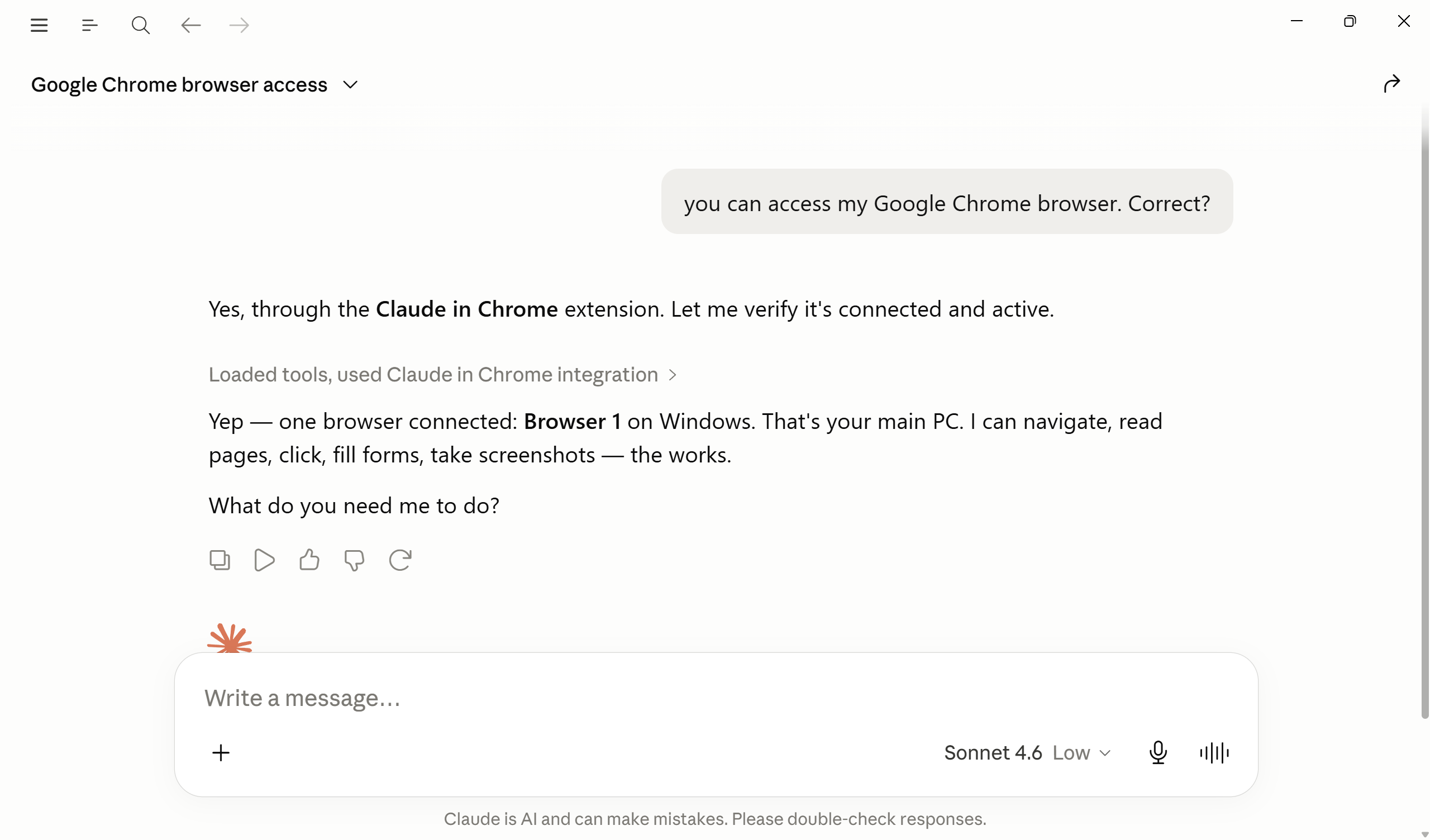
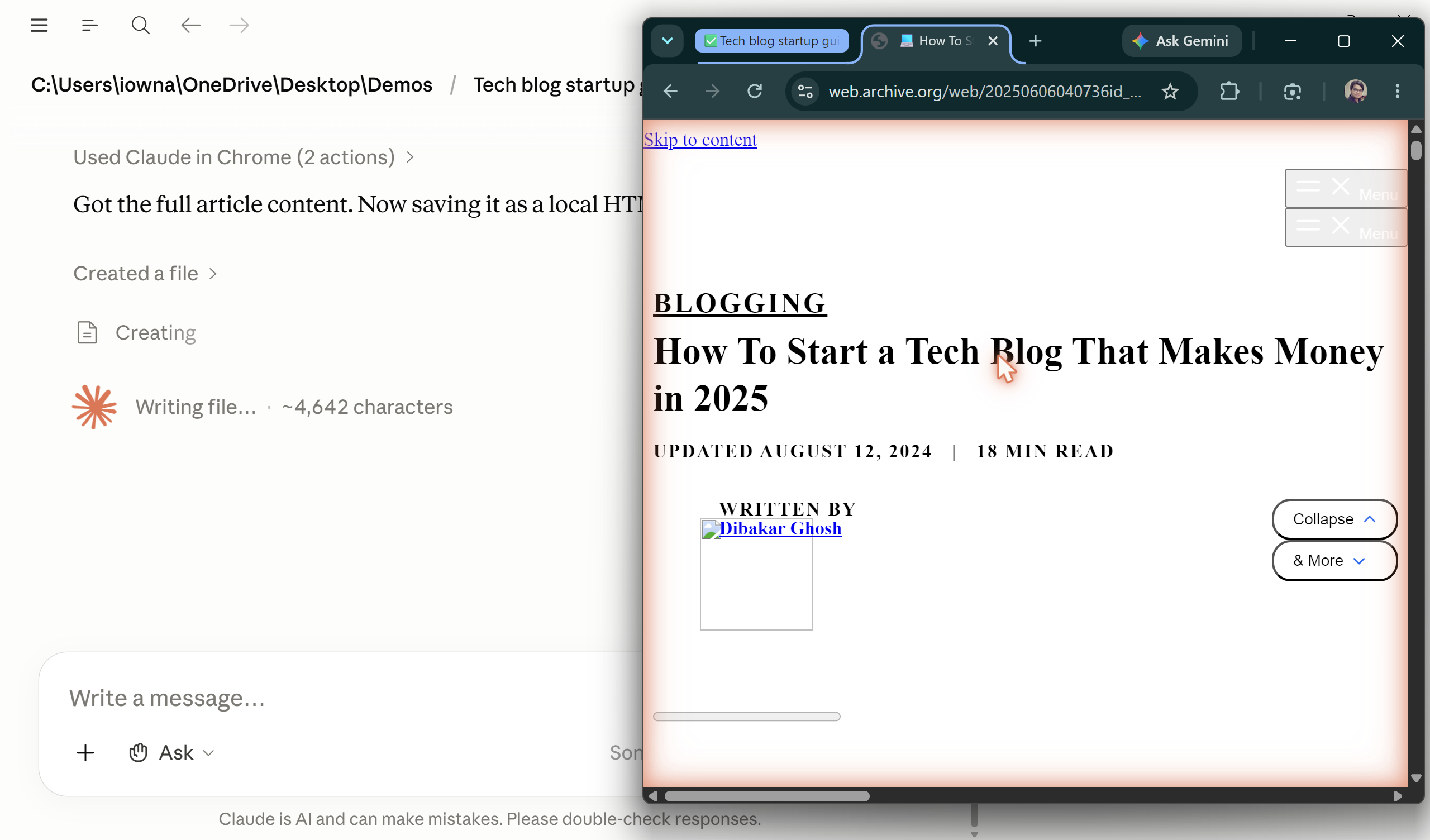
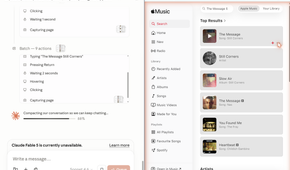
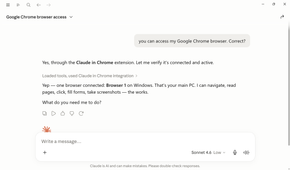
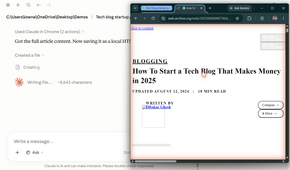
You probably know Claude supports Connectors (including MCP servers) that let it interact with other applications. For example, you can connect Claude to Notion and Google Calendar, allowing it to read your tasks, create calendar events, or synchronize information between the two. But that only works when an application exposes the APIs Claude needs. Plenty of apps and SaaS platforms don’t.
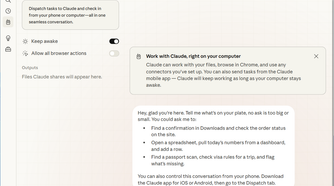
That’s where browser automation comes in. Even without an API, you can still use most web apps yourself by opening them in a browser and clicking through the interface. By giving Claude access to your browser, it can do the same—navigate the application like a person, retrieve the information it needs, and complete tasks on your behalf.
For example, I had Claude go through my Spotify account, analyze every track in my Liked Songs playlist, and export the results to an Excel spreadsheet. Claude’s Spotify connector couldn’t do that, but browser automation could.
Claude gives you powerful tools—but it’s your responsibility to use them right
Claude isn’t just a chatbot. It’s a large language model that’s available through a chat interface, backed by an ecosystem of tools that let you build genuinely useful automations. Set it up with a working folder, reusable Skills, a CLAUDE.md file that captures your context, and browser access for everything else. All of a sudden, it starts feeling less like something you chat with and more like an assistant—or even an intern—that can take care of a surprising amount of routine work for you.