Credit: Goran Damnjanovic / How-To Geek
Since I own a couple of SSDs that have passed the half-decade mark (the older one is pushing its first decade of service), I decided it was time for a quick health check to see if they’re still in good working order and worth keeping.
Both drives are 2.5-inch SATA SSDs. The first, a 1TB WD Blue, serves as a secondary drive inside my desktop PC, while the second (and older) drive is a 500GB Samsung 850 EVO, my first-ever SSD, that’s now almost a decade old. I used it as my system drive for a good while, but it’s been serving as a DIY external SSD for years now. Neither has given me any trouble, but there’s only one way to find out whether they’re actually still in tip-top shape. Well, actually, there are a few, with the best starting point being CrystalDiskInfo.
CrystalDiskInfo
An excellent choice for a quick lookup
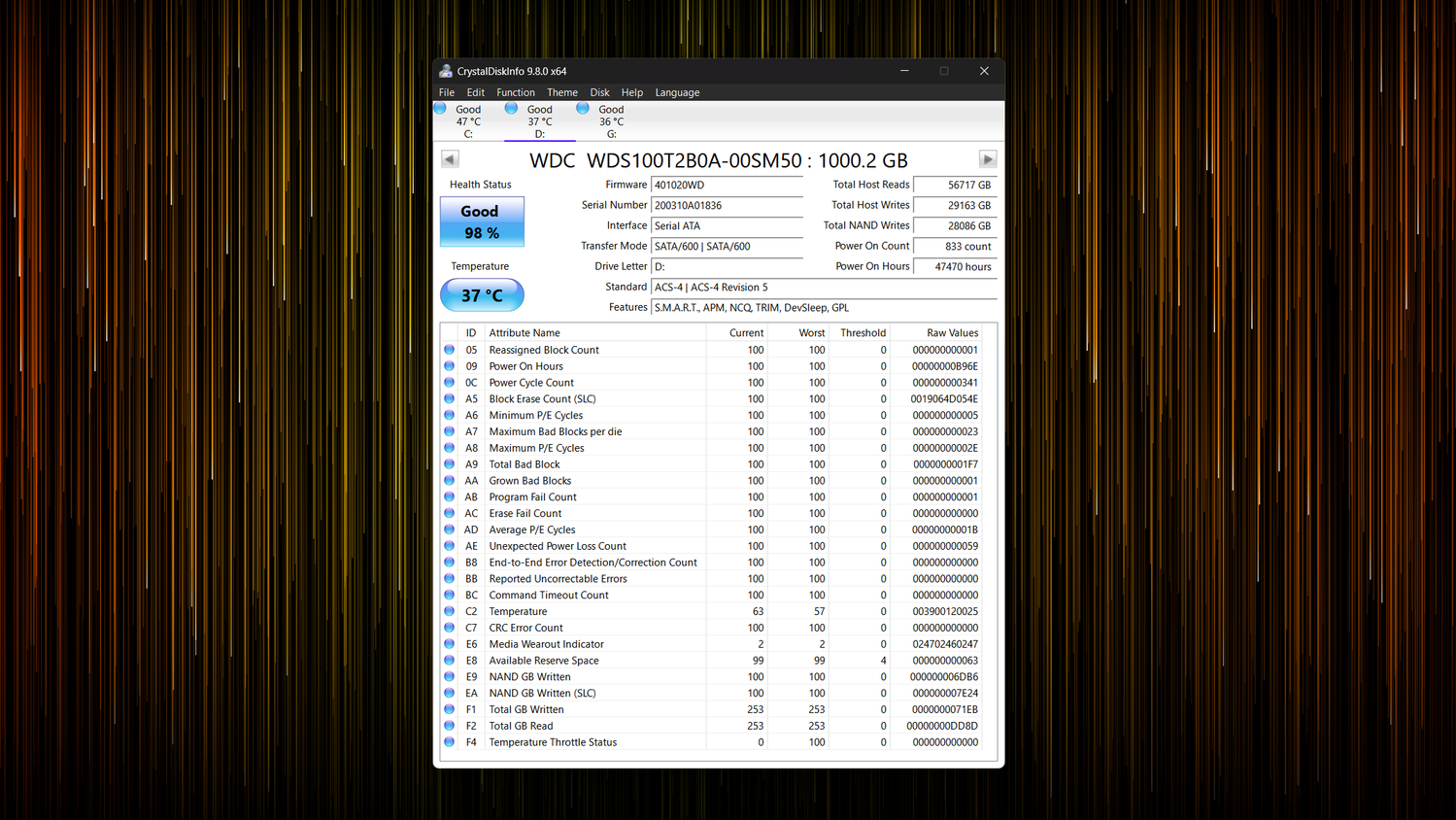
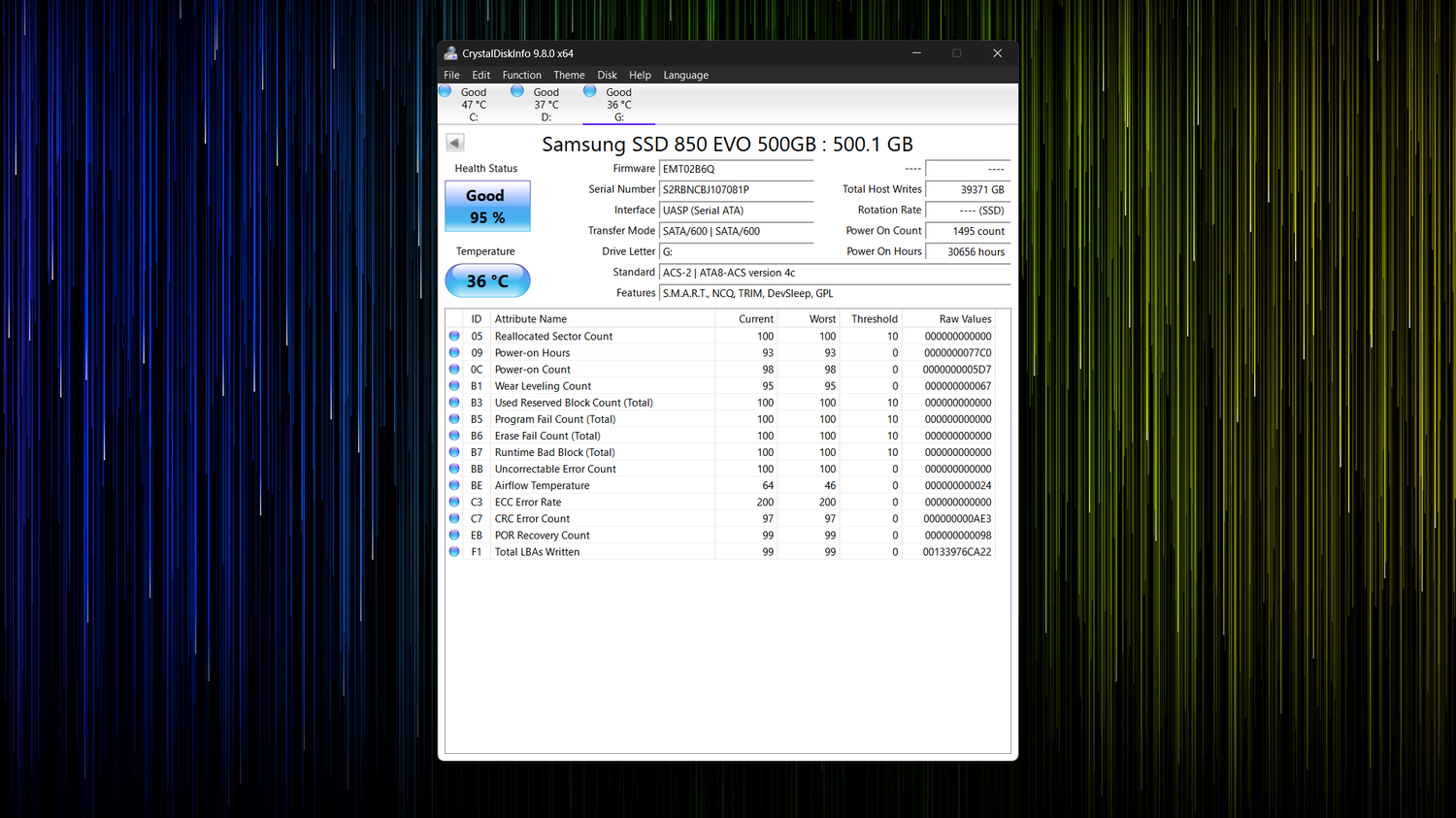
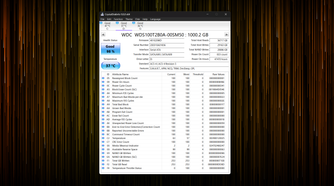
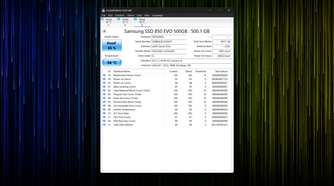
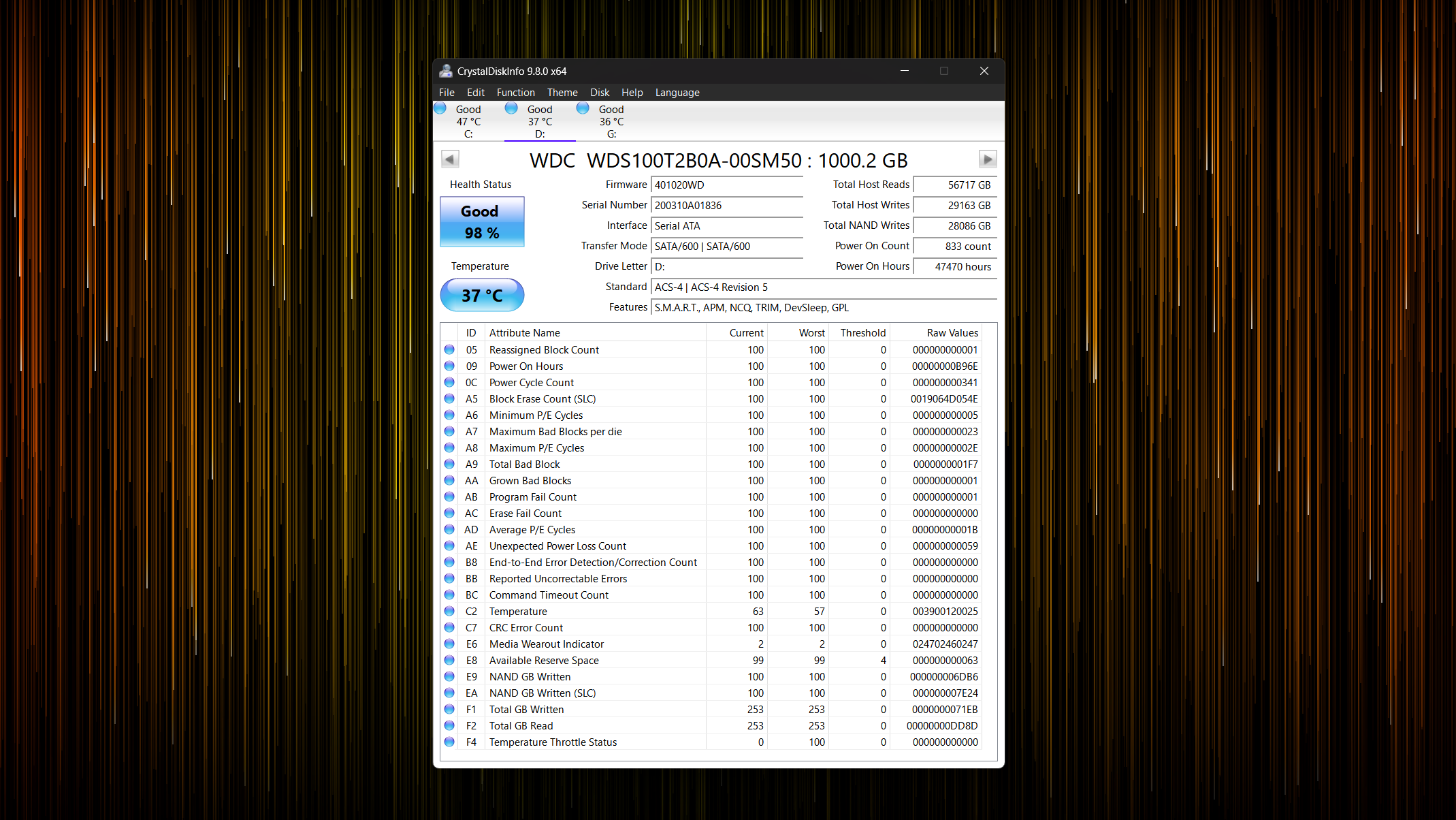
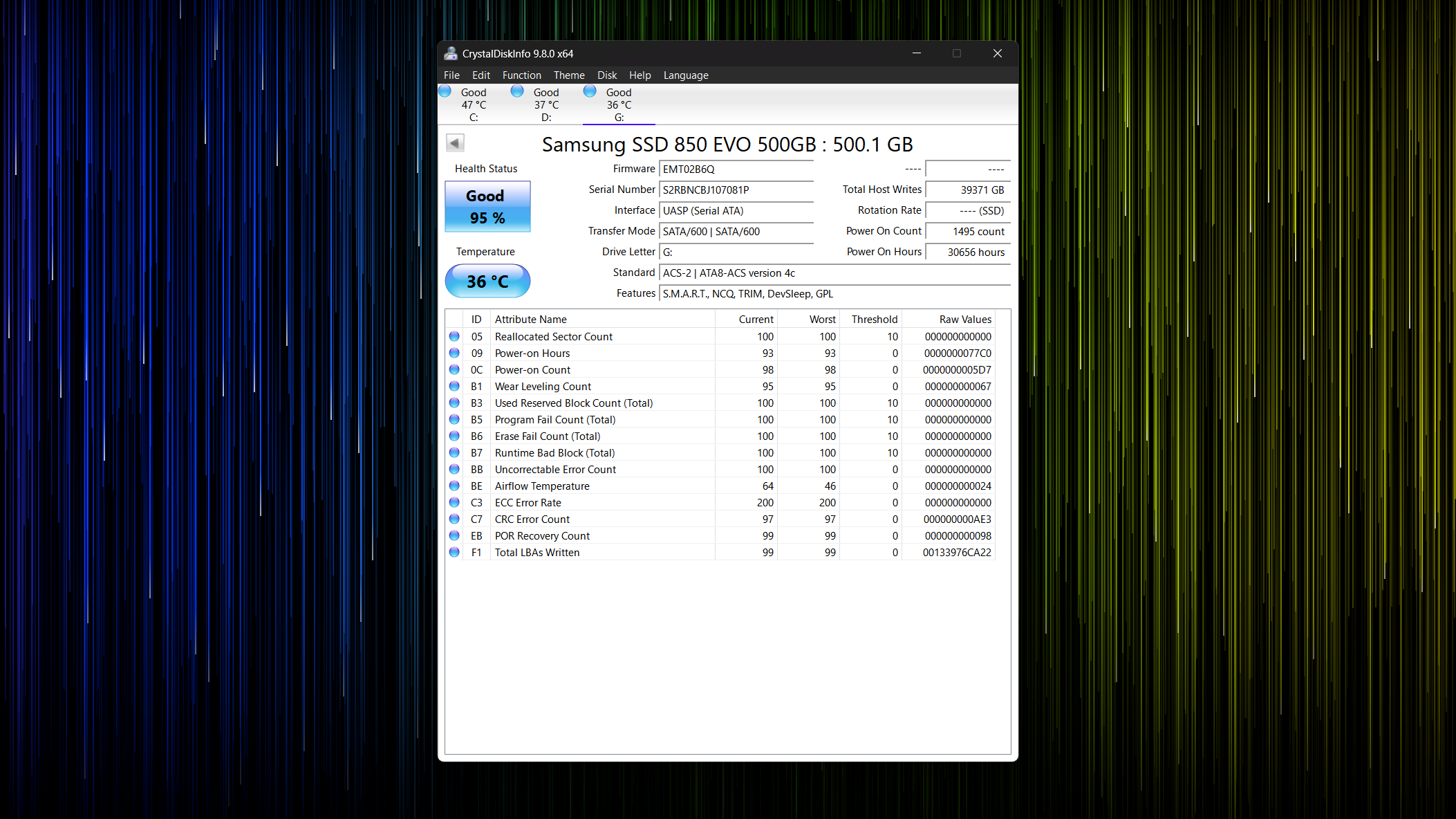
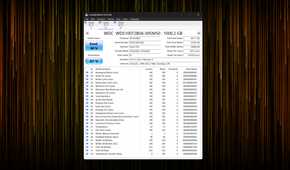
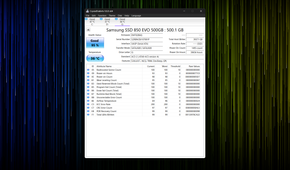
The first app I used was CrystalDiskInfo, a free tool I recommend everyone use for quick SSD checkups. The app collects and presents S.M.A.R.T. (Self-Monitoring, Analysis, and Reporting Technology) attributes, including useful stats such as total reads and writes, as well as power-on hours. As you can see from the included screenshots, both SSDs are still trucking along without any major issues, at least according to CrystalDiskInfo.
The first drive, a 1TB WD Blue SATA SSD, has seen a lot of action, which is understandable, considering I used it as my boot drive for a few years before upgrading to a WD SN850. It has been running for almost 47,500 hours, which translates to about 1,979 days, or almost five and a half years. While this may look like a lot, I almost never turn off my PC, meaning the drive has more or less been running continuously since I first turned it on in late 2020, when I built this PC.
The drive has a total of 28.5TB of data written to it during that time. Again, this may sound like a lot, but considering this particular model has an endurance rating of 400TBW (Terabytes Written), I’ve written less than 10 percent of its rated endurance. Considering that many SSDs can easily exceed their endurance rating and still work fine, my WD Blue SATA SSD likely has a lot of life left in it, especially now that it’s used as a secondary drive for storing local media files and game installations.
The second drive (the 500GB Samsung 850 EVO) is also in good working order, according to CrystalDiskInfo. Since it’s connected to my PC via USB, CrystalDiskInfo doesn’t show certain S.M.A.R.T. data points. The most important information, however, is still available. According to the data, my 850 EVO has been running for about 30,600 hours, which translates to roughly three and a half years. That’s much less than the WD Blue’s power-on time, despite the Samsung being almost twice as old. The reason is simple: I used to turn off my PC every night back when the Samsung served as my boot drive.
As for the total data written, it sits at about 38.5TB, which isn’t that much. However, since the 500GB version of the Samsung 850 EVO has an endurance rating of only 150TBW, it’s much closer to its endurance limit than the WD Blue is. Still, according to CrystalDiskInfo, the drive is in good health, so I reckon it’s worth keeping around as an external drive. At the end of the day, you shouldn’t worry too much about your SSD’s endurance since it’ll likely fail for another reason first.
Hard Disk Sentinel
A powerful tool for in-depth SSD examination
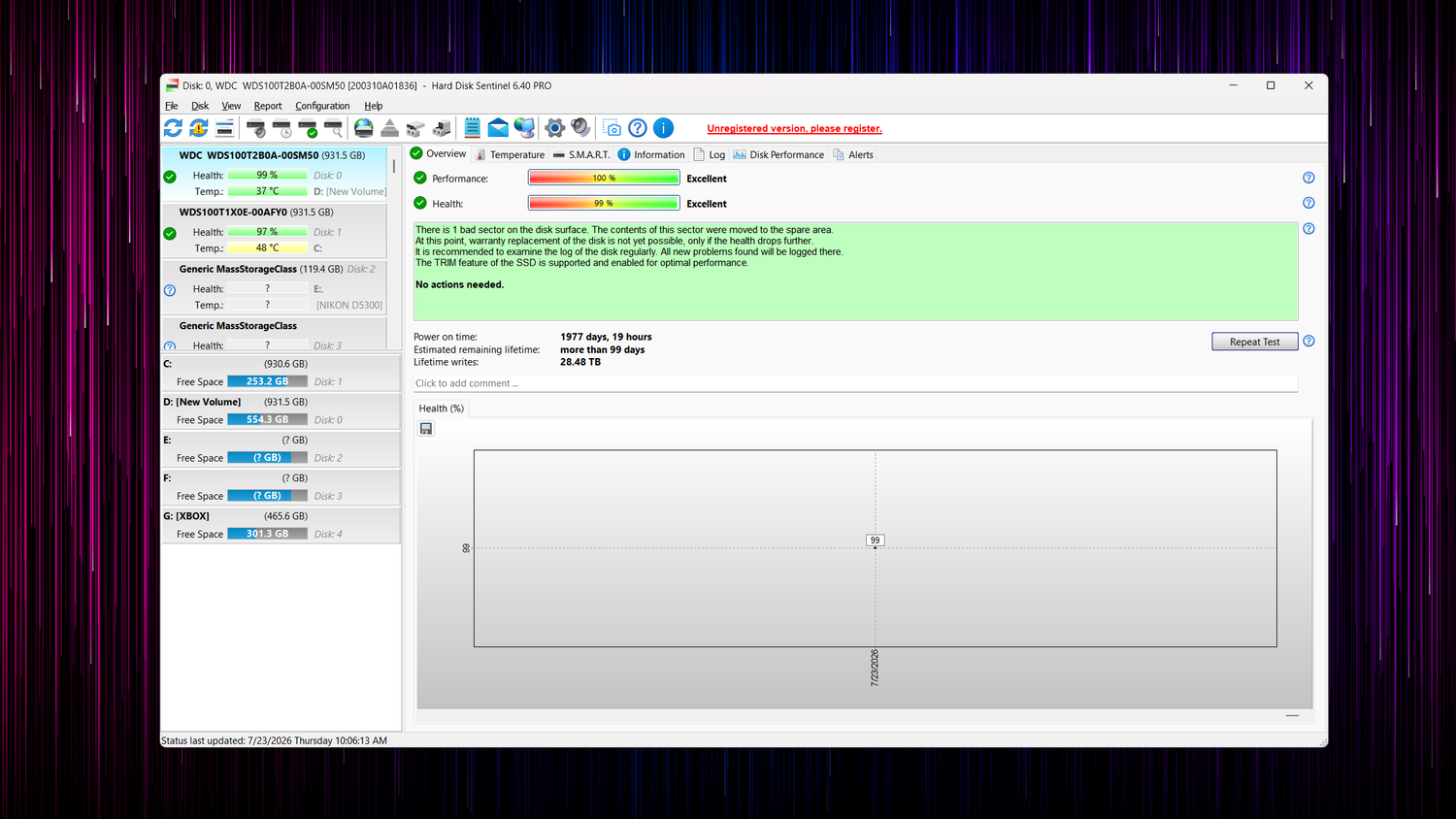
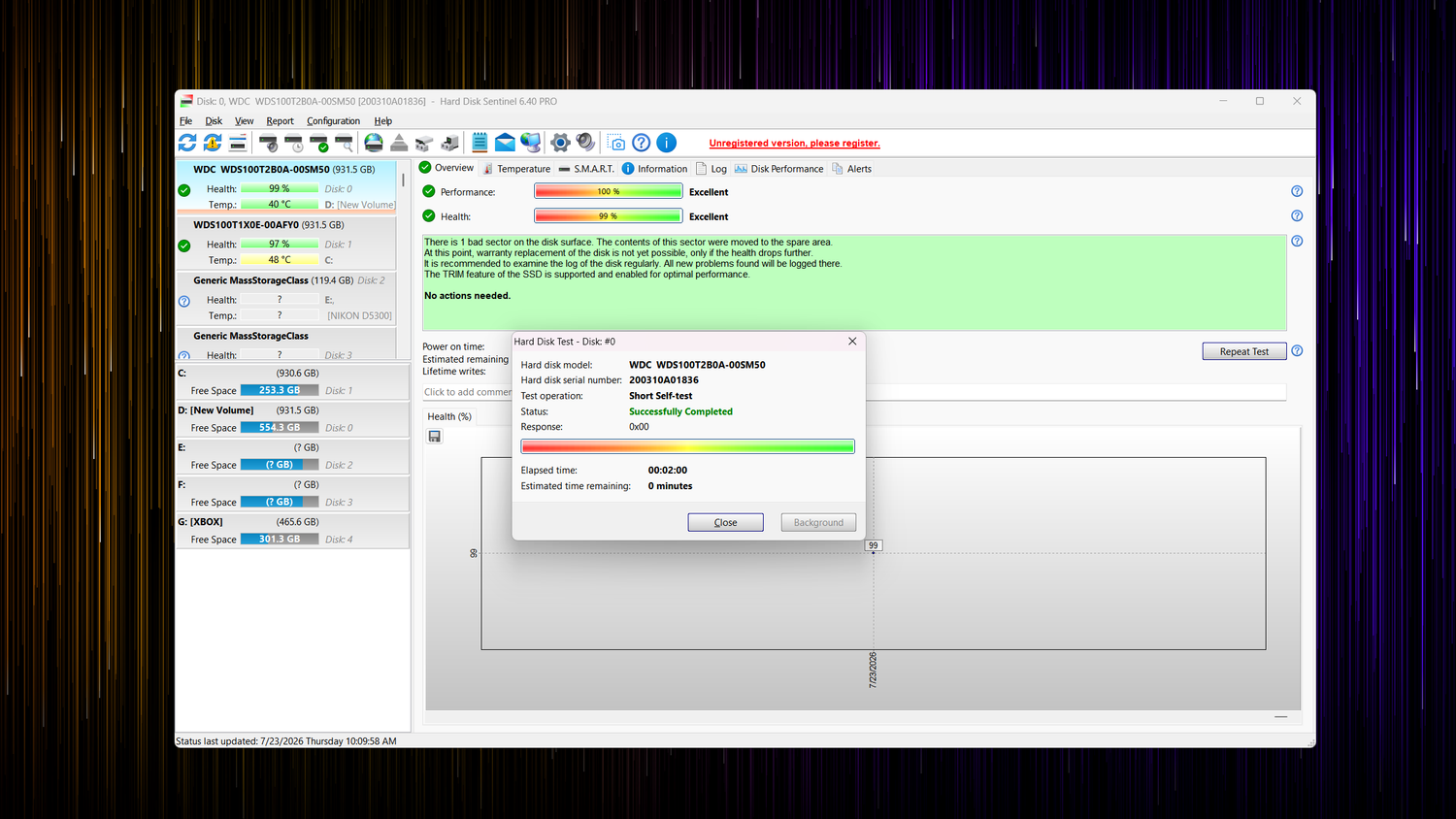
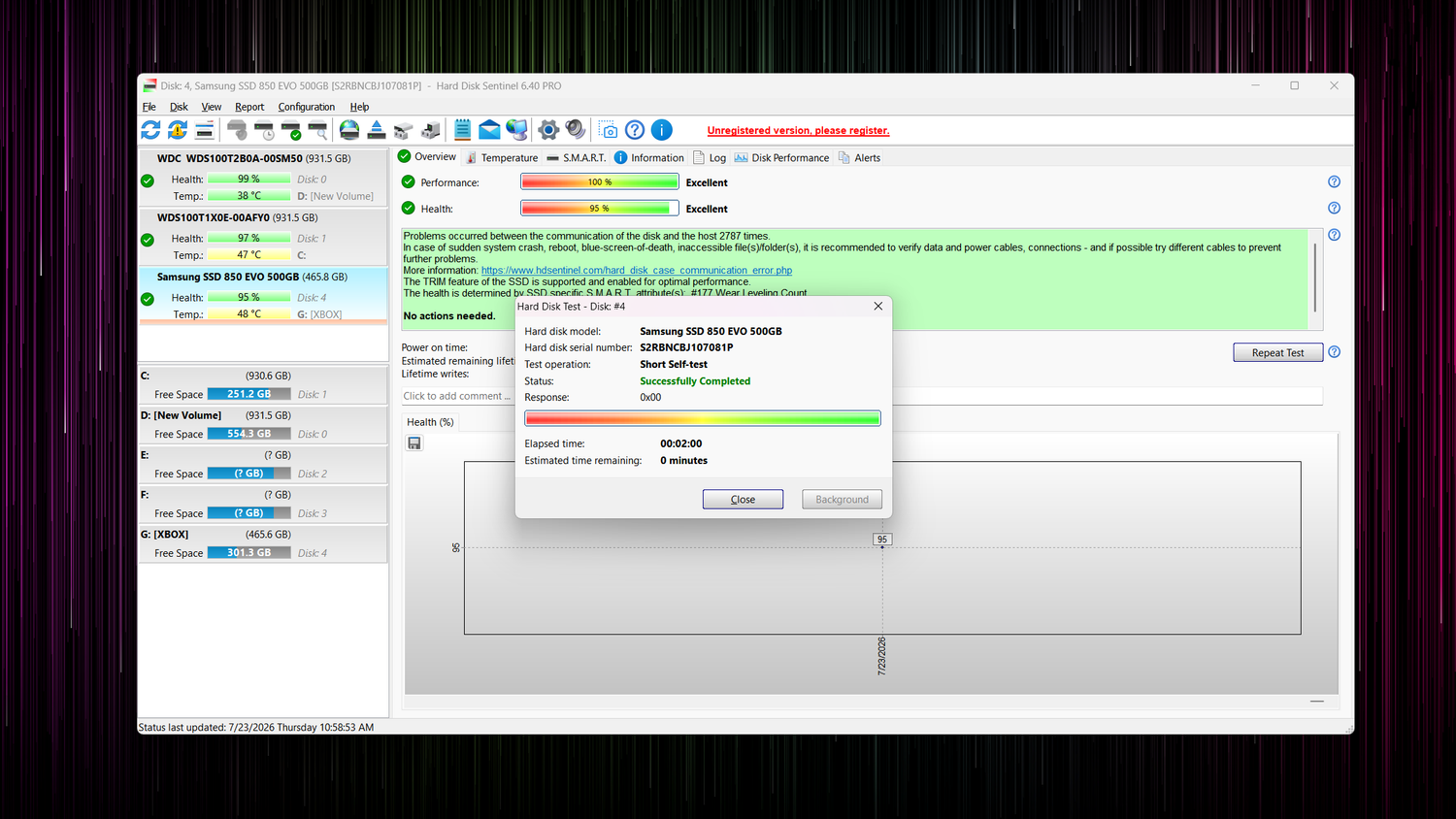
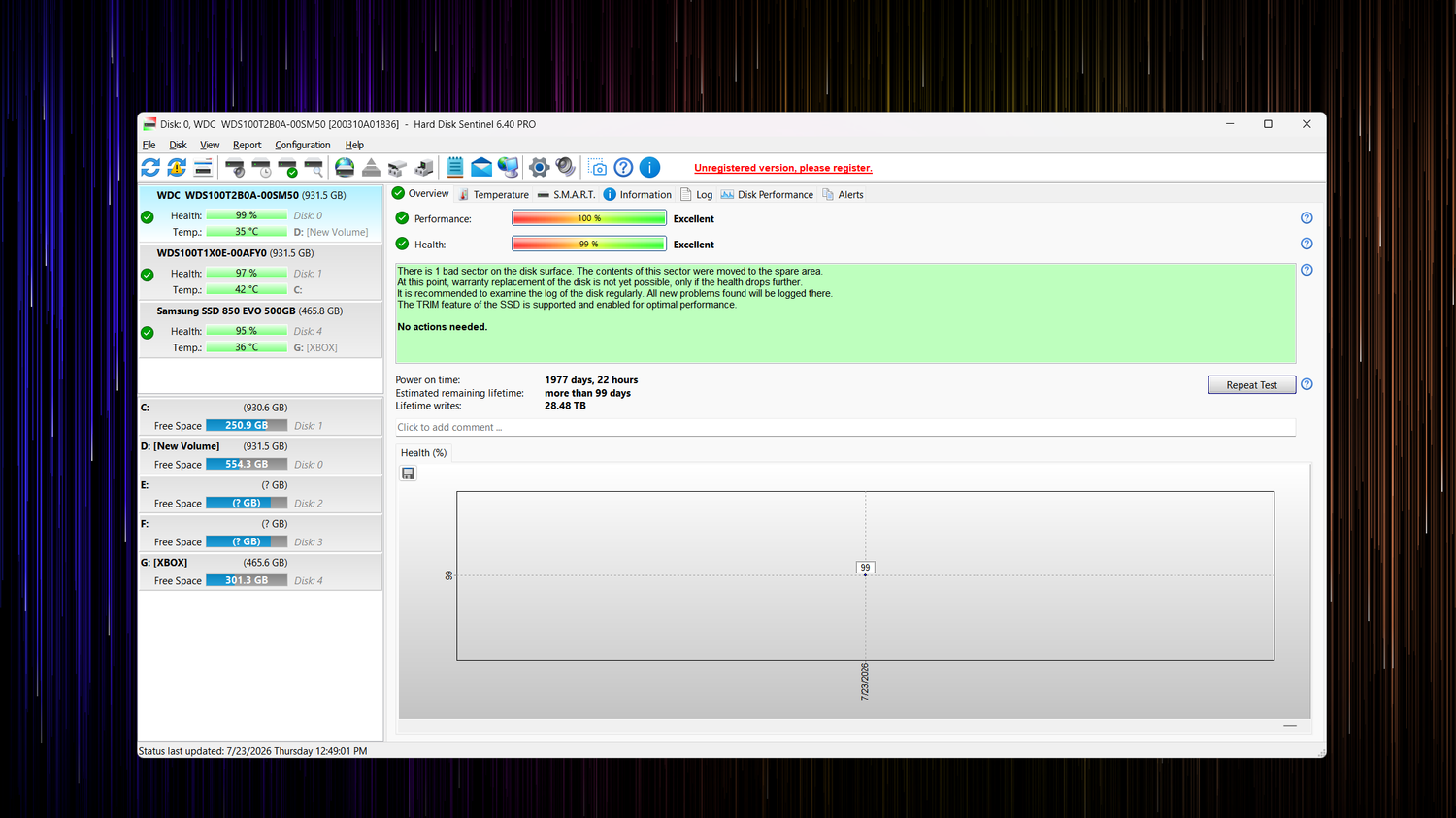
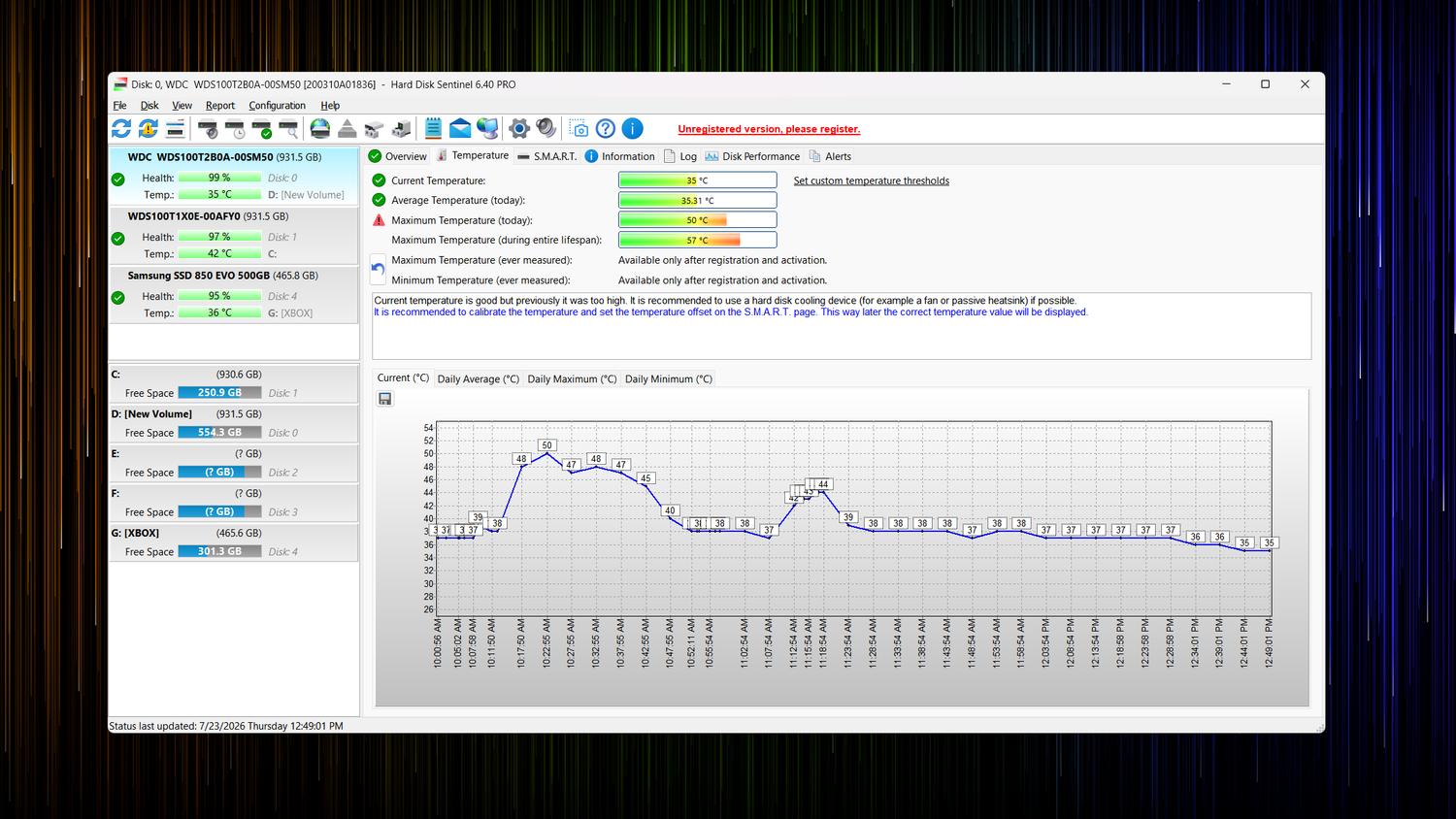
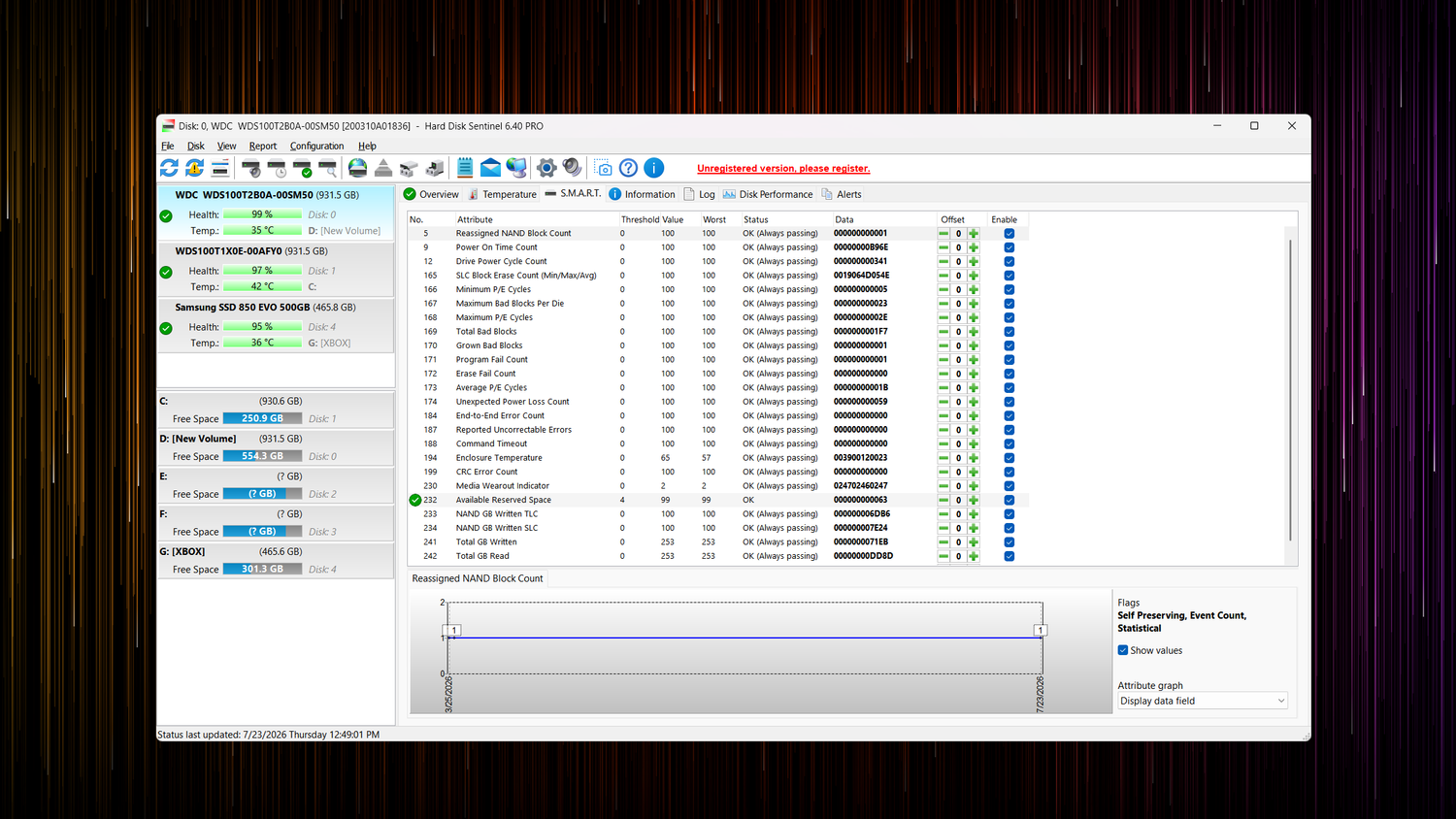
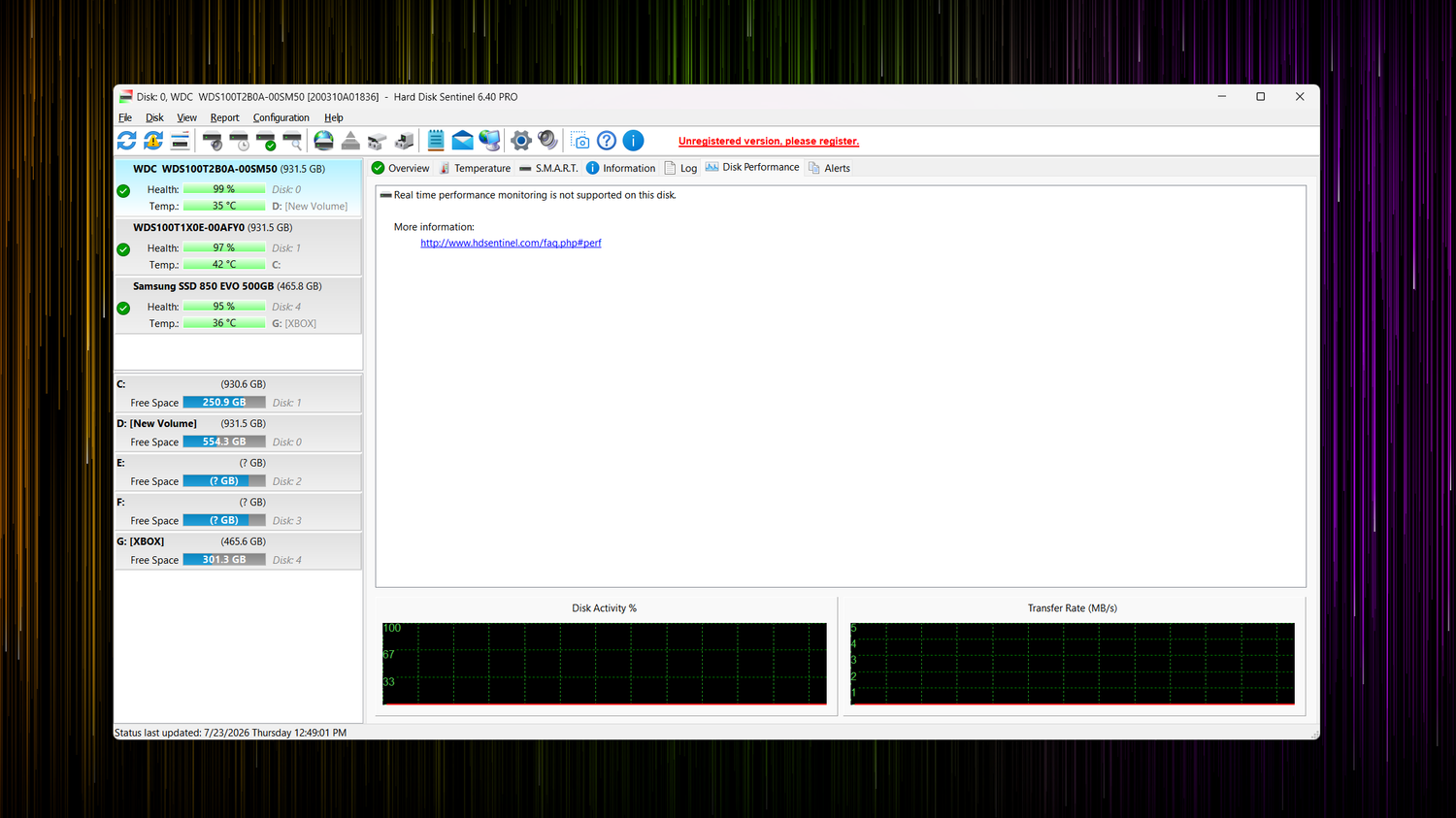
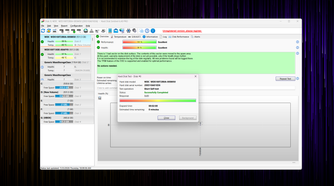
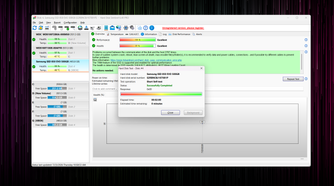
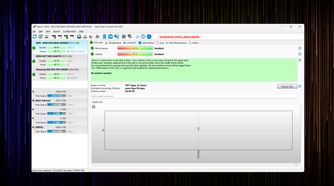
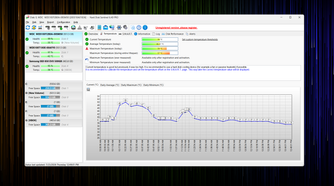
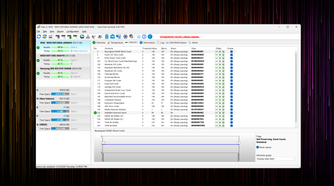
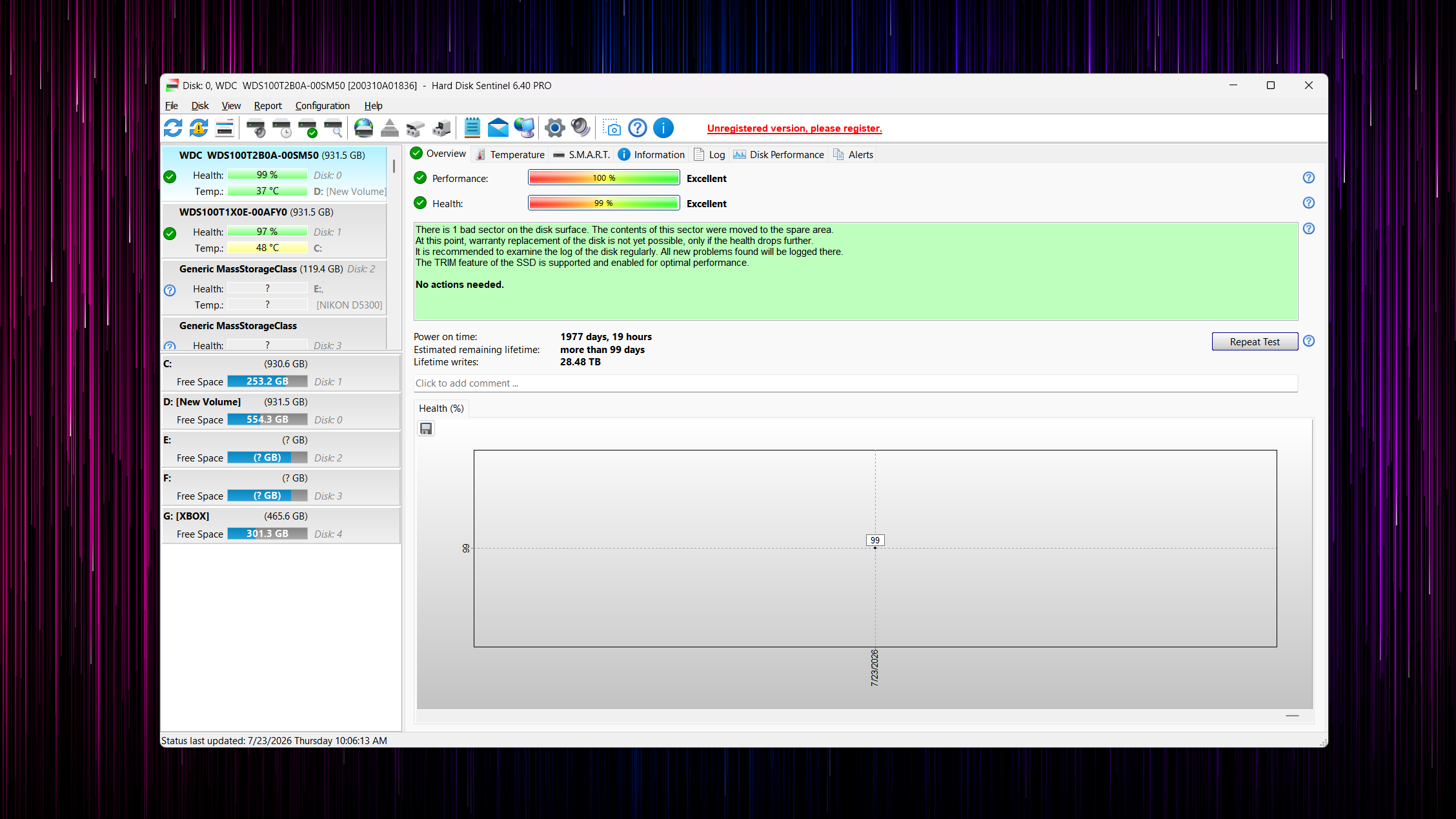
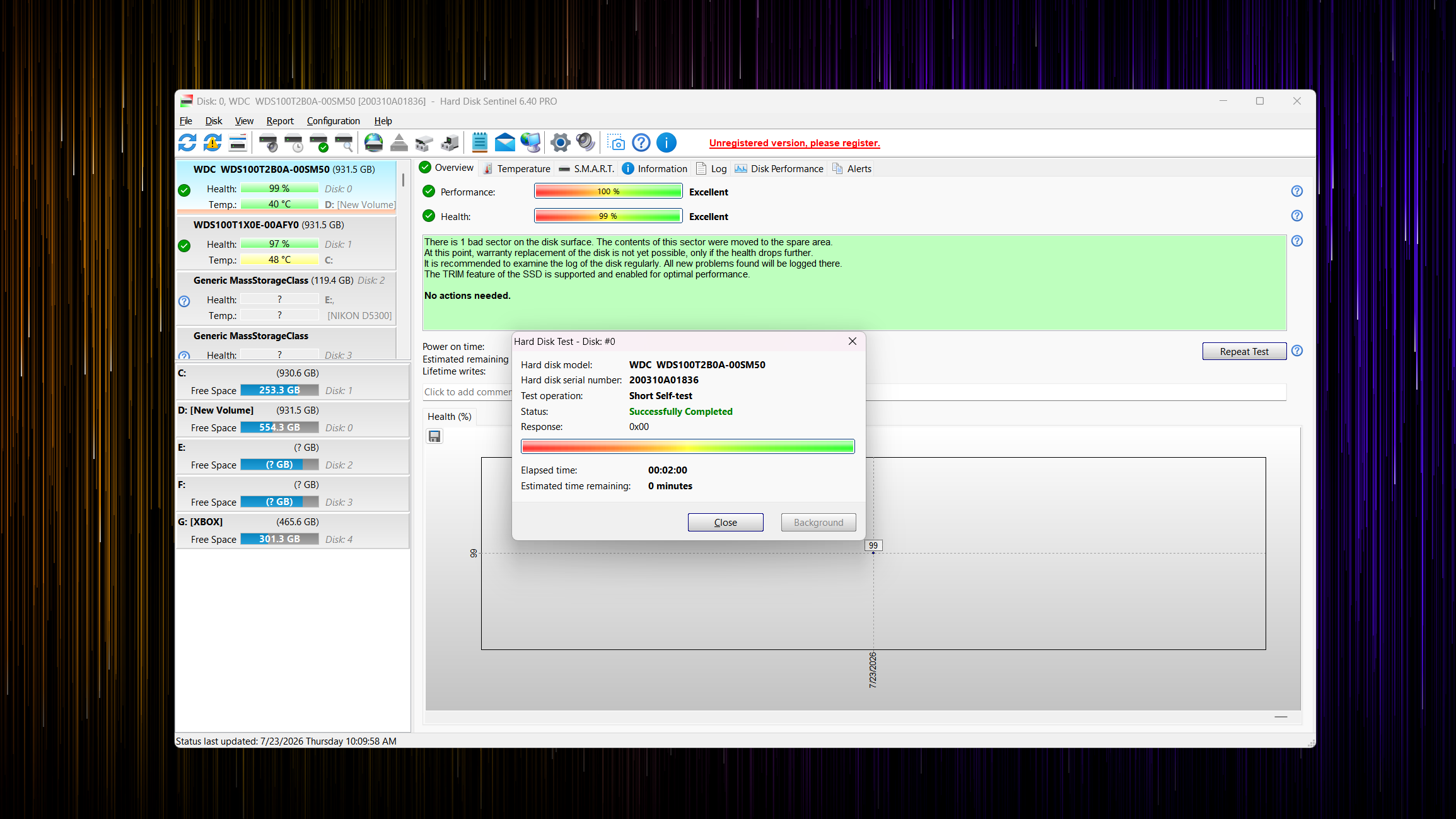
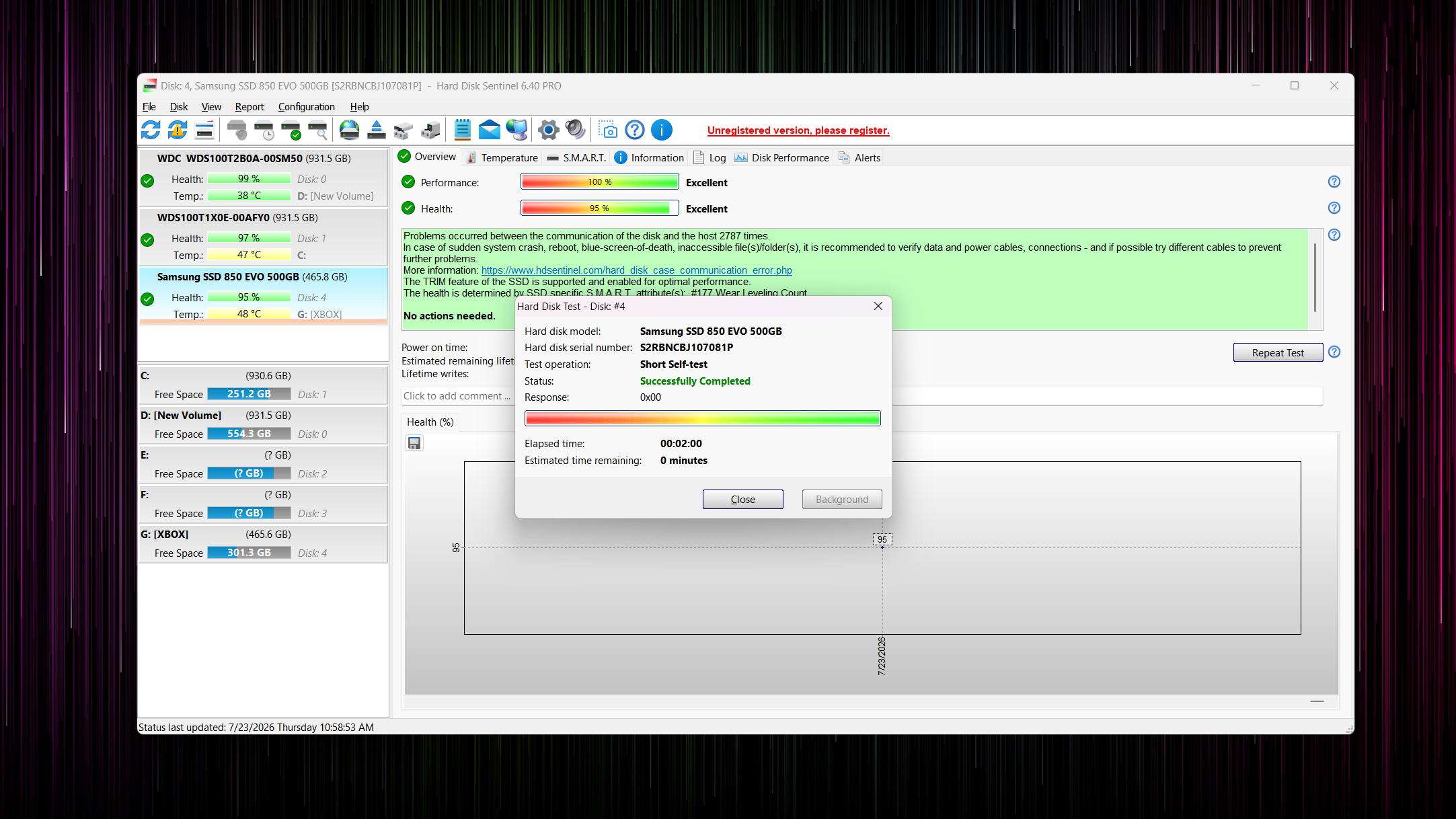
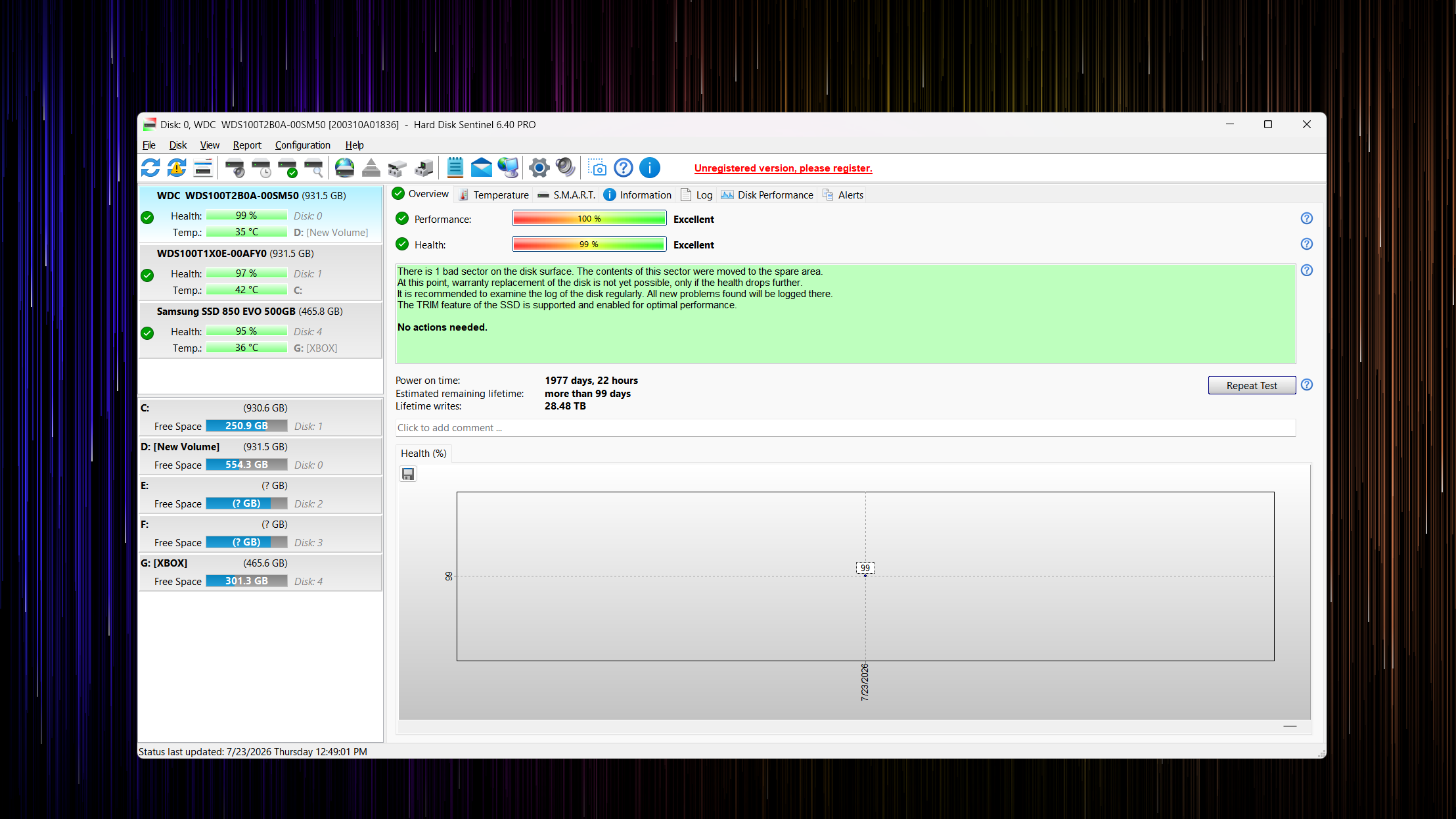
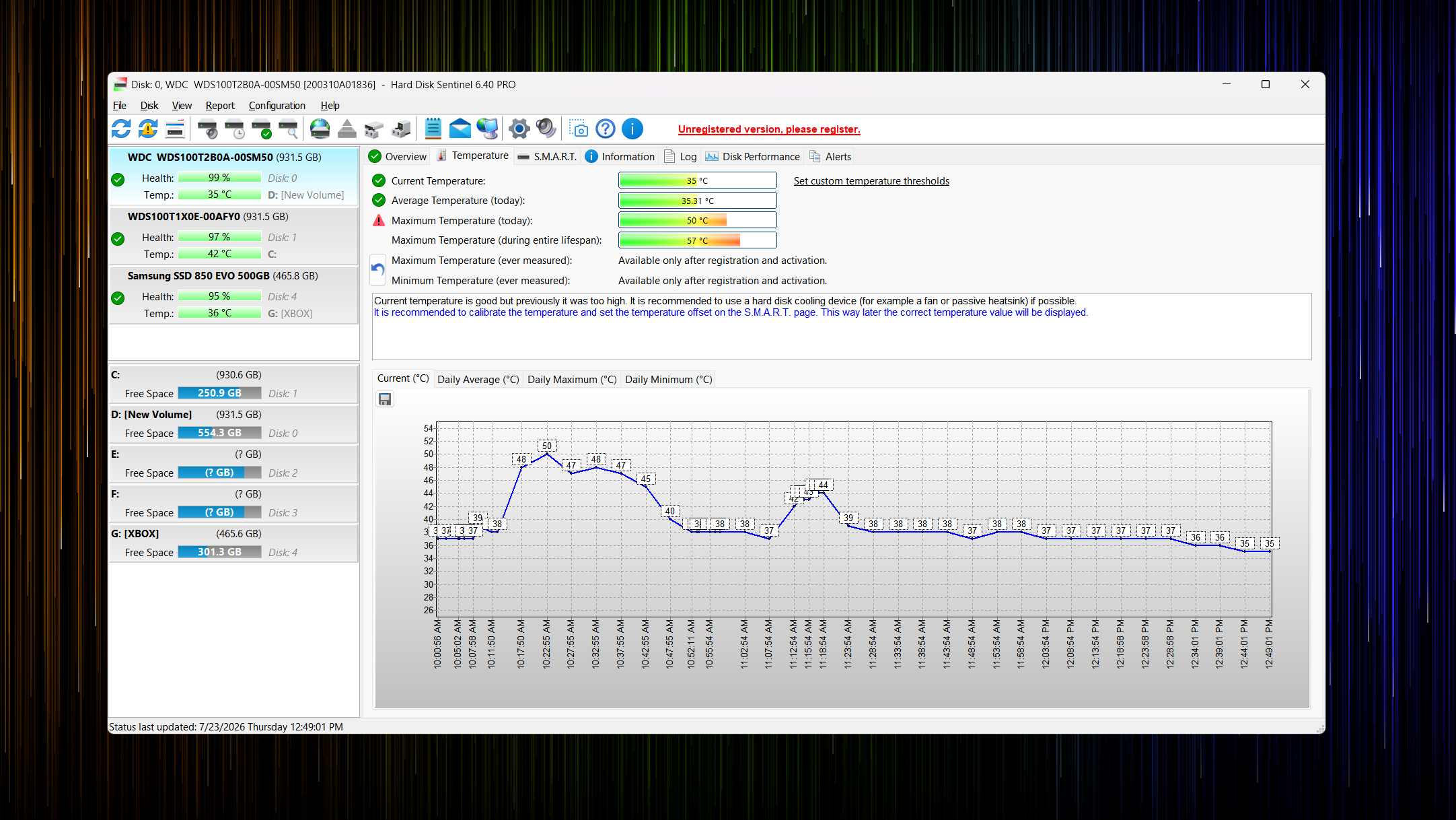
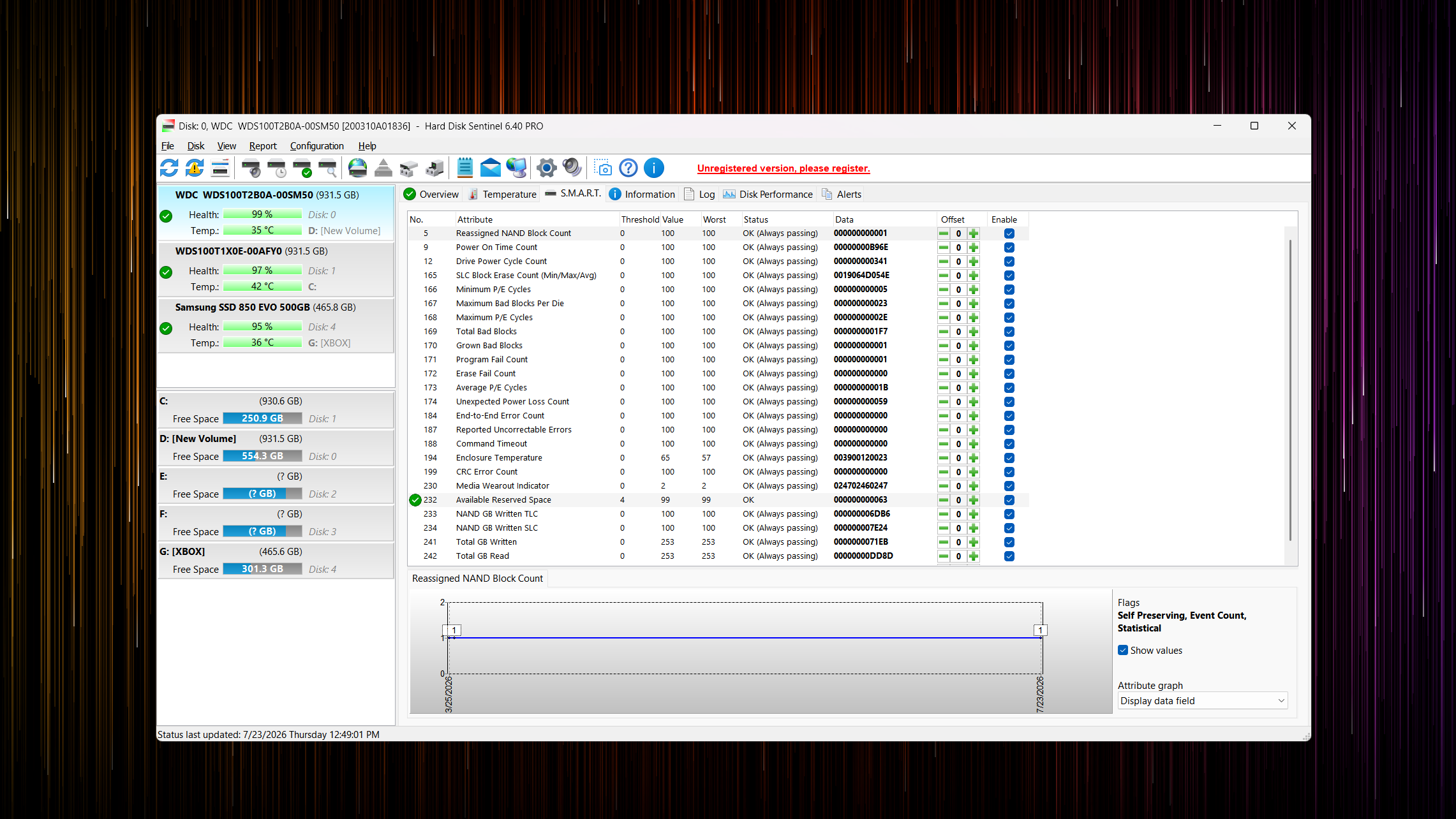
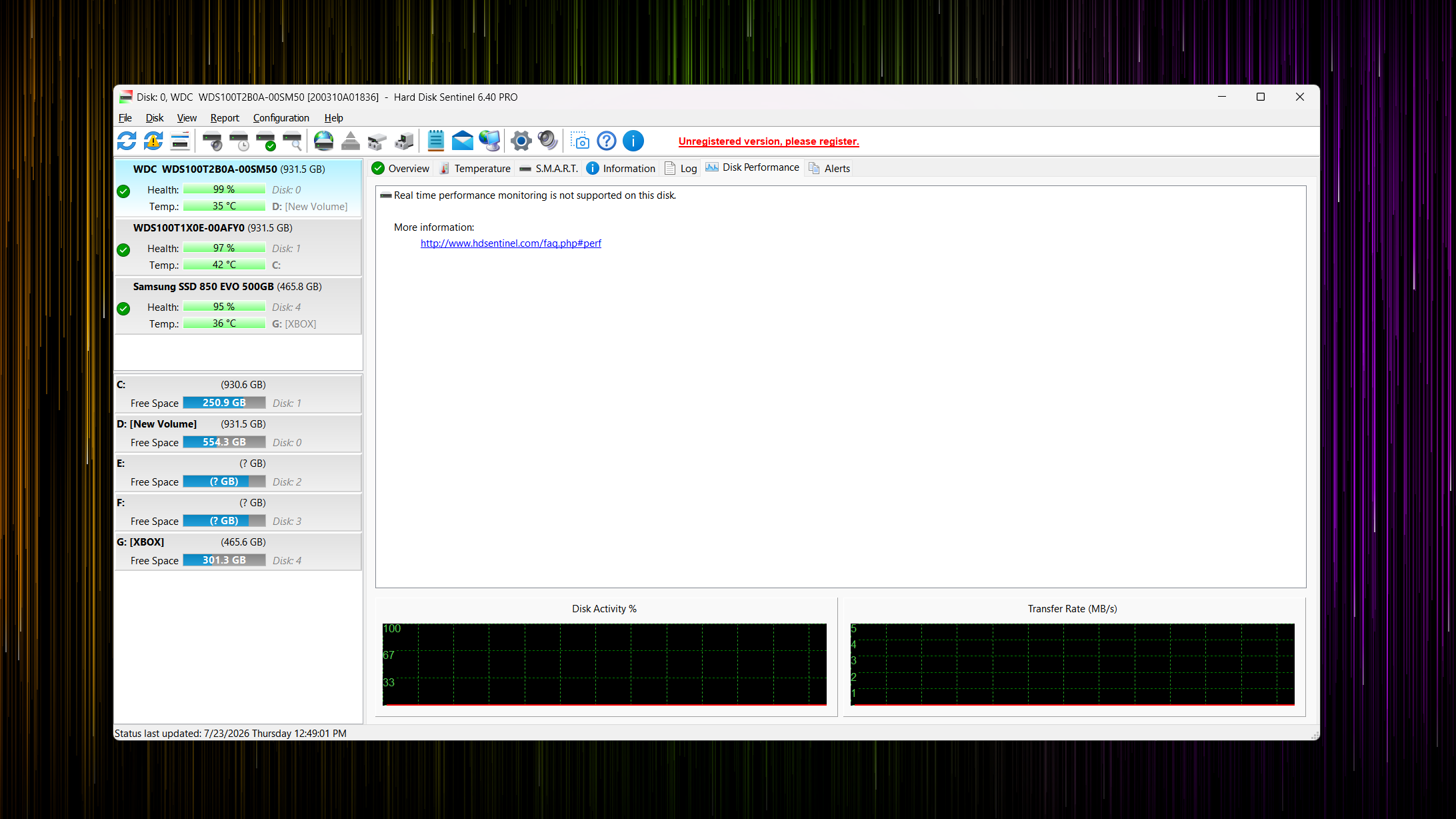
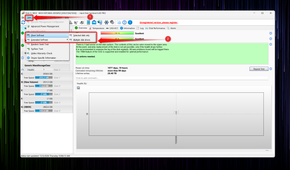
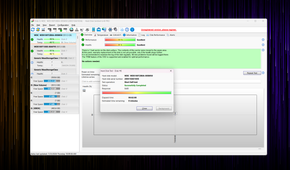
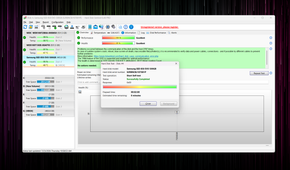
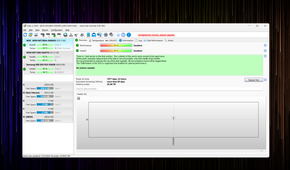
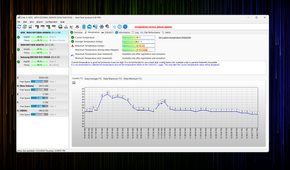
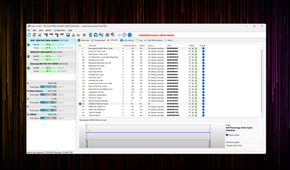
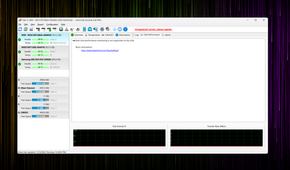
Now, CrystalDiskInfo is a solid option for a quick SSD checkup, but if you want something for more in-depth testing, you should install Hard Disk Sentinel, a paid program that includes a one-month trial. After installing and running the app, I was greeted with a much more comprehensive view of the S.M.A.R.T. data points and other SSD health metrics.
The good news is that Hard Disk Sentinel agreed with CrystalDiskInfo. Both SSDs were in good working order. Hard Disk Sentinel did show that my WD Blue drive had one bad sector (on SSDs, this usually indicates a retired NAND block), but fortunately there wasn’t any reason to worry. After all, it was only one bad sector, and the affected data was remapped to a spare area instead of becoming corrupted.
All other S.M.A.R.T. data points were in line with what CrystalDiskInfo had shown, which was good news because they indicated that neither of my veteran SSDs showed any issues. That said, I couldn’t check the sector status of the Samsung 850 EVO because the drive was connected to my PC via USB, which prevented Hard Disk Sentinel from accessing that data. However, considering that the SSD is still far from its TBW rating, its health sits at 95%, and I use it as an external drive rather than a boot drive, I saw no reason for concern.
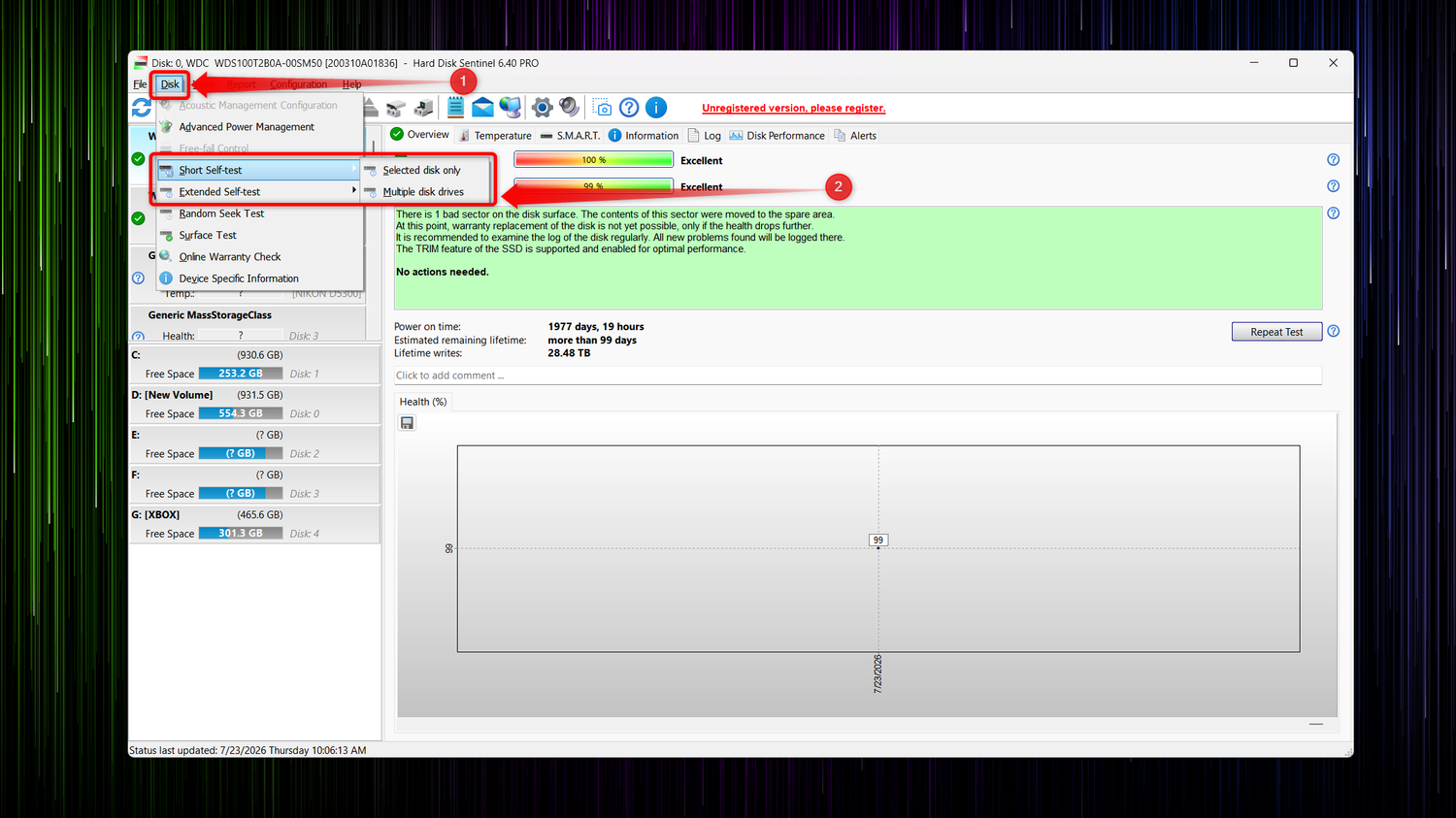
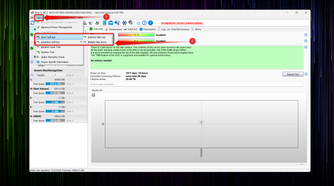
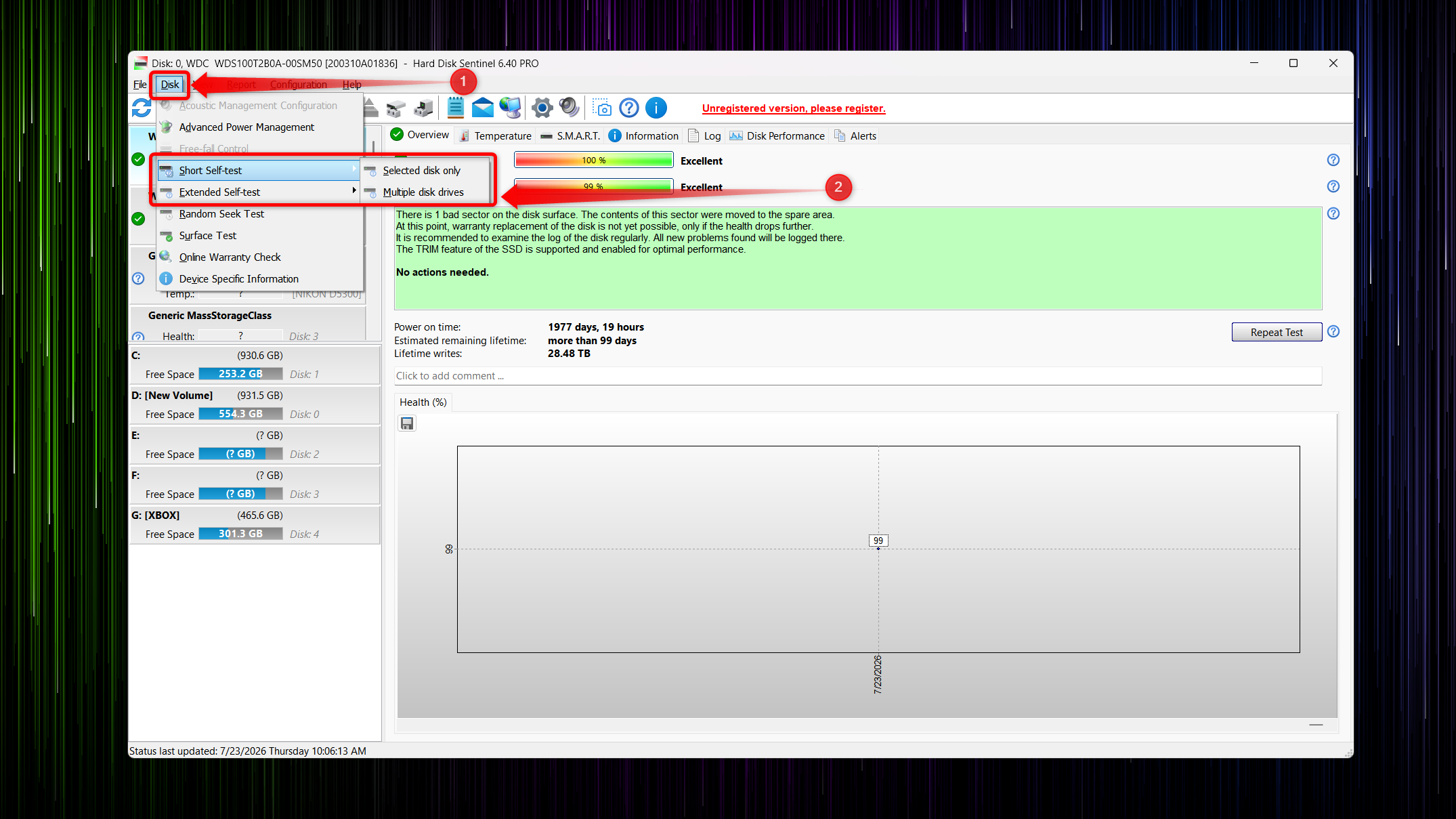
Just in case, I ran a short S.M.A.R.T. self-test on both SSDs, a feature that’s available in Hard Disk Sentinel but not in CrystalDiskInfo, and both drives passed with flying colors. In other words, they’re still running just fine, and I can continue using them. Keep in mind that Hard Disk Sentinel also supports running extended self-tests, but they’re only available in the registered version of the program.
Manufacturer Tools
Apps such as SanDisk Dashboard and Samsung Magician
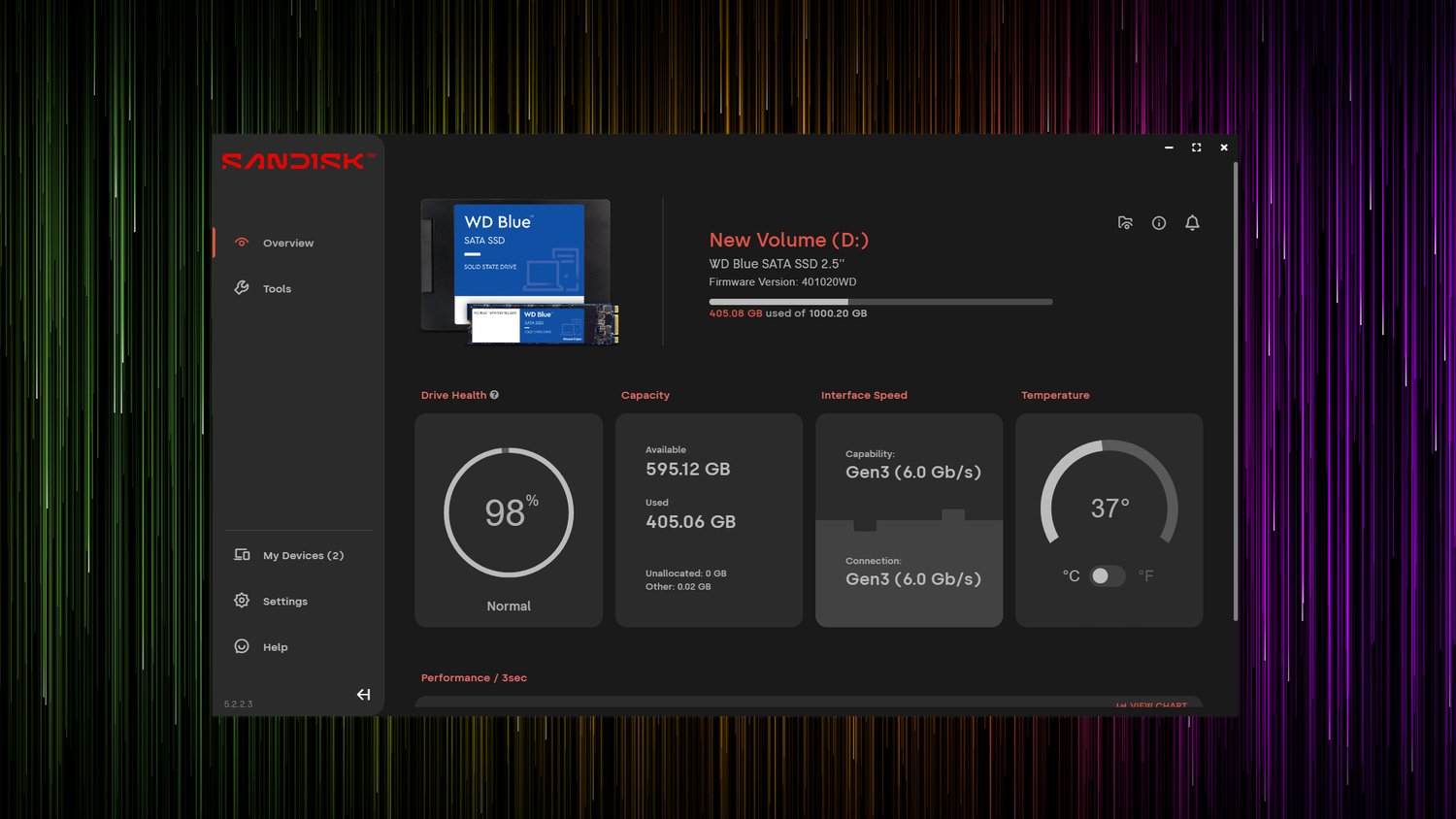
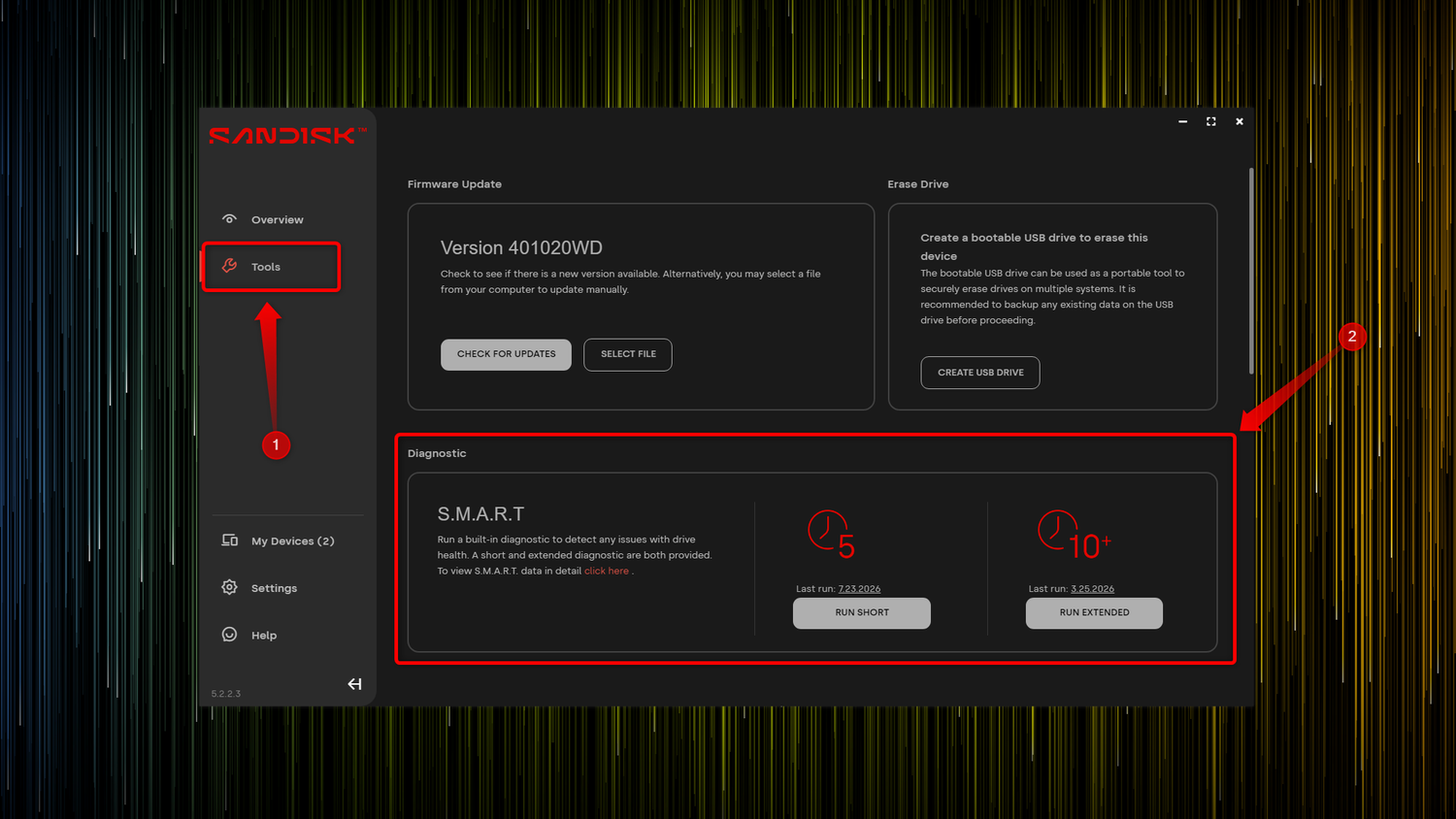
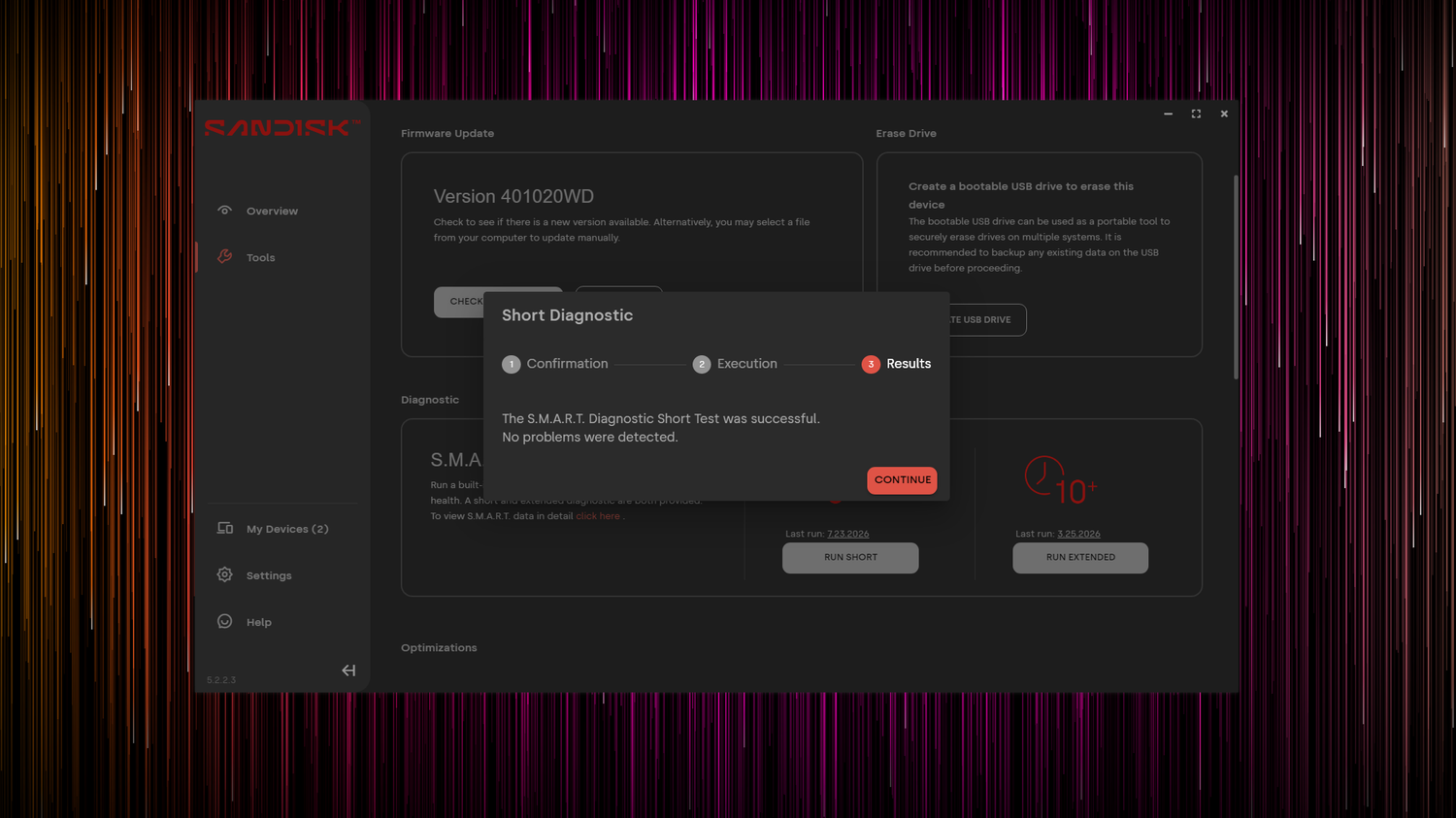
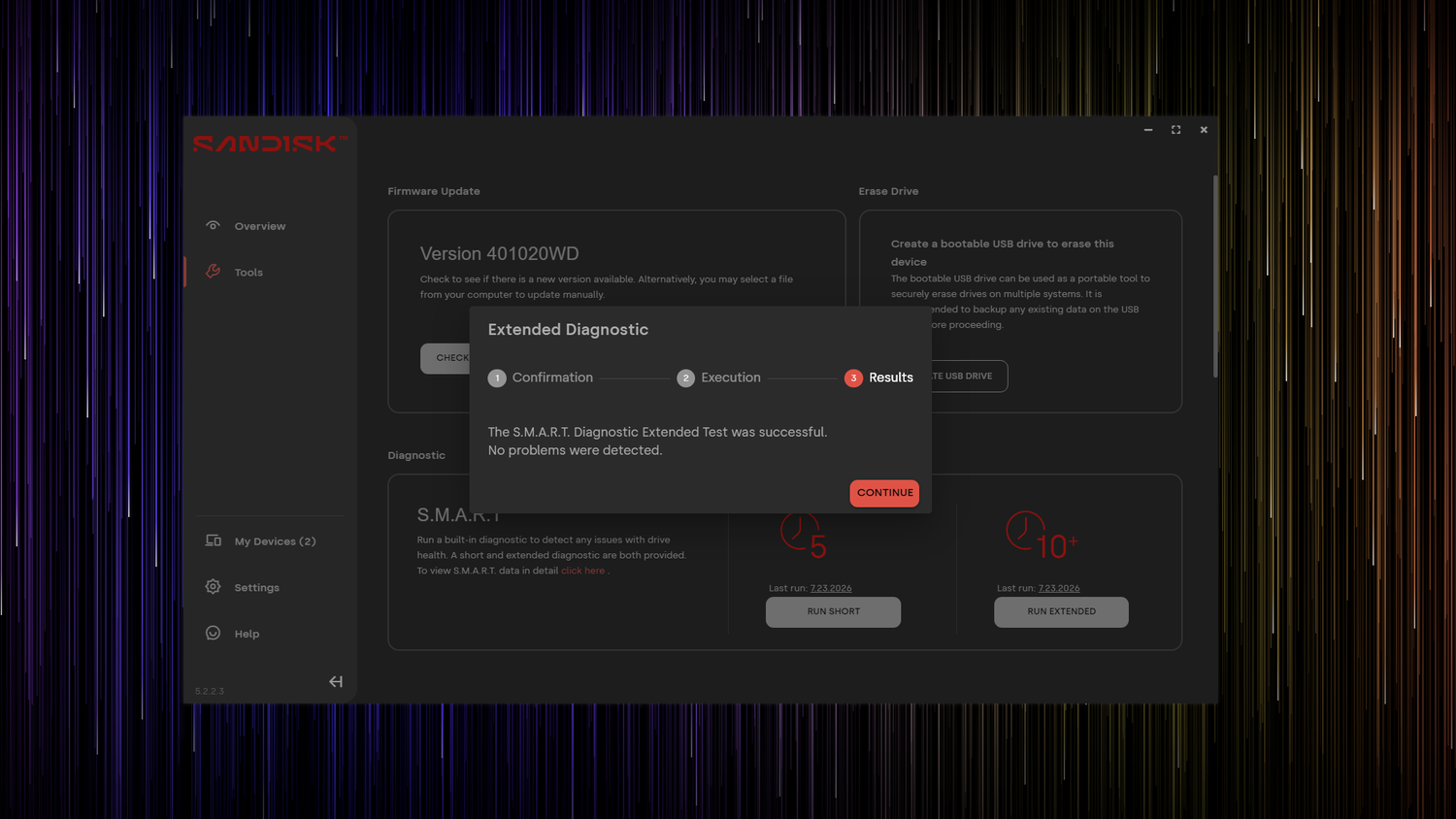
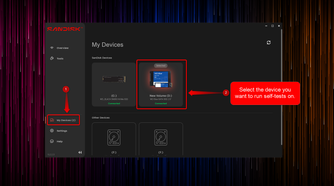
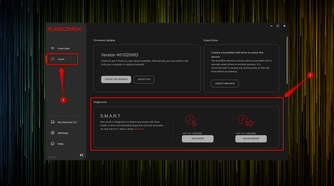
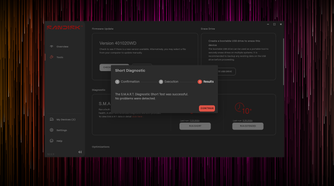
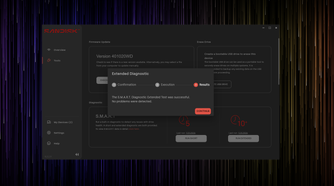
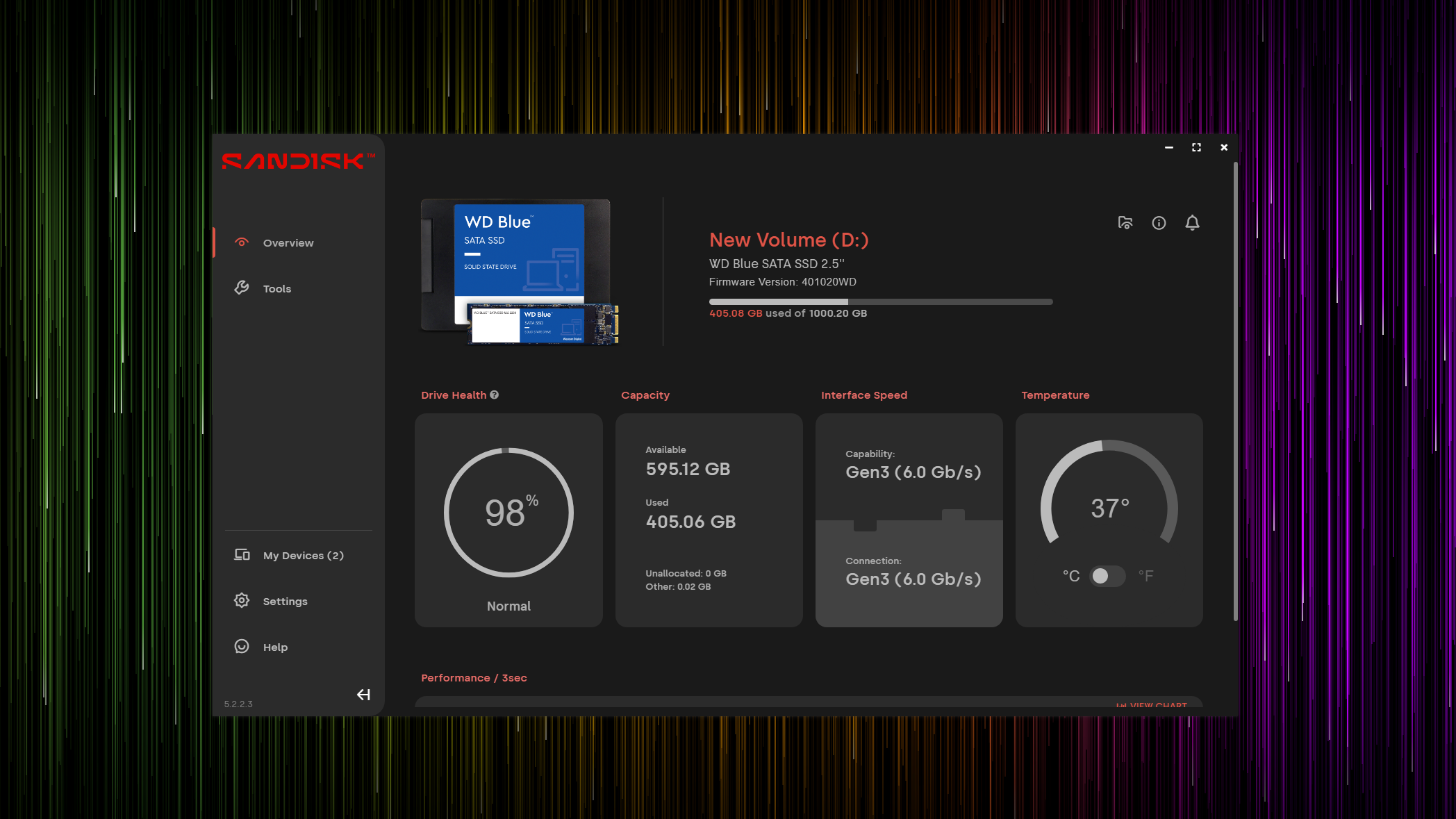
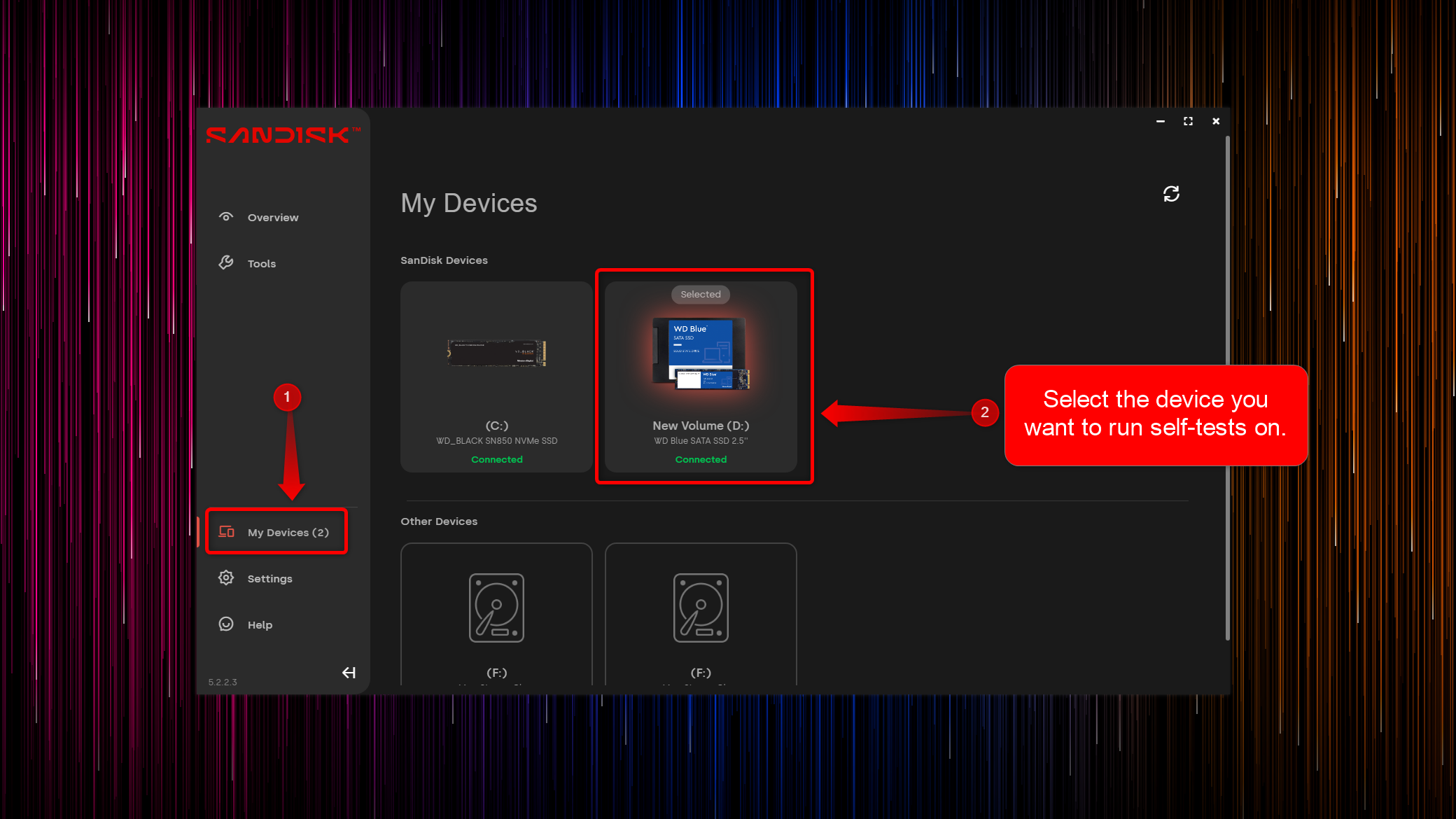
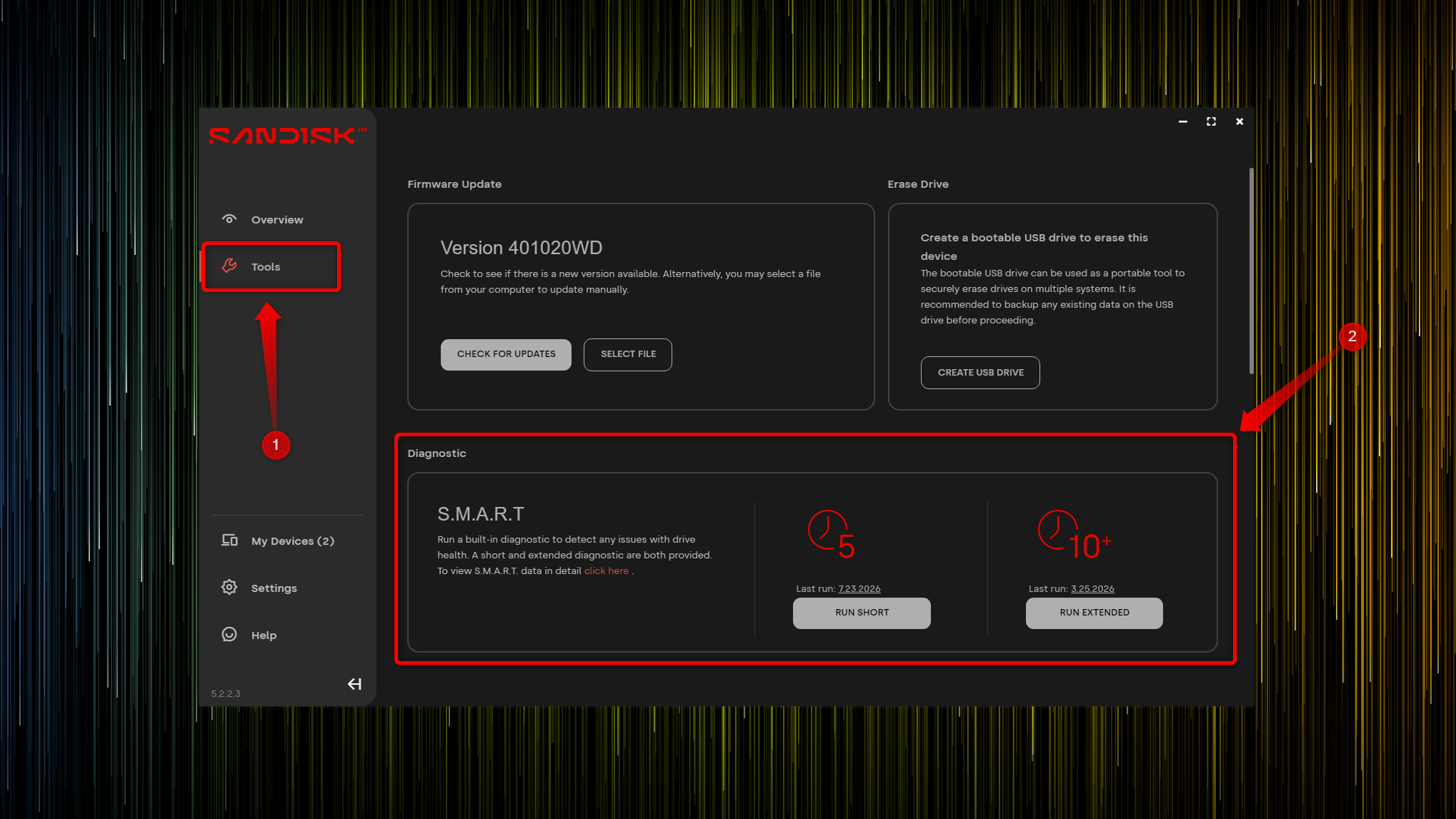
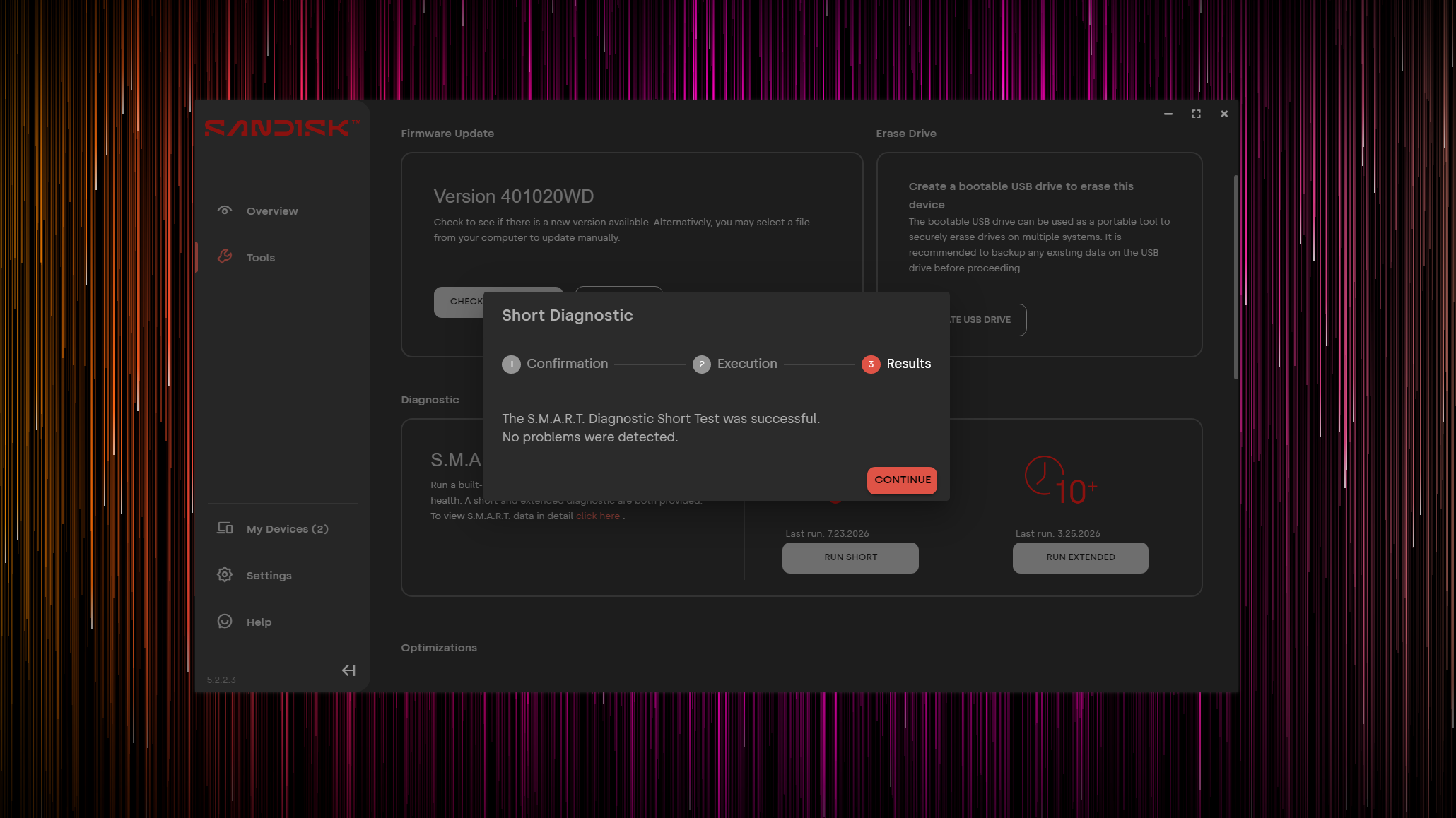
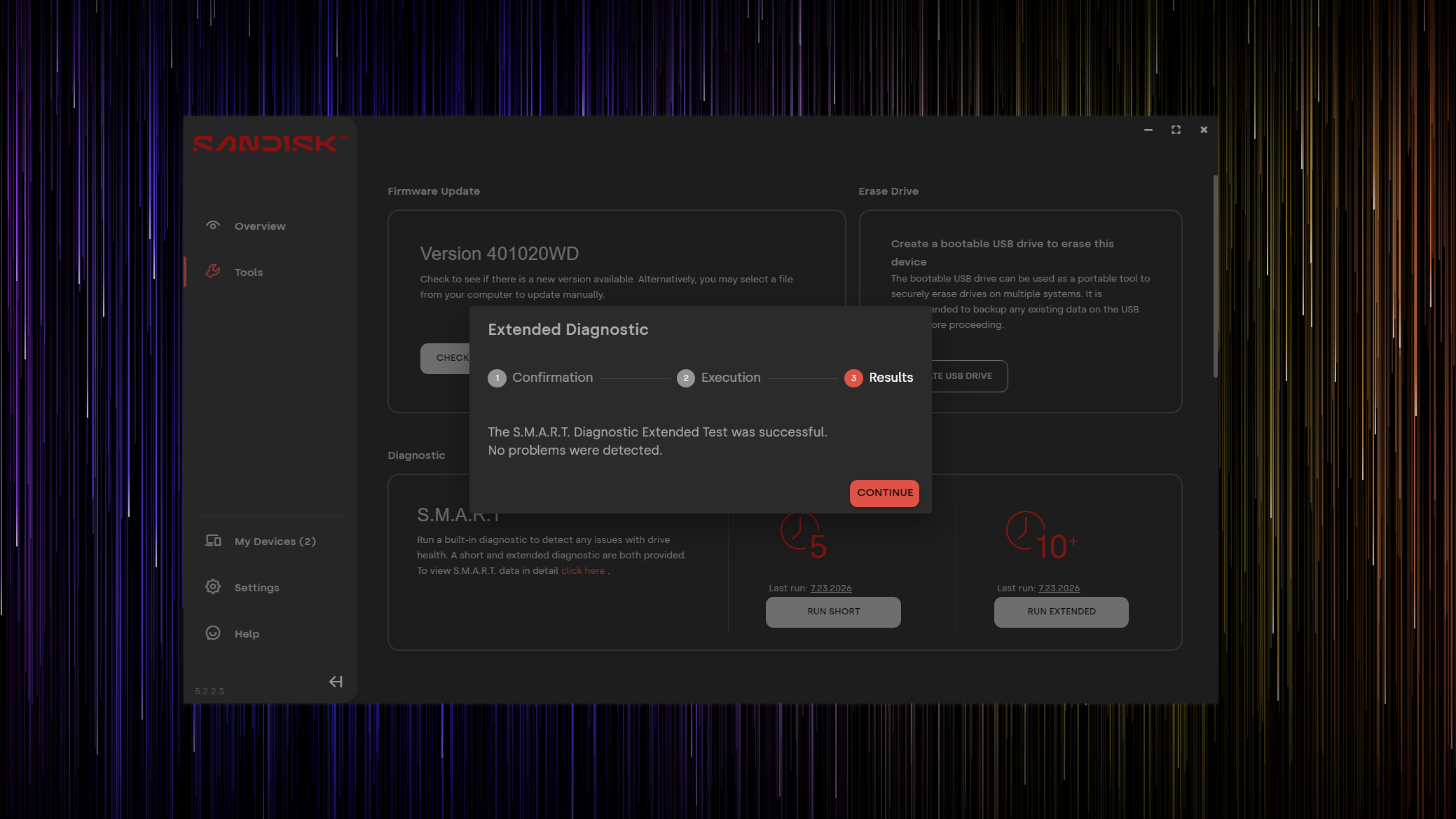
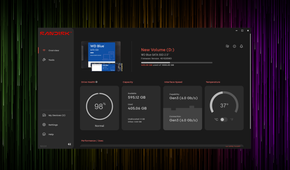
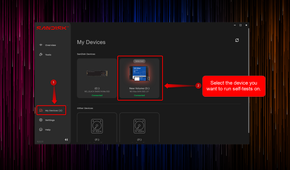
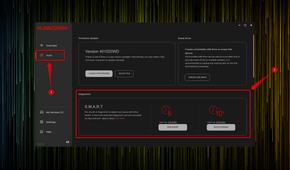
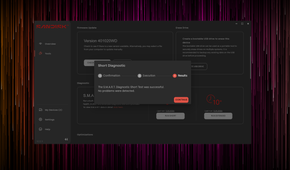
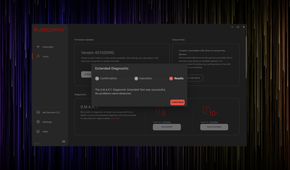
If you don’t want to use a third-party app to check your SSDs, you can install monitoring software offered by most major SSD manufacturers. WD and SanDisk SSD owners can use SanDisk Dashboard, Samsung SSD owners can install Samsung Magician, Kingston users can use Kingston SSD Manager, and Micron SSDs are supported by Storage Executive Software. In my case, I used SanDisk Dashboard.
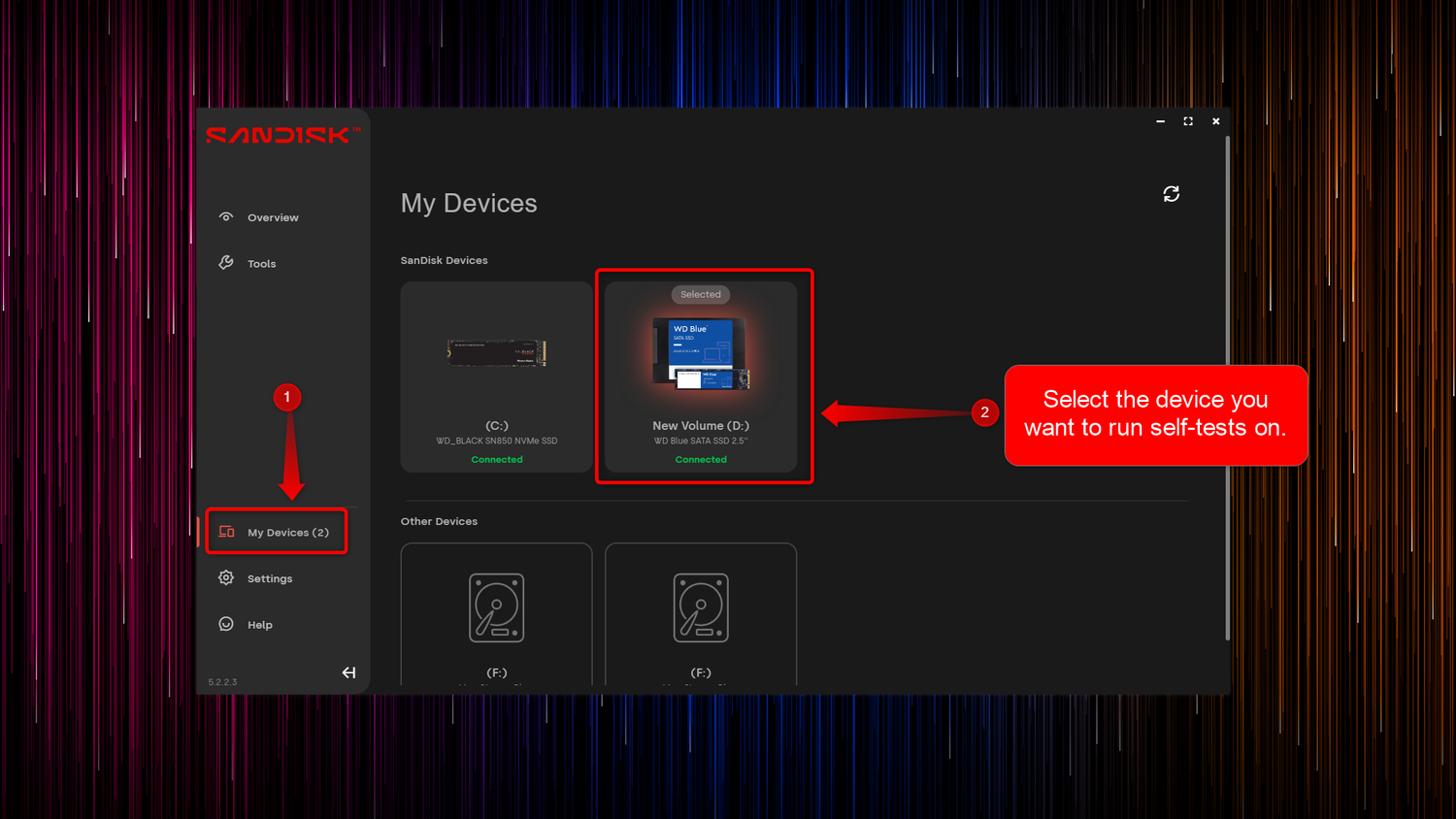
These monitoring apps can launch at startup along with Windows, giving you quick access to important information about your SSD, such as its remaining health and real-time temperature data. Most of them let you run extended S.M.A.R.T. self-tests, which provide a much more comprehensive health check than standard quick scans. To run short and long self-tests in SanDisk Dashboard, open the app, click the My Devices button, then select the drive you want to run self-tests on. Next, click Tools and then either launch the short or extended S.M.A.R.T. self-test.
In general, CrystalDiskInfo is the better choice if you want to inspect S.M.A.R.T. data such as total host writes and power-on hours, but manufacturer software is still worth keeping around because it often includes diagnostic features, including S.M.A.R.T. self-tests, that can be useful for troubleshooting SSDs. Most monitoring apps allow you to update your SSD’s firmware as well.
My old SSDs are still alive and kicking, but how do you know when it’s time to replace yours?
Now, as you’ve just seen, both of my veteran SSDs are still in fine working order. One has a bad sector, but that’s anything but a reason for concern. But if you decide to test your own SSDs, what are the warning signs that might tell you it’s time to replace them?
For starters, if you download and run CrystalDiskInfo and the app shows your SSD’s health status as yellow (“Caution”) or red (“Bad”), you should back up the most important data stored on the drive and then download Hard Disk Sentinel (the trial version will work just fine). If Hard Disk Sentinel reports a large number of bad sectors along with an estimated remaining lifespan of only a few days, for instance, chances are it’s time to replace the SSD.
Also, if the S.M.A.R.T. data and overall health status look fine, but the drive fails S.M.A.R.T. self-tests, that usually indicates something is wrong. While you can continue using it, you should definitely back up any important data stored on it. That said, even if your SSD reports 100% health, it can still fail, so be sure to back up your data if you notice any warning signs.