Credit: Ismar Hrnjicevic / How-To Geek
If you’re the person everybody calls when their PC breaks down, I’m sure you can relate to all those times when somebody randomly asks you to fix their PC on the spot.
Before you know it, you’re spending hours troubleshooting and scrambling to create a bootable Windows USB with whatever they have sitting in their drawer. After one too many instances like that, I decided to keep a tiny rescue drive on my keychain—and it might just be the smartest thing I’ve ever done.
A small rescue USB drive on my keychain just makes sense
Tiny footprint, massive utility
-
 Credit: Ismar Hrnjicevic / How-To Geek
 -
 Credit: Ismar Hrnjicevic / How-To Geek
 -
 Credit: Ismar Hrnjicevic / How-To Geek
 -
 Credit: Ismar Hrnjicevic / How-To Geek
 -
 Credit: Ismar Hrnjicevic / How-To Geek

-
 Credit: Ismar Hrnjicevic / How-To Geek
 -
 Credit: Ismar Hrnjicevic / How-To Geek
 -
 Credit: Ismar Hrnjicevic / How-To Geek
 -
 Credit: Ismar Hrnjicevic / How-To Geek
 -
 Credit: Ismar Hrnjicevic / How-To Geek


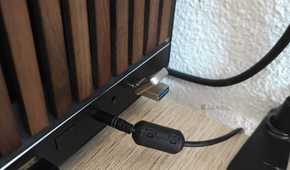
Having a rescue USB stick on you at all times is one of the best ways to be prepared for unexpected PC emergencies. Whether it’s your own desktop PC, a relative crying out for help, or even your travel laptop, having a rescue USB to attempt a PC repair and back up important files you don’t have copies of is a lifesaver.
The only problem is that USB sticks can be a little bulky to carry around at all times. While many of them have a keychain loop that makes them easy to carry, they can still poke you when you carry them in your pocket. They also add considerable bulk to your keys, and if you already carry several other keys or charms on your keychain, you’ll think twice before adding yet another piece to the mix.
That’s actually the problem I encountered: I repurposed an old 32GB Kingston USB drive into a rescue drive and added it to my keychain, but I’ve already got a Swiss Army knife, USB-C cable, flashlight, Android tracker, and a couple of other essential things attached.
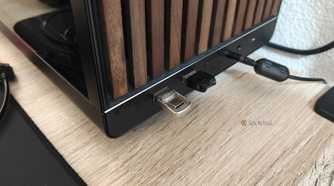
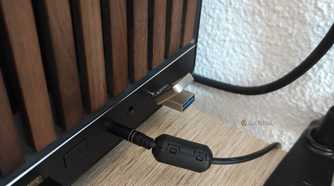
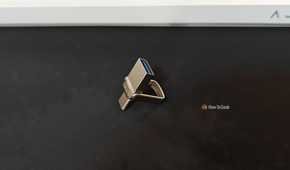
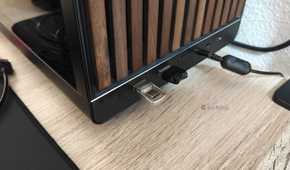
The USB was the final straw, prompting me to pick up this Eaget 64GB Dual 3.2 Gen 1 USB-A & USB-C drive for only $16. Its footprint makes it barely larger than its two connectors, and it has a swivel that’s perfect for attaching to a keyring.
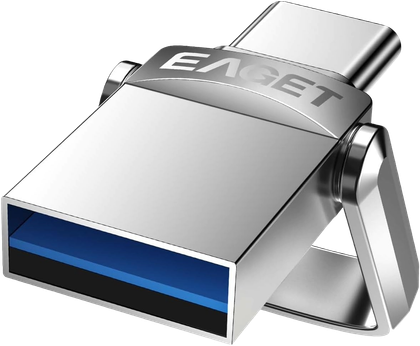
EAGET 64GB Flash Drive, Dual USB 3.2 Gen 1 USB-A & USB-C
$17
Save $1
Capacity
64GB
The EAGET 64GB USB flash drive has dual USB-A and USB-C connectors in a compact 360-degree swivel design, making it easy to use across older and newer devices. It supports USB 3.2 Gen 1 and advertises read speeds of up to 150MB/s, while its tiny metal body makes it particularly convenient for carrying on a keychain.
Speed
150MB/s
Connection
USB-A & USB-C
I added it to my keychain and can barely tell it’s there, but now I always have a rescue drive ready should I need to fix someone’s computer on the go.
As an added bonus, having both USB-A and USB-C makes it even easier to troubleshoot laptops and desktop PCs by giving me easy access to whichever port is free. It also means I can connect the USB drive to my phone, theoretically allowing me to download an alternative ISO file or rescue tool if the ones I’ve pre-loaded can’t help.
Ventoy turned this USB drive into a PC rescue toolbox
A hassle-free way to carry bootable tools
 Credit: Ismar Hrnjicevic / How-To Geek
There are a few ways to build a rescue USB drive. From my experience, Ventoy is the easiest, and it works really well. The tool lets me store multiple ISOs, which is essential because, more often than not, the person asking me to “fix” their PC actually wants me to install a fresh copy of Windows 11.
To turn the tiny USB stick into a rescue drive, I simply downloaded Ventoy and ran the Ventoy2Disk executable. I selected my drive and installed Ventoy, after which I simply downloaded and copy-pasted a folder containing a few of my favorite repair tools, such as Malwarebytes and HWiNFO, along with the Windows 11 ISO and a special Windows 11 live OS called Hiren’s BootCD PE.
Between these three, my rescue USB had everything I needed, and should I ever encounter a situation where I need a Linux-based rescue distro like Rescatux or SystemRescue, I can simply download it using my phone.
And just like that, my teeny-tiny keychain USB drive was ready to take on a whole world of rescue missions.
I split the 64GB drive between rescue tools and regular storage
No reason to waste the leftover space
 Credit: Ismar Hrnjicevic / How-To Geek
Keen-eyed readers will likely have noticed that my cheap little USB flash drive has a surprisingly high amount of storage at 64GB. It’s actually way more than you need for a typical rescue drive, even with a full Windows 11 ISO pre-loaded.
Thankfully, Ventoy has an option to leave some space unallocated, allowing me to create a second partition to act as regular storage. If you want to replicate what I did, you can find the option in Ventoy under Option > Partition Configuration > Preserve some space at the end of the disk.
So, I calculated how much space I needed and decided to leave 35GB of free space to use as regular storage.
After installing Ventoy, I went to Disk Management in Windows, selected the drive, right-clicked the unallocated space, and selected Format.
After formatting, I was left with a 23.5GB Ventoy partition and an empty 35GB volume. I ended up reformatting this second partition as FAT32 and preloading music onto the drive so I could use it in my car, just in case my phone died and I couldn’t use Bluetooth.
This step is completely optional, but if you wish to continue using the USB drive as regular storage, it’s much easier to manage your files if you split it into two partitions. The Ventoy partition can largely serve as regular storage as well if you don’t mind mixing those files with your rescue tools.
The tiny size isn’t without its compromises
It’s mostly in the form of questionable durability
 Credit: Ismar Hrnjicevic / How-To Geek
While my little rescue USB has been working surprisingly well, its tiny footprint does have a major downside when it comes to heat dissipation. Whenever I use this drive, I notice that it gets shockingly hot, and its file transfer speeds plummet after just a few minutes.
This is because the drive simply doesn’t have enough physical surface area to help dissipate heat away from the storage chip and controller.
In theory, this could lead to potential crashes, as a PC has to actively read from the drive to run a live OS, use demanding rescue tools, or install Windows 11. If the drive becomes unstable, you could be left with a lot of frustration and have to start the process all over again. Fortunately, I’ve got an electric duster that I used to give the USB some active cooling during heavy file transfers.
 Credit: Ismar Hrnjicevic / How-To Geek
Beyond the potential overheating issues, a tiny USB like this is simply less durable than a regular drive. If the tiny traces or components inside the USB connectors get bent out of shape or damaged from regular use, the drive could quickly turn into a mini paperweight. Dust and debris can also get in from both sides, so USB dust caps are strongly recommended for both ends, especially if you’re going to carry it in your pocket all the time.
That being said, I haven’t had any issues with this USB in the few weeks that I’ve been using it, and I hope it stays that way. If you’re worried about longevity and don’t mind carrying a traditional USB drive on your keychain, by all means, go for it!
The best part is that I can forget it’s there until I need it
The best rescue USB drive is the one you have with you, which is why I opted for the smallest USB drive I could find. While it might not have the same performance or durability as a proper drive, it’s something I only need a few times a year, and for that, it’s perfect.
The best part is that it doubles as regular storage, so if I ever need to transfer files and can’t use my phone for whatever reason, this drive has both USB-C and USB-A connections to make file transfers between different devices super easy.