Credit: Tony Phillips/How-To Geek
I’m one of those people who presses Alt+Tab hundreds of times a day to bounce between the many windows I have open. The problem is that Windows’ built-in switcher starts to get awkward when I have lots of windows open, and aside from choosing how many thumbnails to display, there’s not much room for customization.
So I started looking for a better way to handle this, and I stumbled upon NTWind’s Alt-Tab Terminator. I’ve only been using the free version, but I’m kicking myself for not finding it sooner.
Open windows are much easier to see
No more squinting
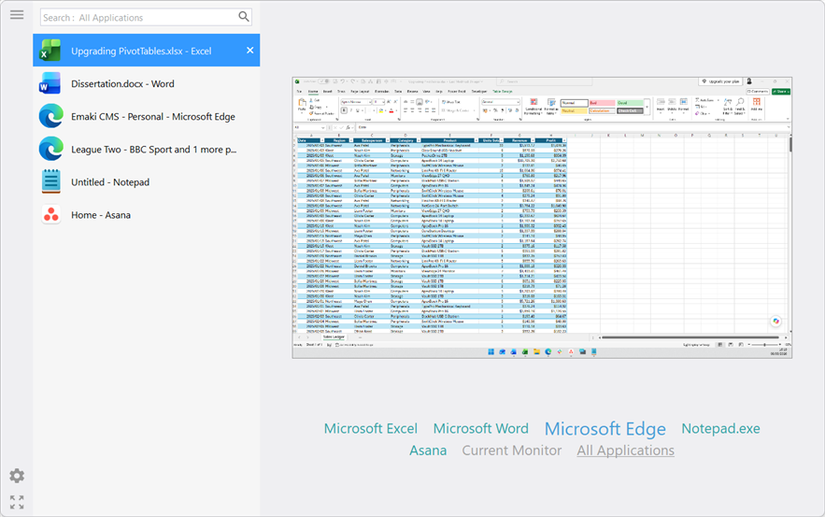
Windows 11’s Alt+Tab switcher is fine when I only have a few windows open. But once I’ve got a bunch of them running, those little thumbnails aren’t always much help. If I’ve got several Edge windows open, for example, I can end up staring at a row of tiny previews trying to work out which one I need.
Alt-Tab Terminator takes a different approach. It puts my open windows into a vertical list on the left, with a much larger live preview on the right. I can move through the list and actually see the contents of the selected window before I switch to it.
One of the things I like most about Alt-Tab Terminator is the full-screen button in the bottom-left corner. After clicking it once, the switcher opens full-screen the next time I press Alt+Tab, giving me an even bigger view of everything.
The preview also adjusts to fit the window, which is useful when I’m moving between my laptop screen and a larger monitor. And when the list gets long, I can scroll through it and wrap back around to the top when I reach the bottom.
More ways to navigate my windows
The mouse gestures are particularly cool
Windows 11’s Alt+Tab switcher already gives me a few ways to move between windows. I can keep pressing Alt+Tab, use Alt+Shift+Tab to go backward, or use the Arrow keys to jump around the list. Terminator keeps all of that familiar keyboard navigation, so there’s no real learning curve if that’s how you already use Alt+Tab.
Where Alt-Tab Terminator gets more interesting is when I’m using my mouse. After pressing Alt+Tab, I can keep my finger on Alt while using the scroll wheel to move through the list of windows. That feels surprisingly natural when I’ve got a lot of windows open and want to quickly browse through them.
But there’s an even better option: I can enable Right Mouse Button (RMB) + Wheel in Settings, then hold the right mouse button and use the scroll wheel to bring up the switcher and move through the list. It’s a slightly unusual gesture at first, but once I got used to it, I found it a really handy way to flick through my open windows.
There’s also a mouse-over option: I can open the switcher, hover over the window I want, and release Alt to jump to it.
Finding a specific window is much quicker
Why doesn’t Windows do this?

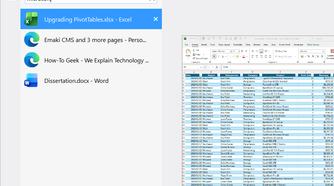
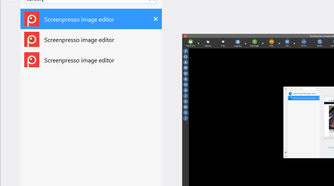
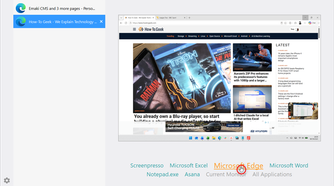
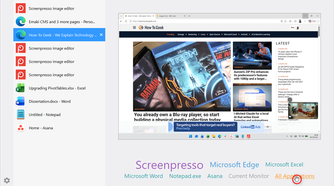

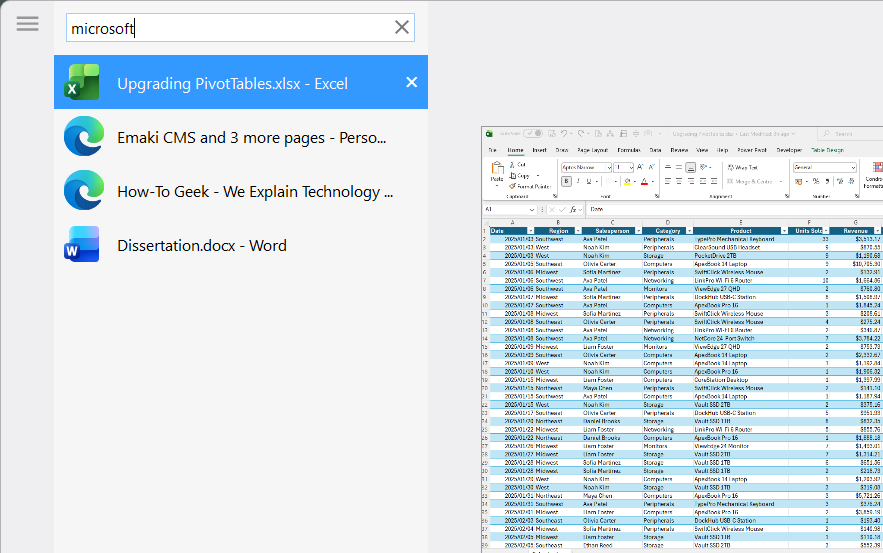
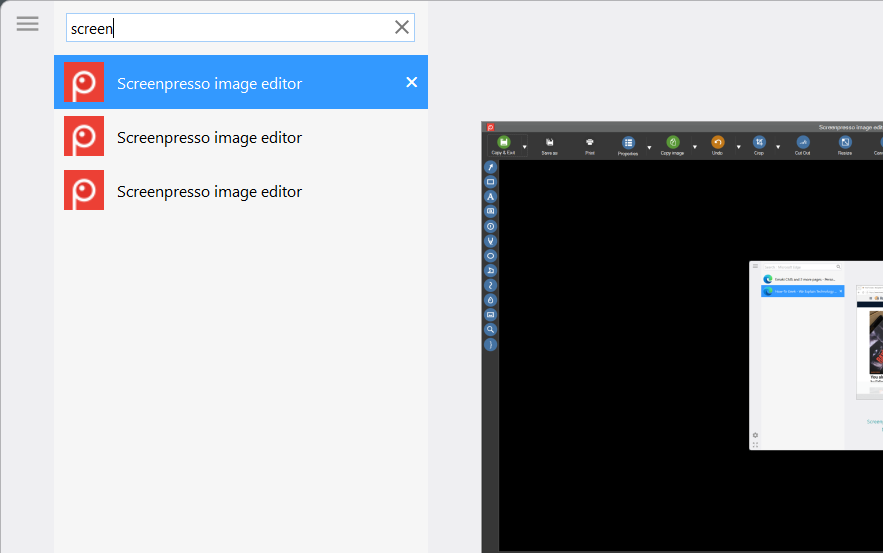

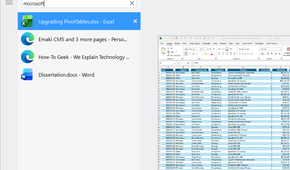
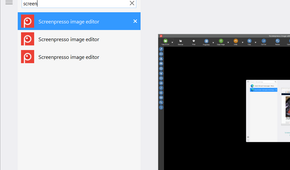
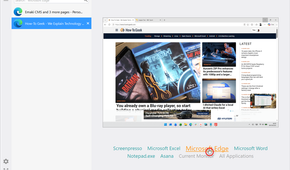
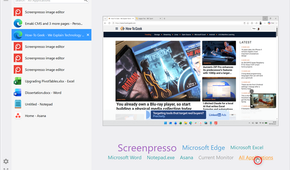

When Windows 11 has a lot of windows open, finding one particular window can turn into a little treasure hunt. Alt-Tab Terminator gives me a couple of ways to cut through that.
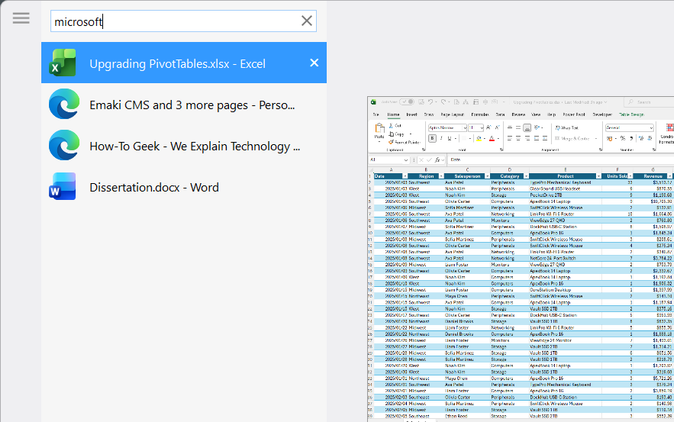
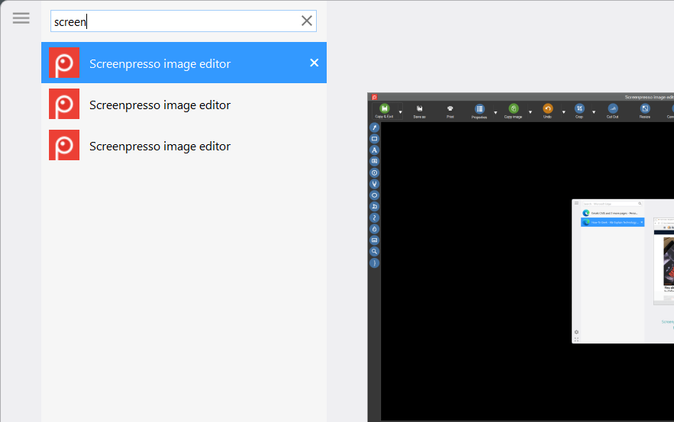
First, there’s search. With the switcher open, I can start typing, and the list immediately narrows down to matching windows. That’s handy when I know roughly what I’m looking for but don’t particularly want to scroll through everything.
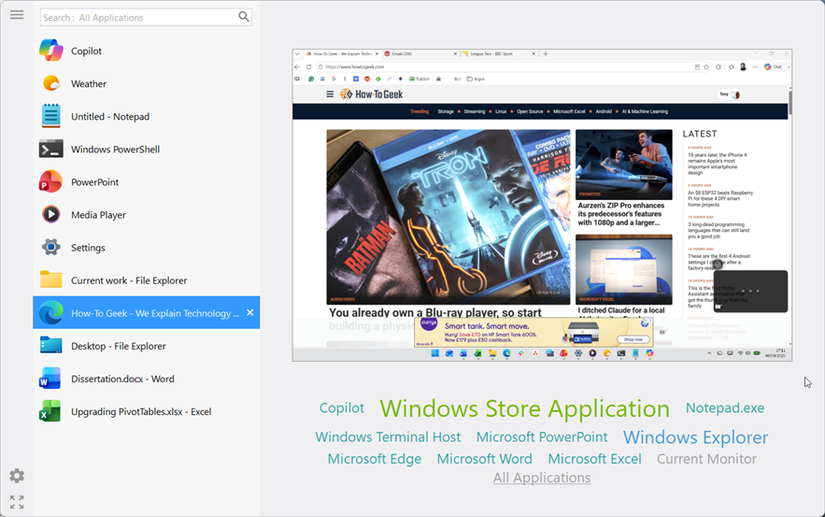
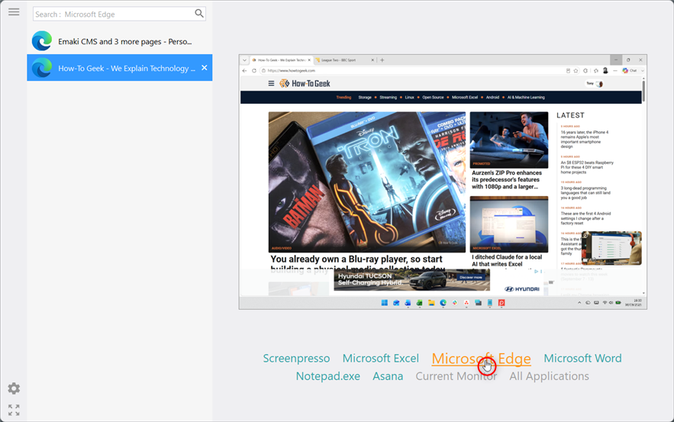
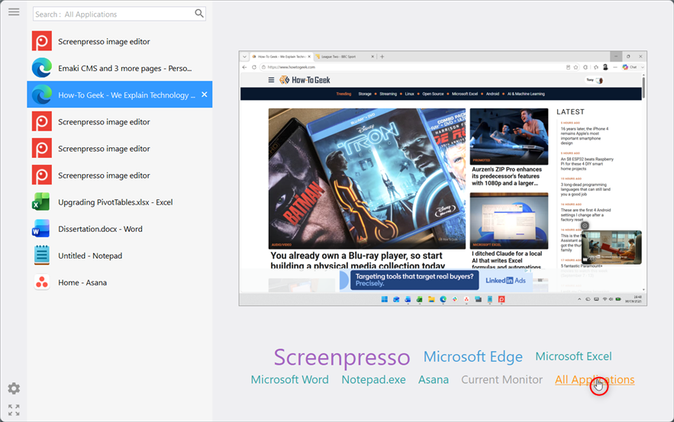
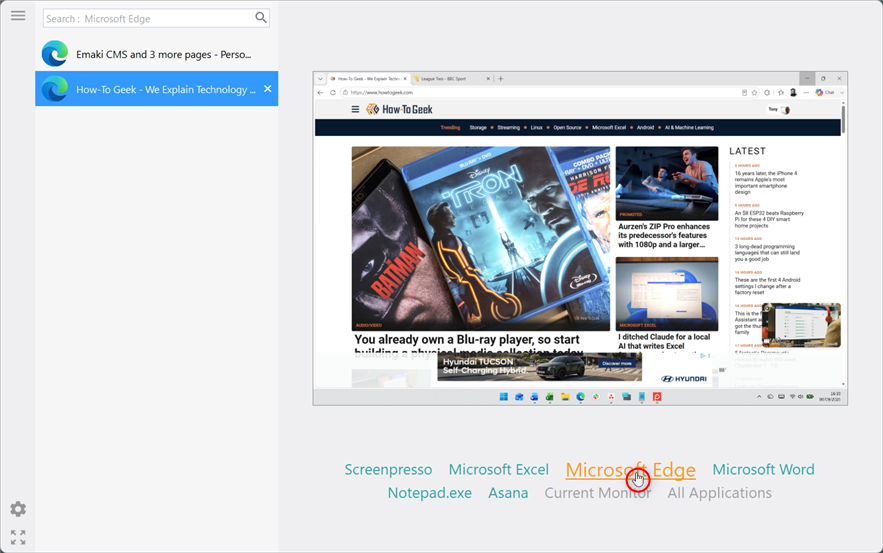
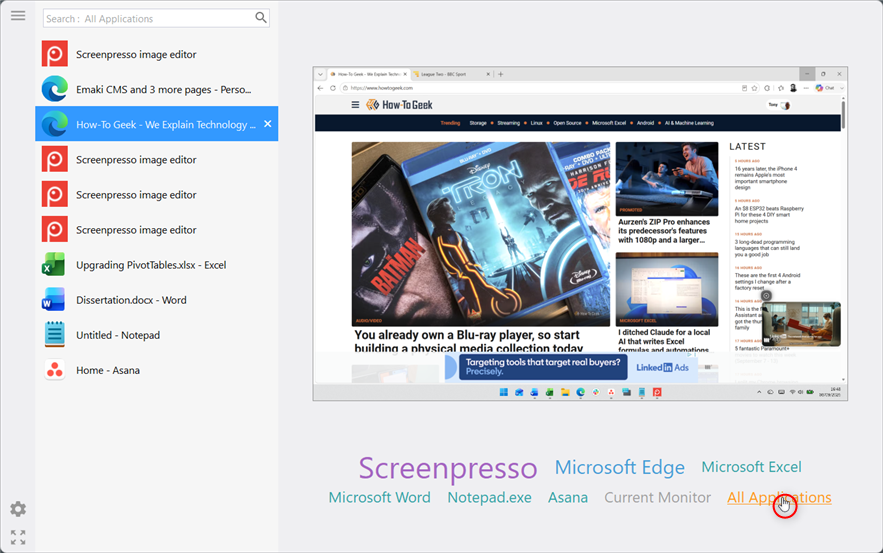
I can also filter by application using the icons underneath the preview. The more windows I have open in an app, the larger its name appears, which makes the whole thing look a bit like a word cloud. I actually really like this because I can immediately see which apps have taken over my desktop. Then, if I click Microsoft Edge, for example, the list shows only my open Edge windows. I can then move between them and use the large preview to find the right one. Clicking All Applications brings everything back.
There’s another small difference I like. When I launch Alt-Tab Terminator from its desktop shortcut instead of using Alt+Tab, the interface stays open until I click somewhere else or open another window from it. That sounds minor, but I like having the option. Windows 11’s Alt+Tab switcher appears and disappears so quickly that sometimes I feel pressured to make the right choice straightaway. Using this route gives me a moment to actually look around and decide what I want.
I can make the switcher work on my terms
I can’t believe it’s free
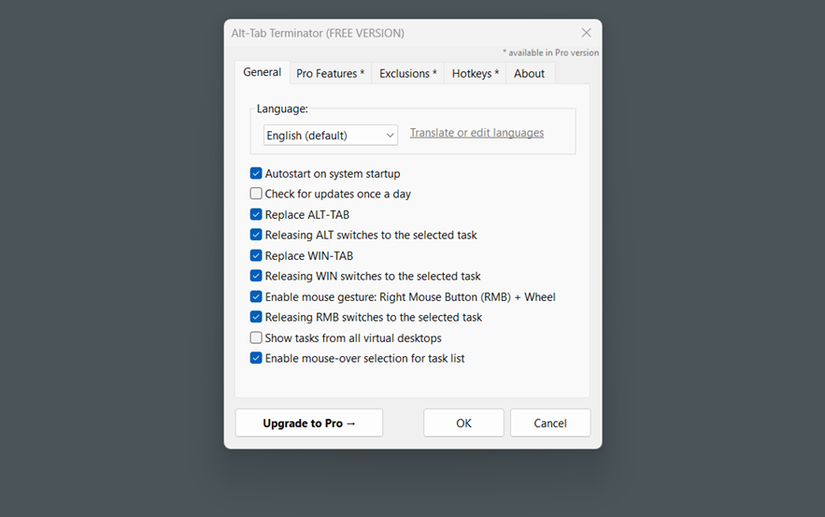
Windows 11 doesn’t give me much say over how its built-in switcher behaves. Alt-Tab Terminator’s Settings menu is a different story.
Even though I’m using the free version, there are quite a few things I can control. I can choose whether Alt-Tab Terminator replaces Alt+Tab and Win+Tab, whether releasing Alt or the Windows key immediately switches to the selected window, and whether tasks from all virtual desktops appear. I can also set the app to start with Windows, choose whether it checks for updates, and change the language.
It isn’t a massive amount of customization compared with some dedicated Windows tweaking tools, but I wasn’t expecting this much control from something I hadn’t paid for.
The free version gives me plenty, but Pro is tempting
There are a few upgrades I’d happily pay for
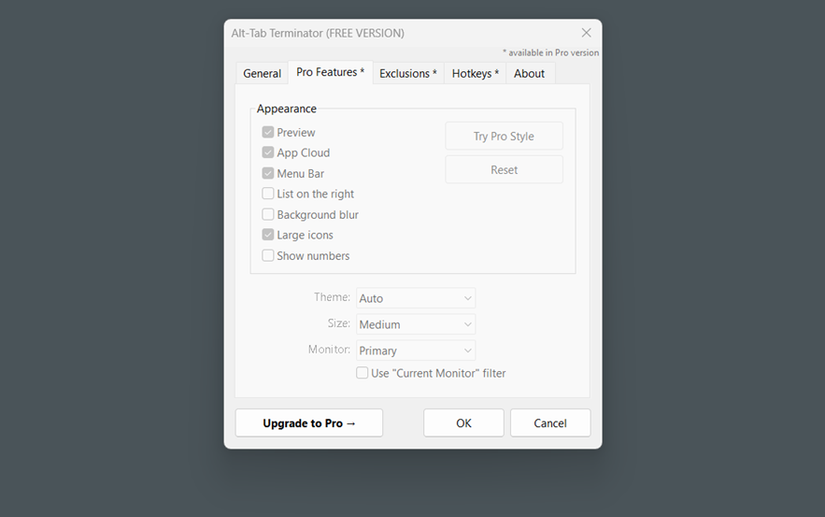
The free version has everything I’ve needed so far, but I can already see a few Pro features I’d enjoy. I could add exclusions, custom hotkeys, and more ways to customize the appearance and size of the switcher. There are additional monitor controls, too, including a Current Monitor filter.
The Pro version starts at $19.95 for a single PC, but there are several license options if you want to use it on multiple computers or share it with others. It’s also a one-time purchase rather than a subscription, so you won’t have to keep paying to use it.
I haven’t needed the Pro features yet, but they’re the sort of extras I could see myself wanting the longer I use Alt-Tab Terminator. It’s nice to see NTWind give the free version such a generous set of features while still leaving some genuinely useful reasons to upgrade.
I’m still finding ways to make Windows work for me
The more I look, the more ways I find to customize how Windows 11 works for me, and Alt-Tab Terminator is the latest one. I’ve spent years putting up with little Windows annoyances that I could probably have fixed ages ago. Now I’m starting to wonder what else I’ve been overlooking.