Google does a good job of walking you through your phone during the initial setup. From choosing your language and region to copying data from your previous phone and signing in to your Google accounts, the setup process is meticulously detailed and easy to follow. What’s not explained explicitly or concisely, however, is the meaning of all those little icons nestled in your Android phone’s status bar.
It’s easy enough to guess certain icons. The Wi-Fi and airplane mode logos are easily apparent, as is the Bluetooth symbol and the location icon signifying GPS. Modes are also pretty straightforward, with clear buttons for Silent/Vibrate and Do Not Disturb modes. Time is another easily identifiable element of the Android status bar.
However, there are a few important icons you may not know. Depending on the brand of your Android phone and the OS it layers on top of basic Android, certain icons may also appear somewhat different. The essence of all icons remains the same, though, so deciphering them isn’t hard.
Going over the basics
You probably recognize most of these icons










Network icons are the most crucial ones, as they indicate the network and connectivity status of your Android phone. The vertical bars indicate the strength of the signal. Depending on the strength, the bars are filled in or empty. If there’s an R above the vertical bars, it indicates you are roaming.
You might see small letters like H, H+, 3G, LTE, 4G, and 5G on top of the bars. They tell you what kind of cellular connection you’re on. Most of these are self-explanatory, but the H might throw you off. H or H+ is simply a slightly higher speed version of 3G. Arrows on top of the signal bars signify mobile data. However, Google Pixel phones don’t show a plus. If your mobile data is turned off on a Pixel, an exclamation mark appears on top of the bars.
A Wi-Fi button means you’re connected to a Wi-Fi network, and if you see a telephone incorporated into it, it means Wi-Fi calling is enabled. If you spot an exclamation mark on top of your Wi-Fi icon, that means that the network is connected but has no access or is not working for some reason. The hotspot icon is somewhat similar to the Wi-Fi one, except the lines are a lot more curved and circular.
The B-shaped Bluetooth icon means that your Bluetooth is enabled, and ditto for the N-shaped NFC icon. Once again, Google Pixel phones are a bit different as there is no NFC icon. NFC is on by default on all Pixel devices unless you manually turn it off, but you’ll never see the little N-shaped symbol in your status bar.
Understanding and customizing the battery icon
How to show the percentage
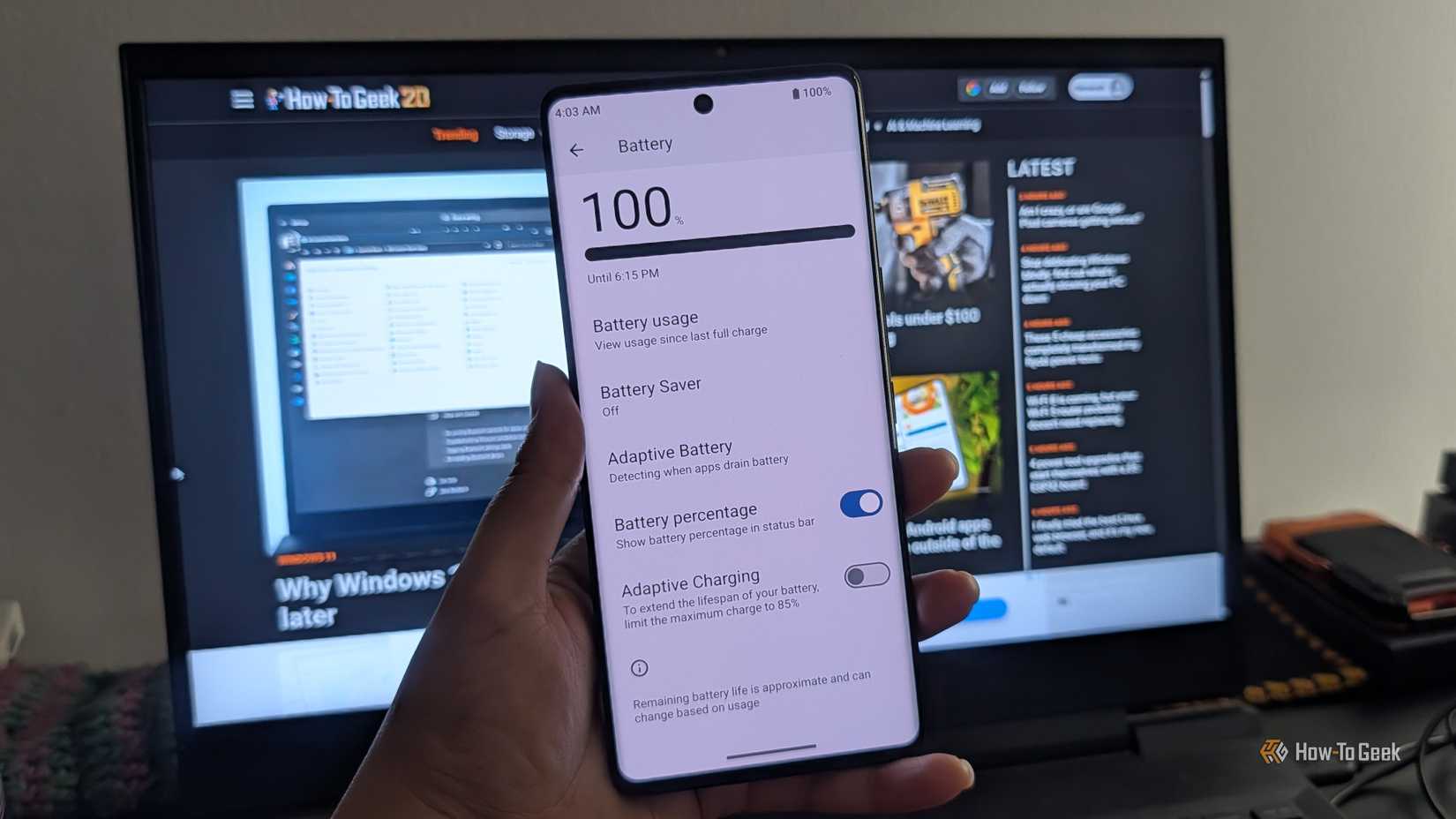
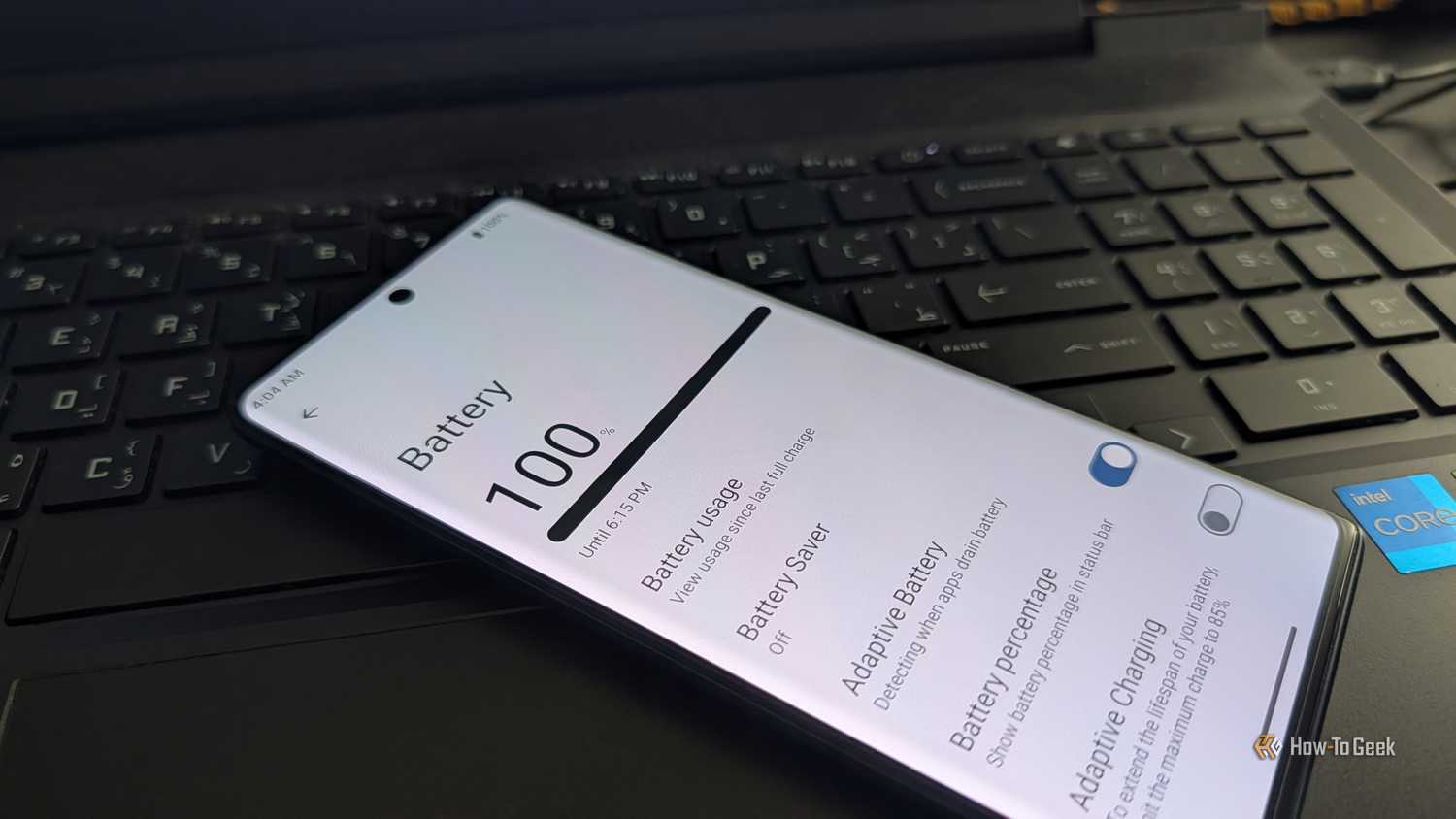
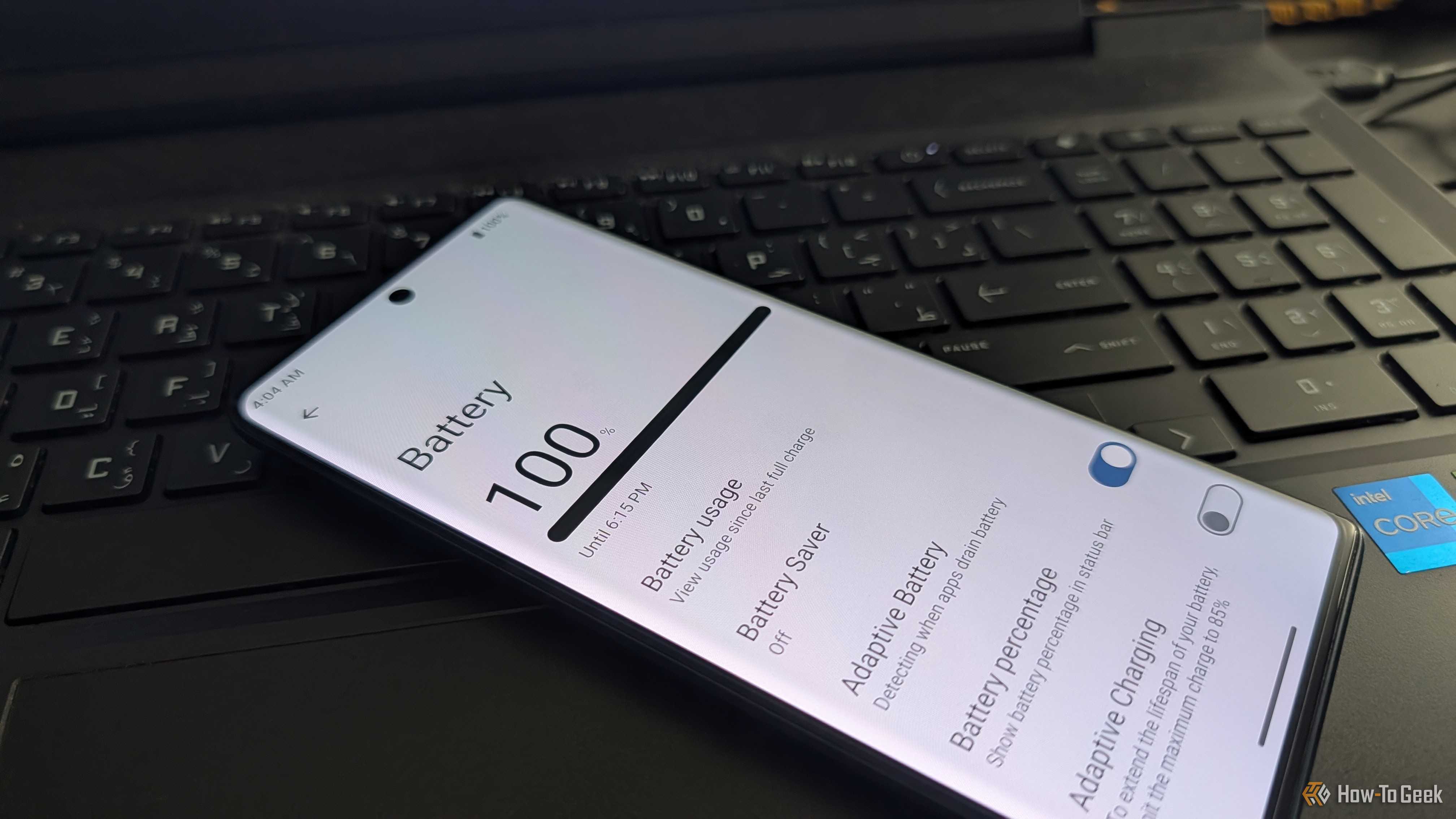
The battery icon indicates how much battery you’ve got left. Some phones change the color inside the battery icon to red when it falls below 20%, yellow when it’s at 15% or lower, and green when it’s above 20%. If the battery saver feature is enabled, you might see a plus inside the icon too.
Google disables the battery percentage by default, as do almost all other smartphone makers. If you want to be able to see the numerical value, simply head to your phone’s battery settings. There should be a toggle to enable showing the battery percentage in the status bar.
Remember, the search bar is your best friend. If you can’t find the right option, just look up battery settings in your Android settings menu.
Miscellaneous icons and what they mean
Keys and the like can throw you off
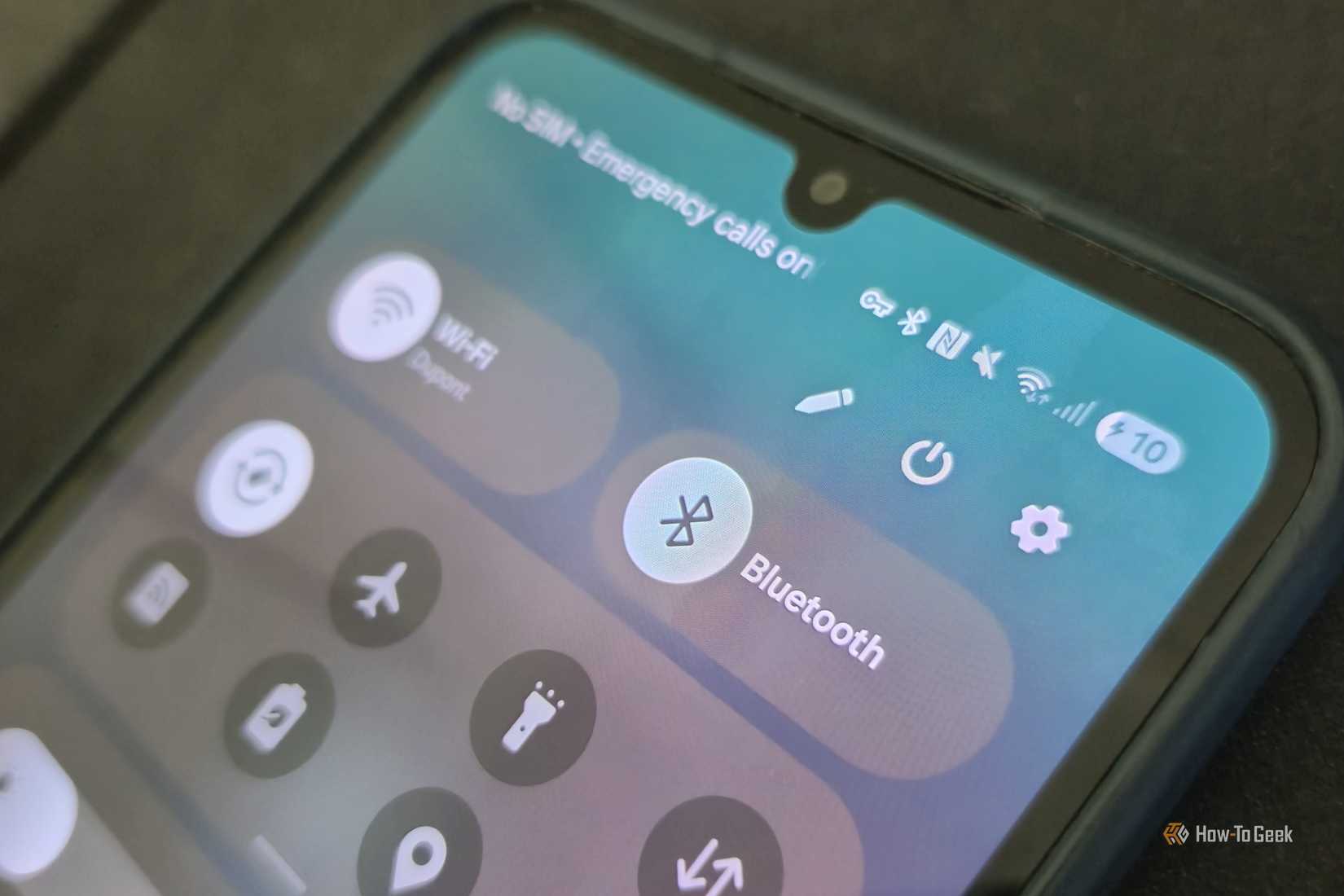
Let’s get into some of the lesser-known status bar icons that cause confusion sometimes.
A location pin represents the GPS, while an airplane icon means your phone is in flight mode. The two icons can look vastly different depending on the OS of your Android phone.
Another rare icon is noticeable when you turn on a VPN (Virtual Private Network). VPNs appear as cute little keys in the Android status bar and disappear when you disconnect.
More recently, Google added colorful dots that appear in the upper-right corner of the status bar as well. Depending on the color of the dot, it can mean different things. A green colored one indicates that the camera and/or microphone of your Android device is in use. Certain phones might incorporate icons inside the privacy indicator dots, like a camera or a mic. Depending on your phone’s brand, the mic may be orange instead.
A blue dot means an app is using your location. This is usually only visible on Google Pixel phones.
Don’t ignore that unknown new icon appearing in your status bar
Now that you know all the essential Android status bar icons, you also recognize the importance of noticing anything new appearing in your phone’s status bar or notification panel. Many of these little symbols convey important information, even when you see subtle changes in them, like an exclamation mark.
Just one glance tells you what kind of network you’re connected to and whether the signal is any good. If you’re concerned about an app using your location or mic without your permission, the status bar can alert you about that too.
So if you see a strange new icon appear in the status bar, and you don’t know what it is, please don’t ignore it. If you can’t find it explained in this article, the quickest way to understand it is by taking a screenshot and looking up the image online.