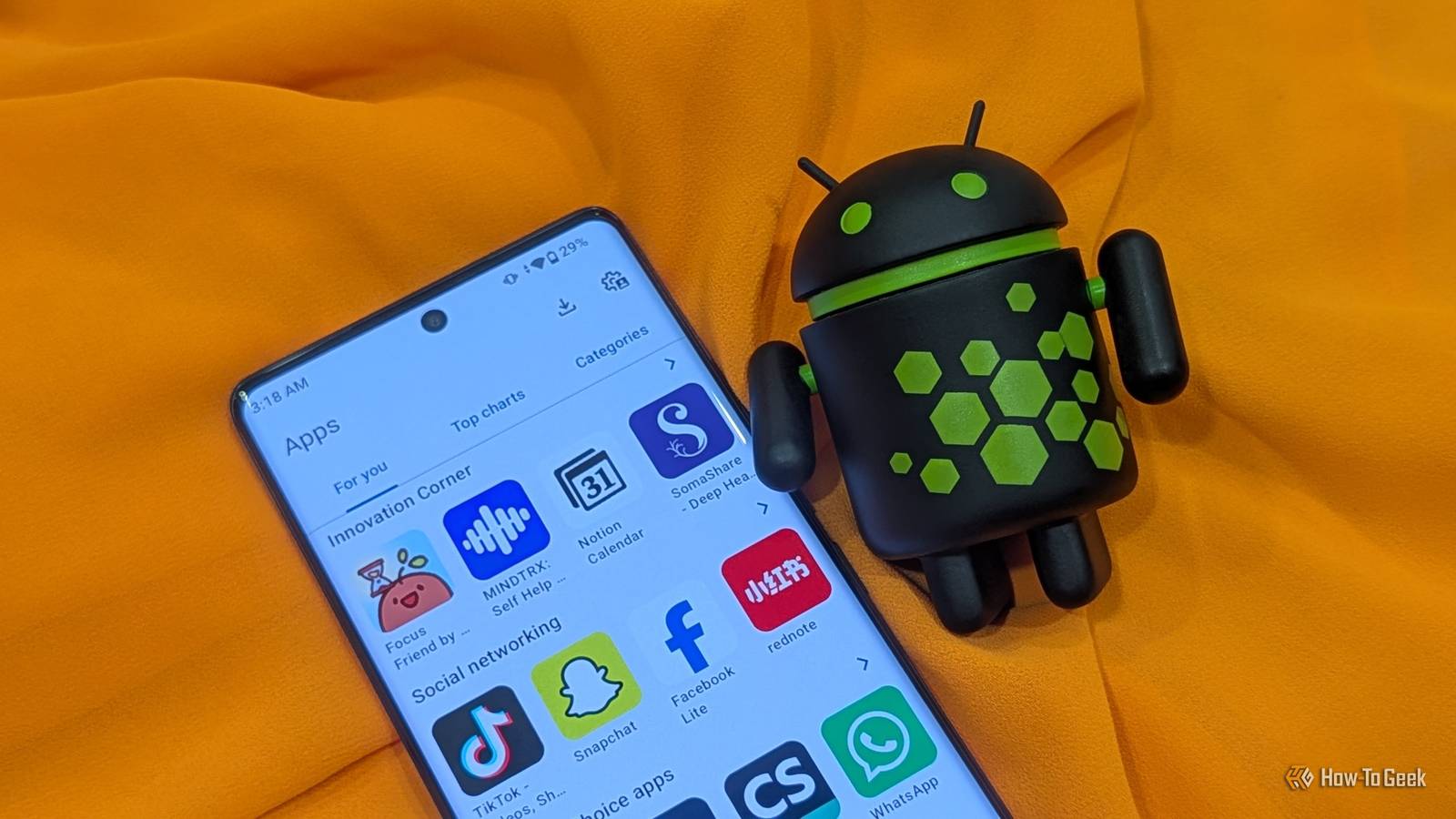
The Google Play Store is the primary method of downloading Android apps on all Android phones. There are many reasons why you would want to install apps from sources other than the Play Store. Maybe you don’t want to use a Google account, or perhaps you’re using a de-Googled phone for privacy reasons.
Whatever the reason, it is entirely possible to download and install Android apps without the Google Play Store. This is called sideloading, and unlike iOS, it’s quite straightforward and easy on Android. Here are four ways to go about it safely.
Directly from the developer’s website
Start at the source
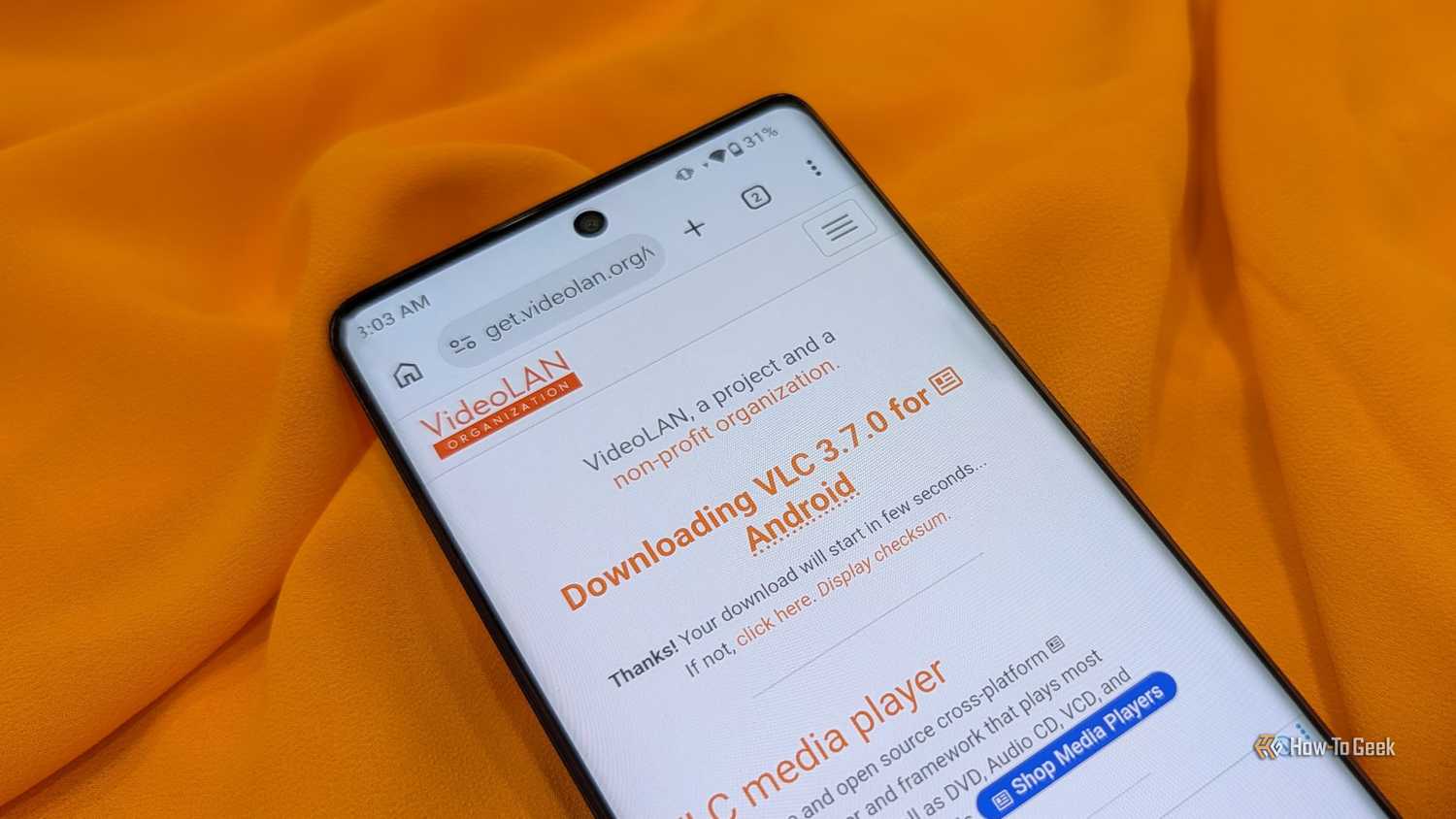
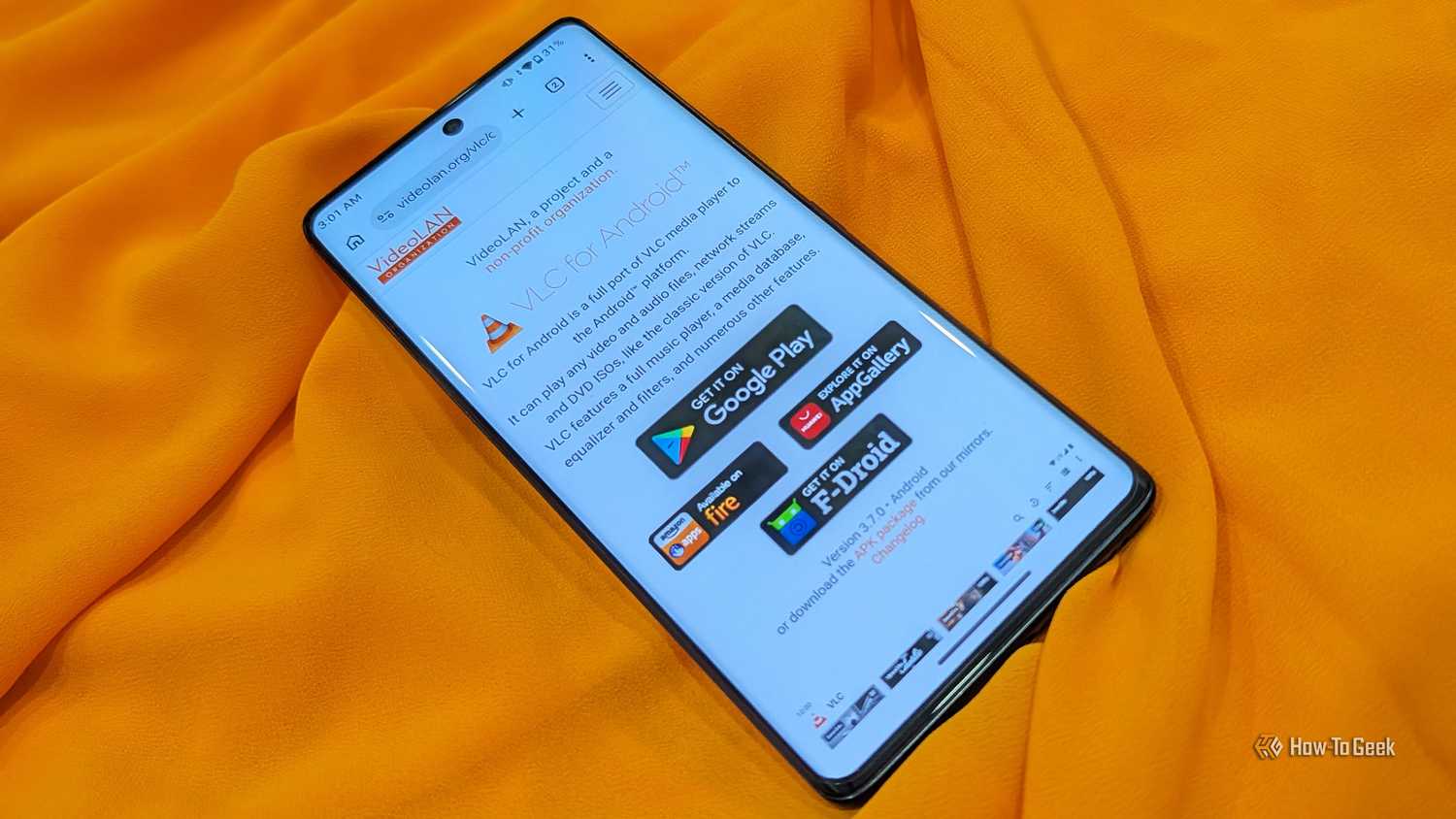
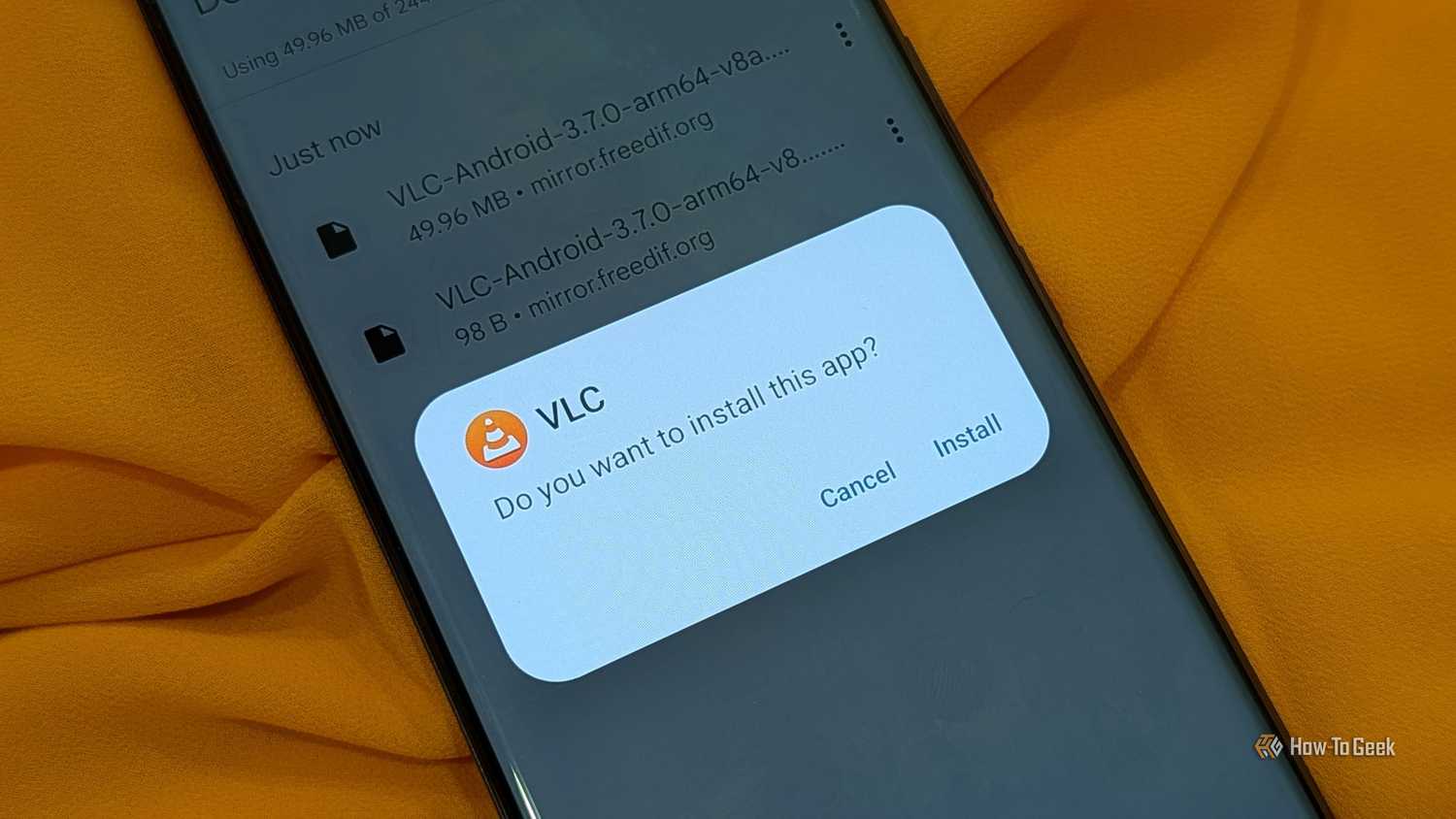
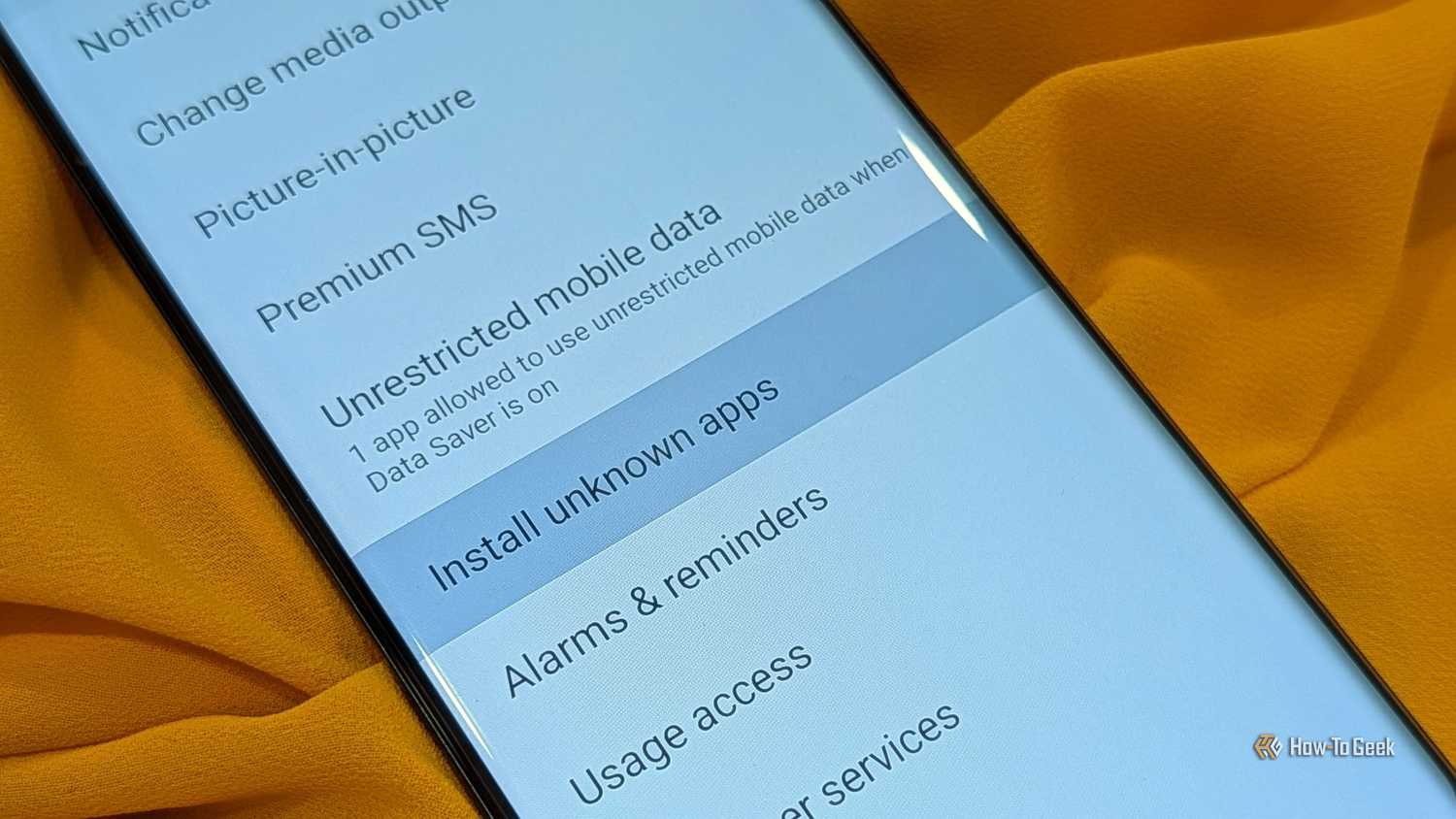
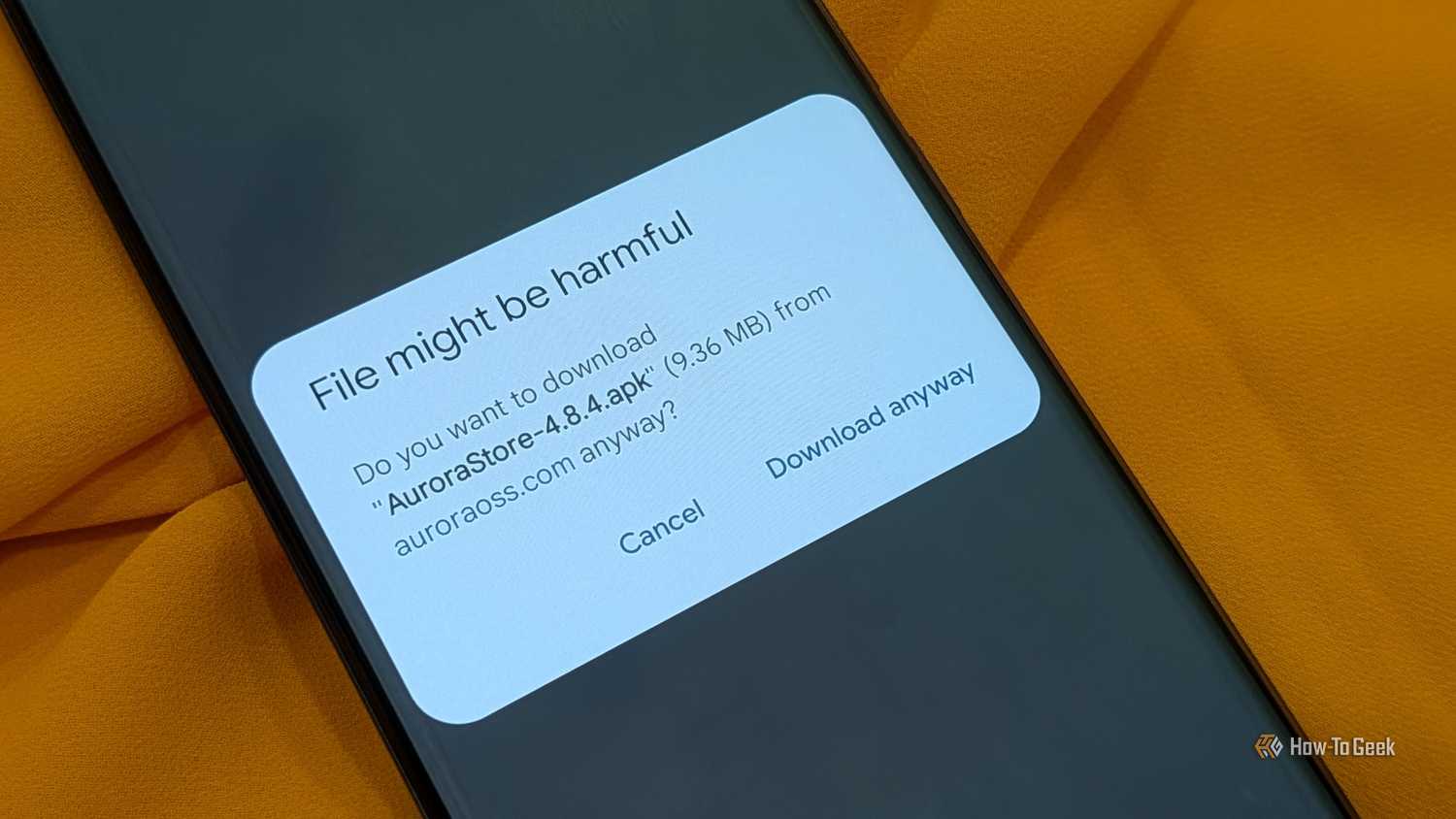
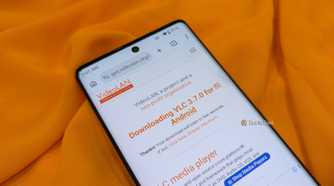
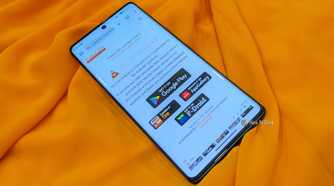
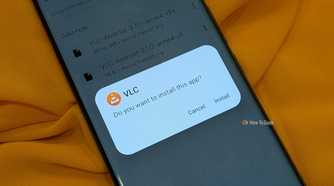
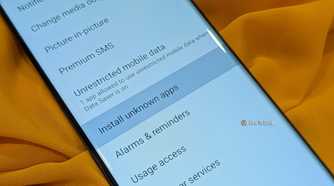
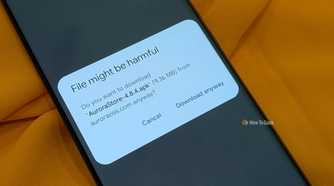
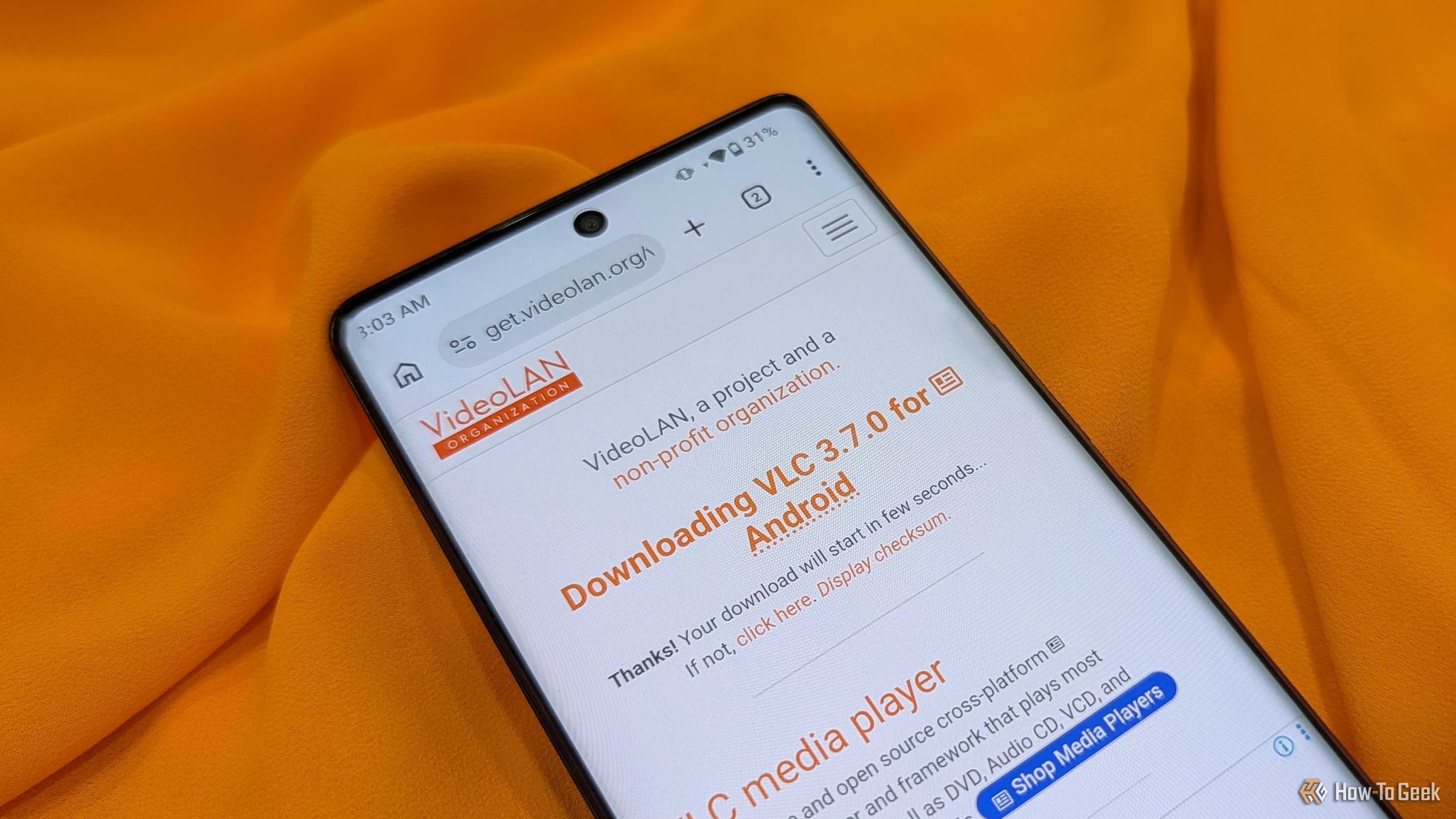
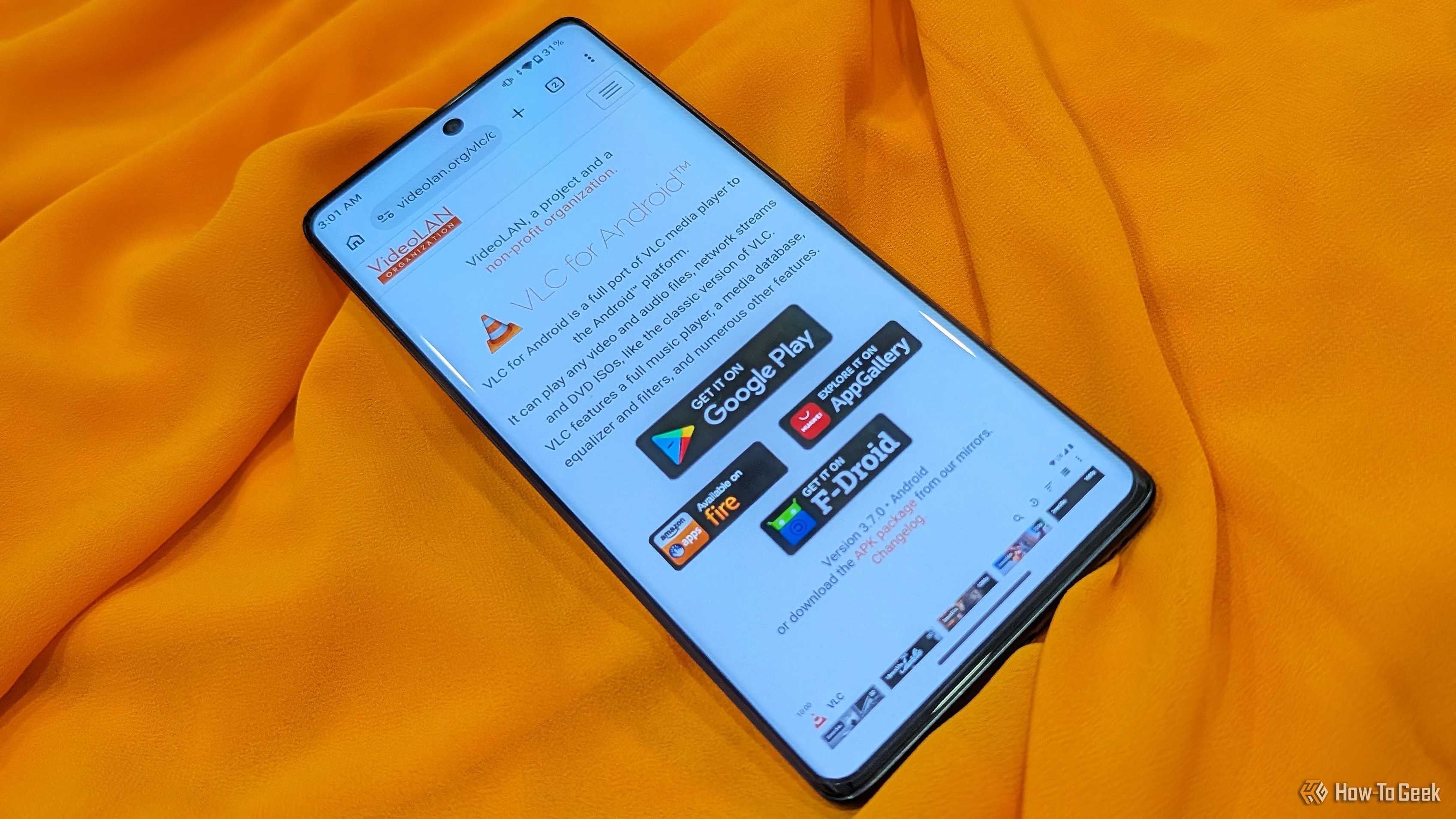
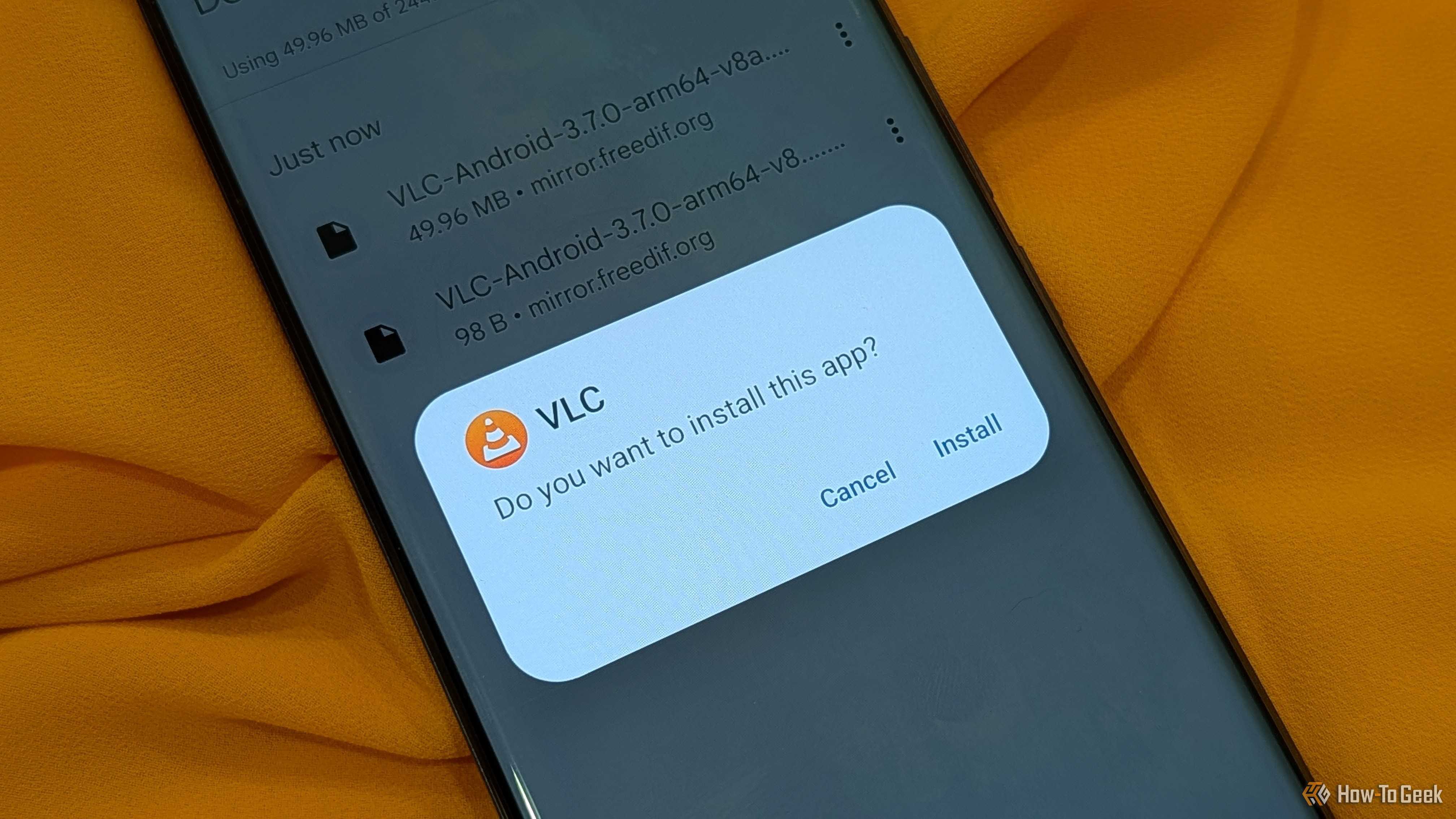
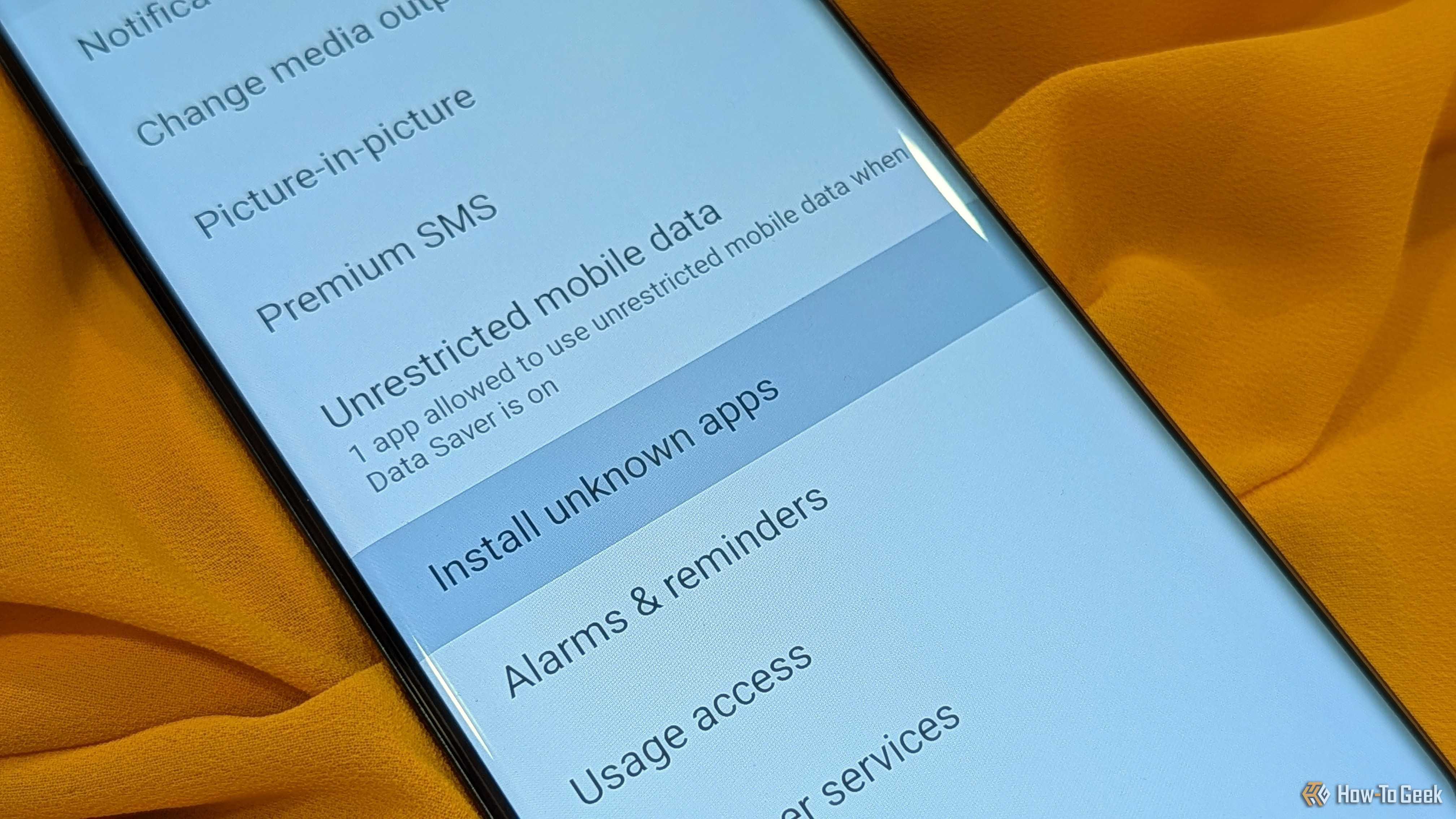
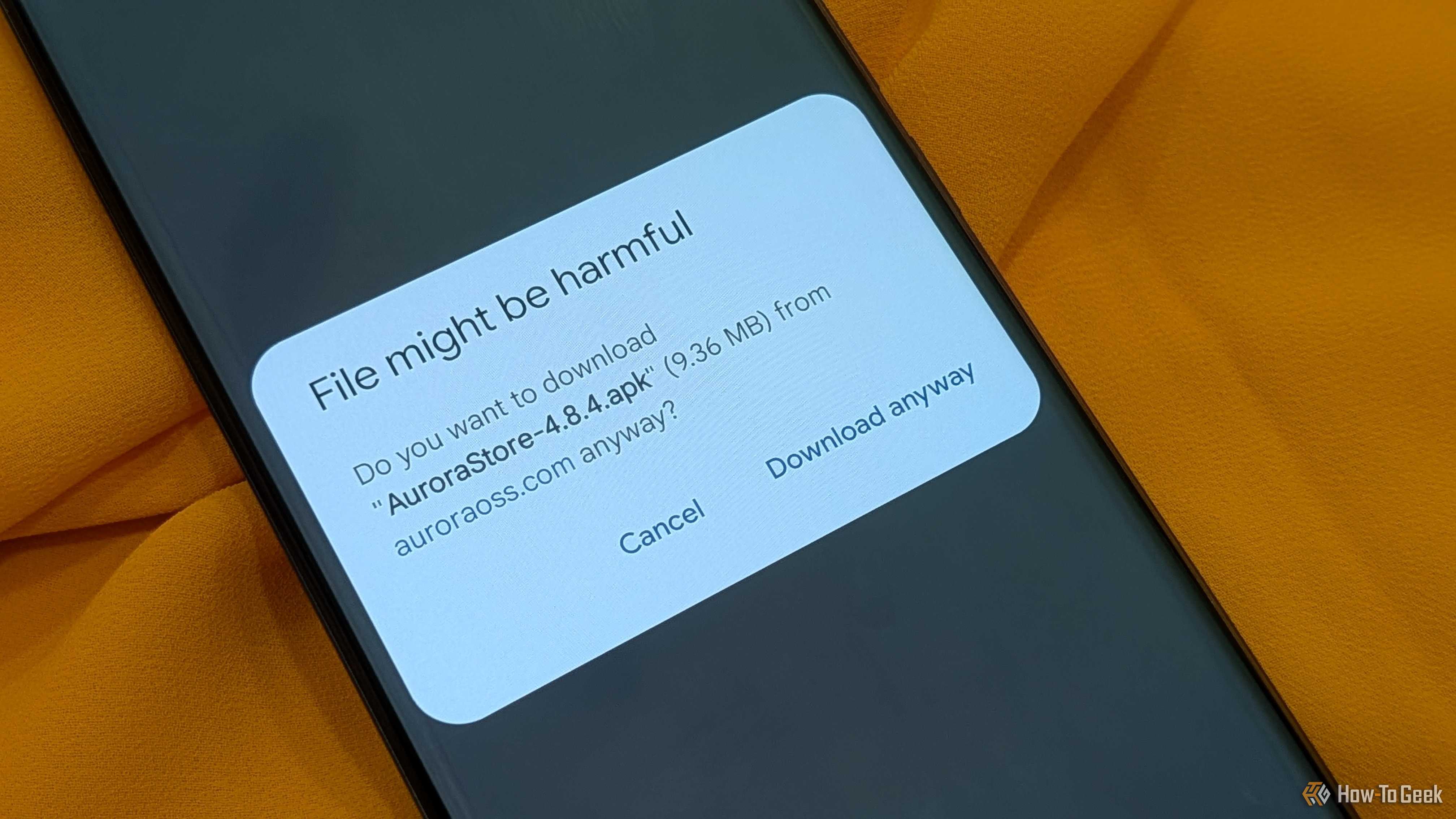
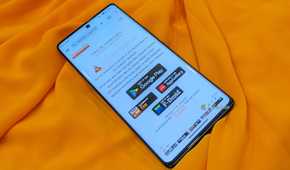
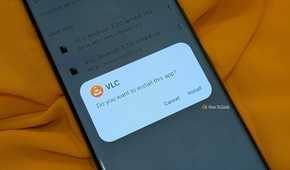
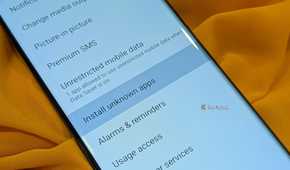
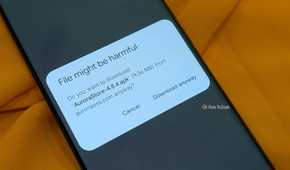
To download and install an app on Android, you need to prep your device. Forgoing the Play Store bypasses Google’s security measures to a certain extent, although Play Protect still scans the app on your device for malware. For this reason, Google disables the permission to run app installer files — or APKs — by default.
Since it can be risky to sideload APKs from unknown sources, downloading them directly from the app developer’s website is the safest route. Open-source apps such as VLC media player are usually very easy to find on official websites.
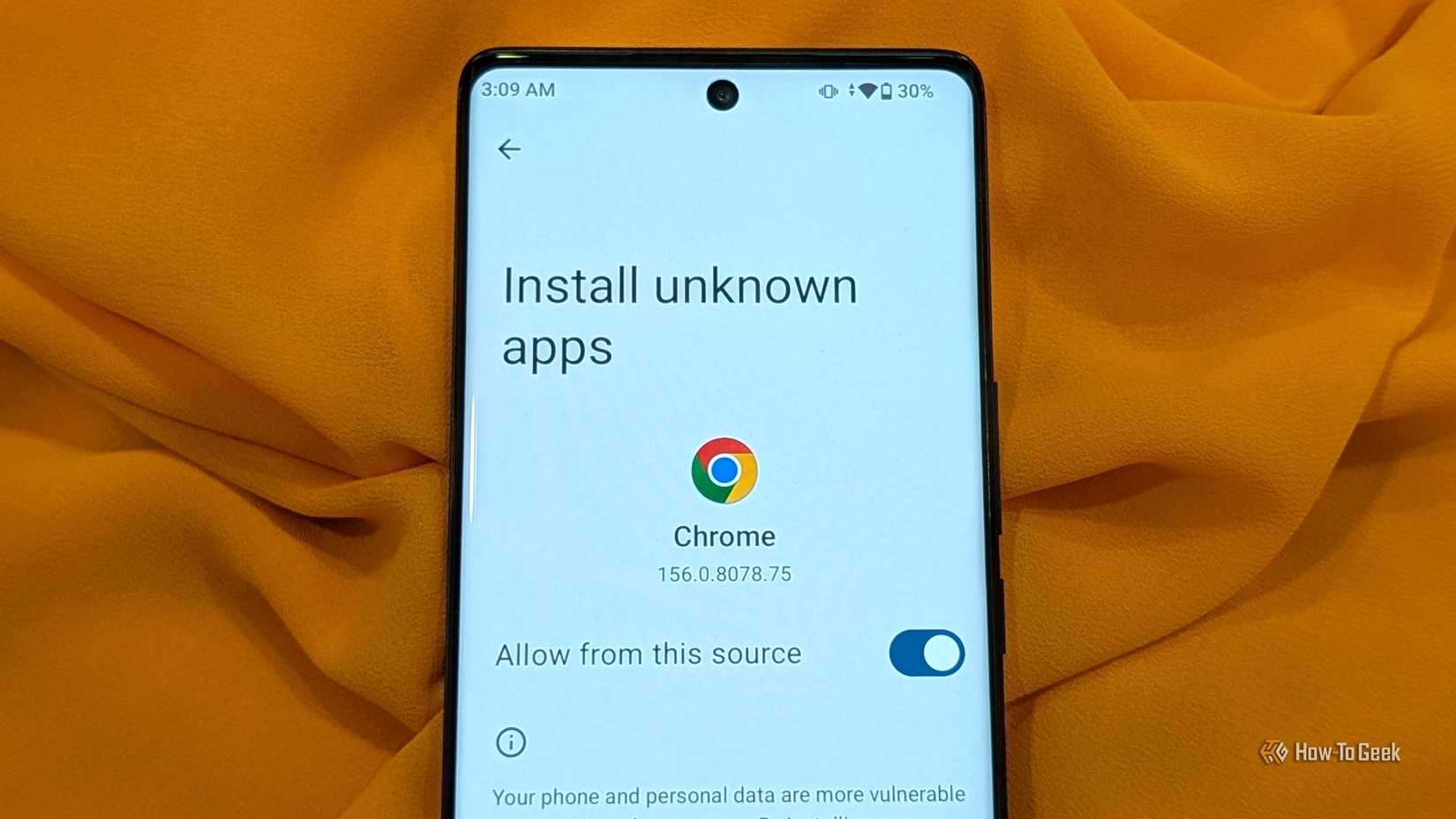
Once you’ve downloaded the APK, you need to grant the right permissions. Open the settings menu on your Android device and search for the option to install unknown apps. Grant the file manager permission to install apps. Once that’s done, you’re good to run the APK and install the app.
Trusted APK repositories on the internet
Tread carefully
Not many Android app makers let you download their installer files from their websites. If you look up popular apps like Spotify and Netflix, their websites redirect you to the Google Play Store.
In this case, you can head to trusted websites that have APK repositories online. This method isn’t as reliable as going right to the source, so be careful. Do your research and only select a website that is reputable.
And when you find a dependable APK website, tread lightly. These websites are riddled with ads, and one wrong touch could download a virus from an ad instead of the file you intended to download.
Websites like F-Droid, APKPure, APKMirror, and GitHub are popular choices.
Third-party app stores
There are plenty of trustworthy alternatives to the Play Store
Google isn’t the only kid on the block with an Android app store. In fact, there has been a push for more alternatives and open-source app stores in recent years.
A couple of alternative third-party app stores include the Samsung Galaxy Store, Mi Store, Amazon Appstore, and Epic Games Store. Depending on the brand of your smartphone, you might have one of these third-party alternatives pre-installed. If not, you can simply head to the official website for these app stores on your Android phone’s browser and download them.
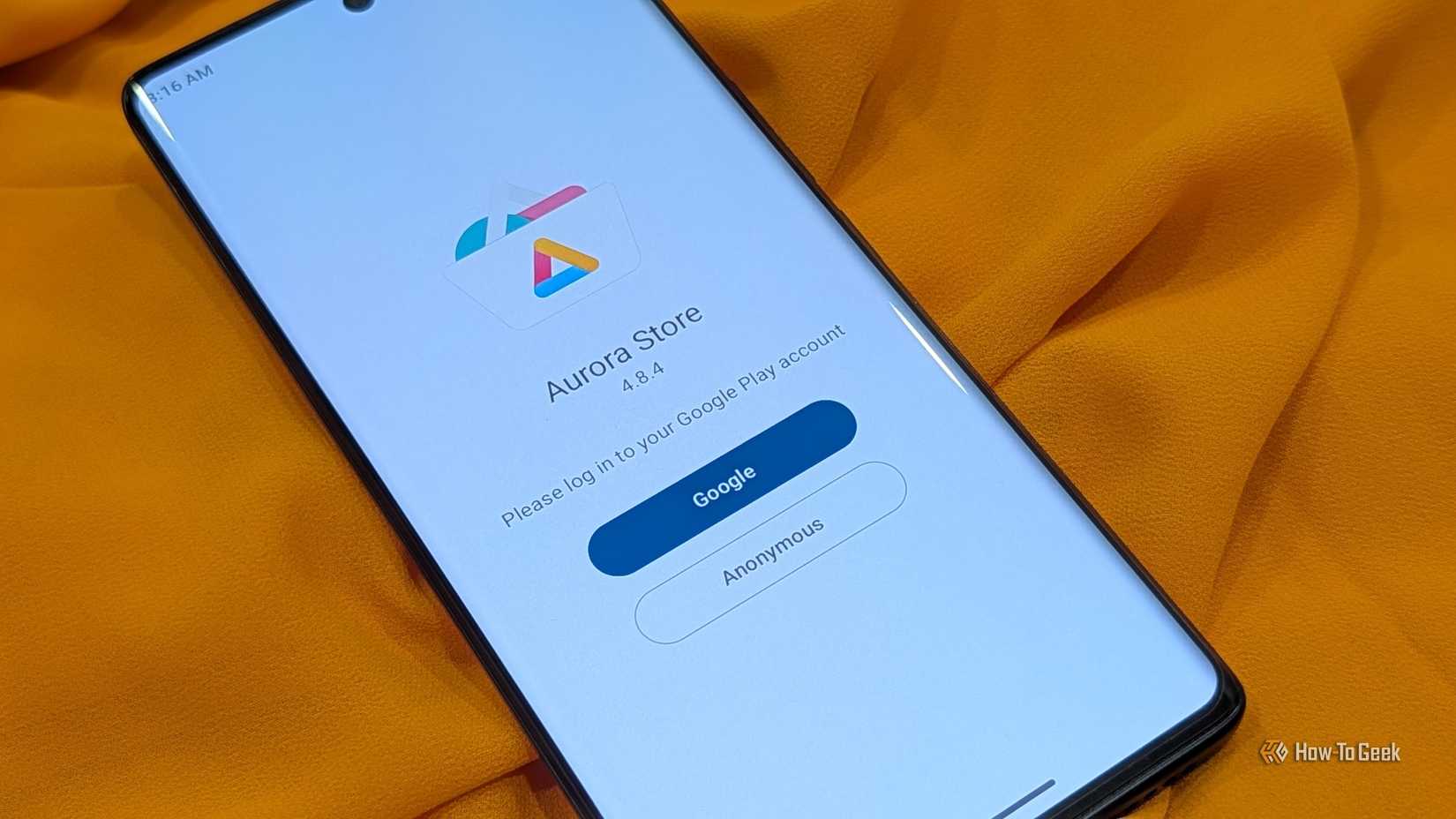
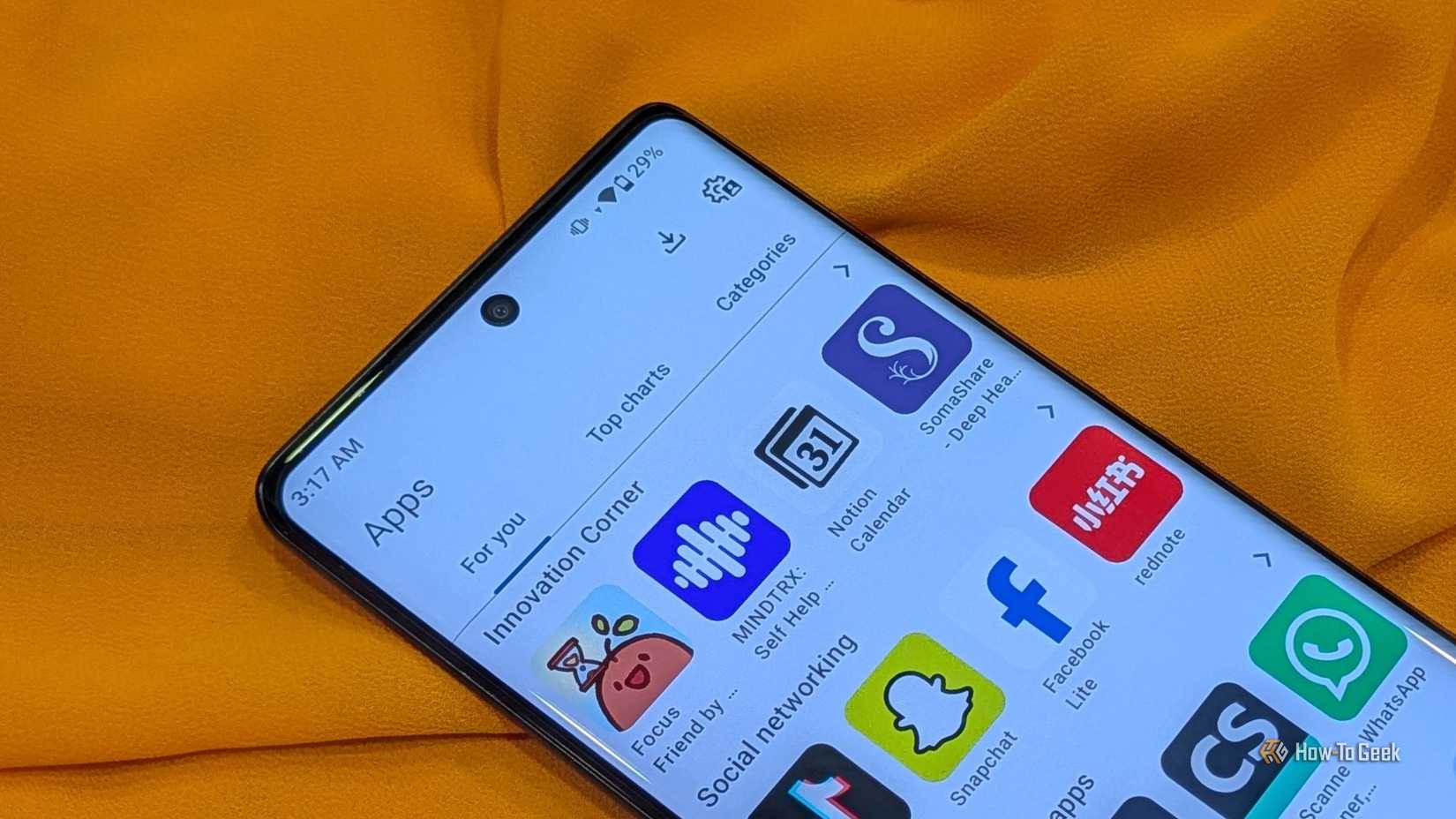
For open-source alternatives, look up Aurora Store. It basically lets you download, install, and update all Google Play Store apps anonymously, eliminating the need to sign in to a Google account.
The Progressive Web App (PWA) experience
Skip the tedious APK installation
Skip the part that requires any downloading or installation altogether with Progressive Web Apps, also known as PWAs. Technically, you’re not downloading an app with this option. But it’s the same result, more or less.
In the simplest possible terms, a Progressive Web App is a website that can be installed on Android like an app. You don’t need to download an APK or a file of any sort for this. All you need is an internet browser like Google Chrome or Samsung Internet. Not all browsers support PWAs fully. For example, Mozilla Firefox does not support all the features of PWAs, though it does let you install them.
To install a PWA, open a compatible website on a supported browser. A prompt should appear, asking you whether you’d like to add the web app shortcut to your Android phone. If this prompt doesn’t automatically pop up, open the settings menu and search for this option. After installation completes, tap the app shortcut to launch it.
Sideloading isn’t difficult, but it requires precaution
All four methods of downloading and installing Android apps from sources other than the Google Play Store are easily accessible to all. However, one needs to keep their wits about them.
Don’t download APKs from shady-looking websites, and don’t accidentally click on the wrong download button even if you are on a trusted site.
De-Googled phone users should exercise extra precaution, especially if Play Protect is disabled. Look for telltale signs of suspicion, like a fishy website or weird permission requests. Before proceeding with installation, use third-party screening services like VirusTotal to check for malware.
Happy downloading and stay safe out there!