Credit: Joe Fedewa / How-To Geek
For years, Android users have been sneaking into the Developer Options to make their phones feel faster—this article is not about that. I found a different, less “hacky” setting that sped up my Pixel phone, and I didn’t expect it to matter as much as it did.
The reason why the hidden menu trick works so well is that it gets you to things quicker than the system default. Animations look nice, but they take a tiny length of time to, well, animate. Cutting that time in half gets you to the next screen quicker, but it can’t fix everything.
Faster animations are only half the battle
Make your phone respond quicker, too
The aforementioned animation trick is indeed effective, but it’s not the end-all, be-all. Faster animations and transitions only happen when your phone knows you want to navigate away from the current screen. So, if your phone isn’t immediately responsive to your input, you’re still going to be waiting around for those souped-up animations to kick in.
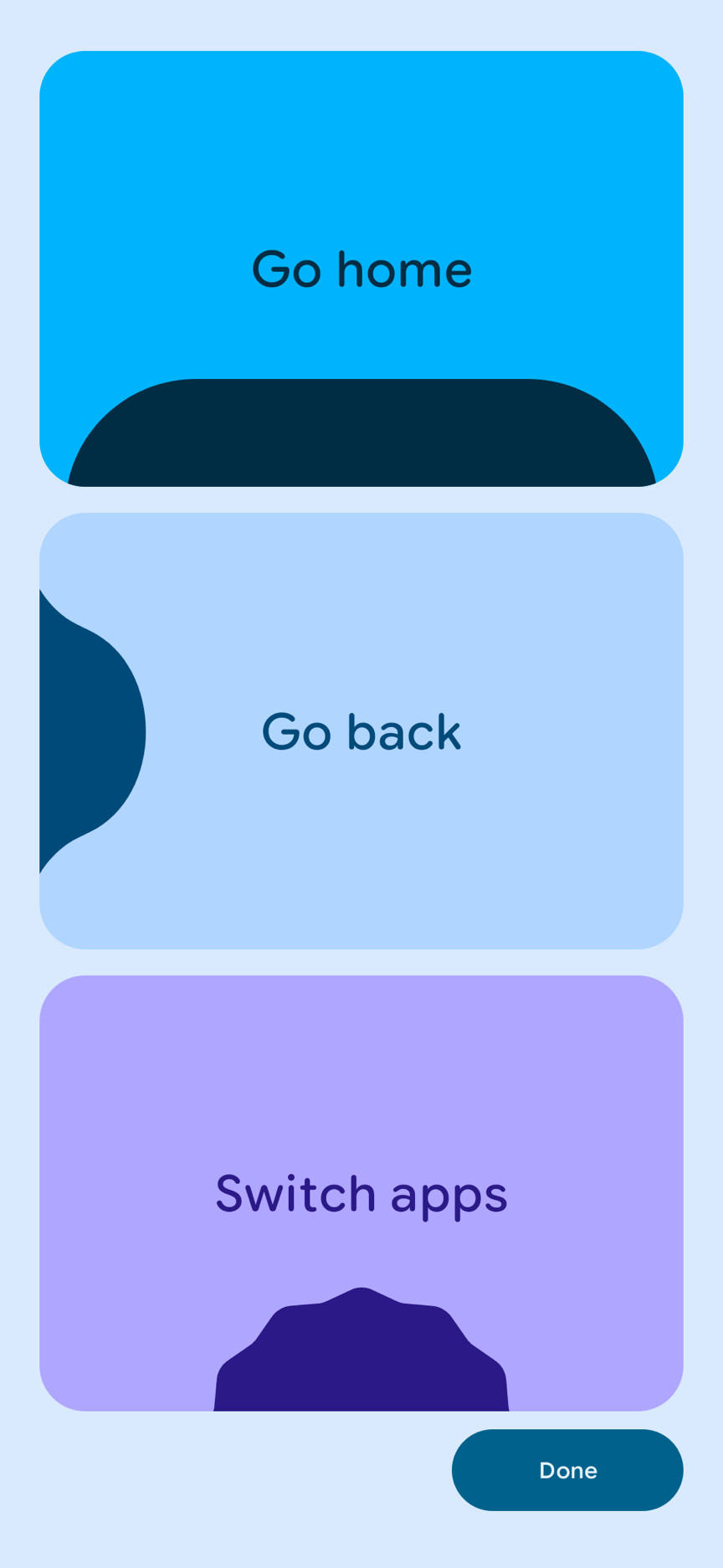
Pixel phones (and Galaxy phones) have a setting specifically dedicated to responsiveness, though you’ve probably overlooked it. The feature relies on using gesture navigation. Google enables gesture navigation by default, but you may have to enable it first on a Samsung phone.
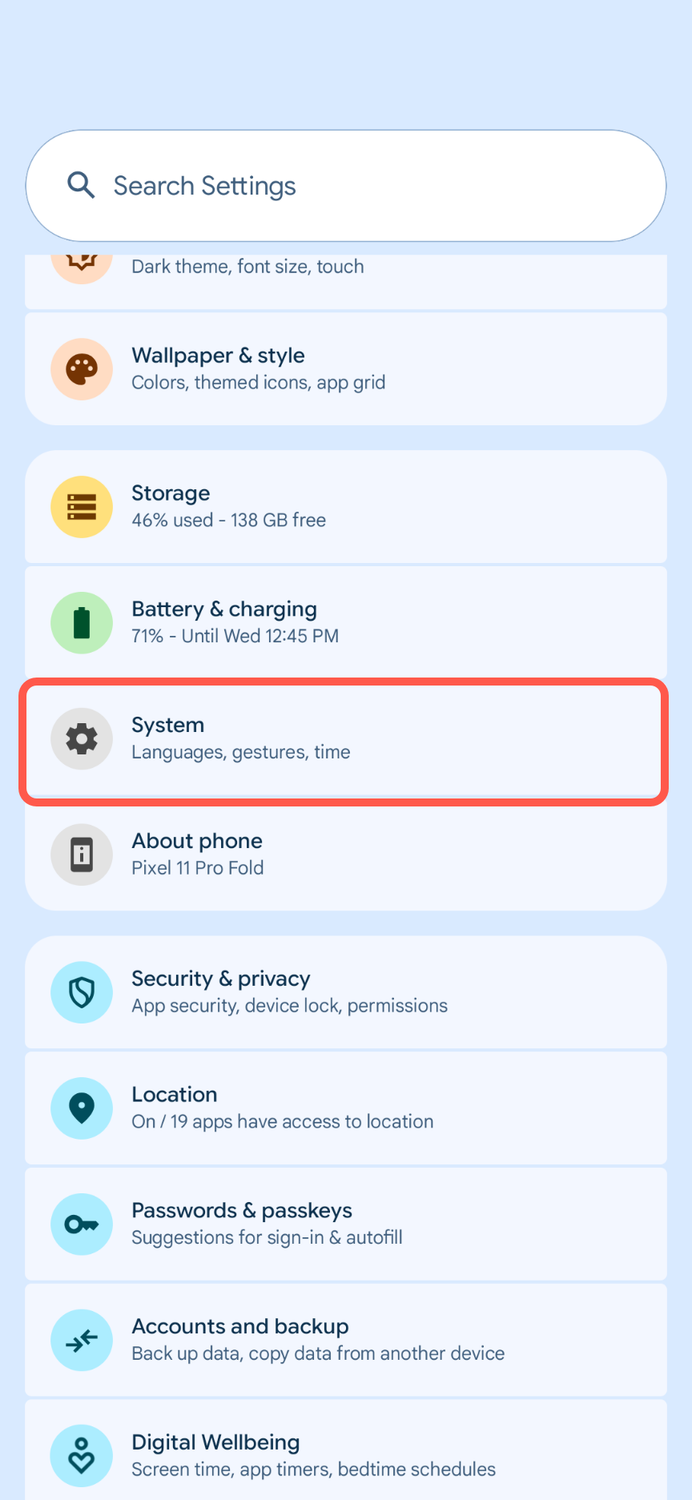
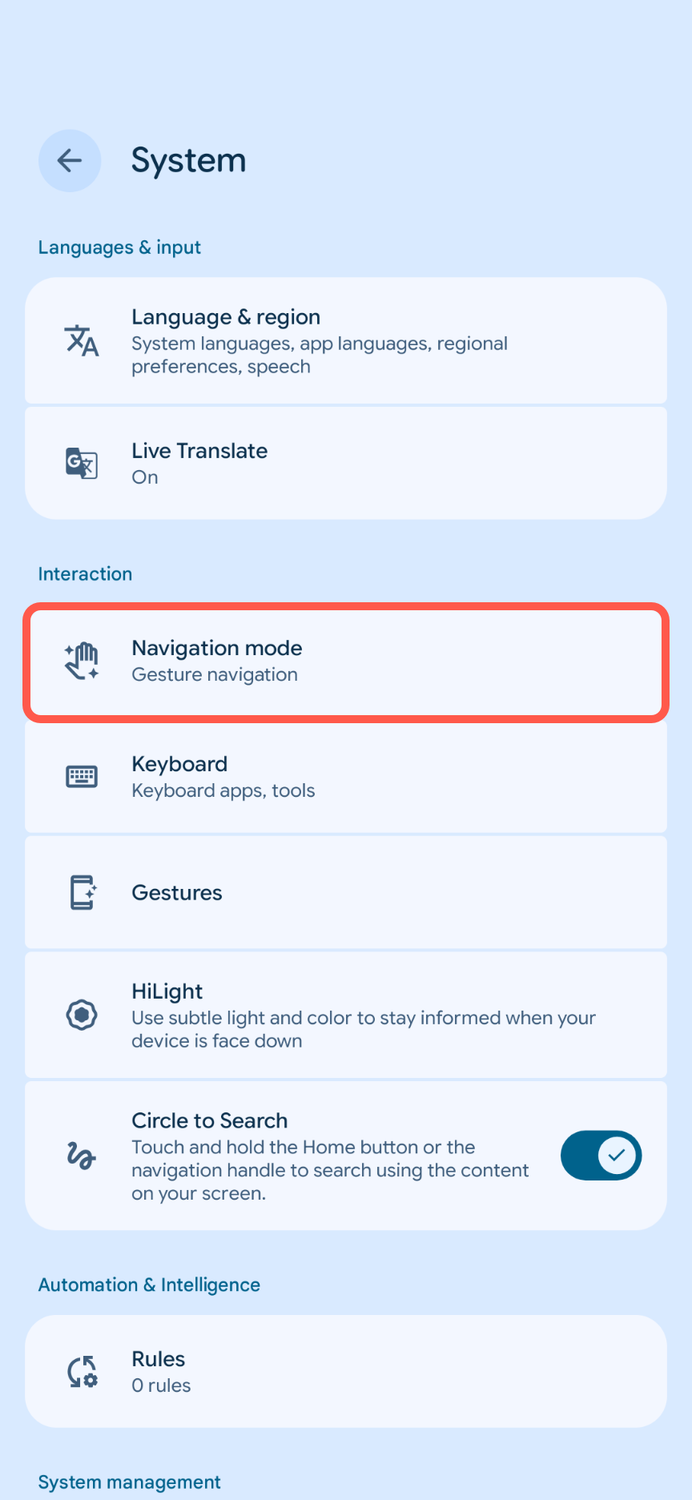
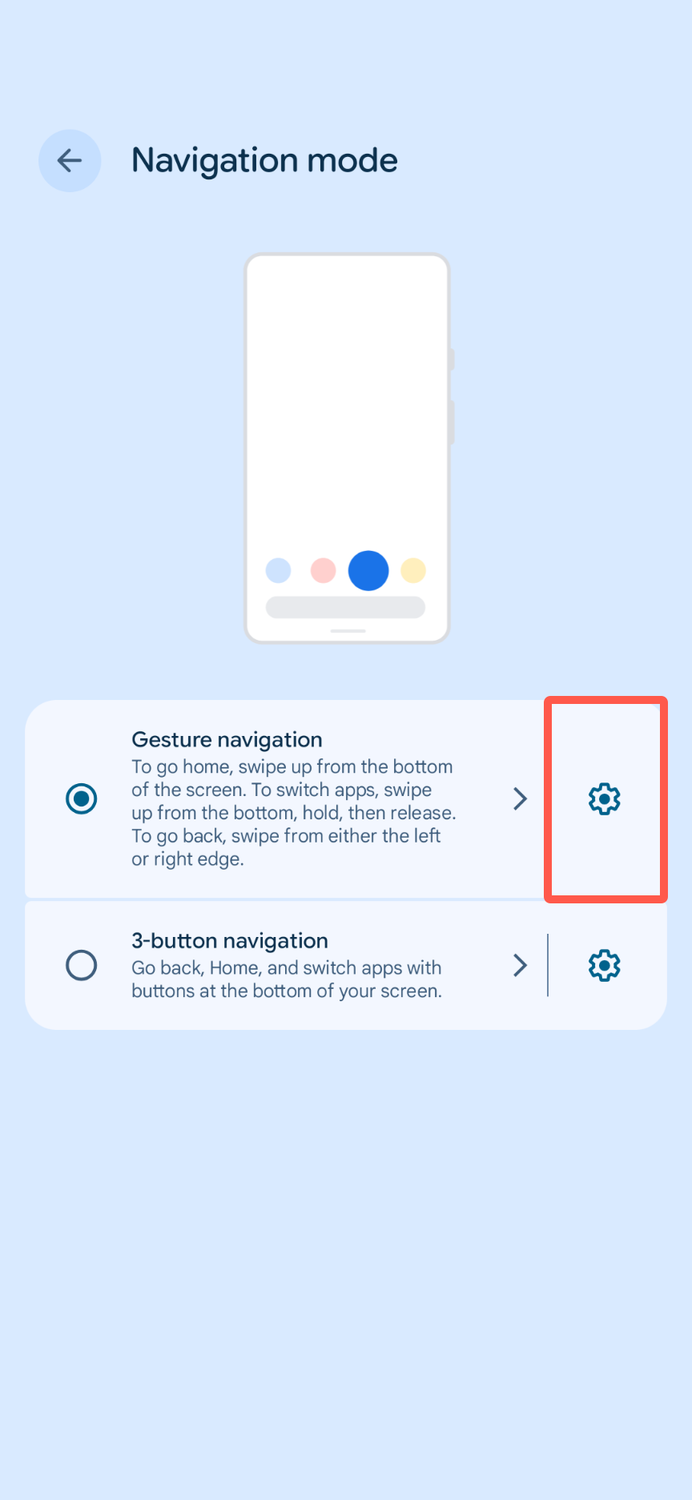
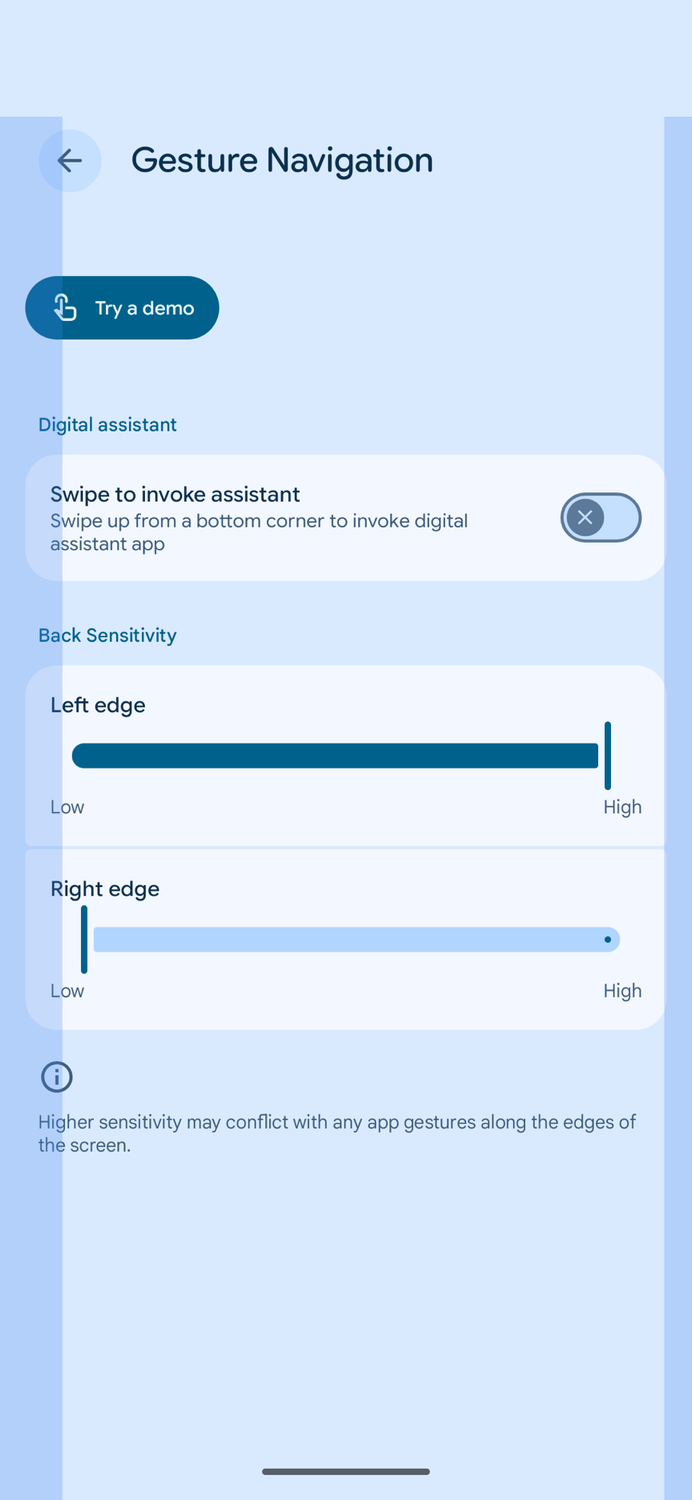
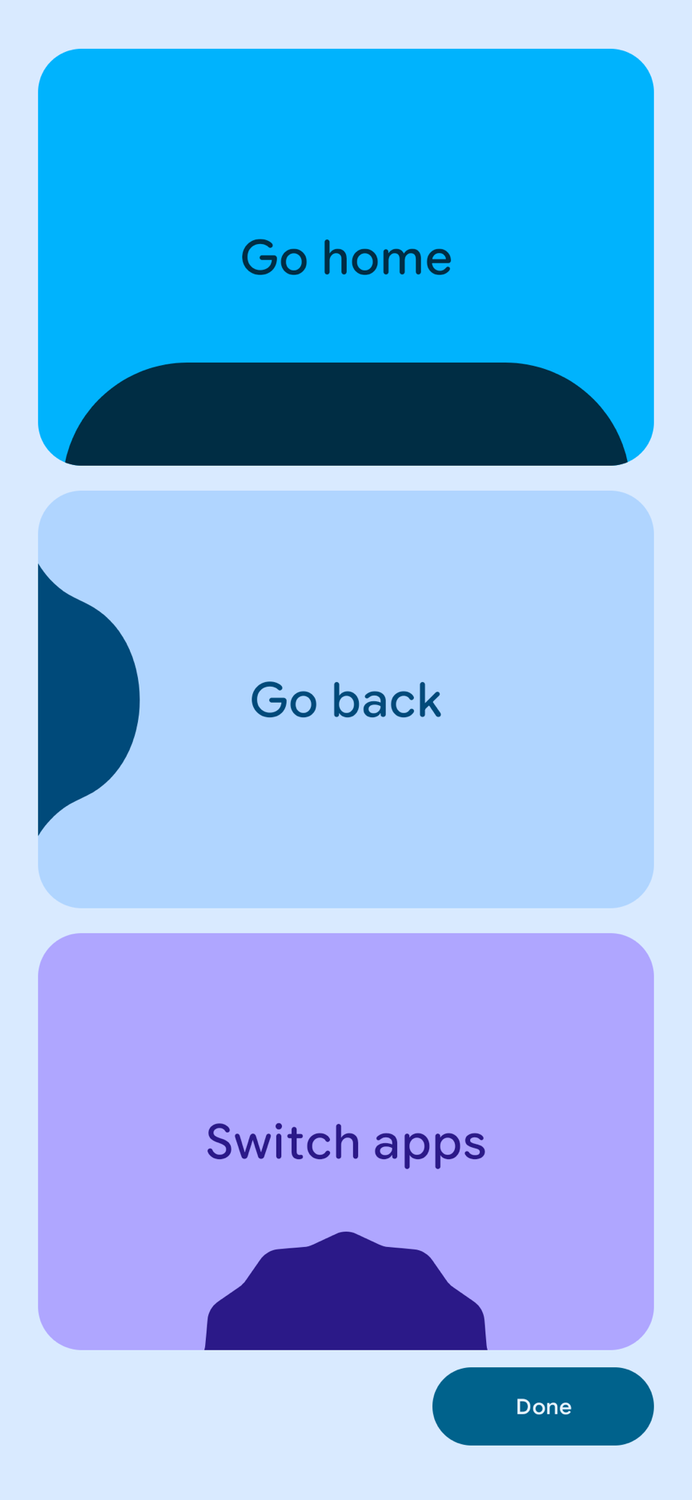
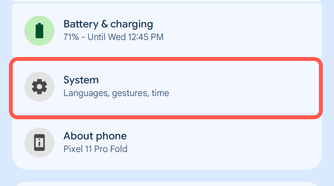
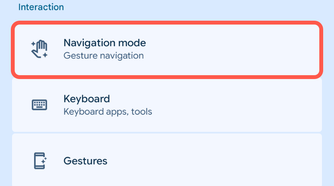
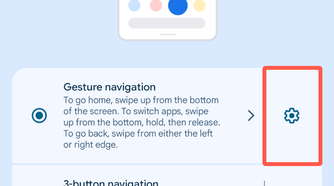
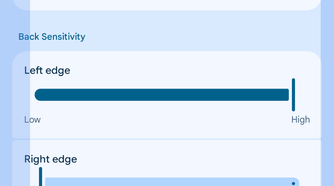

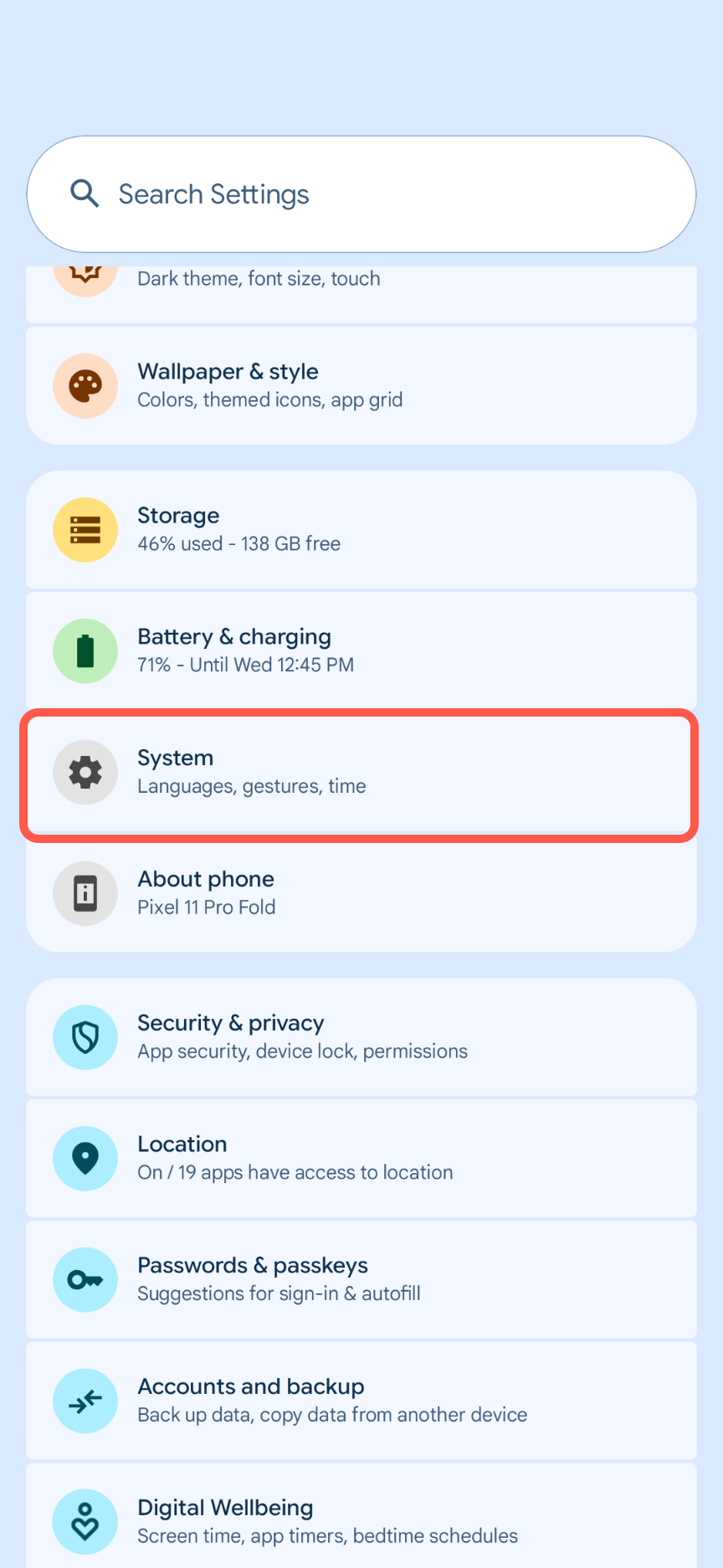
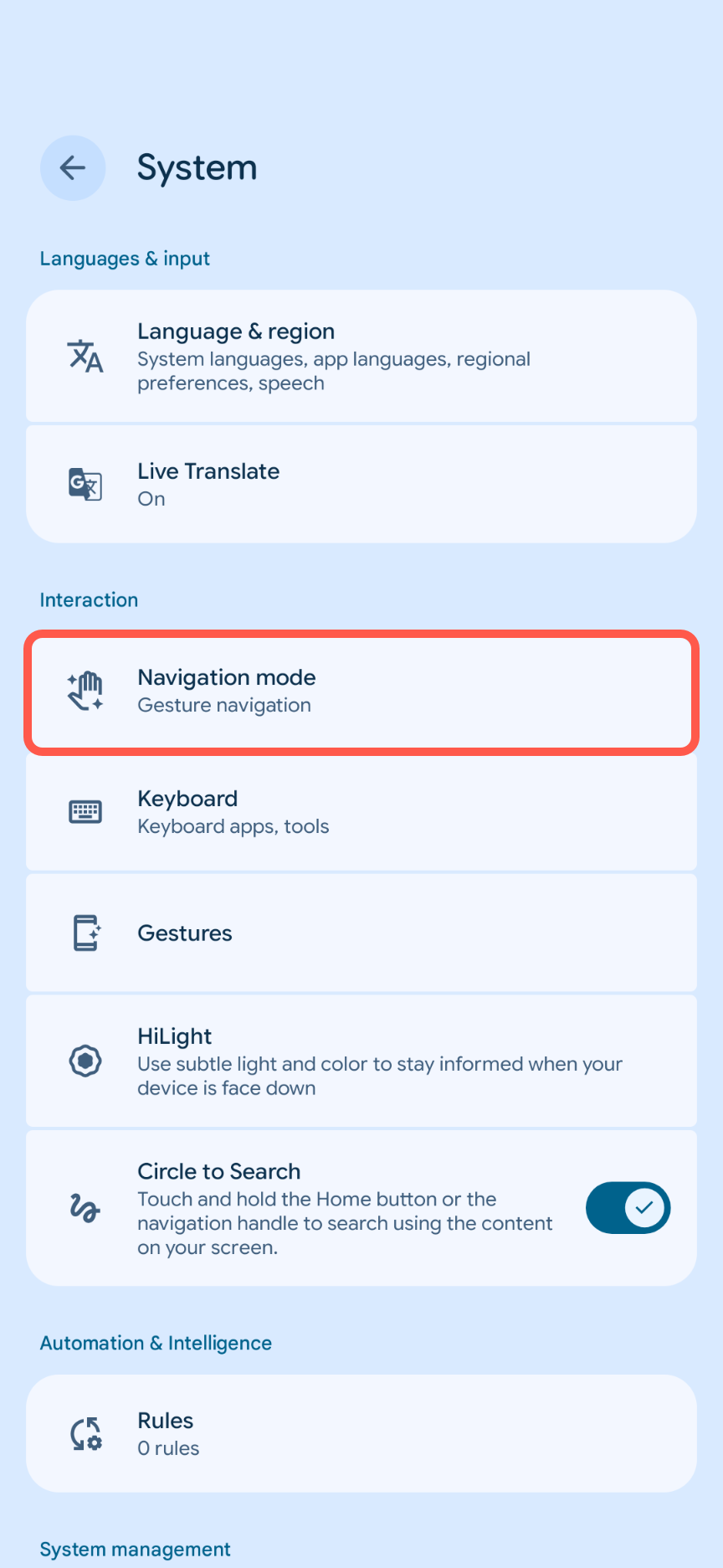
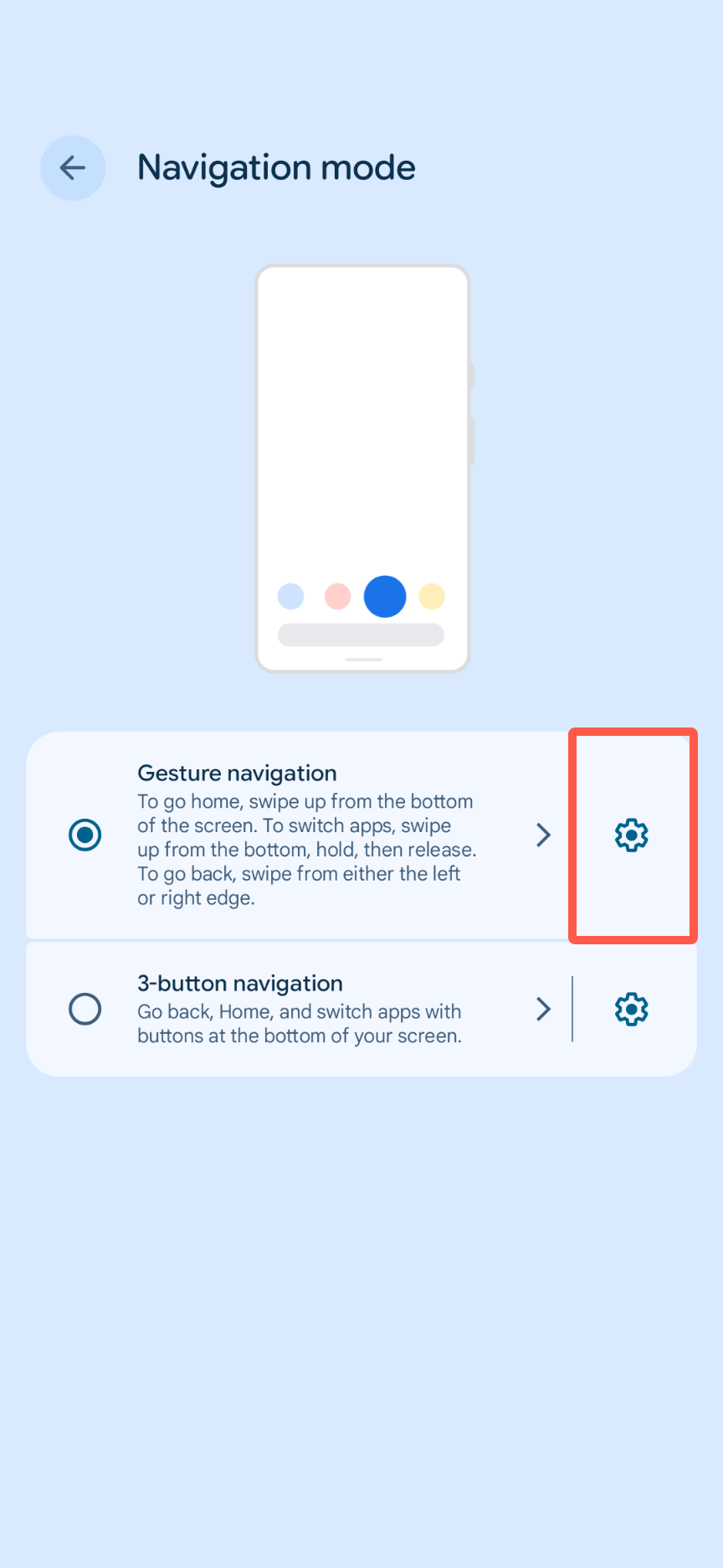
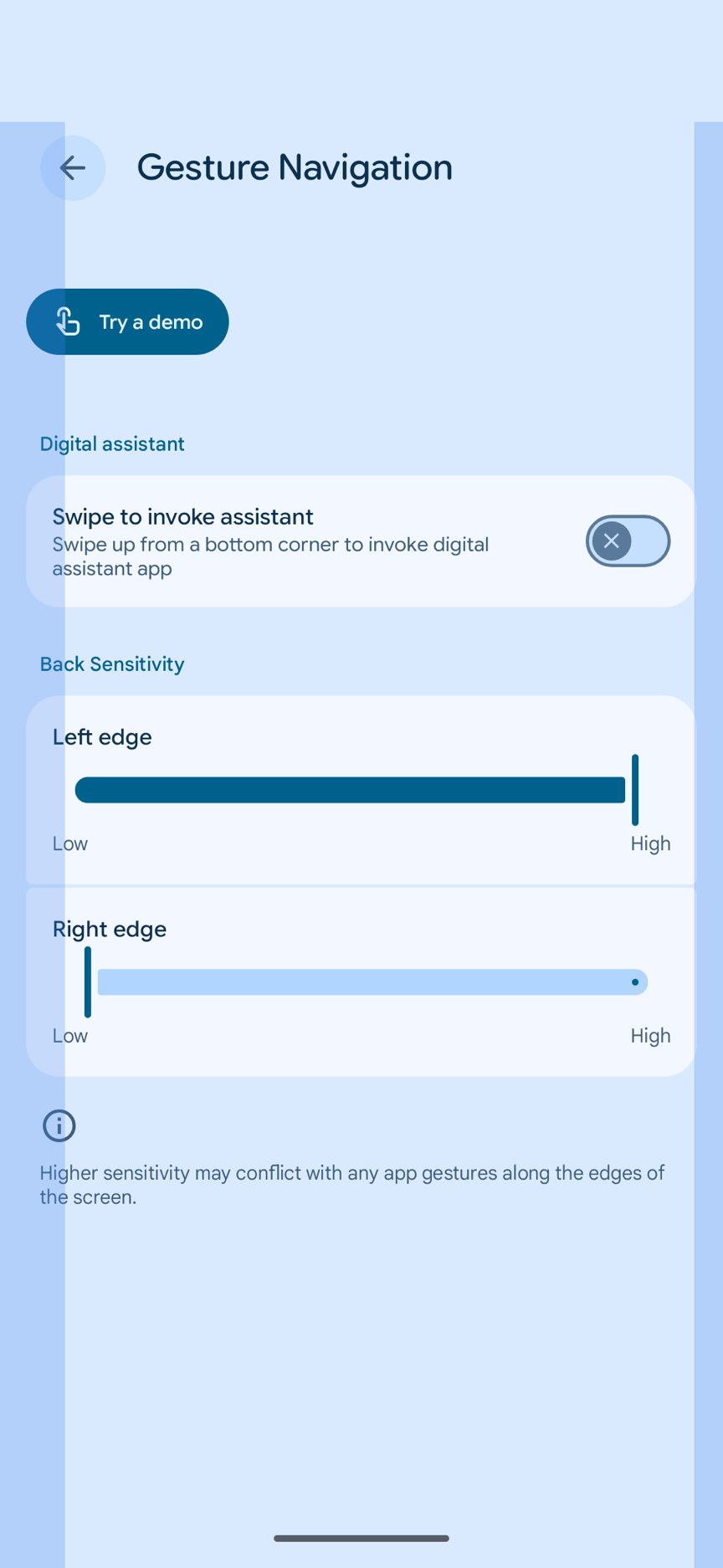
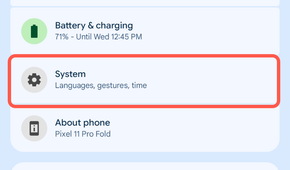
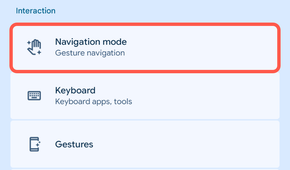
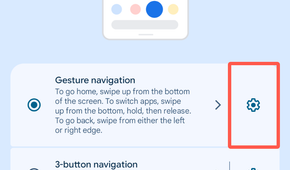
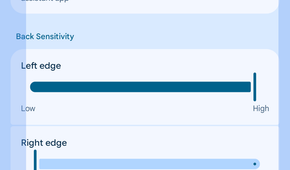

On your Pixel, go into Settings > System > Navigation mode. Make sure “Gesture navigation” is selected, then tap the gear icon next to it. You’ll see a section called “Back Sensitivity” with a “Left edge” and “Right edge” slider—this is where the magic happens.
A more responsive Pixel is a faster Pixel
No more missed swipes
The way this works is by changing the size of the zone that detects the back gesture. When you move the slider, you’ll see a transparent bar along the edge of the screen, showing the exact size of the area where you can perform the gesture. High sensitivity means a bigger zone, and vice versa. It’s simply harder to miss a larger target.
While you’re in this menu, you may notice another option: Swipe to invoke assistant. Toggle this on to launch Gemini (or your preferred digital assistant) by swiping diagonally from either bottom corner of the screen.
Now, the degree to which you adjust these sliders is up to you, but it’s not very granular. Each side can be set to high, medium, or low. Personally, I tend to use the back gesture on the left edge more than the right edge. In fact, I find the right edge gesture gets triggered accidentally more than intentionally. So, I increased the sensitivity on the left and reduced it on the right.
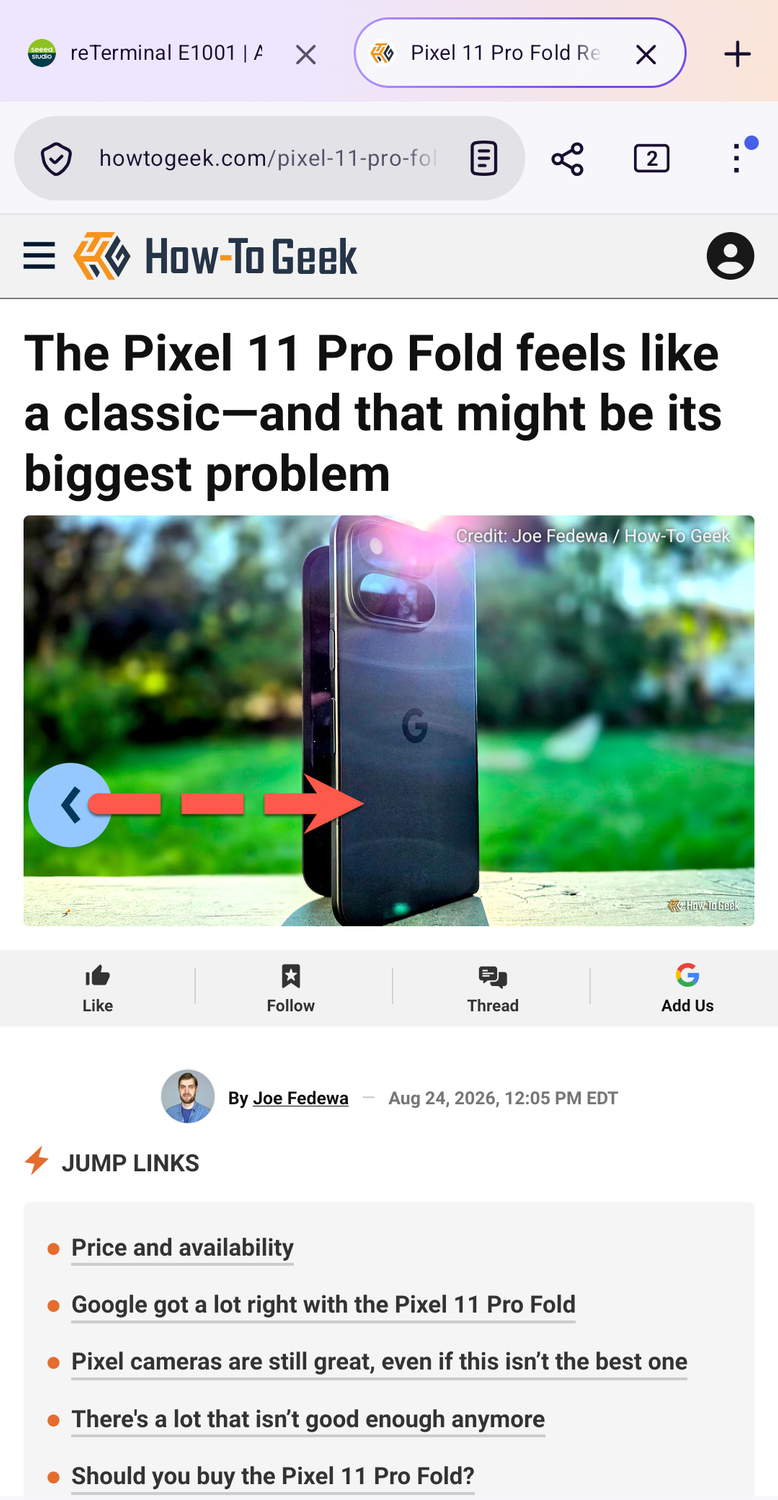
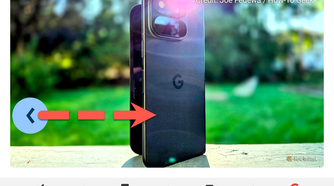
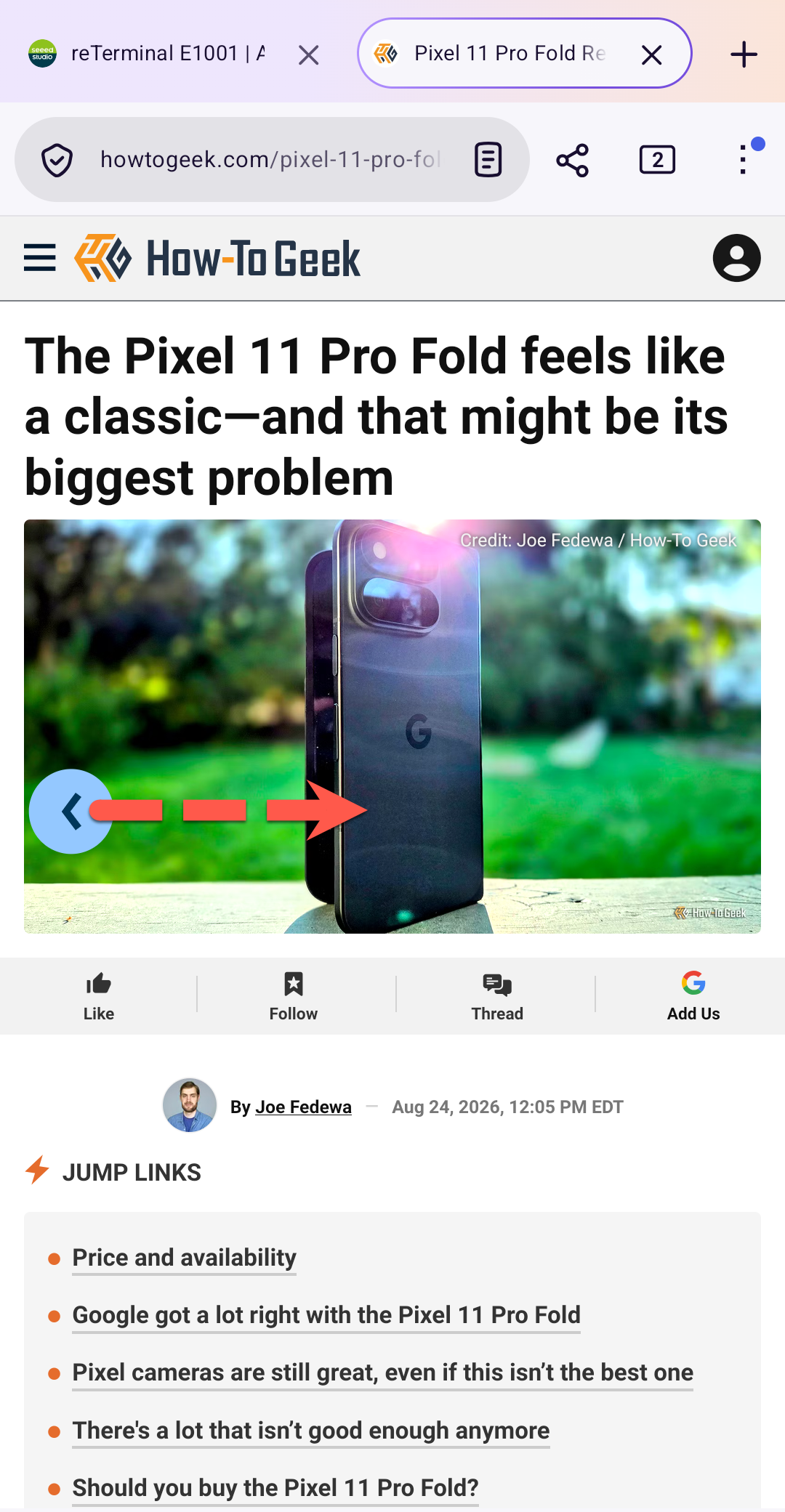
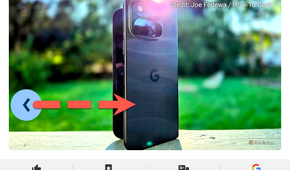
The result is a much more responsive feeling phone, which has a bigger impact than faster animations, in my opinion. As I said, transition speeds don’t matter if your phone doesn’t do what you want it to do. With the tweaked sensitivity, my Pixel rarely ever misses or inadvertently triggers my back gesture.
Unfortunately, there’s no equivalent option if you prefer the old three-button navigation bar. Instead, you only have the ability to rearrange the Back and Recents buttons. If you’re looking for the sensitivity options on a Galaxy phone, go to Settings > Display > Navigation bar > Swipe gestures > More options.
It’s the small things that count
Like the infamous Developer Options animation scale trick, gesture sensitivity is ultimately a small change. Nothing can truly make up for an underpowered processor or an old, bogged-down phone. Thankfully, there are plenty of solutions for those situations, too. For me, making my Pixel feel just a tiny bit more responsive to my actions is enough to matter.