Credit: Dibakar Ghosh | How-to Geek
There are hundreds of Linux distros out there, and most of them are genuinely good—as long as they’re used by the people they’re designed for. The whole point of a Linux distro is to package the Linux kernel with a particular desktop environment, package manager, and system defaults fine-tuned for a specific type of user or workflow.
For instance, some distros are designed for Linux newcomers, while others are built for advanced users, gamers, or developers. Likewise, some distros simply offer a better experience on a laptop than others. And here are my five favorite Linux distros that are perfect for laptop use.
This is not a ranked list. I don’t think any one of these distros is better than the others. Each one is designed for a different type of user, depending on your needs and how your laptop is configured.
Fedora
It’s the “everything” distro for almost everyone
Fedora
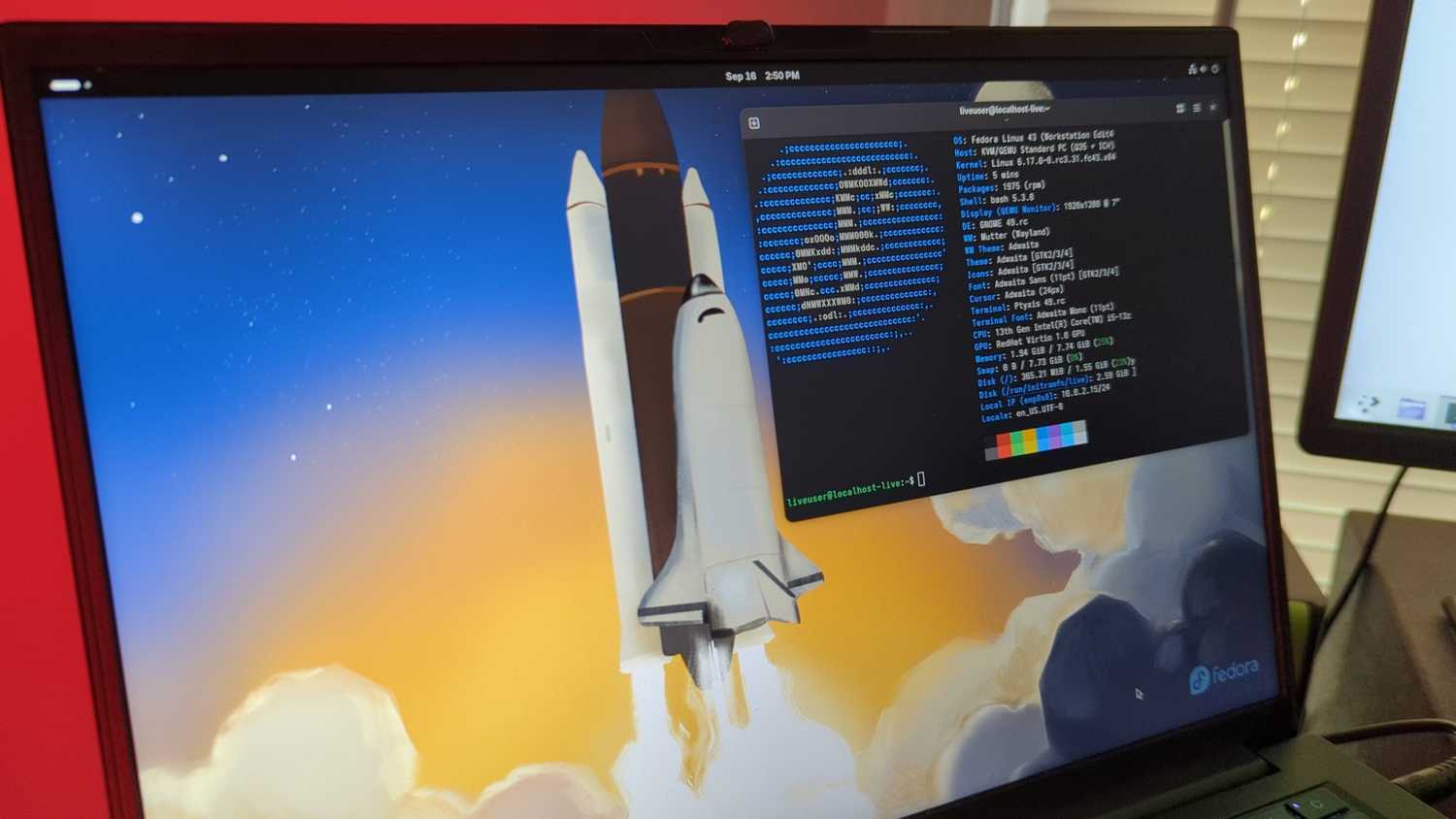
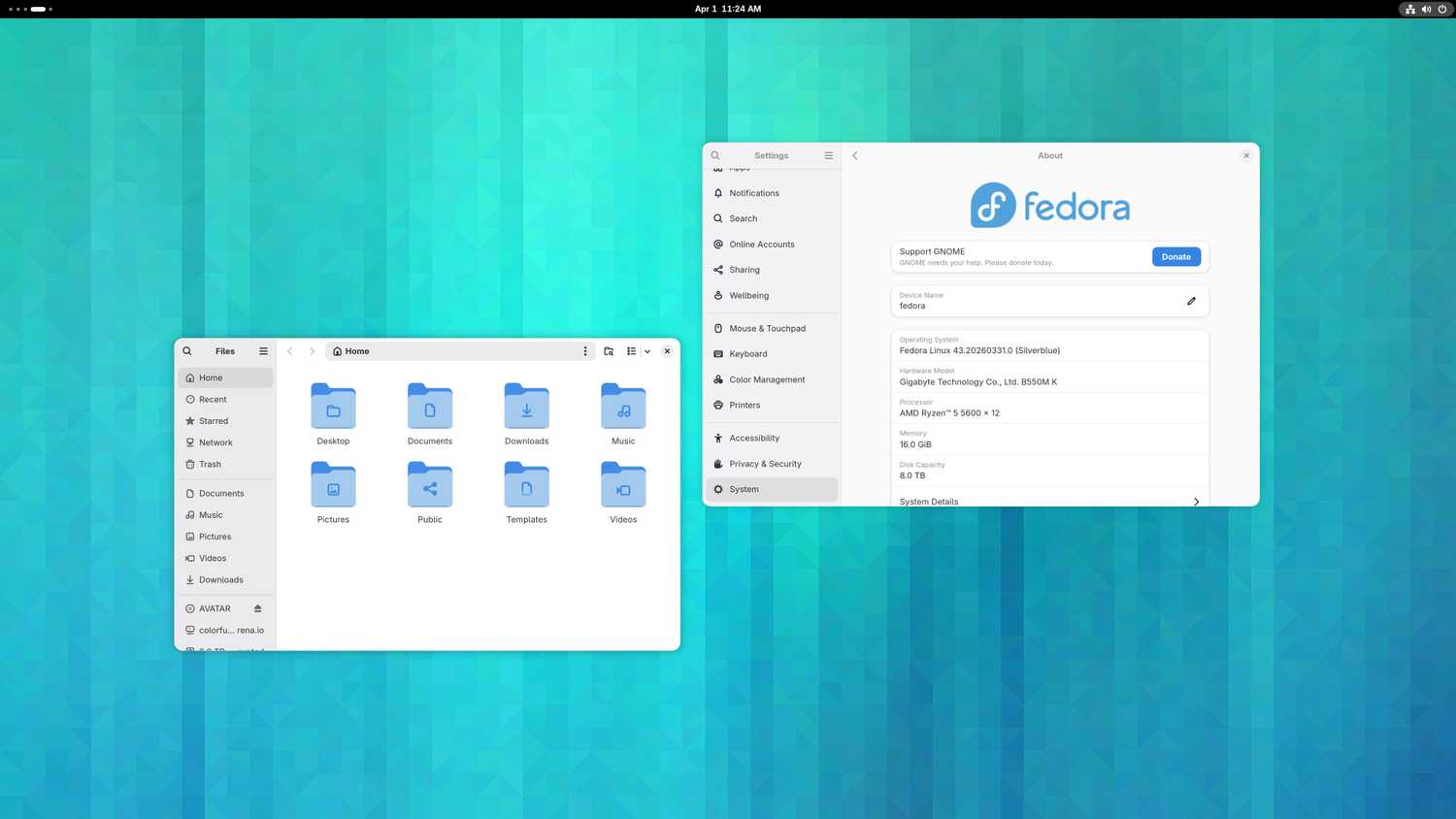
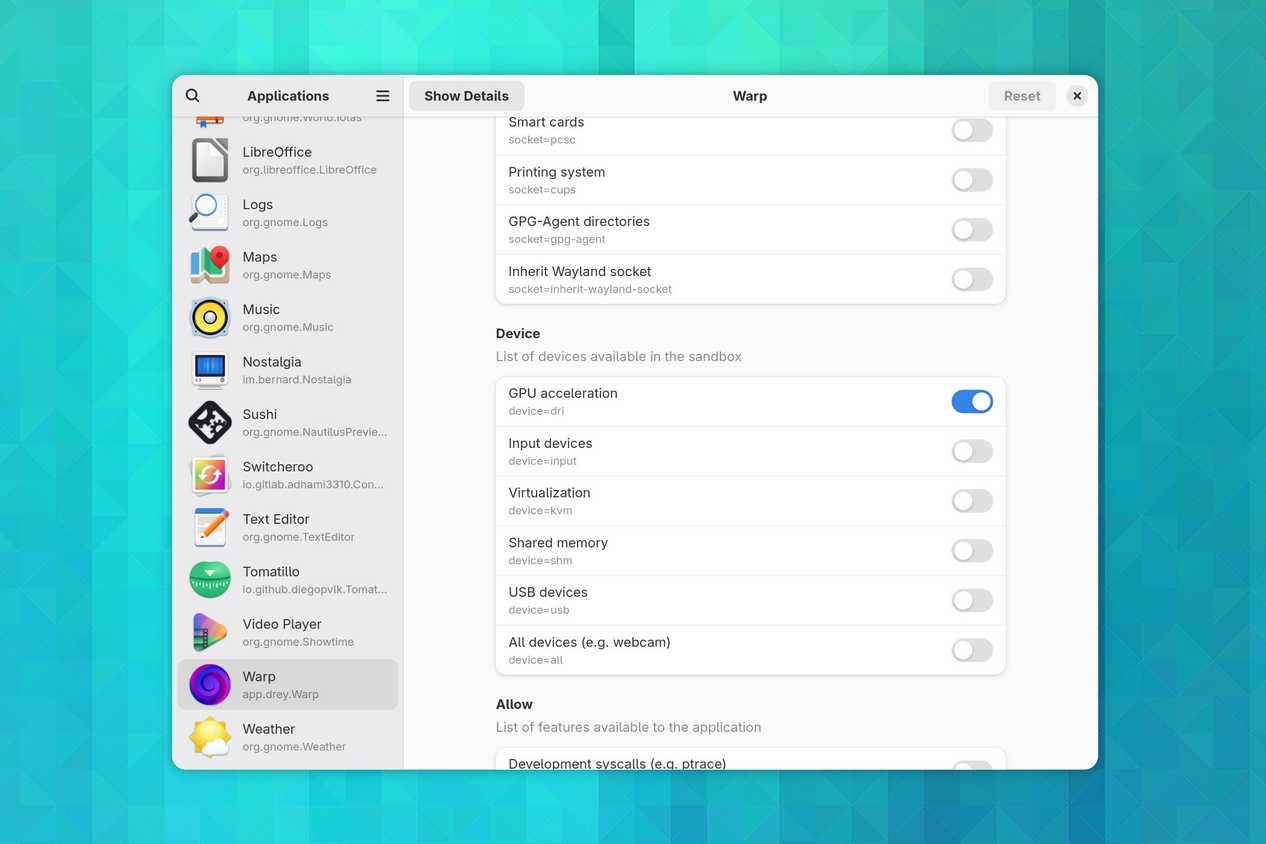
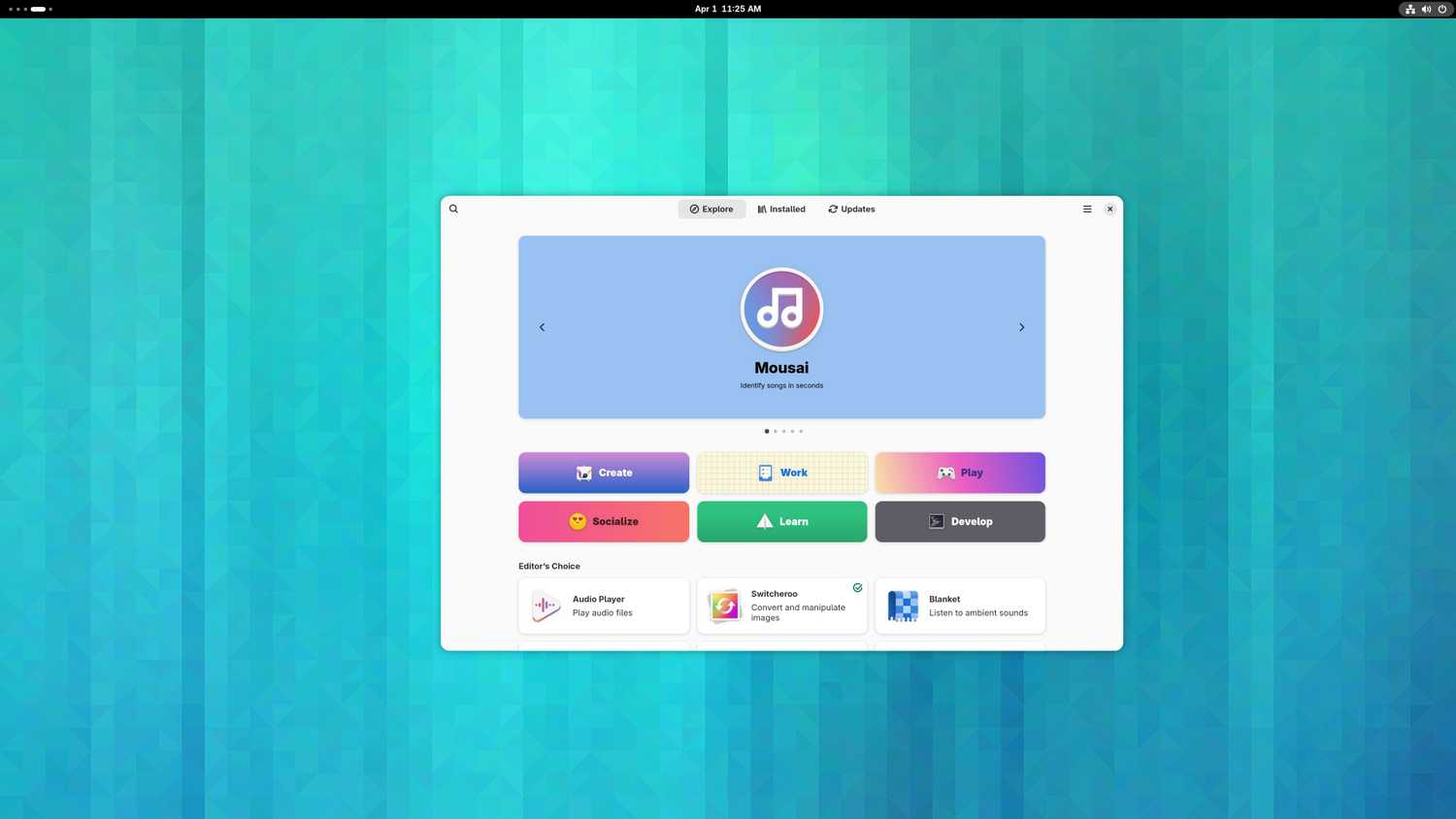

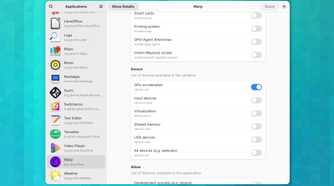

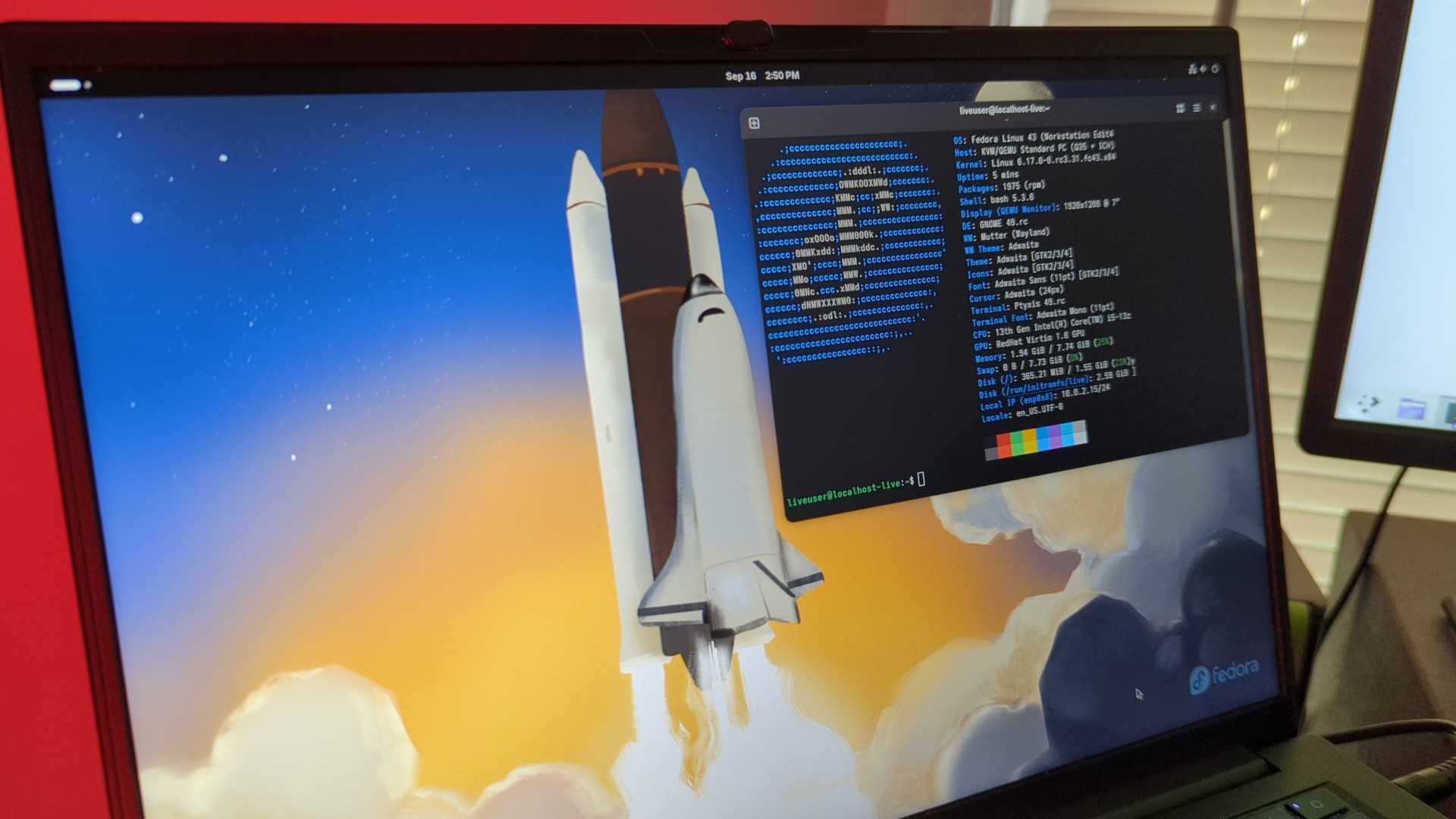
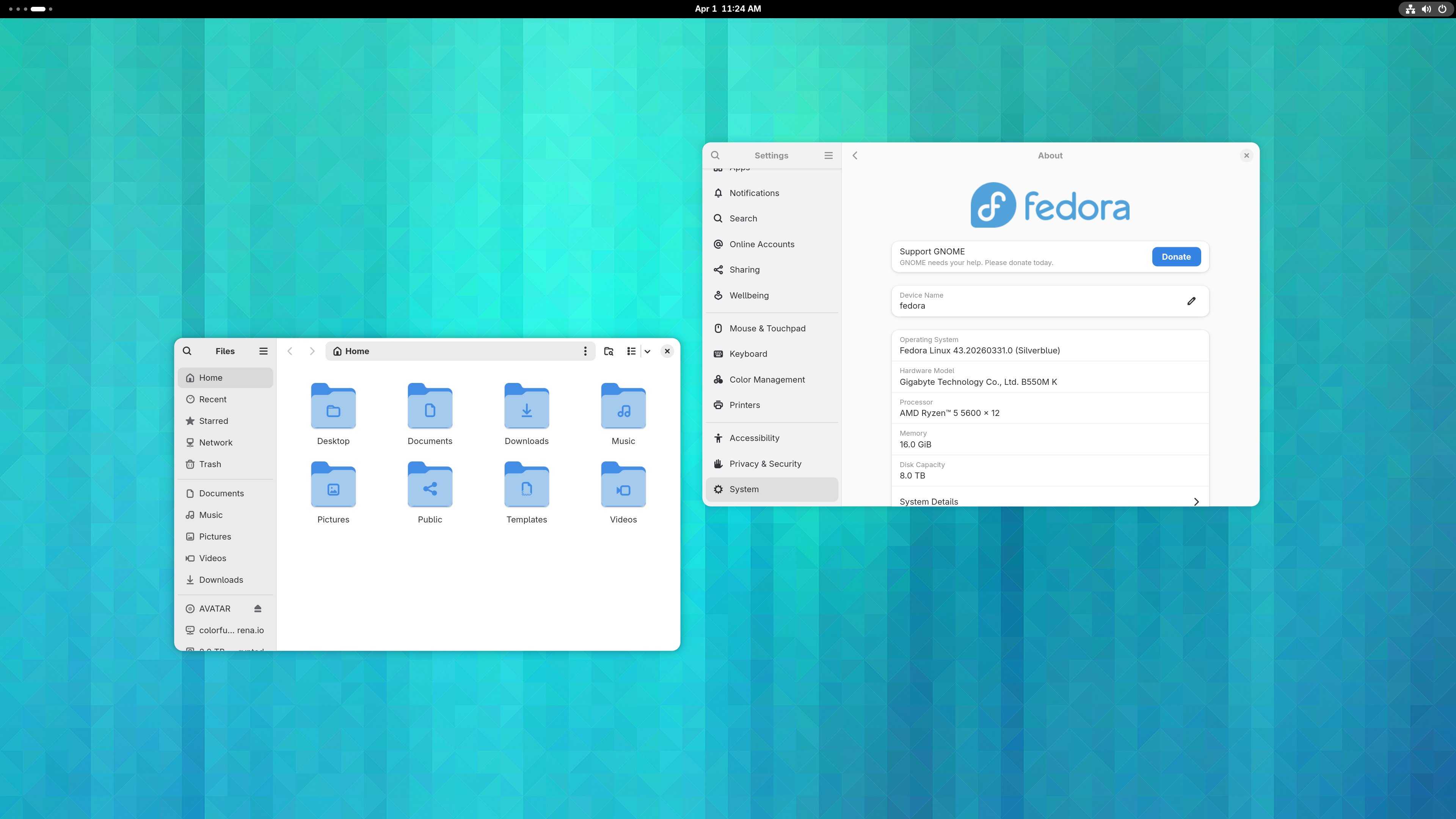
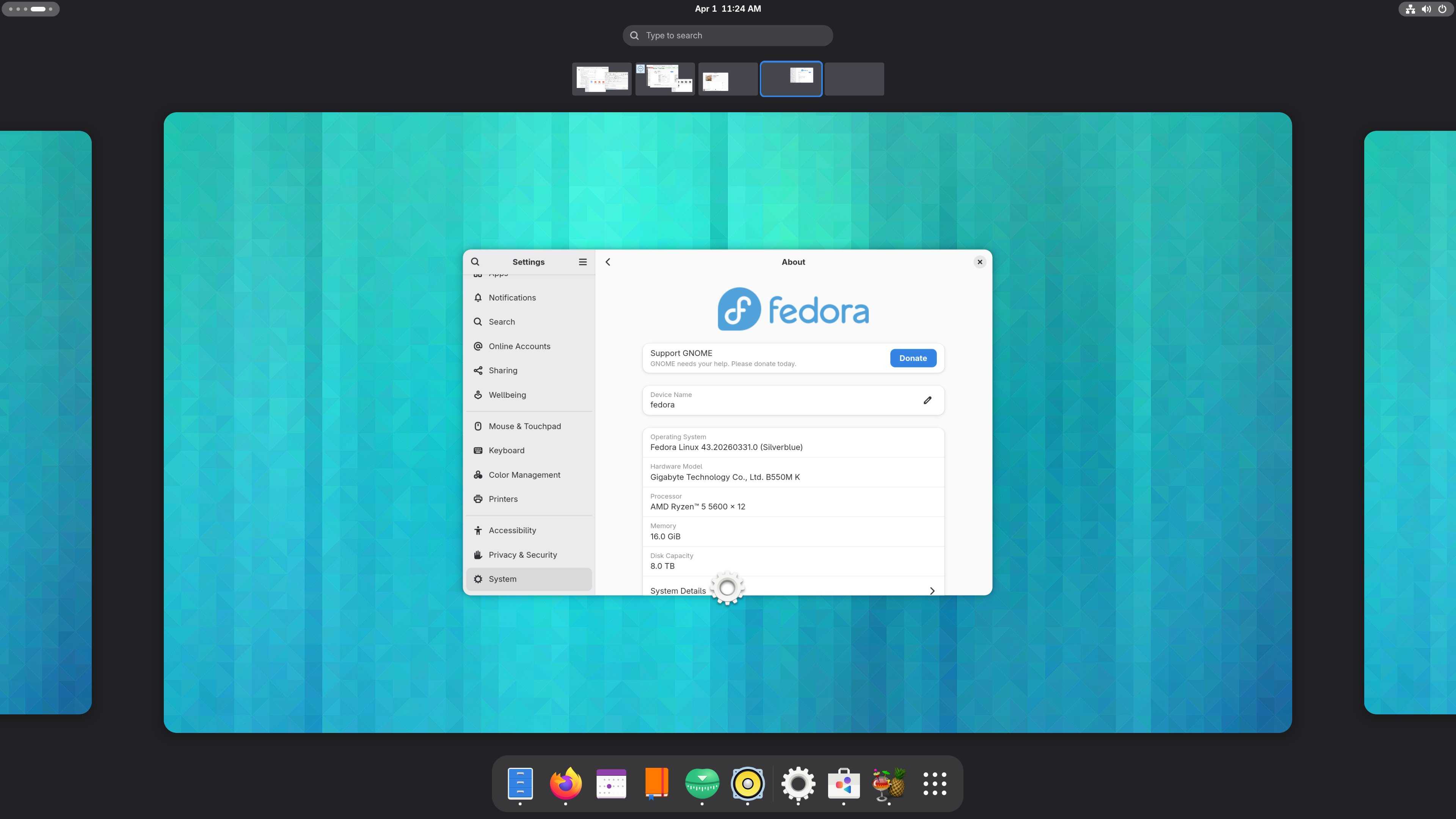
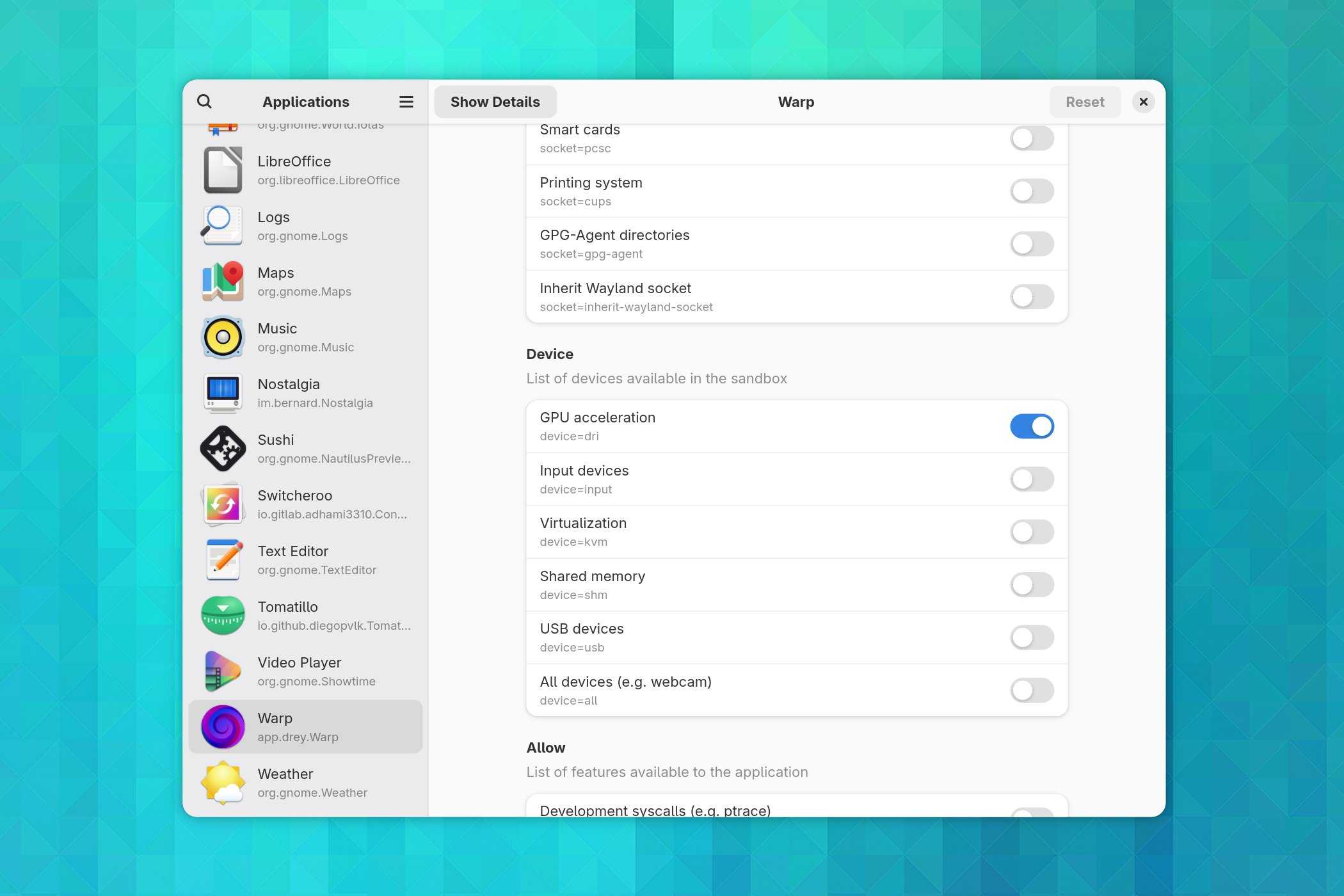
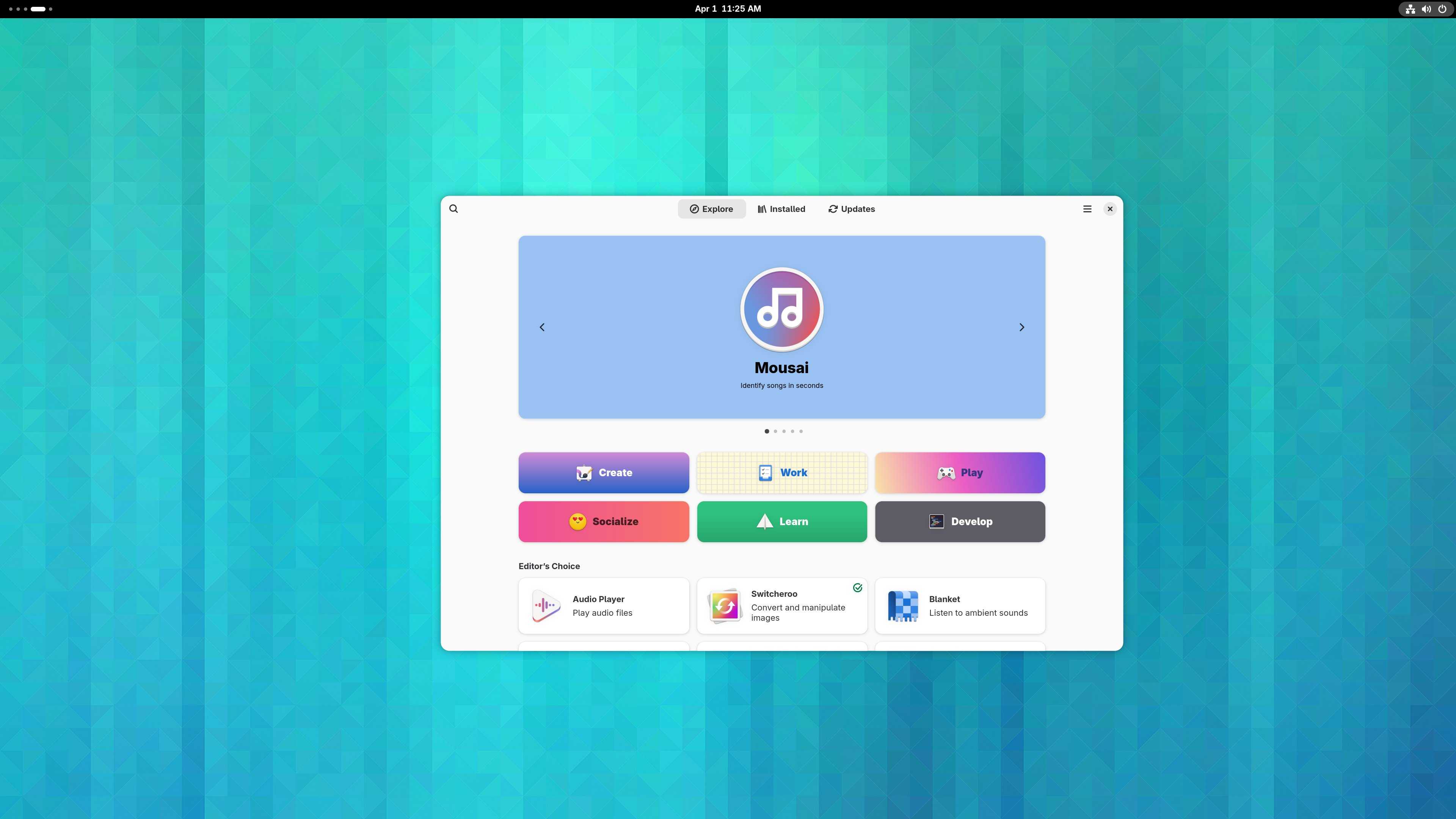

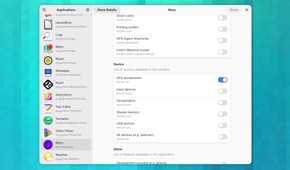

Fedora has been getting a lot of attention lately, and I think it’s slowly becoming the “everything” desktop Linux distro. Between the immutable Atomic variants, the regular Workstation edition, and the various Spins, there’s a version for just about everyone—and it just works. You get very up-to-date packages without the system feeling fragile, and it’s secure by default thanks to SELinux. It’s packed with developer tools if you need them, but it’s also approachable for Linux newcomers.
Fedora also supports every major desktop environment. GNOME is the flagship desktop environment (DE), but you can also choose KDE Plasma, Cinnamon, Xfce, i3, and many other popular desktop environments and window managers.
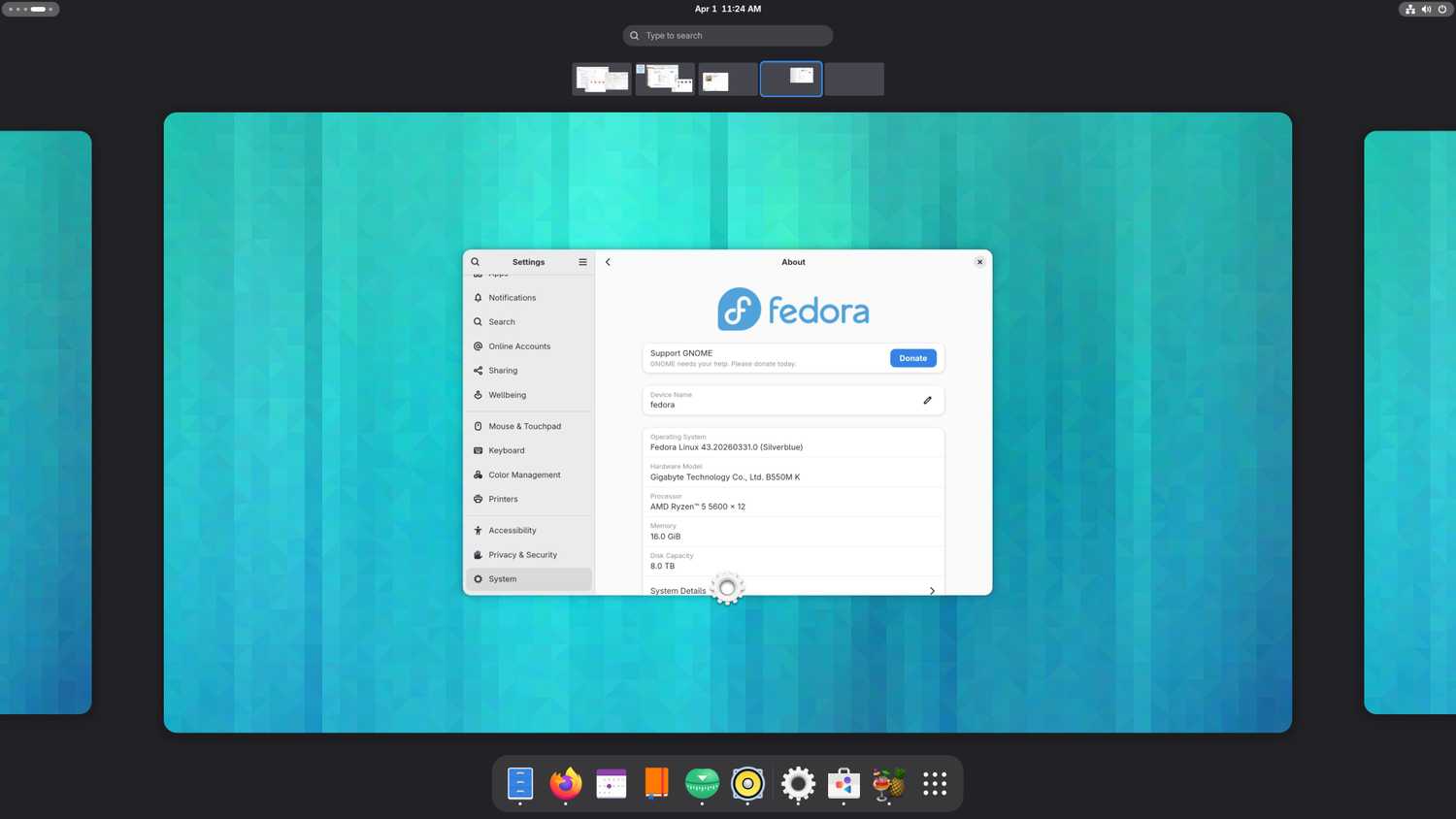
That said, if you’re installing Fedora on a laptop, I’d stick with the flagship Workstation edition. It ships with the GNOME desktop environment, which, in my opinion, is the best DE for laptops. The entire interface is built around virtual desktops, or workspaces, where you’re encouraged to keep one app—maybe two—on your current workspace. Everything else lives on separate workspaces that you can switch between with a three-finger swipe on the trackpad.
That workflow can feel limiting or restrictive on a desktop with a large monitor, where you’d rather have four windows tiled side by side. On a laptop, though, it just feels right. You’re probably not going to run a complicated multi-window layout on a 14-inch screen anyway, so organizing your apps across virtual desktops is a much more natural fit, and GNOME makes the experience feel effortless.
Ubuntu
It’s the most popular distro for a reason
-
 Credit: Hannah Stryker / How-To Geek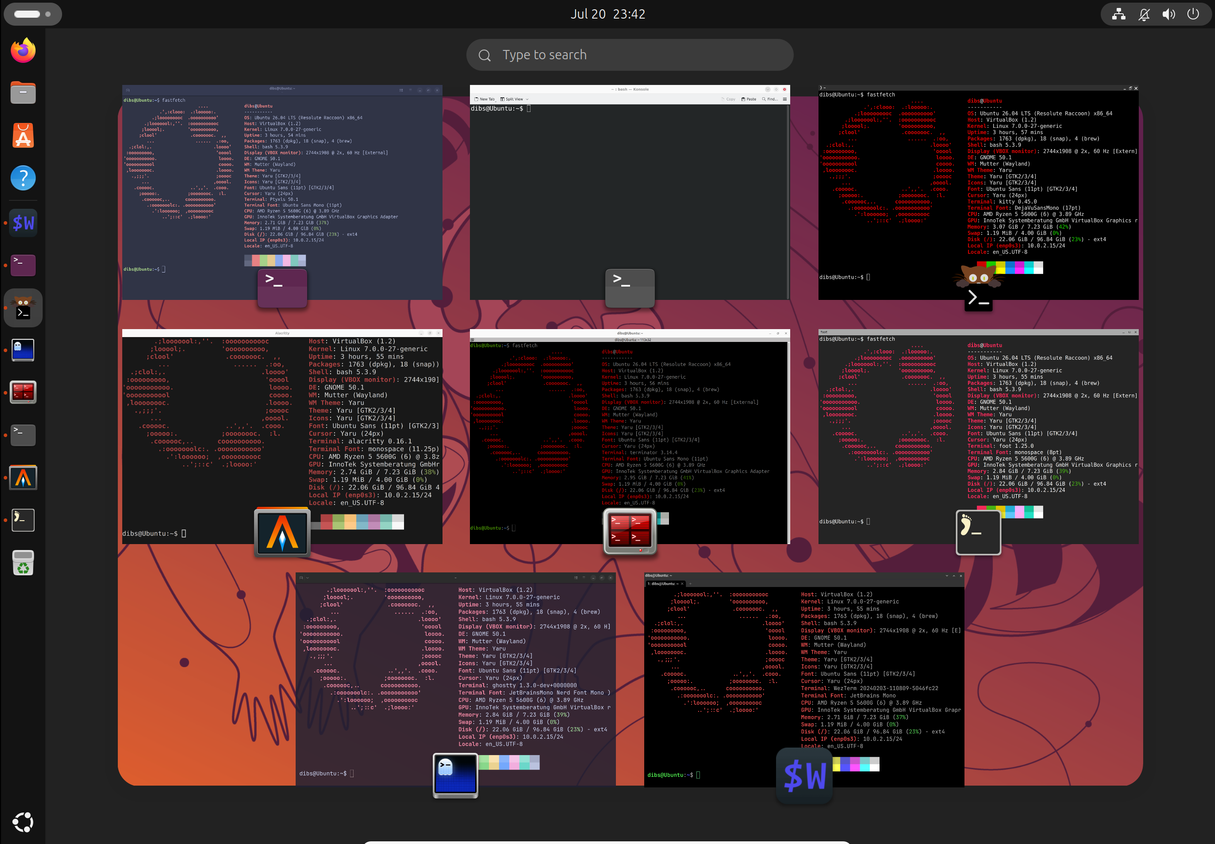
-
 Credit: Hannah Stryker / How-To Geek
 -
-

-
-
-
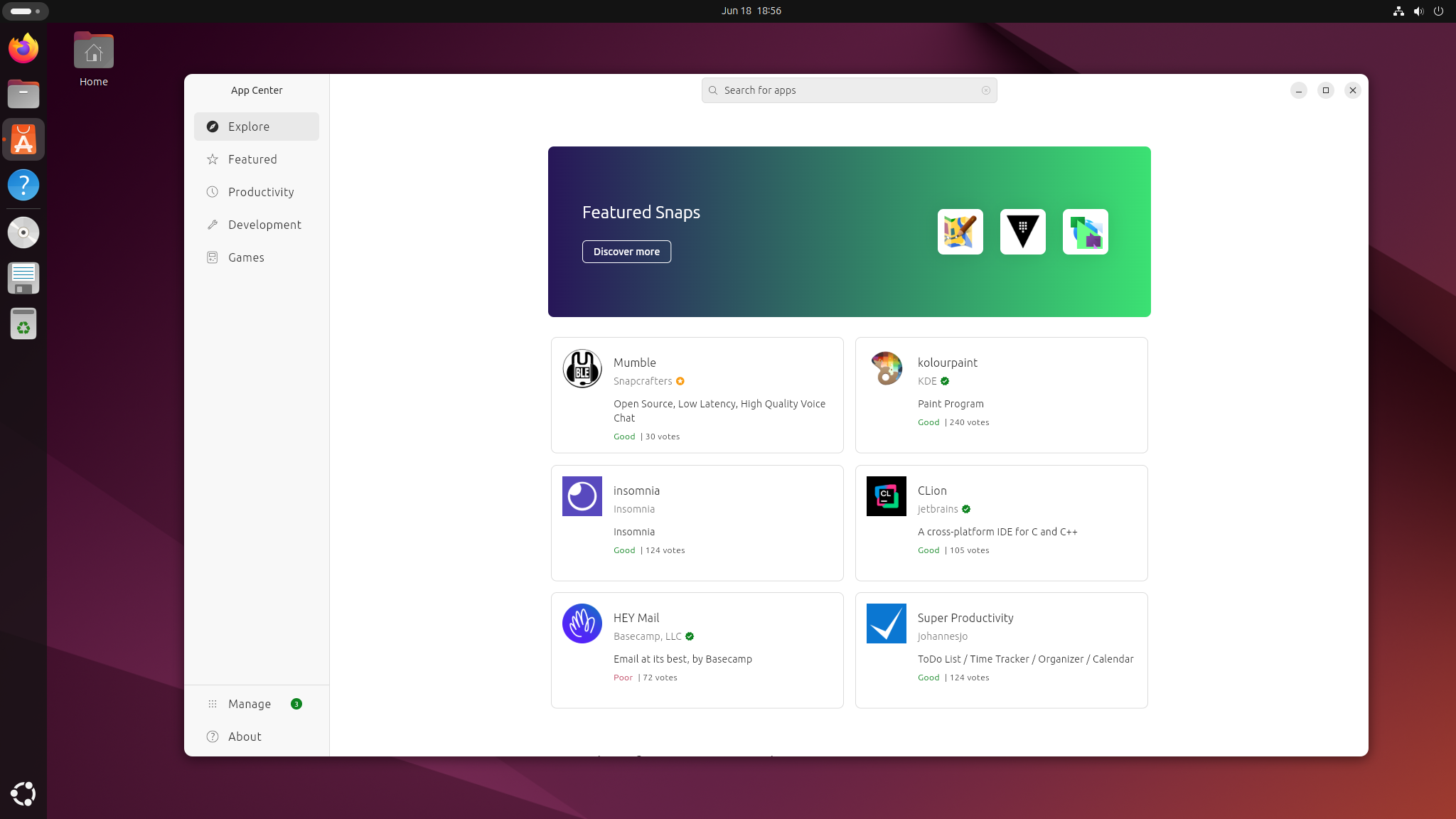
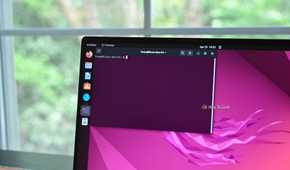
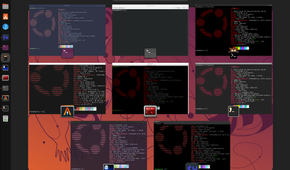
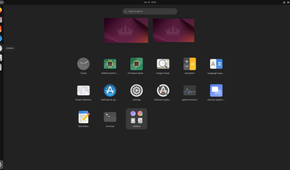
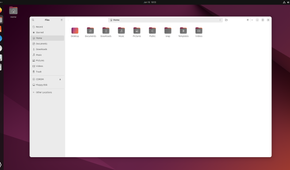
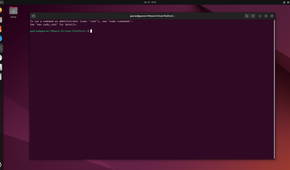
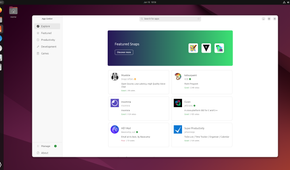
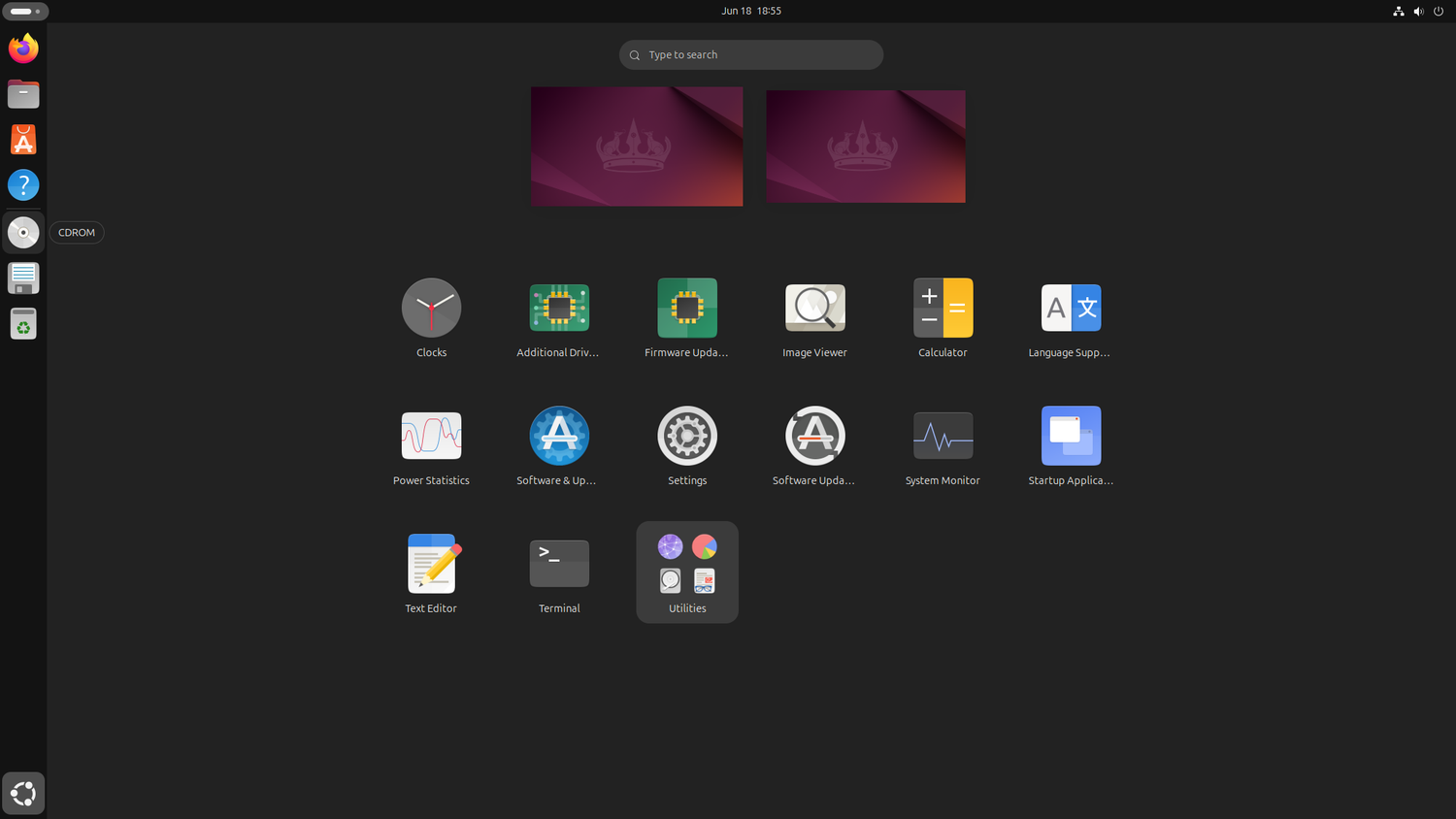
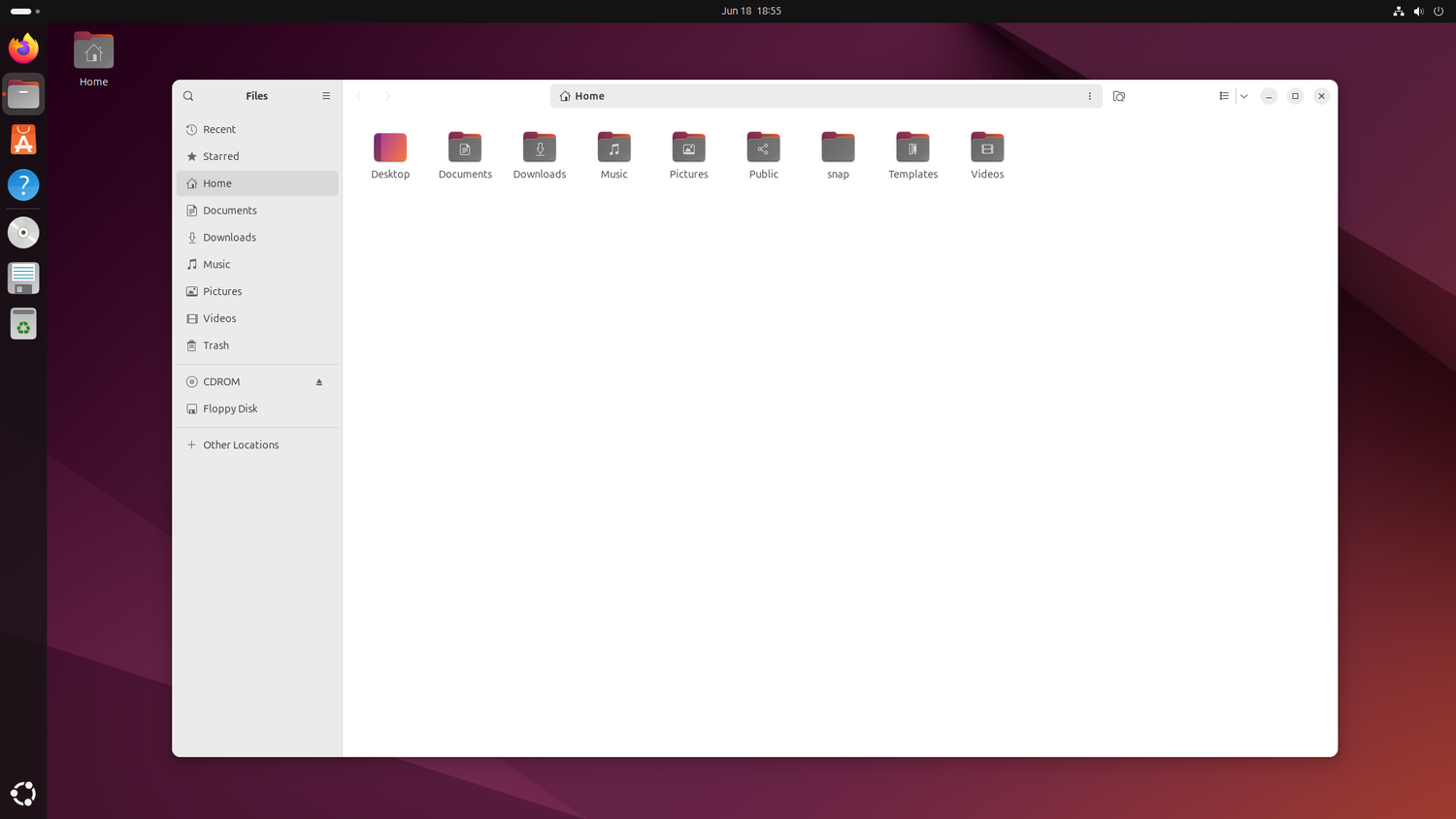
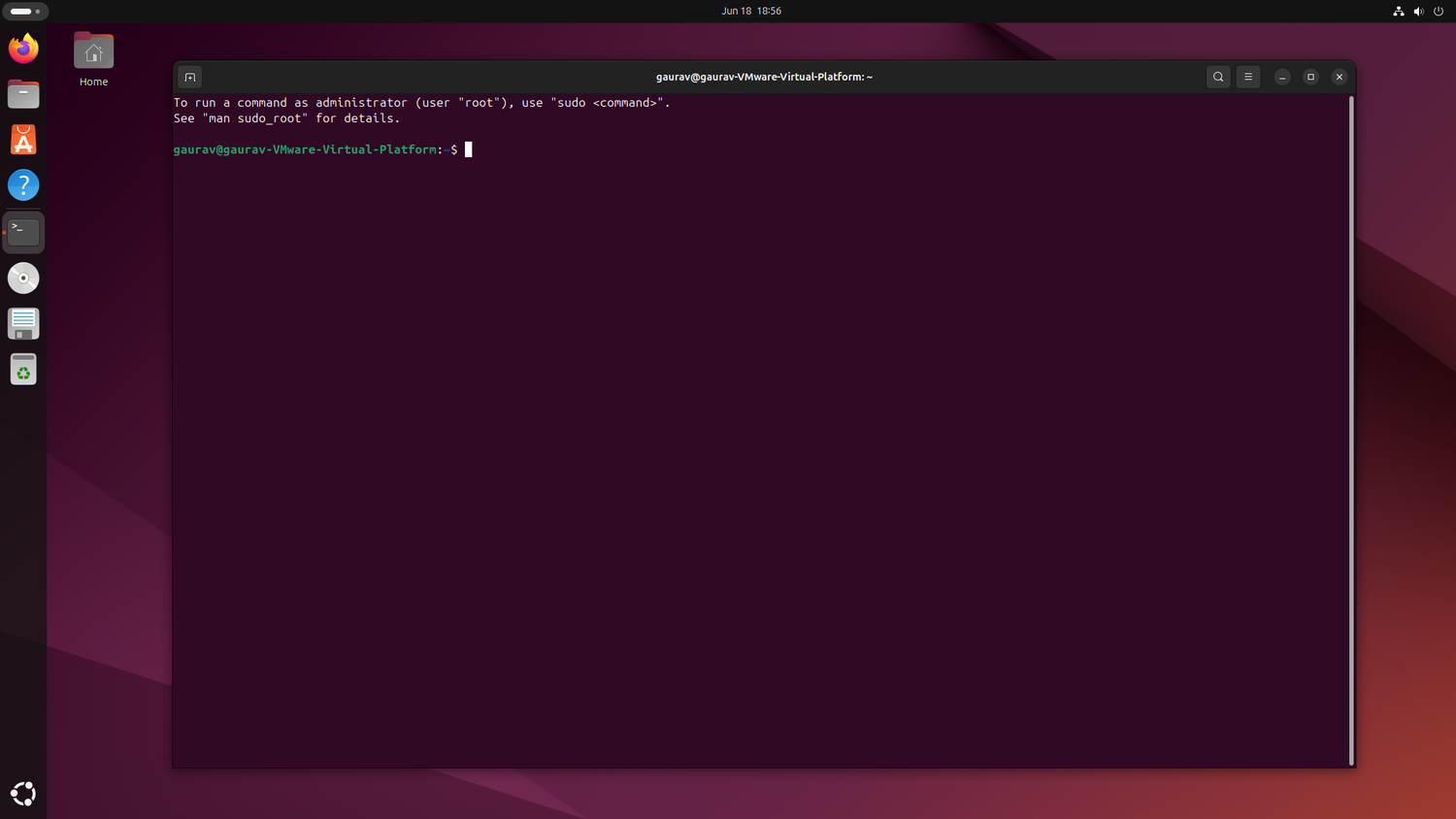
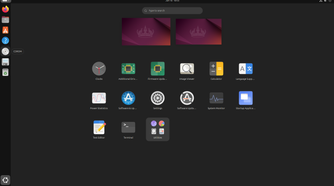
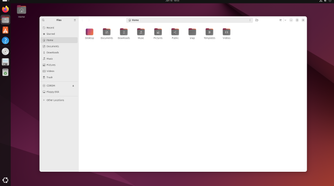
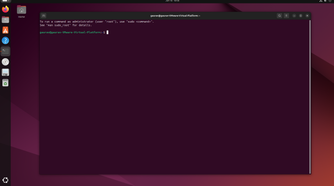
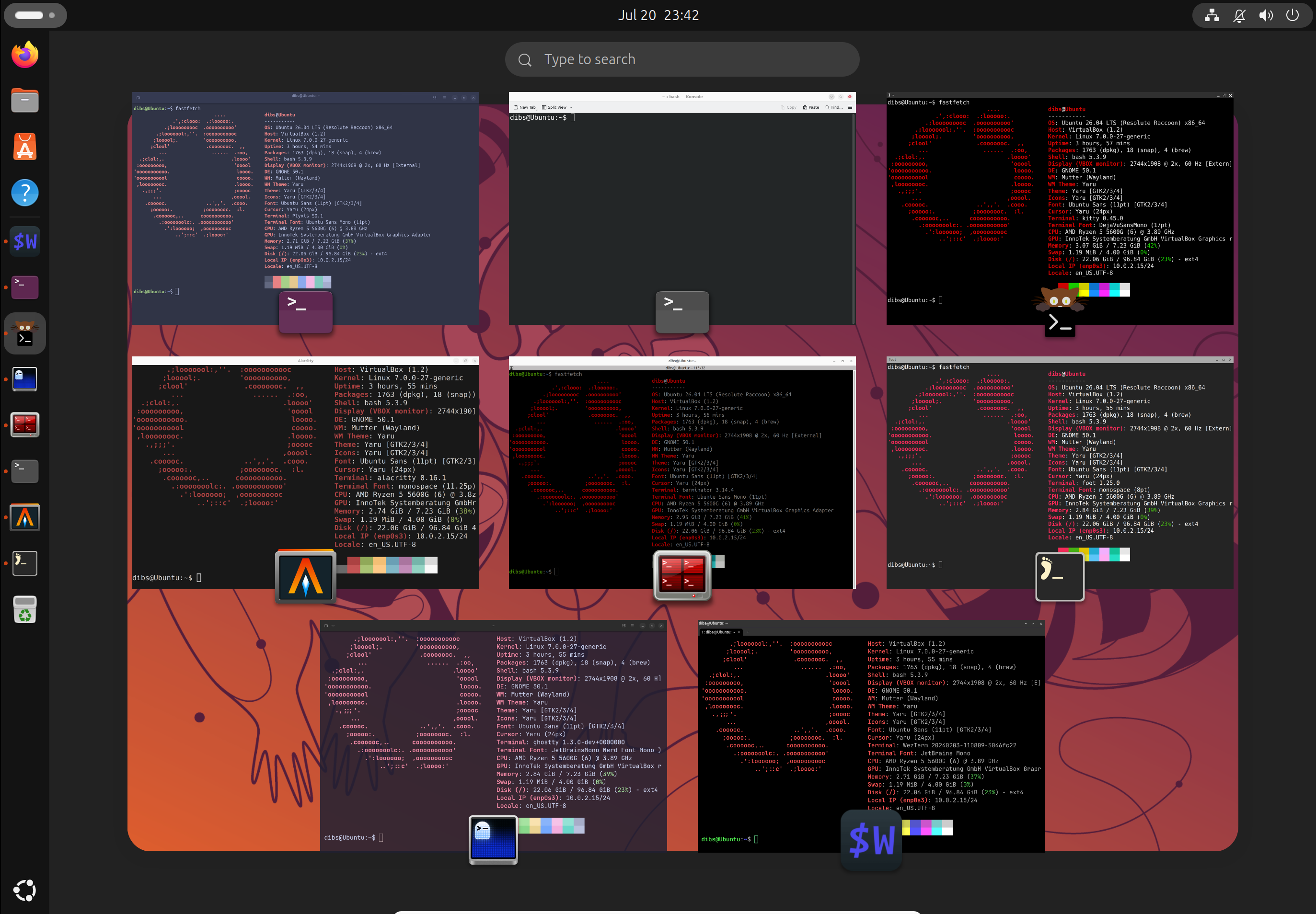
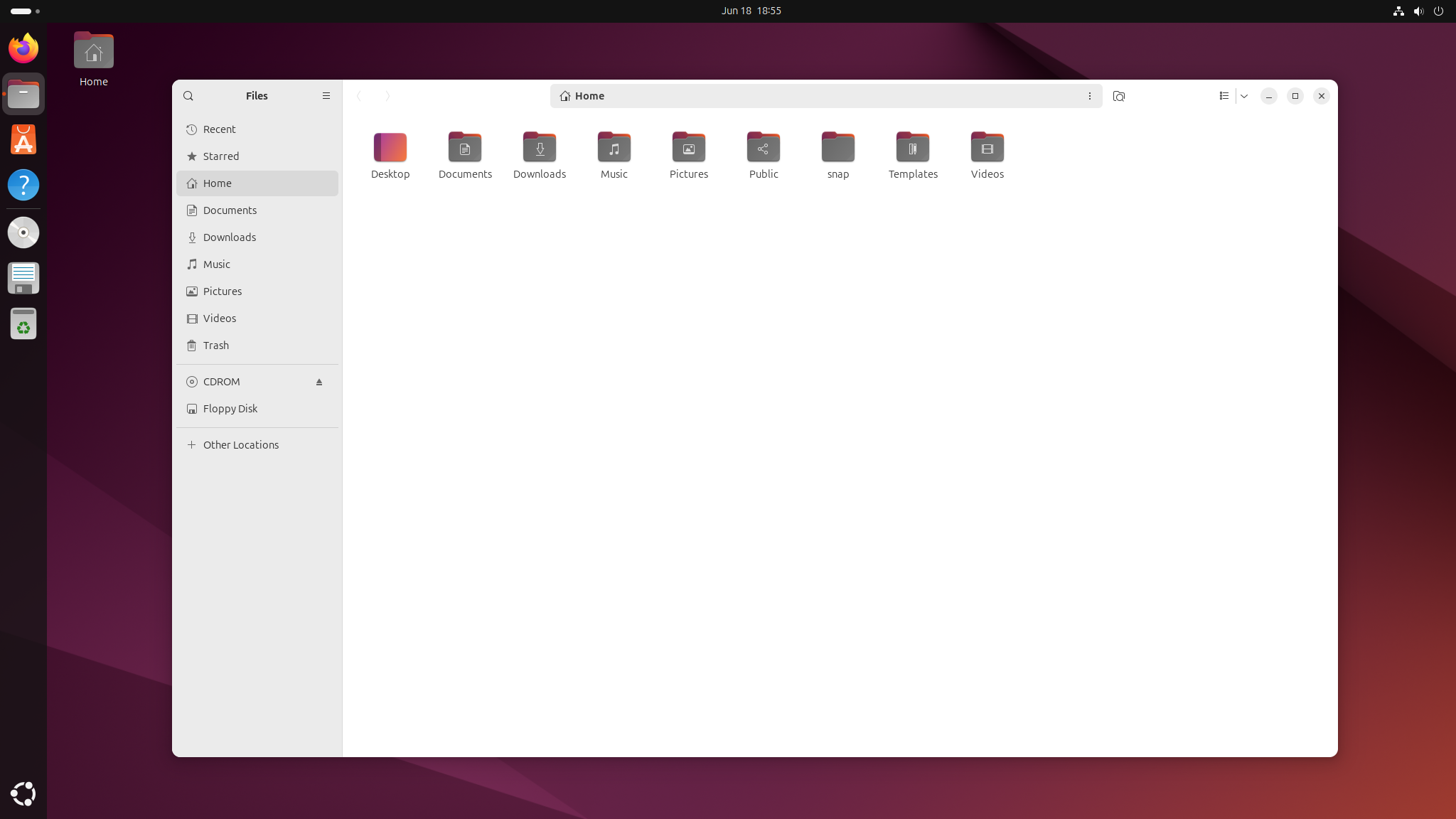
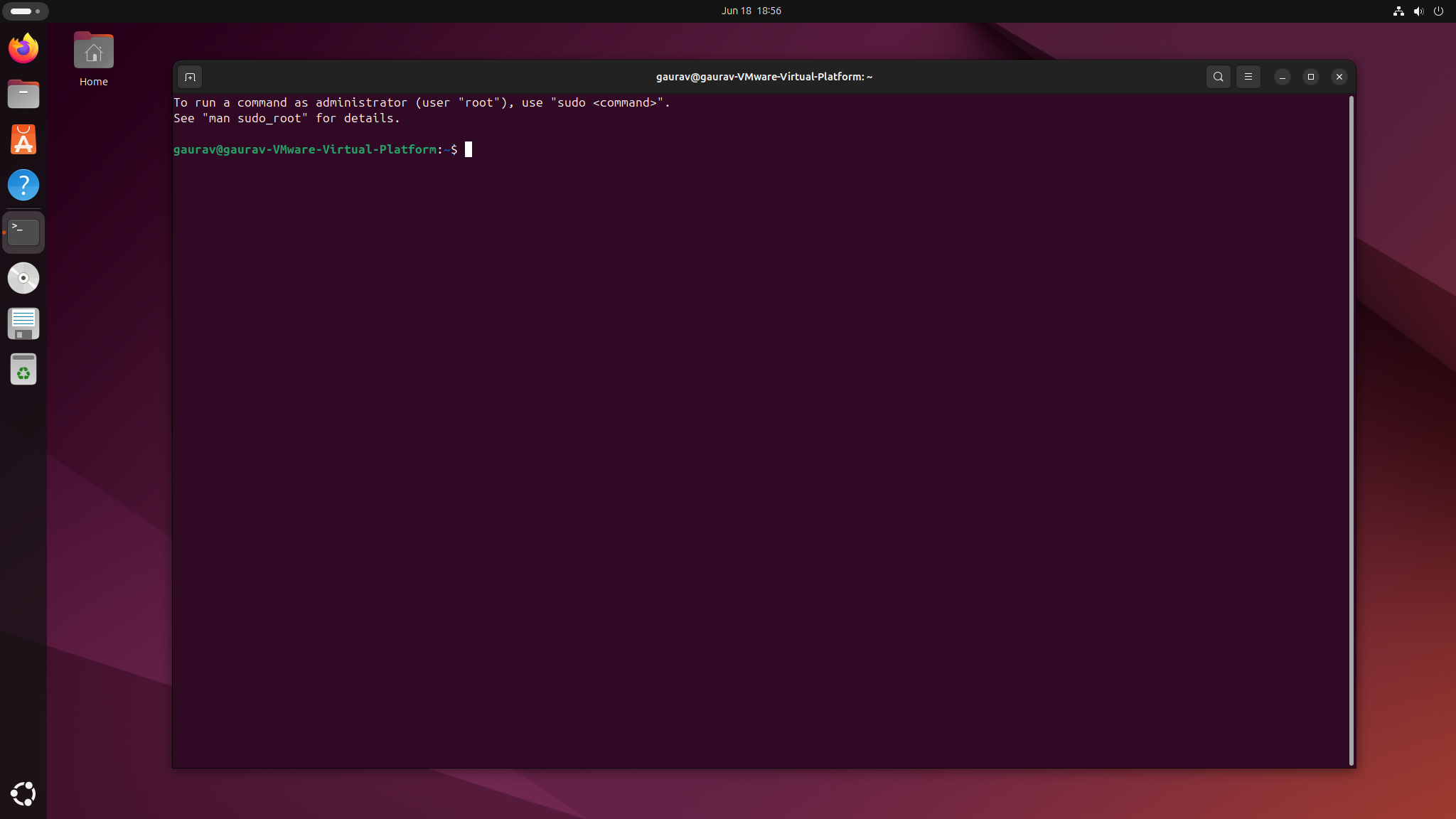
I’d put Ubuntu right alongside Fedora, and for a similar reason—it also ships GNOME, and it’s one of the best GNOME-based distros out there. But it has a specific set of tradeoffs against Fedora, and depending on who you are, those tradeoffs either make it a better pick or a worse one.
The big one is hardware compatibility. Fedora ships with no proprietary firmware or drivers out of the box, but plenty of laptop manufacturers use Wi-Fi and Bluetooth chips that need them. So there’s a real chance you boot the Fedora installer and find your Wi-Fi doesn’t work at all. It’s not the end of the world—you can fetch them from a third-party repo like RPM Fusion, or pull the driver packages down on another machine and sideload them over USB—but it’s a hoop to jump through. In contrast, Ubuntu bundles essentially every proprietary driver you might need, making it a better pick if you don’t want to deal with any hardware compatibility issues.
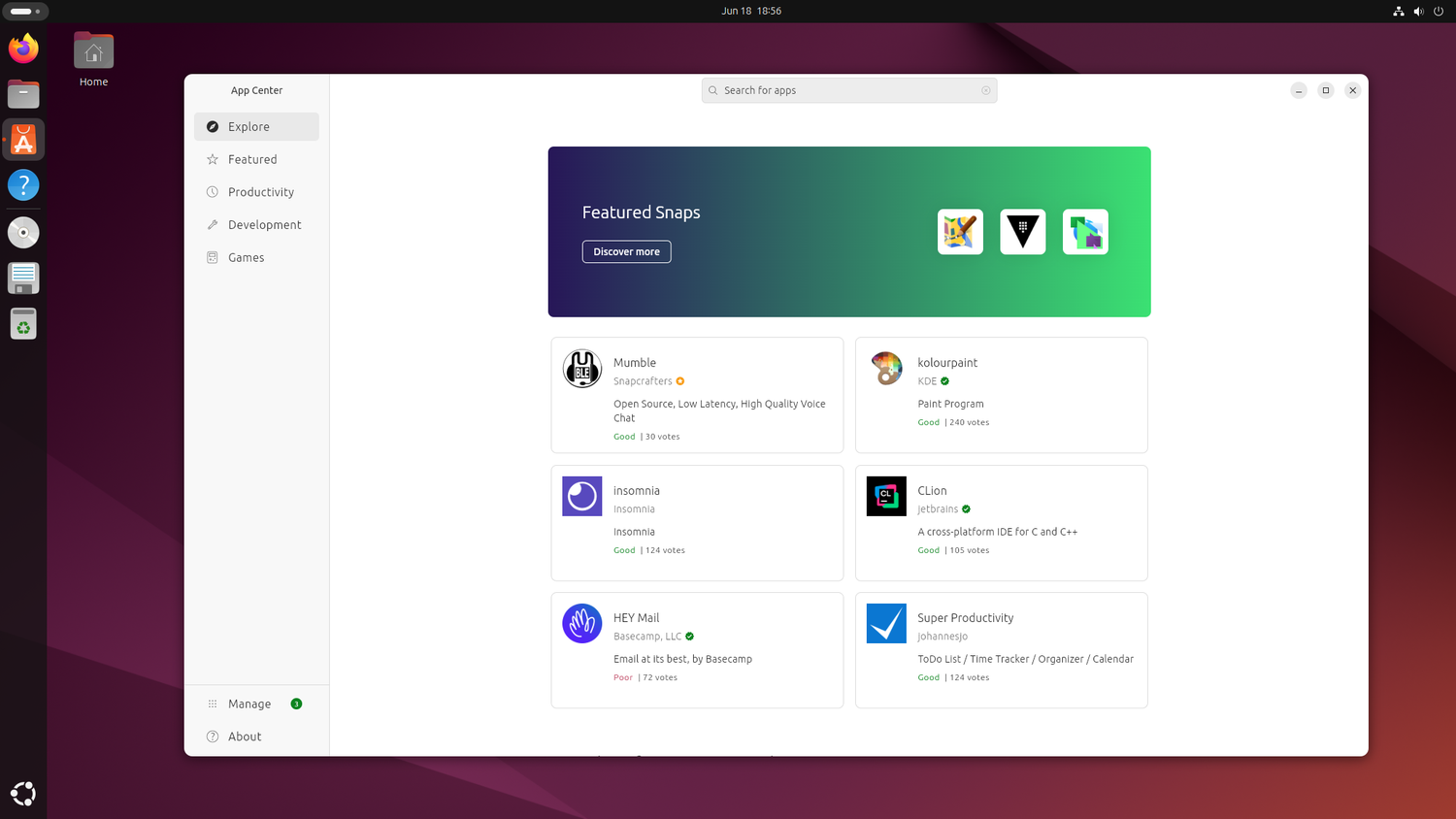
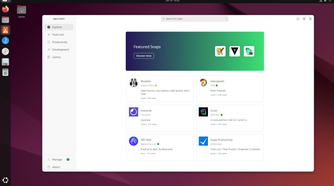
However, where Ubuntu loses ground is the bloat. You’re not getting a clean GNOME experience—Canonical layers its own extensions on top, and while you can turn those off, they’re there by default. Then there’s the whole Snap app controversy, which is more intrusive than it should be and tend to be bulkier and slower to launch than the equivalent repo package or Flatpak—which is what you’d be using on Fedora. You can disable Snap and set up Flatpak instead, and plenty of people do, but then again, that’s extra configuration work that Fedora doesn’t ask you to do.
So it comes down to which set of chores you’d rather have—driver hunting on Fedora, or debloating on Ubuntu.
Linux Mint
The distro that doesn’t ask you to learn anything new
-
 Credit: Dibakar Ghosh | How-To Geek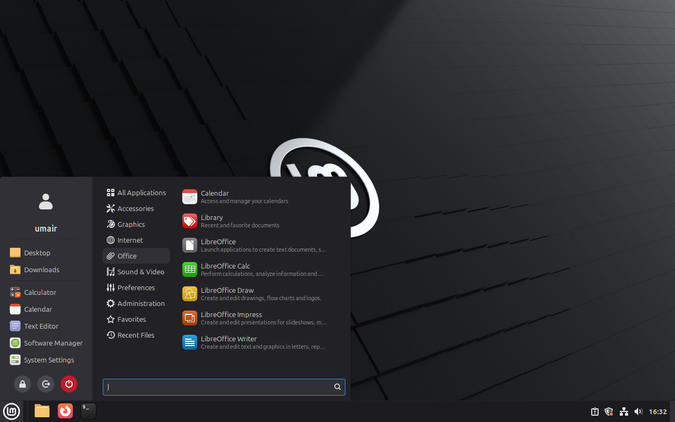
-
 Credit: David J. Buck / How-To Geek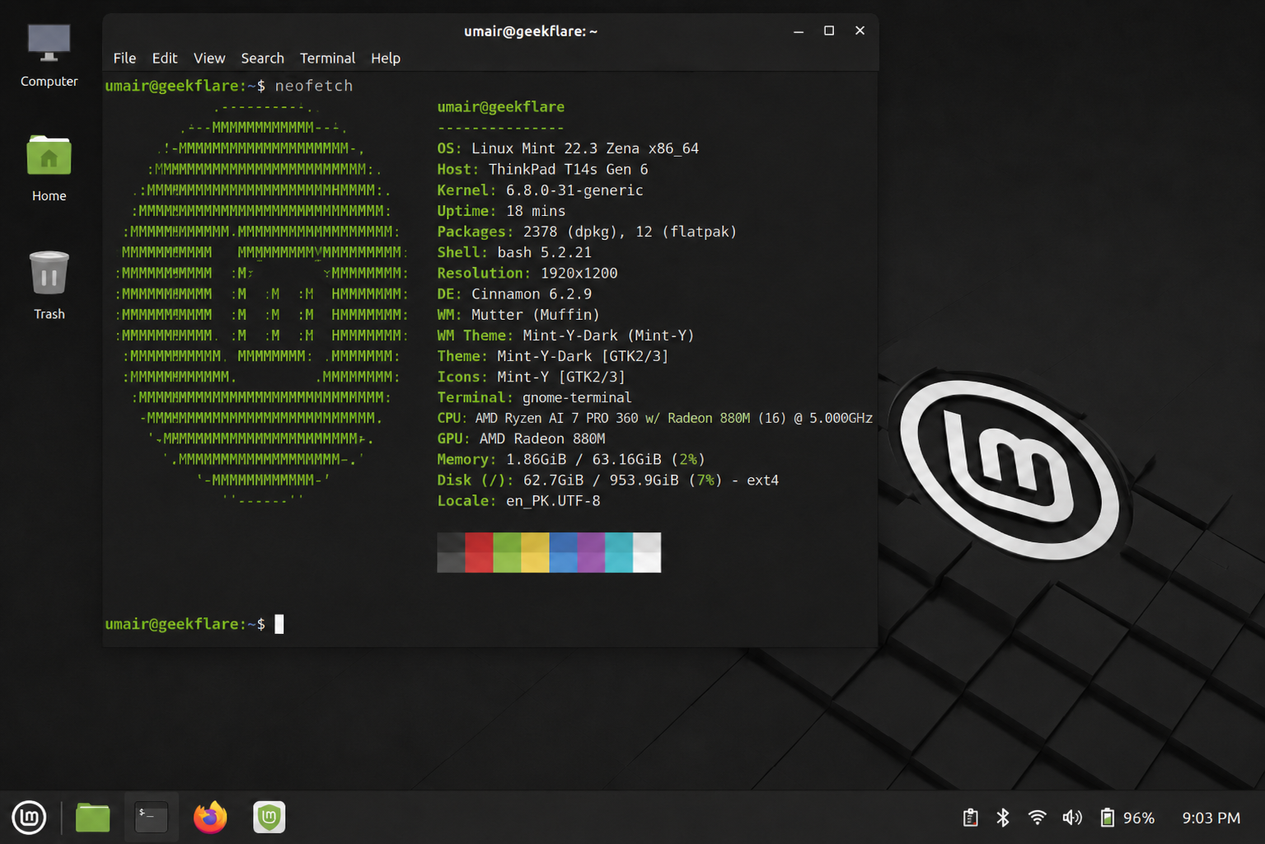
-
 Credit: Dibakar Ghosh | How-To Geek
 -
-
-
 Credit: David J. Buck / How-To Geek
 -
-
-
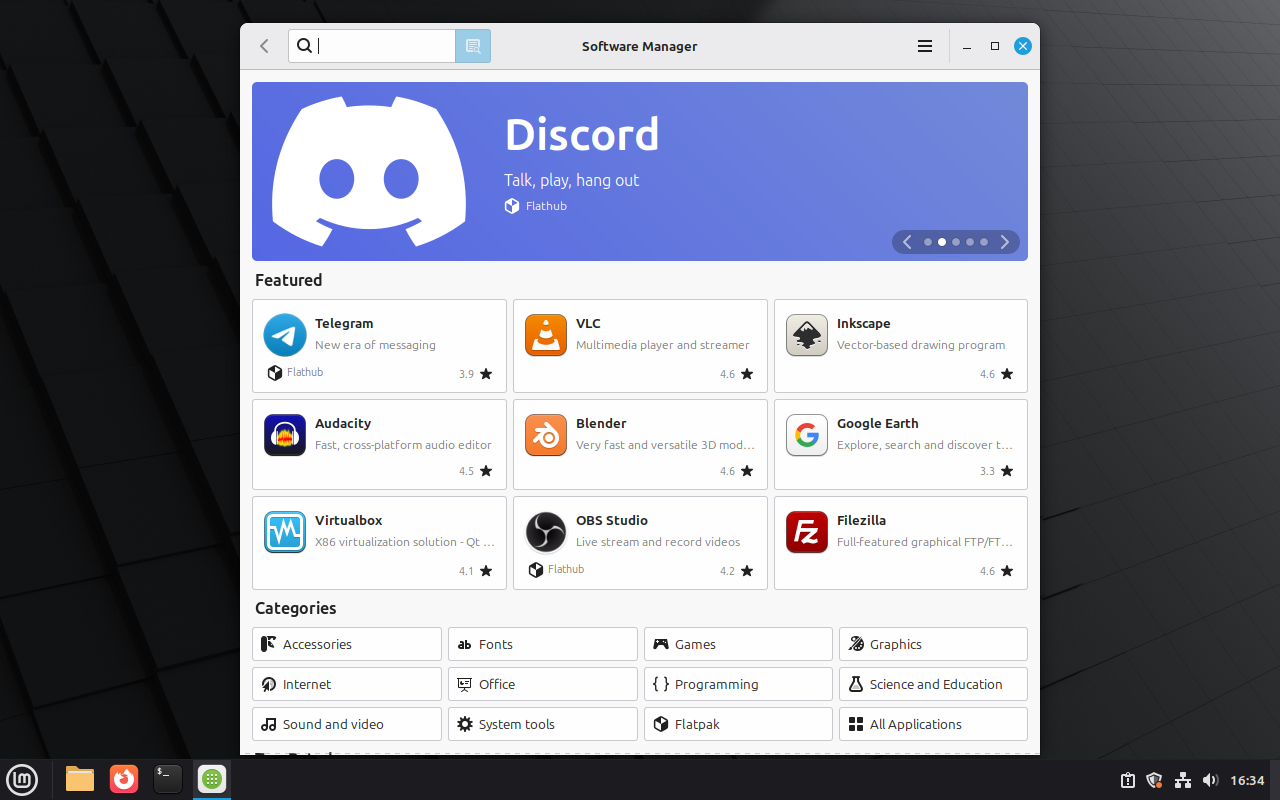
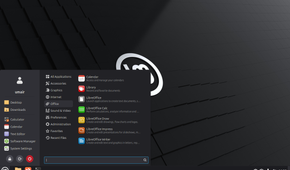
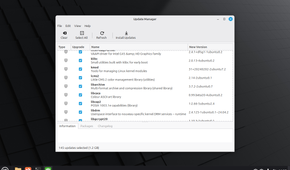
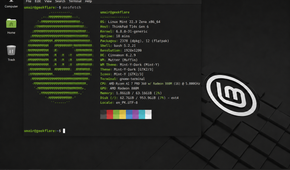
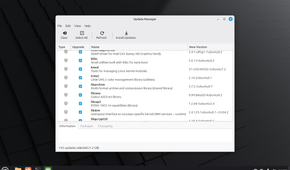
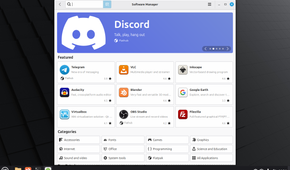
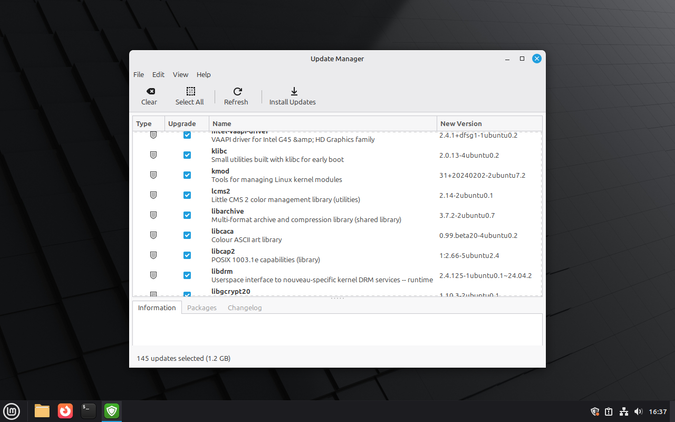
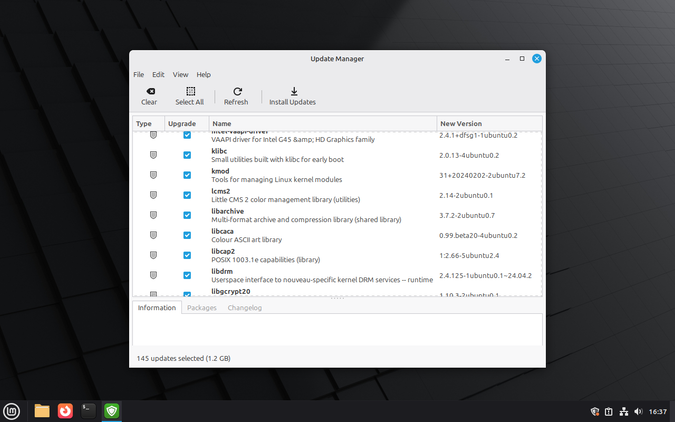
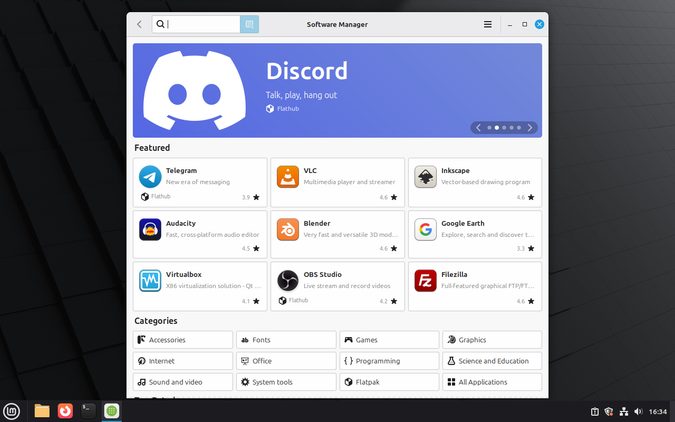
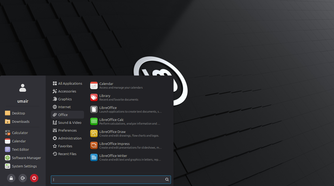
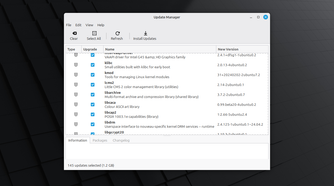
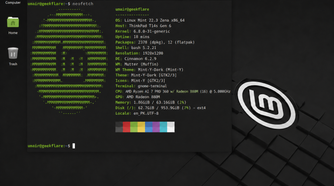
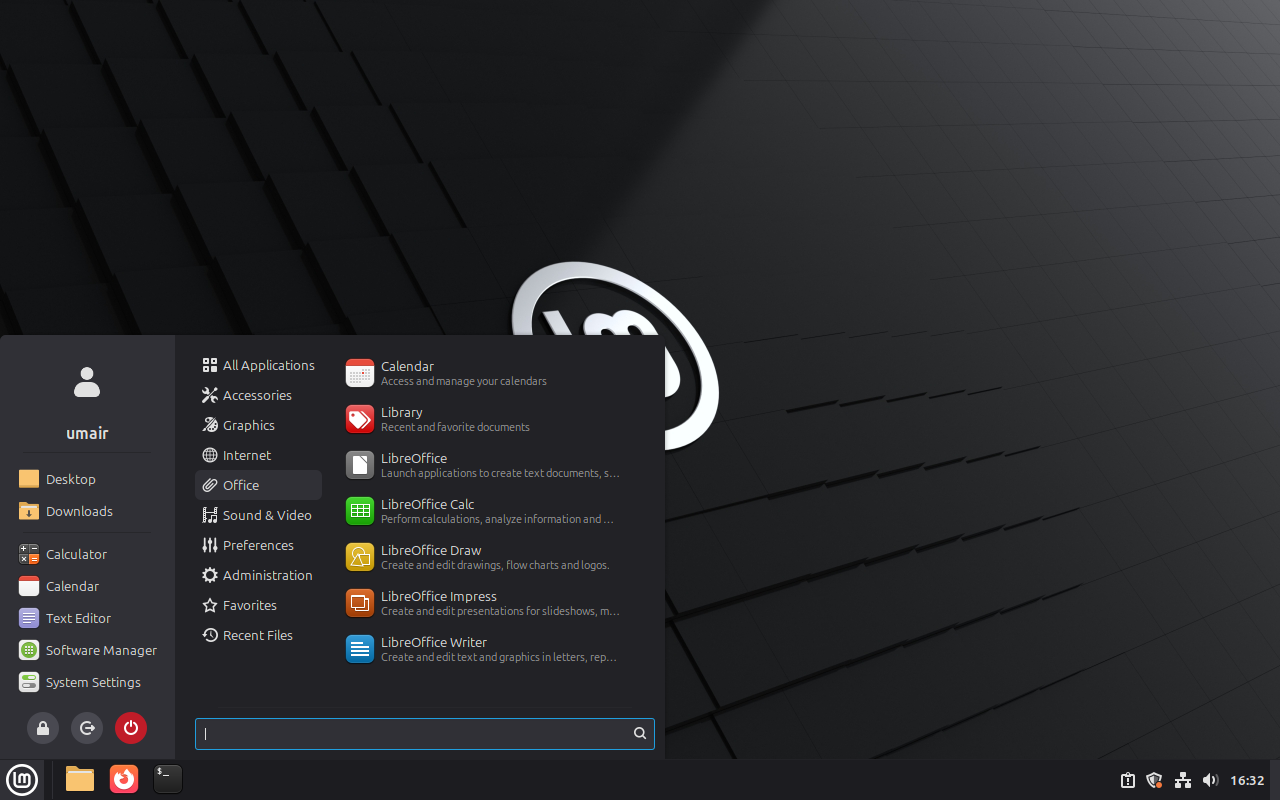
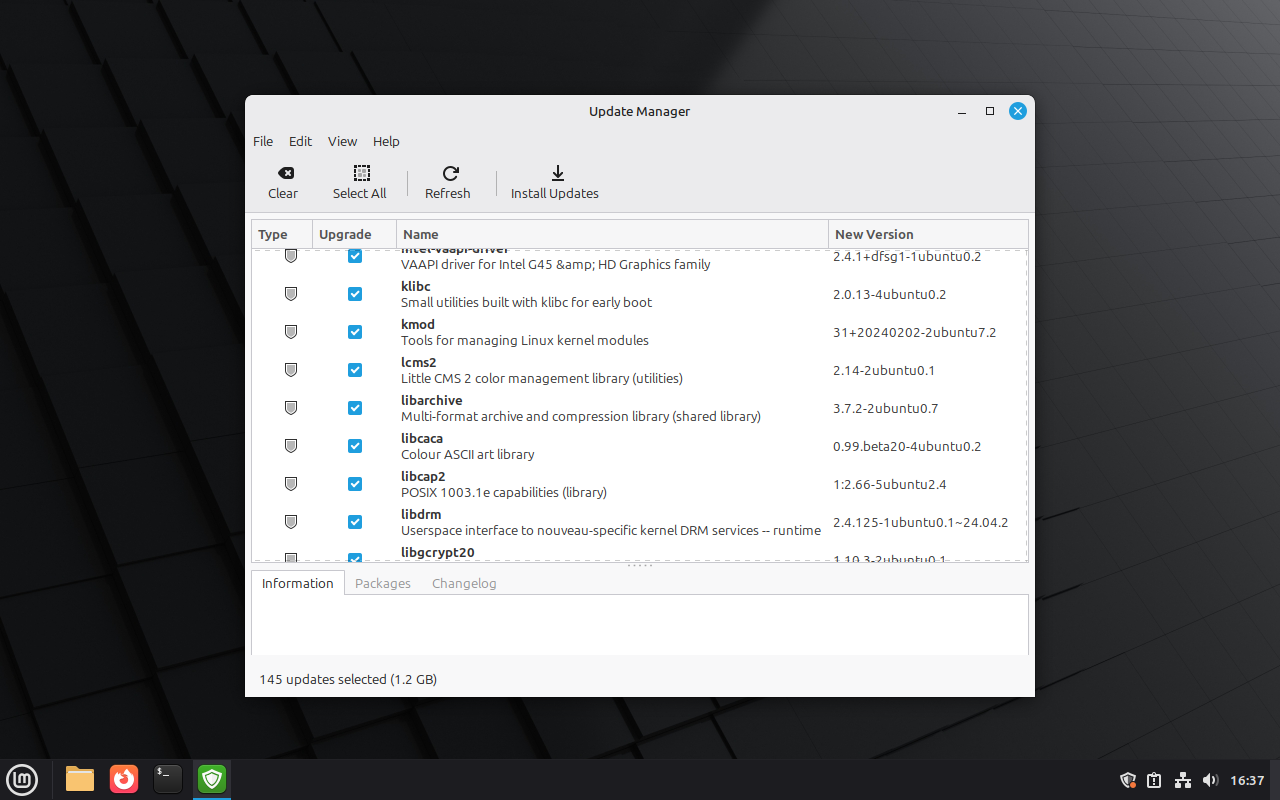
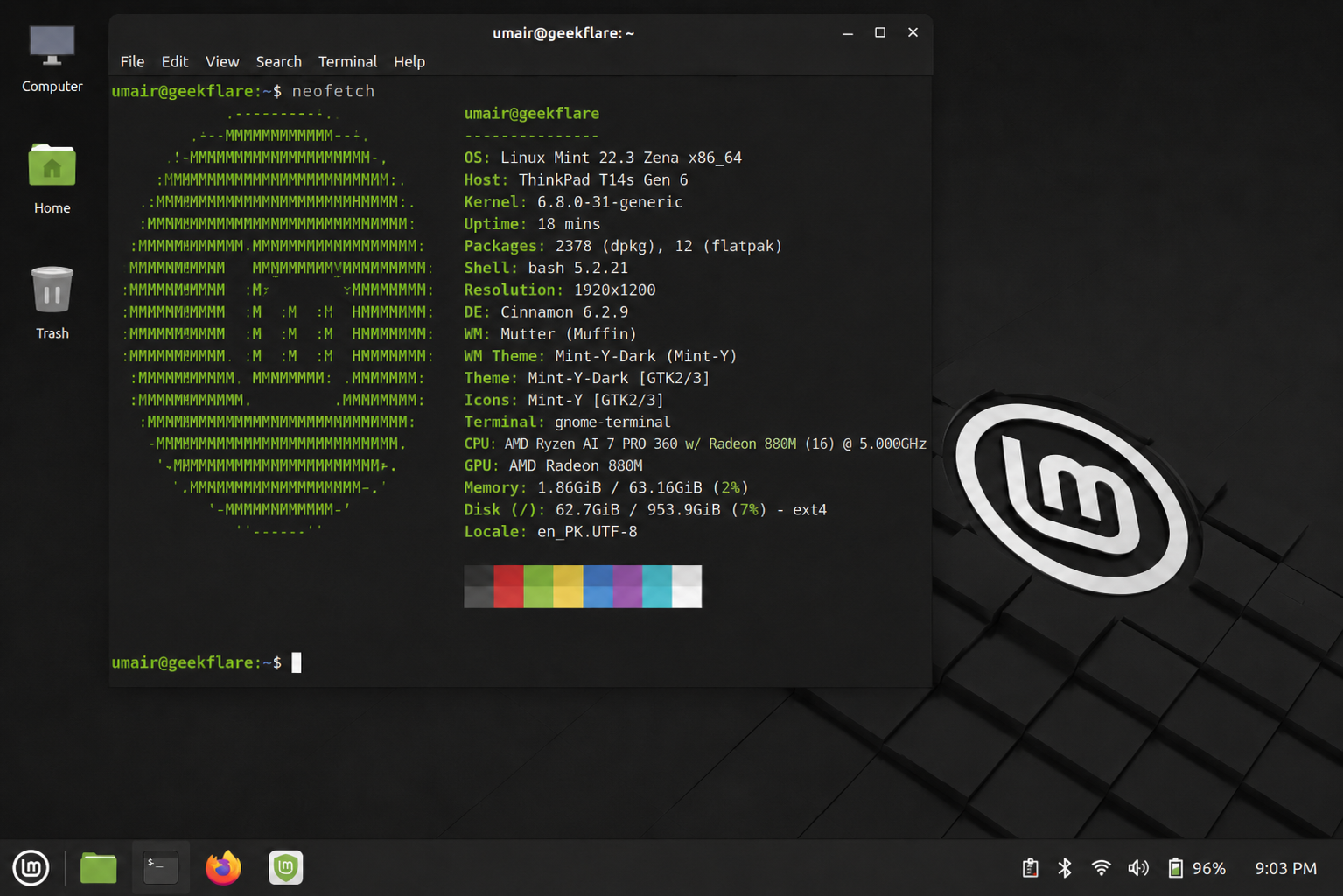
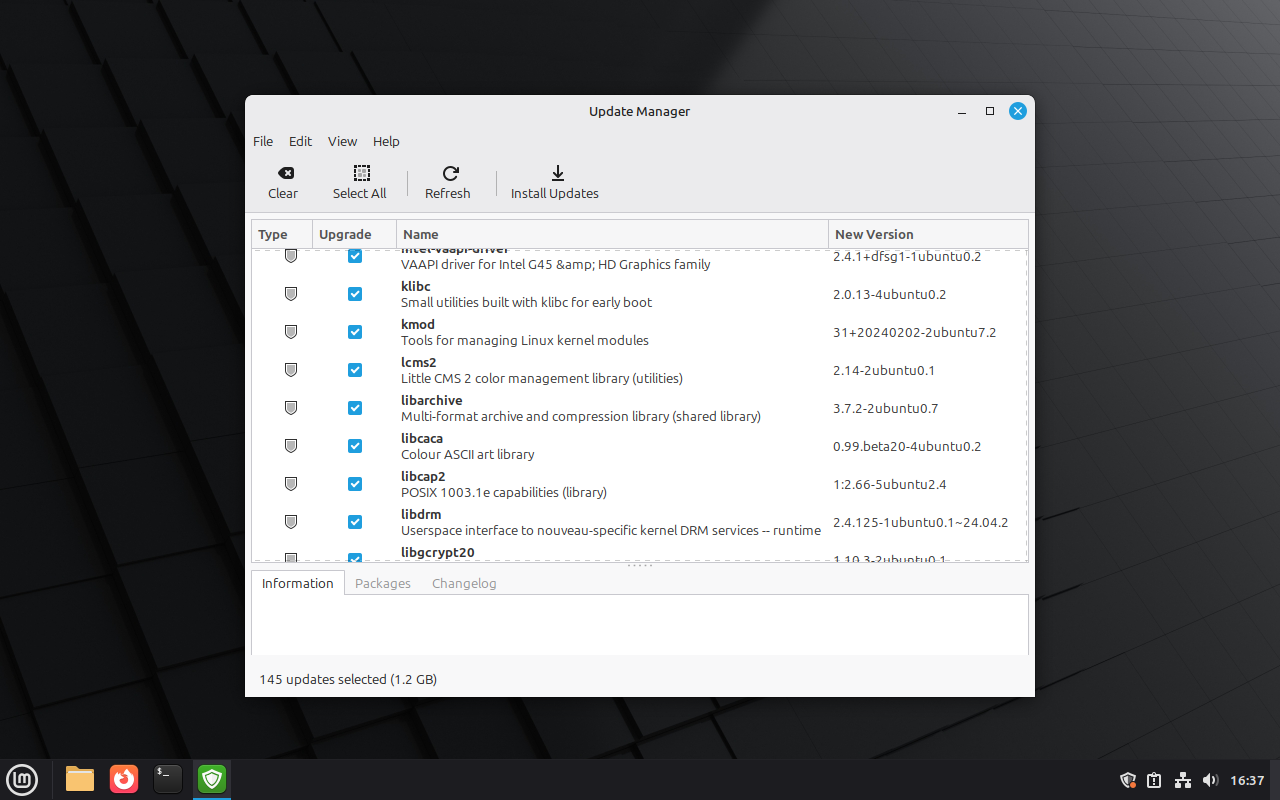
Linux Mint is built on Ubuntu, so you inherit Ubuntu’s excellent hardware compatibility, but it strips out many of the parts people complain about. There’s no Snap, none of the extra bloat, and no GNOME either. Instead, you get the Cinnamon desktop environment.
Cinnamon follows a Windows 7-style layout, and that matters more than it sounds. One of the biggest criticisms of GNOME is that it feels too unconventional. While I think its unique workflow has real advantages on a laptop, it’s also probably the most unfamiliar desktop layout you’ll ever use. Now, if you don’t want to spend time learning a new workflow and would rather use something that feels immediately familiar, Cinnamon is a great choice.
What I like about Cinnamon is how it grows with you. Out of the box, it’s extremely beginner-friendly. Everything you’d want to do is right where you’d expect it, the interface is clean, and nothing feels overwhelming. But once you’re comfortable and start exploring, there’s a surprising amount of depth.
You can install extensions that completely transform the desktop, add desklets and applets, and rearrange the panels until the Windows-style layout looks and behaves more like macOS. It also supports native one-to-one touchpad gestures, so navigating with the trackpad feels smooth and responsive.
Kubuntu
The desktop that hides nothing
-
 Credit: Jordan Gloor / How-To Geek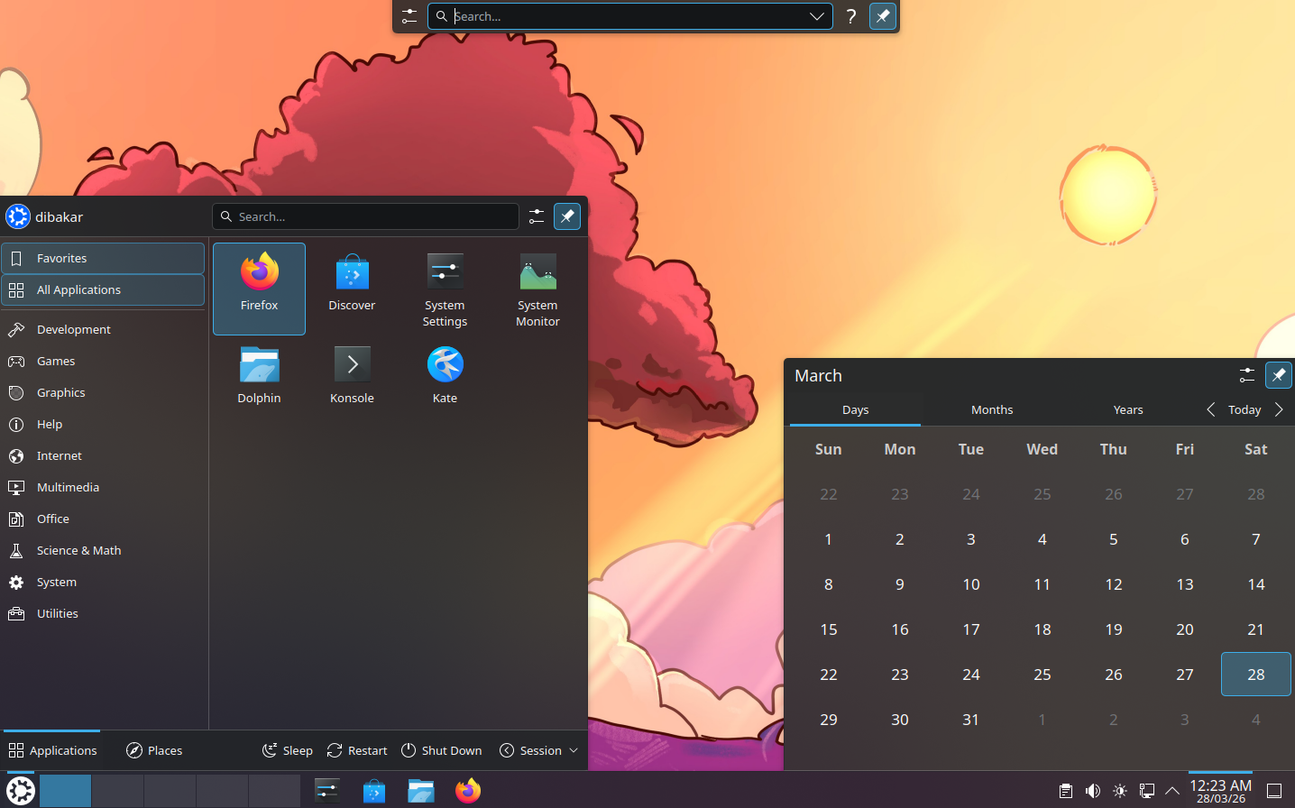

-
 Credit: Jordan Gloor / How-To Geek
 -
-
-
-
-
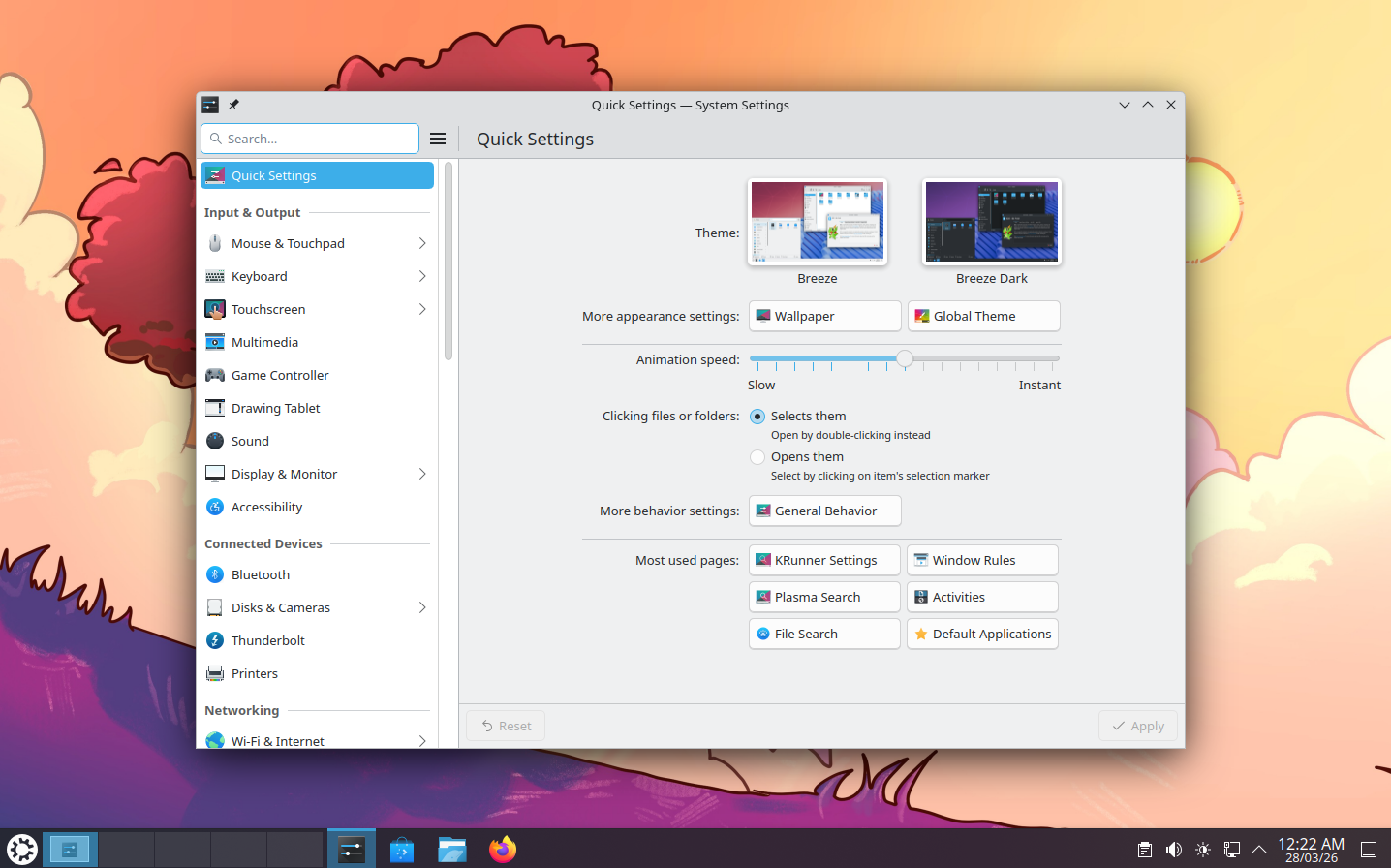
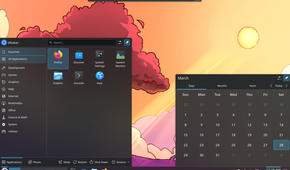
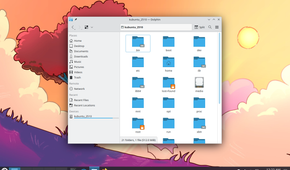
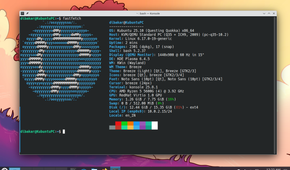

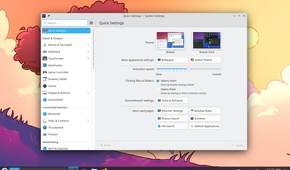
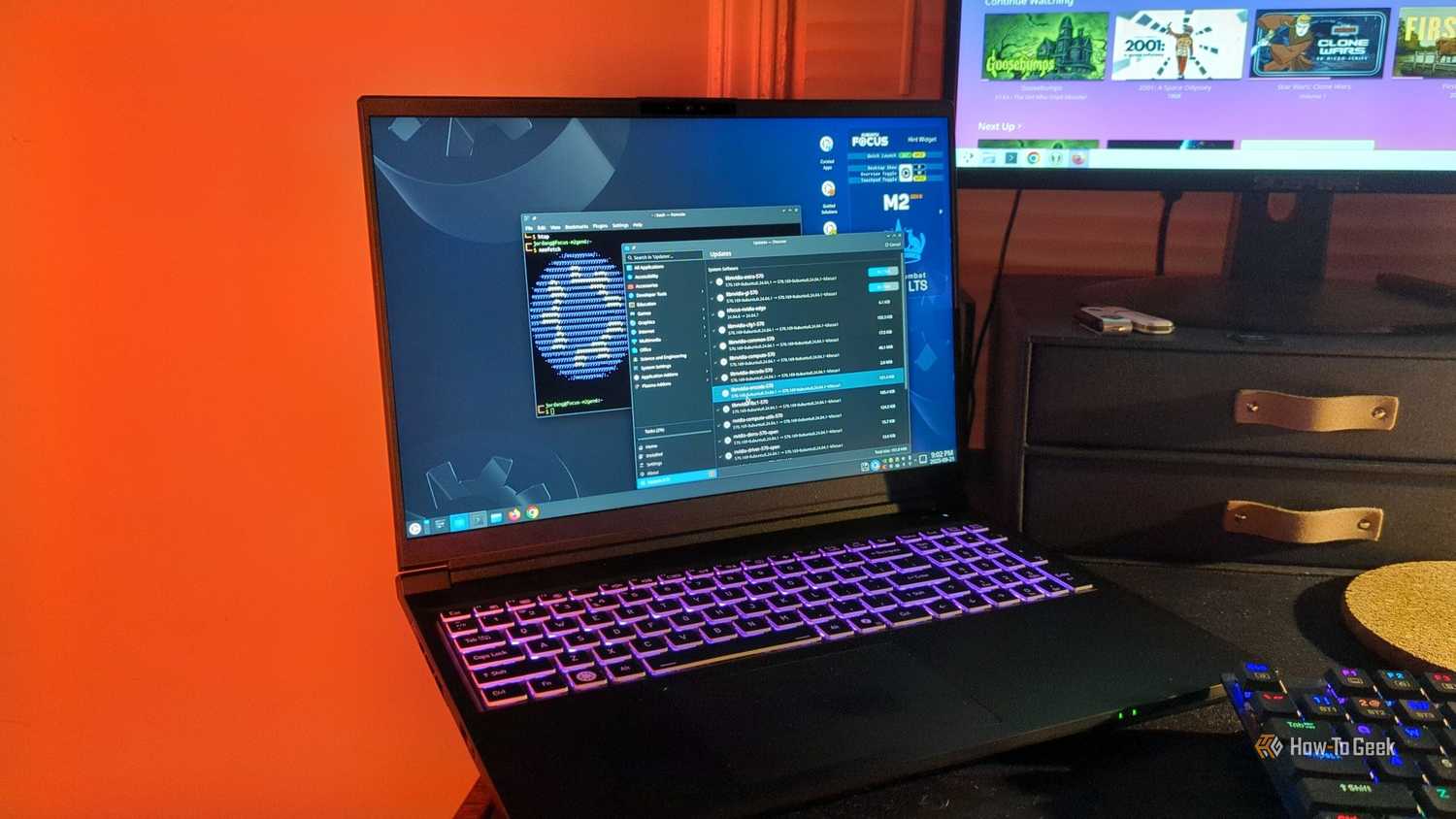
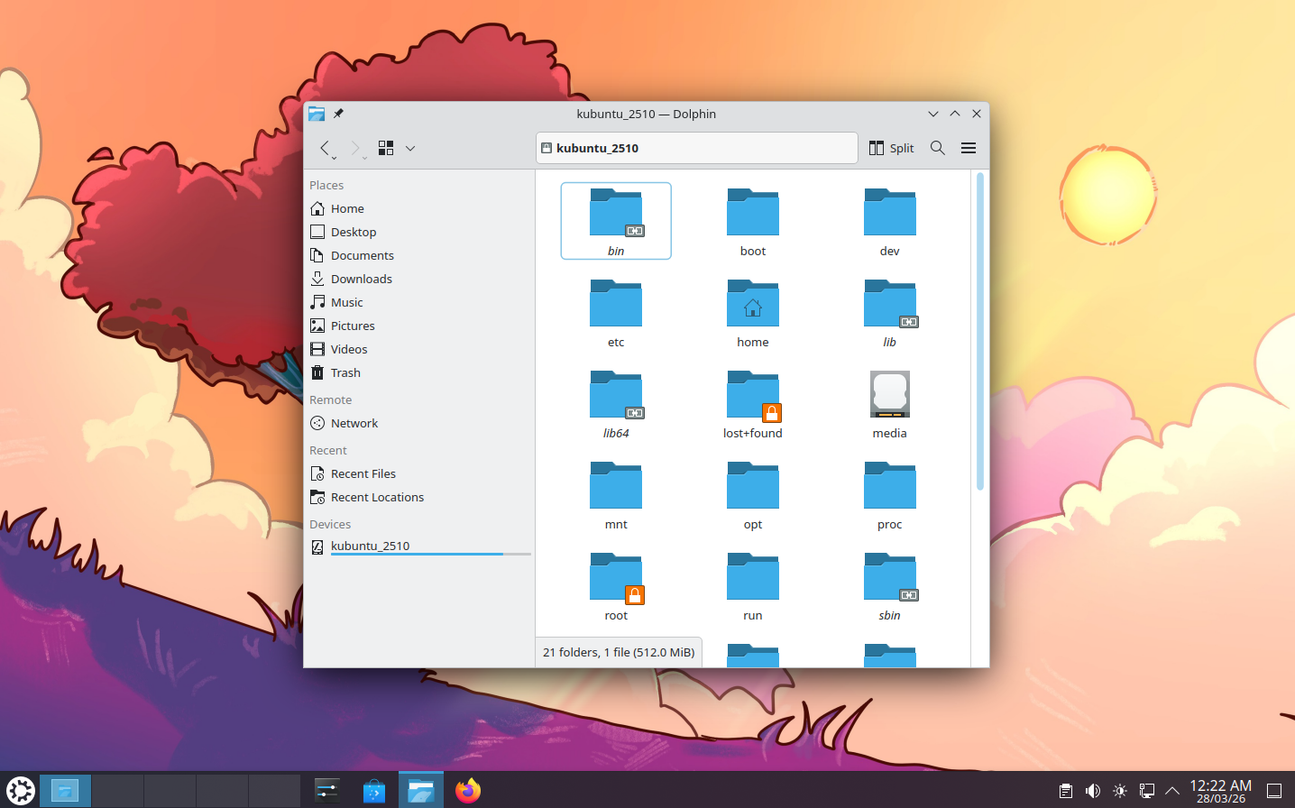
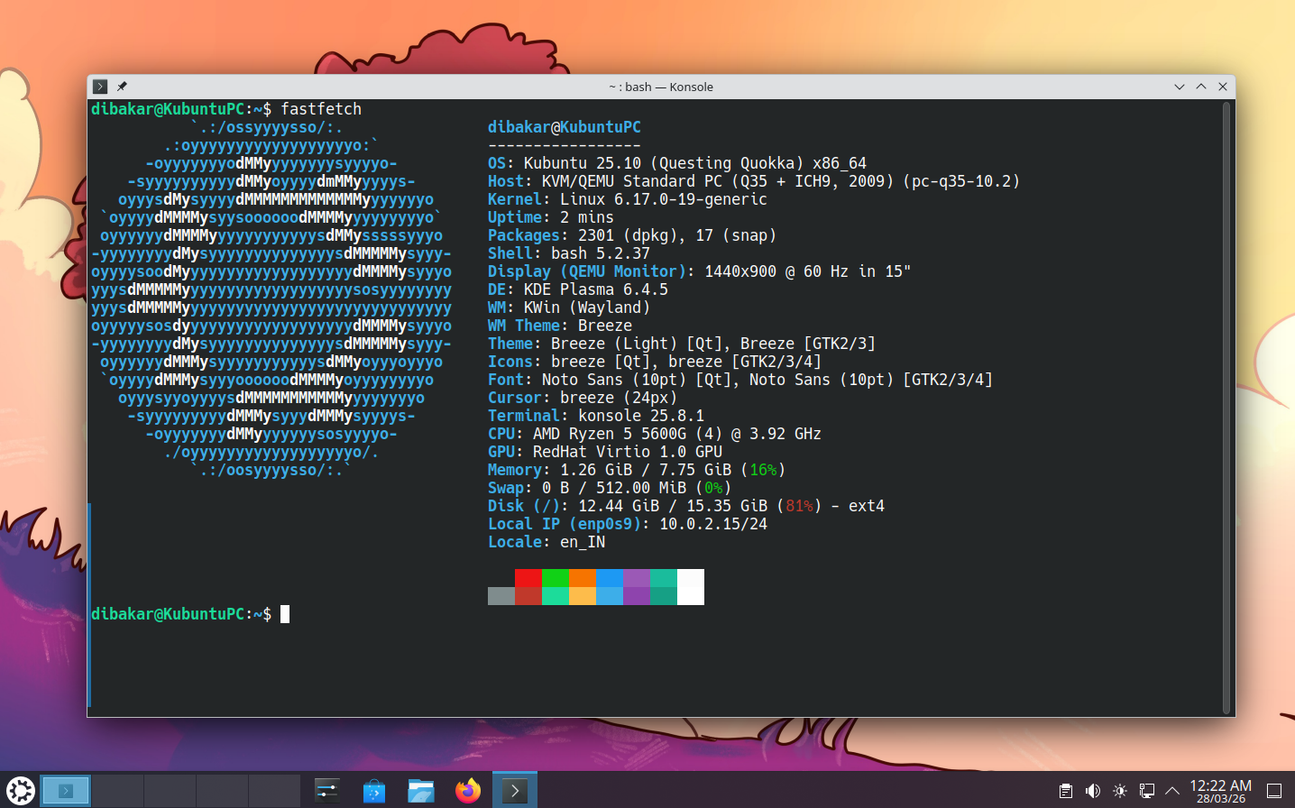
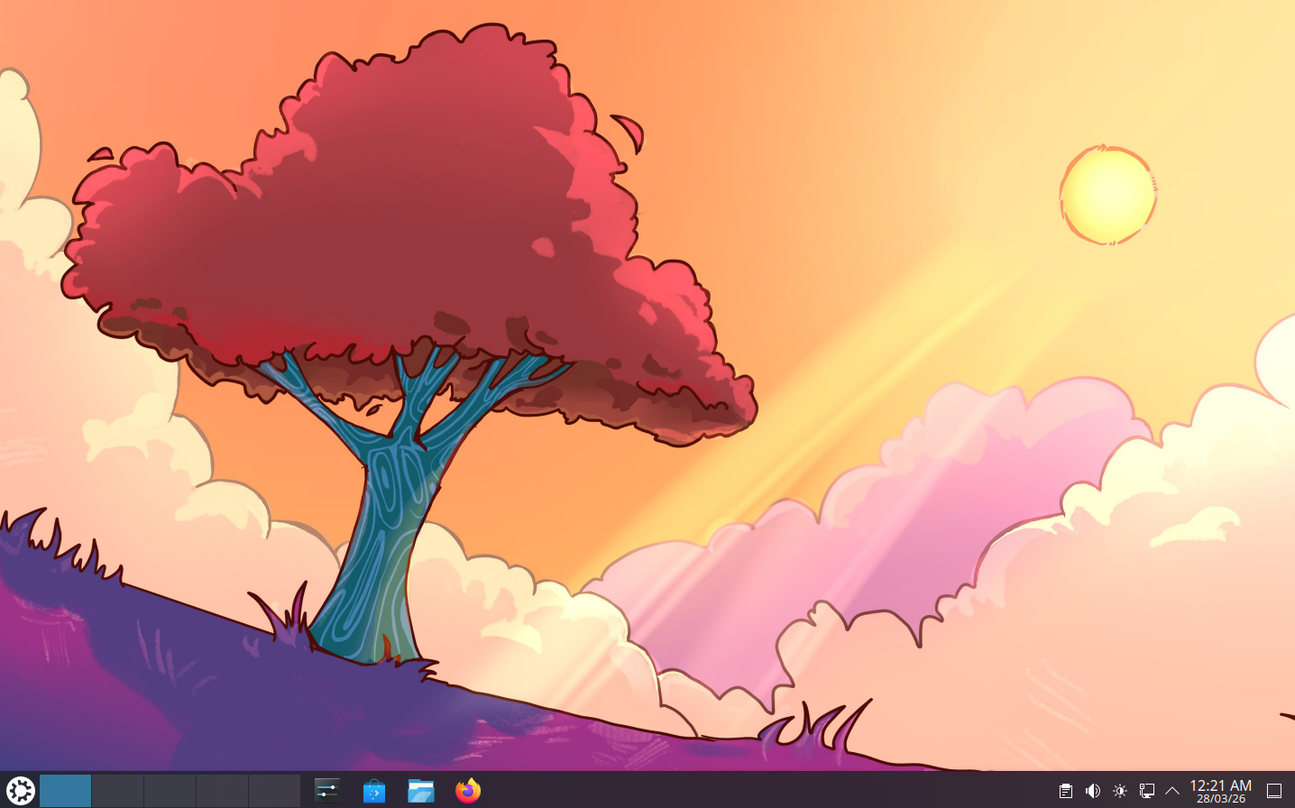
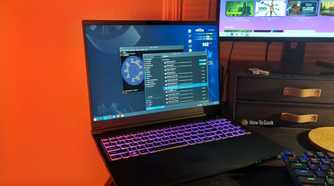
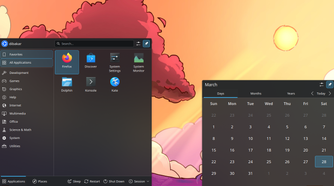
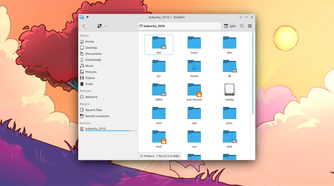
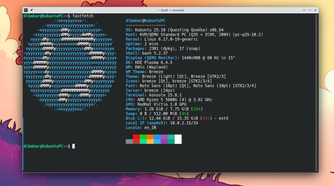
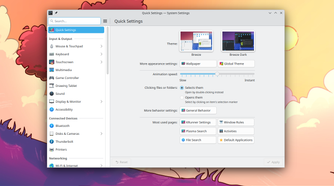
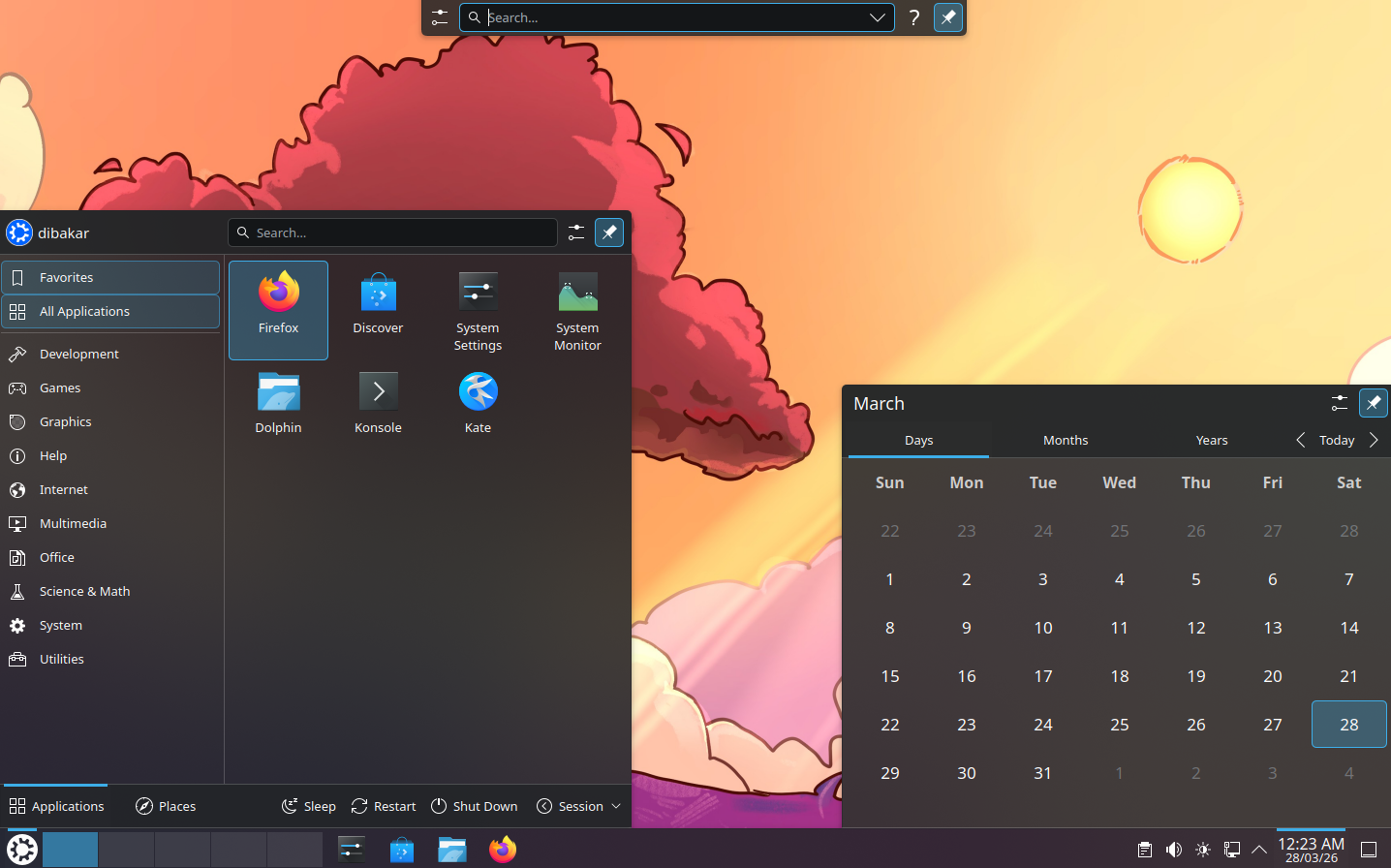
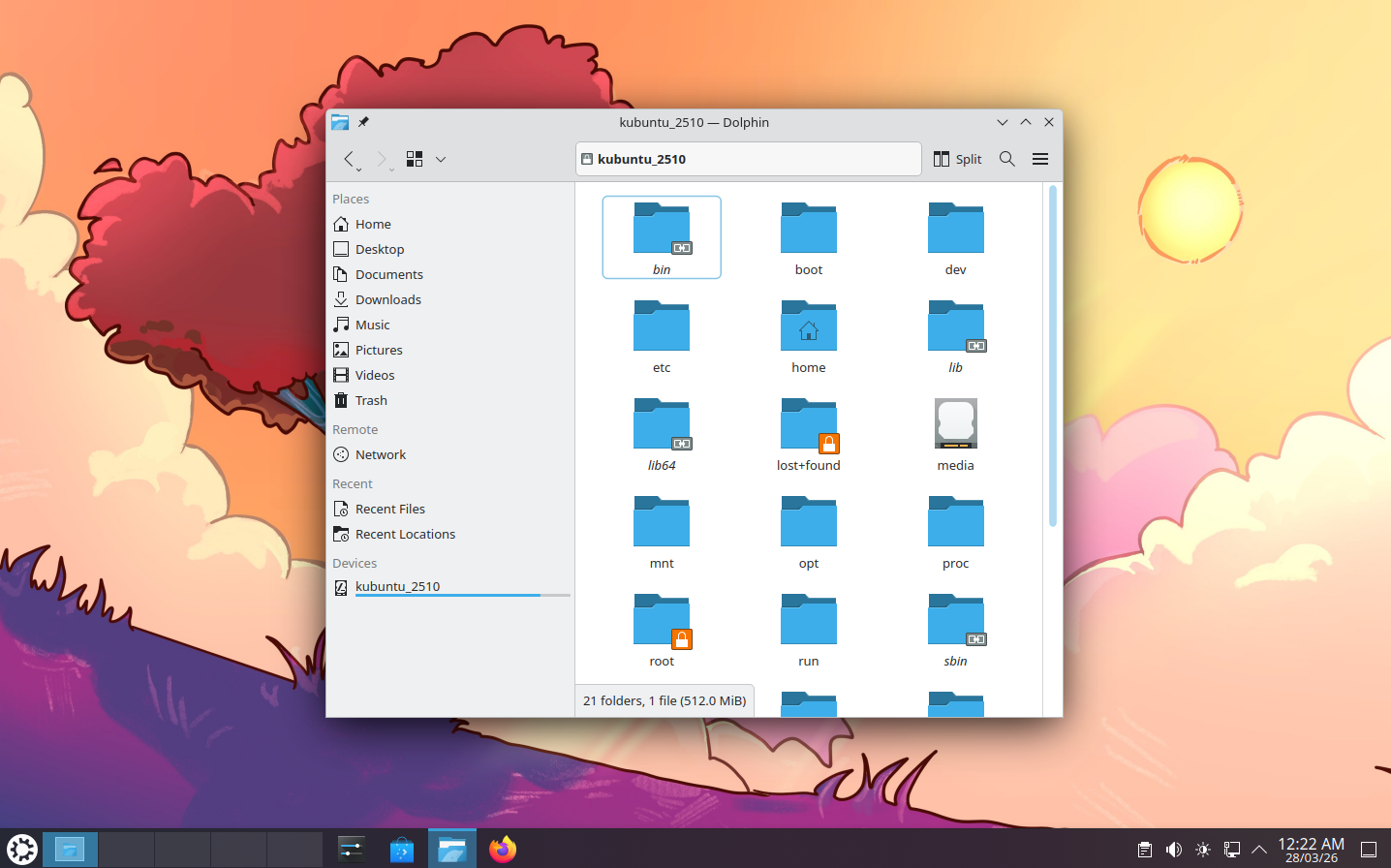
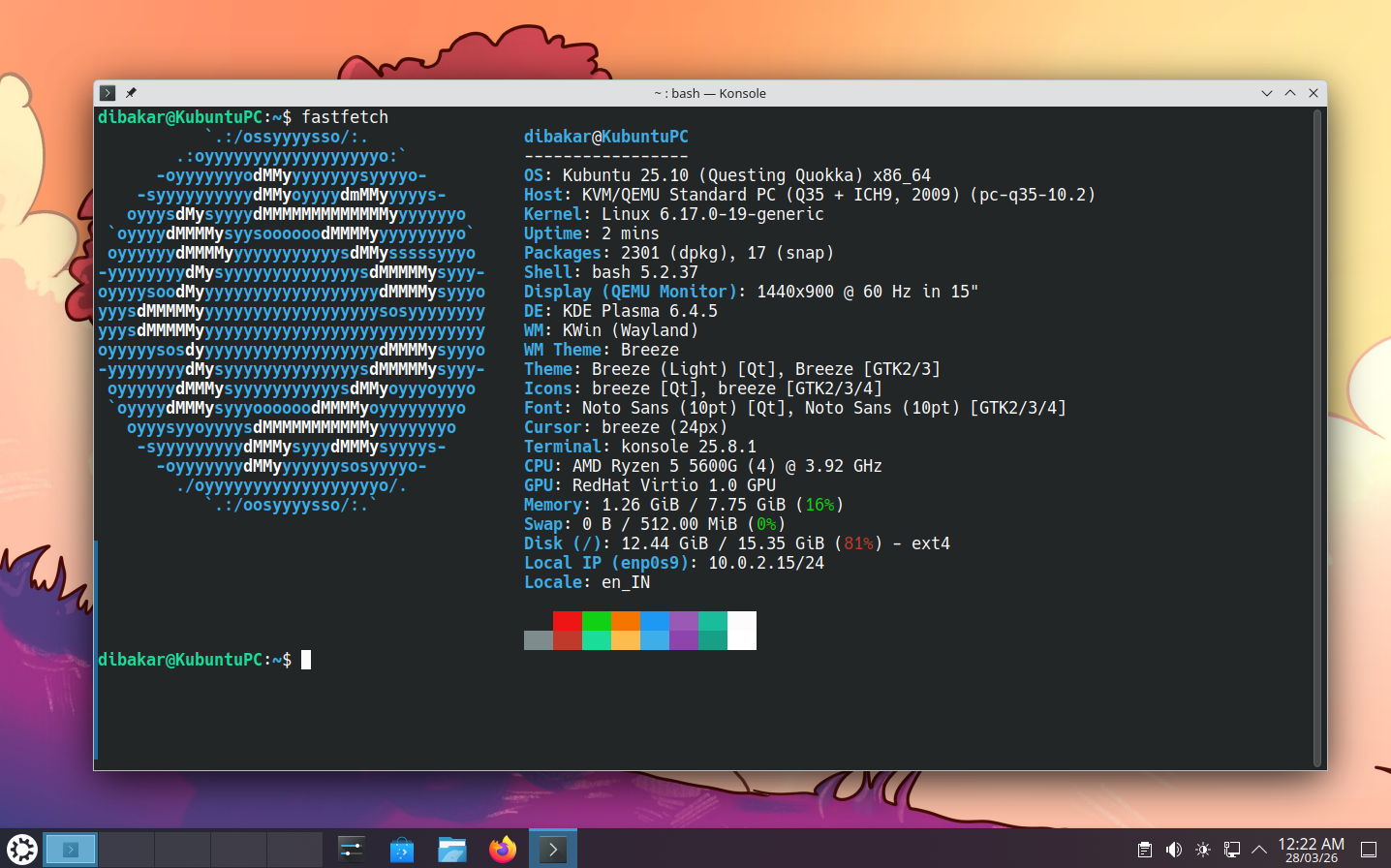
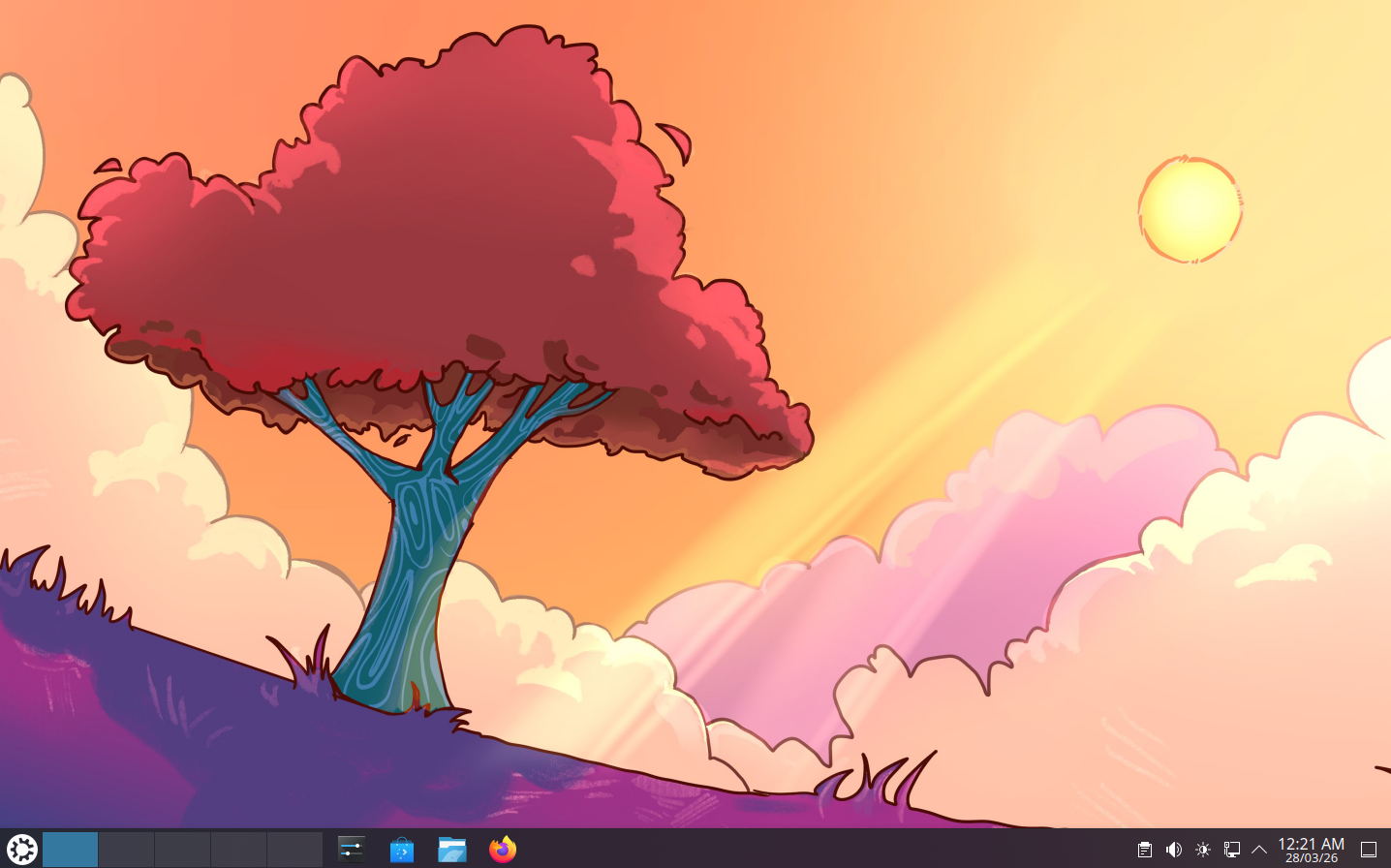
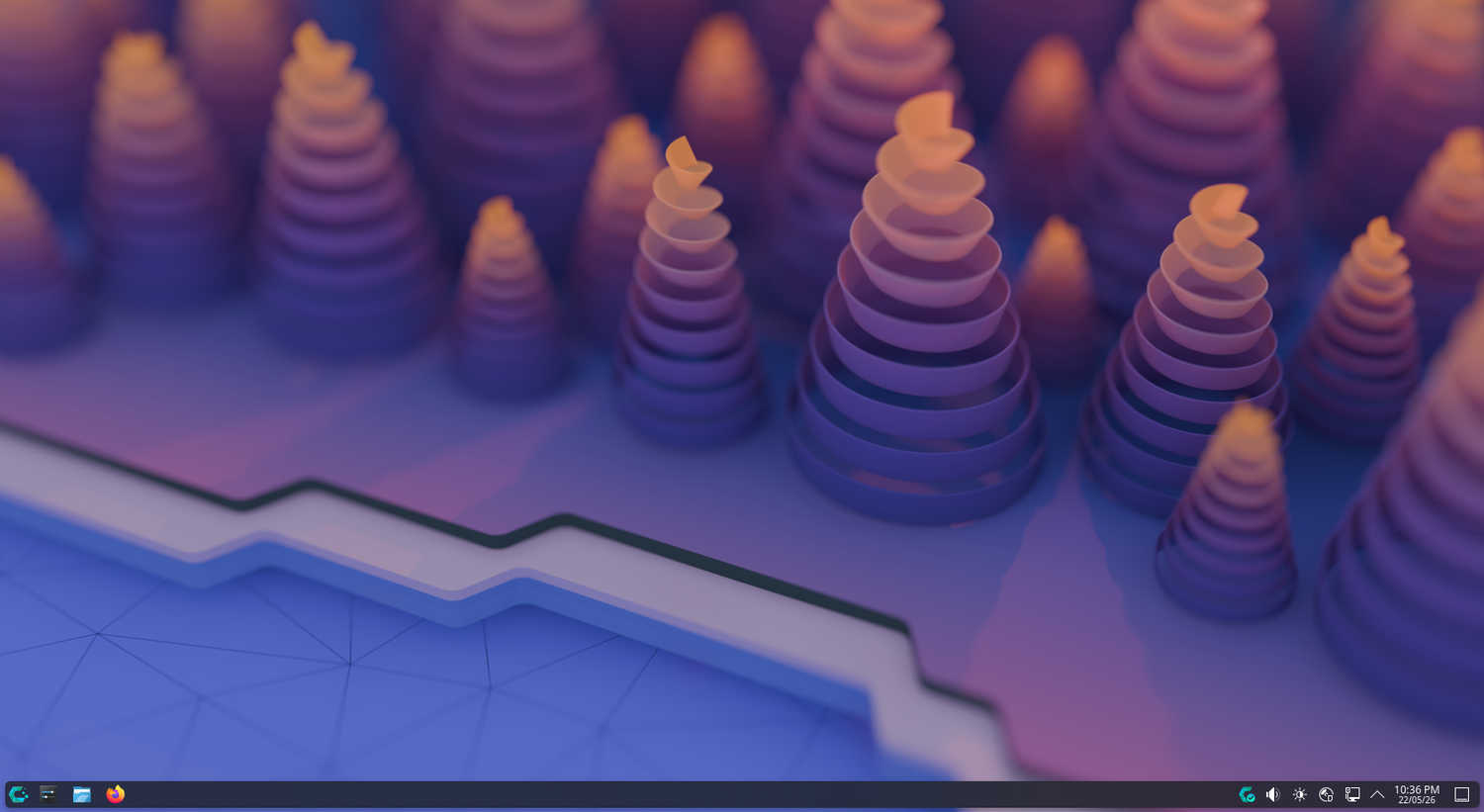
Kubuntu is basically Linux Mint for power users. You’re getting the same Ubuntu base, but instead of Cinnamon, you get KDE Plasma. Now, like Cinnamon, Plasma defaults to a Windows-style layout, but it’s more like a modern evolution of Windows 7.
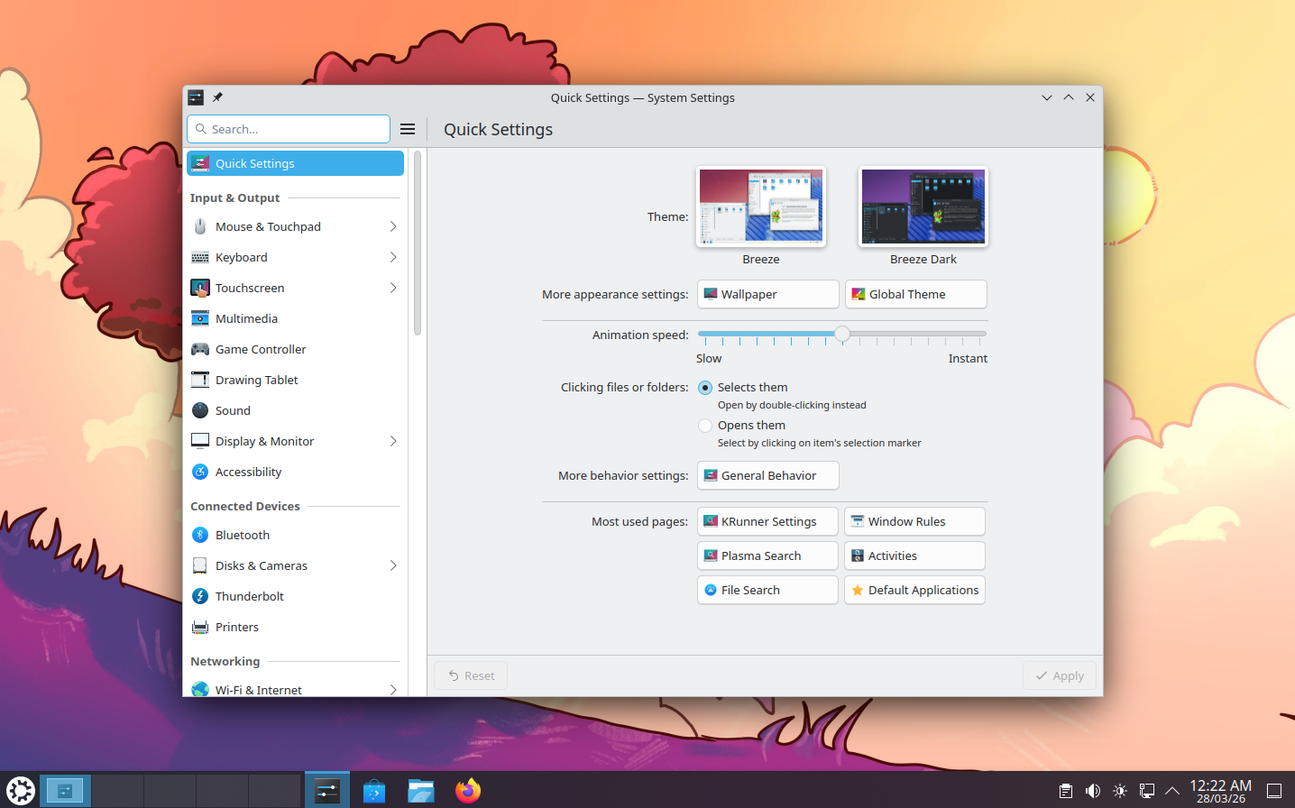
You’ve got a floating panel, rounded corners, transparent windows, automatic theming, and all the polish you’d expect from a modern desktop. However, the biggest difference is that, while Cinnamon hides many of its power-user features, Plasma puts them front and center. Right-click almost anything, and the context menu is packed with settings and options. And speaking of settings, open the Settings app, and you’ll find enough configuration options to make some people close it again out of sheer intimidation.
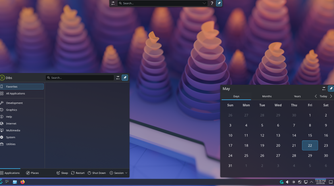
Plasma gives you almost complete control over the desktop. You can customize nearly every aspect of the interface, add widgets to the desktop or panel, and choose from a huge collection of first-party and community-made widgets. It’s flexible and powerful in a way that few other desktop environments can match, which is why many Linux users consider it the most capable desktop environment available. Touchpad gesture support is excellent too, so you don’t have to sacrifice the laptop experience in exchange for all that flexibility.
If you were a Windows power user and want a deep level of control on Linux, Kubuntu gets you there while sitting on a stable, reliable base.
CachyOS
A powerful distro for power users
-
 Credit: Kris Wouk / How-To Geek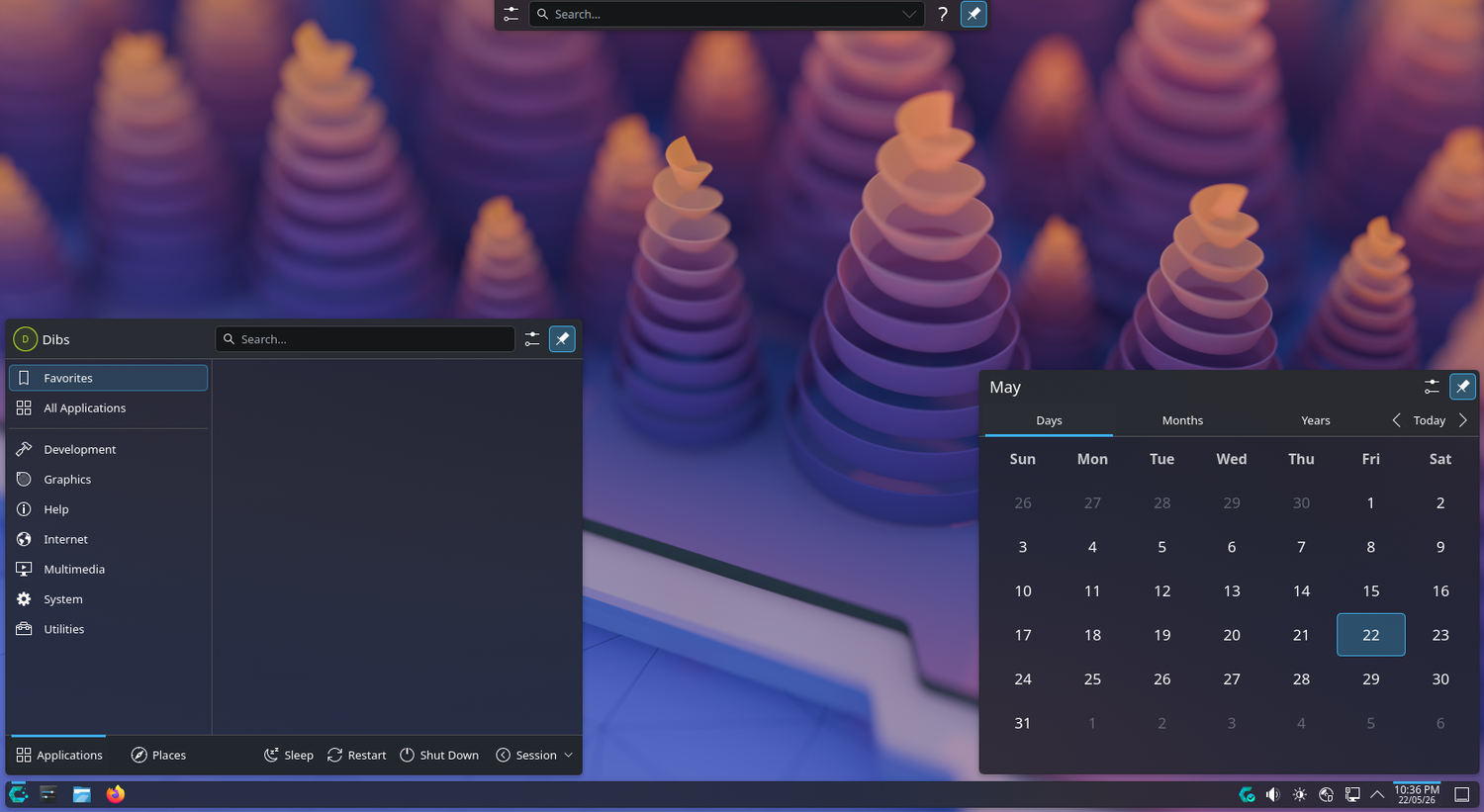
-
 Credit: Kris Wouk / How-To Geek
 -
-
-
-
-
-
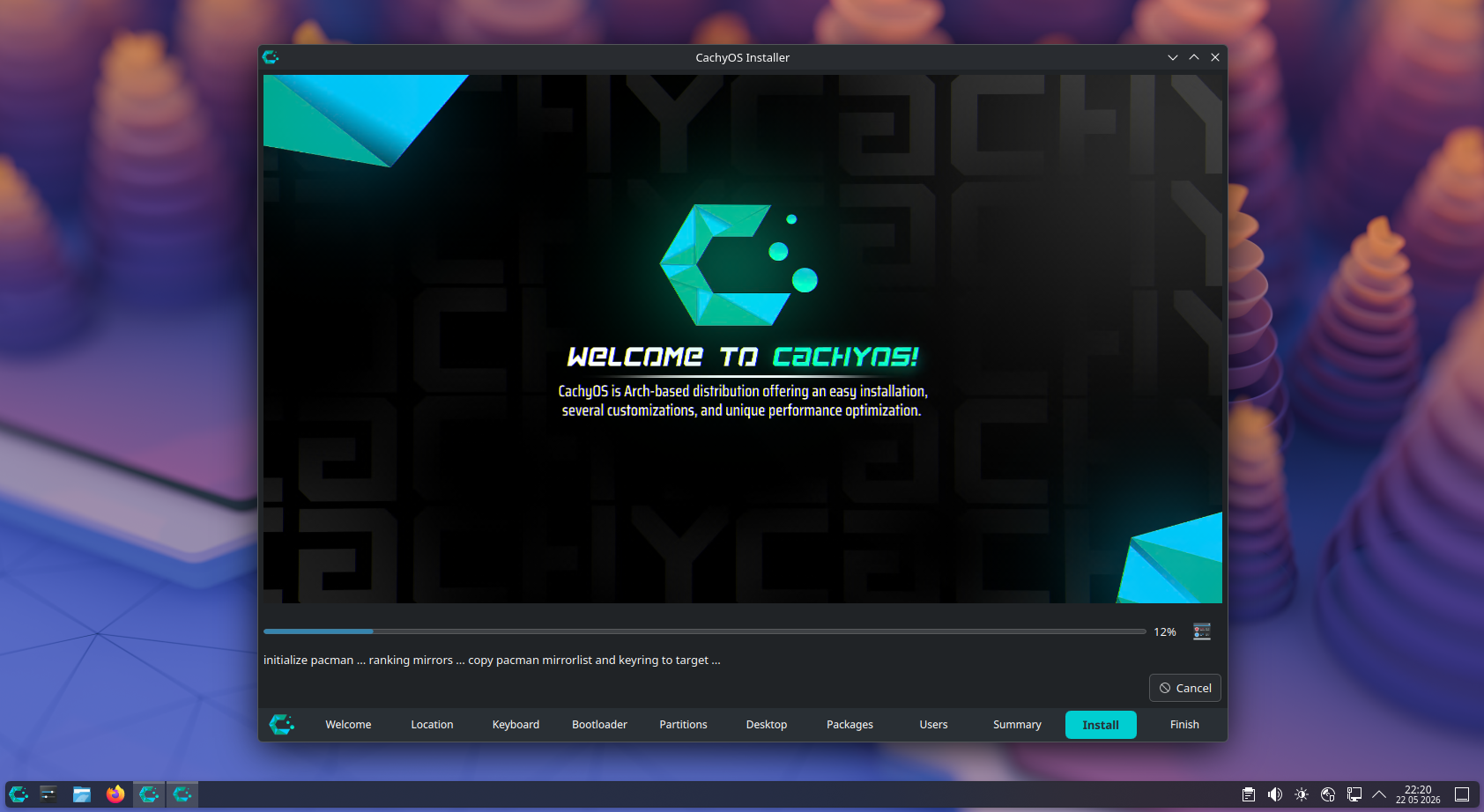
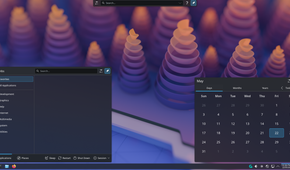
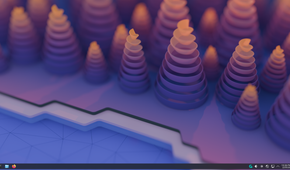
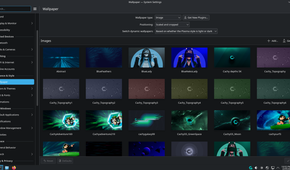
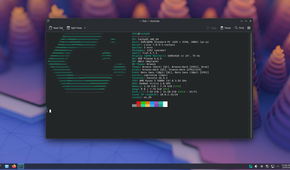
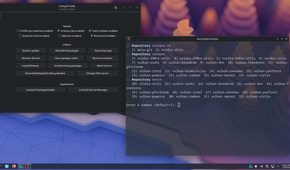
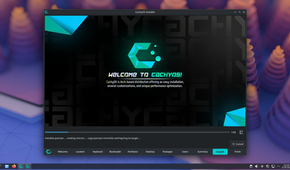
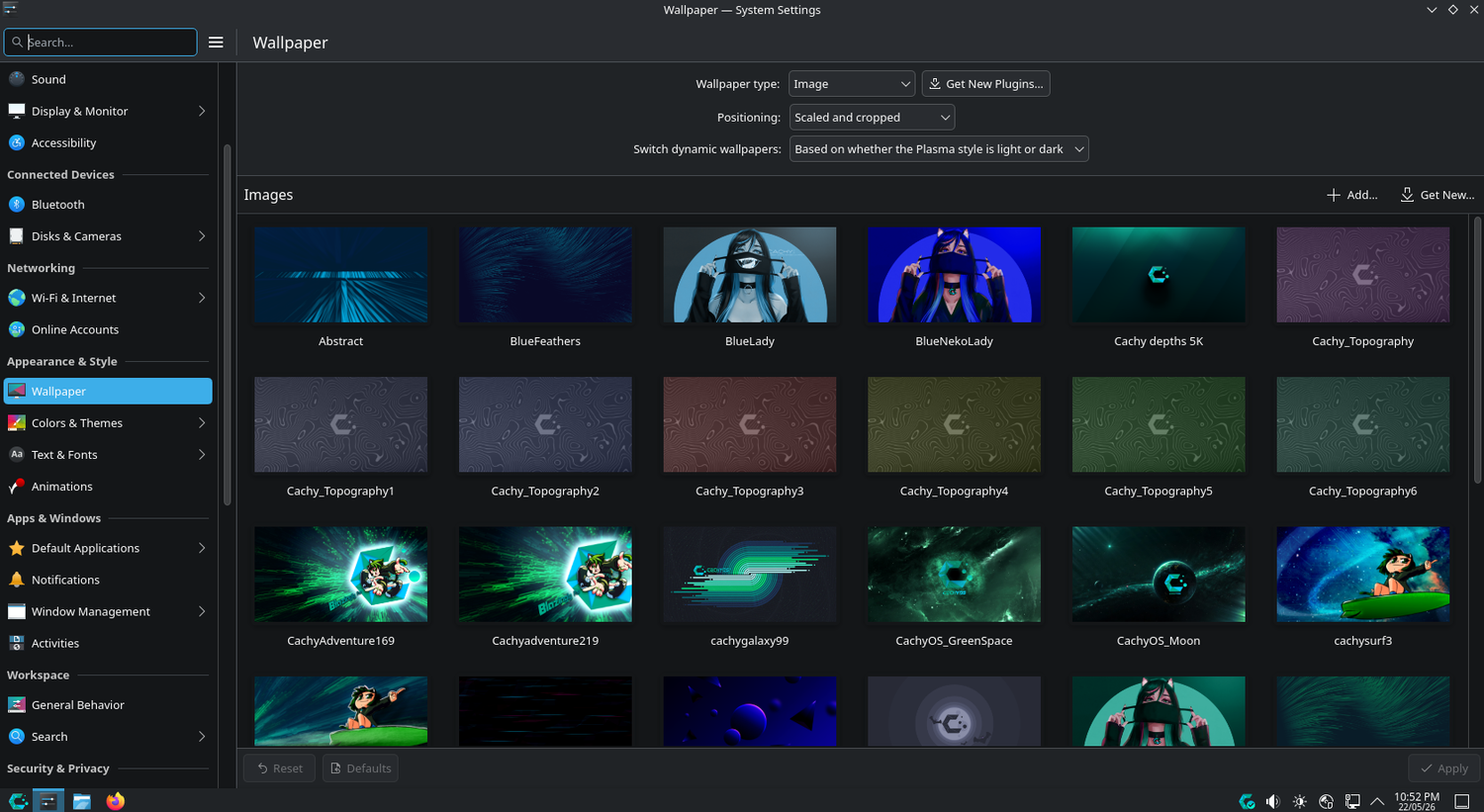
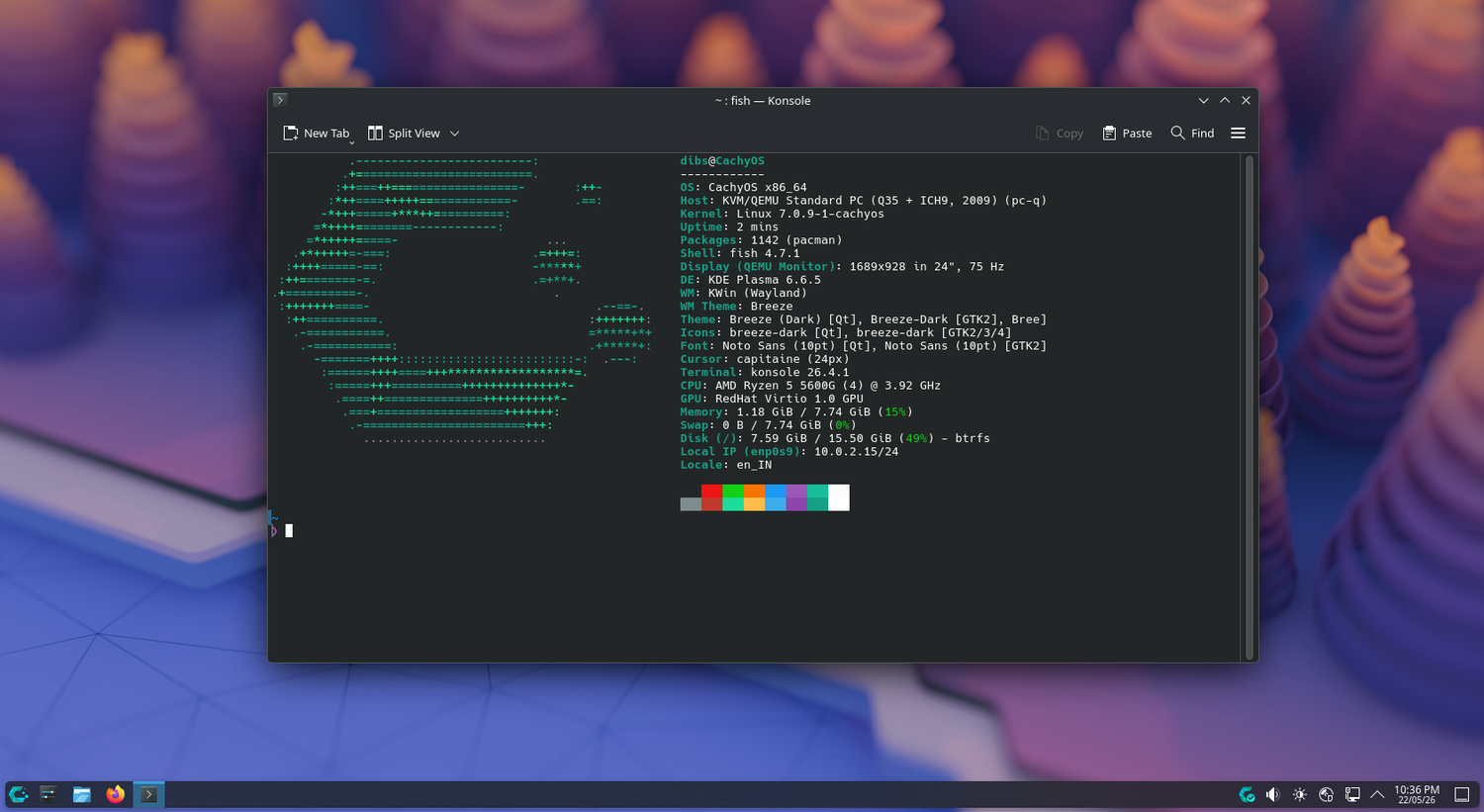
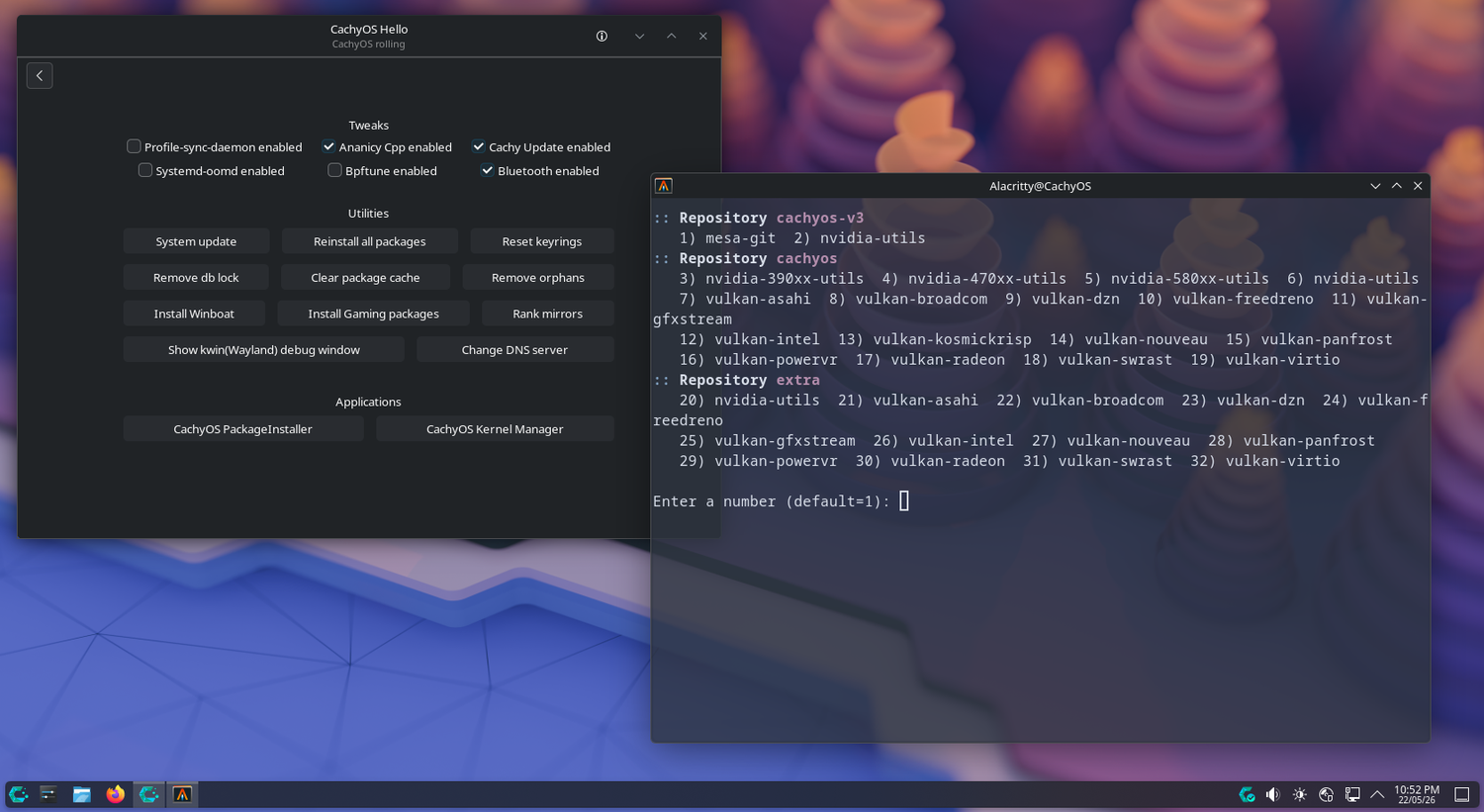
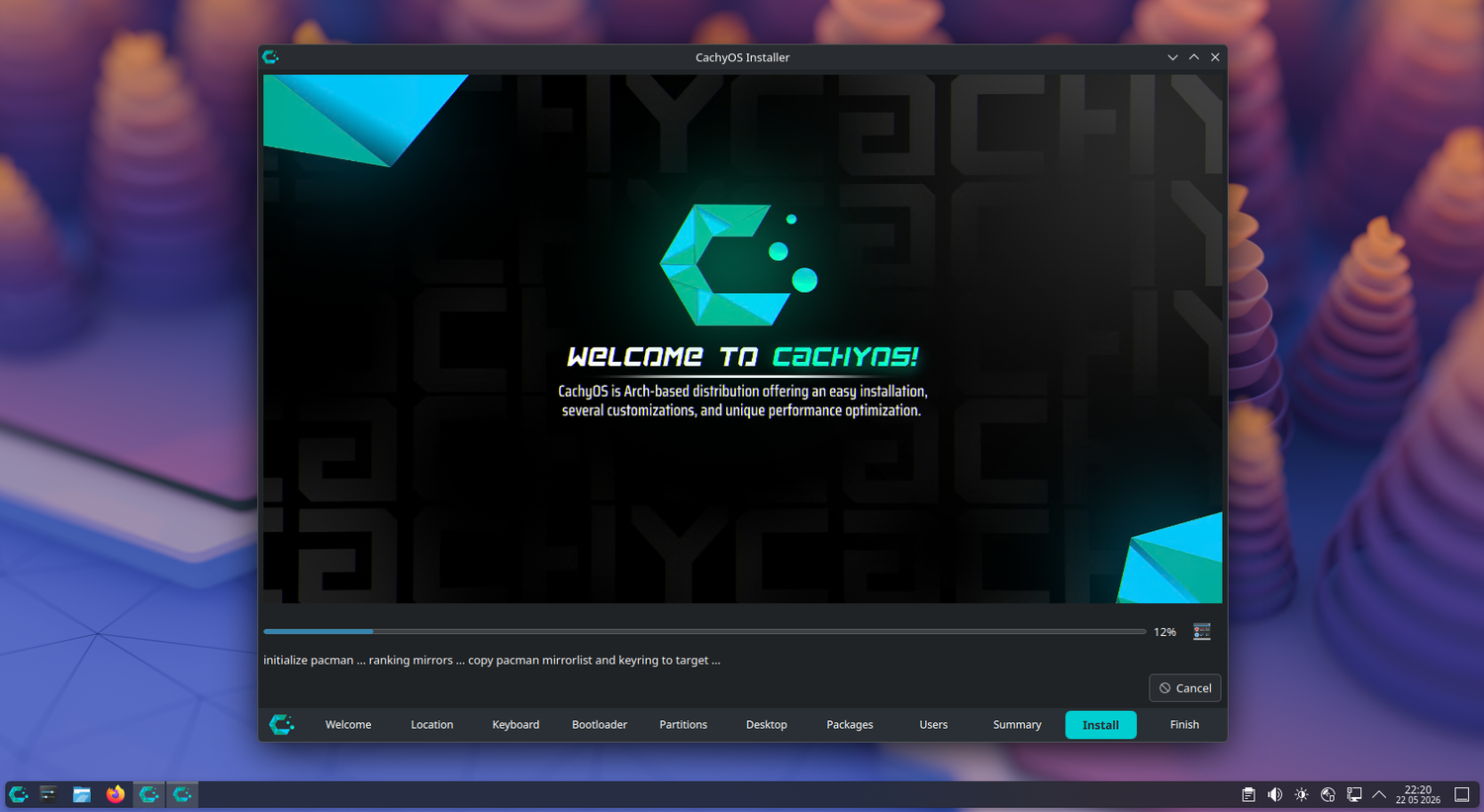
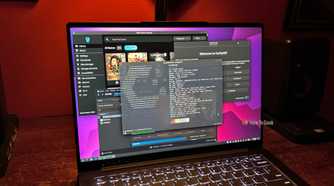
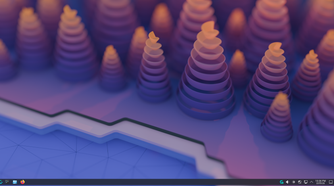
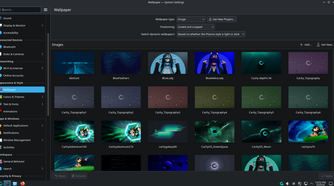
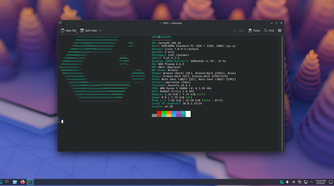
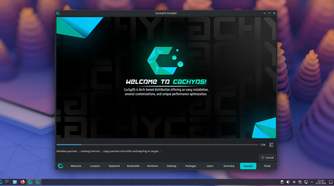
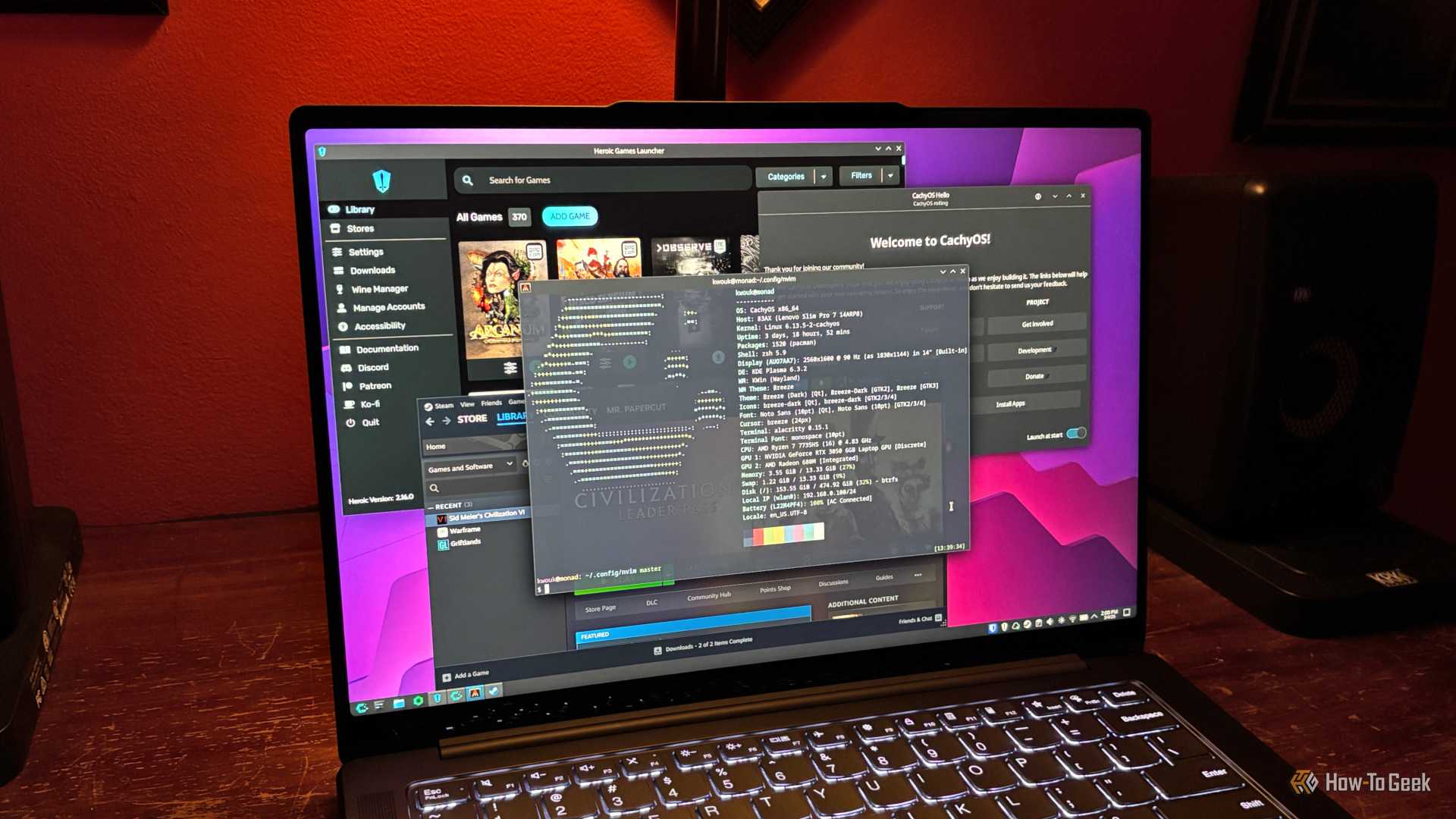
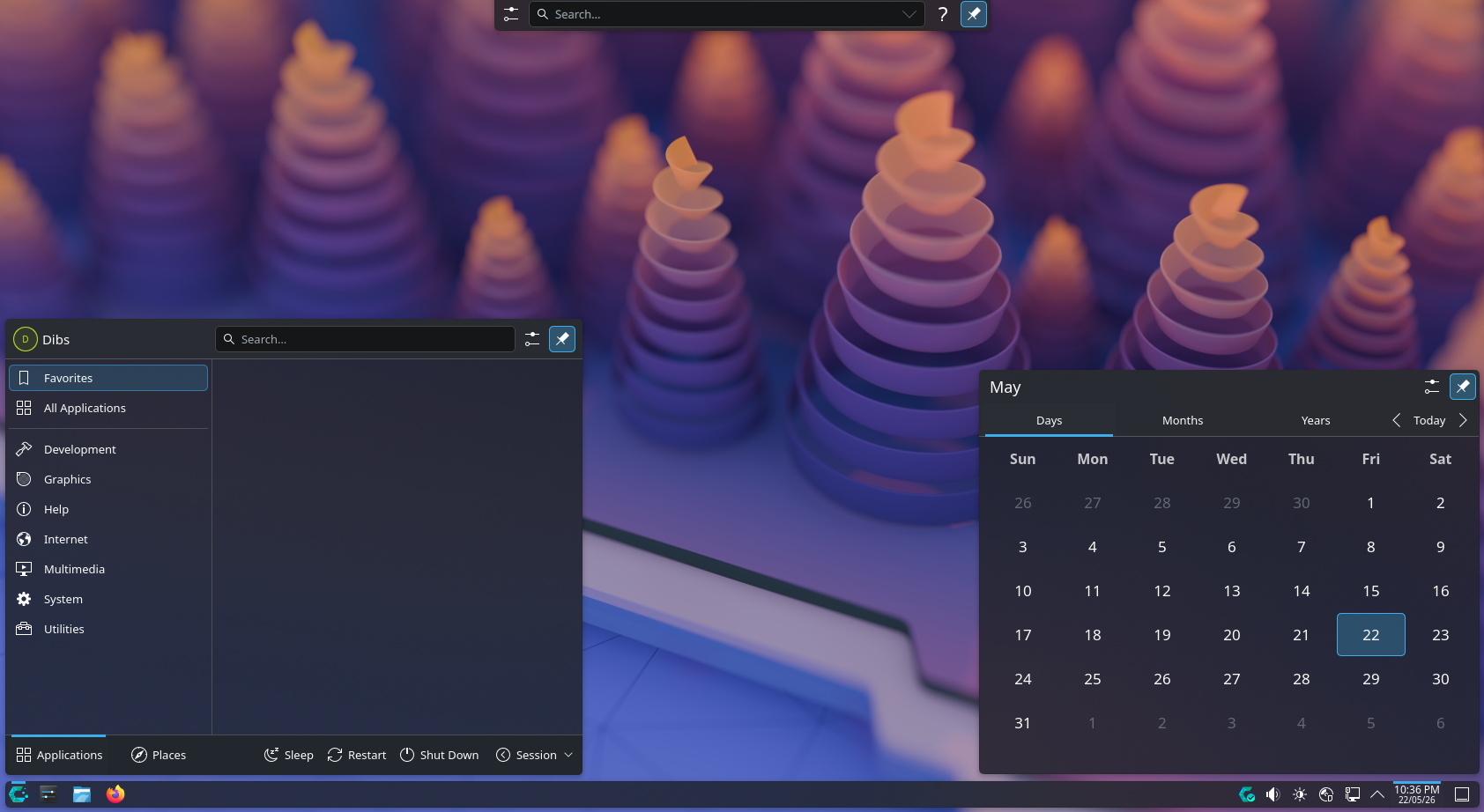
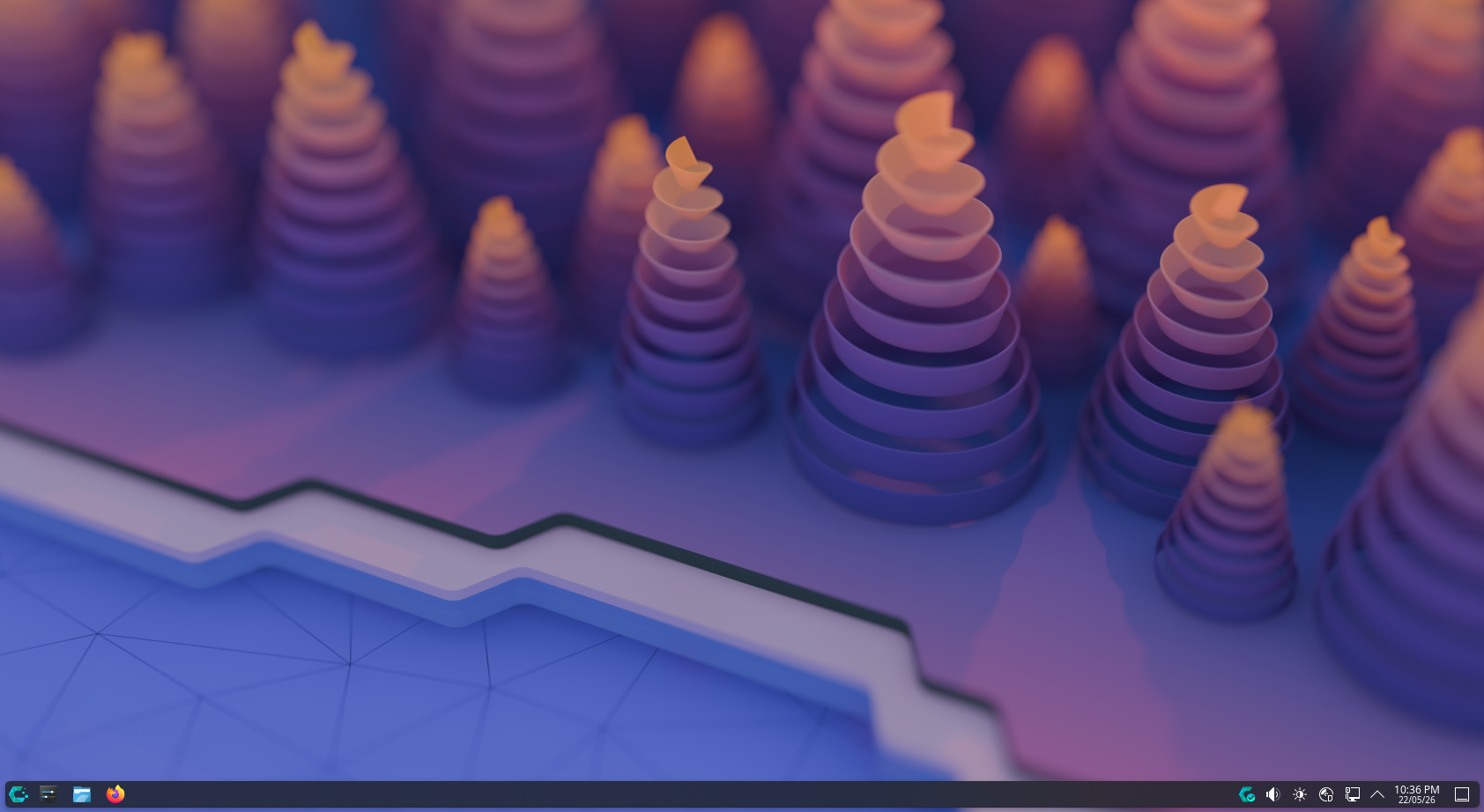
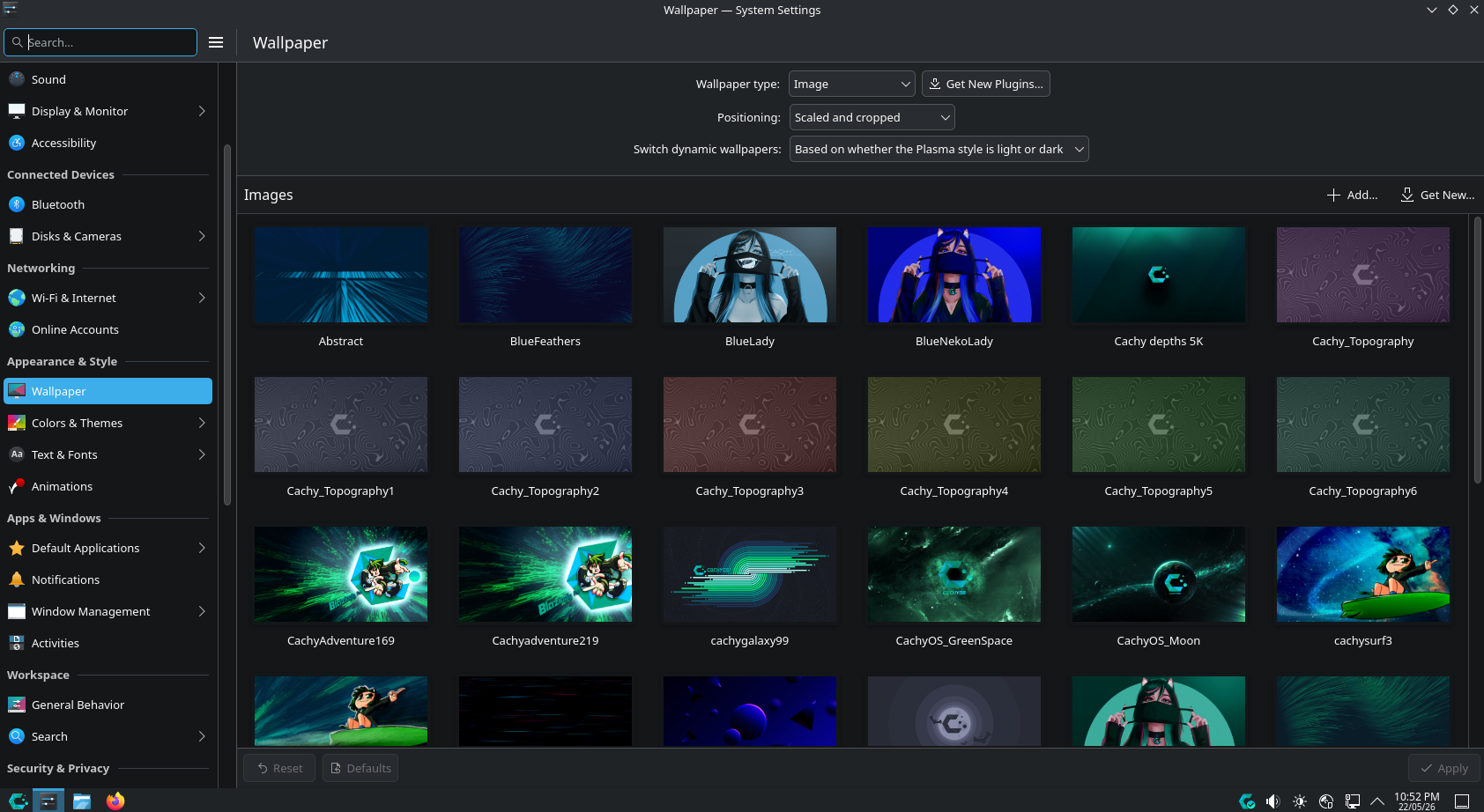
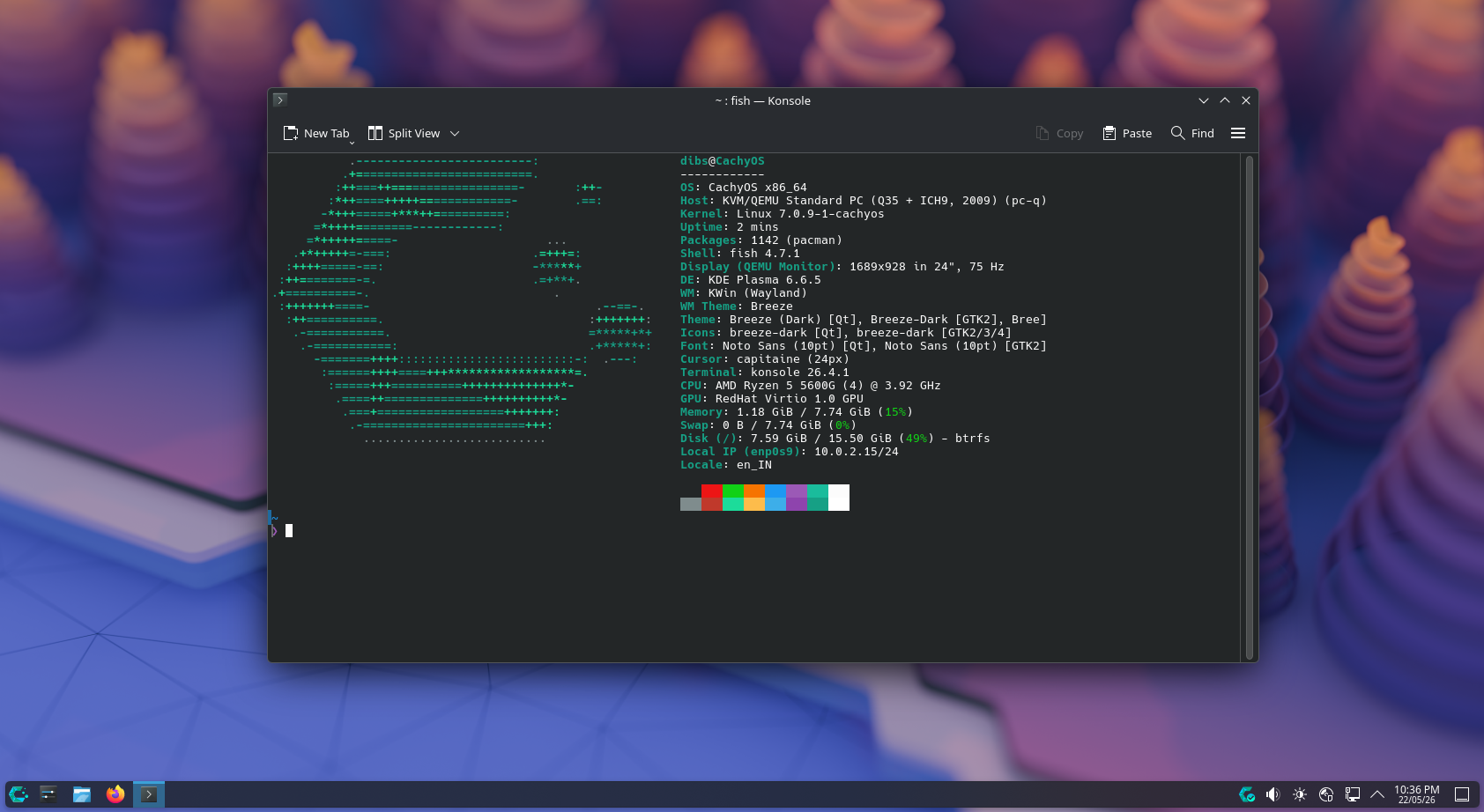
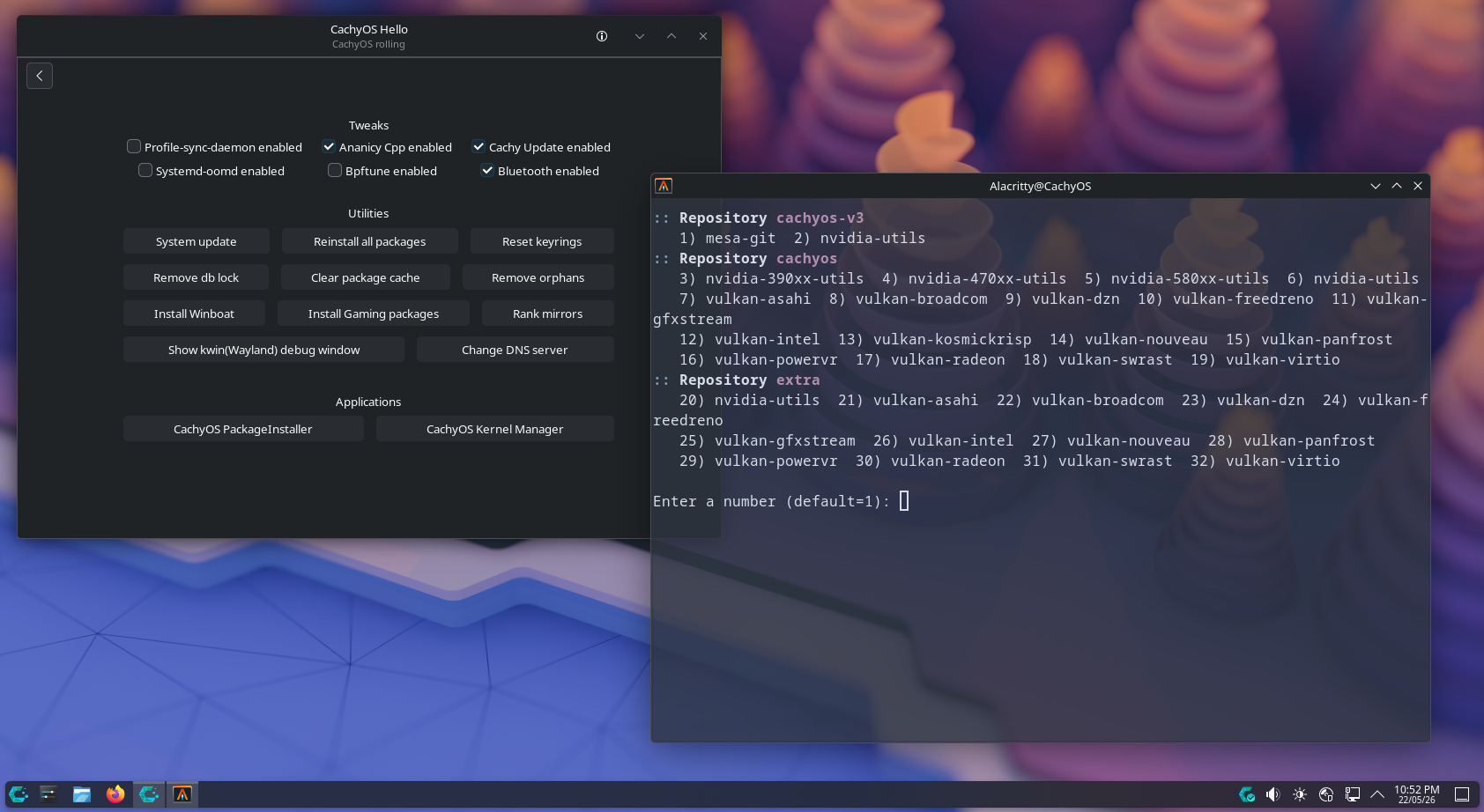
Last but not least, I have CachyOS—which has been topping DistroWatch for the past two years now. Like Kubuntu, it ships with KDE Plasma, so you get the same power-user appeal on the desktop side. But instead of a conservative, beginner-friendly Ubuntu base, it’s built on Arch Linux.
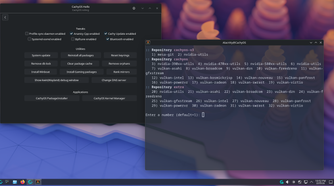
The biggest advantage of using an Arch-based distro is that you’re signing up for a rolling release model. You get bleeding-edge package updates as soon as they become available. You also get access to the AUR (Arch User Repository), which contains nearly 100,000 packages—one of the largest software repositories in the Linux world. That gives it real power-user appeal: not just what the desktop can do, but what you can install and how quickly you get access to it.
Now, the usual tradeoff with running software this current is stability, but CachyOS addresses that with the Btrfs file system and Snapper. Every time you install system updates, it creates a snapshot of your system. If something breaks afterward, you can simply roll back to the previous snapshot, effectively undoing the update.
However, the biggest reason many people choose CachyOS is its custom CachyOS kernel. It’s tuned specifically for modern hardware, so if you’re using a reasonably recent laptop, it can squeeze more performance out of it than the standard Linux kernel. That makes it the distro I’d recommend for gaming laptops—and honestly, any high-performance laptop where you want the operating system to make full use of the hardware you’ve paid for.
That’s five down, among dozens of options
So those are my top five Linux distros for laptops. To be clear, you can install just about any Linux distribution on a laptop, and it’ll run. But laptops come with constraints that desktops don’t. The hardware is fixed, you’re working with a smaller screen, and you’re navigating with a touchpad instead of a mouse. These five distros handle those constraints better than most, which is why I recommend them for laptop users.