
 Credit: Patrick Campanale / How-To Geek
For the longest time, I always defaulted to storing my games on my lightning-fast SSD. Then the inevitable happened—my SSD filled up, and I found myself playing that miserable little game of “which titles do I uninstall so I can squeeze this new one in?”
Turns out I was completely wasting my time. One built-in Steam feature flipped my entire setup on its head, and now I keep my whole library parked on a cheap, slow hard drive, and I only shuttle a game over to my fast drive when I actually sit down to play it.
Steam actually lets you spread your games across as many drives as you want
Steam Library Folders are the unsung hero of a tidy PC
The Steam client itself lives in one spot, but you can create separate “library folders” on any drive you like: your fast NVMe, a SATA SSD, a giant hard drive, even an external drive. When you install a game, you just point it at whichever folder you want, and Steam keeps track of all of it for you.
Conveniently, none of the important stuff is tied to the folder. Your account, your ownership, your cloud saves—all of that lives with your account, not the drive. So you are completely free to put the game files wherever makes sense for you. Setting up a new library takes about ten seconds: pop into Settings, go to Storage Manager, click the plus, and pick a new drive.
Most folks set this up once, dump everything onto their main SSD, and never think about it again. But that’s a real mistake, and it’s the same reason your external drive is probably being wasted on backups when it could be pulling real weight.
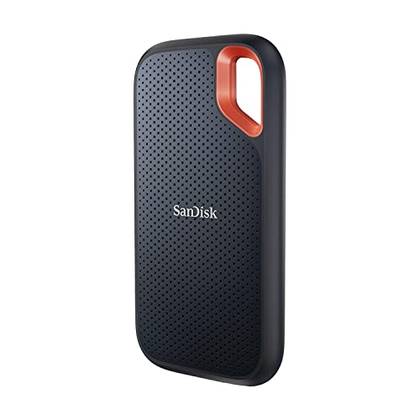
SanDisk Extreme Portable SSD
If you still need more storage after all these Steam shenanigans, this portable SSD from SanDisk is a solid middle ground.
The “Move Install Folder” button is the part that sold me
Shuffling a game to your fast drive takes minutes, not a fresh download
 Credit: Cianna Garrison / How-To Geek
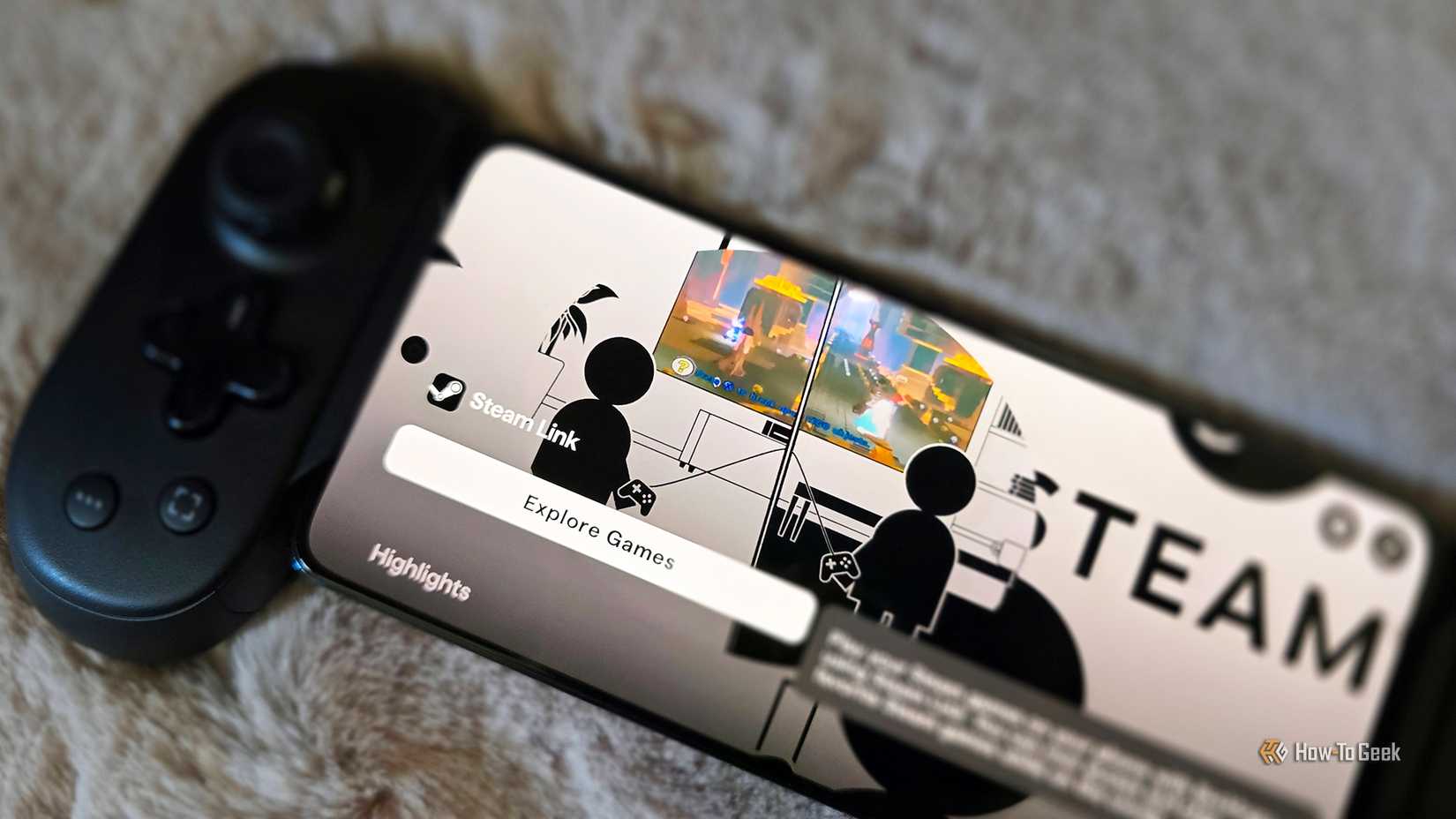
The best part is how easy it is to move games from folder to folder. You can right-click any installed game, go to Properties, open the Files tab, and hit Move Install Folder. Steam copies the whole thing over to another library and updates itself, no re-download required.
We are talking about games that can be 100GB, 150GB, 200GB, and beyond. Redownloading something that size over a normal connection can take a seriously long time, but moving it drive-to-drive wraps up in the time it takes to go make a snack. For some connections, it will be the difference between getting to play the game today and having to wait until tomorrow. Your saves either ride along with it or sit safely in the cloud, so there is nothing to lose.
If you’re kicking yourself for not already knowing this, it’s okay! The feature didn’t always exist. But, on the other hand, it has been around since 2017, and that’s almost a decade ago now.
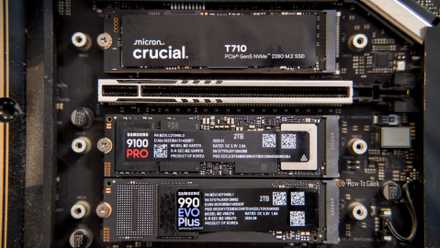
Your expensive SSD is slowly cooking itself: The $5 fix you need
It’s one of the cheapest, easiest, and most important investments you can make.
Yes, the HDD is slow, but only in ways that stop mattering when you’re not playing
A game you aren’t loading doesn’t care how fast the drive is
 Credit: Ismar Hrnjicevic / How-To Geek
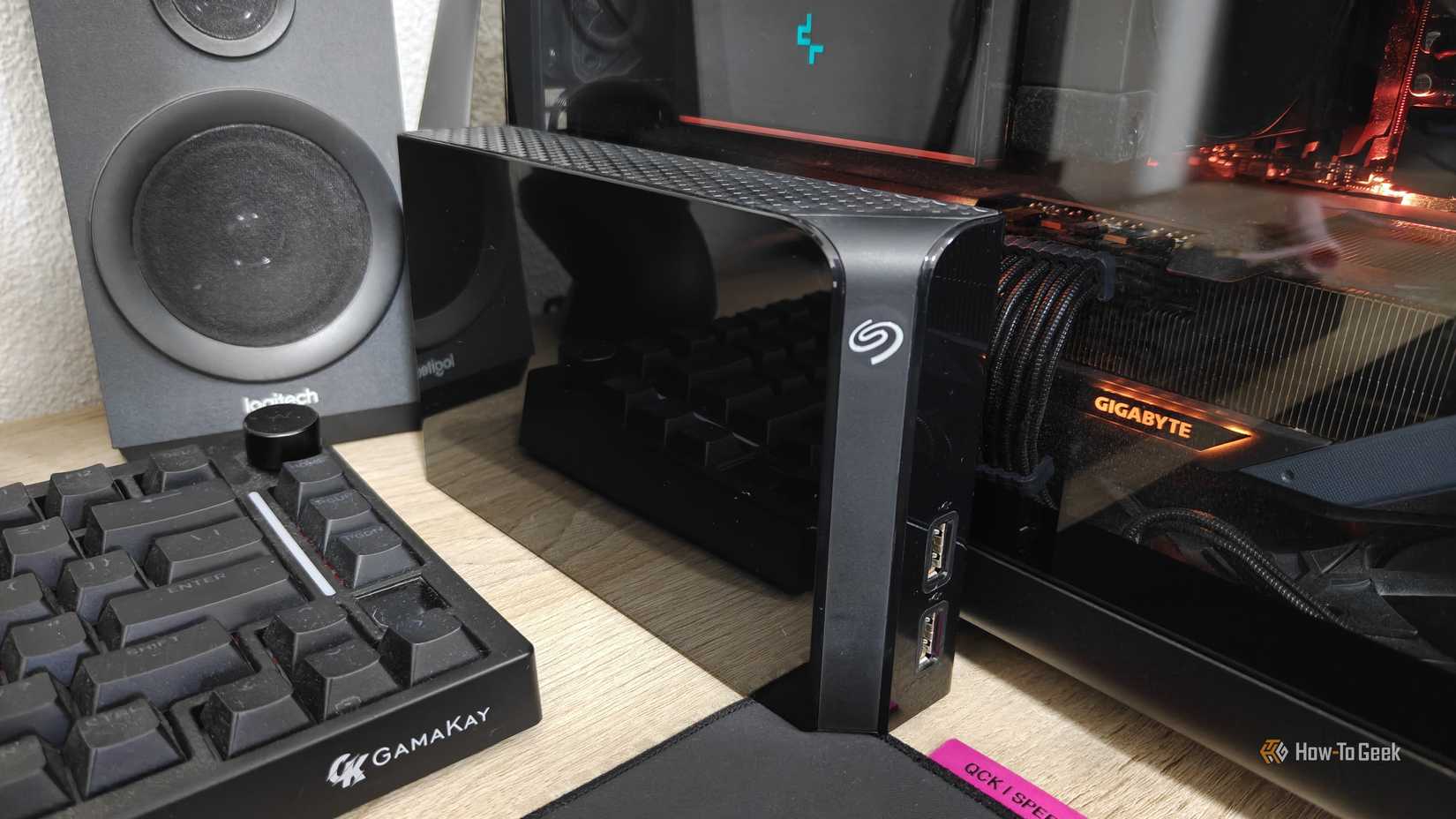
A hard drive is no place for a game you’re actually playing, because it will severely affect load times as your computer waits a million years for the data it asked for to arrive. But for a currently unused game that’s just waiting for the next time you feel like playing, it does not matter at all how fast a drive is. All it’s doing is chilling out and taking up space.
It’s also worth saying that storage speed was never handing you extra frames in the first place. A faster drive shrinks load times and smooths out texture streaming, but it does not raise your fps, so storing your backlog on a mechanical drive costs you nothing in raw performance.
The HDD is my warehouse, and the SSD is my display case. That is the same logic behind turning an old drive into a dedicated “abuse drive” for stuff that doesn’t need speed.
In 2026, this trick went from clever to borderline necessary
Every gigabyte of flash is luxury real estate right now
 Credit: Patrick Campanale / How-To Geek
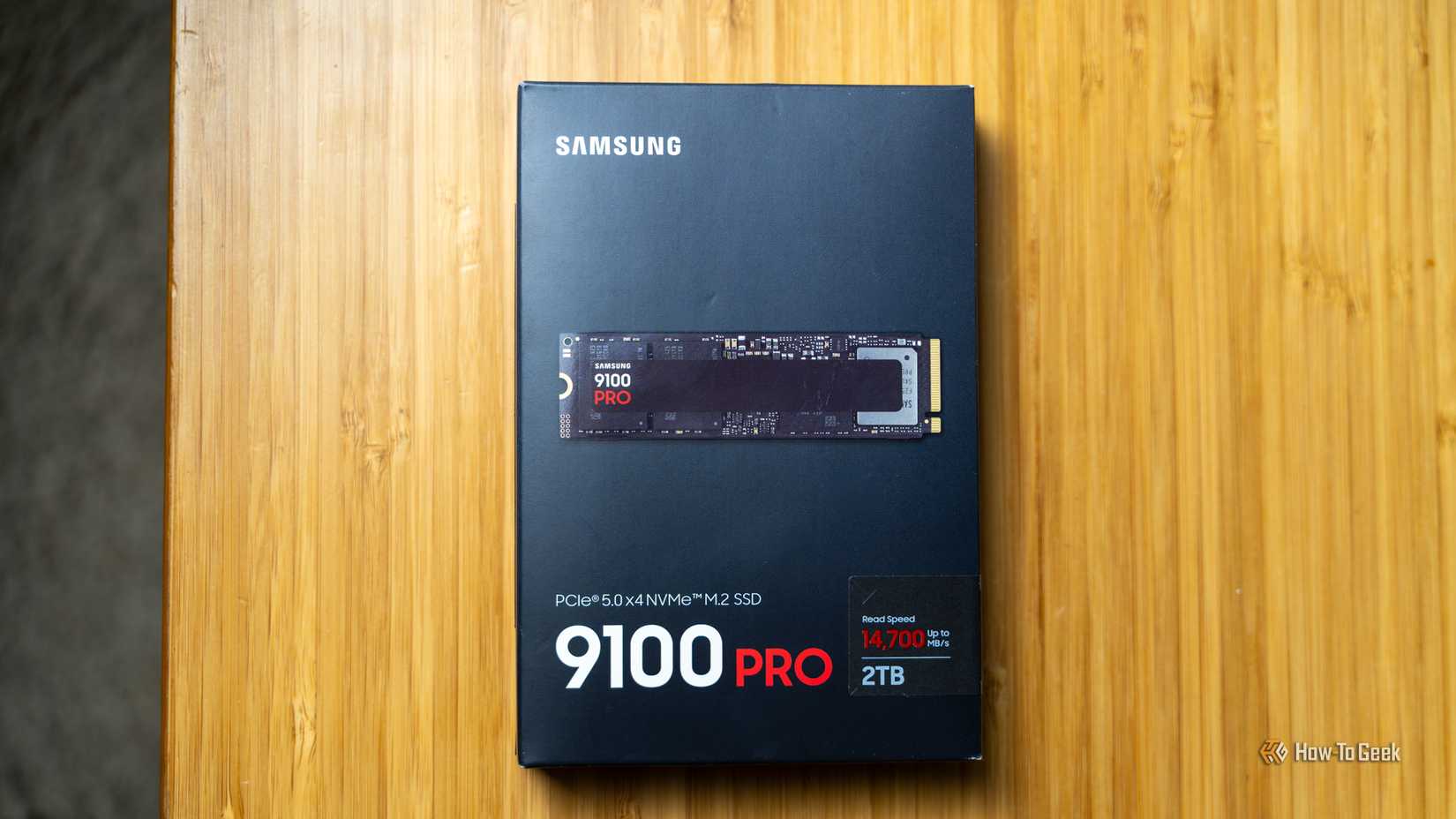
If you’d told me a year ago I’d be out here defending hard drives, I would have laughed. But storage pricing in 2026 is a horror show. There is a massive NAND shortage, largely because AI data centers are hoovering up supply, and consumer SSD prices have doubled or worse in a matter of months. A 2TB SSD that ran you about $150 not long ago is now $300 and climbing, while a 2TB hard drive is still sitting around $80 to $100.
Filling a drive that pricey with 200 games you’ll realistically never reinstall is just financial nonsense (just like building an all-SSD desktop in this environment). And there’s a second reason to keep that SSD lean: cramming an SSD close to 100% full makes it slower and can wear it down faster, because it needs free room to shuffle data around behind the scenes.
It’s the feature, not the hardware, that did it
To be clear, none of this works without Steam doing the heavy lifting. If moving a game meant redownloading it from scratch every single time, I would never bother, and my hard drive would stay largely unused. It’s the frictionless shuffling between drives that transforms a slow, cheap disk from a downgrade into the smartest storage in my whole PC. So, go set up that second library folder. Your wallet and your SSD will thank you.
Samsung 9100 PRO
$680
Save $280

Storage capacity
1TB, 2TB, 4TB, 8TB
Need internal storage after all? The Samsung 9100 Pro is a fantastic pick, but it’s a lot pricier than giving your old HDD something to do.
Hardware Interface
M.2 NVMe










2