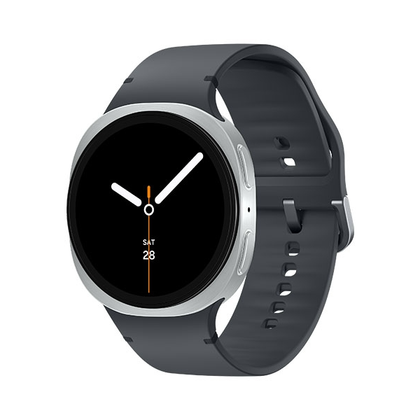
My history with Samsung Galaxy Watches goes back to before Wear OS, but I took a break from them for a couple of years. I recently strapped a Galaxy Watch to my wrist again, and I might have done it sooner had I known about a few handy features.
Double-pinch gesture
Late to the gesture game
I’ll be honest, gestures almost always feel like a gimmick to me. That probably has something to do with the fact that I’ve only just recently switched to a Galaxy Watch after using a Pixel Watch for a couple of years, which barely has any gestures at all. I didn’t realize there were actually useful smartwatch gestures out there.
The one I use the most is called “Double-pinch” (Settings > Buttons and gestures > Double pinch). The idea is that you can activate certain actions by touching the tips of your pointer/middle finger and thumb twice in quick succession. It’s an easy way to interact with the watch without interacting with a tiny touch screen.
Double-pinch actions depend on where you are in the watch UI. When you’re on the watch face, it will open the Now Bar (if it’s present) or cycle through notifications. It can also pause or play music when you’re looking at the media controller and dismiss alerts that pop up. However, my favorite use is with text message notification—it can open voice-to-text for immediate responses.
Mute notifications on phone
Embarrassed it took me this long
For a long time, I had an annoying issue that would come up every time I decided not to wear my watch. Since I want my watch to be the only thing alerting me to notifications when I’m wearing it, I keep my phone on silent mode all the time. So, if I’m not wearing my watch, I would miss notifications unless I remembered to turn off silent mode.
I didn’t immediately understand what the “Mute notifications on phone” setting actually did (“Smart device selection” if you use a Galaxy phone). At first, I thought, “Well, I already have notifications muted on my phone…” But what it actually means if you can keep your phone on vibrate or alerting, it will automatically switch to silent mode when you’re wearing the watch. No more remembering to switch modes when I leave my watch at home.
This option must be enabled from the Galaxy Wearable app on your phone. It can be found at Watch settings > Notifications.
Quiz
8 Questions · Test Your Knowledge
Old school wearable tech Trivia challenge
From calculator watches to step counters — how well do you know the gadgets we wore before smartwatches existed?
WearablesHistoryInventorsMilestonesDevices
01 / 8
Milestones
What is widely considered the first wearable computer, built in 1961 by mathematician Edward Thorp and Claude Shannon?
Correct! Thorp and Shannon built a tiny analog computer hidden in a shoe to predict roulette wheel outcomes in Las Vegas. It was operated by toe switches and transmitted results via a hidden earpiece, making it arguably the world’s first wearable computer.
Not quite. The answer is the shoe-mounted roulette prediction device. Built secretly in 1961 by Edward Thorp and Claude Shannon, it used toe-operated switches and a hidden earpiece to beat roulette — and predates most people’s idea of wearable tech by decades.
02 / 8
Devices
The Pulsar, introduced in 1972, is recognized as one of the earliest consumer wearable electronics. What type of device was it?
That’s right! The Pulsar, made by Hamilton Watch Company, was the world’s first all-electronic digital watch. It displayed the time using red LED numerals and sold for $2,100 — roughly equivalent to over $15,000 today.
Not quite. The Pulsar was the world’s first all-electronic digital watch, launched by Hamilton Watch Company in 1972. Its glowing red LED display was revolutionary, and its hefty price tag made it a luxury item for early tech adopters.
03 / 8
History
Which company released the first commercially successful calculator watch in 1977, bringing wearable computing to a wider consumer audience?
Correct! Hewlett-Packard released the HP-01 in 1977, a wrist-worn calculator with a tiny keypad. It was a remarkable engineering feat for its time, though its high price limited mass adoption.
Actually, it was Hewlett-Packard that released the HP-01 in 1977, the first commercially significant calculator watch. While Casio later dominated this market in the 1980s, HP got there first with its remarkably complex and expensive wrist-worn calculator.
04 / 8
Inventors
Steve Mann, often called the ‘father of wearable computing,’ began developing his wearable computer systems as a student at which university in the 1980s?
That’s correct! Steve Mann developed his pioneering WearComp wearable computer systems while studying at MIT in the 1980s. He later wore camera-equipped headgear almost continuously for decades, laying important groundwork for augmented reality and wearable cameras.
Not quite — Steve Mann did his landmark wearable computing research at MIT (Massachusetts Institute of Technology) during the 1980s. His WearComp project explored computer-mediated reality and wearable cameras long before they became mainstream concepts.
05 / 8
Wearables
Sony’s Walkman, launched in 1979, is sometimes included in early wearable tech history. What was its original name in Japan at release?
Correct! The device originated as the ‘Pressman,’ a mono recorder Sony built for journalists. When engineers removed the recording function and added stereo playback, it became the Walkman — though in some markets it was briefly sold as the Soundabout or Stowaway.
The original internal Sony device was actually called the Pressman, a mono recorder designed for journalists. Its transformation into the Walkman came when engineers adapted it for stereo music playback — though it was briefly marketed as the Soundabout in the US and Stowaway in the UK.
06 / 8
Milestones
Which decade saw the first documented use of a wearable hearing aid small enough to be worn on the body rather than carried as a separate box?
Well done! The 1930s brought the first wearable hearing aids that could be worn on the body. Devices like the Acousticon and later Aurex models used vacuum tube technology and were worn clipped to clothing, marking a major leap from bulky table-top units.
Actually, it was the 1930s when body-worn hearing aids became viable, thanks to advances in vacuum tube miniaturization. Earlier hearing aids were large tabletop or handheld devices, but the 1930s models could be clipped onto clothing — a significant milestone in wearable medical tech.
07 / 8
Devices
The Seiko Data-2000, released in 1983, was a notable early wearable because it could do something no watch had done before. What was that capability?
Correct! The Seiko Data-2000 could synchronize data with an external keyboard and computer, making it an early example of a connected wearable. It could store names, phone numbers, and memos — essentially a wrist-worn PDA years before that term existed.
Not quite. The Seiko Data-2000 was groundbreaking because it could sync with a computer and keyboard accessory, storing contacts and memos on the wrist. This made it a forerunner of the smartwatch concept nearly two decades before the term was widely used.
08 / 8
History
The first wearable fitness tracker widely credited with launching the modern fitness band market, the Fitbit Classic, was released in which year?
That’s right! The original Fitbit Classic launched in 2009, clipping onto clothing to track steps, distance, and calories. It helped define the consumer fitness tracker category and laid the commercial foundation for the wrist-worn fitness bands that followed in the 2010s.
The original Fitbit Classic actually launched in 2009, not earlier. While Fitbit was founded in 2007 and announced a product at an expo that year, the device didn’t ship to consumers until 2009 — and it quickly became the product that defined the modern fitness tracker market.
Challenge Complete
Your Score
/ 8
Thanks for playing!
Modes can change watch faces
A great feature gets even better
These last two are specific to those who use a Galaxy Watch with a Galaxy phone, which I didn’t do for a very long time. First, I recently discovered just how good Samsung’s Modes and Routines experience is, but I didn’t notice that it works with the Galaxy Watch, too.
Modes are essentially hyper-specific Do Not Disturb settings for a variety of situations. They can go so far as to change the wallpaper and home screen layout on your phone. When you have a Galaxy Watch connected, Modes can also change your watch face. I have a custom “bike mode” watch face and a minimal “relax mode” watch face that get automatically applied. It’s very cool.
Syncing modes between phone and watch
The biggest complaint for non-Samsung phone users
As I said, I’ve mainly used a Galaxy Watch with a Pixel phone. It’s weird, but I just don’t have the same appreciation for Samsung phones as I do for Samsung smartwatches. At any rate, the one thing that everyone who doesn’t use a Samsung phone complains about is the lack of mode syncing.
What do I mean? Let’s say my phone switches to “Bedtime Mode” when I put it on the charger at night. If I’m not using a Samsung phone with my Galaxy Watch, it won’t also switch to “Bedtime Mode”—I have to manually do it, or the watch will bother me with notifications all night. The same applies to general do-not-disturb and any other special mode you might use.
This is simply not a problem if you use a Samsung phone. It adds a setting called “Sync Do not disturb with phone,” and it’s enabled by default. Pretty annoying that this is reserved for Samsung phone users, but it’s incredibly nice to have.
There’s always more to find
I’ve been writing a lot about Galaxy Watches lately, and I can’t emphasize enough how great it is to have so many options. I don’t like digging through countless pages of settings and installing secret apps just to get a Samsung phone set up to my liking, but it’s a lot more digestible on a watch. Make sure you’re not leaving anything on the table!
Samsung Galaxy Watch 7
Heart Rate Monitor
Yes
Operating System
One UI 6 Watch, Wear OS 5
Onboard GPS
Yes
Display Size
1.3/1.5 inches
Case Material
Aluminum
Display
Super AMOLED, Sapphire crystal
The Samsung Galaxy Watch 7 is Samsung’s entry-level smartwatch for 2024. It resembles the Galaxy Watch 6 but features an enhanced Exynos W1000 chipset, promising significantly improved battery life and performance.
Some Linux commands have been around since time immemorial and are still widely used today. These commands work. They’re both reliable and powerful. The problem

 Credit: Joe Fedewa / How-To Geek
 Quiz
Quiz