Credit: Cianna Garrison / How-To Geek
Microsoft replaced Battery Saver with Energy Saver in Windows 11 a couple of years ago. The new feature includes an always-on toggle that, if left enabled, can reduce your PC’s performance without you even noticing. Combine that with a power mode set to favor efficiency, and your Windows PC might throttle itself even when it’s plugged in.
Worse still, energy saver is also available on desktop PCs, so even your desktop might be running below its capabilities without your knowledge. Fortunately, in just a few seconds, you can disable energy saver, tune it so it only kicks in when you want it to, and switch your PC to a power mode that favors performance. Here’s how.
Energy saver trades some performance and background activity for longer battery life
You might have it on without realizing it
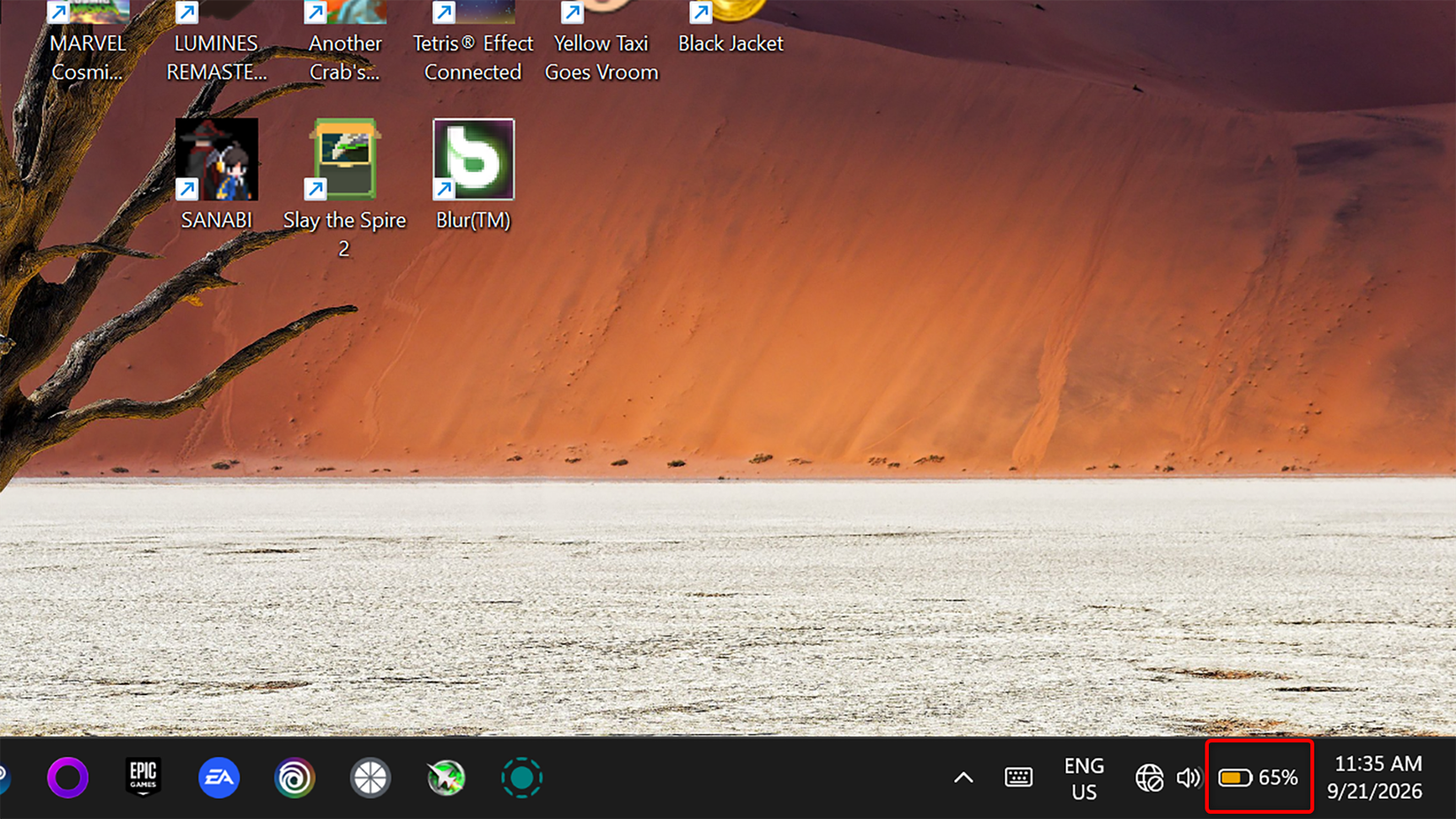
The idea behind energy saver is sound, but if you accidentally enabled its always-on toggle, your laptop might slow itself down when it’s running on battery, and some important apps may stop working in the background.
When your laptop is plugged in, energy saver only reduces display brightness by 30% — which you can disable — disables transparency effects, and locks the current power mode so you can’t change it. Unplug your device with energy saver on, though, and things get more restrictive. Apps can’t run in the background, Task Scheduler skips some tasks, and certain Microsoft apps, like OneDrive and OneNote, may stop syncing.
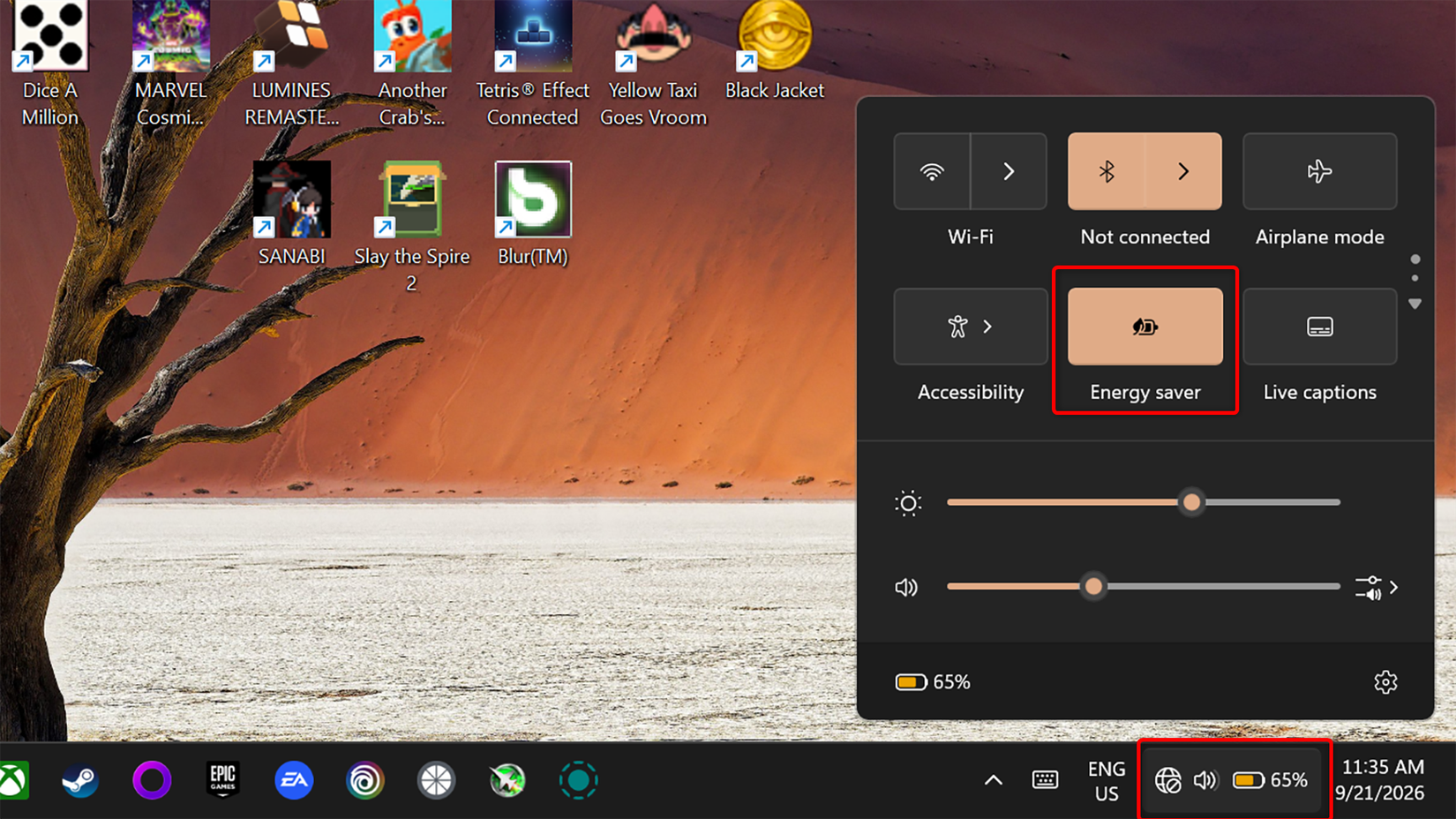
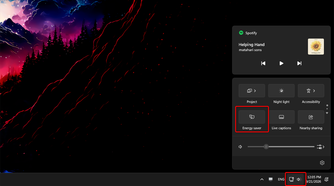
That’s bad news if you’re waiting for an important email or rely on OneDrive to share files with your colleagues, so it’s worth making sure energy saver isn’t set to run nonstop. Checking is easy: while energy saver is on, your battery icon in the taskbar turns amber. If you see that and don’t want Energy Saver on, open Quick Settings from the system tray and turn off the Energy Saver tile.
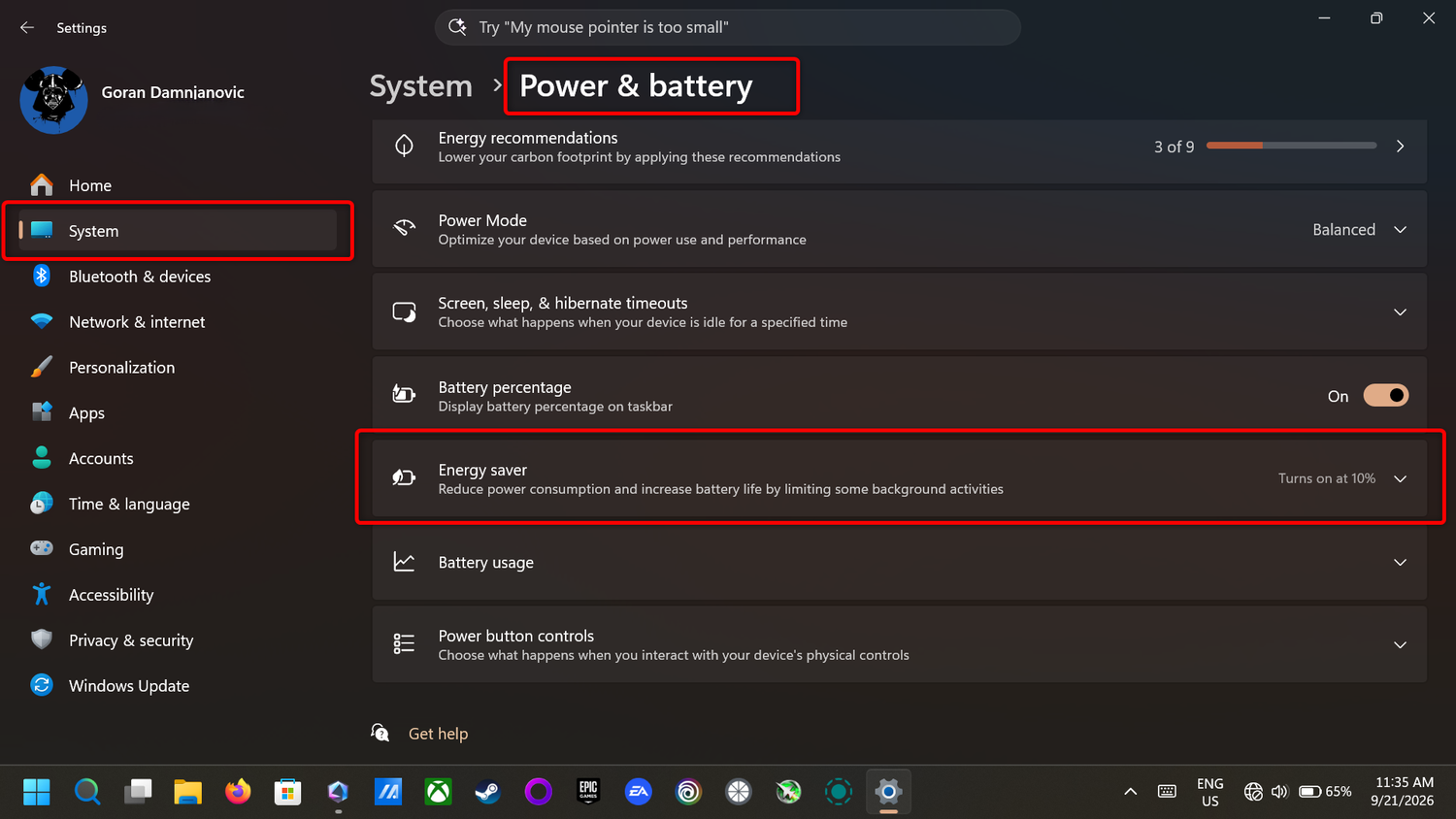
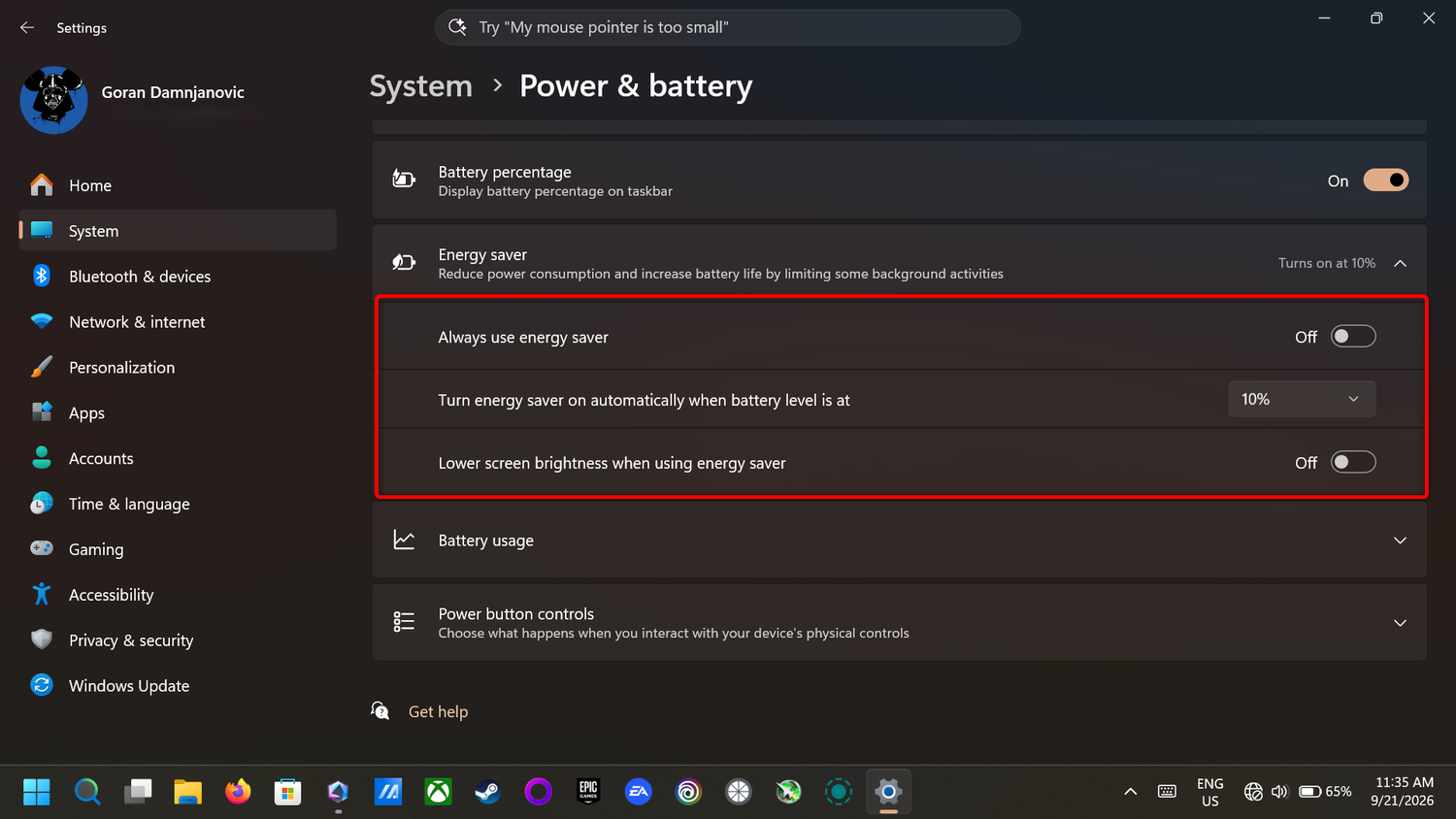
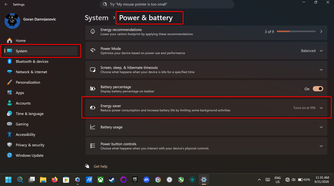
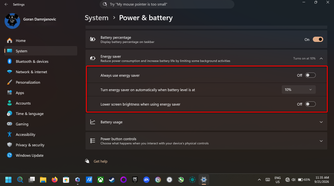
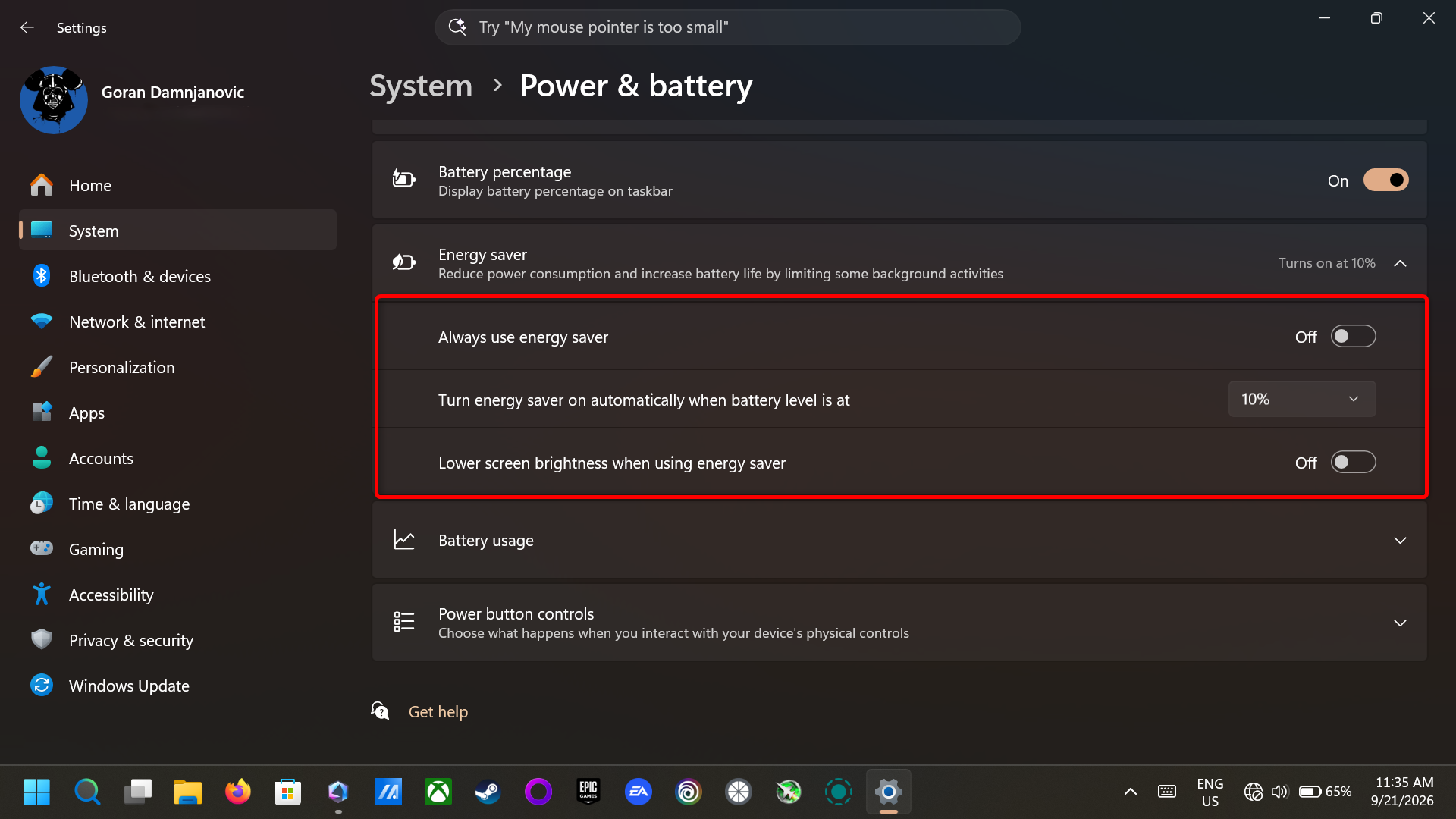
To fine-tune Energy Saver, open Windows Settings, go to System -> Power & battery -> Energy saver, and click the option to expand the menu. From there, you can turn off the Always use energy saver toggle if you enabled it at some point or your PC’s manufacturer turned it on by default. You can also stop energy saver from lowering your screen brightness and change the battery level at which it turns on. Personally, I keep this at 10% on my handheld PCs, but your mileage may vary.

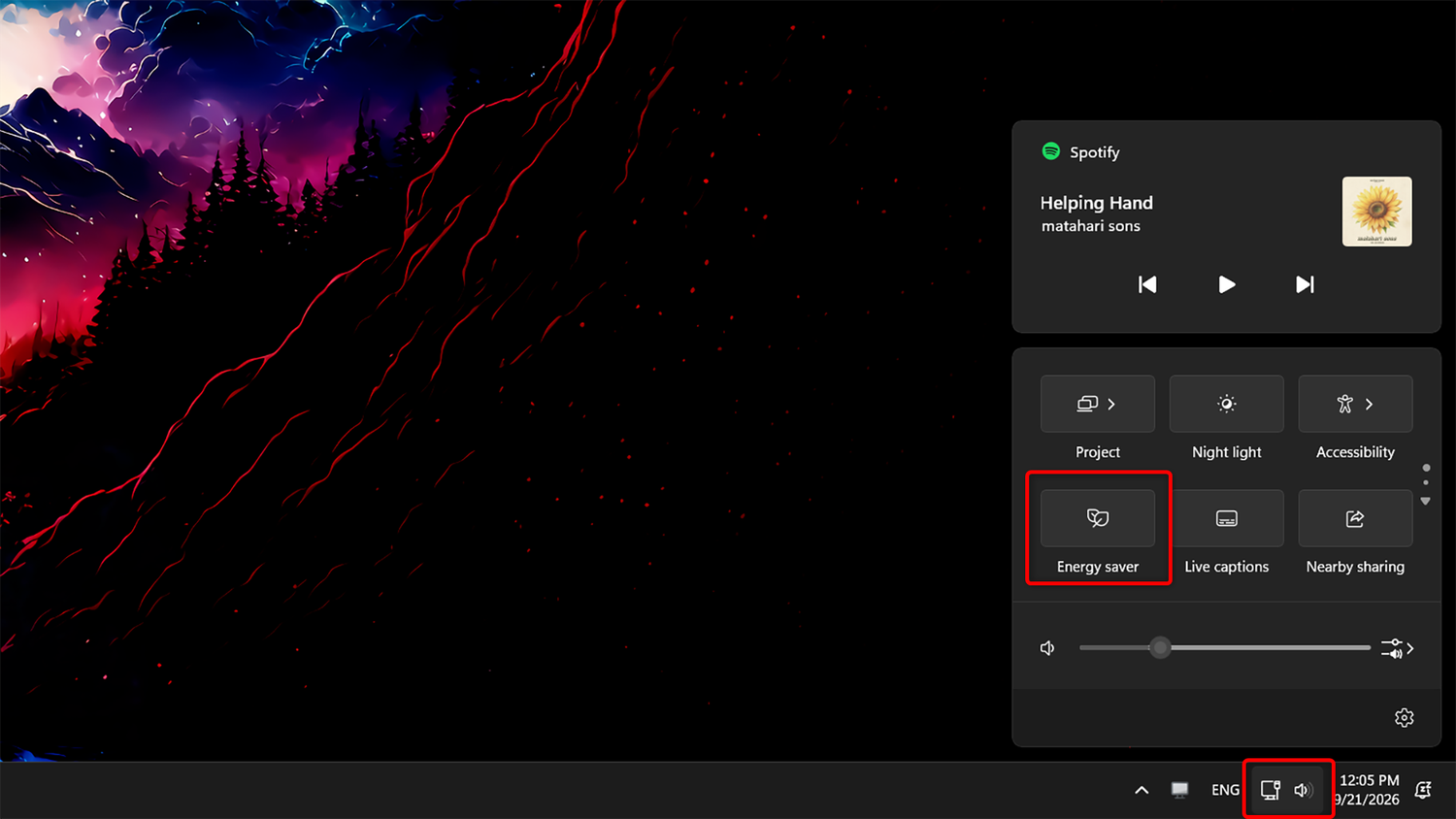
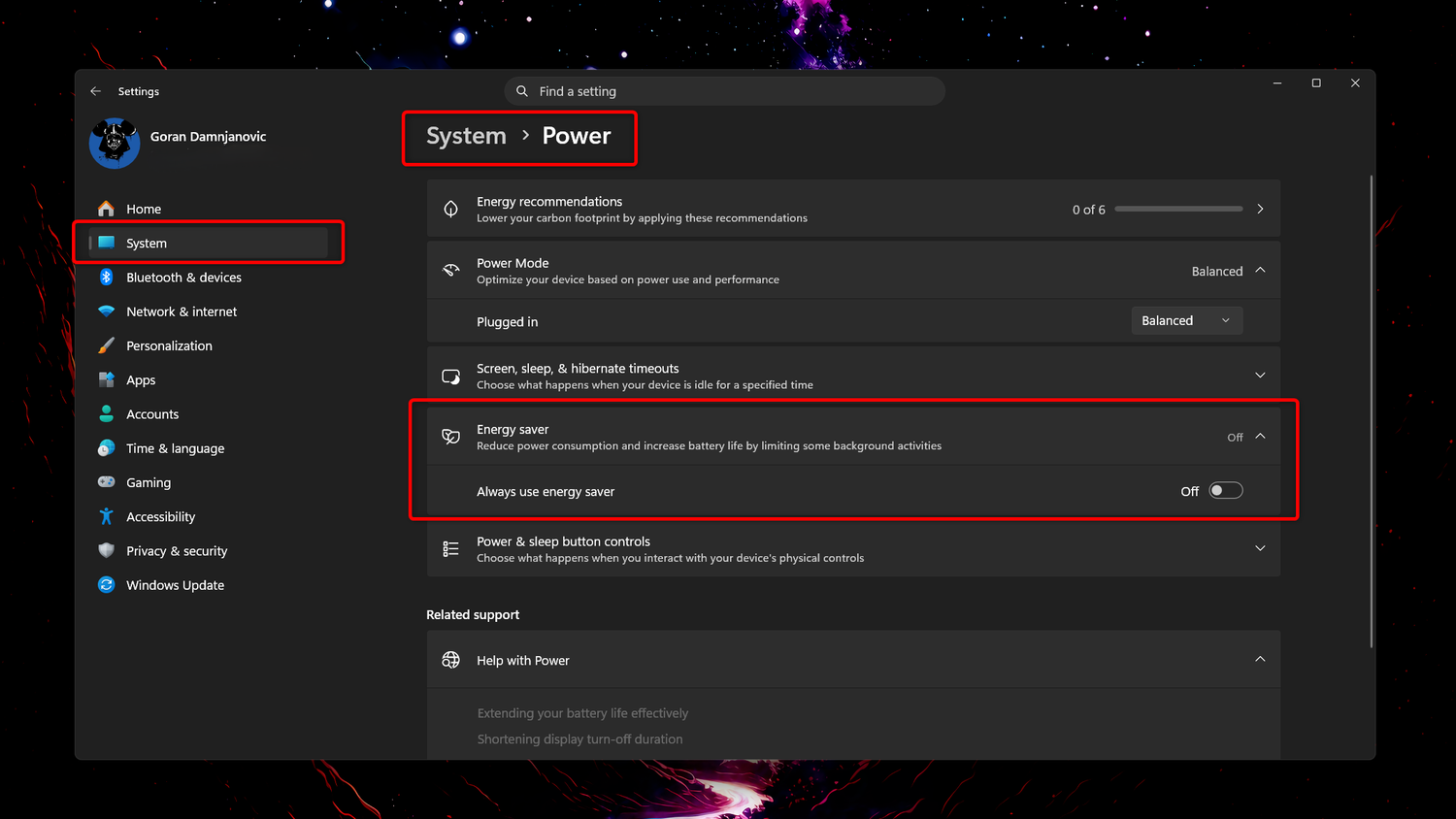

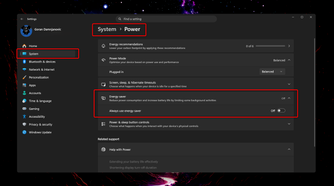
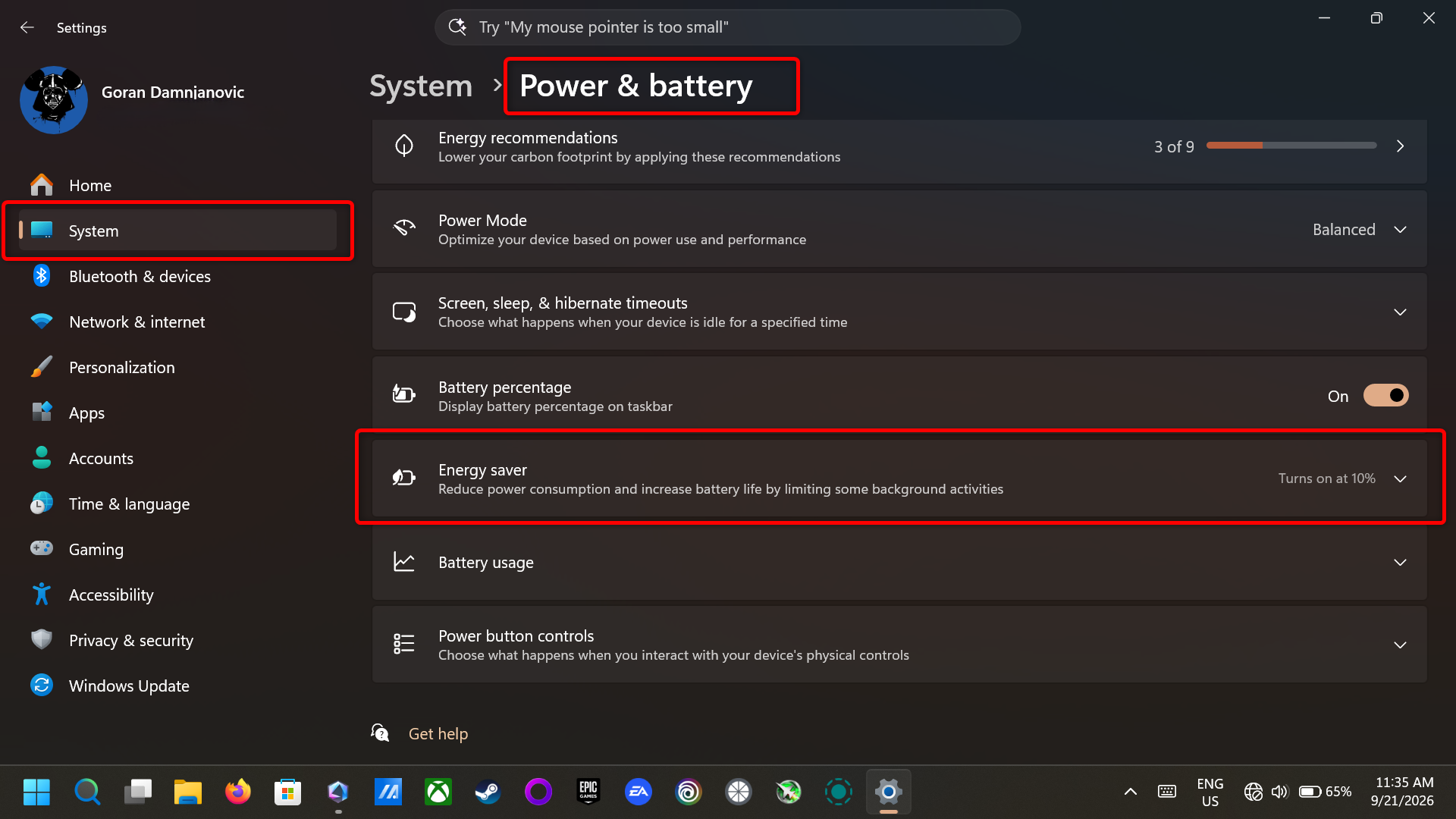

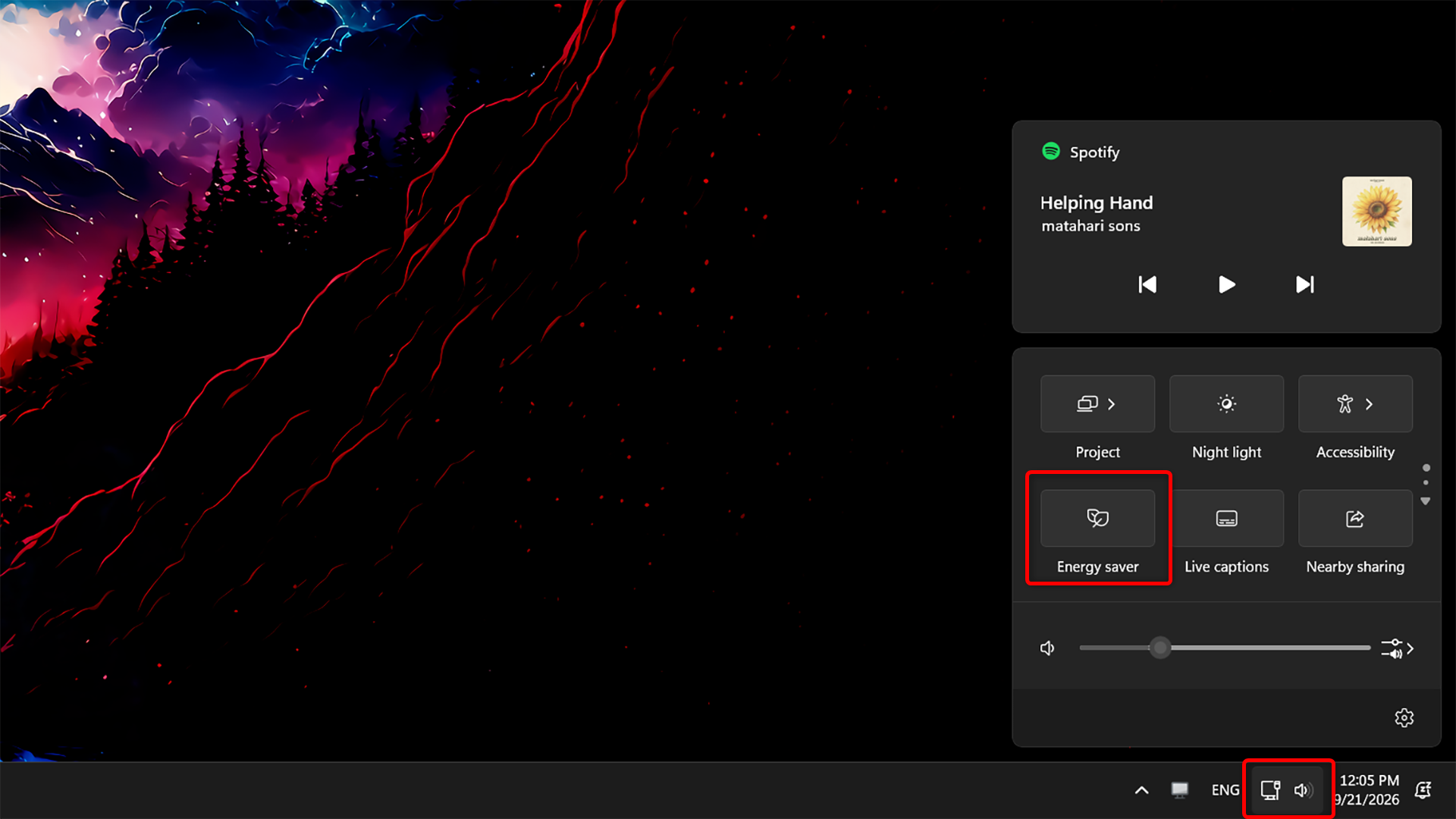
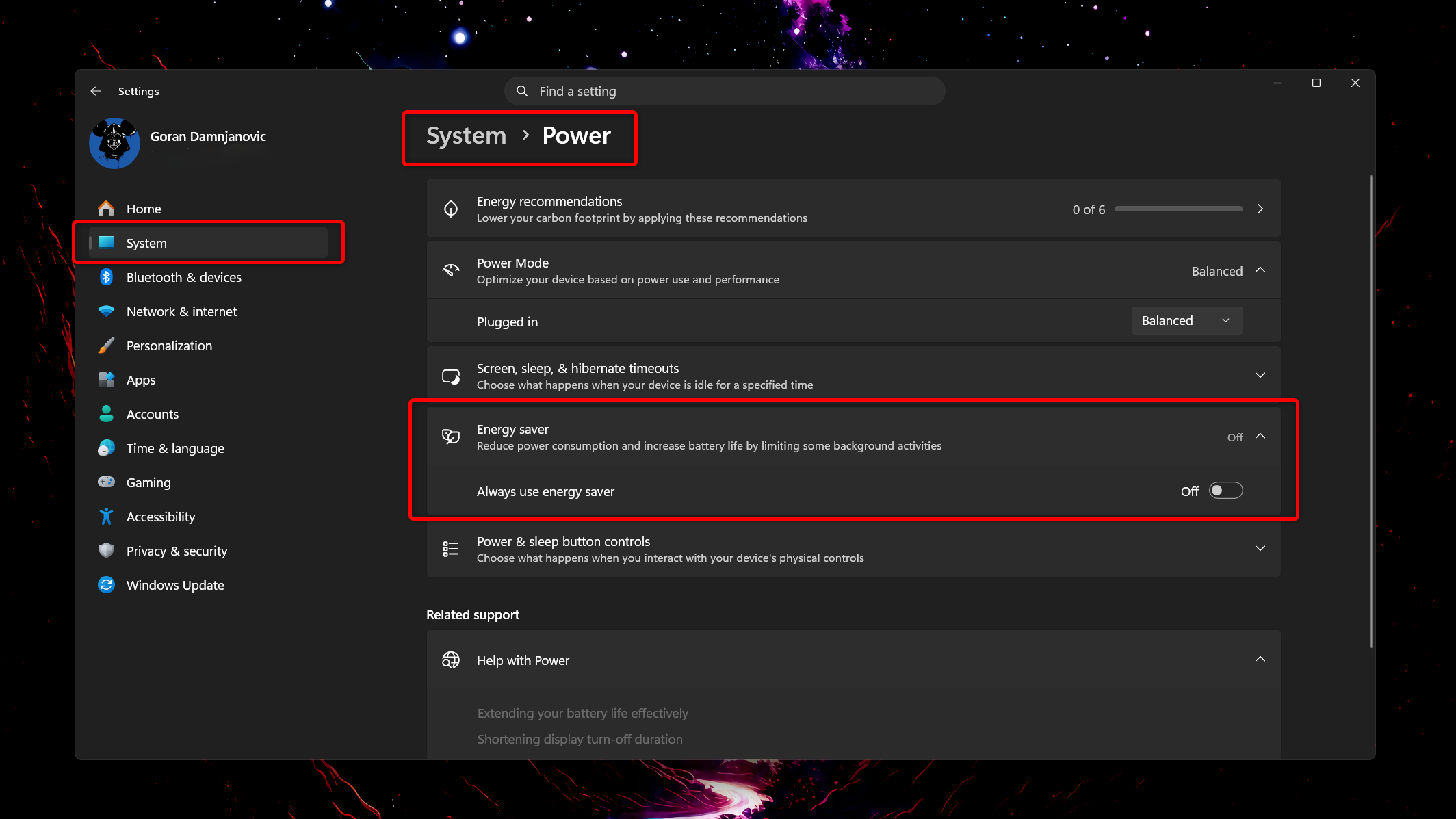
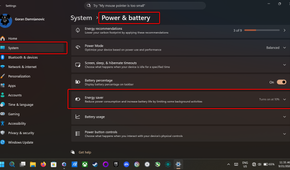
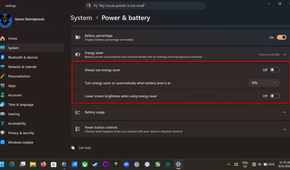

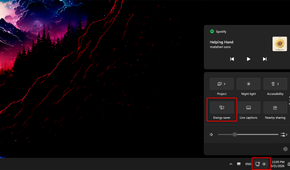
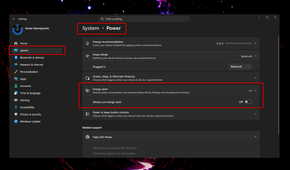
Energy saver has also been available on desktop PCs for a while, but there you only get the Always use energy saver toggle. A quick glance at the system tray tells you whether it’s on. If you see the energy saver icon, go to System -> Power -> Energy saver and turn off the toggle.
You’ll also want to switch to the Balanced or Best performance power mode
Switching takes two seconds, but Energy Saver has to be off first
 Credit: Lucas Gouveia/Justin Duino/How-To Geek
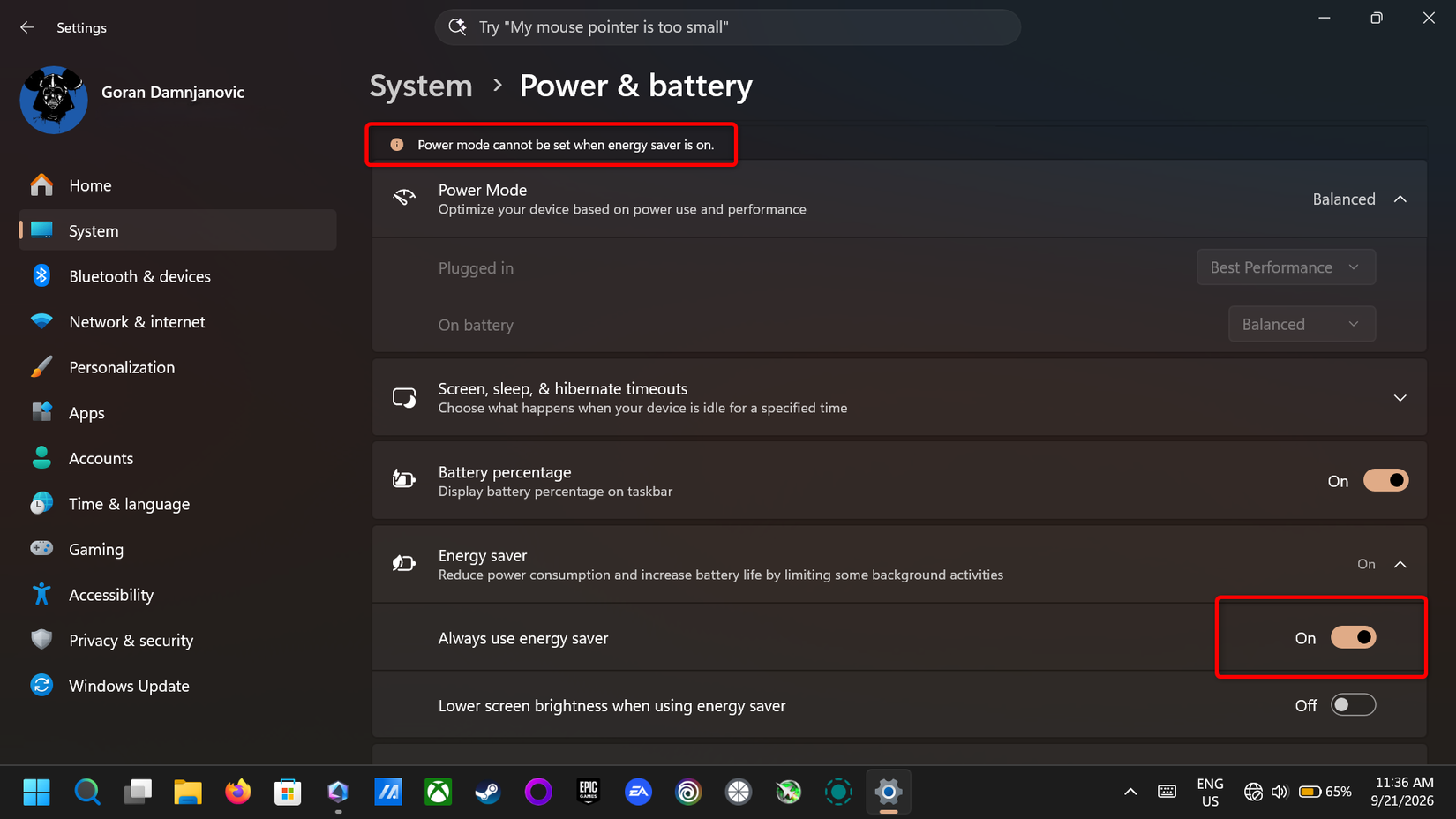
There’s another setting you’ll want to tweak to stop your PC from throttling itself: Power Mode. Just make sure to turn off Energy Saver first, because you can’t change power modes while Energy Saver is active.
When the power mode is set to Best power efficiency, it can drastically slow your PC down. Windows lowers your CPU’s clock speeds and makes it slower to ramp up its frequency. As a result, apps open more slowly, and multitasking gets more sluggish the more apps you juggle. If your processor has efficiency cores, most of the workload might shift to them, with the performance cores parked to save power.
Your GPU and SSD may also run below their capabilities, which means lower gaming performance, slower file transfers, and extra hiccups when launching apps. On top of that, some laptops with high-refresh-rate displays drop to 60Hz in Best power efficiency mode.
I tested this on my ASUS ROG Xbox Ally X and MSI Claw 8 EX, and both handhelds felt noticeably more sluggish, especially when I opened several apps in a row and jumped between them. Games ran worse too, and Windows in general felt much laggyer than I’m used to. Personally, I’d only use Best power efficiency when my battery is low, or the power’s out, and I want to squeeze every minute out of my machine.
If you own a laptop and want to maximize its performance, I recommend switching to the Best performance power mode when it’s plugged in. This lets your PC use all of its resources as it pleases and provides the best possible experience.
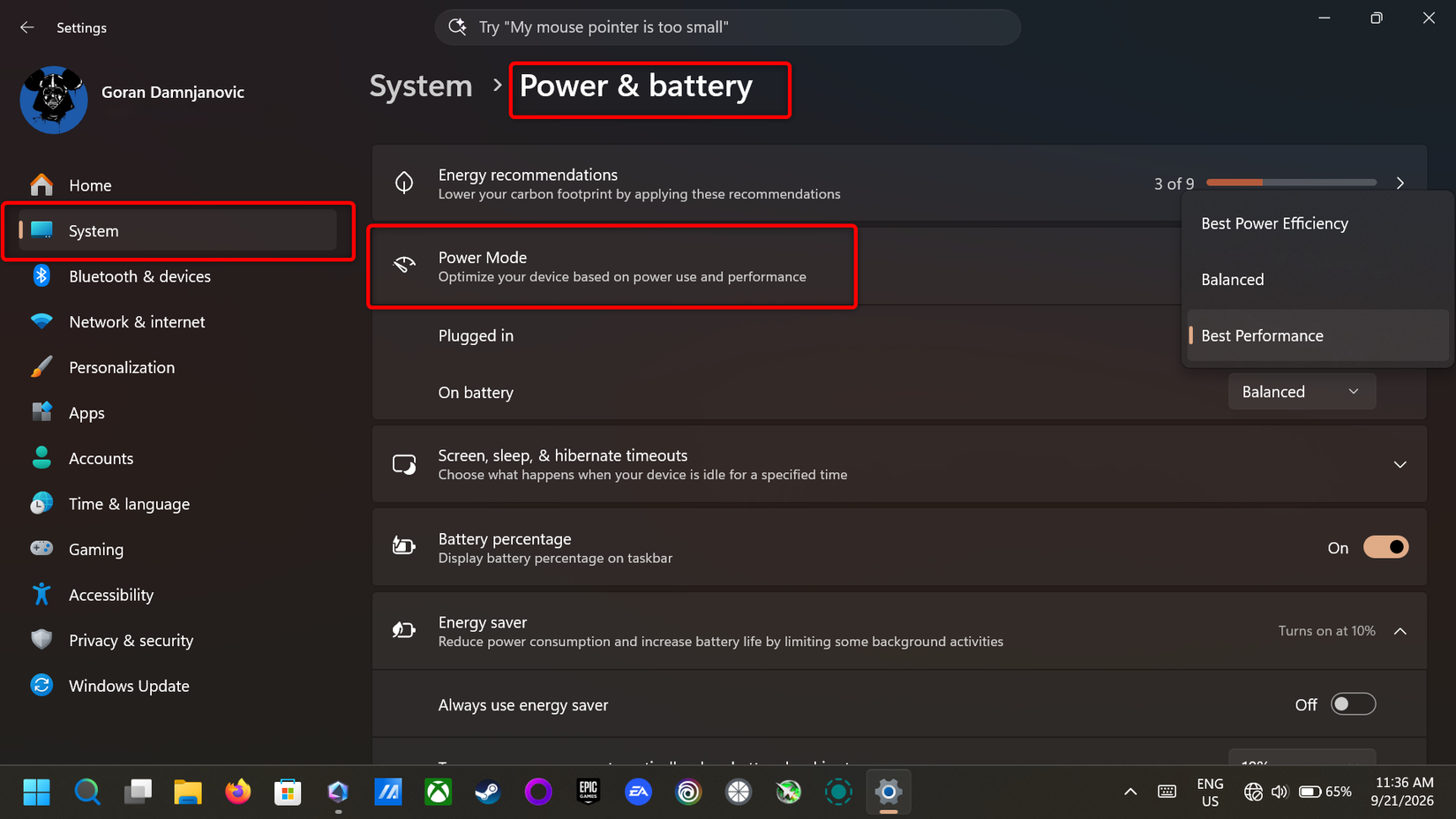
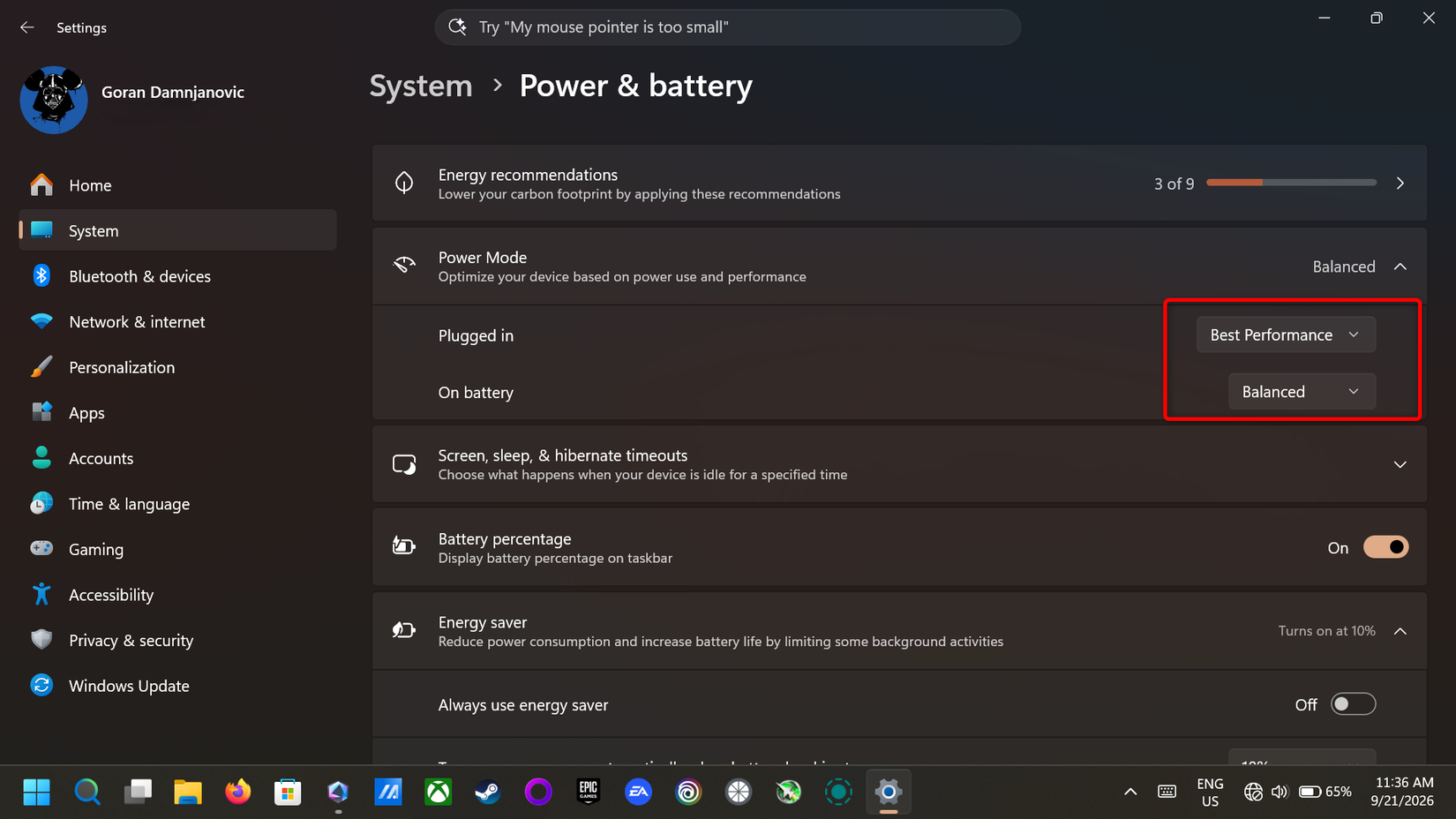
On battery, Balanced power mode is a better pick. In my experience, it only reduces CPU boost clocks under light loads (like when browsing or watching videos), tells Windows to use efficiency cores for lighter tasks when possible, and does little else. Performance in games and demanding apps should stay the same, so go to Windows Settings -> System -> Power & battery -> Power mode, then set Best performance for when you’re plugged in and Balanced for when you’re on battery.
On a desktop, I’d stick with Balanced. Whenever I use Best performance on my desktop PC, GPU power consumption goes up because the mode keeps the GPU in a higher power state when it’s idle. This makes the GPU’s fans start spinning, even though they’d normally stay off thanks to its zero RPM mode.
Both settings exist for a reason, so use them where they make sense
Energy saver and the best power efficiency power mode aren’t useless, and you shouldn’t write them off entirely. They come in handy on long flights or road trips with no outlet or power bank in sight, when your battery is running low, or in any other situation where you want to keep using your laptop or handheld PC for as long as possible.
Lower clock speeds also mean less heat and quieter fans, which helps when you’re working late at night, sitting in a library, or using your laptop in a room without AC on a hot summer’s day. But if you don’t want your Windows PC to throttle itself, make sure Energy Saver isn’t set to run all the time, and stick with one of the other two power modes.