Some Linux commands have been around since time immemorial and are still widely used today. These commands work. They’re both reliable and powerful. The problem is, if you’re someone like me who isn’t in the terminal all the time, they’re not particularly intuitive. Most of the time, I use Linux through its graphical interface. I was never really interested in memorizing a bunch of complicated commands just to accomplish things that I could point and click at. When I do decide to open the terminal, I want command-line tools that don’t make things unnecessarily complicated.
Today, there are more modern replacements that have built on several traditional Linux commands, making common tasks easier while adding useful features. Some of these tools give users visual improvements, while others simplify the syntax needed to get the job done. And don’t worry, you don’t have to abandon the original commands. They’re still useful and supported. The goal for someone like me is to make my occasional trip to the command line a little simpler.
Replace ls with eza for better file listings
Eza makes an old, familiar command easier to use
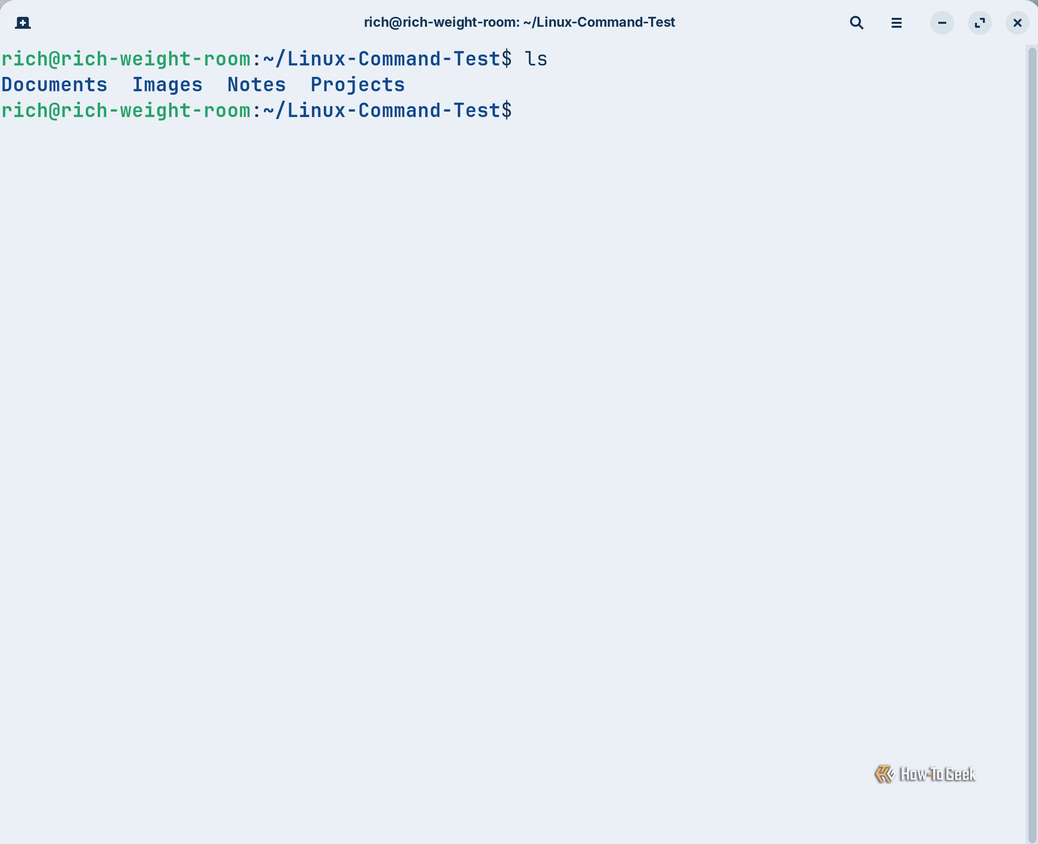
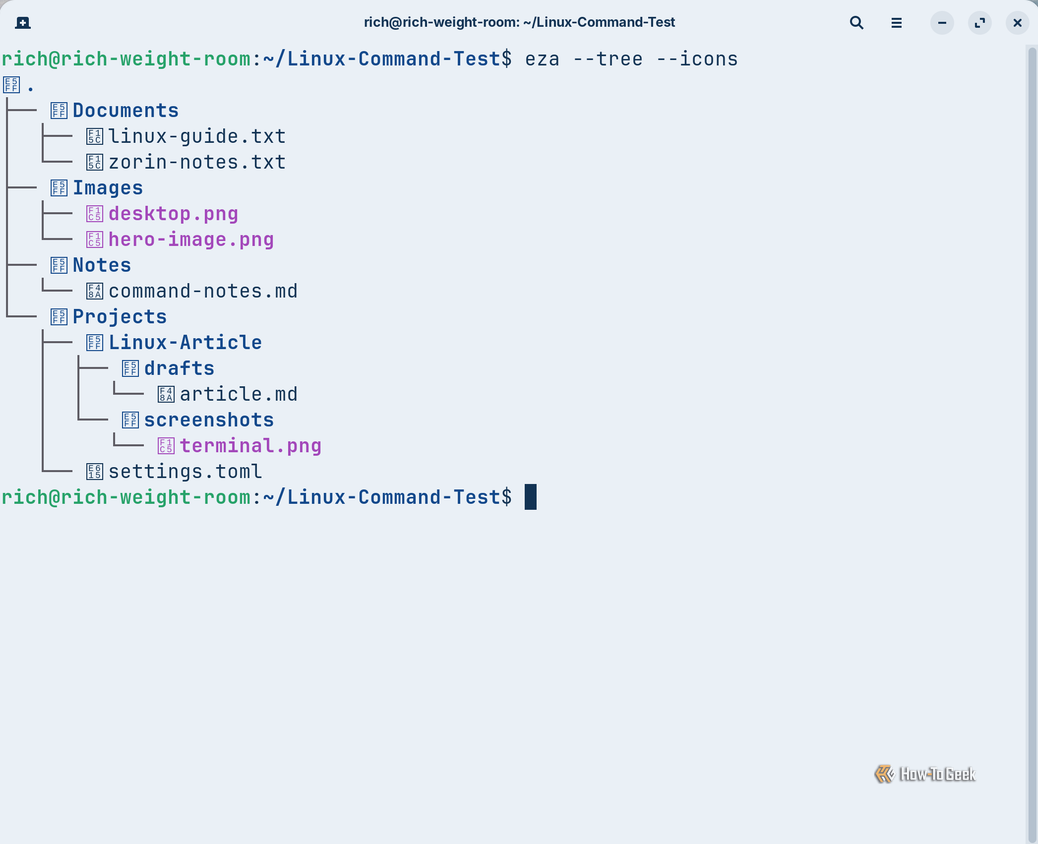
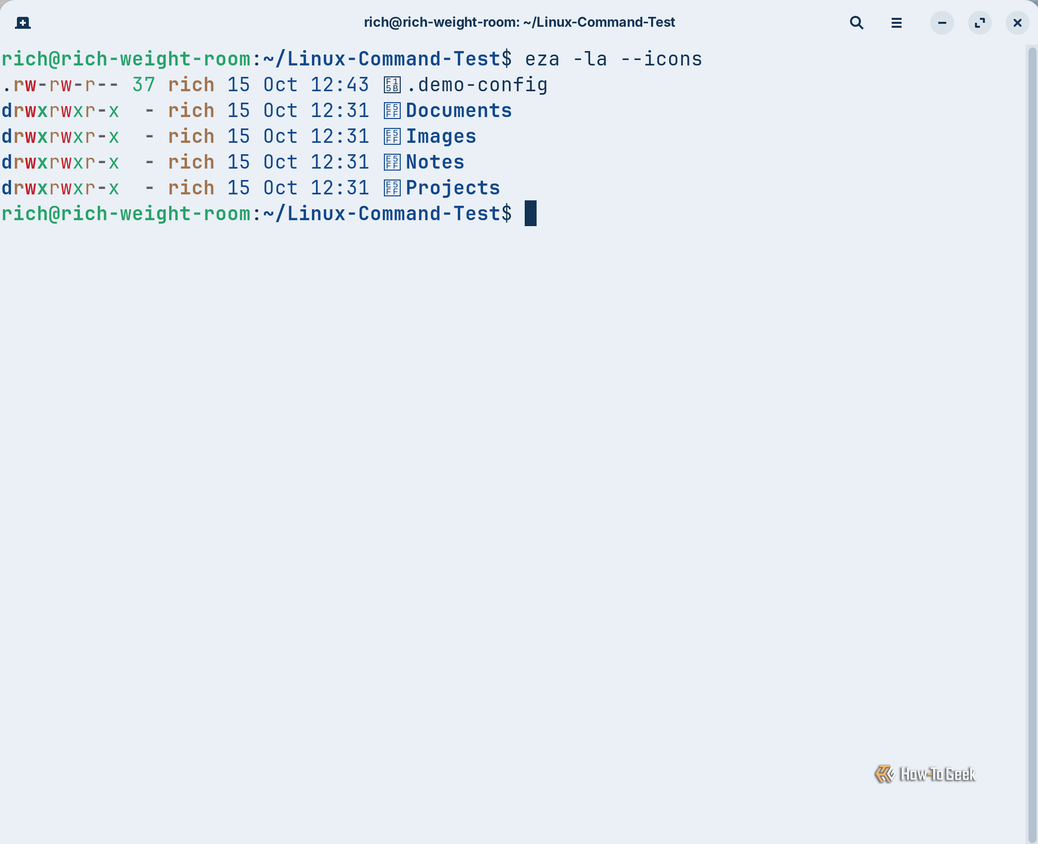


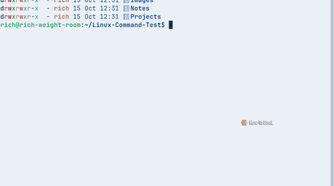
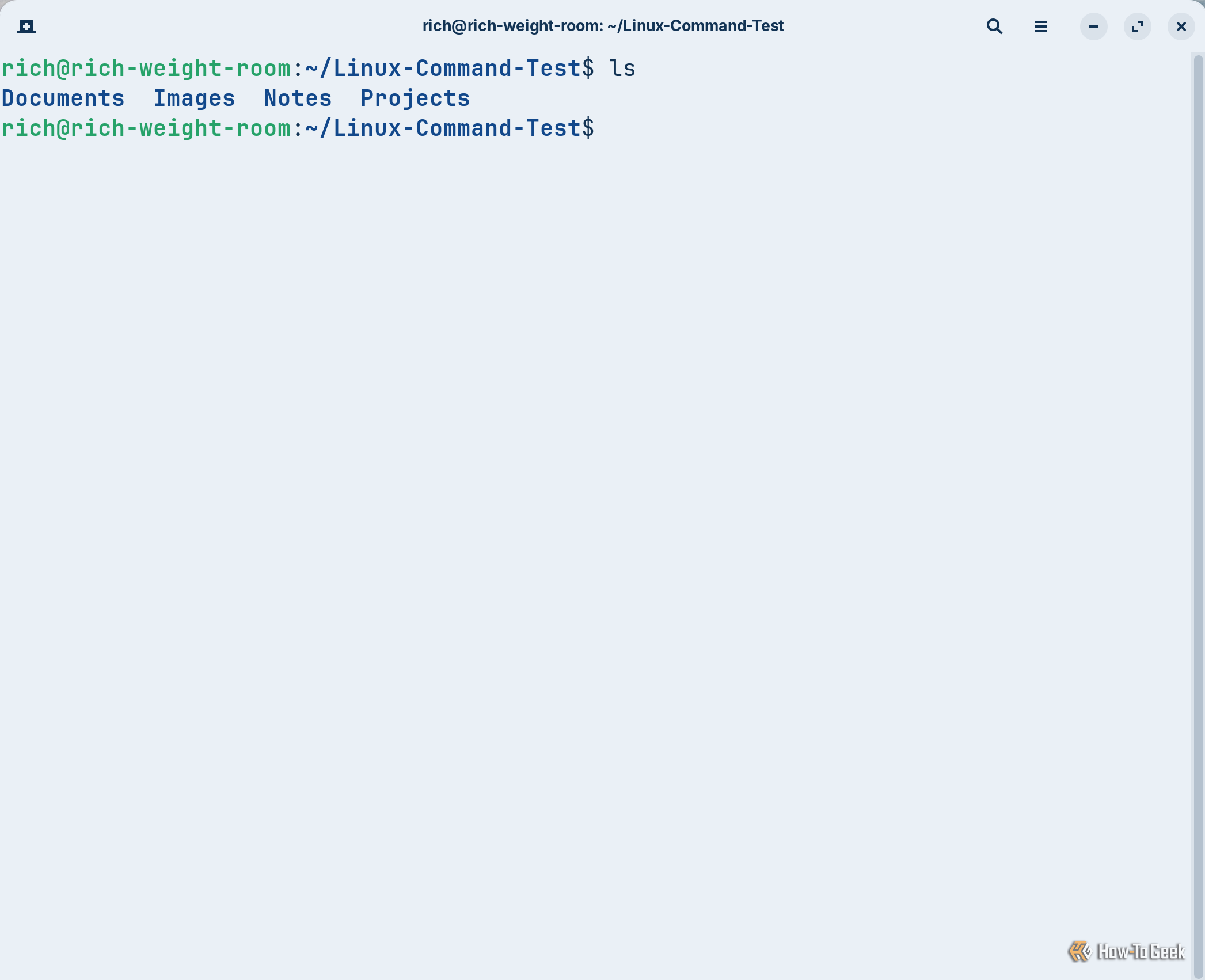


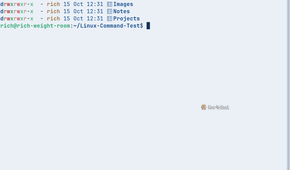
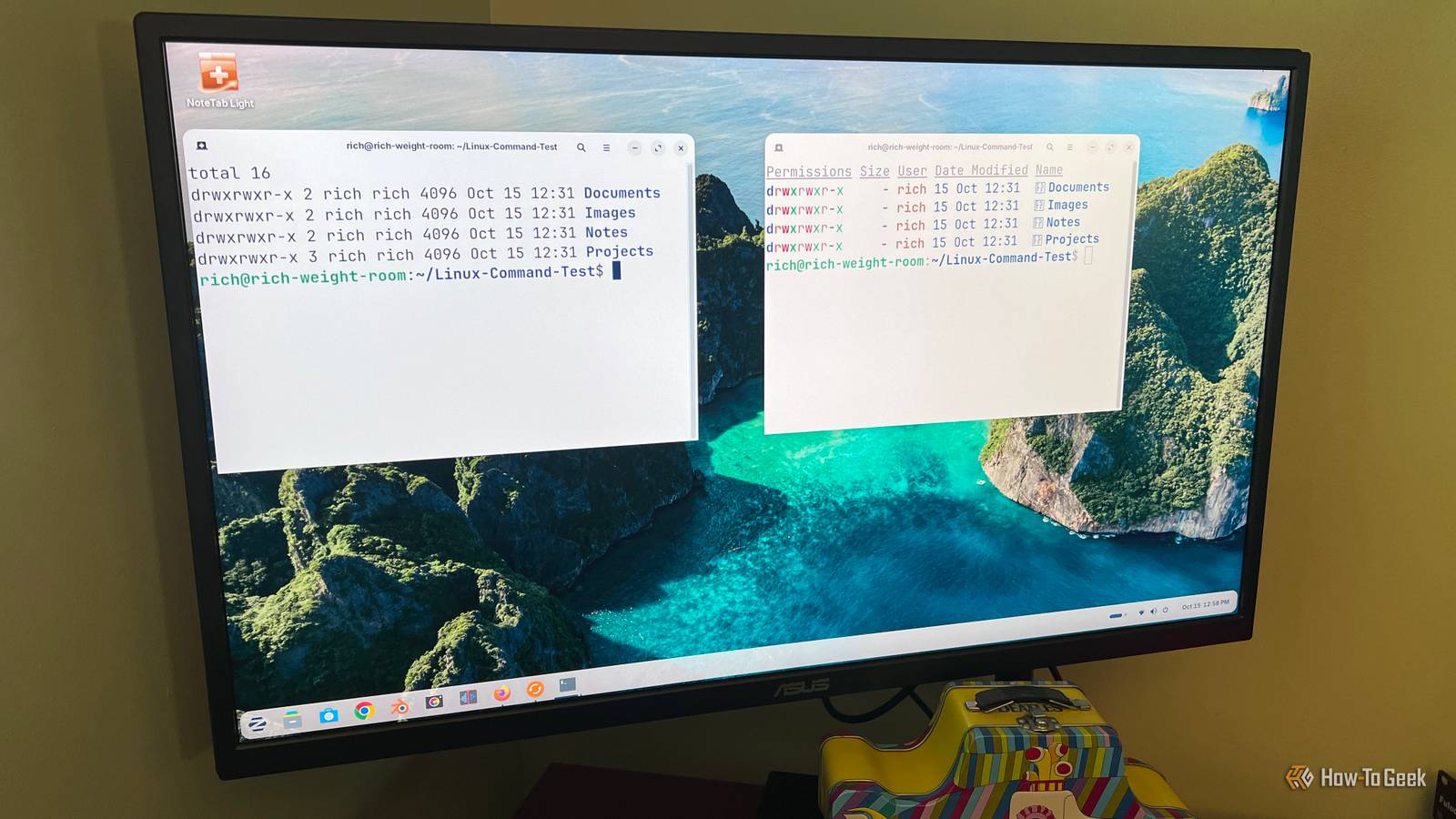
ls is a longtime Unix and Linux command that lists files and directories in the terminal. I started using it decades ago when I would have to log into the company’s web servers to run Perl scripts that updated the website’s content. Back then, ls was simply a quick way to see what files and folders were on the server. It’s still a very useful command, but the default output seems very basic. Additional options like ls -l can add some more information like file permissions, sizes, and modification dates, but the output isn’t what I would call intuitive.
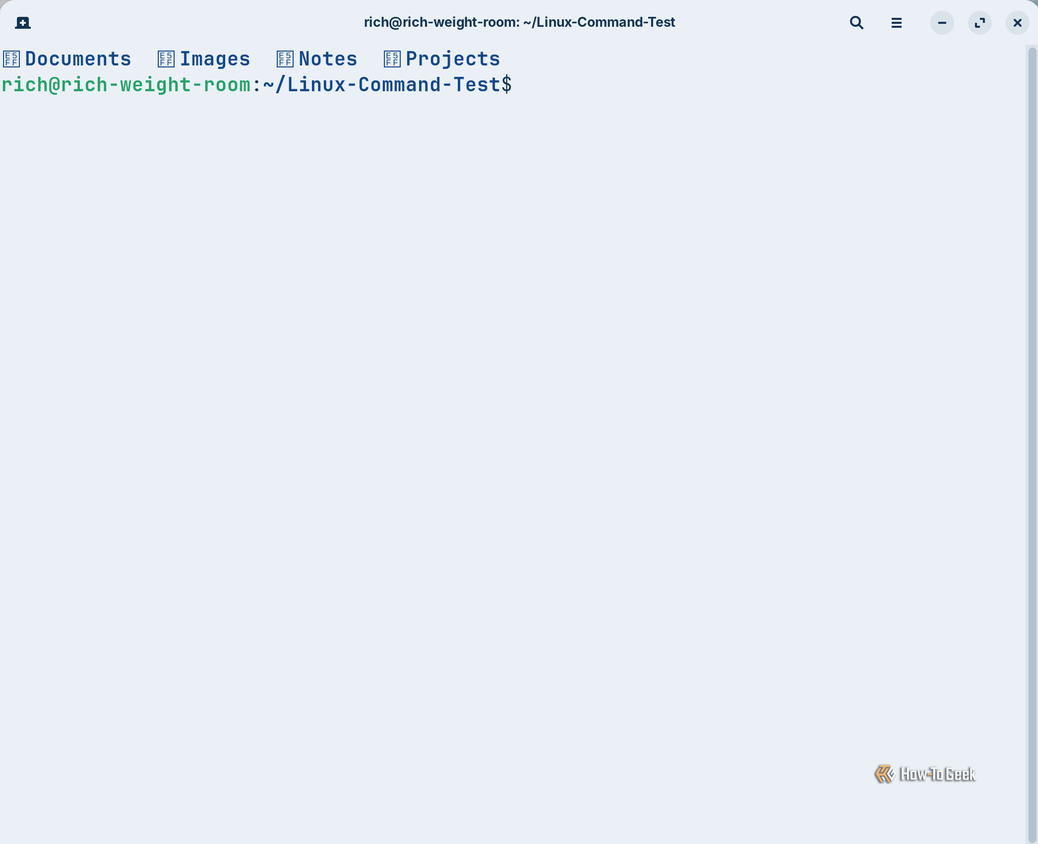
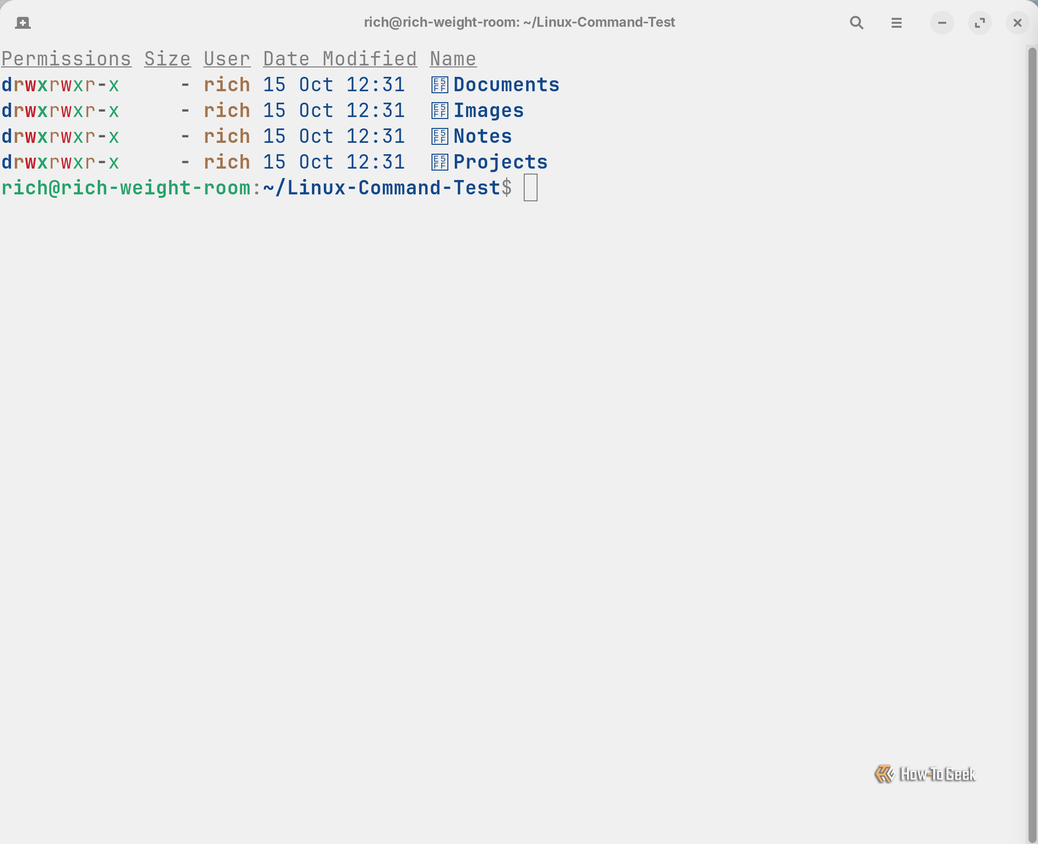
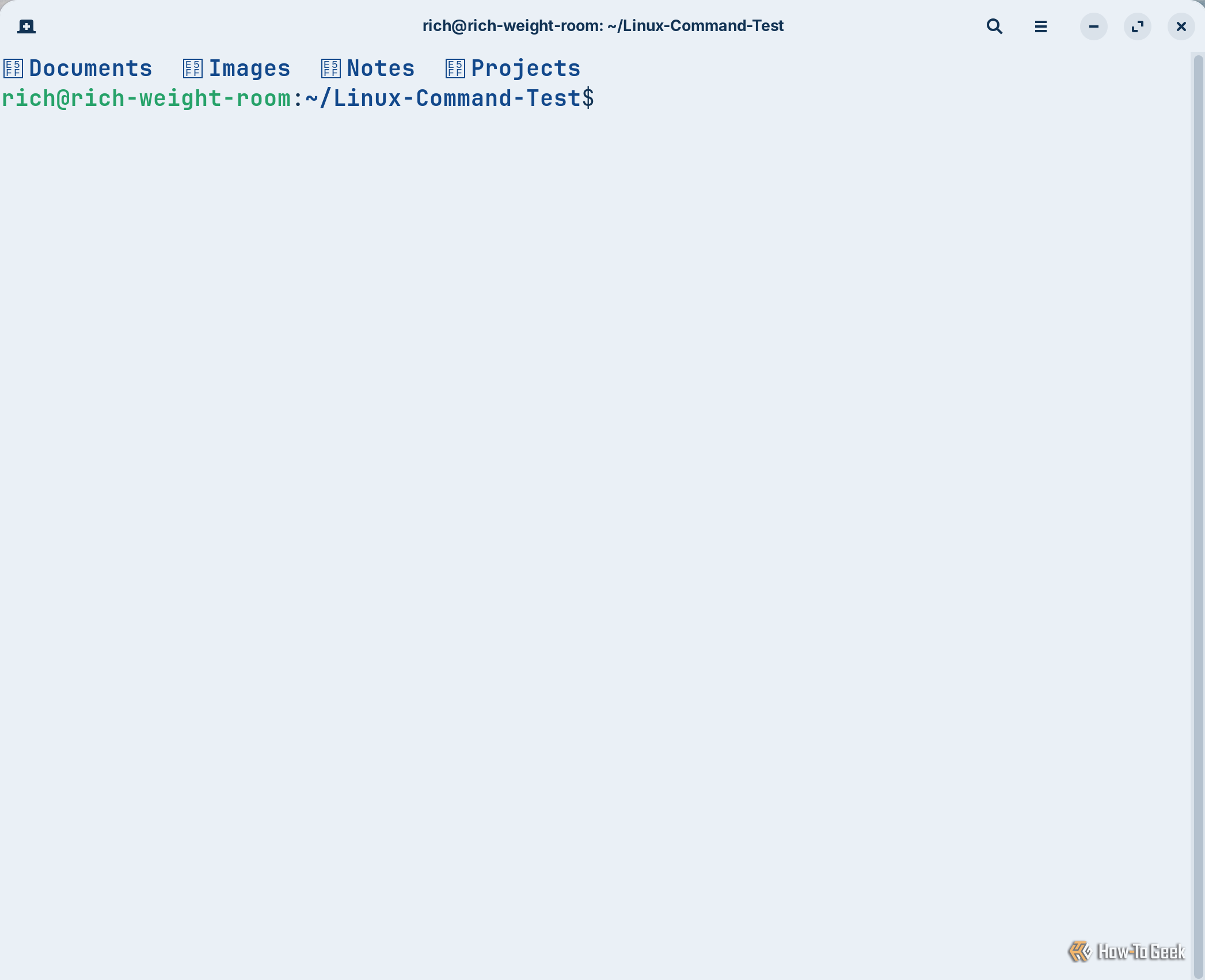
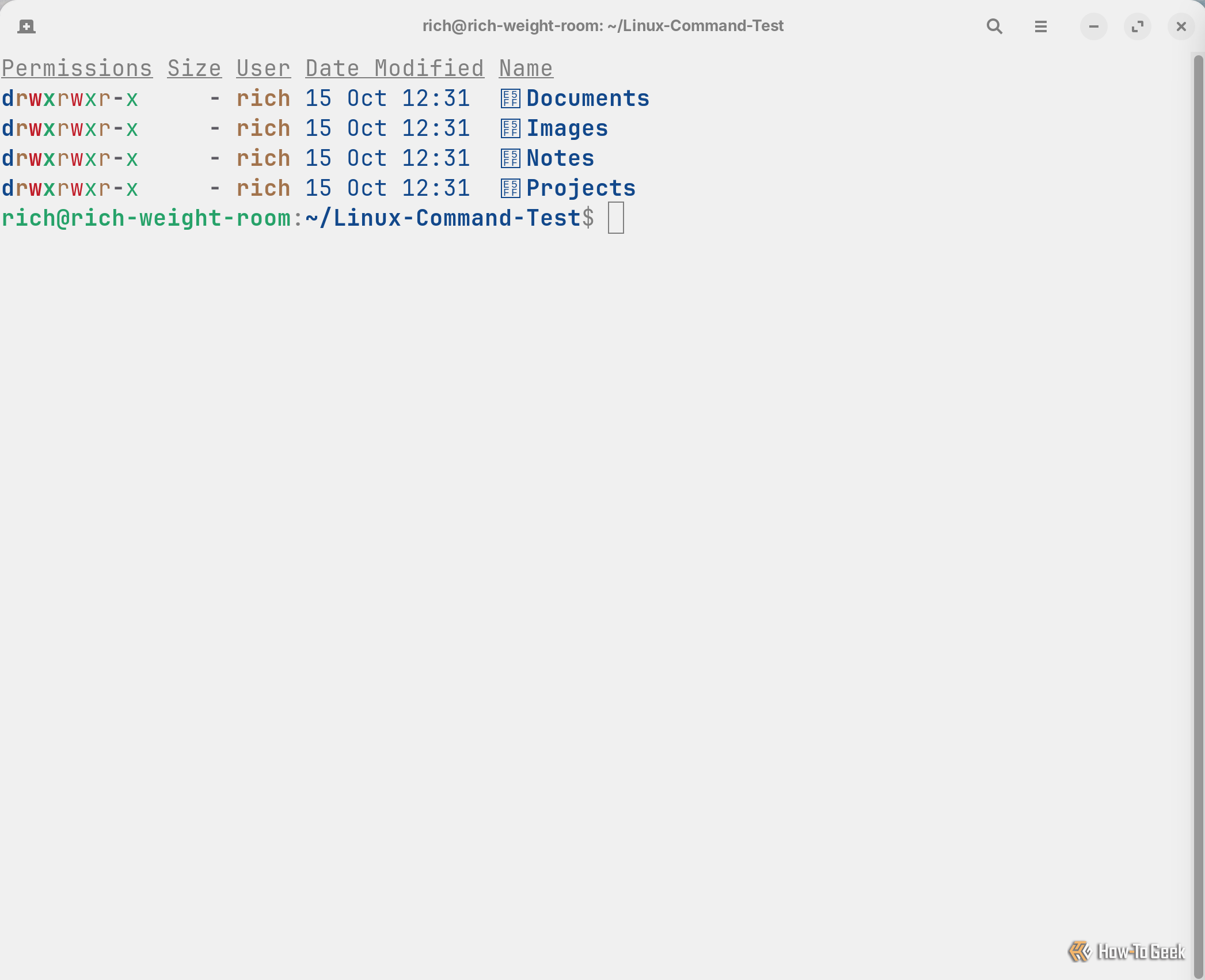
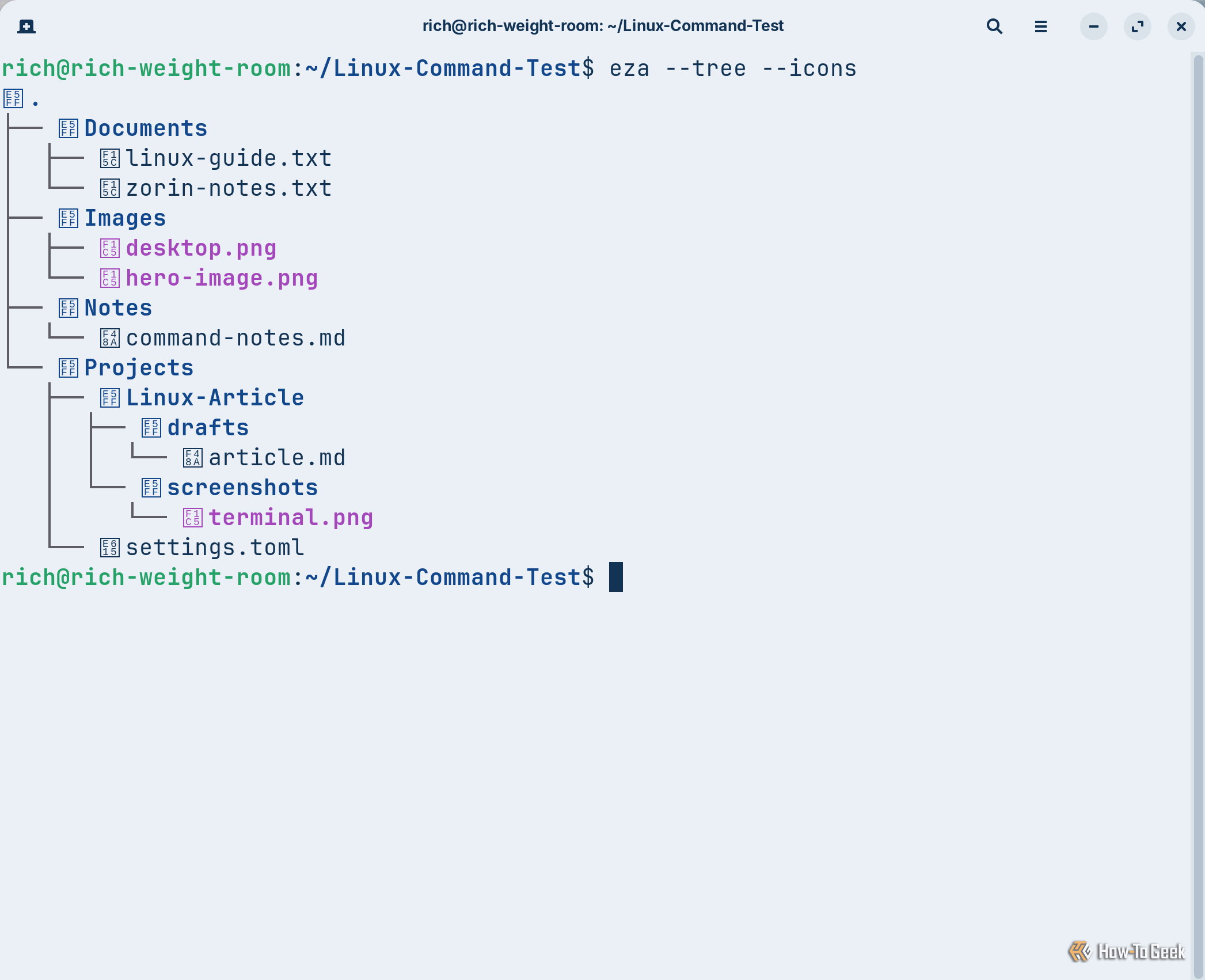
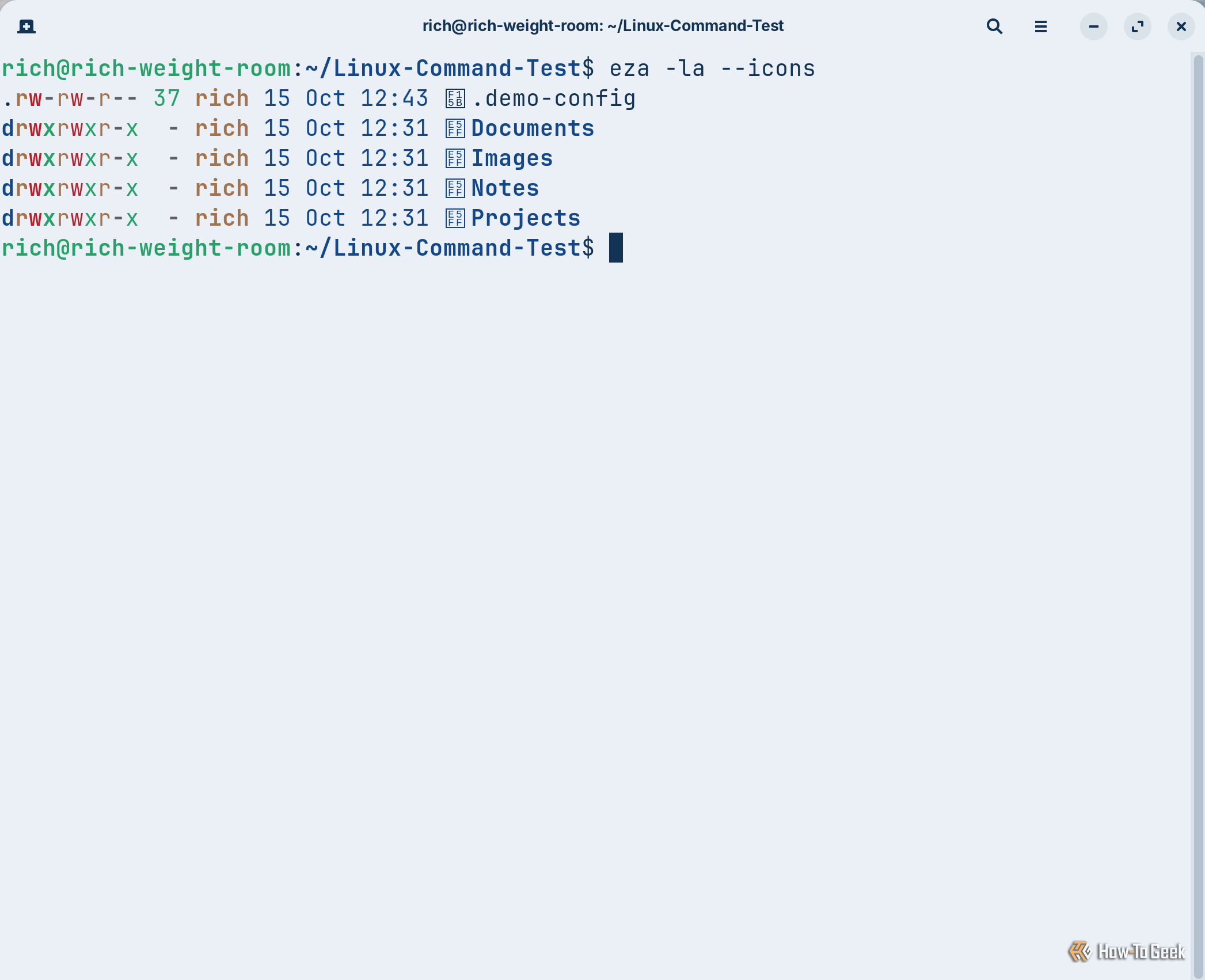
Eza, on the other hand, is a modern alternative to ls that makes the output easier to read and understand. One of the most noticeable differences is how eza presents information, using color to make files and directories easier to distinguish. The eza --icons command also supports file-type icons, although I had some trouble getting them to display due to font issues. If you use eza -l --icons --header, you’ll get more details, including readable file sizes, permissions, modification dates, and column headings.
Another advantage that I really like is the tree view. Running eza --tree --icons displays directories and subdirectories in a visual way, which makes it far easier to understand how your files and folders are organized. For me, eza gives a clearer view of my files.
Replace cat with bat to make files easier to read
bat adds syntax highlighting and formatting to plain text files
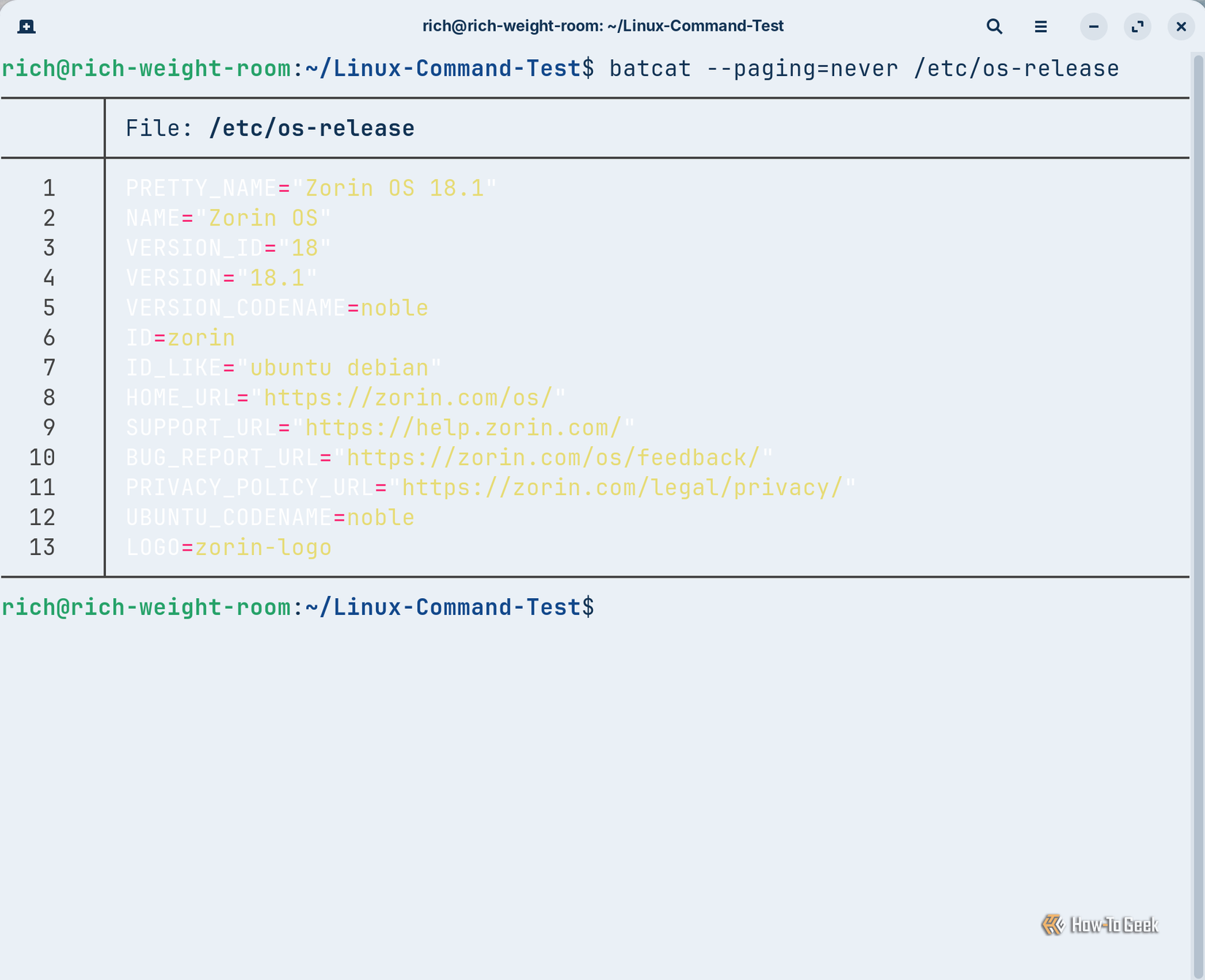
The cat command allows you to display the contents of a text file right there in the terminal without opening a text editor. You can also use it to combine the contents of multiple files into a single output, which is where its name, short for concatenate, comes from. You could, for example, run cat /etc/os-release and get output showing info about your distro, including its name and version. My gripe with it is that it displays everything as plain text without any type of syntax highlighting or line numbers. This makes it more complicated for me to follow longer files.
bat improves the presentation of text files without changing their contents. It includes the syntax highlighting I was talking about, which uses color to distinguish comments, settings, and other elements in supported files. bat also includes line numbers and a filename header, making it easier for me to identify specific parts of a file.
Ubuntu-based distributions like Zorin typically use batcat instead of bat as the command name.
Another feature I like is automatic paging. If you’re looking at a longer file, bat lets you scroll through its content instead of dropping everything into the terminal at once. If all I want to do is open a file and read it, batmakes it easier.
Replace find with fd to make finding files easier
Less complicated syntax means fewer commands to remember
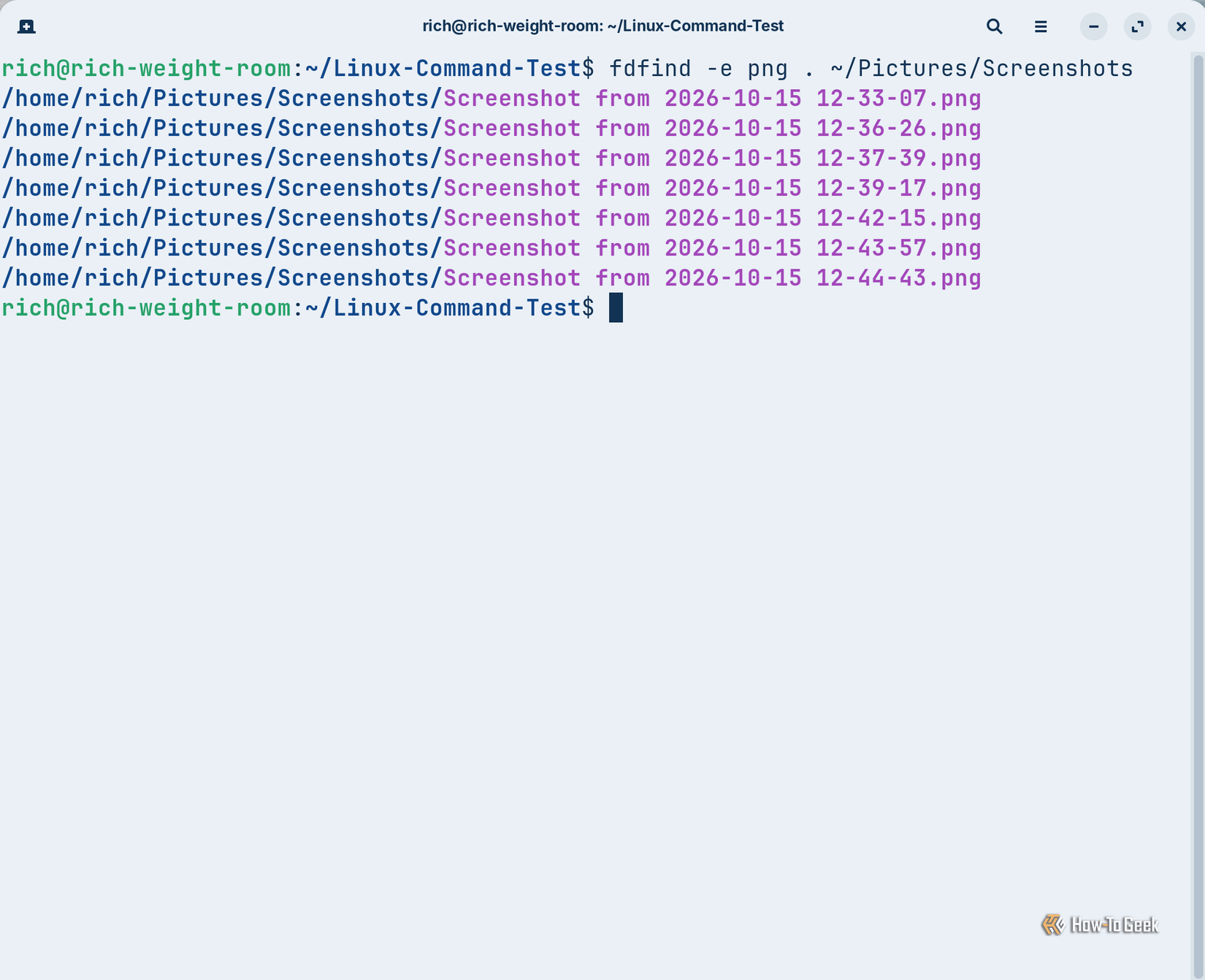
findsearches for files and directories based on things like the file name, file type, size, and modification date. It’s really useful when you know the file is on your machine, but you aren’t sure where it’s located. You can search through a specific directory and all its subdirectories. For example, I used find ~/Pictures/Screenshots -type f -name "*.png" to search my screenshots folder for PNG files. My biggest problem with it is that I have trouble remembering all those options.
fd is a modern alternative to find that makes searching for files and directories a little easier. When I was testing on Zorin, I used fdfind -e png . ~/Pictures/Screenshots to locate screenshots that I’d taken for this article. Compared to find, the command is shorter and, for me, easier to remember. It also searches subdirectories automatically and uses color to make the output easier to read.
On Ubuntu-based distributions like Zorin OS, the fd utility is typically installed under the command name fdfind rather than fd.
Choosing the right command for the job
There’s no need to replace every command in the Linux terminal. Some tasks are still better suited to the original utilities, particularly when working with scripts or more complicated operations. But for everyday file management, these newer tools are worth keeping around.