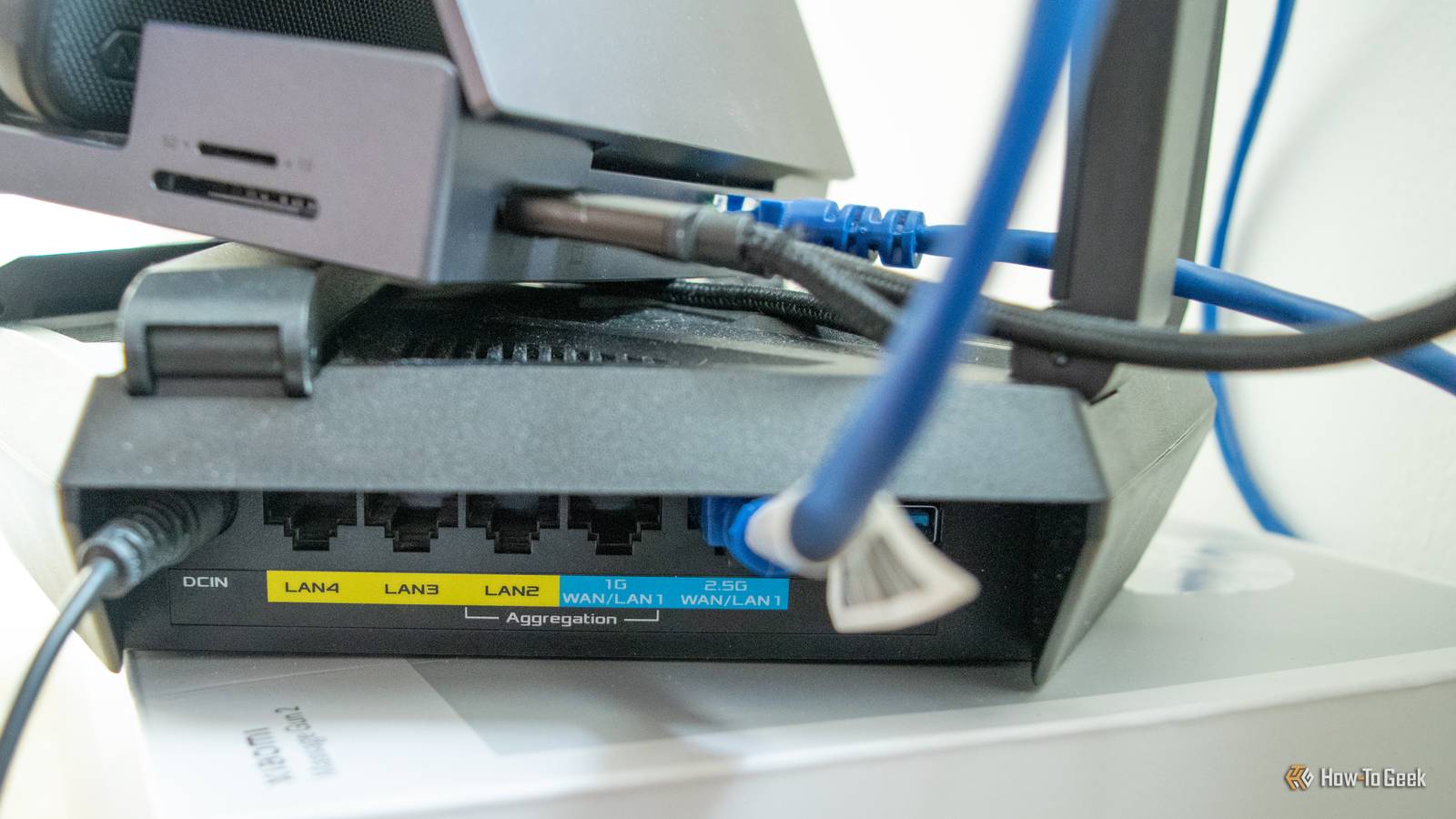
If you have multiple PCs or consoles at home or host LAN gaming parties like me, LanCache might be the magical setup you didn’t know you needed. I’ve recommended LanCache to small offices, gaming cafés, and even to friends who gave each of their kids a separate Xbox.
Let’s be clear: LanCache doesn’t exactly increase download speed. For example, if you download a 100GB video game on Steam, it will consume 100GB of data the first time it downloads. The second, third, or tenth time, you’ll get faster download speeds without using any ISP data. As the name suggests, it’s a cache for your local network — LAN cache. Here are the tasks that get increased “download” speeds with LanCache.
Steam Games and Updates
Full Steam ahead
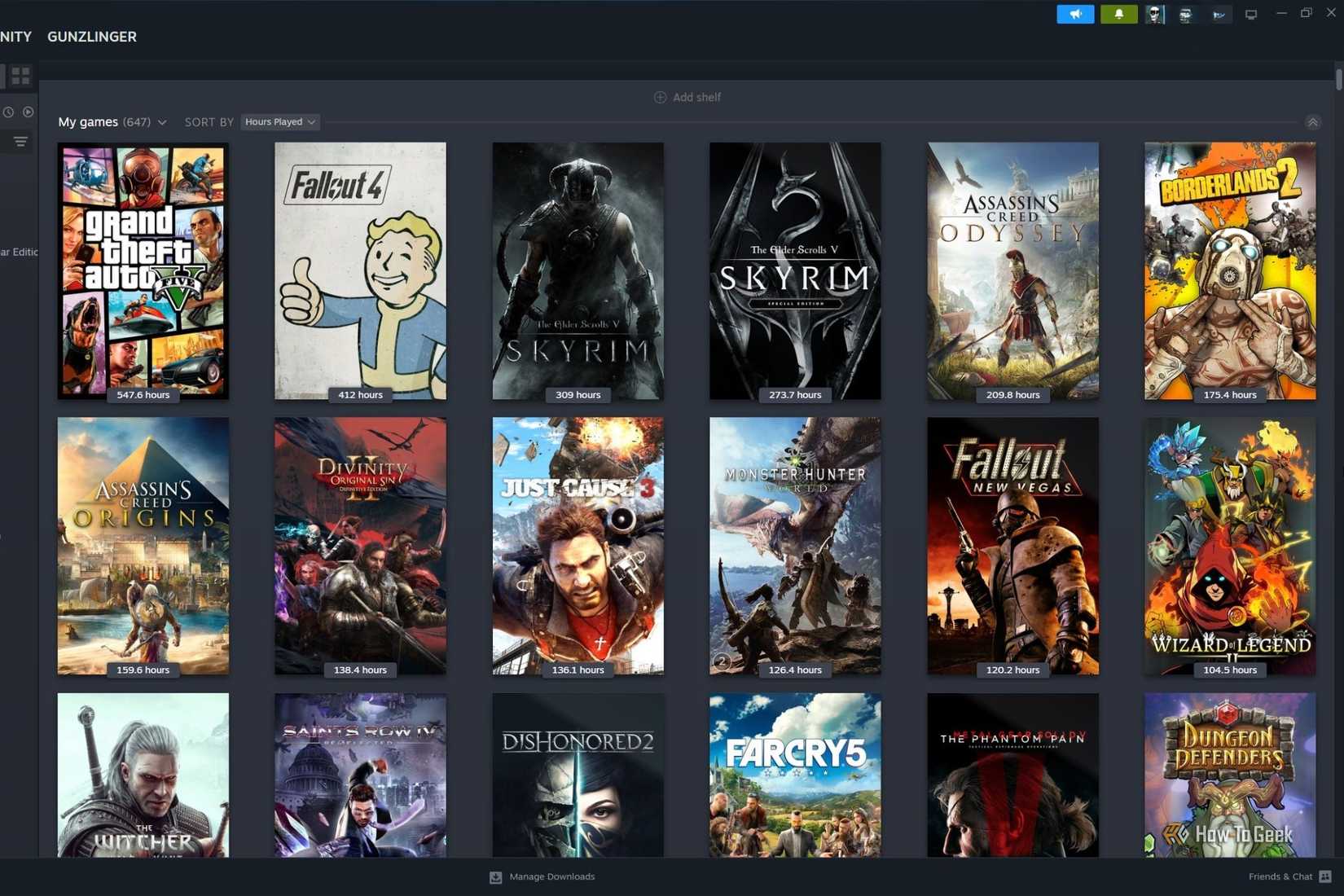
With PC games reaching huge sizes these days, it’s only natural you’ll exceed any monthly data caps, especially if you have multiple gaming PCs at home. Some games even get large updates, which use up data too. If you and your family love playing games together, it all piles up and can cost you real money on the next bill.
The best part is the download speed: while my 100Mbps fiber nets around 10-11MB/s, LanCache can easily hit 90MB/s, LAN speeds as well. That’s a big jump, and it means the other PCs get faster updates too. With LanCache, you download the game or update once, then let the cache distribute it to other PCs on the network.
I have a Steam Deck as well, which I dock to get the updates faster on the portable handheld. Once a game downloads, the other PCs can pull it from the main one almost instantly. It not only removes the need to re-download a large game, but also significantly cuts wait time.
Epic Games, Riot, and EA downloads
Size Matters
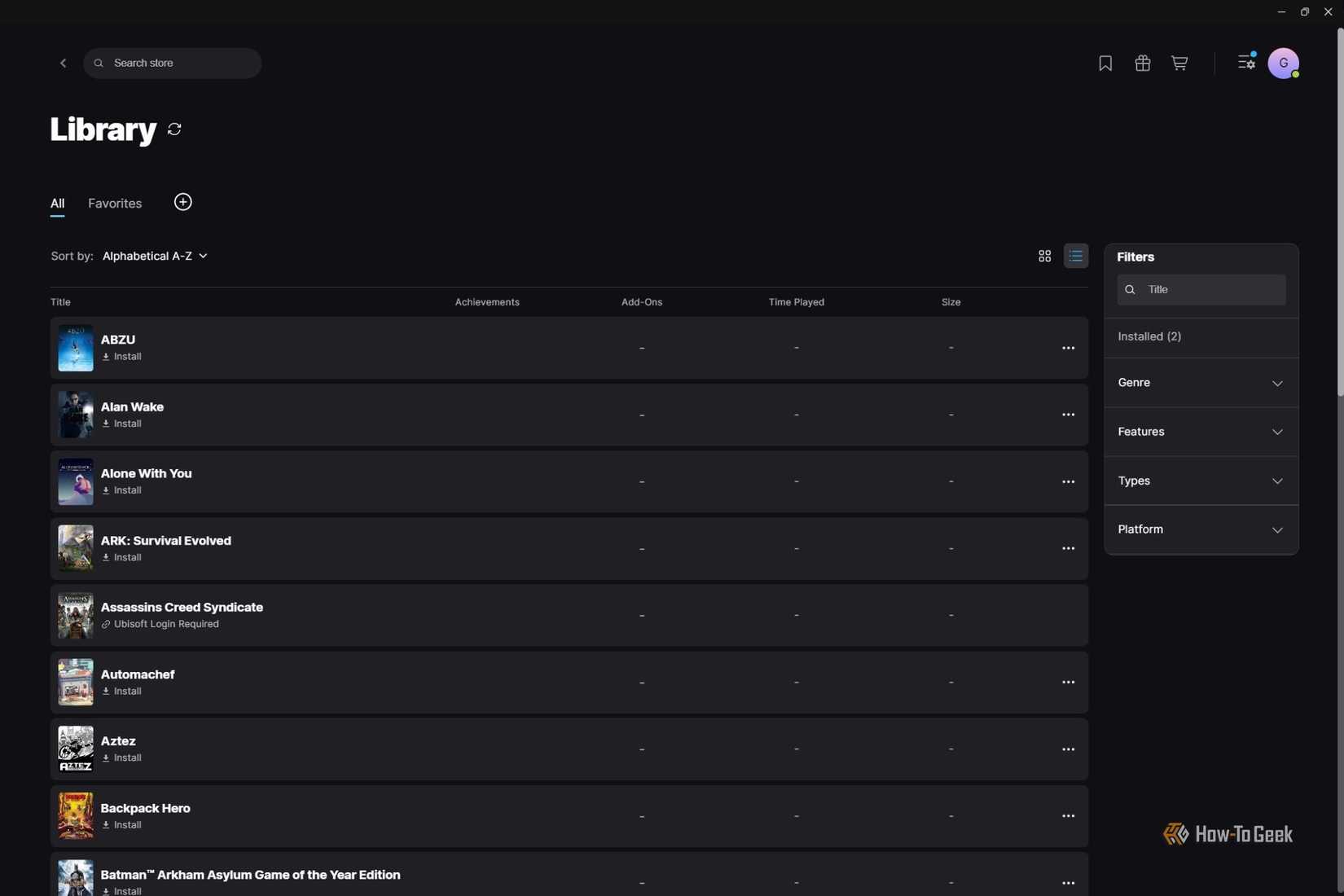
Just like Steam, other storefronts work with LanCache too. Games downloaded on Epic Games, Riot Client, EA App, and Battle.net are shared among the PCs almost immediately. If you and your kids are itching to get into a Valorant match, it won’t take long to update the game and have it up and running with LanCache. I download at least a couple of Epic Games Store freebies on my PCs.
EA games are large these days too, and the latest Battlefield updates take up somewhere between 6 and 13GBs alone. A chunky patch won’t cut into your already limited playtime with LanCache.
Console Downloads
PlayBoxes need love too
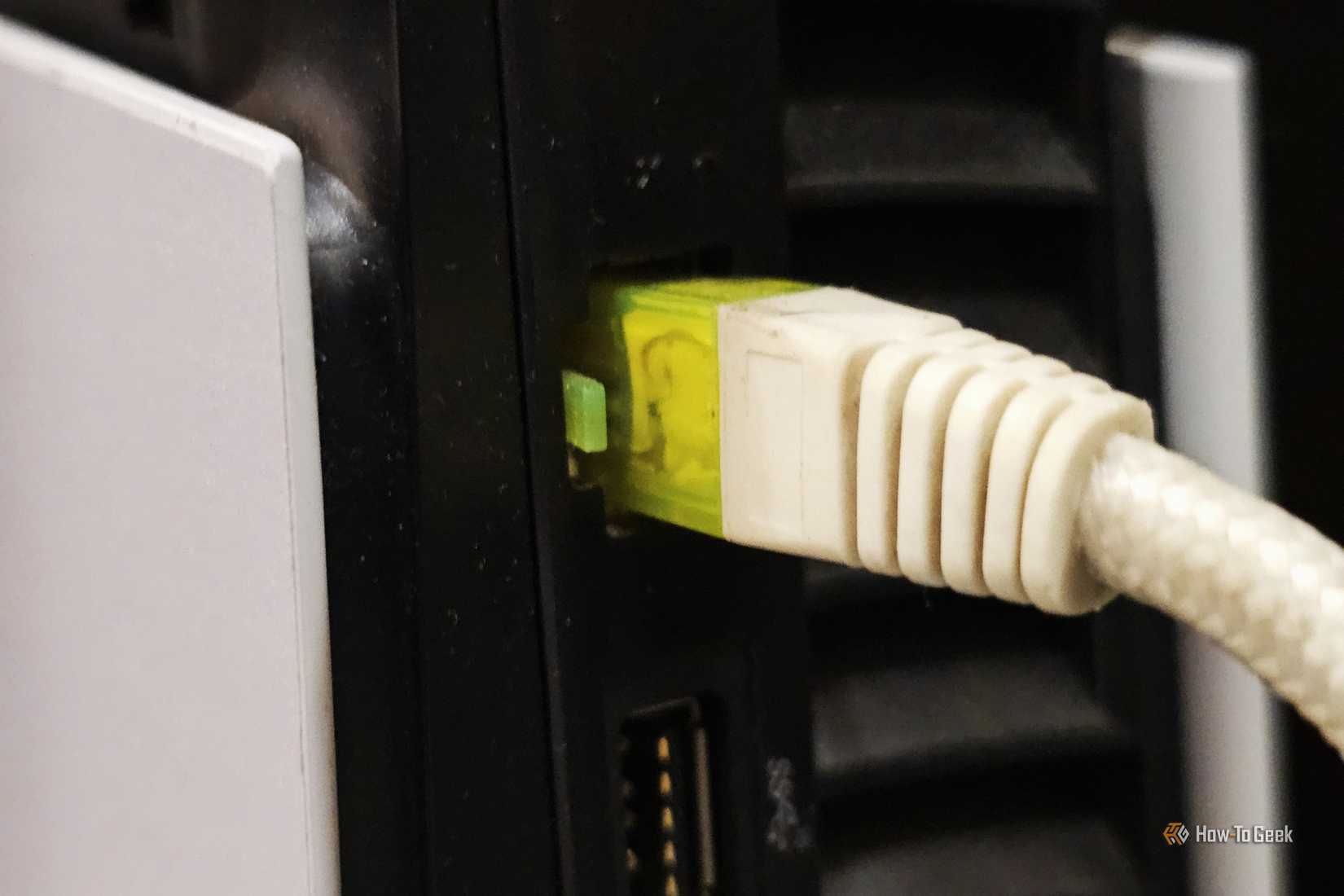
While PC updates are generally smaller, console updates are on another level of bloat. Take Battlefield 6, for example: an update that’s less than 10GB on PC could end up being 50 on Xbox, and with multiple consoles in one home, this stacks up. Don’t even get me started on Call of Duty’s uncompressed, bloated size; it hurts on the Xbox Series S.
With LanCache properly configured, your consoles can download games and updates superfast. I’ve tested it with PlayStation and Xbox Series consoles, and it works flawlessly. Sizes will only keep going up as developers use photogrammetry and uncompressed audio.
Windows Updates
Professionals need speed too
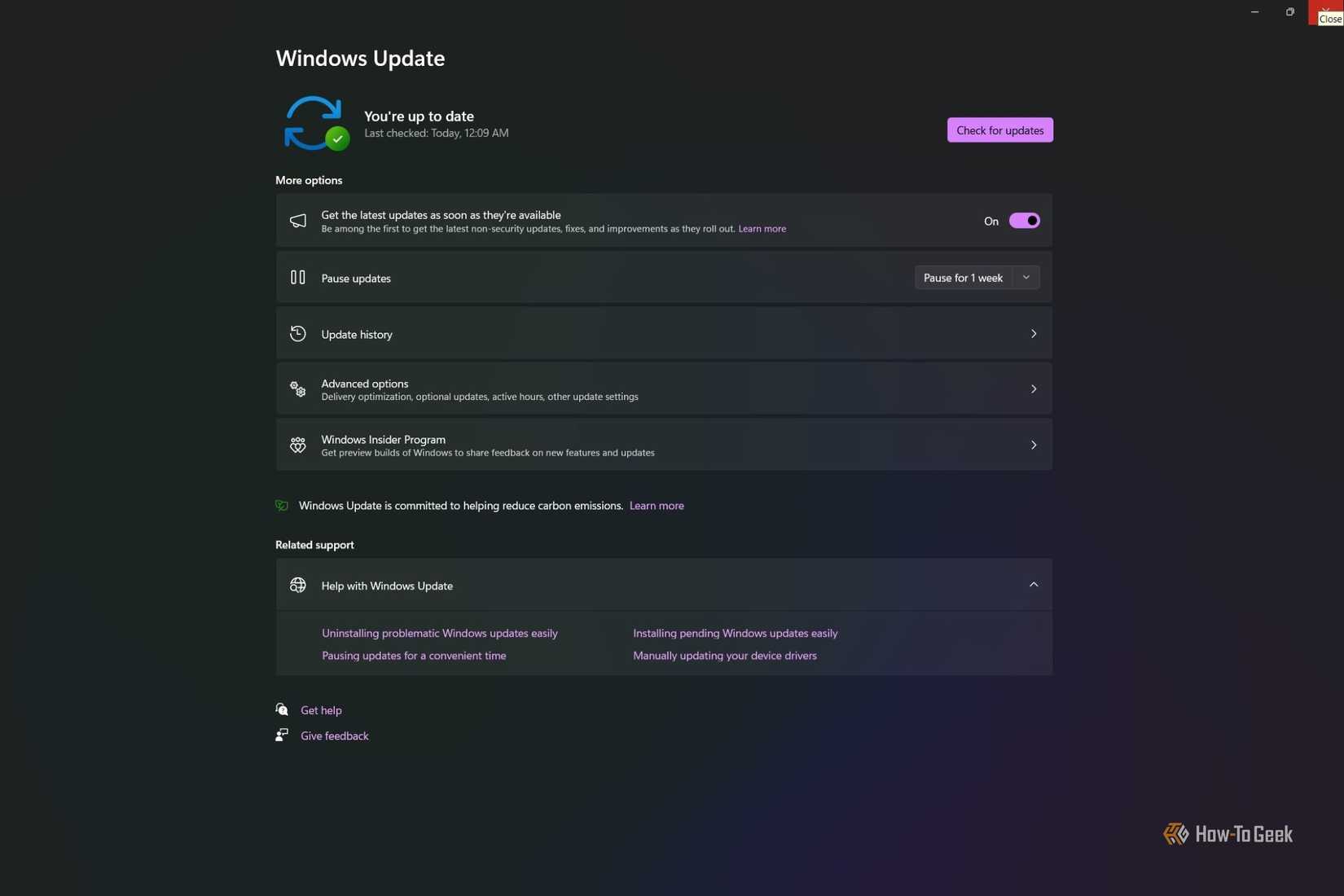
Enough of the gaming talk; offices also need a good LanCache setup to reduce downtime. I’ve recommended LanCache to multiple small offices, and they all loved how fast everything updated. It’s perfect for Windows-based offices, especially mid-sized ones with 10 to 20 PCs.
While Windows updates aren’t huge, they can still clog the internet if all PCs need to update at the same time. If the office depends heavily on internet bandwidth, like a call center or video editing firm, it can affect productivity. LanCache is highly recommended for IT environments; it saves a ton of hassle.
LAN parties
Less install time, more play time
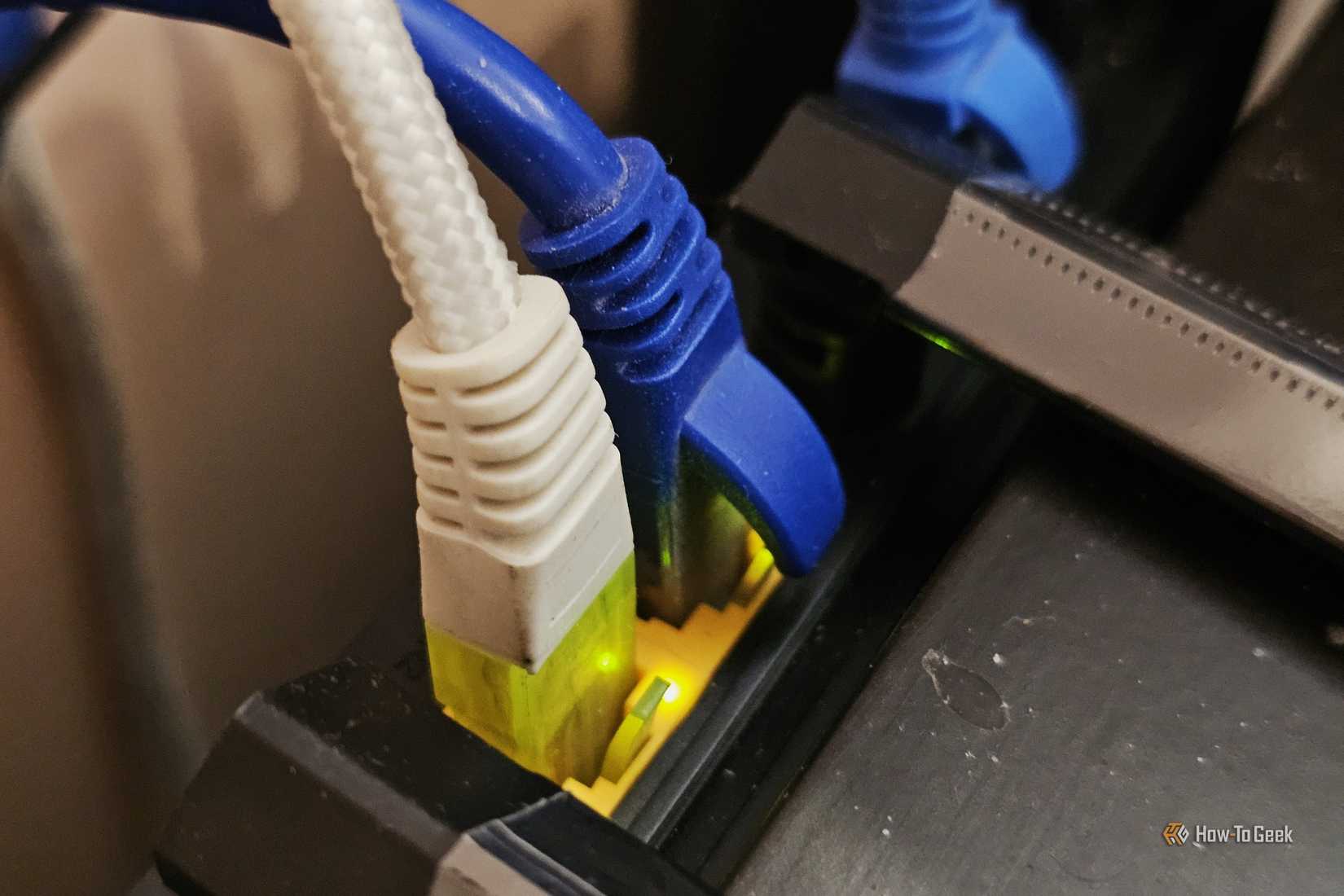
I still host LAN parties; I’m always the one hunting down games for the group. I have a big selection of games to install on all machines. We aren’t exactly playing on LAN these days, though, since most modern games run online, but we still have to download them. Downloading some of the titles can be a pain, especially with more than five people attending the event.
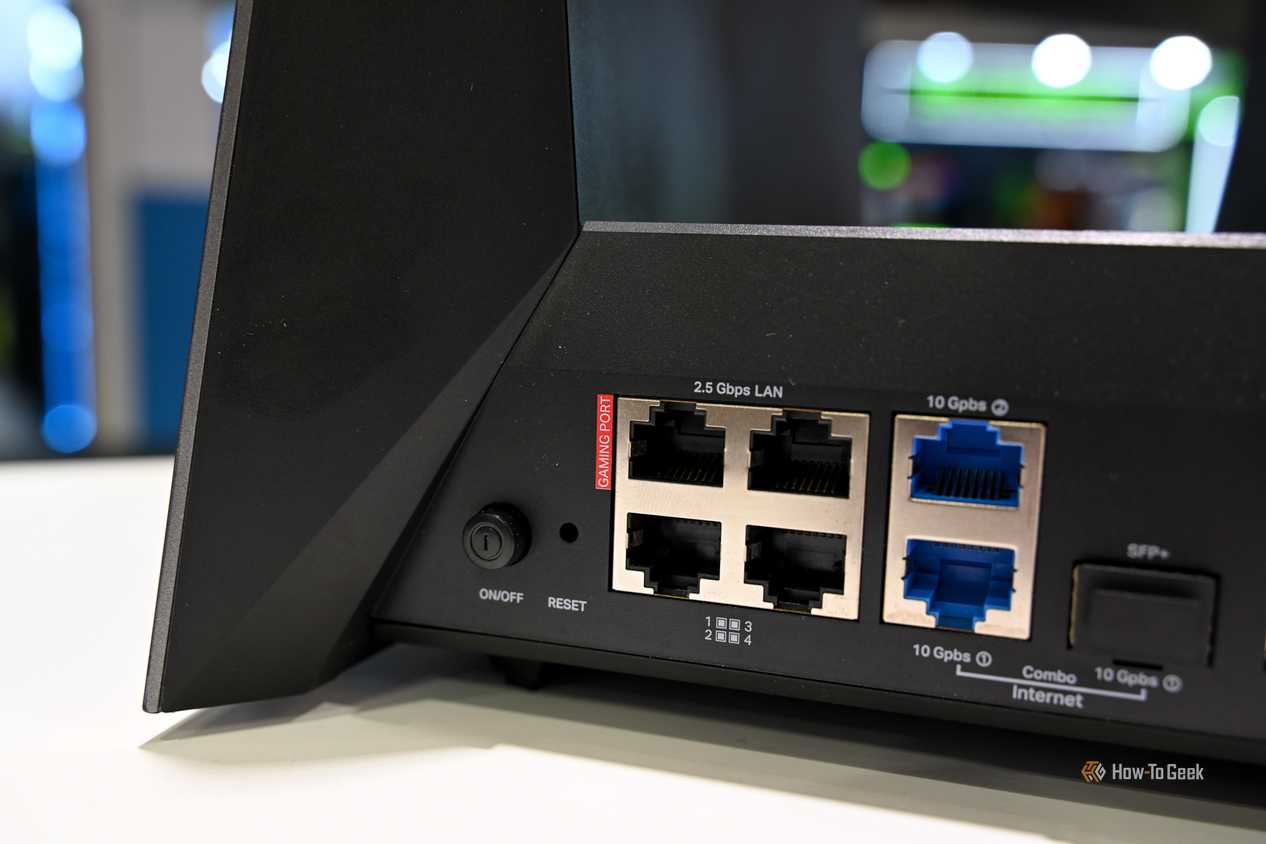
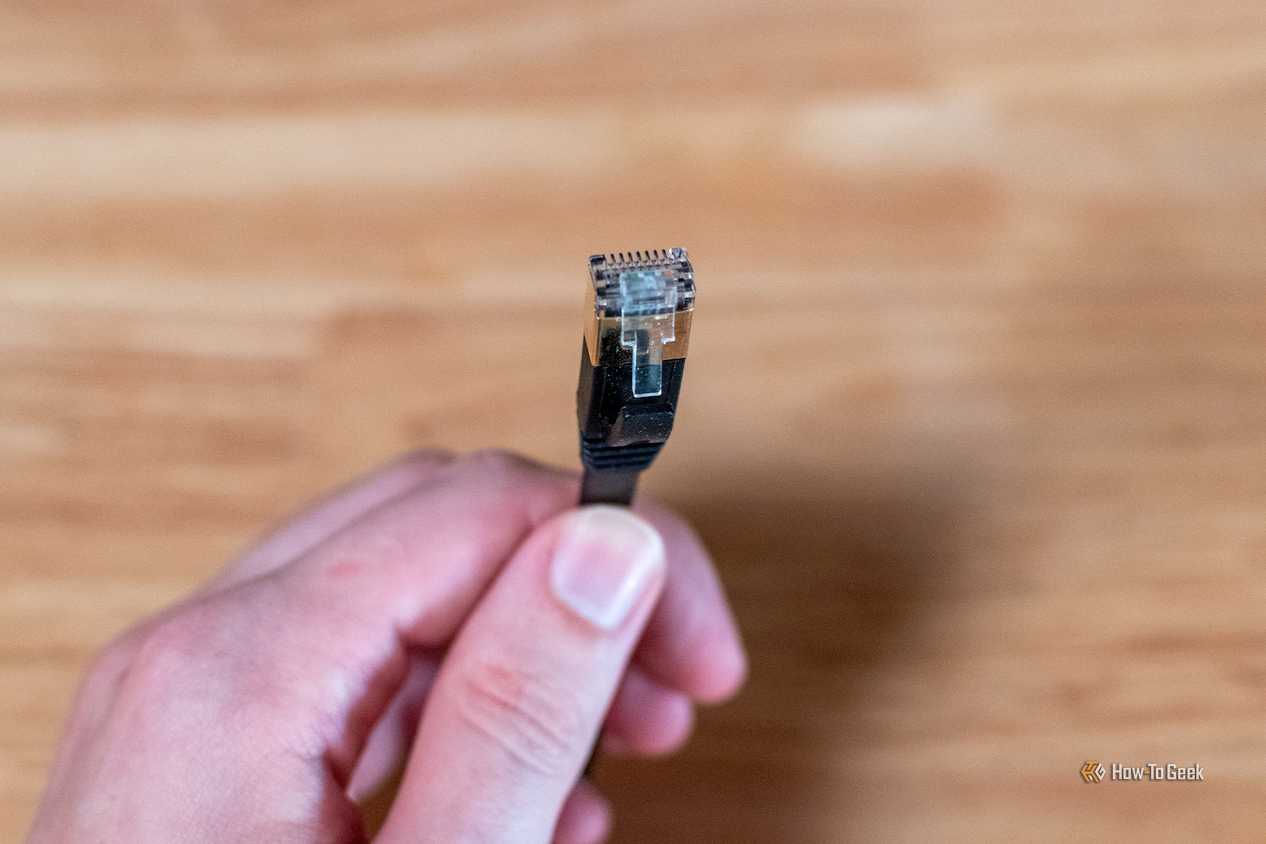
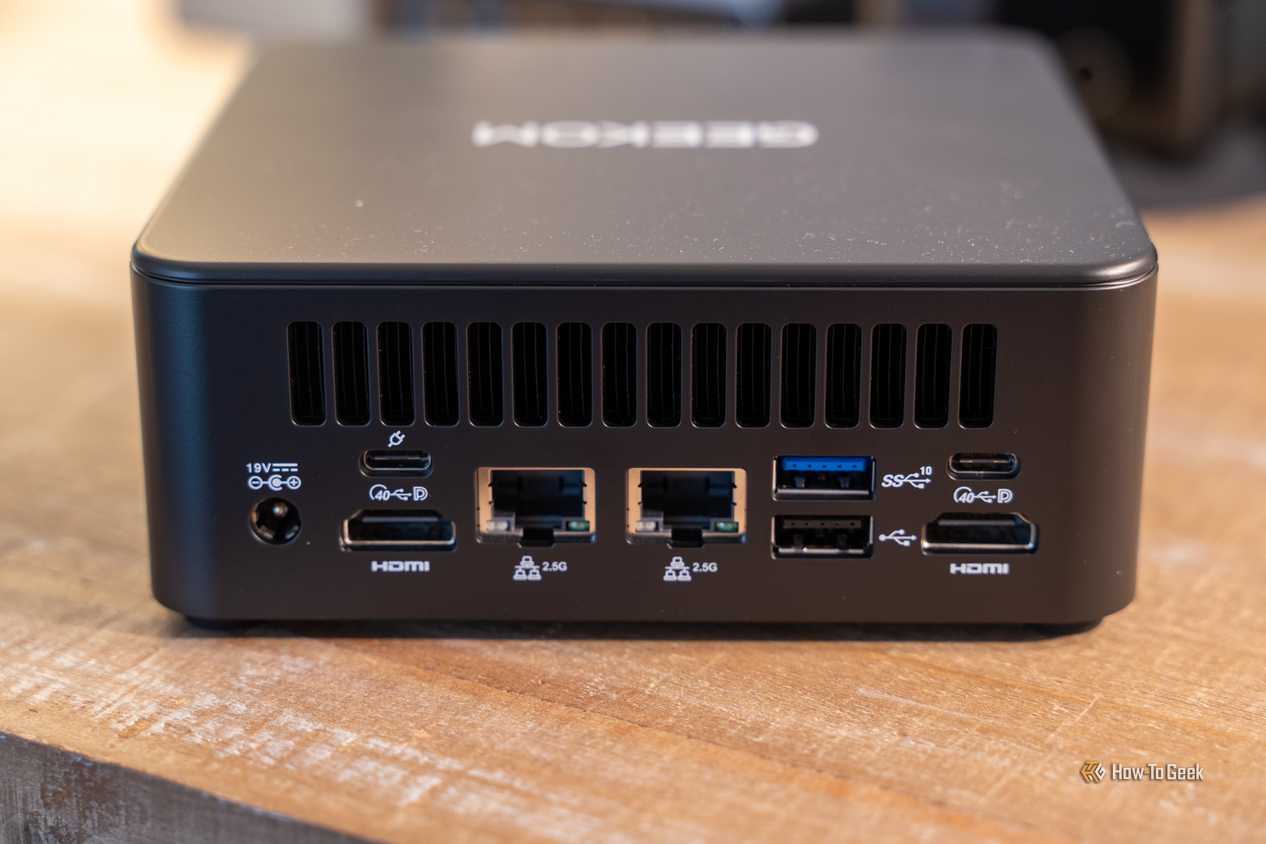
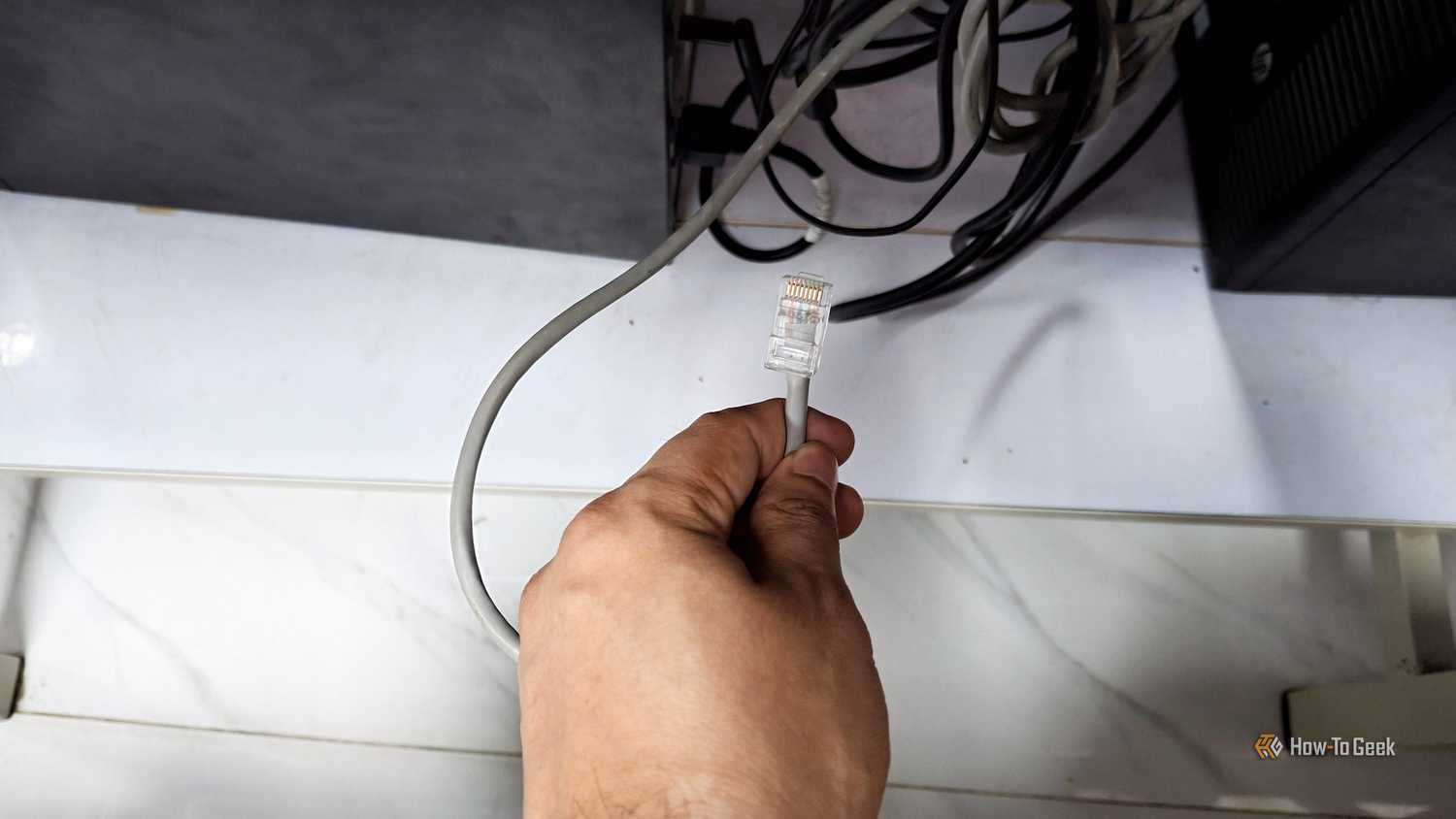
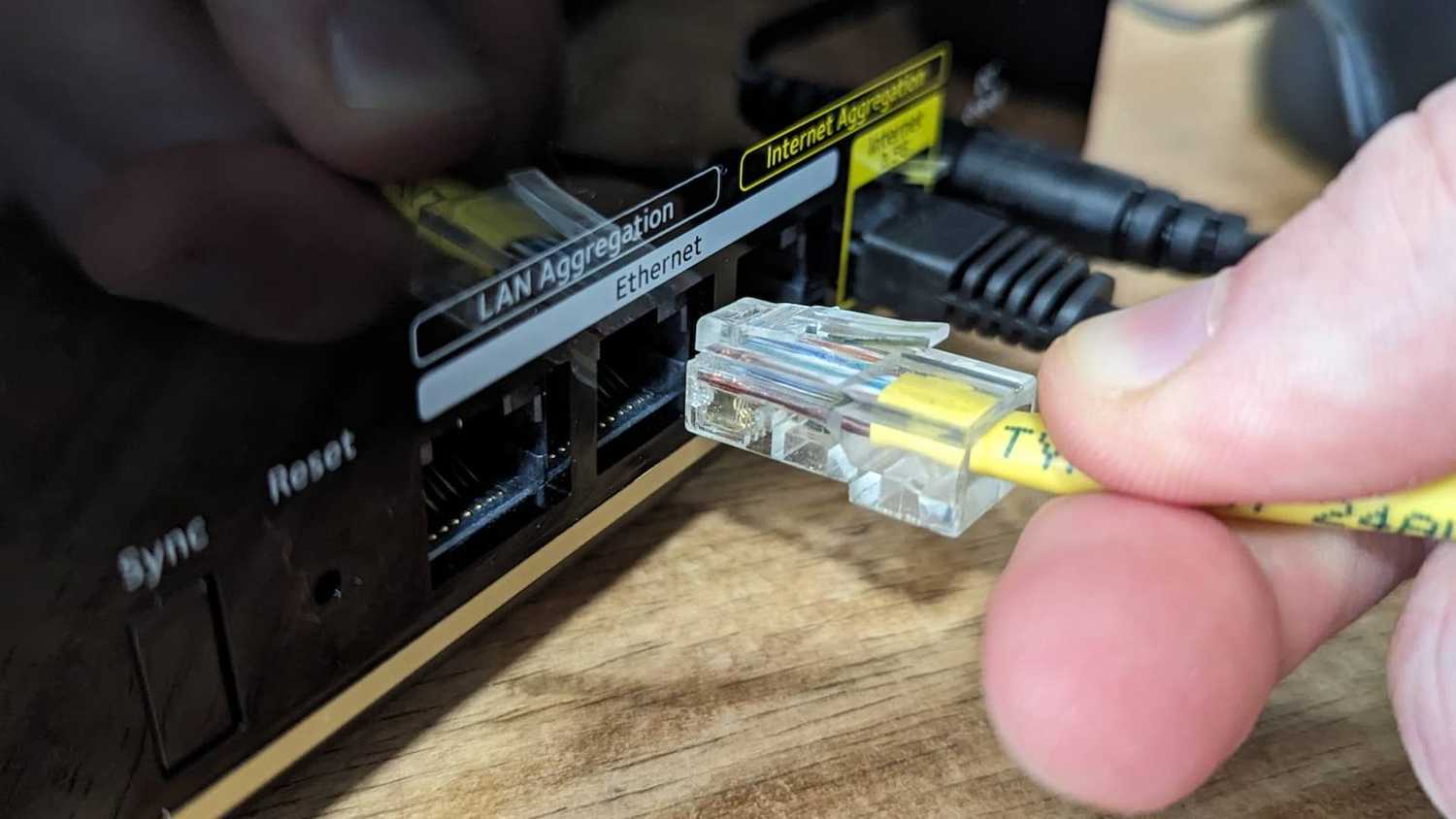
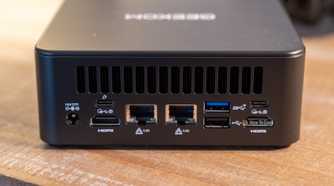
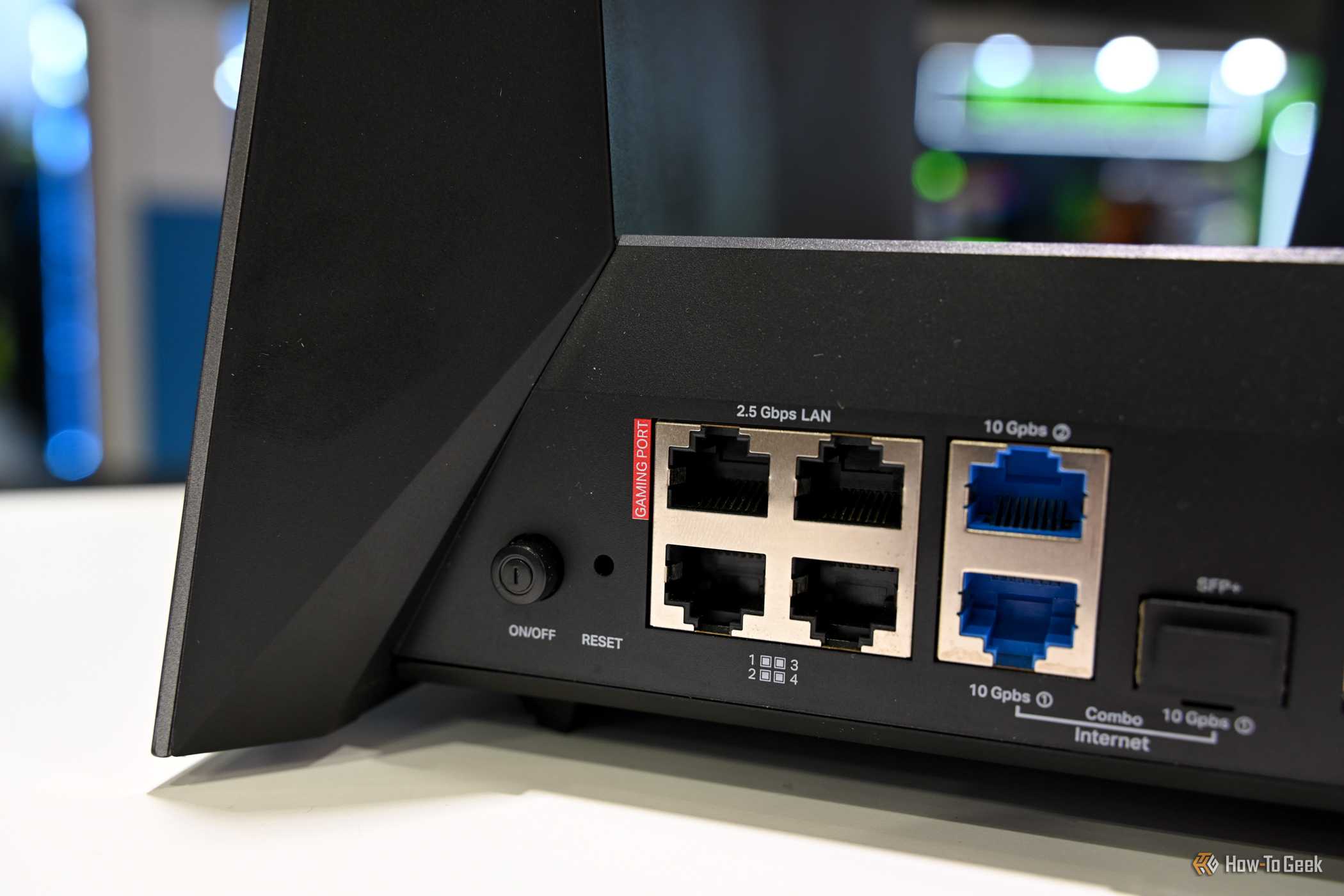
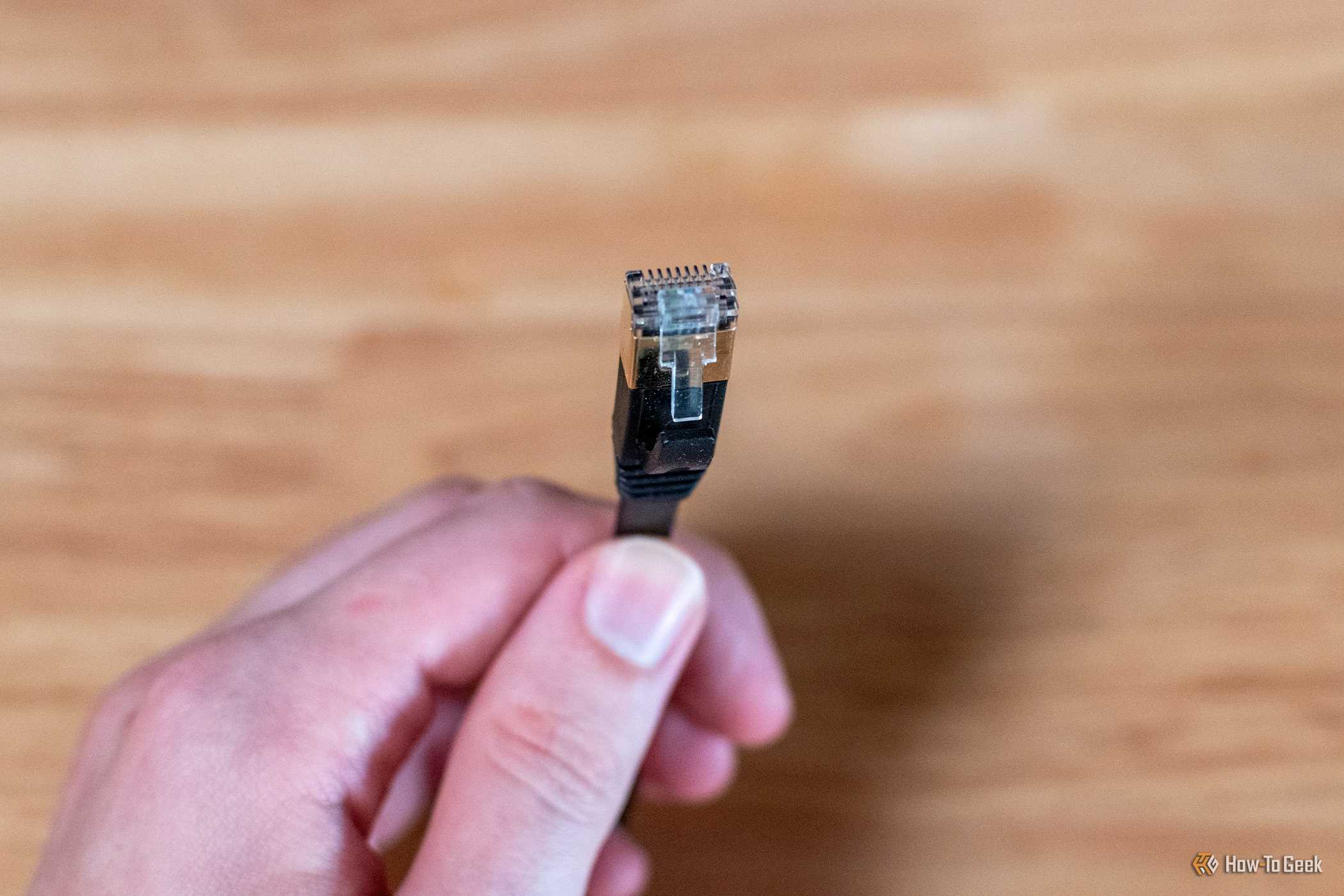
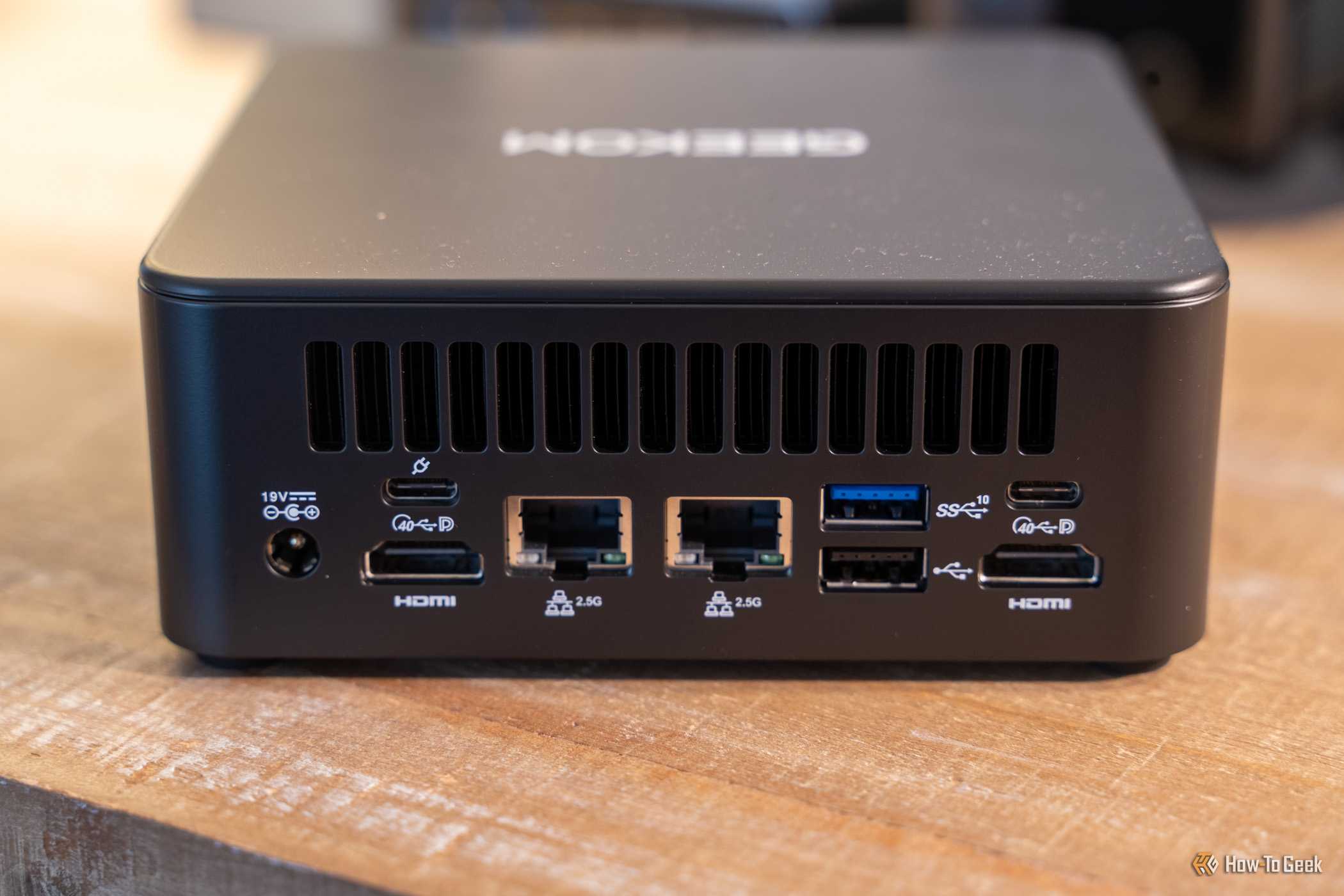
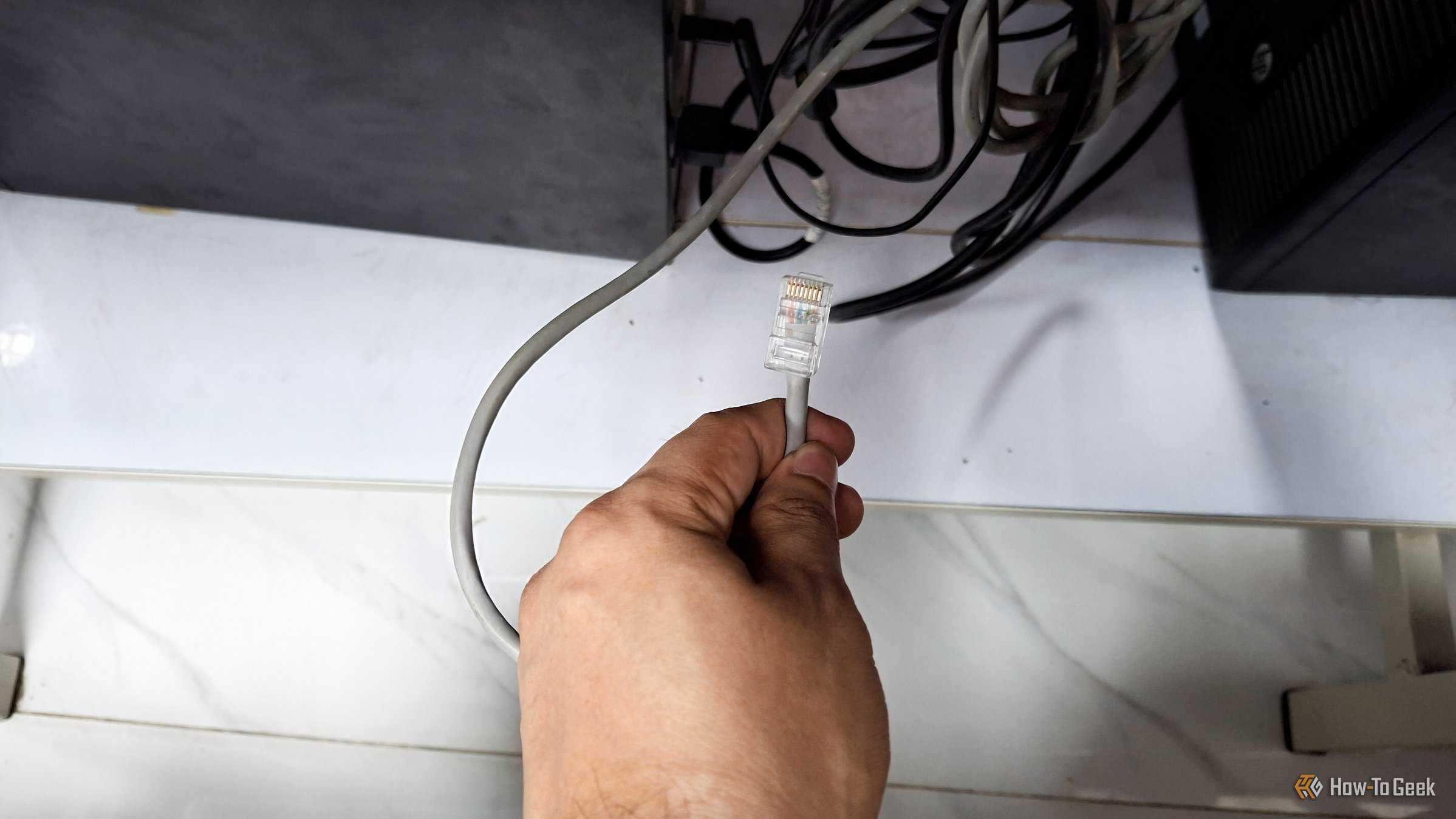
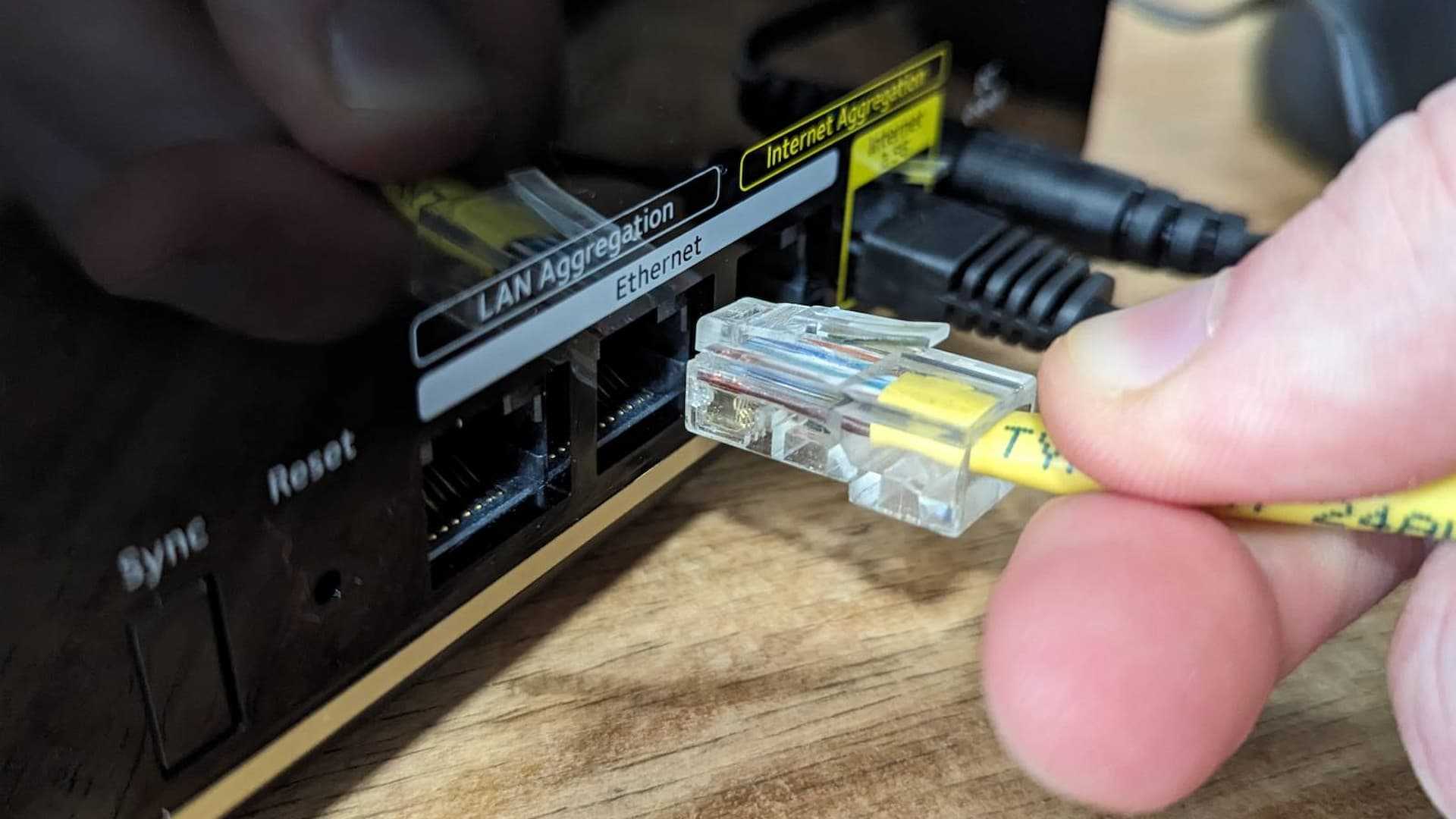

Previously, it took almost half a day to set everything up; now, I let LanCache download the fully patched version for everyone, and that’s about it. We can even have our LAN party pizza while all games are installed on everyone’s machines, ready to play when we are back in our chairs.
LanCache isn’t Magic
LanCache only recognizes specific CDNs (Content Delivery Networks) and can only cache traffic that matches them. Since Netflix, YouTube, and general browsing aren’t cached, you won’t see any speed increase. LanCache only increases speed after it downloads and caches the first copy of a file; the first download is at normal speed.
I’ve also had trouble with fully encrypted traffic that doesn’t use a recognizable CDN pattern, so LanCache may not work with that. If you have a single PC or console, you won’t see any benefit from LanCache.
Despite its benefits, I didn’t set up LanCache to increase download speeds; I did it to avoid ISPs overcharging me for crossing data limits.
Yes, the Fair Usage Policy pushed me to find a solution that would save multiple gigabytes each month. I have three PCs, two PlayStation 5s, and two Xboxes; I can easily exceed the FUP limit during a busy review month. Thankfully, with LanCache, you use no ISP bandwidth, and download speed increases tenfold.