Credit: Jordan Gloor / How-To Geek
Windows notepad has been a staple of the Windows operating system literally for decades. It is lightweight, simple, easy to use, and it won’t mess with your files, which makes it a great option if you need to quickly edit a configuration file. However, recent additions to the program are a pretty significant departure from what originally made notepad appealing to me.
It has a mix of AI features, including Write, Rewrite, and summarize, it supports formatting, and it has tables. Every time I launch it I’m left wondering what in the world that new button does.
I’m not suggesting AI features can’t be helpful—they certainly can be—but they seem conspicuously out of place in an application like notepad. I wanted something else.
I tried five Notepad replacements
It is a pretty crowded field
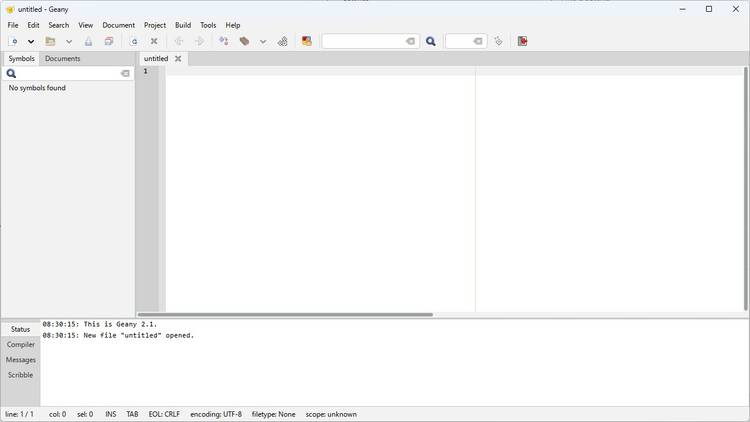
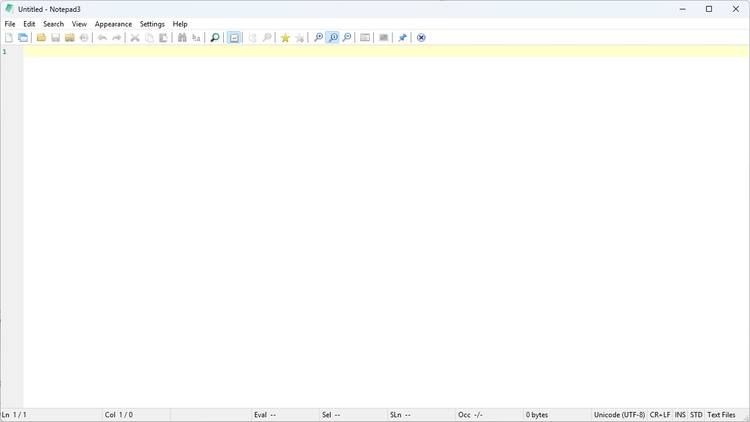
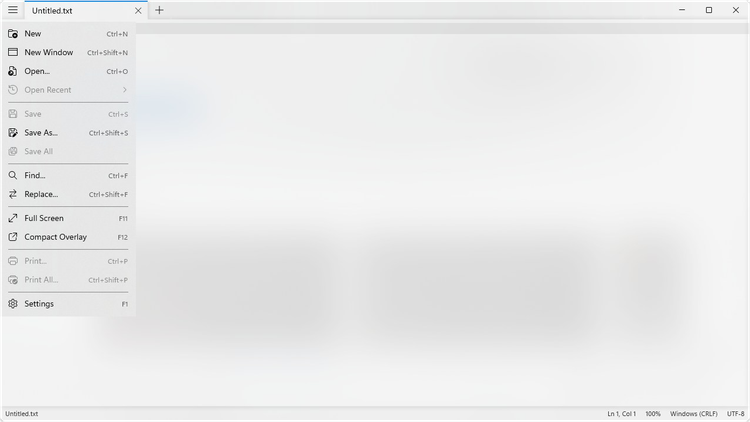
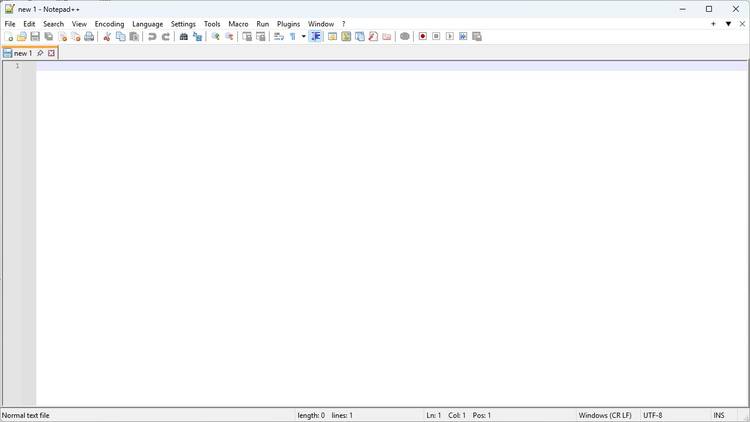
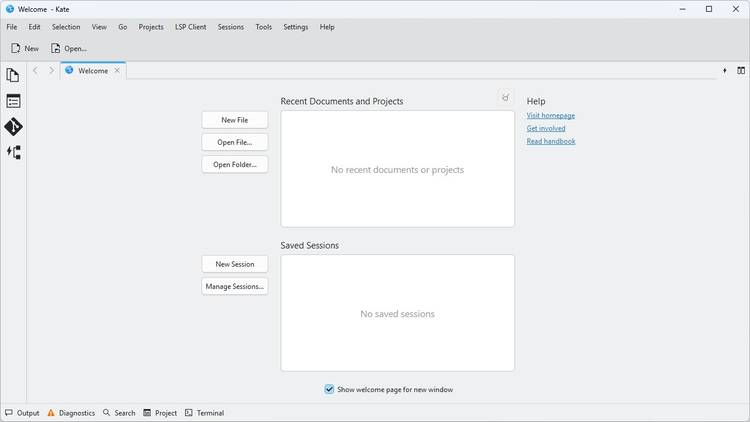
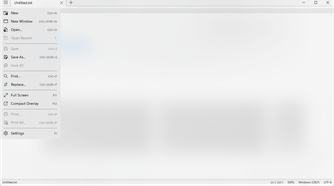
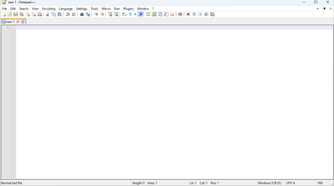
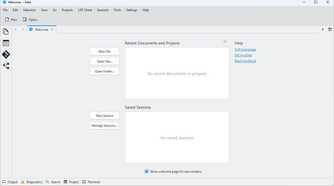
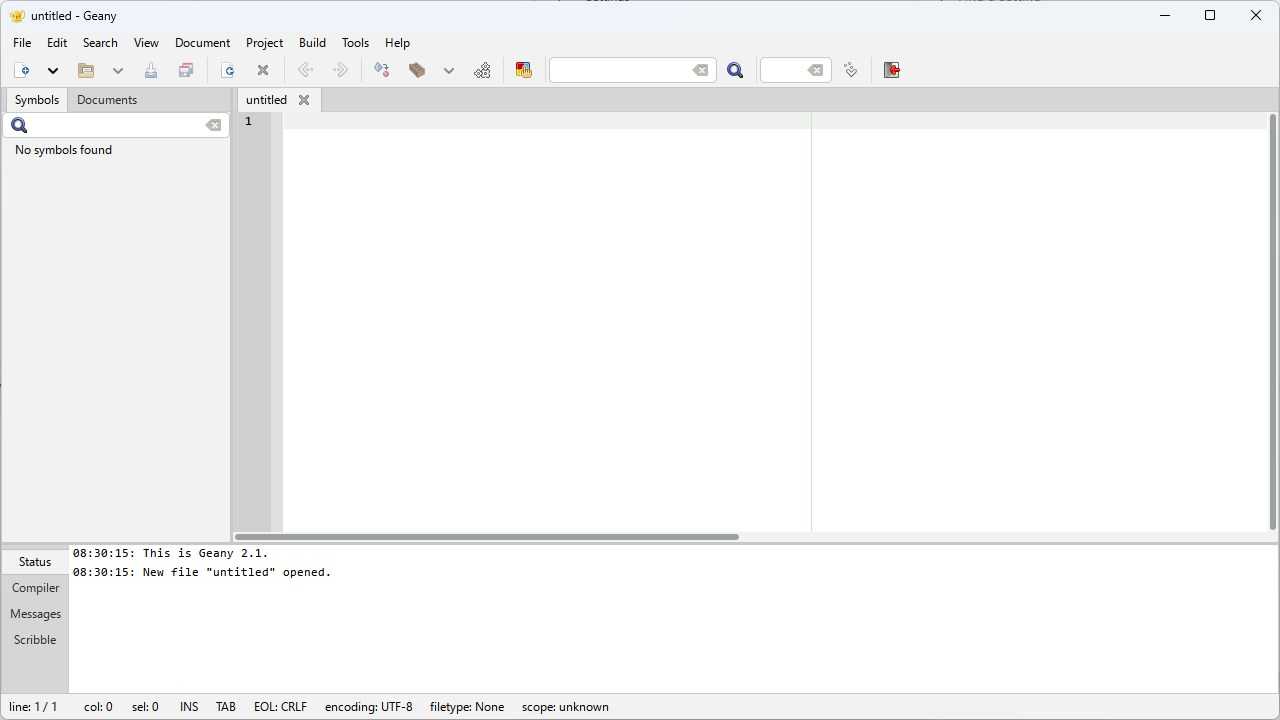
There are more basic, AI-free text editors out there than I can count, but most of them are heavier than the original Notepad.
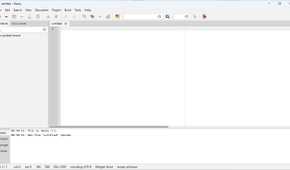
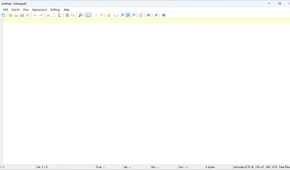
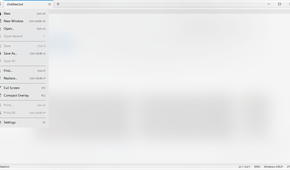
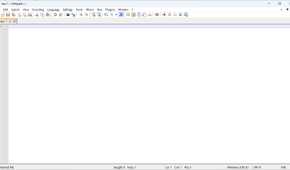
In looking for a replacement, I tested five different options:
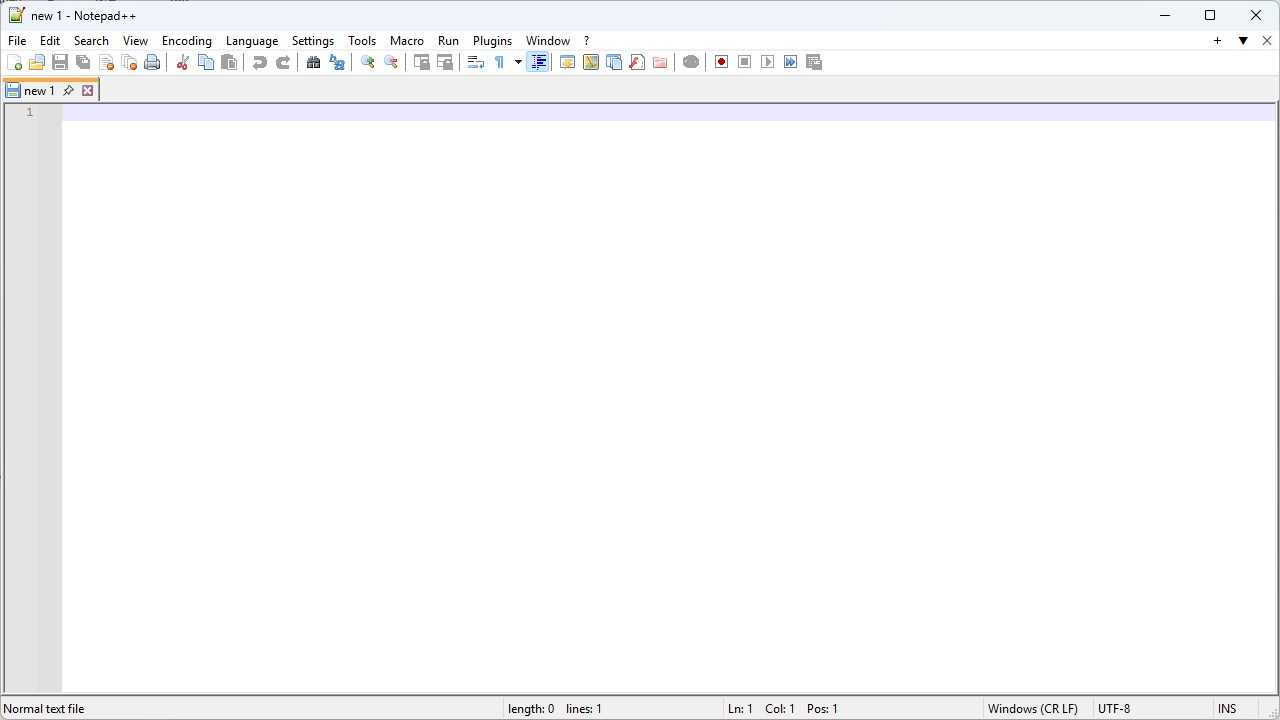
- Notepad++ — Notepad++ is an excellent app with a ton of plugins, but it is very busy. If you need a plain text editor with a lot of features, it is a good option.
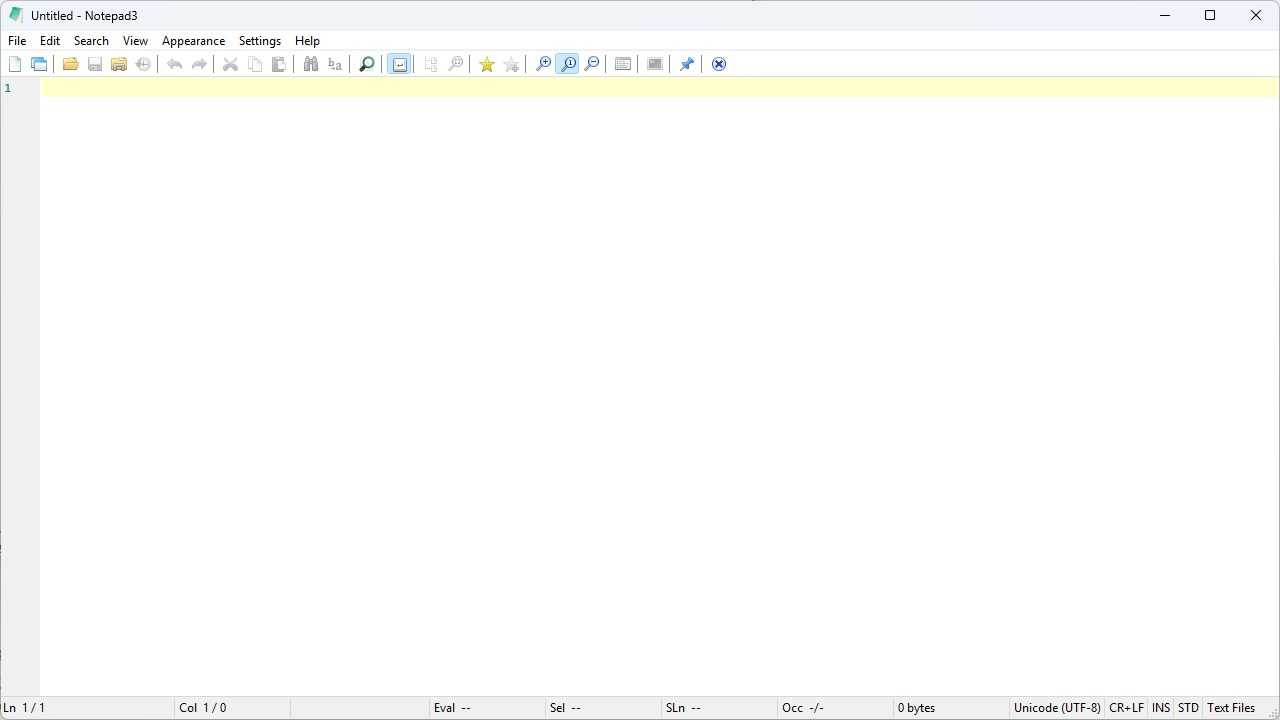
- Notepad3 — Like Notepad++, Notepad3 is a capable plain text editor, but it is a bit busy compared to the original Notepad.
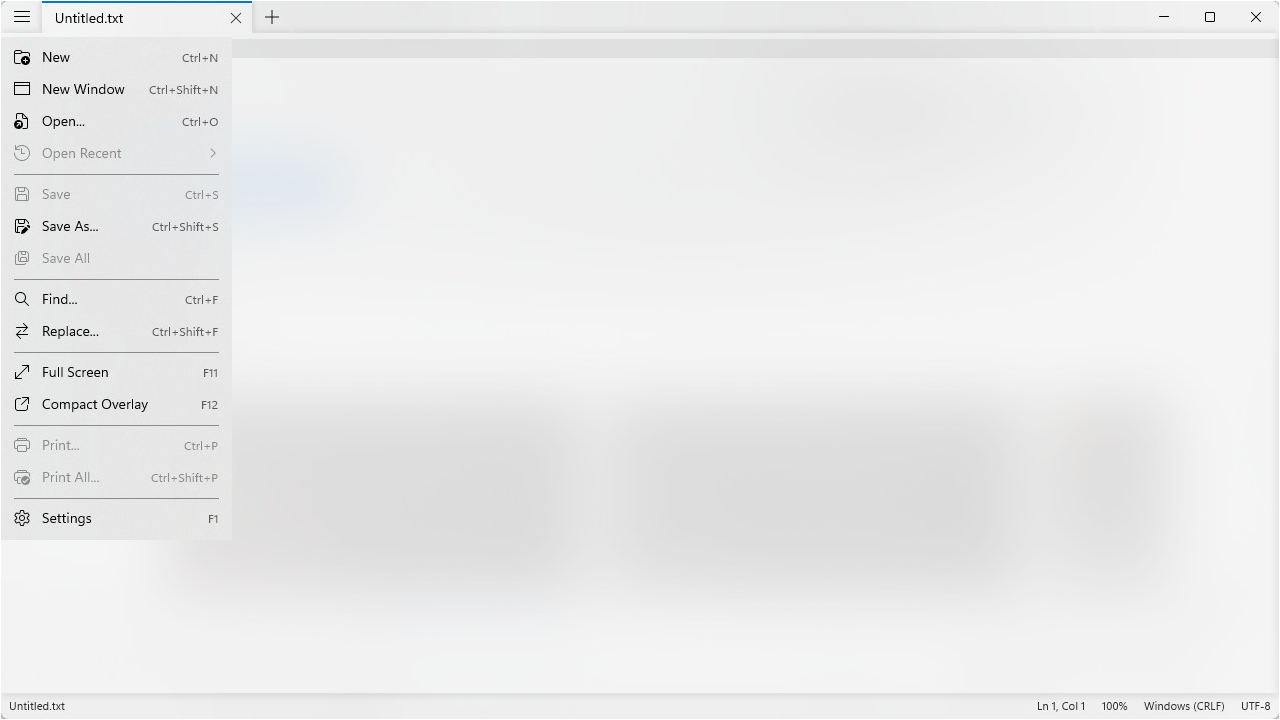
- Notepads — Notepads provides an ultra-minimalist Notepad app replacement.
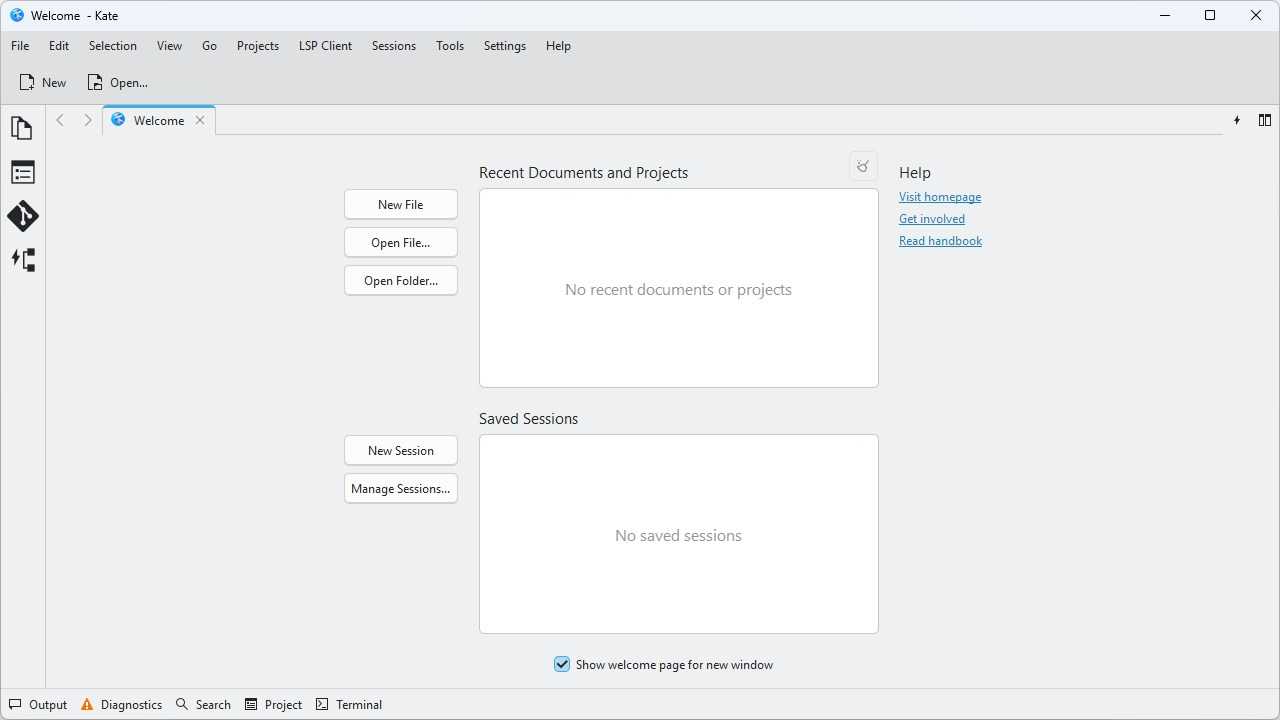
- Kate — Kate is a source-code editor from KDE. It is lightweight and people often recommend it if you need something for editing files that won’t silently insert extra bytes, but it is too much program for my needs.
- Geany — Geany is a “programmer’s text editor” and is great if you need more advanced features when you’re editing text files. Like Kate and VSCodium, it is more than I was looking for in a Notepad replacement.
I actually liked all of those options—they deliver what they promise. However, some offered more features and a busier UI than I really needed. Notepads, which has an unbelievably minimalist UI, was actually a strong contender, but I was looking for something that was as light as possible.
Finally, I landed on a small program aptly named TinyRetropad.
What in the world is TinyRetroPad
What Notepad should still be
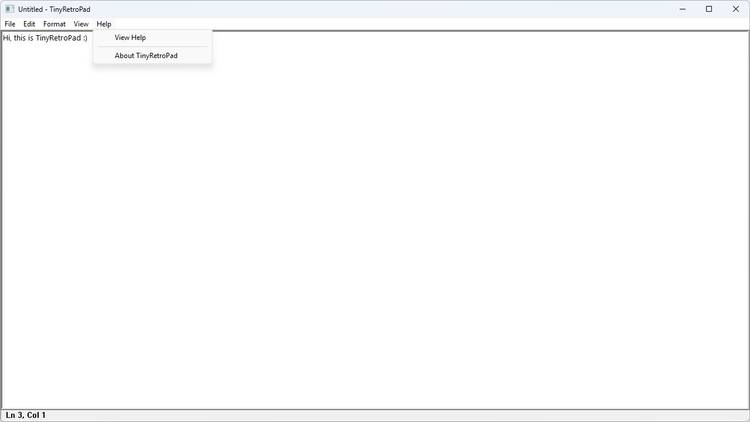
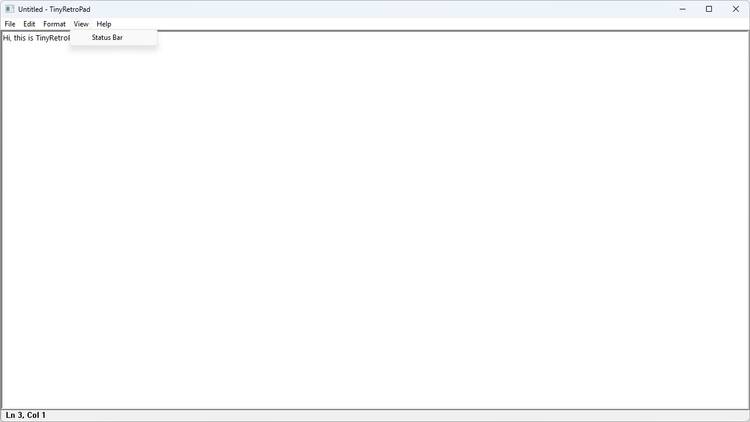
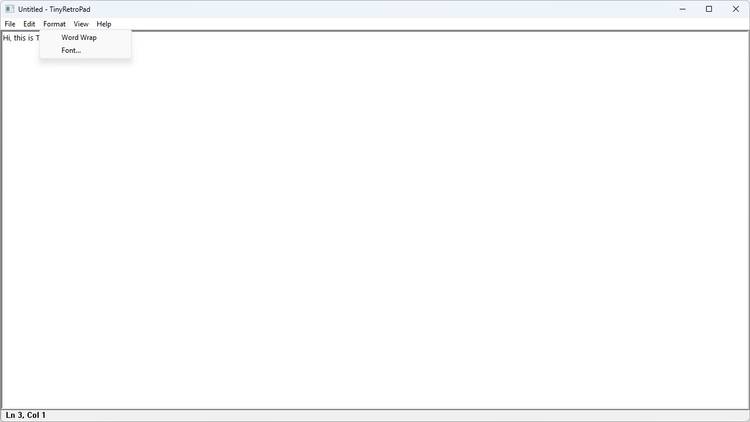
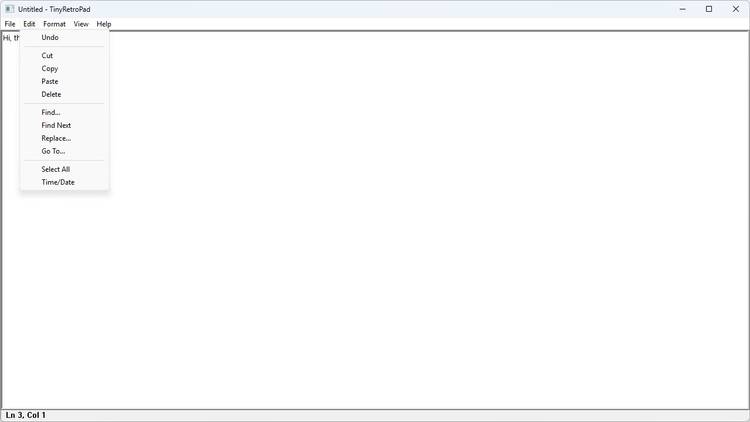
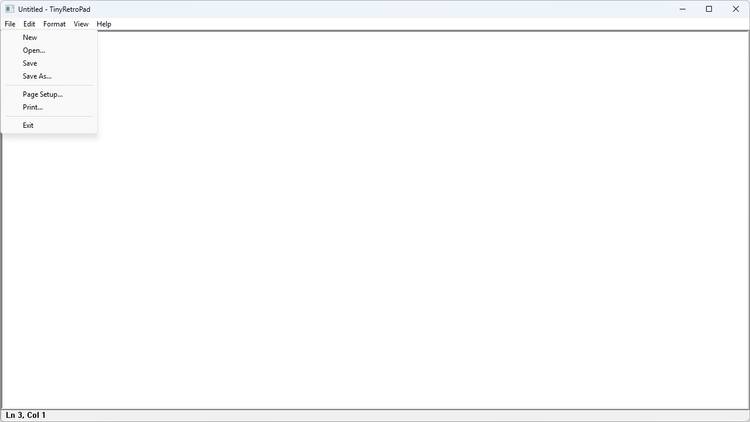
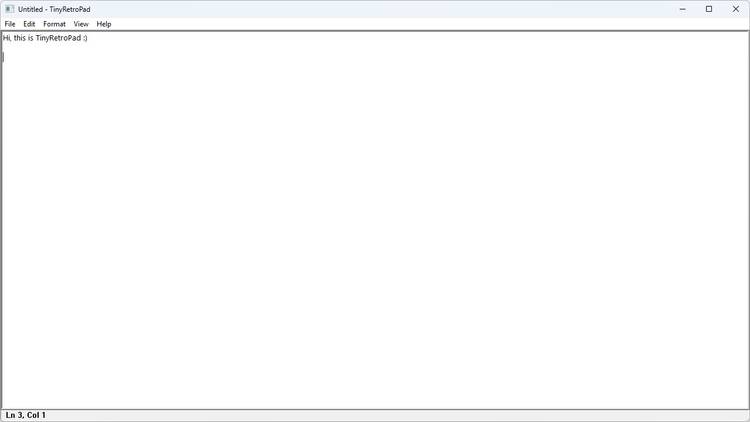
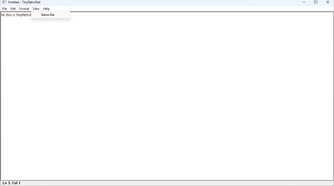
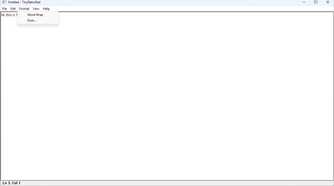
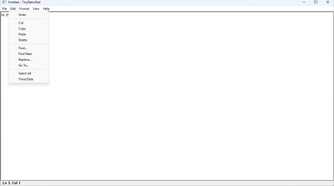
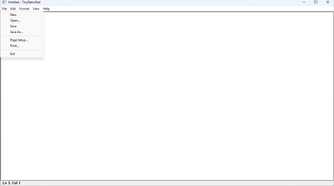
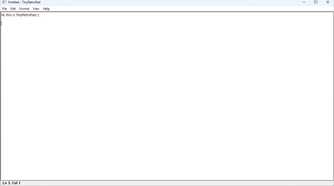
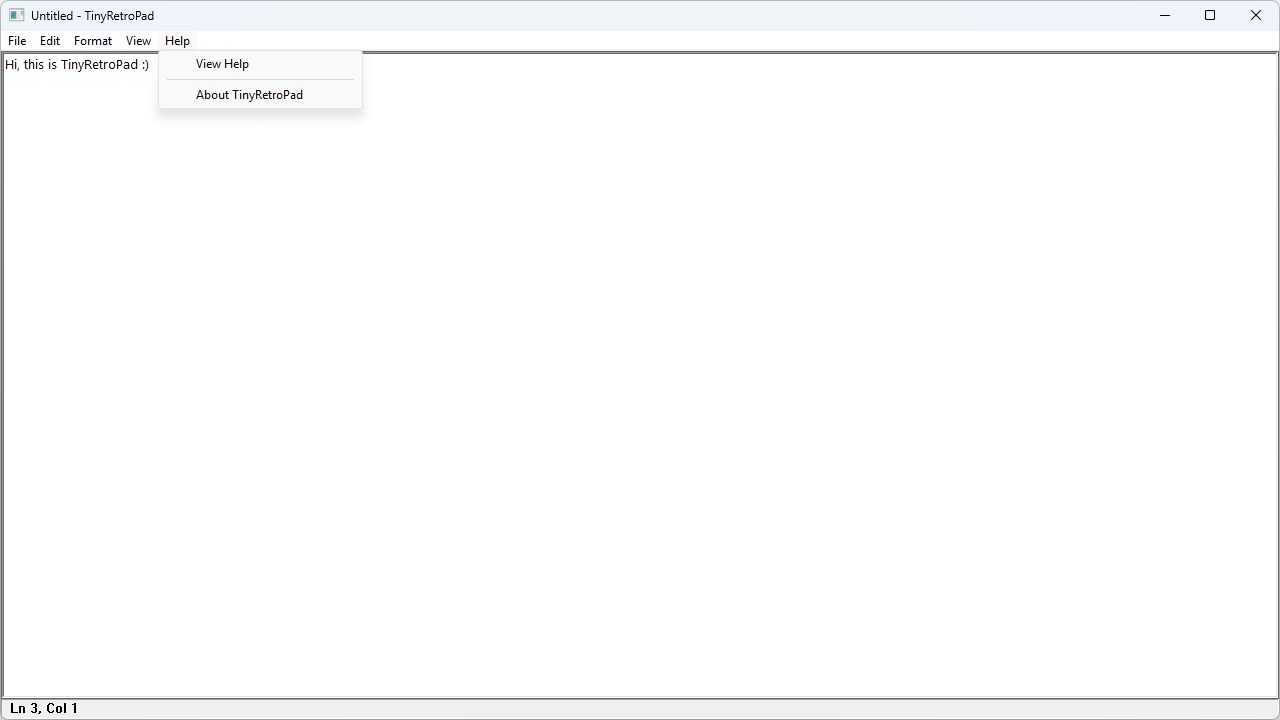
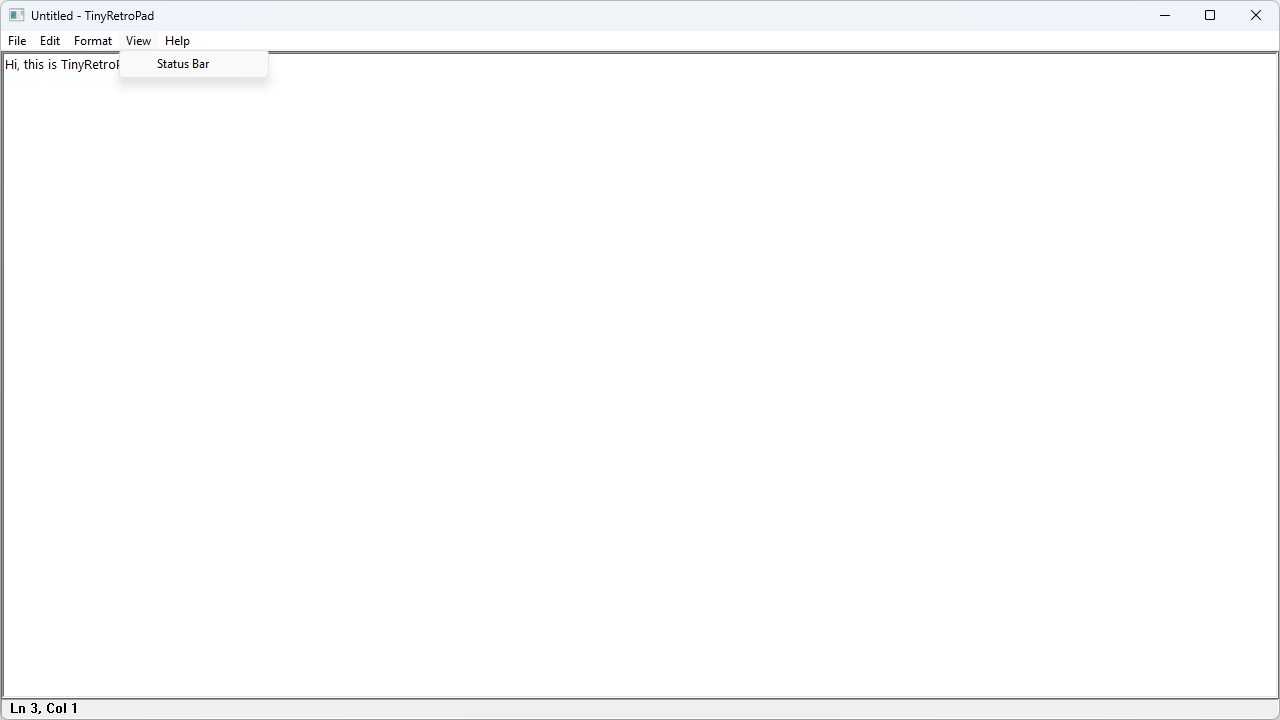
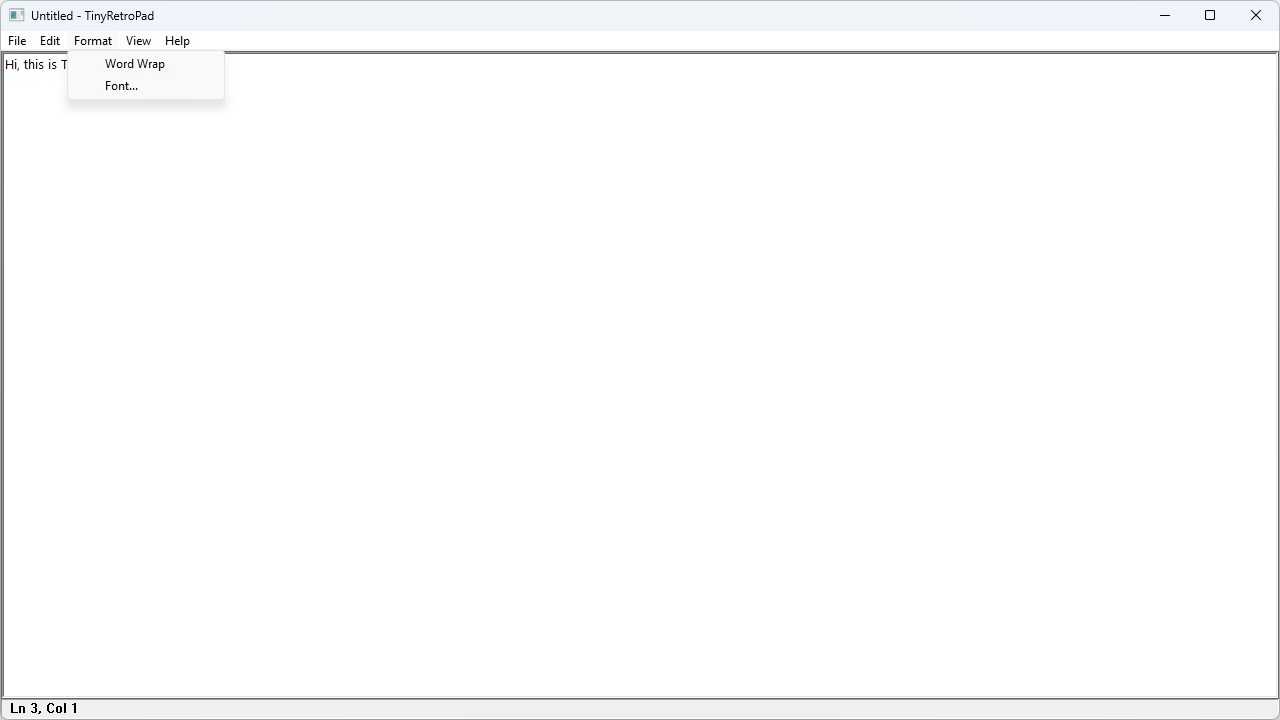
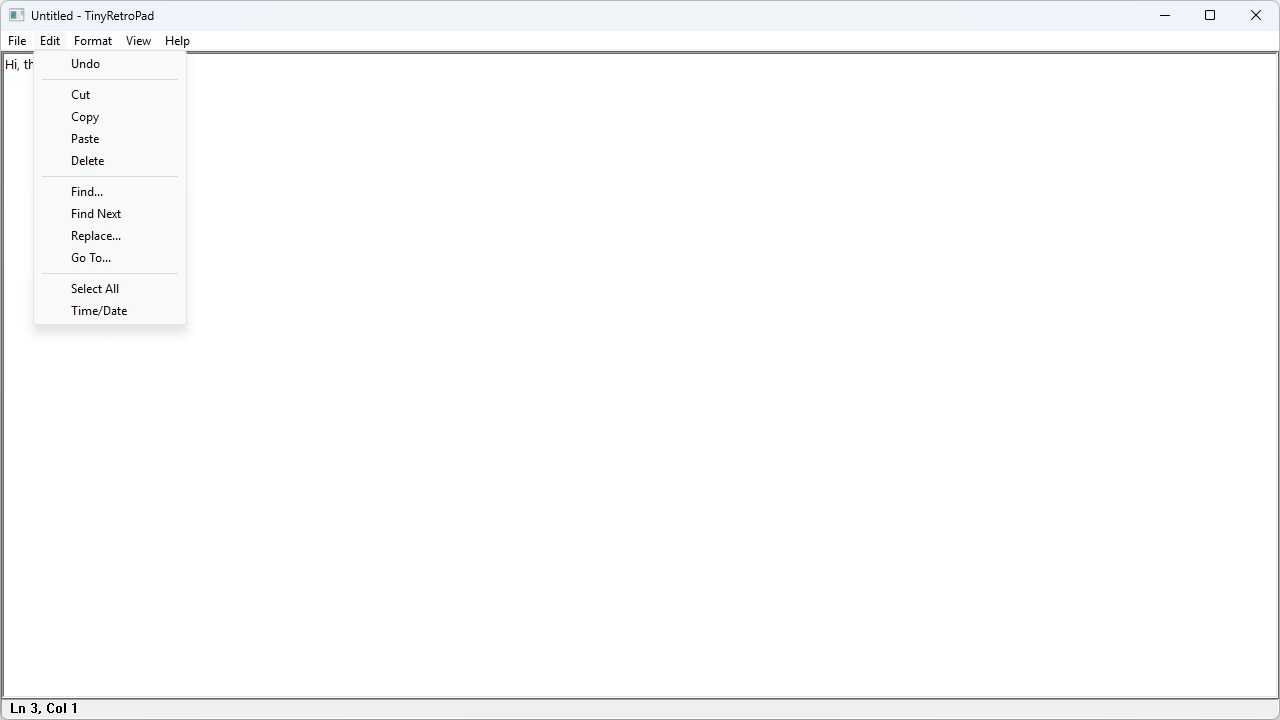
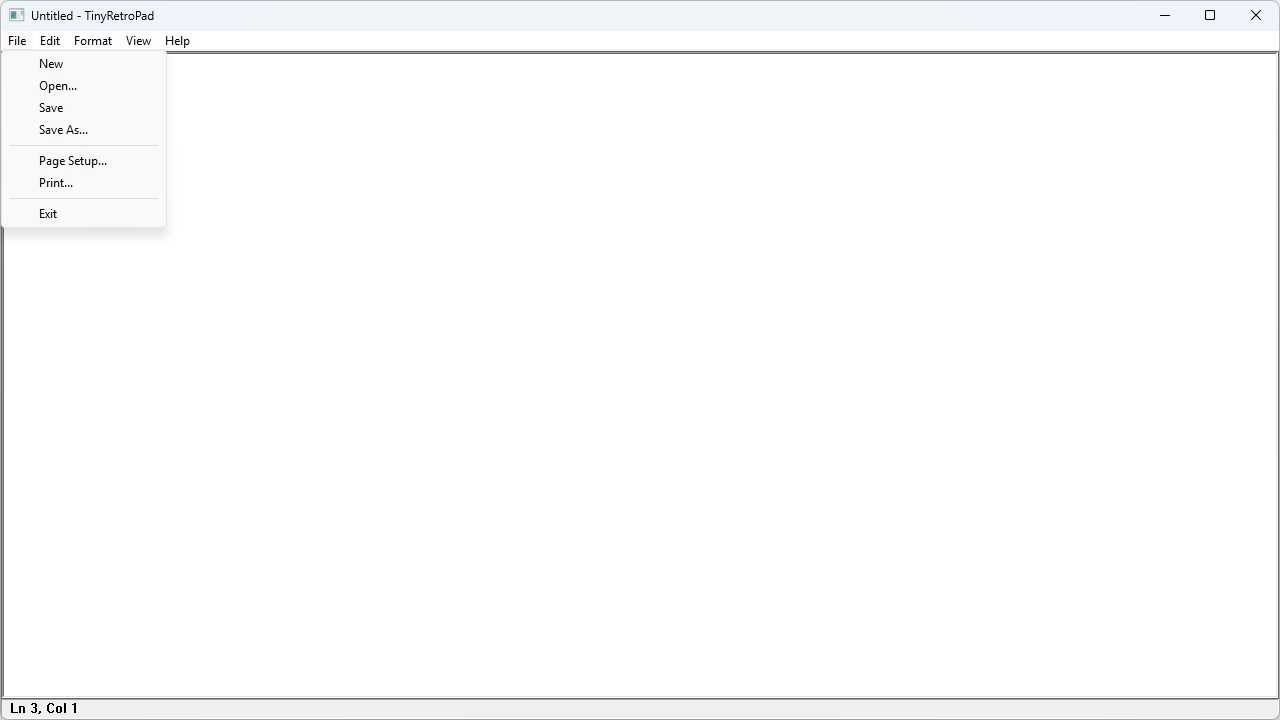
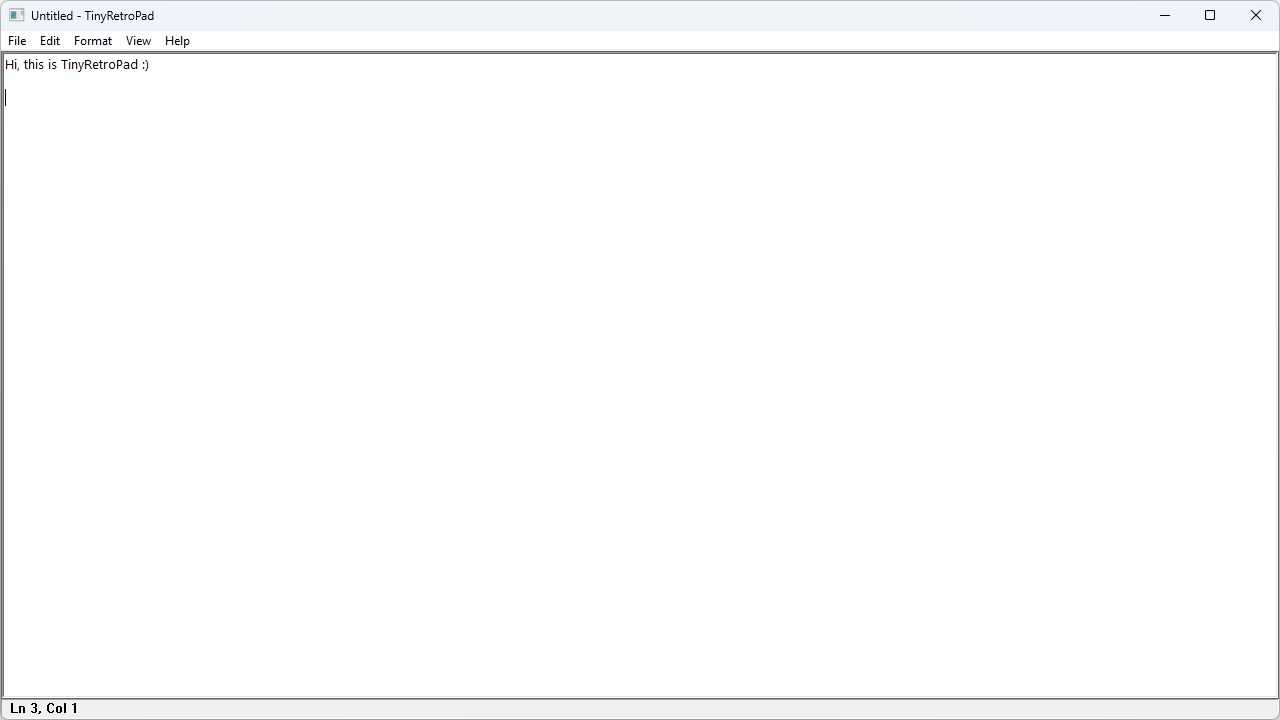
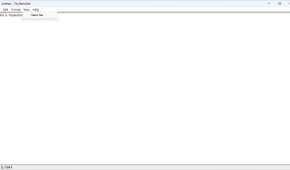
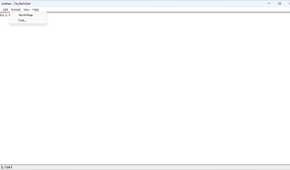
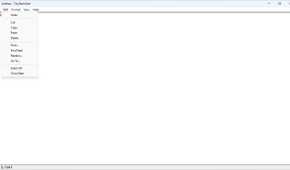
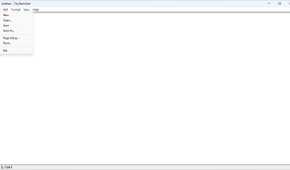
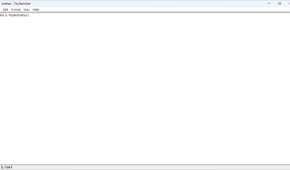
TinyRetroPad takes “small and lightweight” to the absolute extreme. It weighs in at less than 3 kilobytes, which is absurdly small for a program in 2026.
Part of how it manages that trick is how it works under the hood. Rather than reinvent the wheel for the 10,000th time, it wraps edit controls (RICHEDIT50W) that are included by default within Windows. The entire thing is written in assembly, which is also unusual for an open-source project in 2026. The combination results in a truly tiny program.
TinyRetroPad is like old Notepad
TinyRetroPad won me over because it does everything I want from a minimalist editor like Notepad used to be. It has a standard menu bar with the usual tools, including Find and Replace, Go-To, wrap, and a few other things. It has no account requirements, sign-in, credits, or telemetry.
It also launches instantly (or at least imperceptibly fast), which is exactly what you’d expect from such a diminutive program.
It isn’t a VSCode replacement
TinyRetroPad is great at one thing: quick edits to relatively simple files. If you need to tweak a game’s CFG or INI file without worrying about whether or not formatting is going to break something, it is a great option. If you want to modify your hosts file, it is a great option. It is also decent for quick notes if you don’t have a dedicated app for that.
However, it isn’t designed to replace a source code editor, a word processor, or an IDE. It doesn’t have tabs, intelligent formatting, or syntax highlighting, which makes it ill-suited to larger, more complex jobs. It also doesn’t have a markdown preview, which means it isn’t really ideal for drafting Markdown documents either.
However, so long as you use it with clear expectations about what it is actually for, it is pretty fantastic. If only Notepad had stuck to its simple roots.
Setting up TinyRetroPad
TinyRetroPad is open-source and available from GitHub. If you don’t want to build it yourself, you can download trpad.exe directly from the repo and start using it.
However, I built it to see how involved it was. The BATCH script handles most of the complicated parts behind the scenes, but you do have to make sure to set up Crinkle and MASM installed and setup in advance. That was the “hardest” part, and even that was pretty straightforward.
Once you’ve built or installed the program, you can go into the Settings app and set it as your default app for TXT, INI, CFG, and LOG files.
Sometimes simple is ideal
My gripe with Notepad—and many other modern apps—isn’t that the new features are bad, they just carry the program well beyond its original purpose. Never in a million years would I have opened Notepad and wanted AI tools integrated into it. A fully-fledged IDE, on the other hand, probably benefits from that kind of more sophisticated tool.
TinyRetroPad is so compelling because it is designed to do one simple thing and do it well without suffering from a jack-of-all-trades problem. Because of that, it has become my go-to tiny editor in place of Notepad.