The more you get into using Linux, the more likely you are to start using the Terminal for various tasks. Now, I’ll admit that you don’t need to do everything in the Terminal. But I truly believe knowing your way around it is pretty vital to the Linux experience (for me, anyway), whether it’s learning basic short commands or playing video through the Terminal. Sometimes, though, it’s nice to automate various Linux chores. So I use bash scripts to run commands for me, and to have a bit of fun along the way.
I tested and use all of these on Desktops running Linux Mint and Debian.
Kicking things off with a shebang
The (extremely) basics of bash
Bash is short for Bourne Again Shell. It should be pretty familiar to most Linux users, since it’s the default shell for Linux. I write my own shell scripts to help automate some of my daily tasks on Linux.
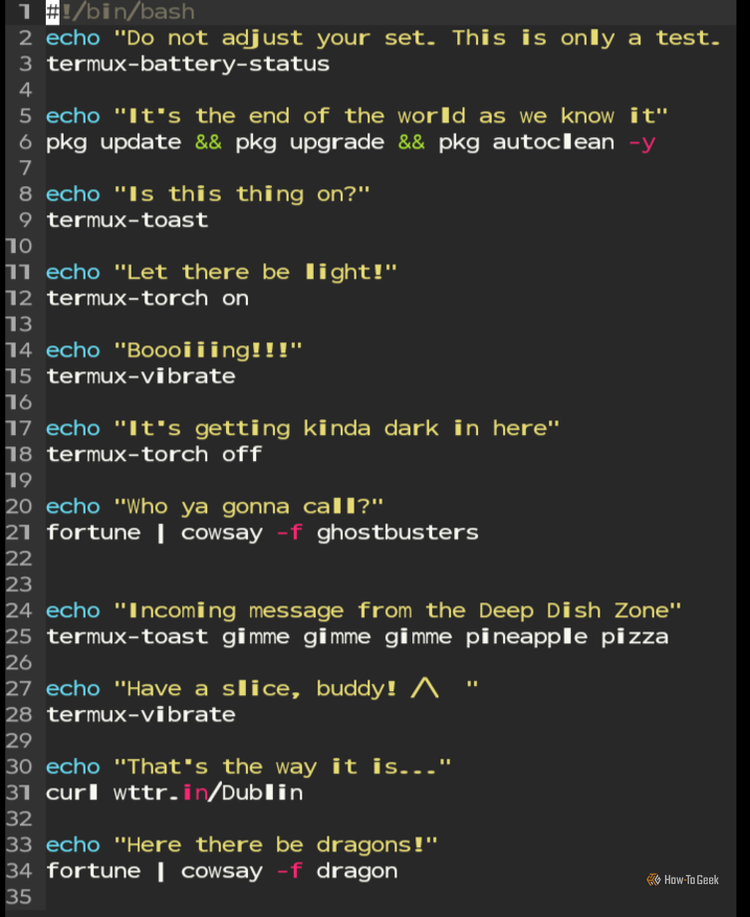
All scripts start with a shebang (#!/bin/bash). You can make notes in your scripts by putting a # in front of an explanation of what a command does. For example: # This command creates an ASCII set of eyes saying, I see you.
If you want the screen to output text while it executes a command, you can use echo followed by your text in quotes. I put the command I want the system to execute right under my echo text.
Once you’ve created a shell script, save as filename.sh, then give your system permission to run it with chmod +x filename.sh. Run them with./script-name.sh.
You can do a lot of useful things with bash scripts, but I have a few specific automations I’d like to share that work very well for me.
I like to get creative with my scripts, so I often make the echo command say silly things or use cowsay to put some ASCII art in my Terminal window every time I run a script. You don’t have to do that to make these work. I just like to have fun with it.
Automate the tedium of manual updates and tweaking settings
Getting more hands-on with system customization
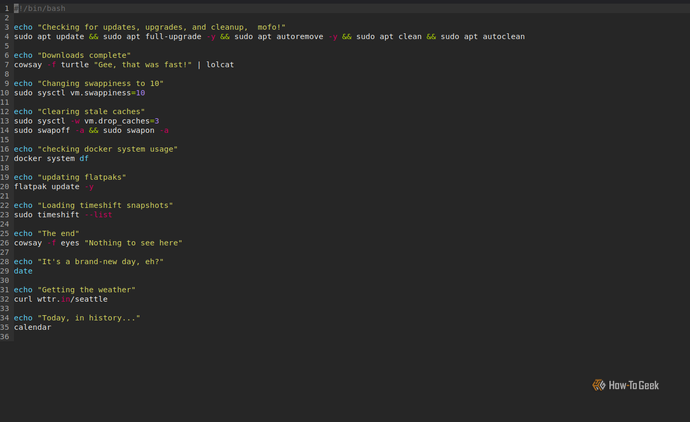
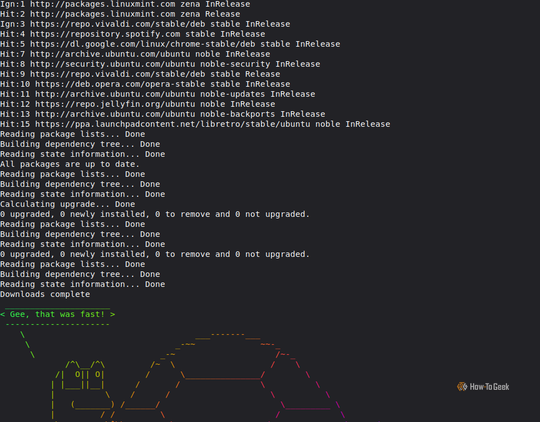
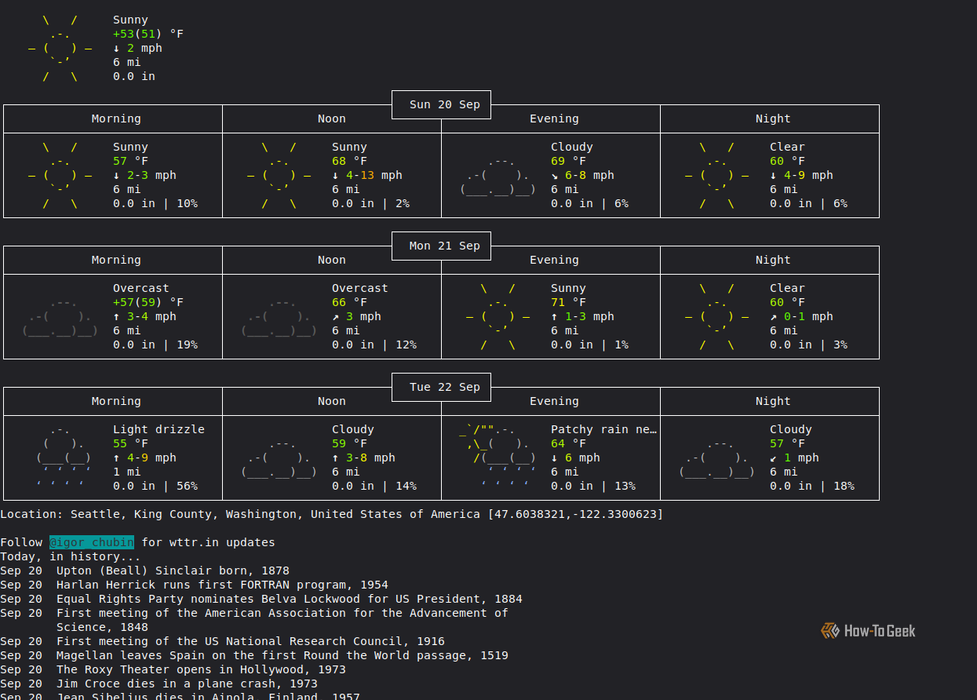
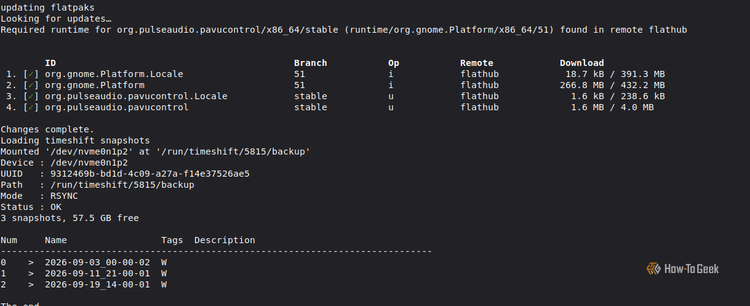
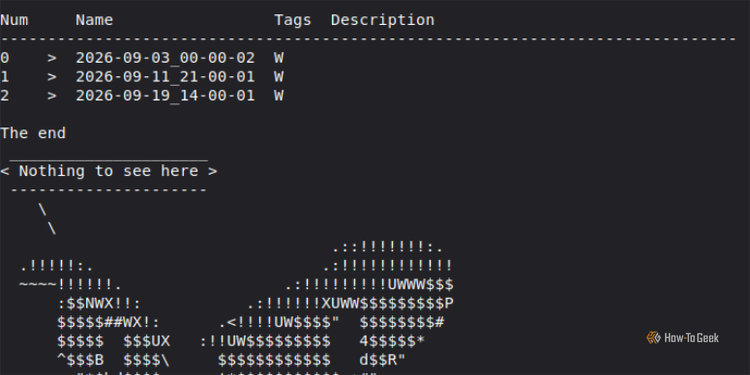
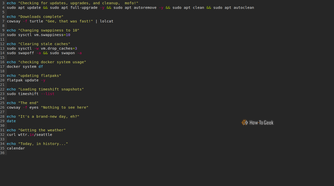
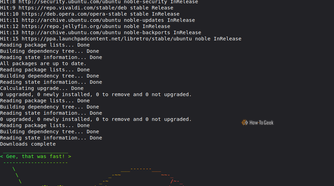
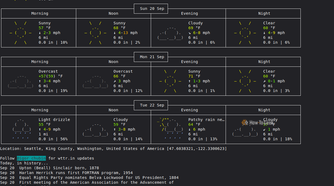
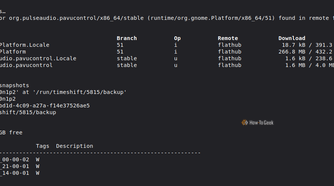
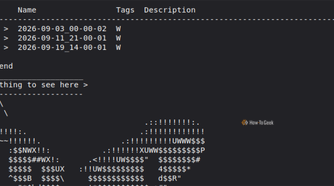
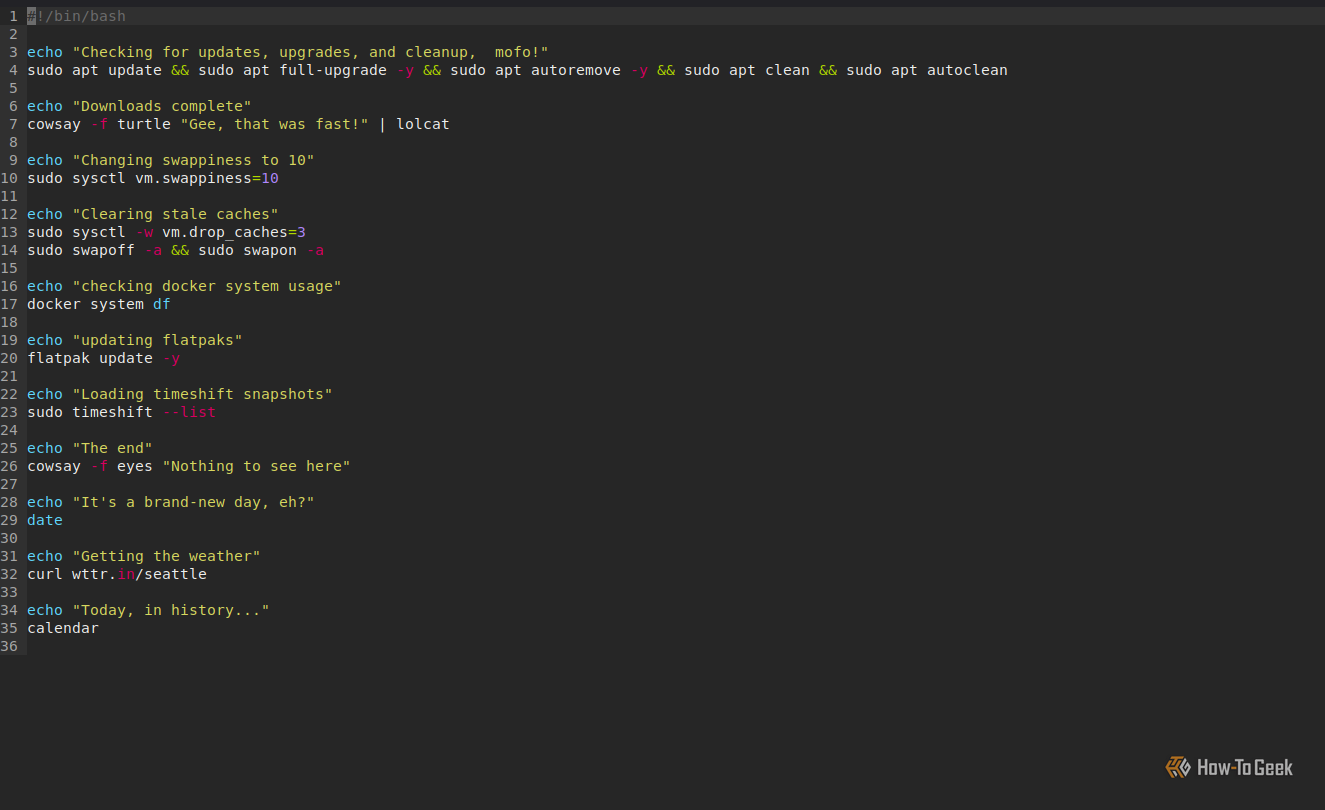
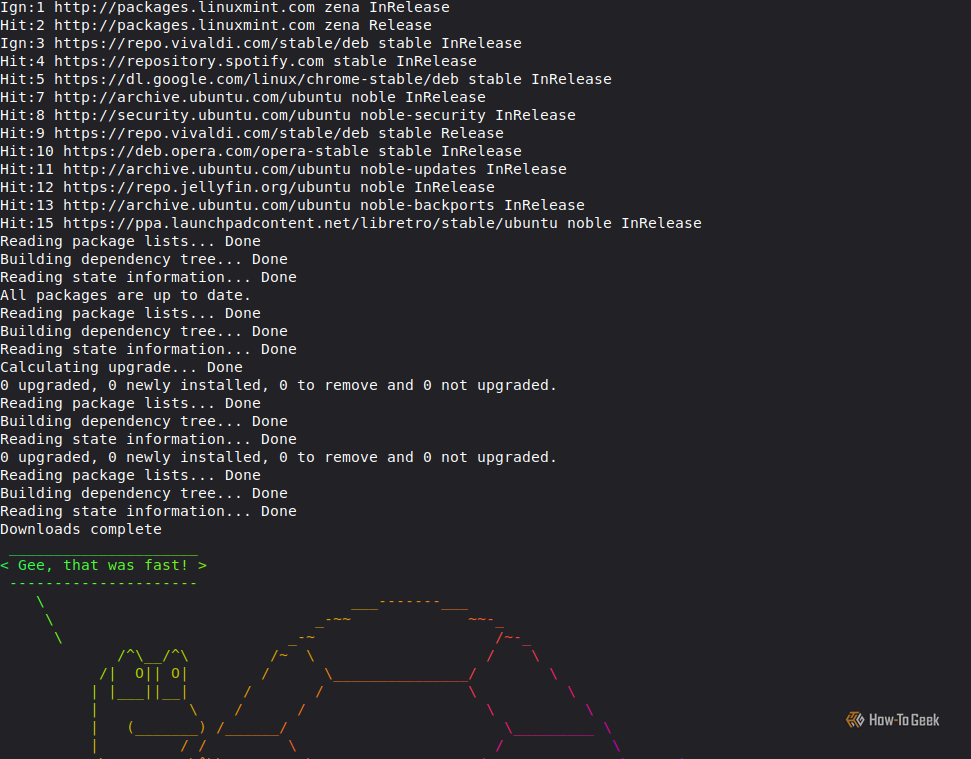
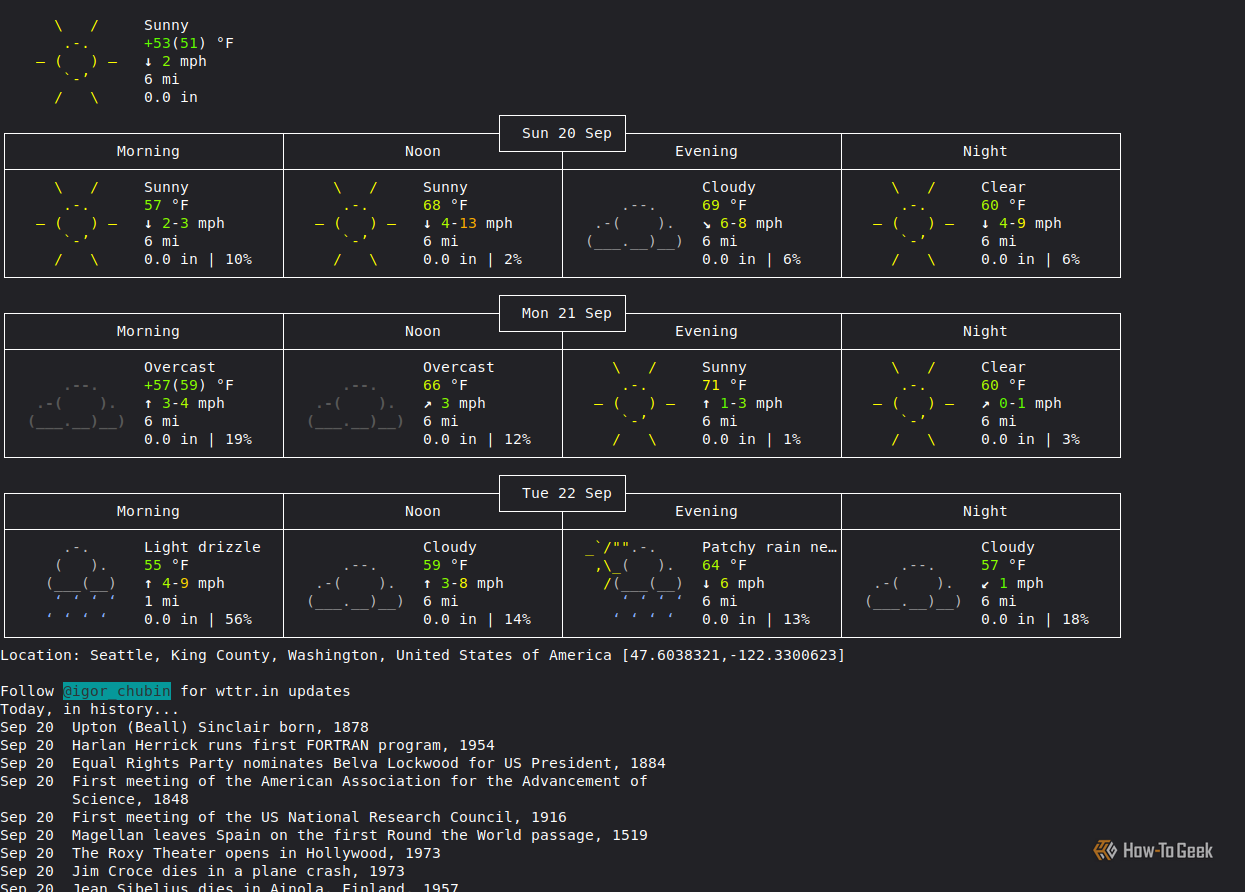
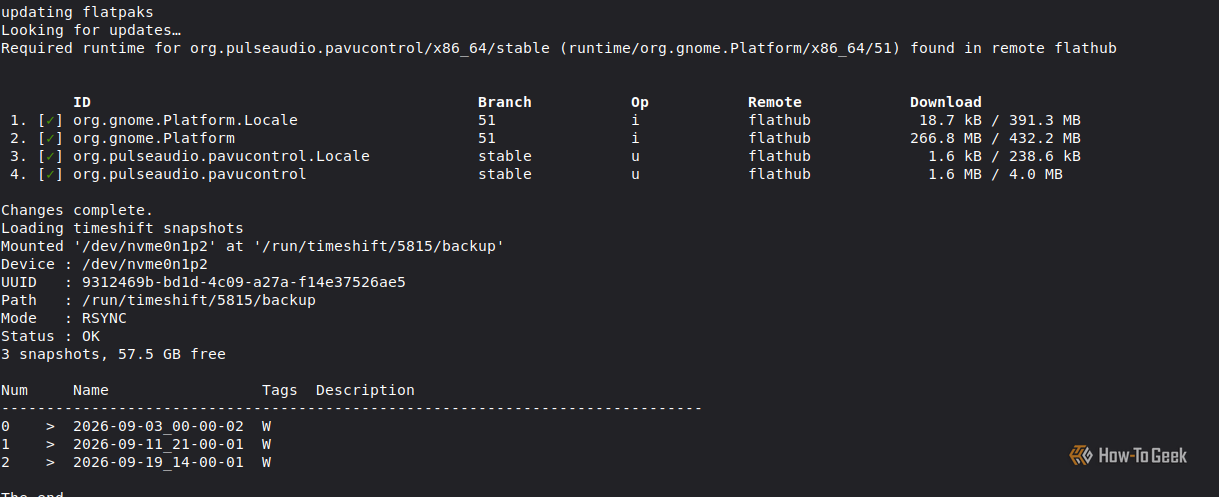
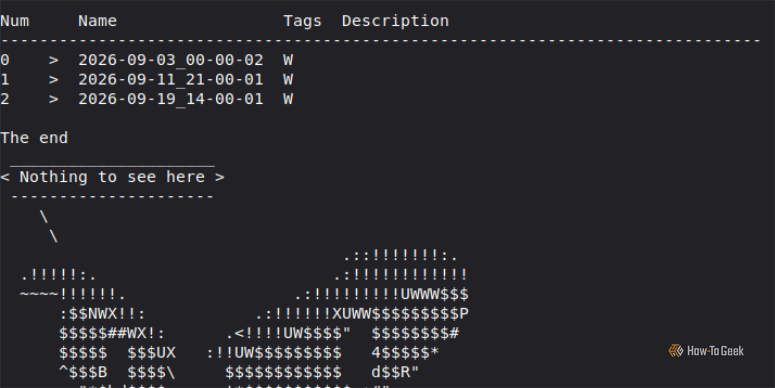
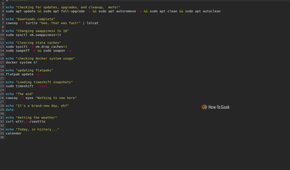
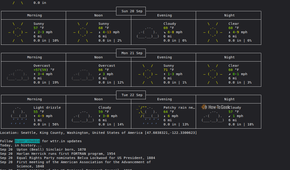
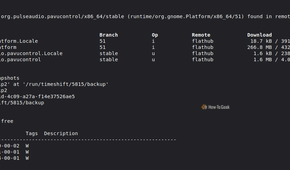
The biggest chore that a simple script can help with is updating/upgrading/cleaning/purging your applications and packages. You can create a very simple update/upgrade/purge script by adding this command string to a script:
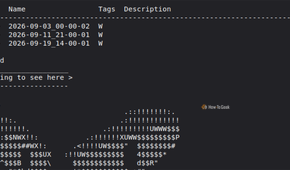
sudo apt update -y && sudo apt upgrade -y && sudo apt autoremove -y && sudo apt autoclean && sudo apt autopurge But my script goes deeper. I start with a version of the command above. Then, using curl and an app called calendar, I get a weather report (curl wttr.in) and a fascinating look at notable things that happened in history for that particular day (calendar). Weather is legitimately useful, but the calendar thing is just so I can wake my brain up. I love a bit of trivia or short reading before I start work.
Finally, I have it automatically lower my system’s swappiness parameter from the default of 60 to a much lower 10 or 20. This script also gives me a peek at my Docker system and most recent Timeshift snapshots.
You can edit a config file to permanently keep your swappiness at a different level, but I like having a bit more control over it, so I edit it when needed.
I use this script daily, and it helps me set things up the way I like them before a work session.
Deploying multiple system monitoring tools
A simple script to launch preconfigured tools
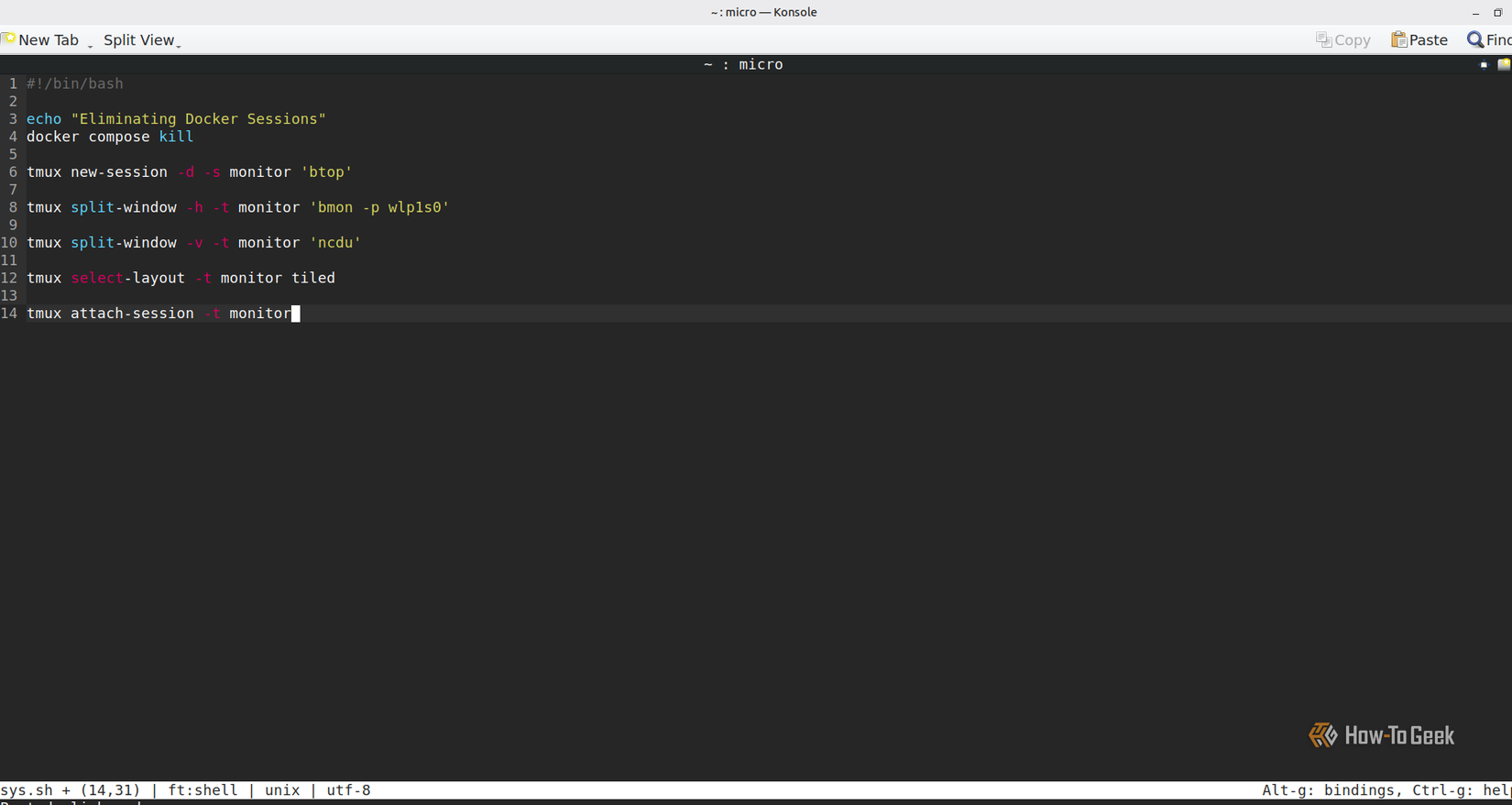
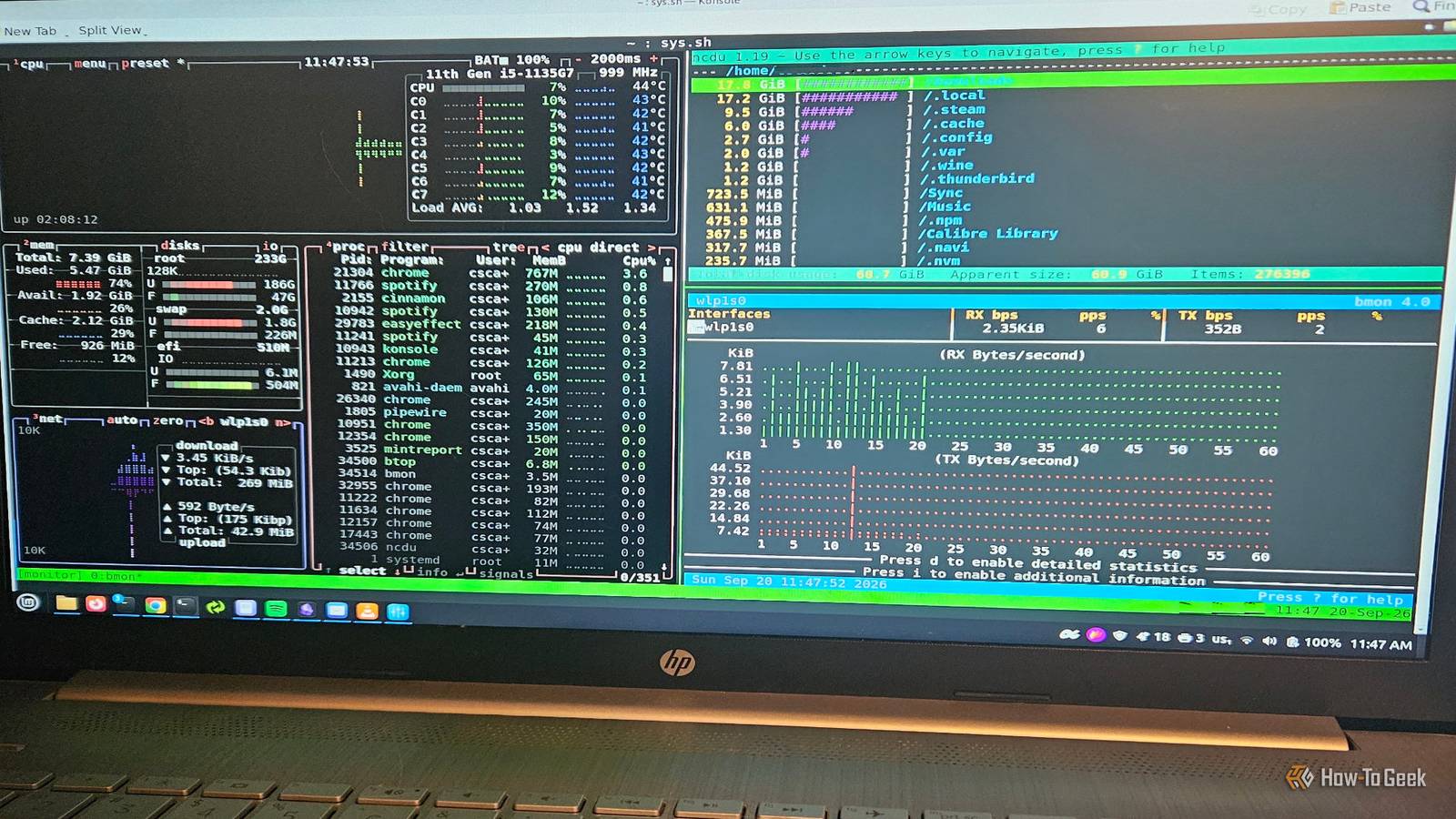
I’m a strong believer that you should monitor your system during use. So, I have a shell script I use to manage and launch my system monitoring tools. I typically use btop and ncdu on desktop or htop and ncdu on Android. I use the Terminal multiplexer, Tmux, to have them automatically pop up in separate panes.
I start by killing any existing Docker containers. When I want to spin up a Docker app, I do it manually later. It clears up quite a bit of memory on my system, but your experience may differ based on your hardware.
The next commands to put in the script are:
tmux new-session -d -s monitor 'htop' tmux split-window -h -t monitor 'ncdu' tmux attach-session -t monitor This opens my two monitoring programs in a mix of horizontal and vertical panes. If we wanted to add another monitoring tool, like bmon, you could add:
tmux split-window -v -t monitor 'bmon' tmux select-layout -t monitor tiled These add a third pane and tiles the layout.
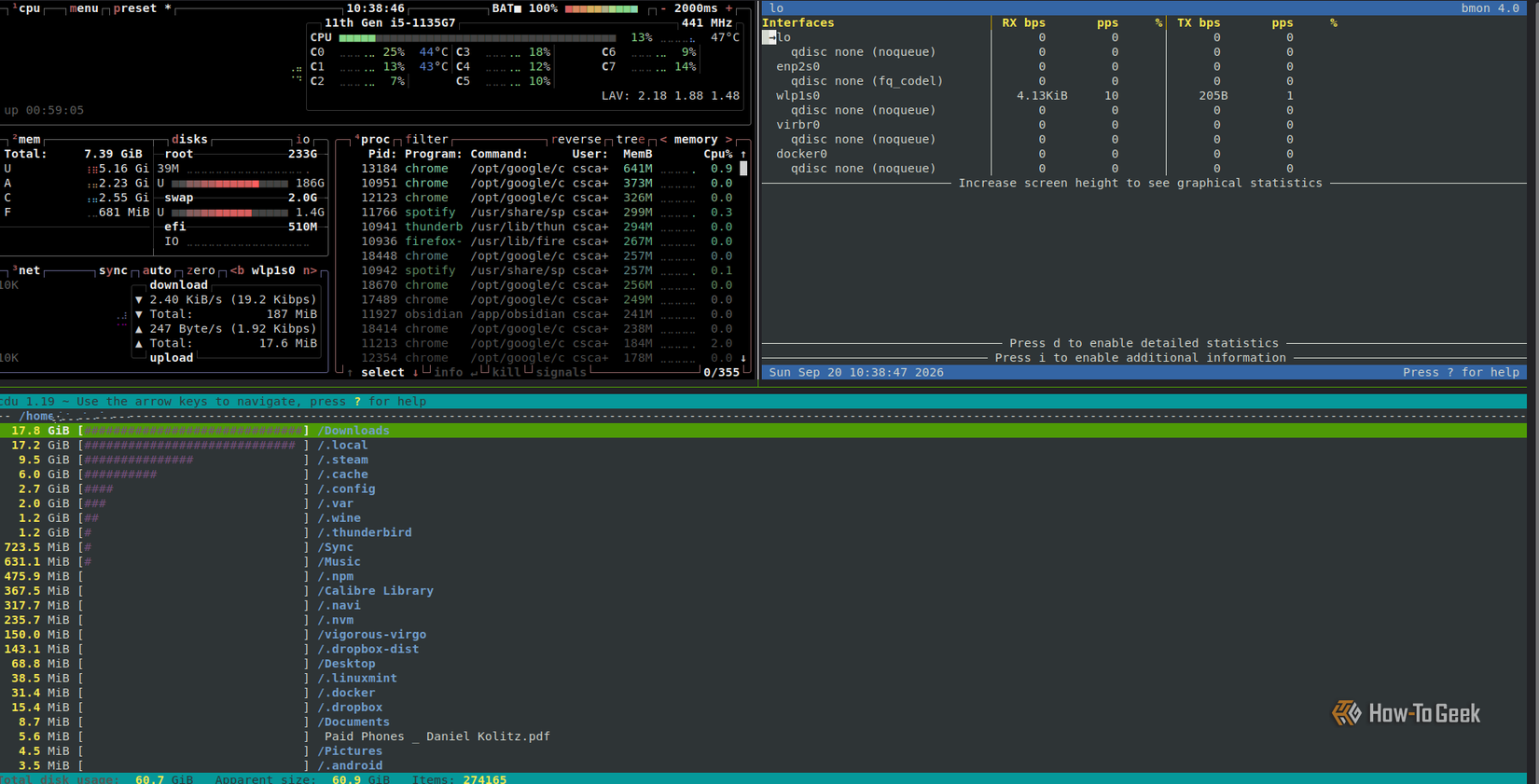
I use the three-program one (btop, bmon, and ncdu) to always have a Terminal window open for easy system monitoring at all times. This is just a very basic script, but Tmux has plenty of customization settings, so you can refine it to what works best for you (pane size, program orientation, adding/removing panes, and so on).
Make a simple workspace launcher
Automatically loading my workflow in one script
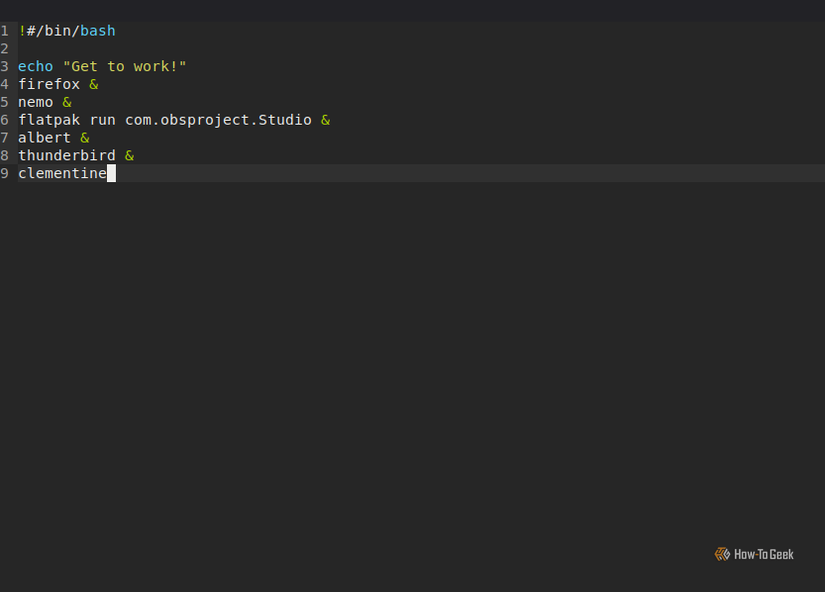
This is perhaps the easiest one to do. If you’re anything like me, you probably open the same programs every day when preparing for work. So, I automate it. Instead of finding and launching them individually, I just open them using a shell script.
There are maybe seven apps open every time I start a workday: Firefox, Obsidian, Albert, Konsole, my music app of choice (right now, it’s Clementine), Nemo (Mint’s file manager), and Thunderbird.
It’s incredibly simple. Start with your typical shebang, then just list the app you want to open followed by an & symbol. For mine, I have #!/bin/bash, followed by my list:firefox & albert & clementine & flatpak run md.obsidian.Obsidian & thunderbird & konsole & nemo.
That’s it. It’s a nice, clean way to set up my workspace immediately, and I can add/remove apps based on my needs.
Automating tasks is a good way to learn and optimize your time
Aside from the obvious benefits of automating certain Linux chores, I’ve found that shell scripts make my life easier. They’re both fun and a good opportunity to learn new commands. They help me polish my skills while freeing up time to work on other projects. And these are just the basic ones I use every day. Shell scripts can be very useful, and there’s always an opportunity to customize.