Credit: Mehaniq/Shutterstock.com
If your Chrome address bar keeps auto-filling Yahoo instead of the search engine you prefer, your settings have been overridden. This almost always happens after installing a free utility or a shady browser extension, but it can also stem from corporate policies or even your own security suite.
I have reset this setting dozens of times across Windows, macOS, and Android. In most cases, you can fix it in Chrome’s settings menu. If the redirect persists, you will need to follow a short diagnostic flow to find the root cause. Here is exactly how to do that.
Why is Chrome forcing Yahoo on you?
Before you start deleting files or reinstalling the browser, it helps to understand the mechanism. Yahoo redirects are rarely the result of a single “virus.” They usually fall into one of three categories:
- Potentially Unwanted Applications (PUAs): Free software installers often bundle a “browser helper” that quietly changes your default search provider to Yahoo to generate ad revenue.
- Security Suite Interference: Tools like McAfee WebAdvisor or certain antivirus suites enforce Yahoo as a default for “safety” because it filters known phishing domains. This is a feature, not a bug, but it is annoying.
- Managed Device Policies: If you see a “Managed by your organization” banner at the top of your Chrome settings, Yahoo is being enforced via Group Policy. You cannot override this without contacting your IT department.
Another common culprit is notification spam. If Yahoo pop-ups appear in your corner of the screen, it is not a search engine hijack. It is simply a website that was granted permission to send you alerts. I will cover how to block those later in this guide.
How to remove Yahoo Search from Chrome (desktop)
To remove Yahoo from the search engines list in Chrome on your Windows, Mac, Linux, or Chromebook computer, first open Chrome.
For efficiency, type chrome://settings/search into the address bar and press Enter. This takes you directly to the search engine configuration page.
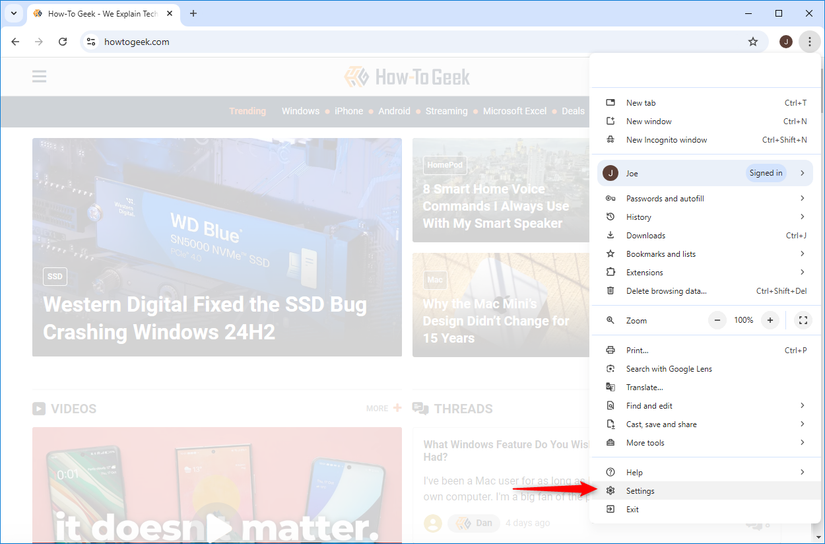
If you prefer the menu path, click the three dots in the top-right corner and select “Settings.”

In the top-right corner, click the three dots.
From the menu, select “Settings.”
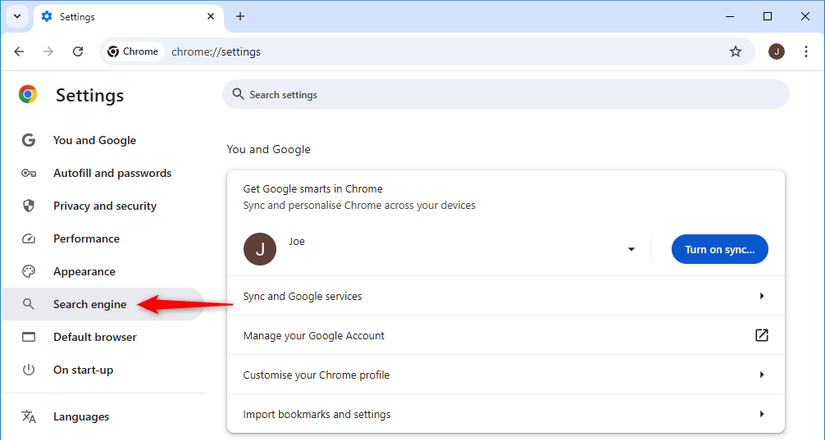
On the Settings page, you will see a Search Engine section on the right. Here, click “Manage Search Engines and Site Search.”
You will see a Search Engine section on the right. Here, click “Manage Search Engines and Site Search.”
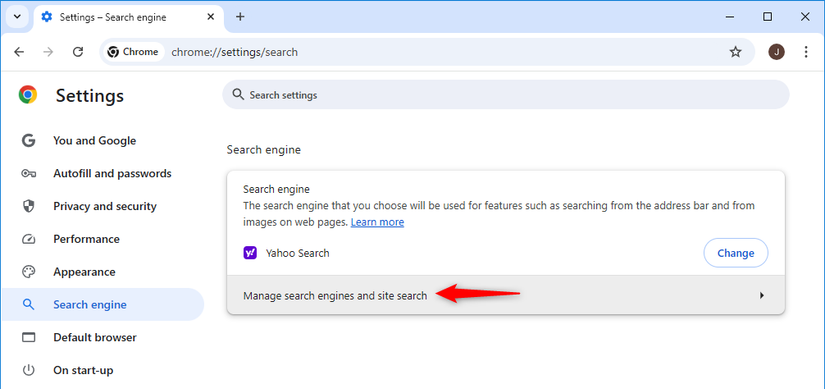
If Yahoo is your default search engine, you have to switch to a different search engine before you can remove Yahoo.
To do so, find your preferred search engine in the list, click the three dots next to it, and select “Make Default” from the menu.
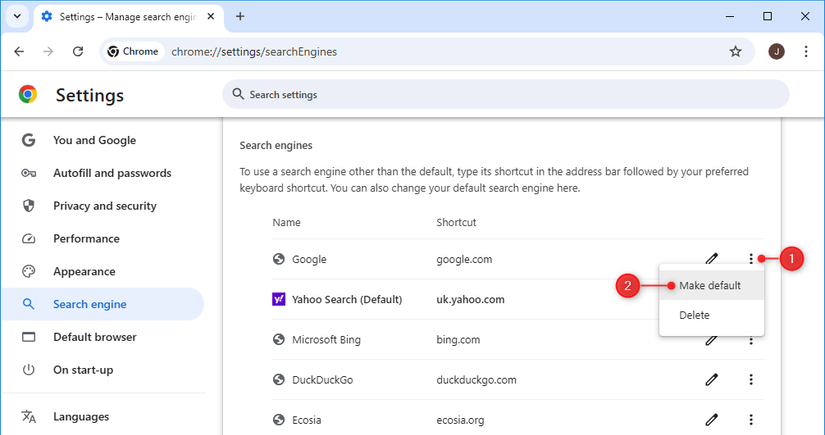
If you only want to change the default engine but keep Yahoo around, your job is done. Otherwise, to remove Yahoo entirely, click the three dots next to Yahoo and select “Delete.”
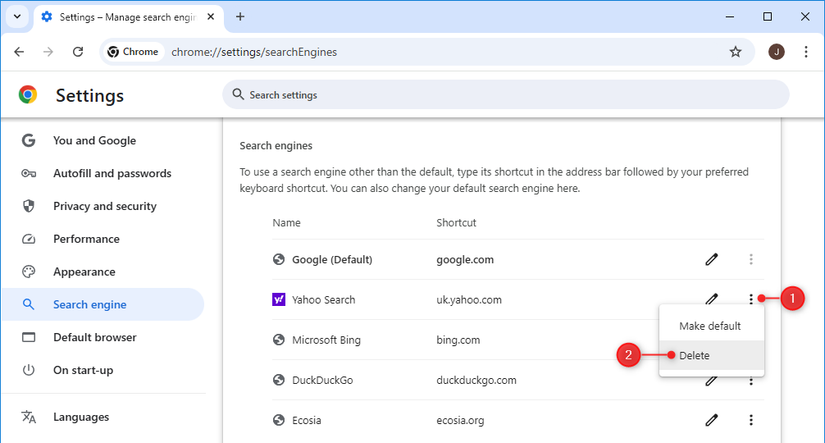
Immediately, Chrome removes Yahoo from the search engines list.
On the same page, review the Site Search list (expand “Additional Sites” if you see it) and, if it appears, remove Yahoo from there as well. To do so, select the three dots next to Yahoo and choose “Delete.”
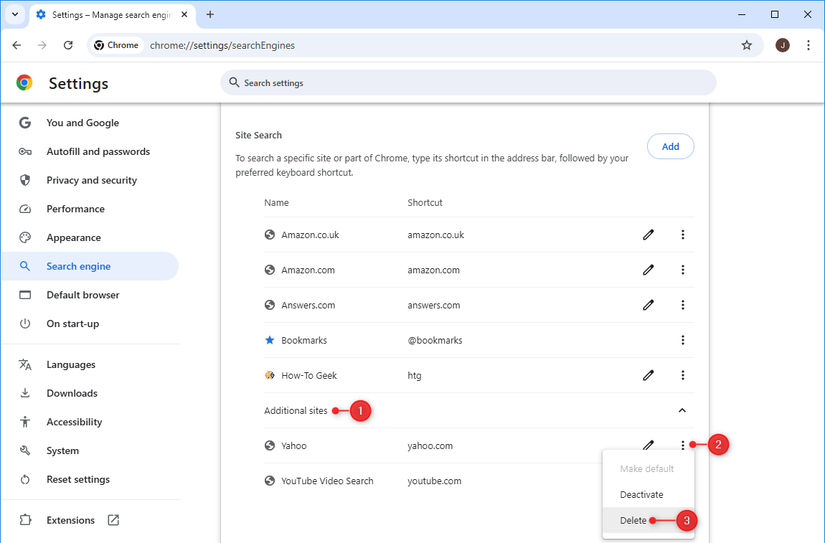
Your browser is now Yahoo-free!
How to remove Yahoo as the default search engine in Chrome (mobile)
In Chrome on your iPhone, iPad, or Android device, you can’t add or remove search engines, but you can switch between them. This allows you to stop using Yahoo as the default search engine and make another search engine (like Google) the default.
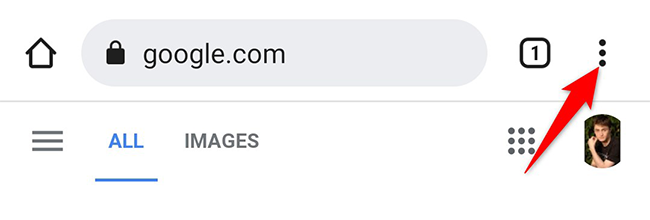
To do so, first open Chrome on your device. Tap the three dots to open Chrome’s menu. On an iPhone or iPad, you will find these three dots in the bottom-right corner. On an Android device, these dots are in the top-right corner.
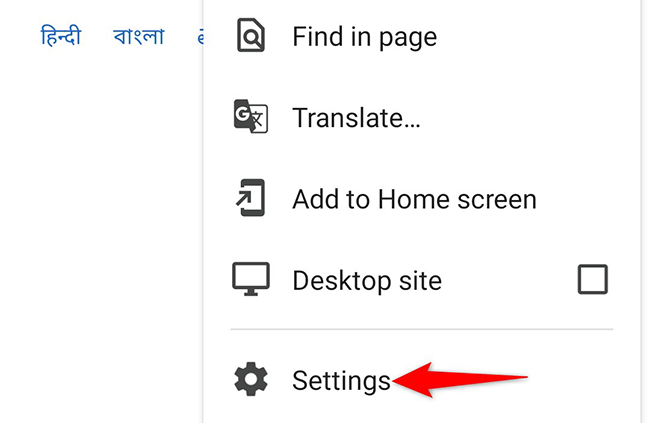
In the menu that opens, tap “Settings.”
On the Settings screen, tap “Search Engine.”
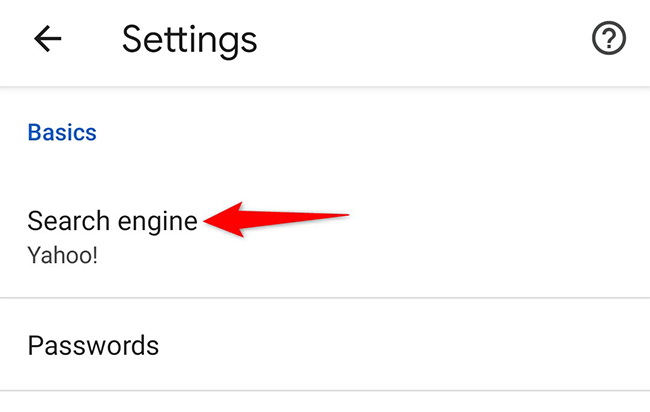
The Search Engine page displays all the available search providers. Select a non-Yahoo search engine to make it the default.
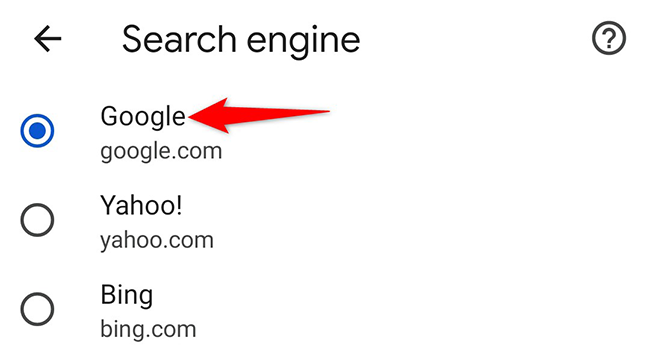
That’s it! Chrome now uses your selected search engine as the default.
If your search engine keeps changing to Yahoo without your input, or even after you’ve followed this guide, you may have malware. In this case, read our article on how to remove the Yahoo redirect virus.