Credit: Nathaniel Pangaro/How-To Geek
Amazon’s Fire TV devices offer great value for money, but not when you’re intent on private listening with wireless earbuds. When I’ve used a Fire TV Stick, I’ve had to make do with stereo audio if I wanted to avoid waking my family. What’s the point of paying for Dolby Atmos in my streaming services if I can only use it some of the time?
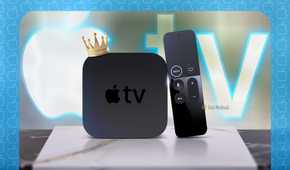
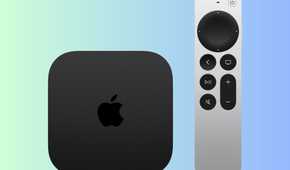
That’s one reason why I appreciate the richer audio support in my Apple TV 4K. While I need Apple-made earbuds like AirPods Pro to take advantage of it, I can get a proper home theater experience even if I want to keep quiet. There are solid alternatives, to be clear—but I’m happy to stick to Apple’s streaming box for its aural advantages.
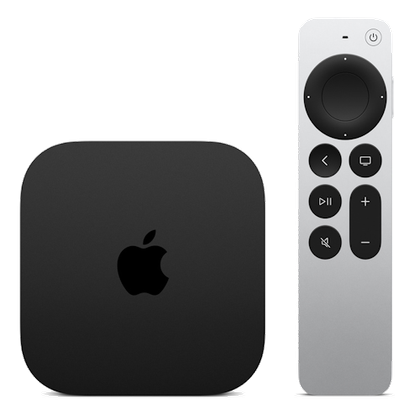
Apple TV 4K
Operating System
tvOS
Resolution
4K
Spatial audio is far more immersive
It’s a deluxe home theater in your head
-
 Credit: Lucas Gouveia/How-To Geek
-
 Credit: Patrick Campanale / How-To Geek
 -
 Credit: Apple
 -
 Credit: Nathaniel Pangaro / How-To Geek
 -
 Credit: Tim Brookes / How-To Geek
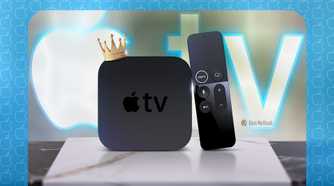
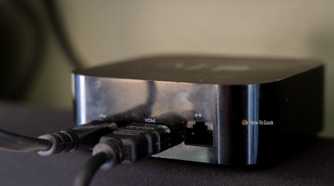
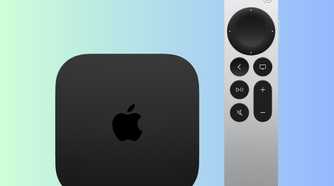


-
 Credit: Lucas Gouveia/How-To Geek
-
 Credit: Patrick Campanale / How-To Geek
 -
 Credit: Apple
 -
 Credit: Nathaniel Pangaro / How-To Geek
 -
 Credit: Tim Brookes / How-To Geek


Spatial audio is a novelty in the music world. I don’t really need to know where the instruments are in a performance. But it’s increasingly a mainstay of home theaters thanks to Dolby Atmos and DTS:X, and even classic surround sound feels like a throwback. When I used stereo audio with the Fire TV Stick, it was practically lifeless.
On an Apple TV 4K, I get a full Dolby Atmos treatment closer to that of a good speaker setup. Movies like the Avatar series and the Marvel Cinematic Universe get the immersive soundscapes they deserve, while TV shows like Ted Lasso get that little extra pop they need to make cheering crowds and powerful kicks come alive. It’s not audiophile-grade, but I can easily lose myself in the moment.
That’s not even accounting for head tracking, which anchors sounds in space relative to where you’re facing. I can look over at a family member (or just check the time) without a disorienting feeling. It also feels more like I’m listening to conventional home theater speakers, which is simply less jarring.
Shared audio makes it social
You don’t have to watch alone
 Credit: Lucas Gouveia/How-To Geek
The Fire TV Stick is also a solitary experience when using wireless earbuds. That’s fine for a hotel stay or a late-night catchup session, but it’s lousy if you want your partner or roommate to watch with you. I don’t want to be lonely just because I need to keep quiet.
Thankfully, I don’t have to with an Apple TV 4K, as it supports shared wireless audio. While it requires Apple-created earbuds, it’s wonderful to know I can enjoy social viewing without waking the whole house—including with spatial audio. If there’s an epic battle, we both feel its full effect.
The approach isn’t perfect beyond the all-Apple hardware requirement. Shared audio drops personalized spatial audio, so movies aren’t quite as dramatic as when I’m watching by myself. But it’s worth that small tradeoff to comment on a funny skit or share a tender moment. I’m frankly surprised Amazon still hasn’t added this feature to Fire TV devices.
What if I don’t want an Apple TV 4K for spatial audio?
There are options for the Android crowd
 Credit: Google
I get it—there’s a good chance you don’t want an Apple TV 4K if you’re primarily an Android user or simply want to avoid locking yourself into one company’s ecosystem. It’s also overkill if you stick to mainstream streaming apps and don’t play games.
Thankfully, there are choices. If you have the right Android TV device, such as the Google TV Streamer, you can listen to spatial audio as long as you have compatible earbuds or headphones (such as the Pixel Buds Pro 2). Shared audio is certainly commonplace if you’re not picky about 3D sound, as many TVs have poorly advertised multi-device listening built-in.
Spatial audio support for earbuds and headphones isn’t consistent across Android TV, however, and it’s non-existent in Roku’s world. That makes the Apple TV 4K the safe choice: I know I can get all-encompassing sound without guesswork. That’s important if you’re a cinephile, of course, but I’d also consider Apple’s box if I wanted Dolby Atmos without having to buy dedicated speakers—it’s great to know that I could fully enjoy a movie using the AirPods Pro. I already use it with my phone.