Credit: Dibakar Ghosh | How-To Geek
Do you have a fast internet connection, but your Windows PC often feels slower than it should? Have you already tried switching your DNS providers and other internet speed optimization hacks, but still no luck? Well, I’ve been in the same place you are — and after some digging around, I found that a few background apps and processes were causing the problem. Here’s how to find out if that’s happening on your PC and how to stop it for good.
I’ll stick to Windows 11’s native tools for this one. But if you’re open to installing a third-party app, I’ve covered a free and open-source network monitor at the end. It can block specific apps from accessing the internet.
Find all the apps that are using your internet
You can’t fix what you haven’t measured
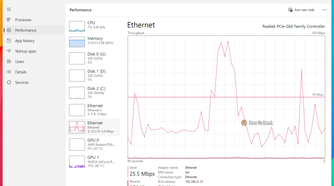
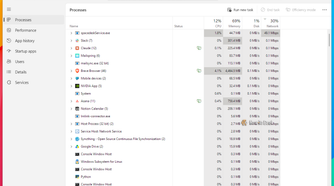
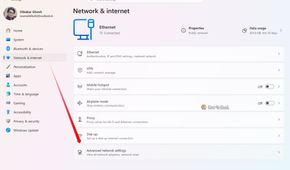
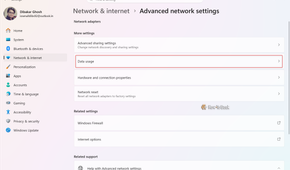
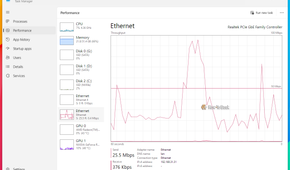
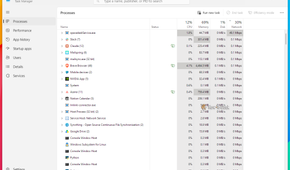
Before you can stop background apps from hogging your bandwidth, you first need to know which ones are actually using it.
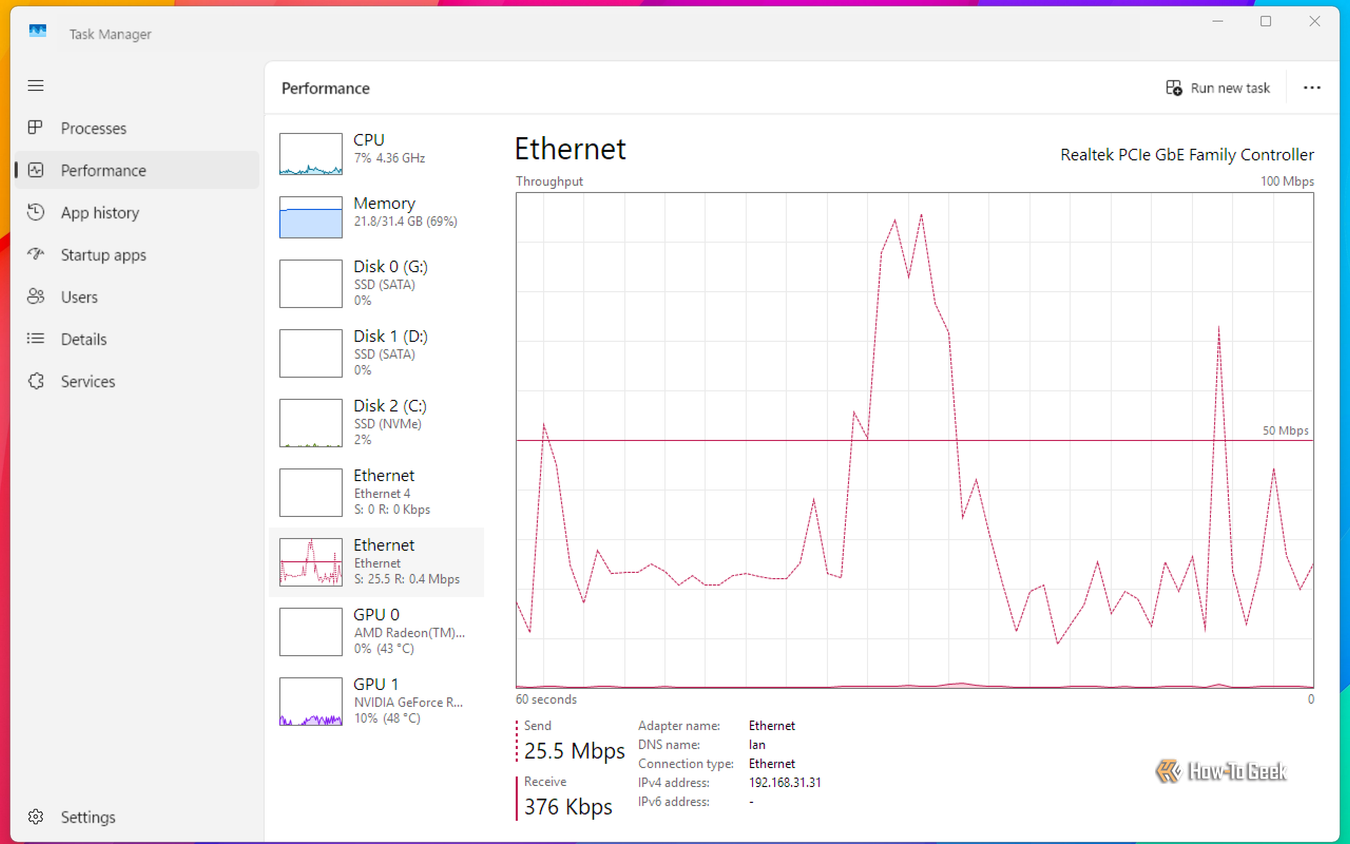
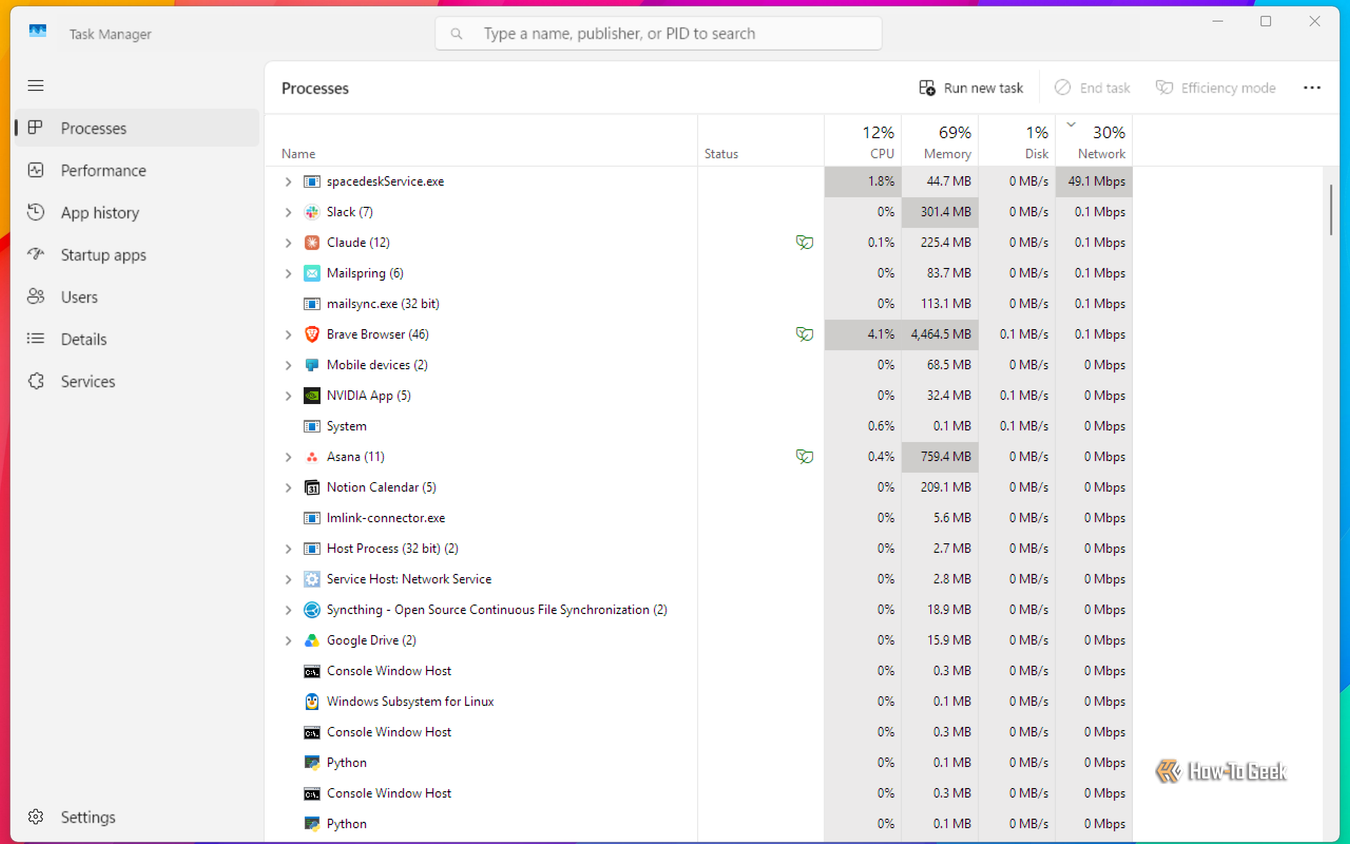
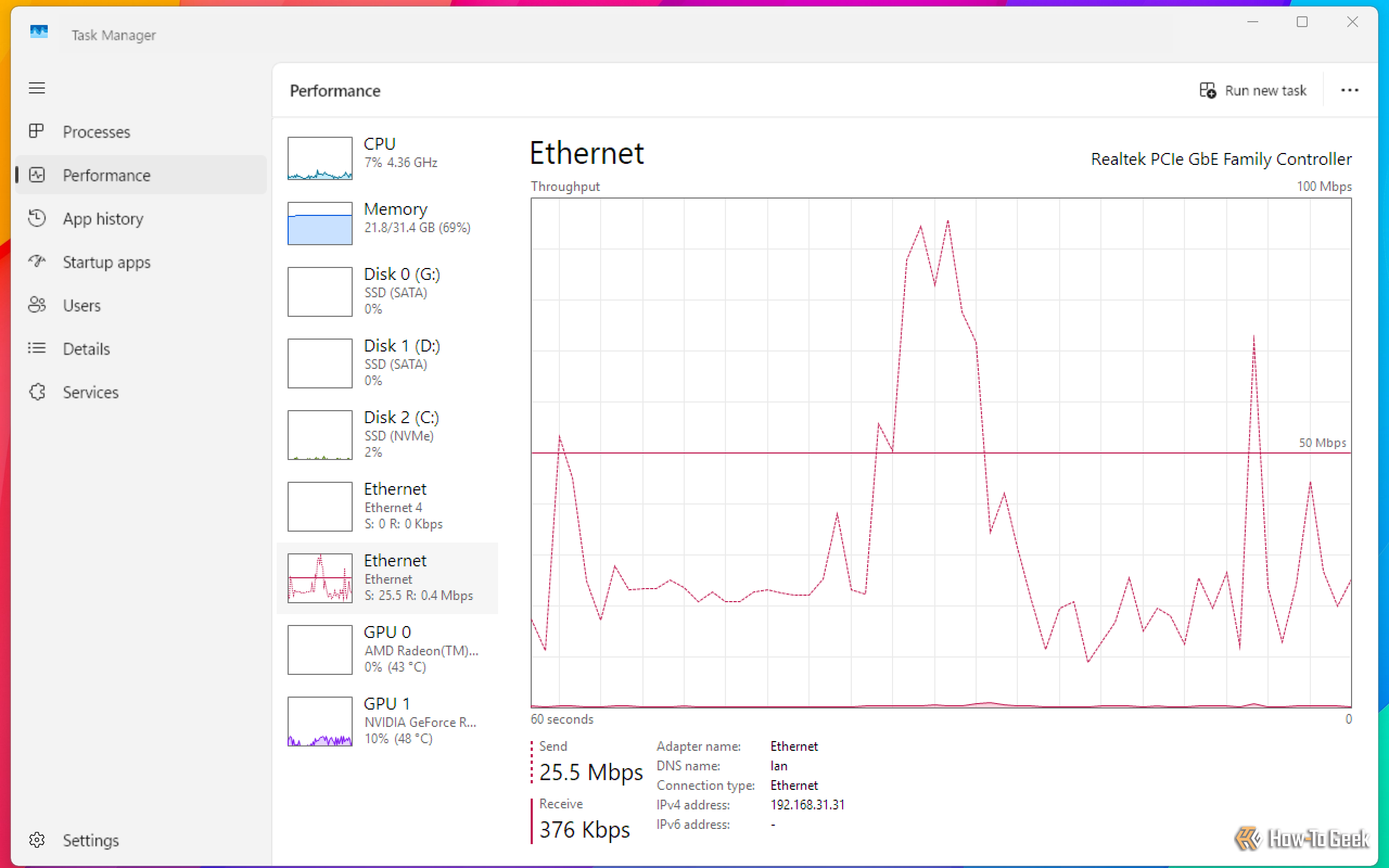
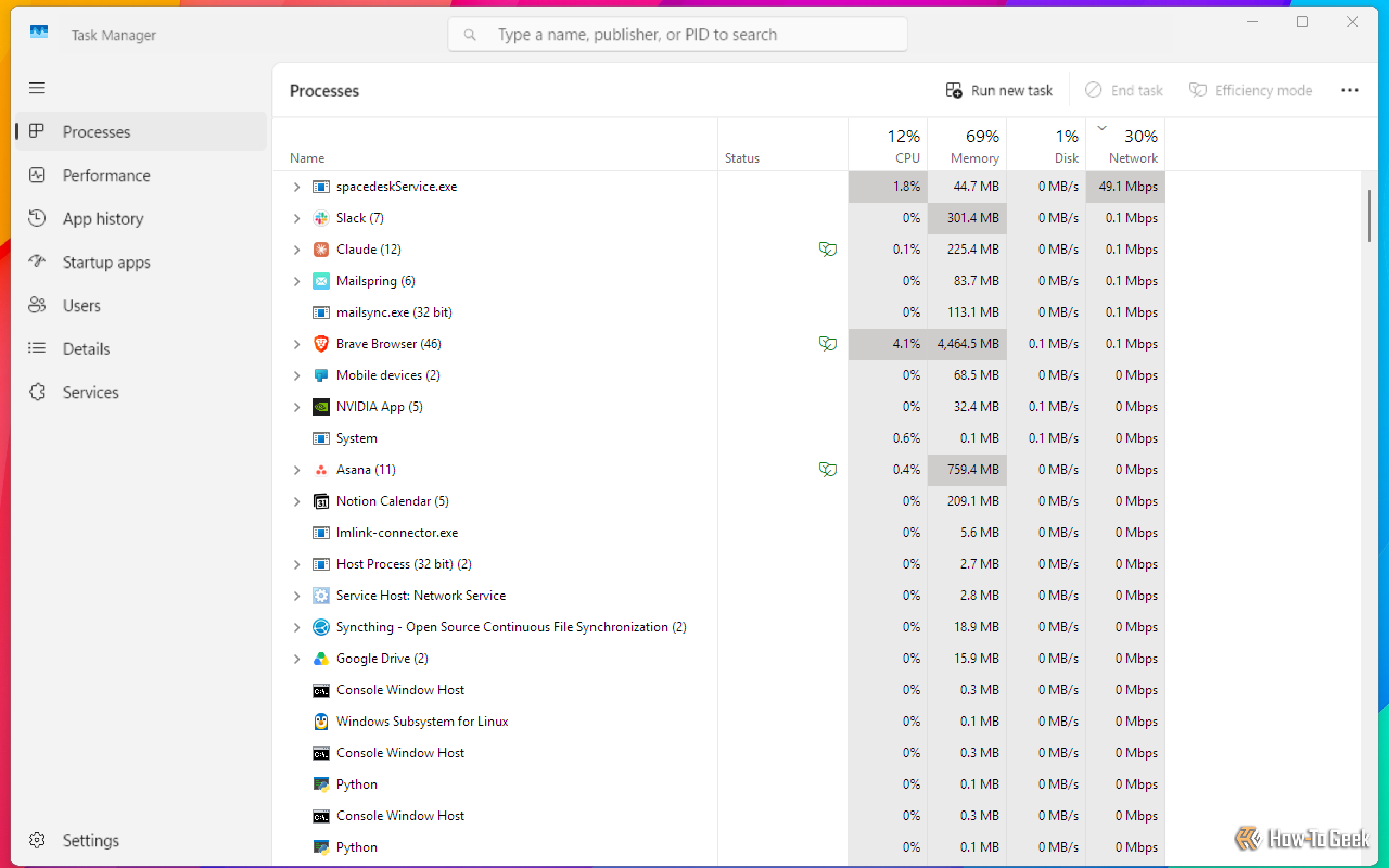
Now, for this discovery process, your first instinct might be to open Task Manager, and yes, it does show network usage per app — but you’re only seeing real-time data. Say an app or process was running overnight and drained 5GB of your data but is currently sitting idle. You’re going to completely miss that if you open Task Manager right now. What you want instead is cumulative usage.
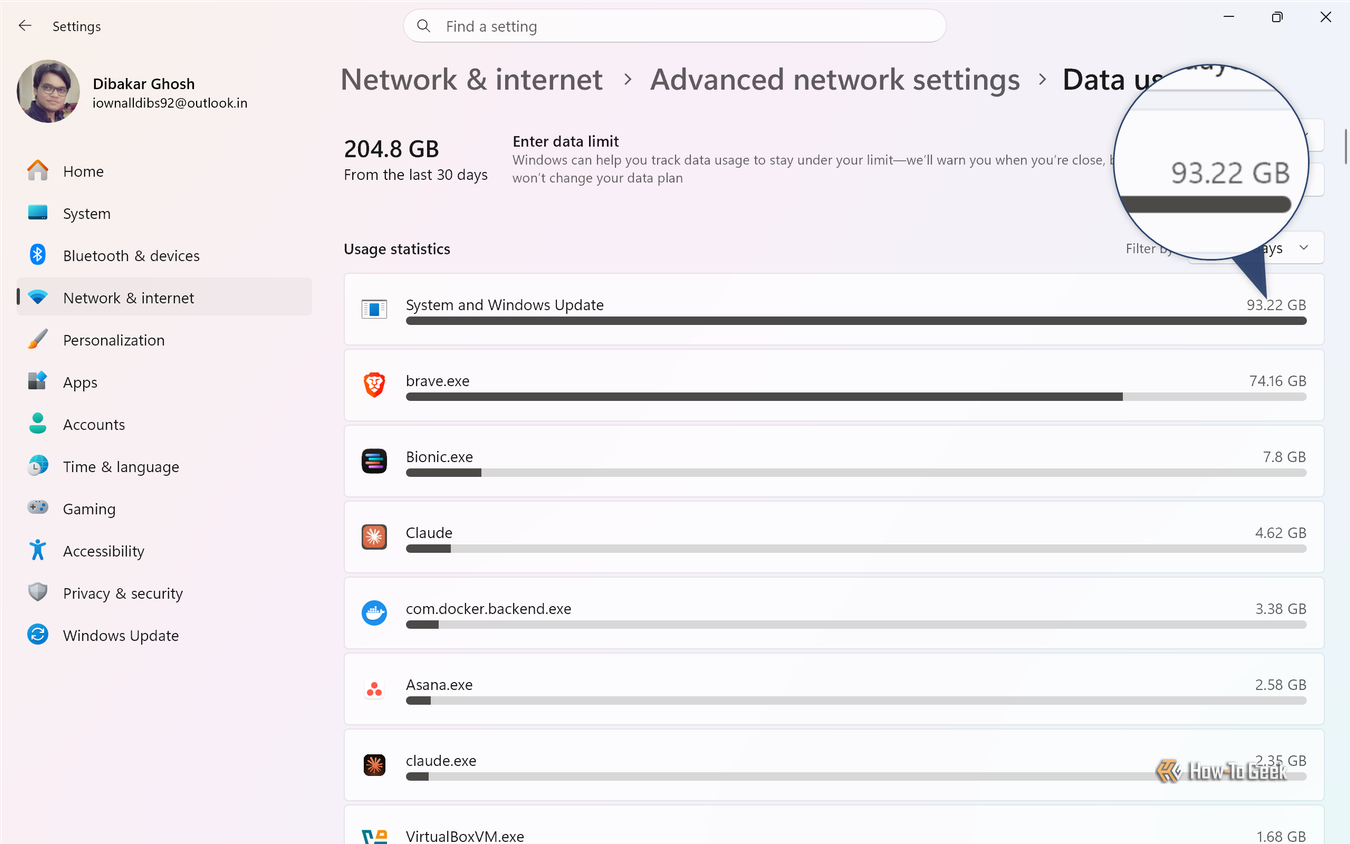
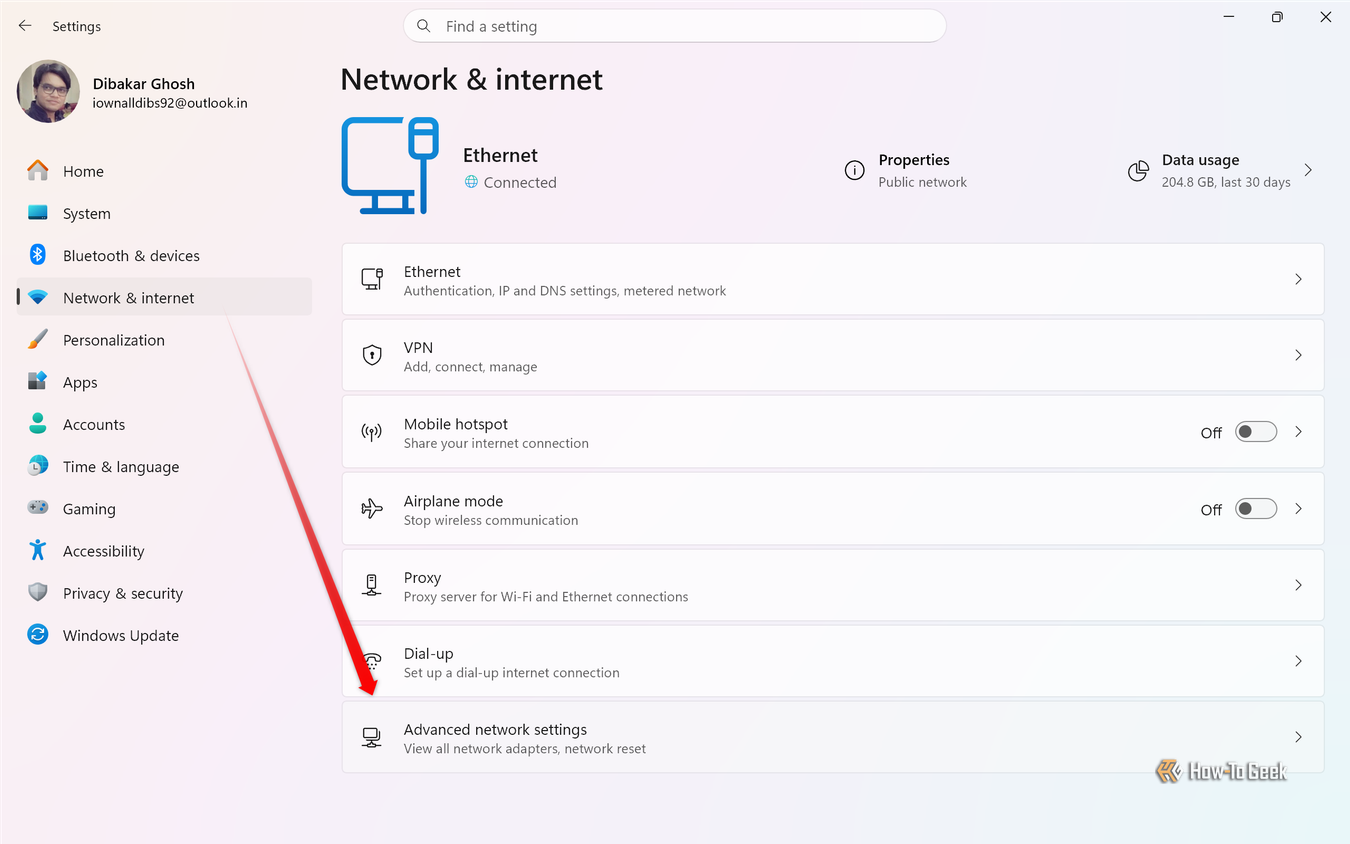
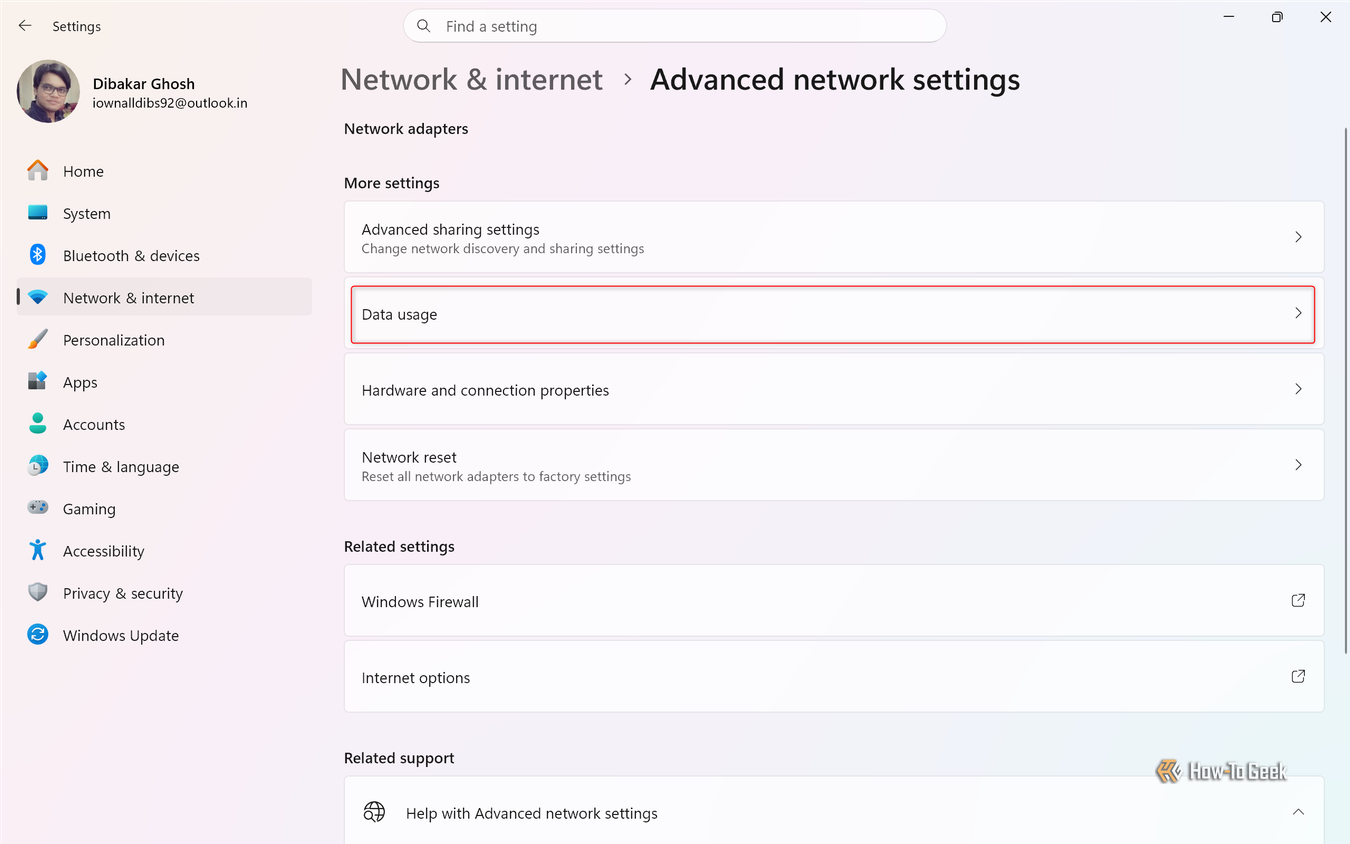
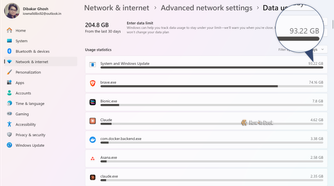
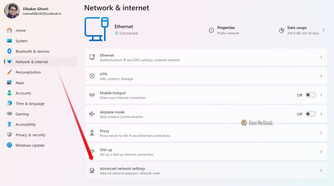
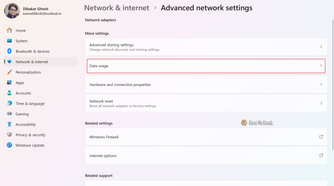
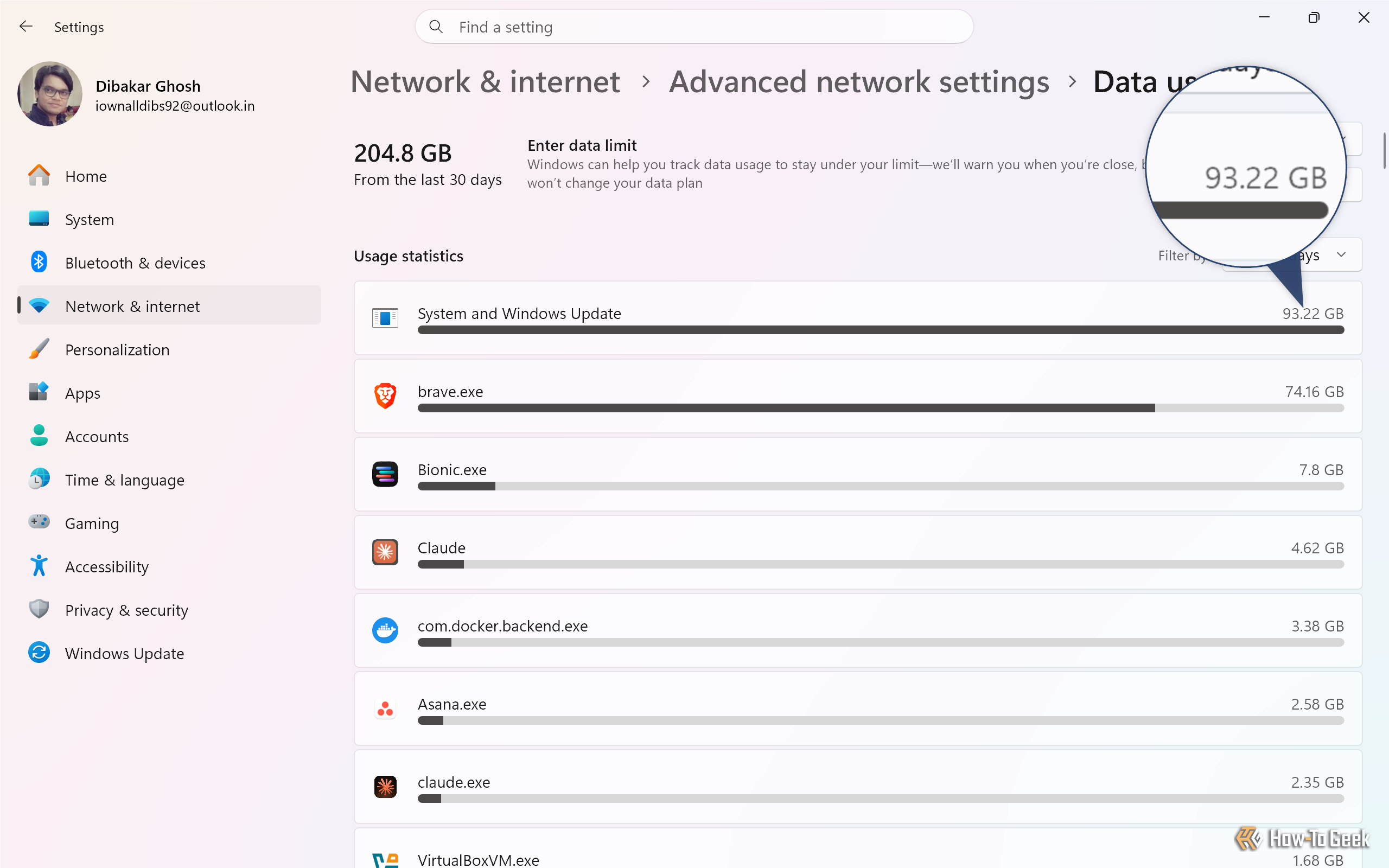
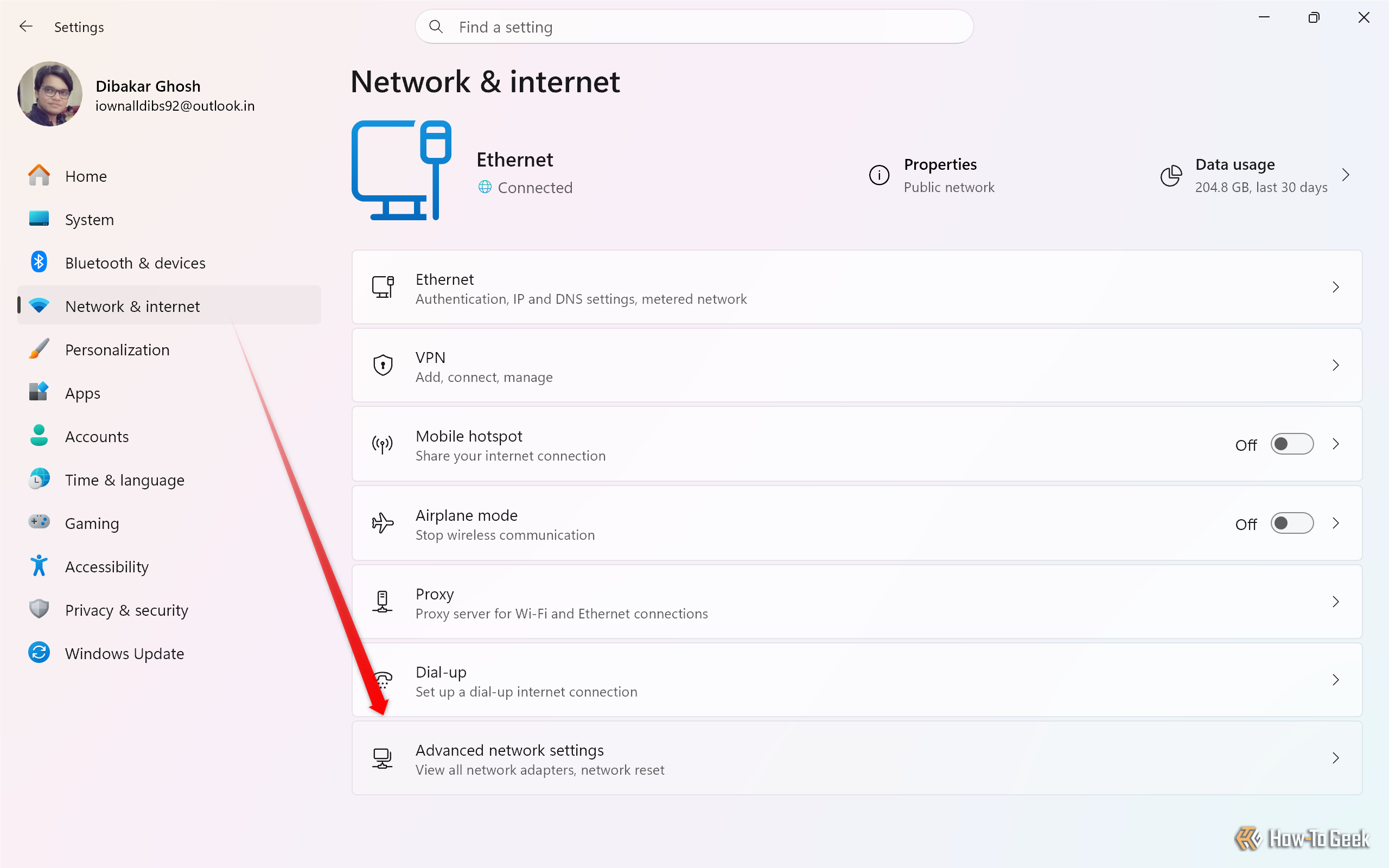
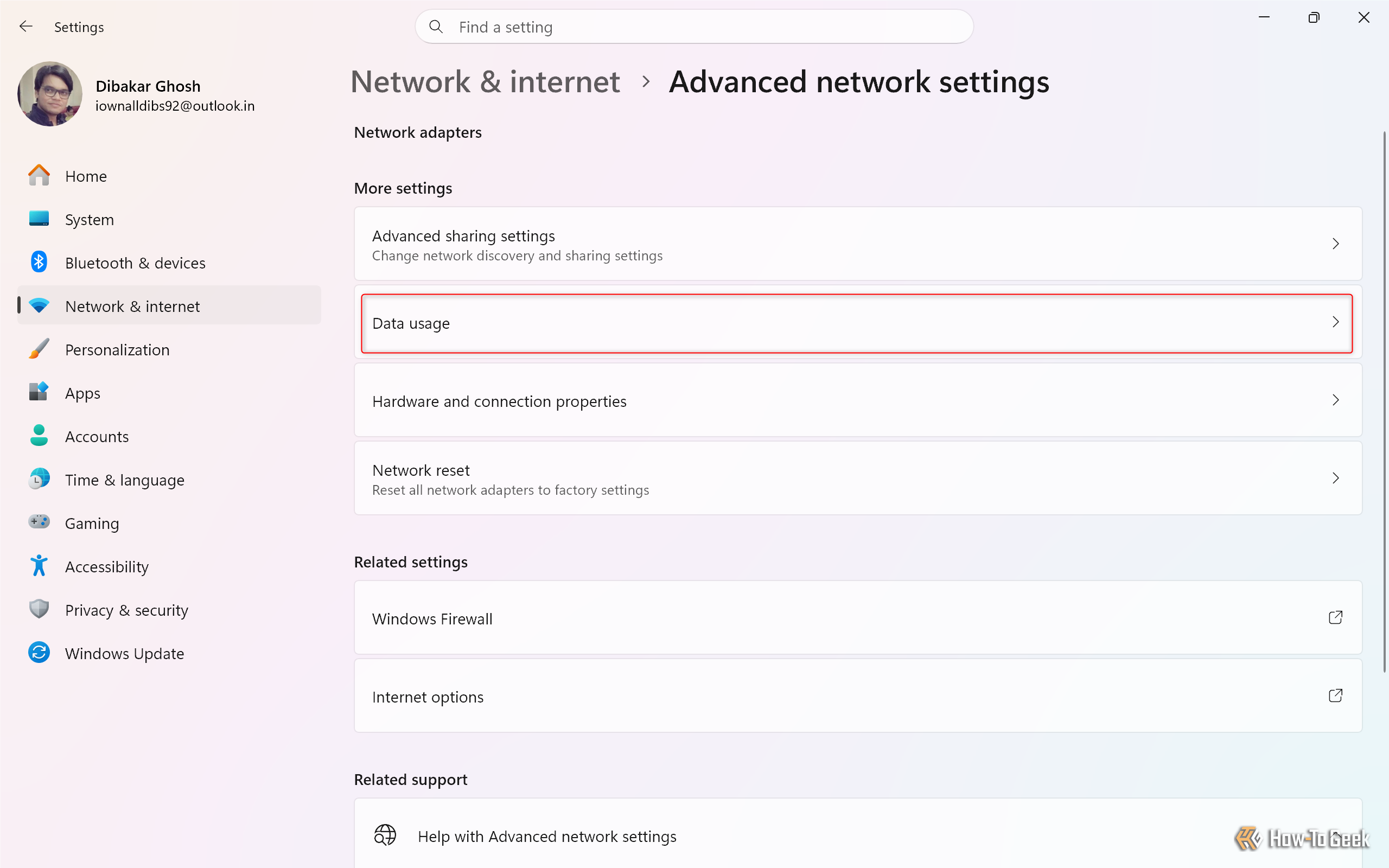
For that, head to Settings -> Network & internet -> Advanced network settings -> Data usage. This screen lists every app on your system along with how much data each one has consumed over the last 30 days, sorted from hungriest to lightest.
Most of it will make sense — your browser will likely be at the top, followed by things like Steam or OneDrive if you use them. What you’re looking for is an app that you rarely use but is consuming gigabytes of data for no apparent reason. Those are the potential troublemakers.
Limit background app permissions
Not all apps need to run after you close them
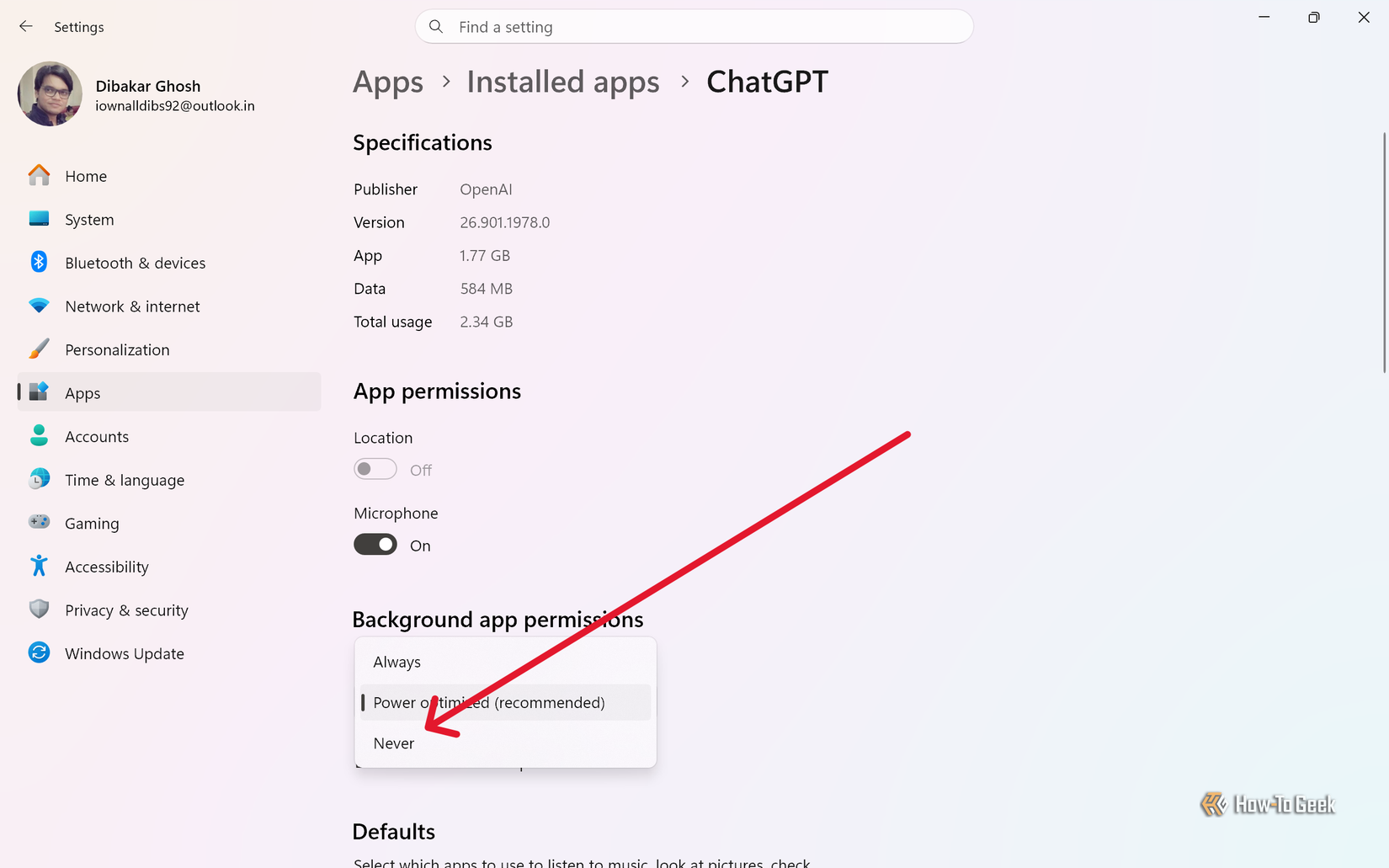
Now that you know which apps are the problem, the first fix is to cut off their background activity. To do this, head to Settings > Apps > Installed Apps. Find the specific app, click the three-dot menu next to it, and select “Advanced options” or “Modify” — whichever shows up for that app.
Scroll down until you see “Background app permissions” and set it to “Never”. This will stop the app from running in the background, which not only saves it from slowing down your PC by consuming your CPU and RAM, but also saves Wi-Fi bandwidth by preventing those routine app updates.
Now, I should mention that this method will only work for apps installed through the Microsoft Store and the apps Windows ships by default. If you installed an app the regular way — by downloading an installer EXE from the internet — you won’t be able to “modify” the app’s permissions using this method.
You can use Portmaster — a free and open-source network firewall — to block internet access for those apps, which effectively does the same thing. I’ve talked about Portmaster in a later section.
Configure delivery optimization for Windows updates
You shouldn’t stop updates — but you should negotiate with them
If you look closely at my data usage screen, you might notice that “System and Windows Update” is at a whopping 93GB. Considering my total consumption for the month was around 205GB, that means Windows itself — not individual apps — was eating nearly half of my monthly data. Now, you obviously need to keep Windows updated, so the goal isn’t to stop updates — but rather to control how and when they download.
First, if you’re on a metered connection, go to Settings -> Network & internet, select your Wi-Fi or Ethernet connection, and turn on “Metered connection.” This tells Windows to limit data usage and de-prioritize big feature updates and other optional stuff. Your regular security updates will still come through.
As a more aggressive measure, you can also “Pause Updates” for up to five weeks. This gives you the flexibility to prevent updates entirely during that period and then manually resume them when you have access to an unmetered network, like your office Wi-Fi or when you’re at a friend’s place. Just remember to ask for their permission first.
That said, even if you have an unlimited internet plan, you might not be worried about saving data, but you should still optimize for saving bandwidth. You don’t want Windows to suddenly pull a multi-gigabyte update in the background while you’re on a video call or gaming online. Granted, Windows does throttle background downloads on its own to some extent, but setting an explicit cap means an update can never flood your connection at the worst possible moment.
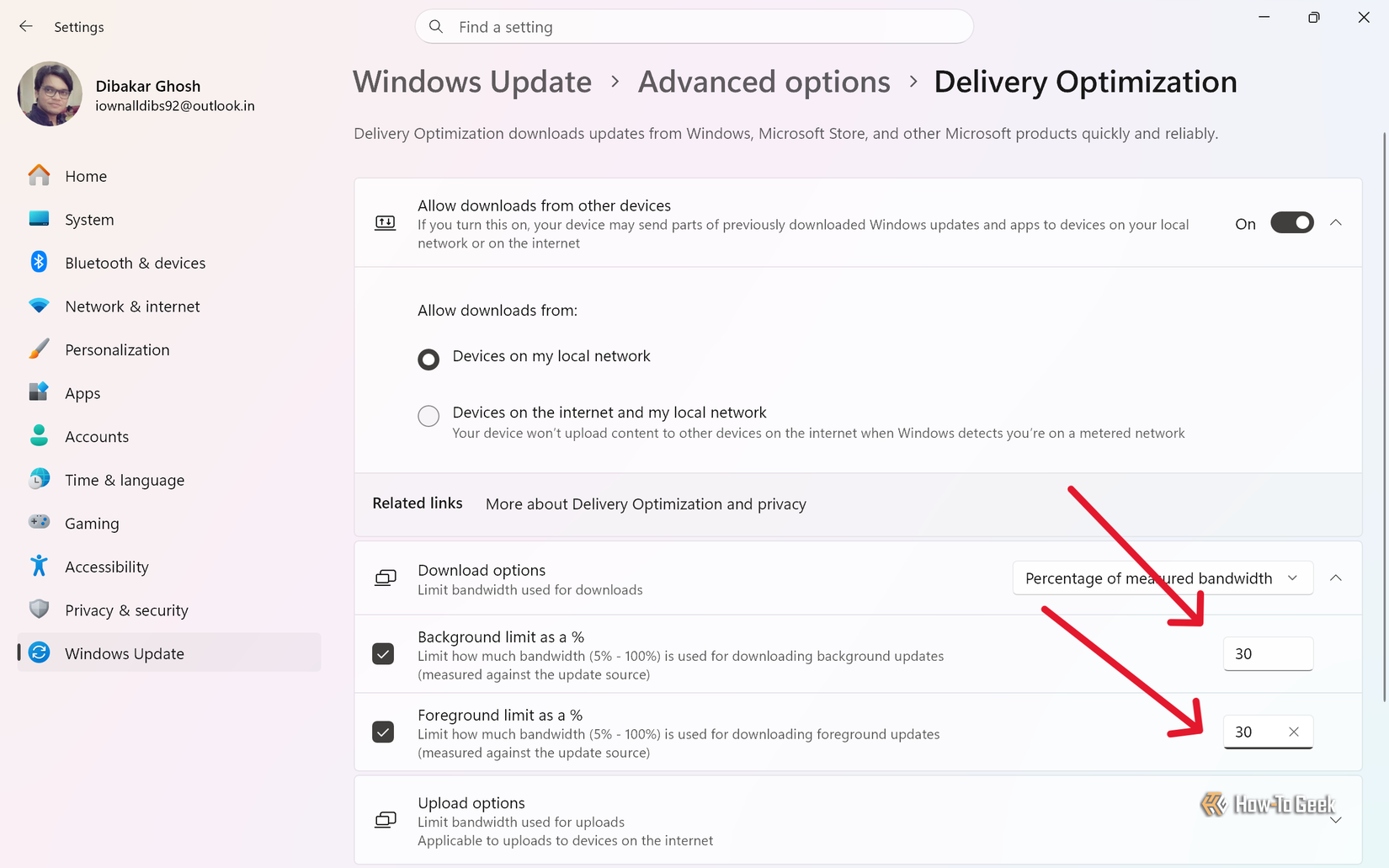
To do this, head to Settings -> Windows Update -> Advanced options -> Delivery optimization. Then, under Download options, you get two options to cap how much bandwidth updates are allowed to consume — you can limit it to absolute Mbps values or as a percentage of measured bandwidth. I’m personally using the percentage option and don’t give it more than 30%.
Use Portmaster to block internet access for any app
Get granular control over how your apps are accessing the internet

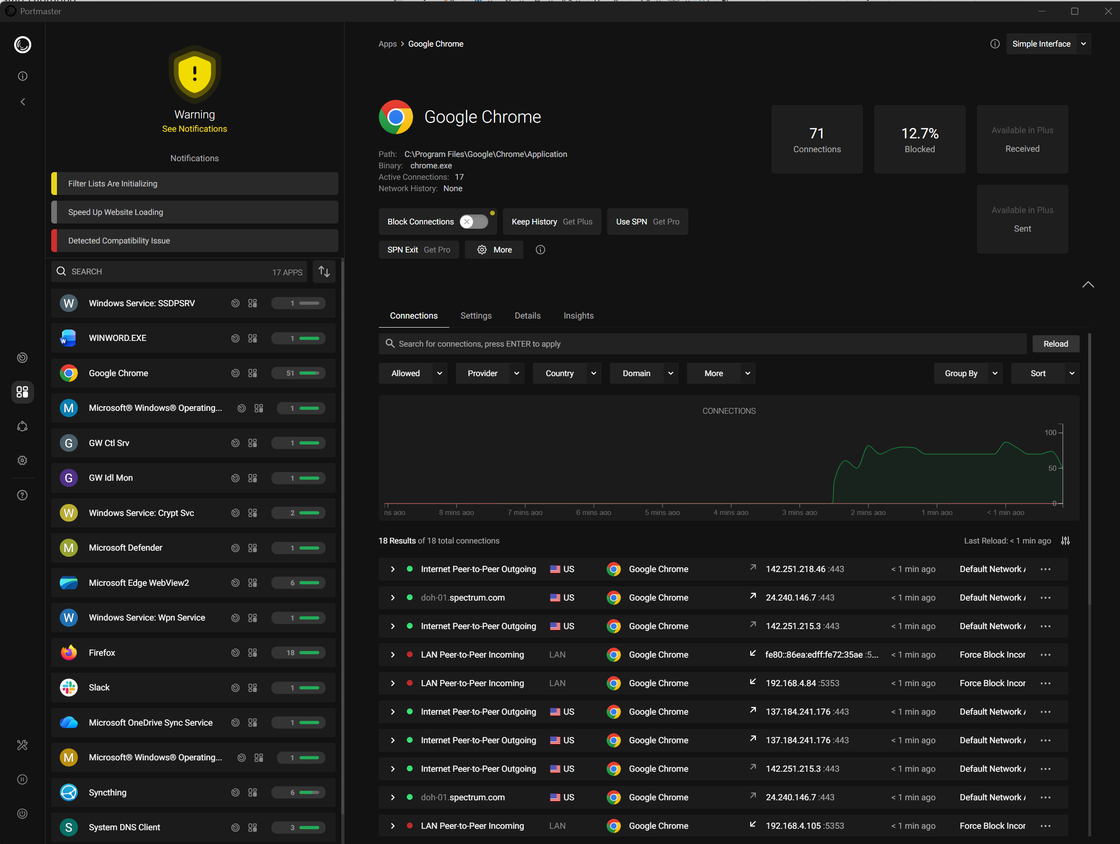
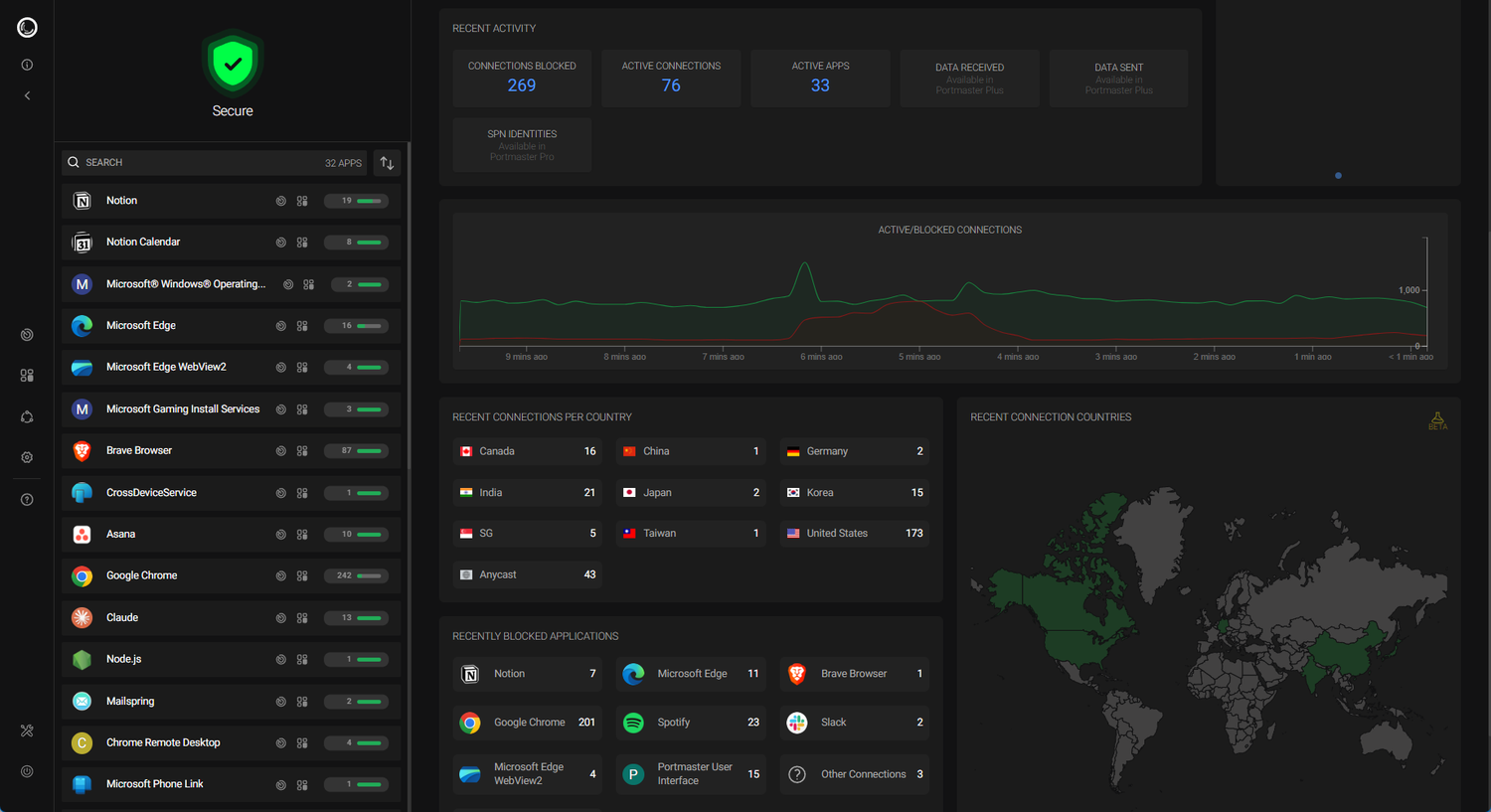
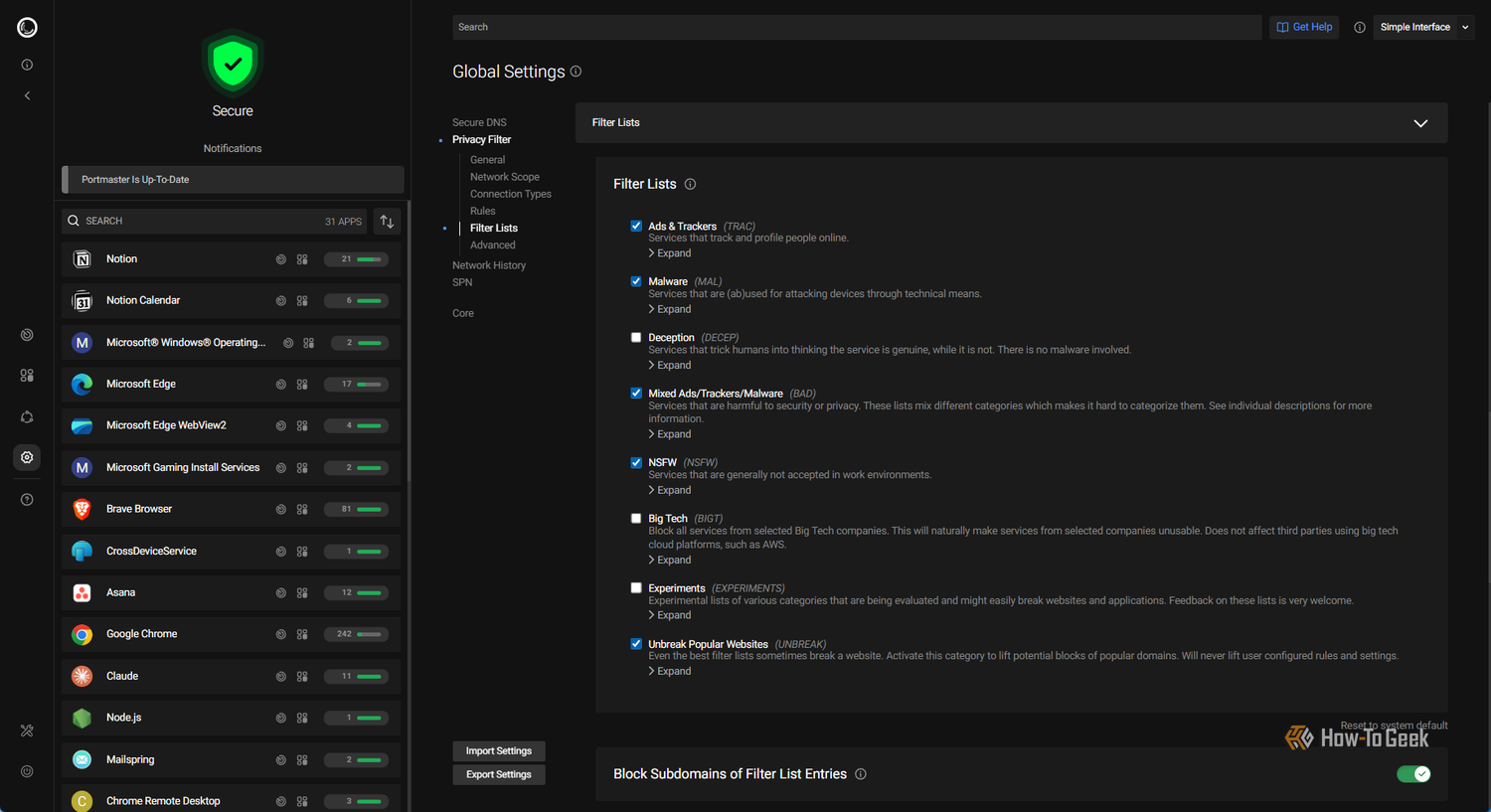
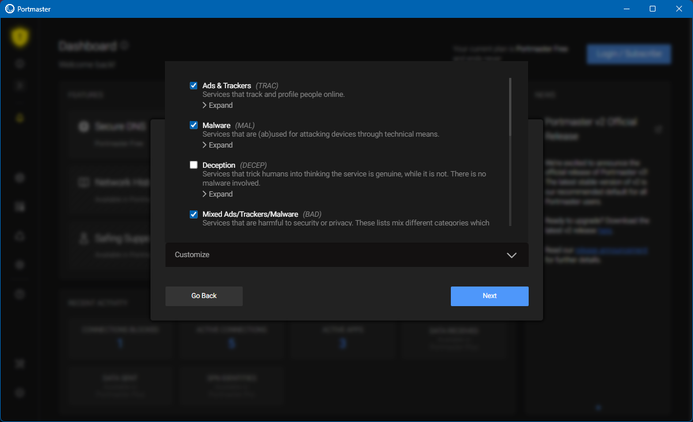
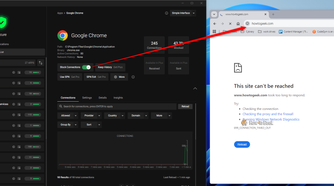
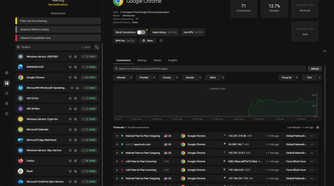
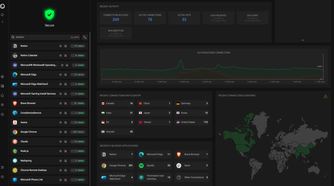
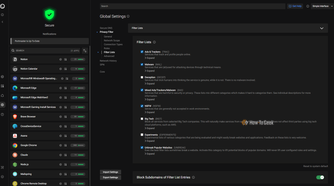

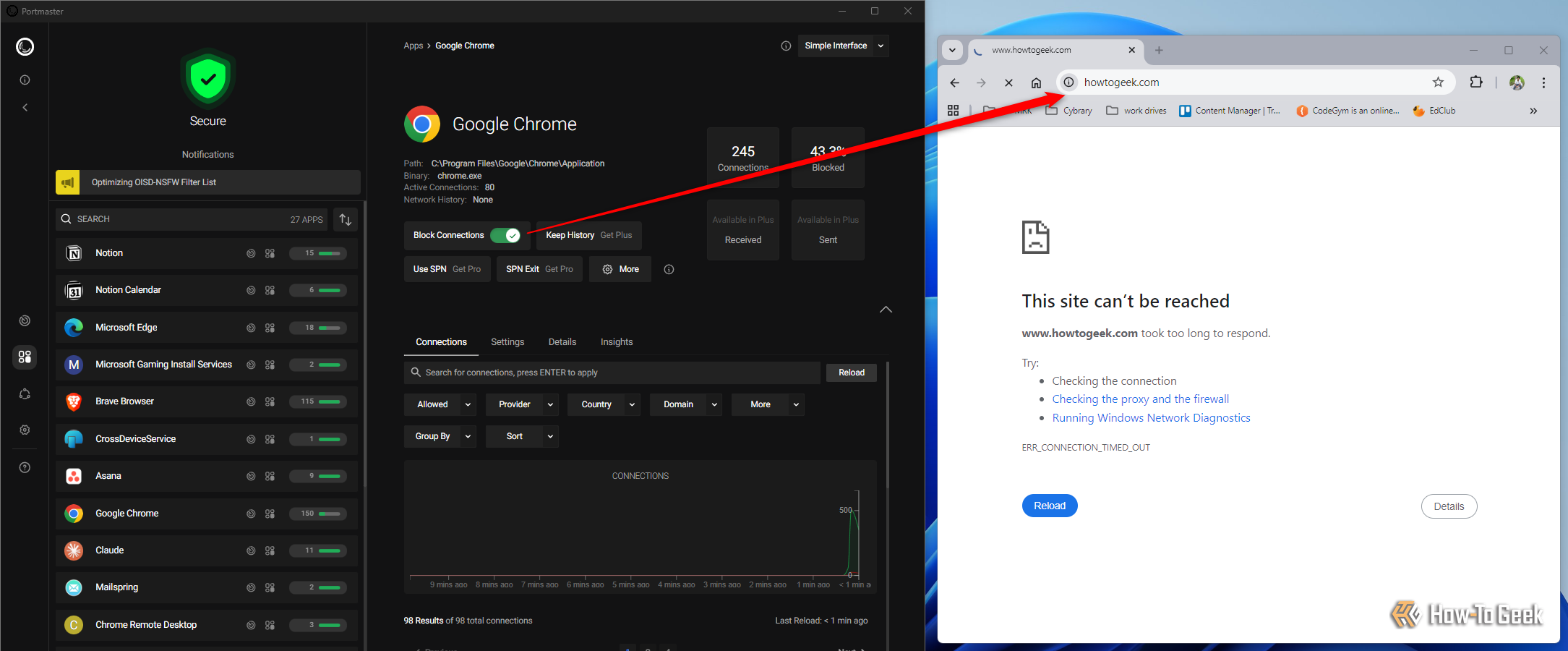
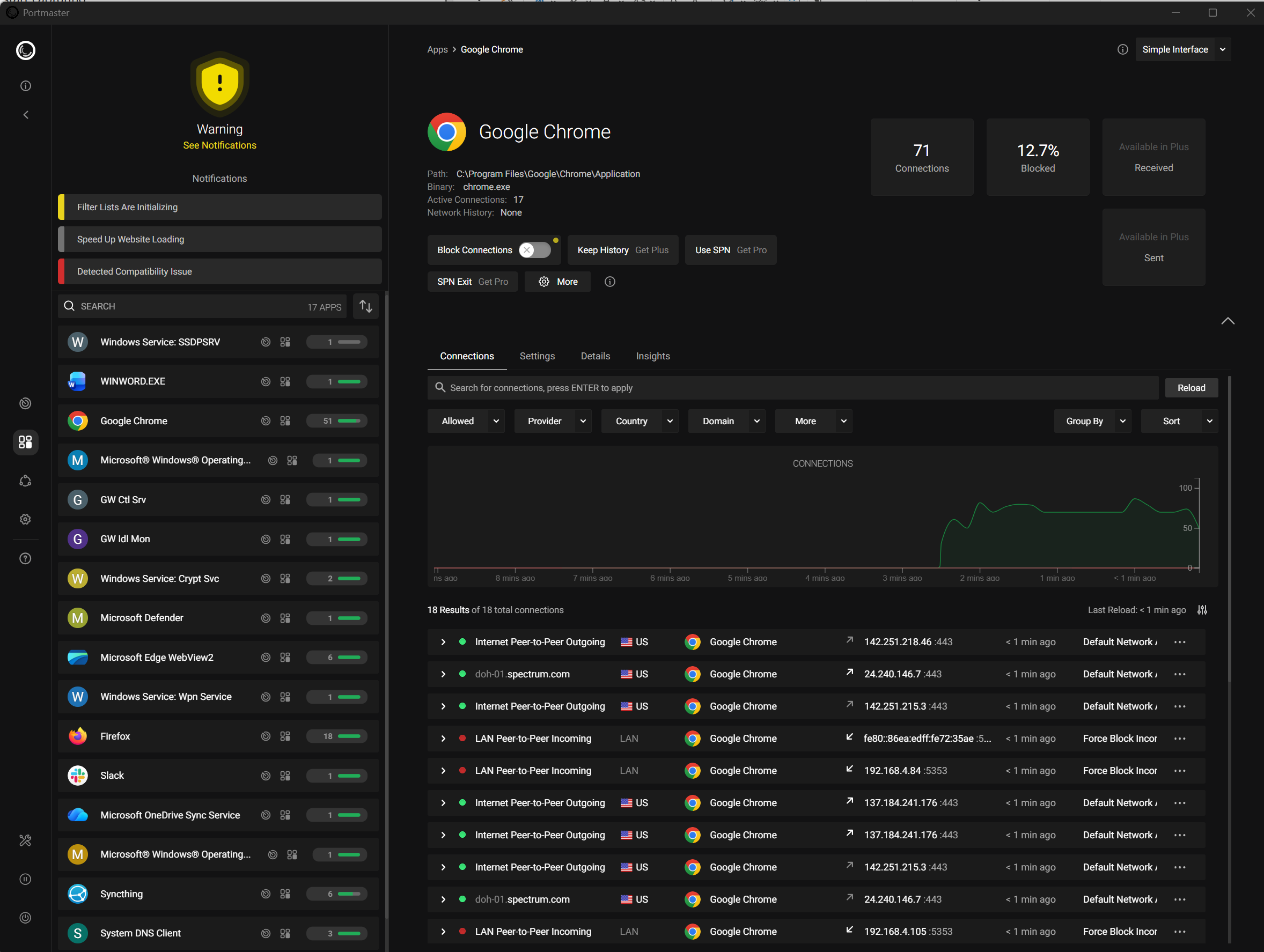
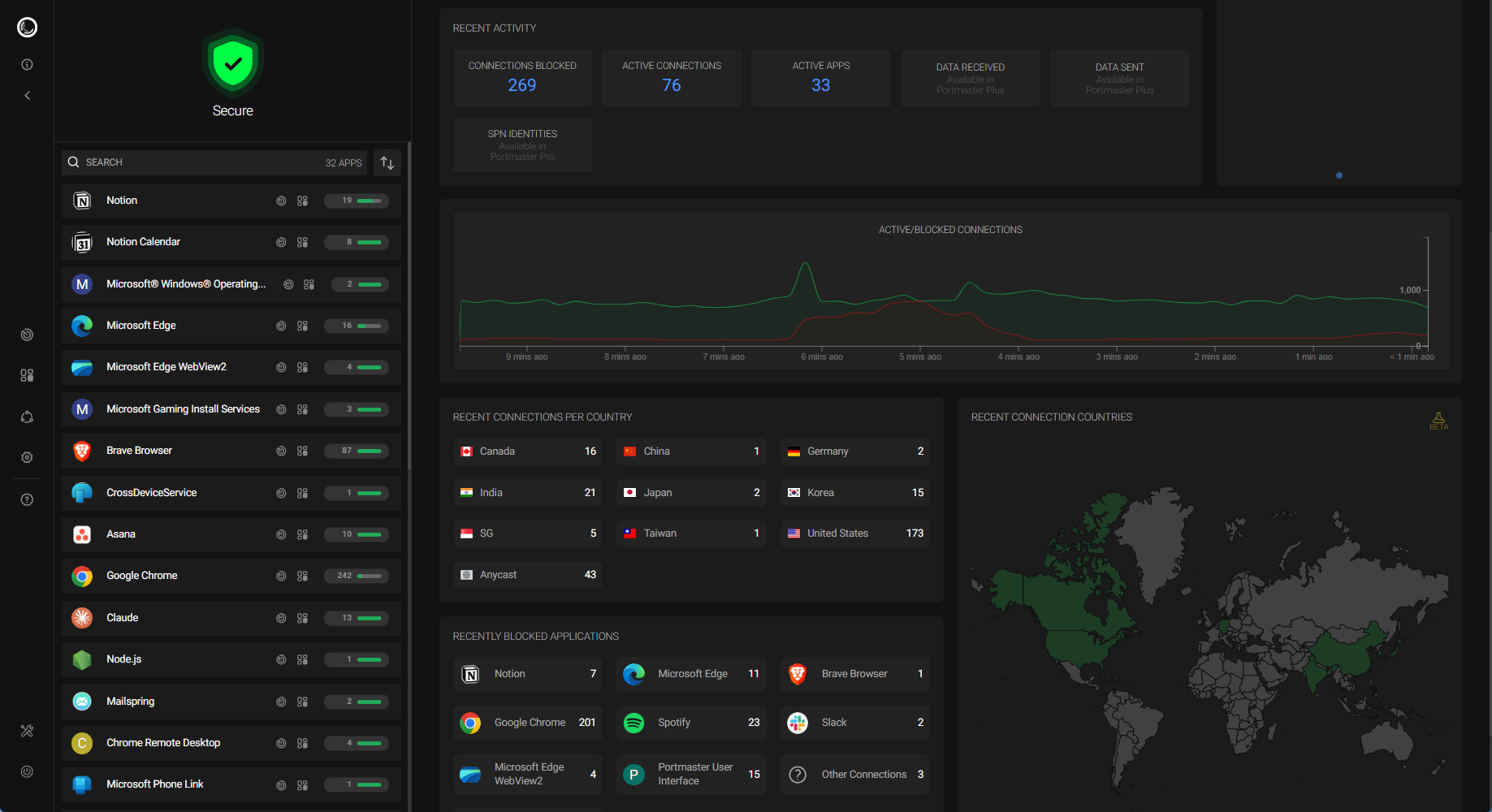
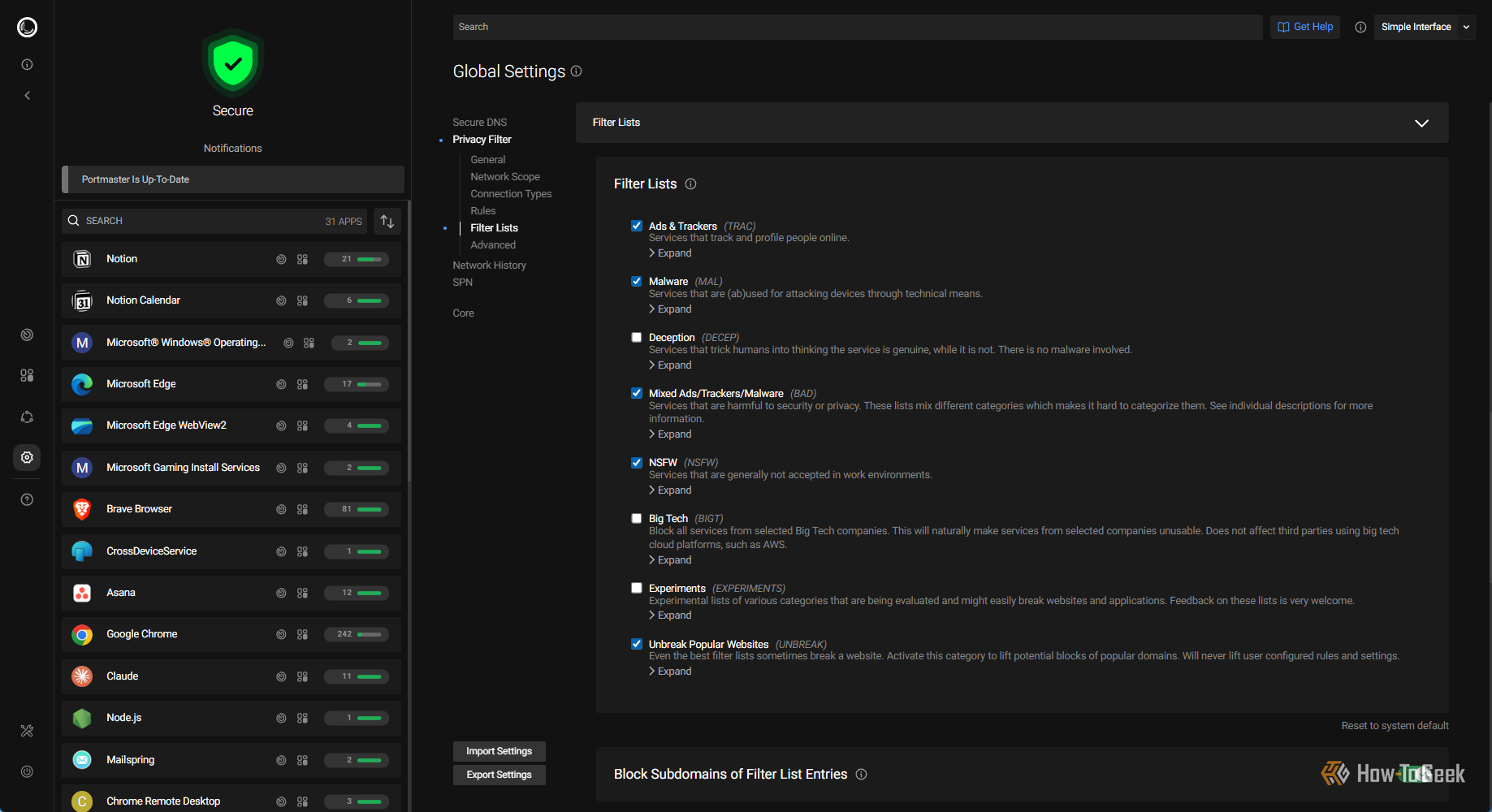
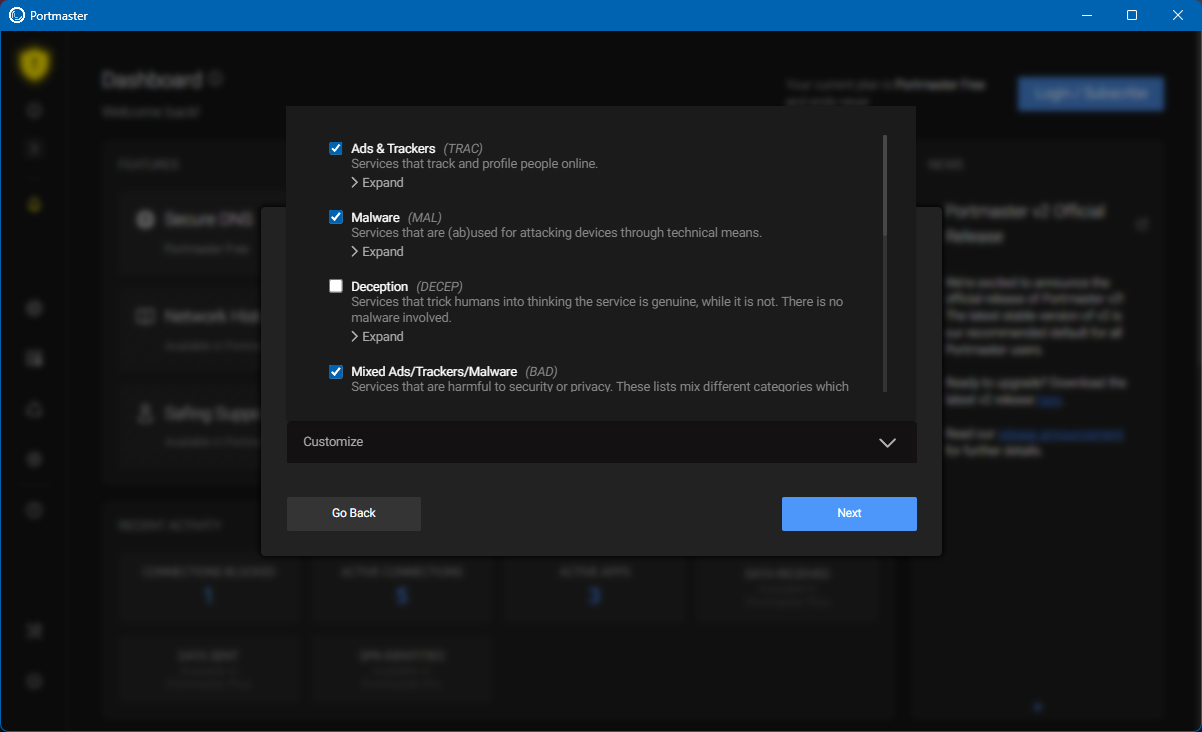
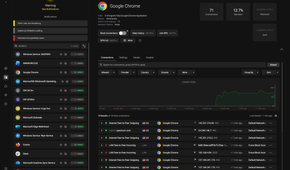

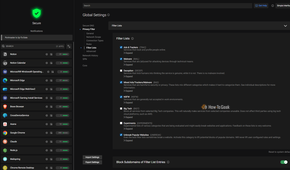

Windows’ built-in settings can only take you so far. If you want a more comprehensive overview of what’s happening on your network — and actual control over it — I’d strongly recommend installing a dedicated tool, specifically Portmaster. It’s a free and open-source application firewall. Once installed, it shows you every app and service on your computer that’s connecting to the internet, along with exactly which servers each one is talking to.
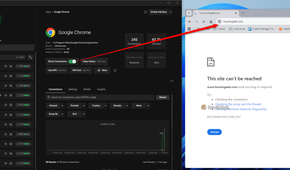
Also, apart from simply monitoring your network activity, you can use the app to block an app’s internet access entirely — or even prevent it from connecting to specific servers. This effectively lets you create an offline version of all the apps on your system. Other than that, you can also enable various filter lists that block known trackers and ad networks, which can reduce the overall load on your network and lead to faster load times.
Portmaster is not a sponsored recommendation. I use it personally and find it genuinely useful.