
Linux gives you plenty of control, but it also expects you to look after your own system. Most hardcore users do, but if you’re coming from a more closed OS, it can feel daunting at first. These three tools handle the most common causes of trouble: broken updates, hostile login attempts, and missed patches.
Timeshift
Snapshots turn catastrophic updates into minor, reversible inconveniences




Few things ruin an afternoon like a Linux system that won’t boot after an update. Been there, done that. And Timeshift makes that scenario a small inconvenience instead of a disaster. It takes snapshots of your system files so you can roll back to a known working state in minutes, much like System Restore on Windows or Time Machine on macOS. By default, it leaves personal documents, photos, and downloads alone. That keeps snapshots small and stops a rollback from wiping out recent work.
Timeshift offers two snapshot types. Rsync works on virtually any filesystem and uses hard links to avoid duplicating unchanged files. Btrfs mode relies on the filesystem’s native snapshot feature, which makes snapshots nearly instant and very space-efficient. If you installed your distribution with ext4, the common default, rsync is the right choice. Installation is a single command on most distributions. Ubuntu and Debian users can run this, and Fedora carries it in its repositories as well.
sudo apt install timeshift
Setup takes only a few minutes. The first-run wizard asks for a snapshot type, a destination, and a schedule. Pick a separate drive if you can, since a snapshot stored on the same disk won’t help if that disk fails. A sensible schedule keeps a few daily, weekly, and monthly snapshots plus a boot snapshot, balancing recovery options with storage use. Before large changes, such as a kernel upgrade or a switch of desktop environment, create a manual snapshot and give it a clear description so it’s easy to find later.
Restoring is, too, just as simple. If the desktop still loads, open Timeshift, select the snapshot, and follow the prompts. If it doesn’t, boot from a live USB, install Timeshift there, and restore from your backup drive. Timeshift is not a full backup solution for personal files, so pair it with a tool like Deja Dup or Borg for those. As insurance against bad updates and misconfigurations, though, it is hard to beat.
Fail2ban
Automatically banning repeated failed logins keeps your server quiet and secure
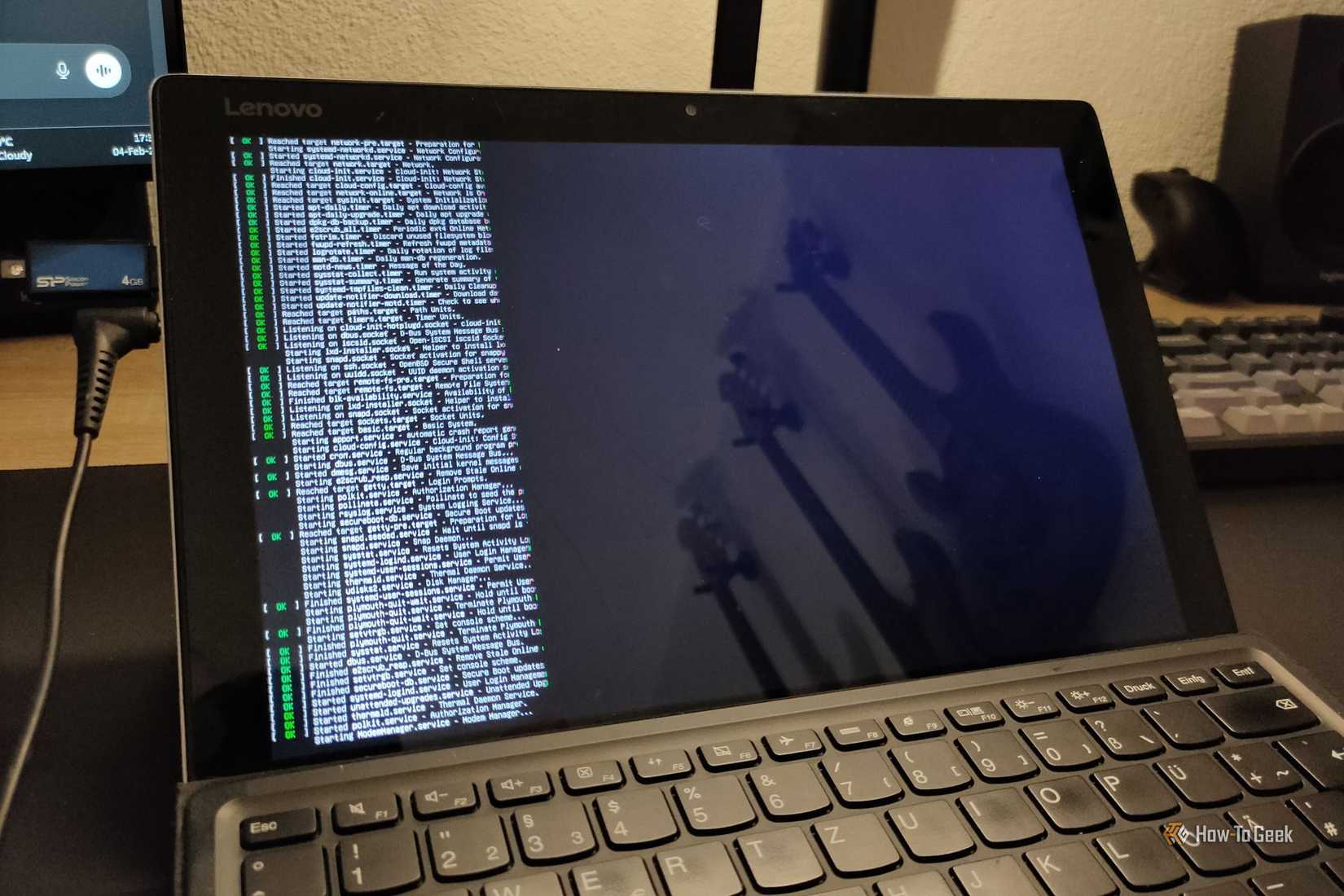
This one is great only if you have a server — if you only have a regular Linux PC, you could skip this, but if you have a server, this could be an absolute lifesaver. Because as you probably know, any machine exposed to the internet gets probed constantly. If you run SSH, a web server, or a mail service, automated bots will try thousands of username-and-password combinations, and your logs will show every attempt. Fail2ban on Linux watches those logs and reacts. When an IP address racks up too many failed attempts within a set window, the tool blocks it at the firewall for a configurable period. The bots lose access, and your logs stop filling with noise.
Installing it is easy. On Debian-based systems, sudo apt install fail2ban is enough, and the service starts with sensible defaults. The one rule to remember is that you should never edit the main configuration file directly, since package updates can overwrite it. Instead, copy jail.conf to jail.local and make your changes there. Inside that file, the settings that matter most are bantime, which controls how long an address stays blocked; findtime, which defines the window in which failures are counted; and maxretry, which sets the number of allowed failures before a ban.
Each service you want to protect gets its own jail. The SSH jail is typically enabled out of the box, but you can add jails for Nginx, Apache, Postfix, and many other services. A ban time of an hour is a reasonable starting point, and you can handle repeat offenders with the recidive jail, which bans them for much longer.
Keep in mind one thing. Add your own IP address, or your home network range, to the ignoreip setting so you don’t lock yourself out after a few typos. You can check what the tool is doing at any time with fail2ban-client status, which lists active jails and currently banned addresses. Once configured, Fail2ban runs quietly in the background and rarely needs attention.
Unattended-Upgrades
Letting your system install security patches without you

Linux security patches only protect you if you install them, and most people forget or postpone updates until something goes wrong. Unattended-Upgrades solves this by applying updates automatically in the background. It is available on Debian and Ubuntu, and Fedora offers an equivalent through dnf-automatic. The goal is to close known vulnerabilities as soon as fixes appear, rather than leaving a window of exposure that attackers actively look for.
Setup begins with sudo apt install unattended-upgrades, followed by sudo dpkg-reconfigure –priority=low unattended-upgrades to enable it. The behavior is controlled by a configuration file in /etc/apt/apt.conf.d, where you choose which update sources are allowed. By default, only security updates are installed, which is the safest option for most users because it avoids pulling in feature changes that might alter how your software behaves. You can widen that scope to include regular updates, but doing so on a production machine is worth thinking through.
For what it’s worth, several settings make it more useful. You can configure email notifications so you receive a report after each run, set the system to remove unused dependencies, and choose whether it should reboot automatically when a kernel update requires it. If you enable automatic reboots, set a specific early-morning time to avoid interrupting your work. Servers that need constant uptime may be better off with manual reboots and a scheduled maintenance window.
You can verify that everything works with sudo unattended-upgrade --dry-run, which shows what would be installed without making changes. The logs in /var/log/unattended-upgrades record what happened on each run. Combined with Timeshift, this tool is very low-risk, because a snapshot lets you undo any update that causes trouble.
Three small habits that prevent big Linux headaches
Timeshift protects you from bad updates, Fail2ban shuts out persistent intruders, and Unattended-Upgrades keeps patches current. Each of these, thankfully, takes minutes to set up, and together they cover the most common failures a Linux system faces, saving you hours later.