Credit: Nor Gal/Shutterstock.com
If you’ve used a Windows computer, you’ve likely encountered the NTFS, exFAT, and FAT32 file systems, even if you didn’t know it.
While most people don’t really have to engage with these systems anymore, what they are and how they work is important to understand. Even though the Windows formatting utility usually chooses the right format for the media in question, sometimes you’ll need to override that. So let’s look at what the three main Windows file systems actually are.
What a file system actually does
Keeping your house in order
A file system is simply the organizing principle for the information saved on that device. The Dewey Decimal System that libraries use to organize and quickly retrieve books is effectively a file system.
Without some sort of way to organize the data, you’d just have an SSD, hard drive, or thumb stick filled with raw binary data with no way to make sense of it all.
Every time you save a file or write data to a disk, the OS has to solve a series of problems. Where should the file be stored? Which parts of the drive are free? What is the file named? Who has permission to access it? Has the file changed recently? The file system handles all of that.
Drives are broken up into small chunks of storage known as “clusters.” The file system keeps track of which clusters belong to which file. It also stores metadata (data about data), which is how you know what the file is called, when it was created, and so on.
Since a file system is just an organizing system, you can have multiple file systems on one physical disk. If you partition a drive, you can choose a different file system for each partition. If you’re dual-booting Windows and Linux, then either operating system may not be able to see all the partitions on the drive. An OS must support a partition scheme and file system to work with it.
That’s the basics of file systems, so now let’s go over the three big ones for Windows.
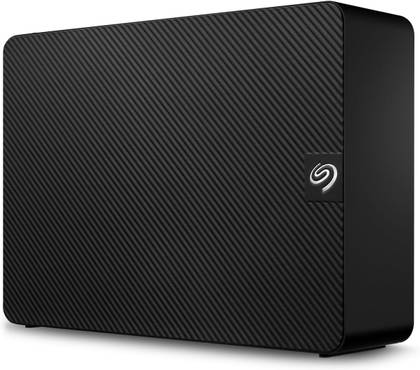
Seagate Expansion 6TB External Hard Drive HDD
Storage Capacity
6TB
Brand
Seagate
The Seagate Expansion 6TB external hard drive is an excellent starting point if you are building a laptop NAS, offering plenty of capacity for backups and media. It is affordable, easy to set up, and fast enough over USB 3.0 for most home server use cases.
FAT32: The ancient survivor that refuses to die
Enough FAT to survive
 Credit:
 Of the three file systems here, FAT32 is the oldest. It comes straight from the DOS era, and is the successor to FAT16 and older variants. The “FAT” part is short for File Allocation Table and that’s the core mechanism used here to organize files. The “32” part refers to the number of bits this system uses to address data. That’s going to be important in a second, so don’t forget.
Basically, as the name suggests, FAT32 maintains an enormous table of linked lists for your files. Every cluster on your drive gets an entry on the table, and if a file spans multiple clusters, they are associated with each other in the table.
FAT was a great solution when it arrived because it was simple, straightforward, and computers had tiny amounts of storage compared to the present day. So why not just keep it all on a giant table?
The problem with FAT32 is that as disk sizes grew, and file sizes increased with them, we hit a hard limit. Because FAT32 uses 32-bit addressing, you can never have a file larger than 4GB. It’s not just about file size limits either. FAT32 becomes inefficient when drives get too large. Using that enormous table has performance penalties when you moves from a 40MB hard drive to a 40GB or 4TB unit. Basically, FAT32 doesn’t scale and it also lacks security and data integrity features that have become essential.
exFAT: FAT32 modernized for flash storage
Bigger, better, but only for the right job
 Credit: Bertel King / How-To Geek
 As flash drives and SD cards became more common, FAT32’s limitations started becoming impossible to ignore. Microsoft responded by creating exFAT, which stands for Extensible File Allocation Table.
exFAT doesn’t have the 4GB file limit, and it works just fine one large multi-terabyte volumes. One important change was the use of an allocation bitmap, which helps the system track available storage more efficiently instead of constantly scanning the allocation table.
exFAT also cuts down on unnecessary writing, which is crucial for flash memory wear. It’s also much better at preventing fragmentation, handles large files with little performance penalty, and is therefore ideal for media storage. It’s the standard format for SD cards, flash drives, and even external hard drives. As a bonus, Linux, macOS, and Windows all understand exFAT, so it’s one of the few formats you can use to transfer files between these systems.
The downside is that exFAT lacks journaling and a permission system. It doesn’t recover as well from power loss, and it’s not suitable to be a main OS drive file system. That’s why external media uses exFAT by default in Windows, but not internal drives.
NTFS: The heavyweight file system built for modern computers
It has what the OS needs
NTFS or New Technology File System is what modern Windows runs on, and it was designed to replace FAT for internal system drives. You can, of course, format anything with NTFS, but most of its advantages make the most sense for internal PC drives.
NTFS was built from the ground up with reliability, security, and scalability in mind. Problems that didn’t really exist yet when FAT was conceived. At its core is the MFT or Master File Table which stores detailed information on every file and folder in a central database. The MFT makes indexing better, searching faster, and thanks to journaling it’s way more resilient.
With journaling, for example, the intended changes that are to be made are saved before they are executed. So if the power goes out and interrupts the process, the OS will know what things were supposed to look like and has a better chance of restoring the computer to its correct state. That’s just the tip of the iceberg. NTFS includes a bunch of advanced features:
- File compression
- Encryption
- Disk quotas
- Symbolic links
- Shadow copies and snapshots
- Large-volume support
- Sparse files
- File-level auditing
The downside is that NTFS is heavy and complicated. So you really only want to use it for system drives, and maybe external drives with crucial data that needs a high level of security and encryption too.
Which file system should you actually use today?
Luckily, this is an easy question to answer. FAT32 only makes sense for legacy devices, like old TVs that can play media from USB. You need to follow a special method to format a USB drive to FAT32, but you can still do it relatively easily.
Use exFAT on all drives except internal Windows drives. Only use NTFS on external drives if you need to take advantage of its special features as listed above and never need to use it with another OS. While you can read NTFS drives on Mac, you need third-party software to make changes to them. So, again, exFAT is the best choice most of the time.