Typically, your default file manager on Linux depends on whichever desktop environment you’re using. If you’re using anything GNOME-based like Ubuntu, you get Nautilus. If you’re using anything KDE Plasma-based like Kubuntu, you’re looking at Dolphin. They’re all fine, but I wouldn’t call them “perfect.” For instance, Nautilus looks clean, minimal, and extremely polished, but lacks a lot of useful functions you’ll find in Dolphin, which, in turn, looks somewhat raw and unrefined.
There’s also the fact that all of these are graphical file managers, whereas a big chunk of the Linux experience isn’t. When I SSH into my home server or work on anything headless, none of these apps exist. Sure, you can use ls and cd to get around your directories, but I find that very clunky and unintuitive.
That’s why I started looking into terminal-based file managers and eventually landed on superfile. It’s one of the best terminal-based file managers I’ve used in a long time, and I’ve used plenty. In fact, it’s so good that it’s now my default, whether I’m on a server or using a full desktop environment.
Meet superfile
A modern terminal-based file manager
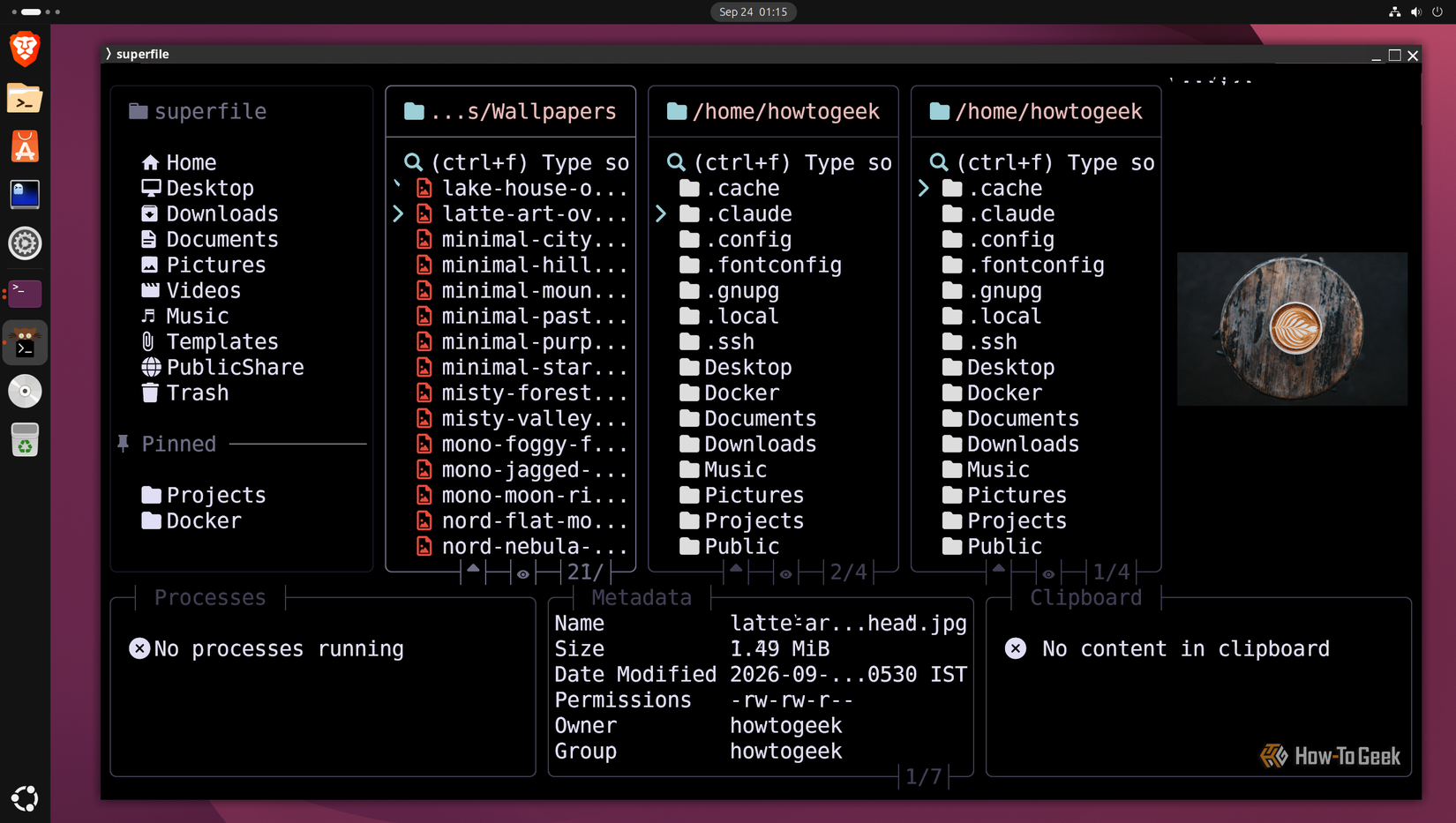
Imagine a traditional graphical file manager. Now imagine you’re interacting with it from inside a terminal. That’s basically superfile. Unlike most terminal file managers like Yazi or Ranger, which go for a more minimal vibe, superfile recreates the traditional graphical file manager experience from within your terminal. It’s also ridiculously fast and responsive — being a terminal-based app written in Go.
Now, their website claims that it’s aimed at “developers” and people who “live in the terminal,” but I’d argue it’s good enough to even pull in people who don’t. The layout is very familiar in a way most terminal apps usually aren’t. It also looks extremely polished and modern, which should attract anyone who likes a clean, sleek setup.
Design-wise, you’ve neatly segmented all the important stuff into its own zones. The top half has three columns: a left-hand sidebar with your folder shortcuts and pinned directories, the main file browser in the middle, and a preview pane on the right showing the contents of whatever directory or file you’ve got selected. It can even preview images, but only if your terminal supports image rendering — e.g., Ghostty, which is what I’m using.
Coming to the bottom half, you’ve got three widgets. On the left is the processes panel, which shows all running file operations. So, if you’re copying a 10GB folder, you can actually watch it progress instead of wondering if it got stuck. In the middle is metadata for the selected file. And on the right, you get a clipboard widget that shows all the copied files and directories waiting to be pasted.
I should also mention that superfile isn’t Linux-exclusive. You can use it on Windows and macOS as well.

superfile
superfile is a modern, intuitive, terminal-based file manager for Linux, Windows, and macOS.
Working inside superfile
It does everything you’d expect from a modern file browser
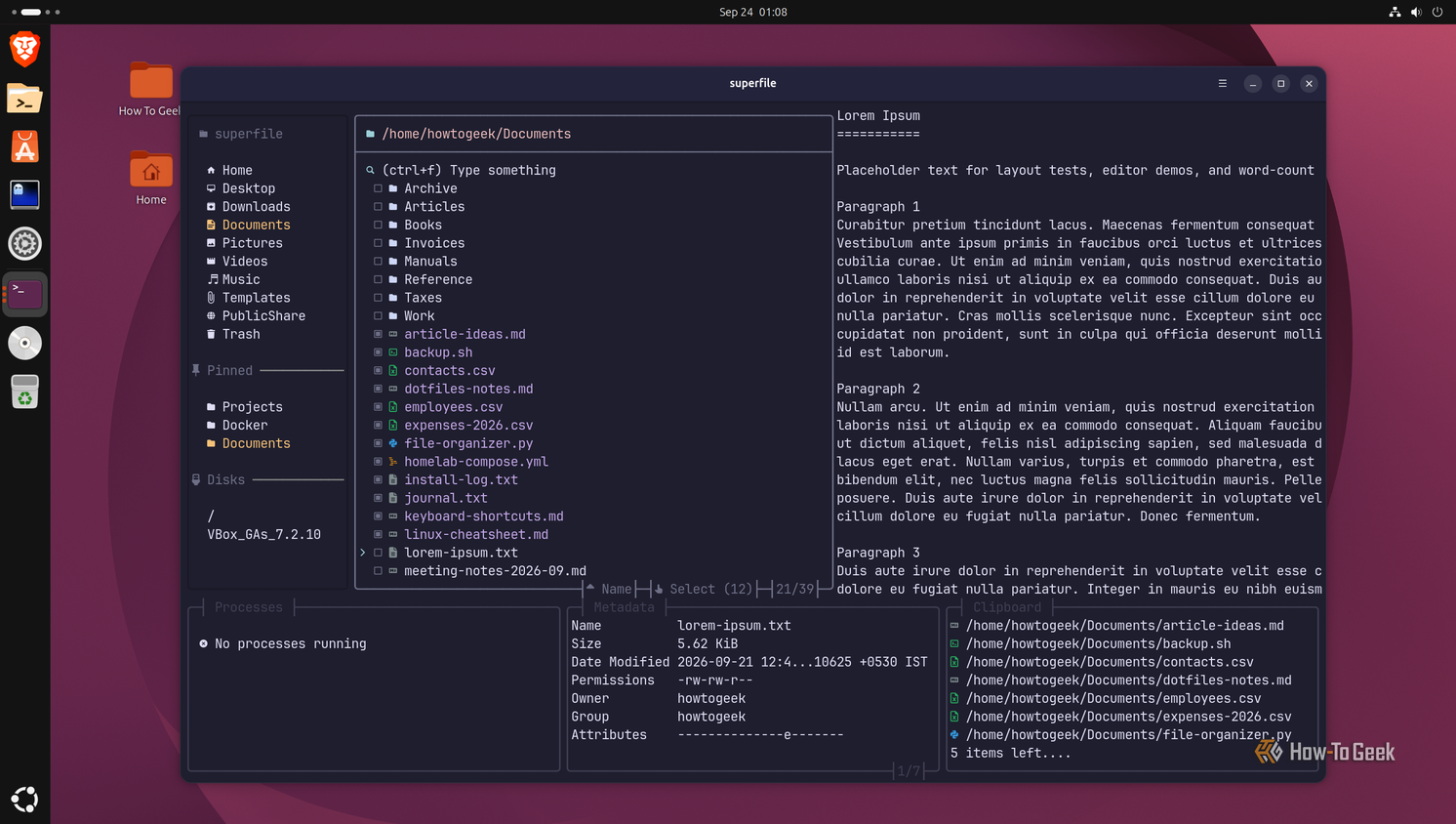
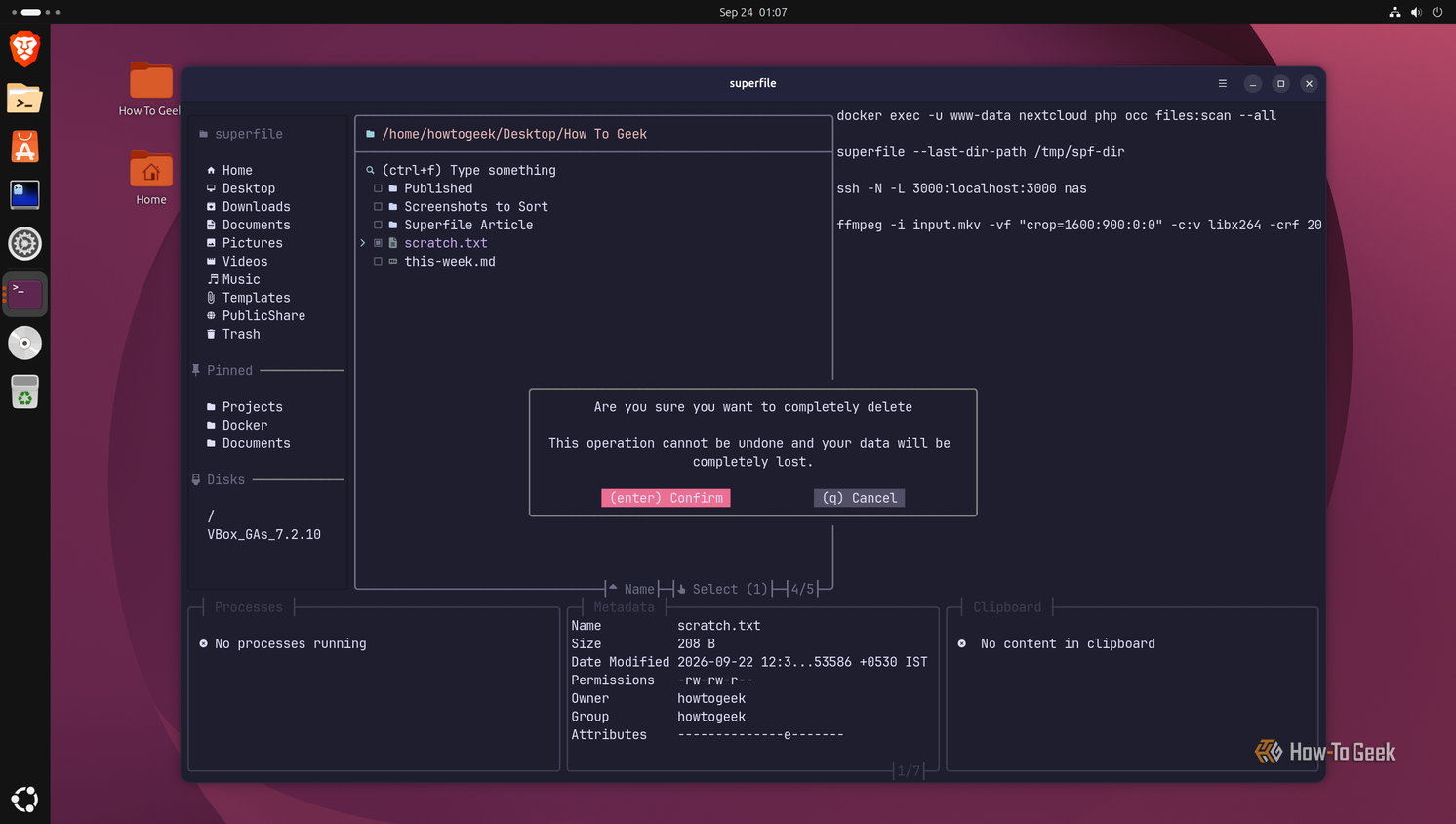
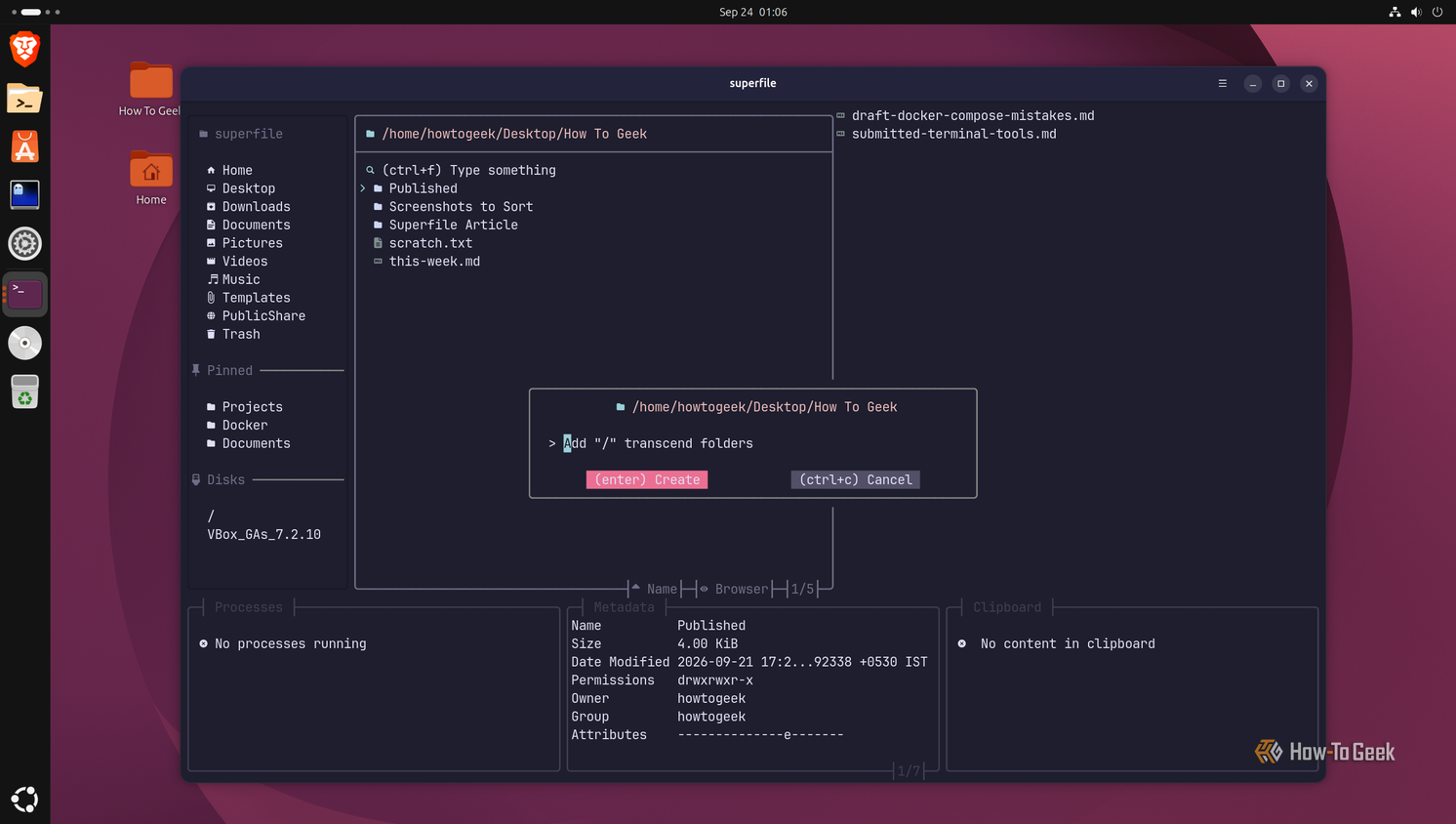
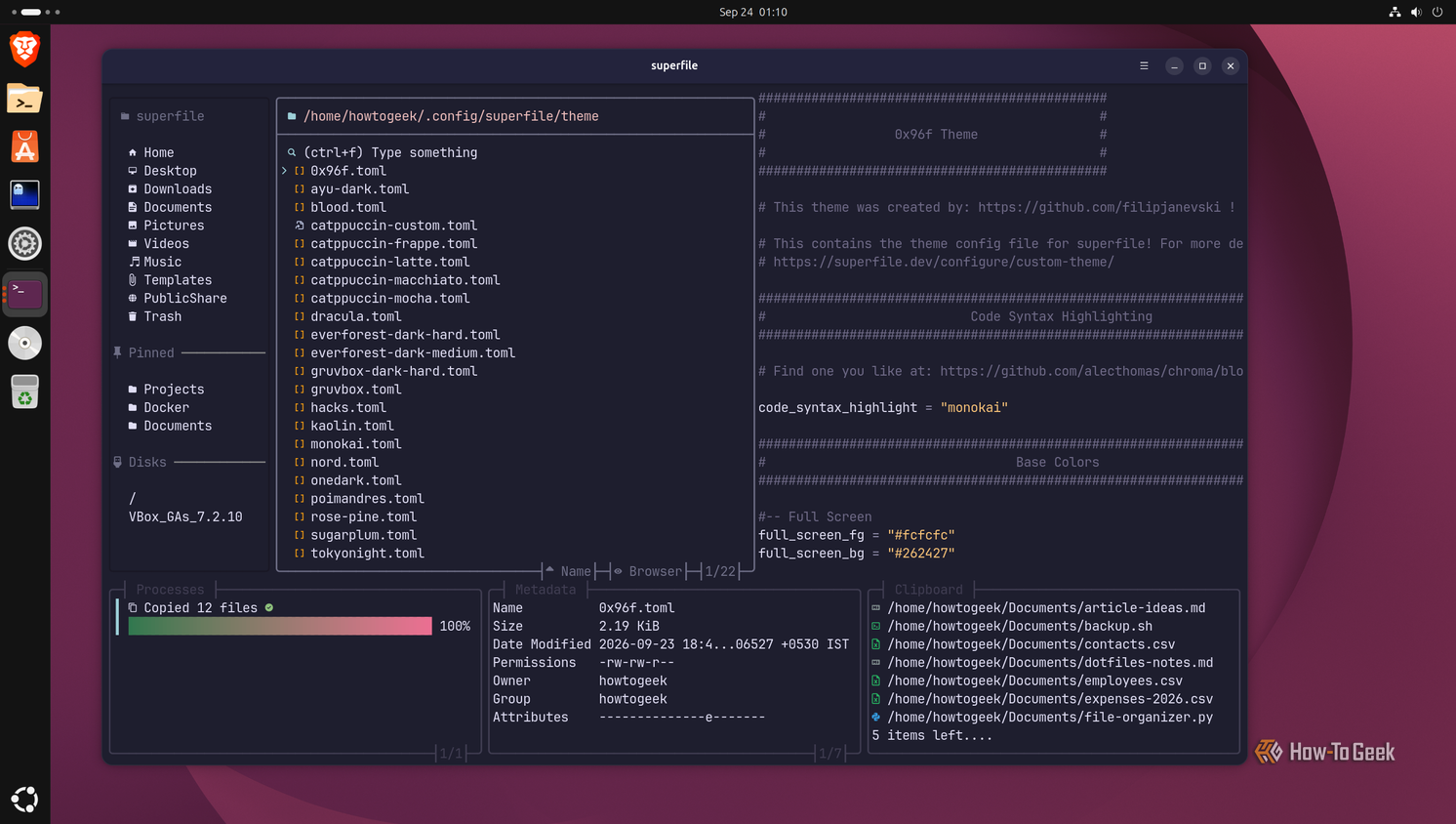
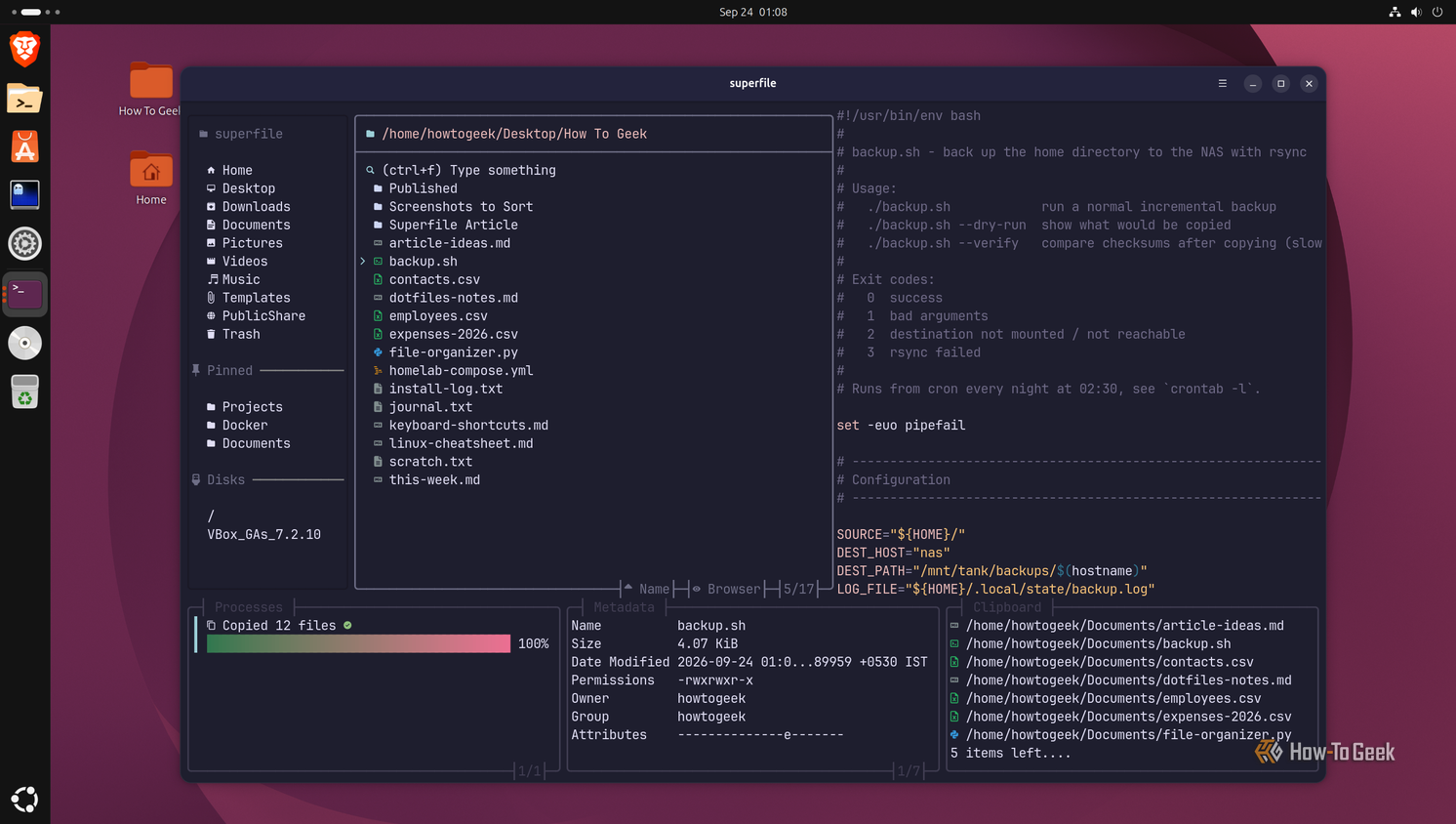
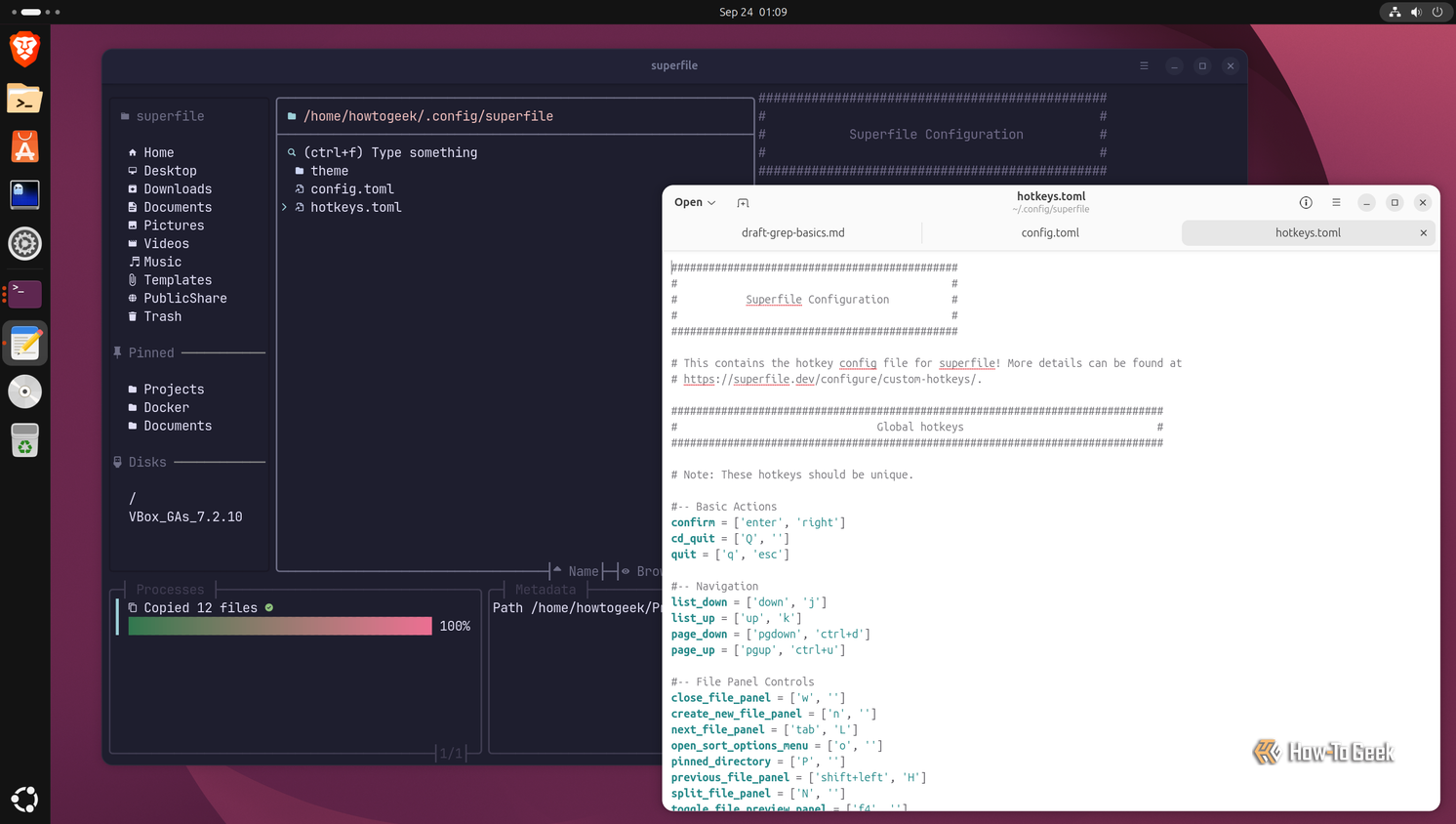
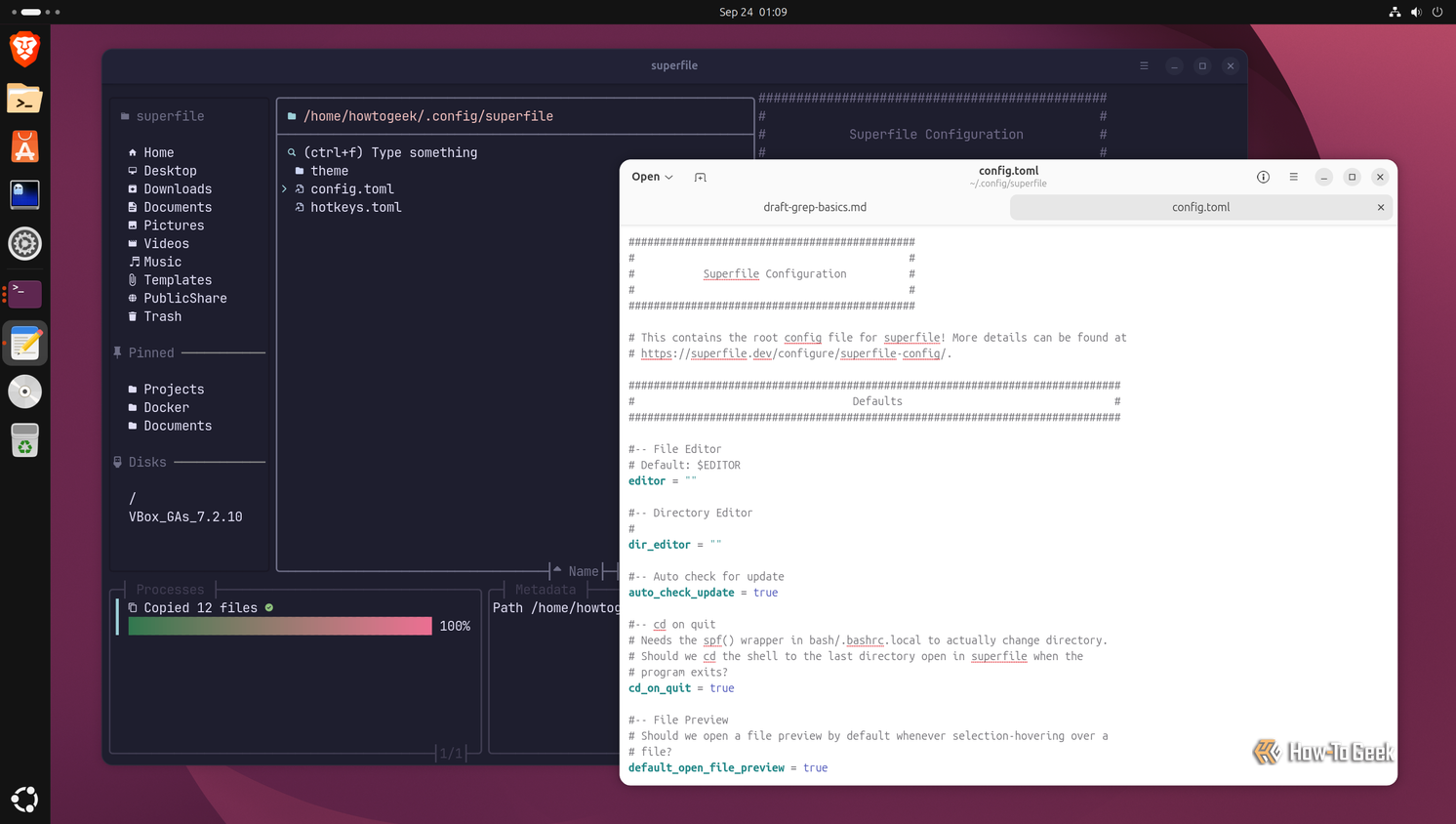
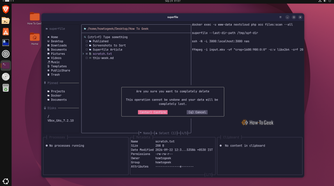
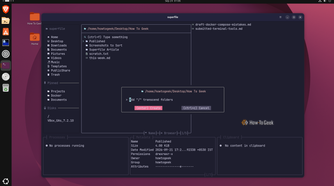
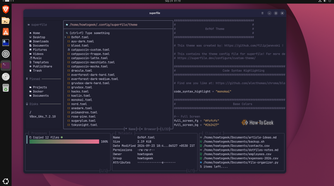
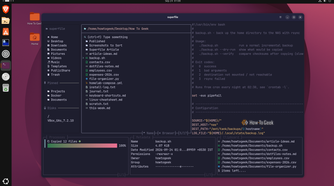
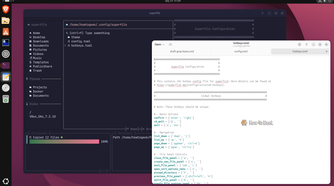
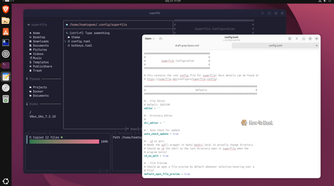
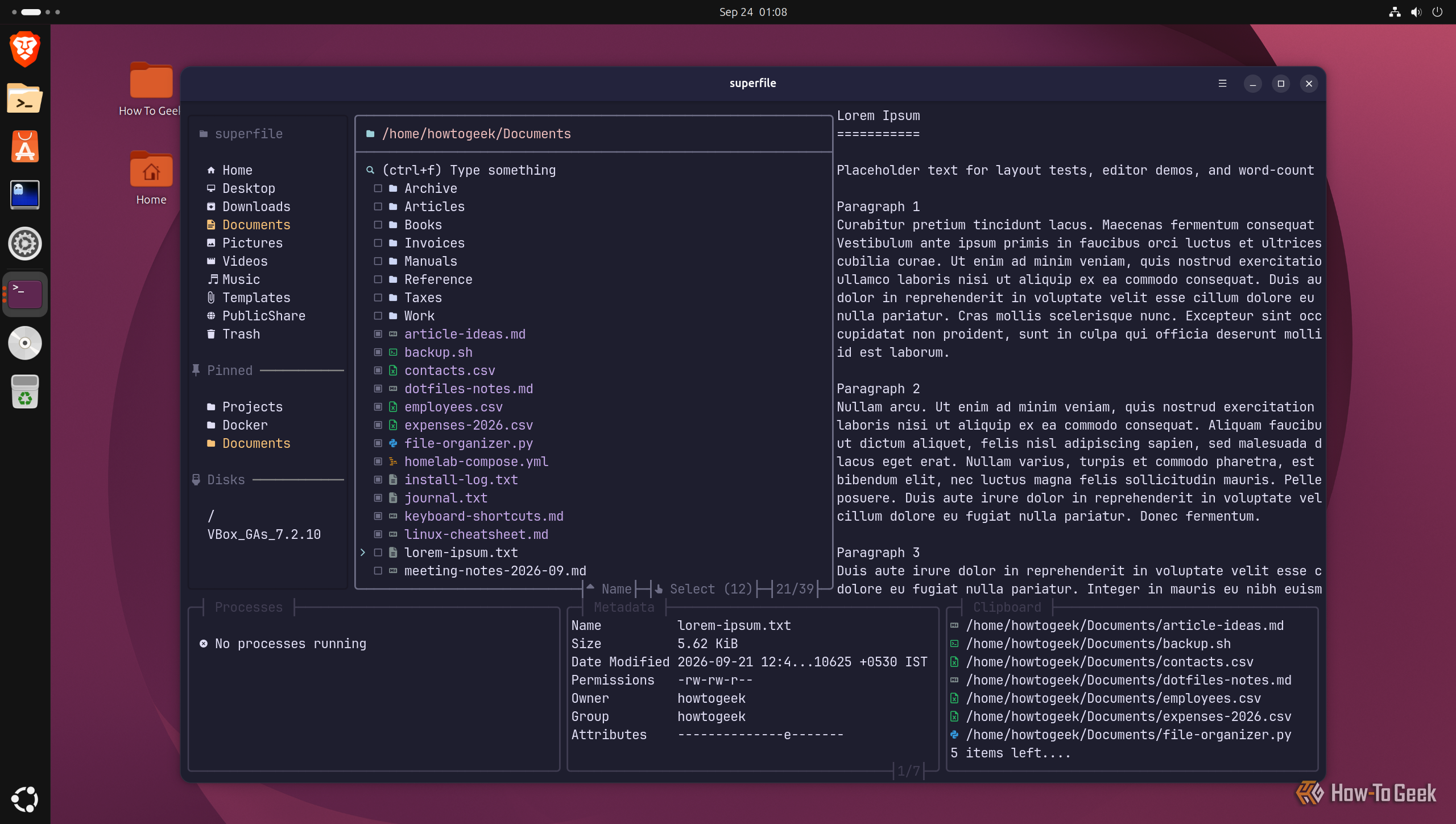
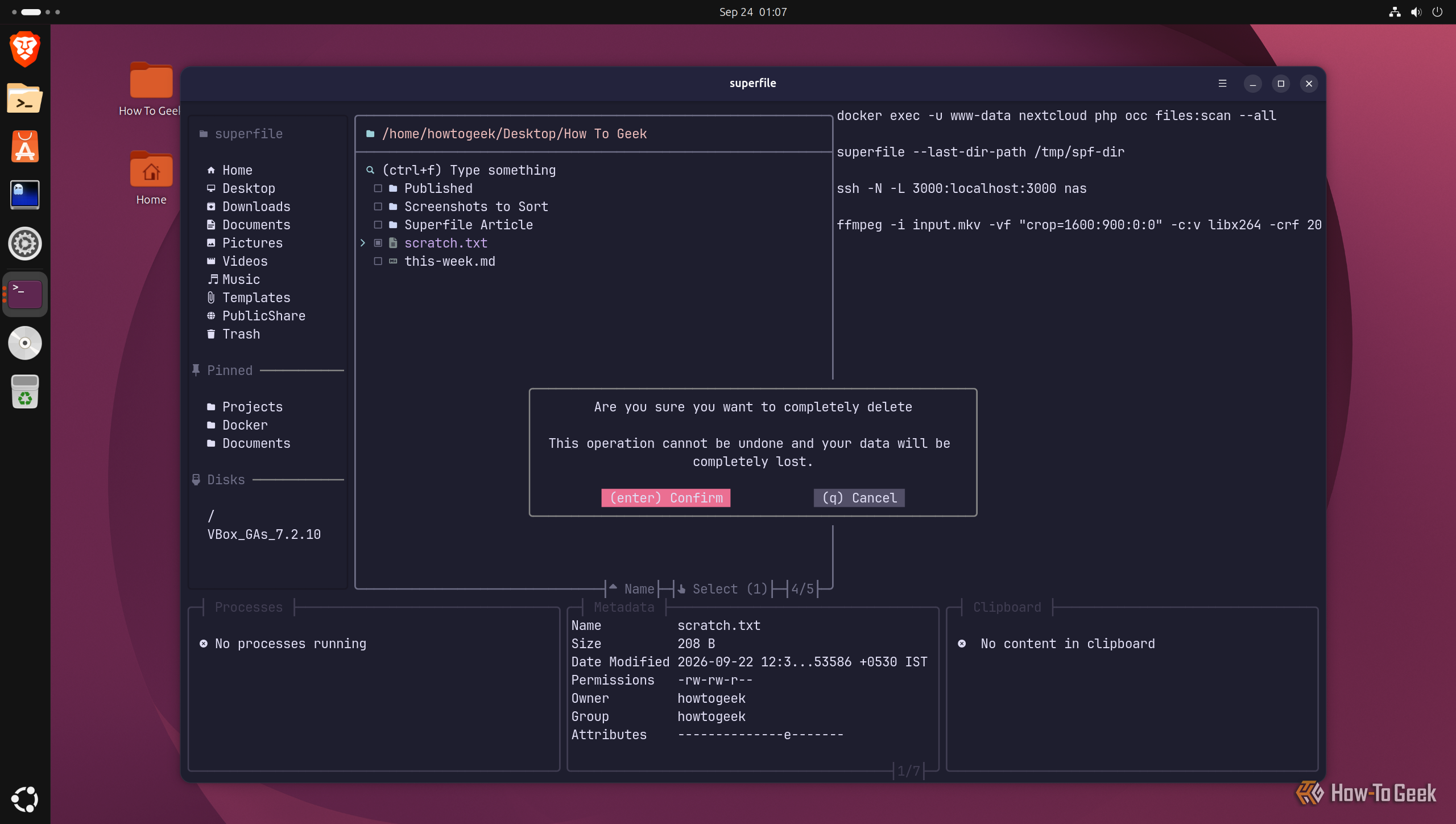
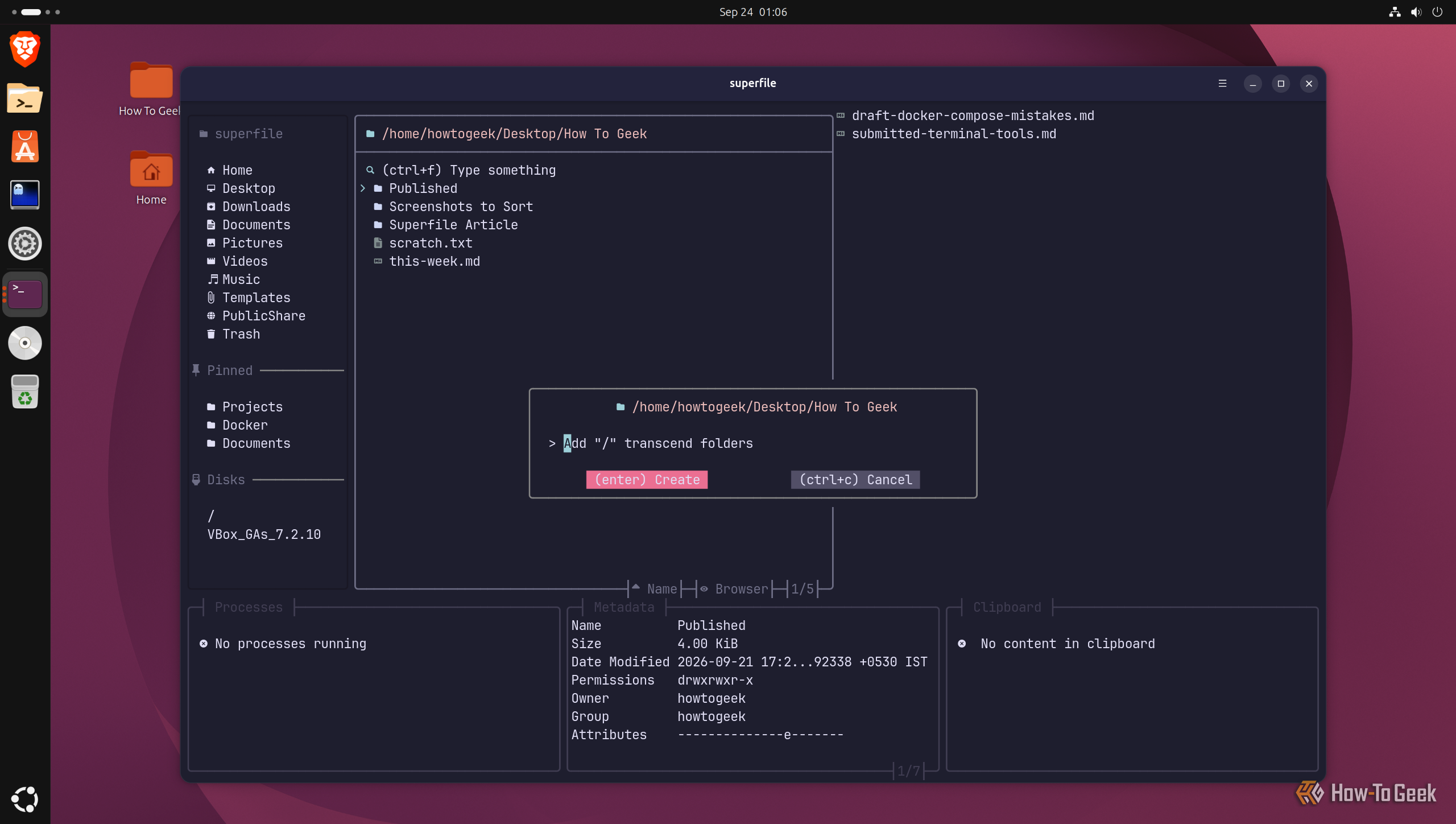
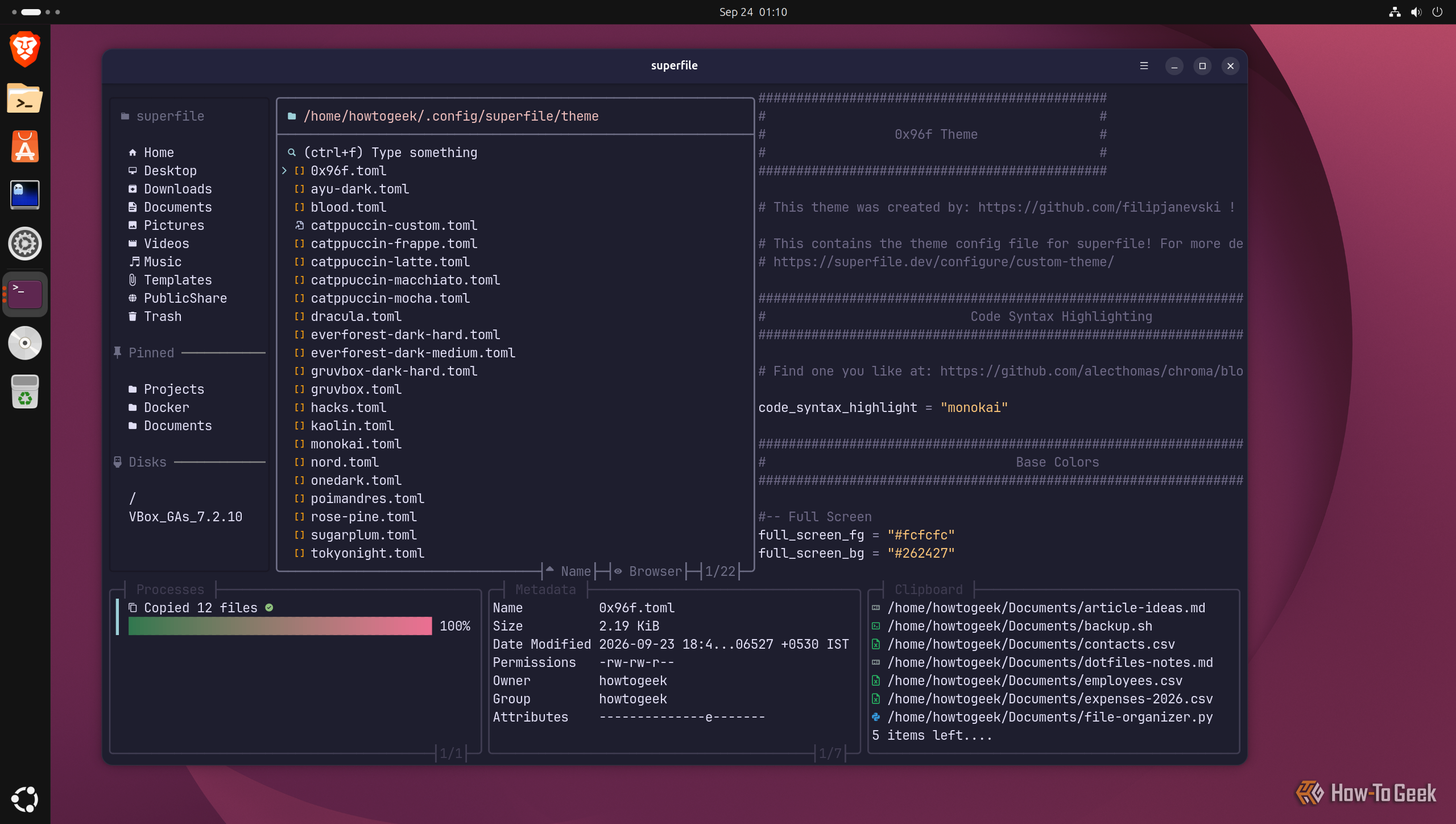
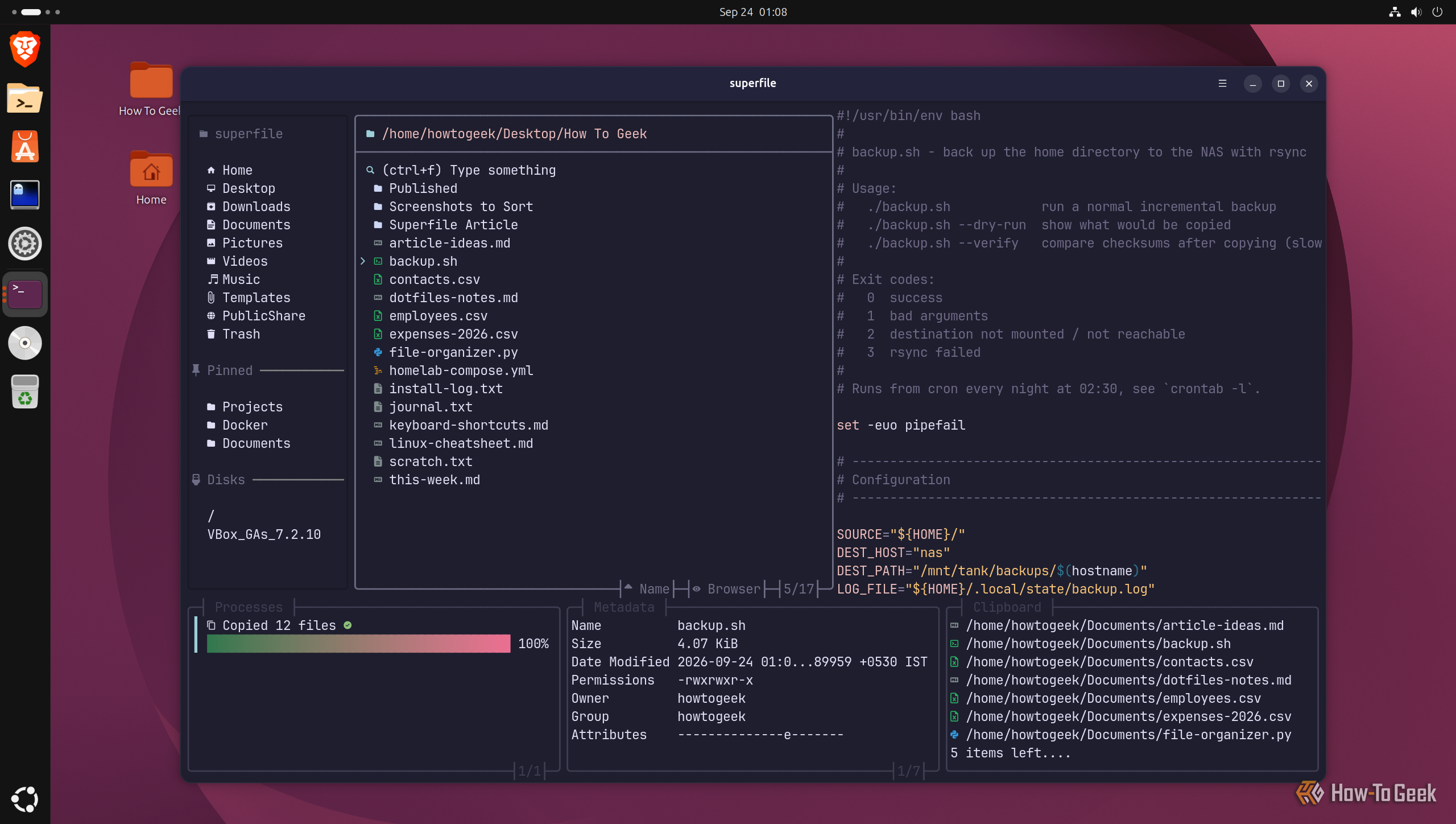
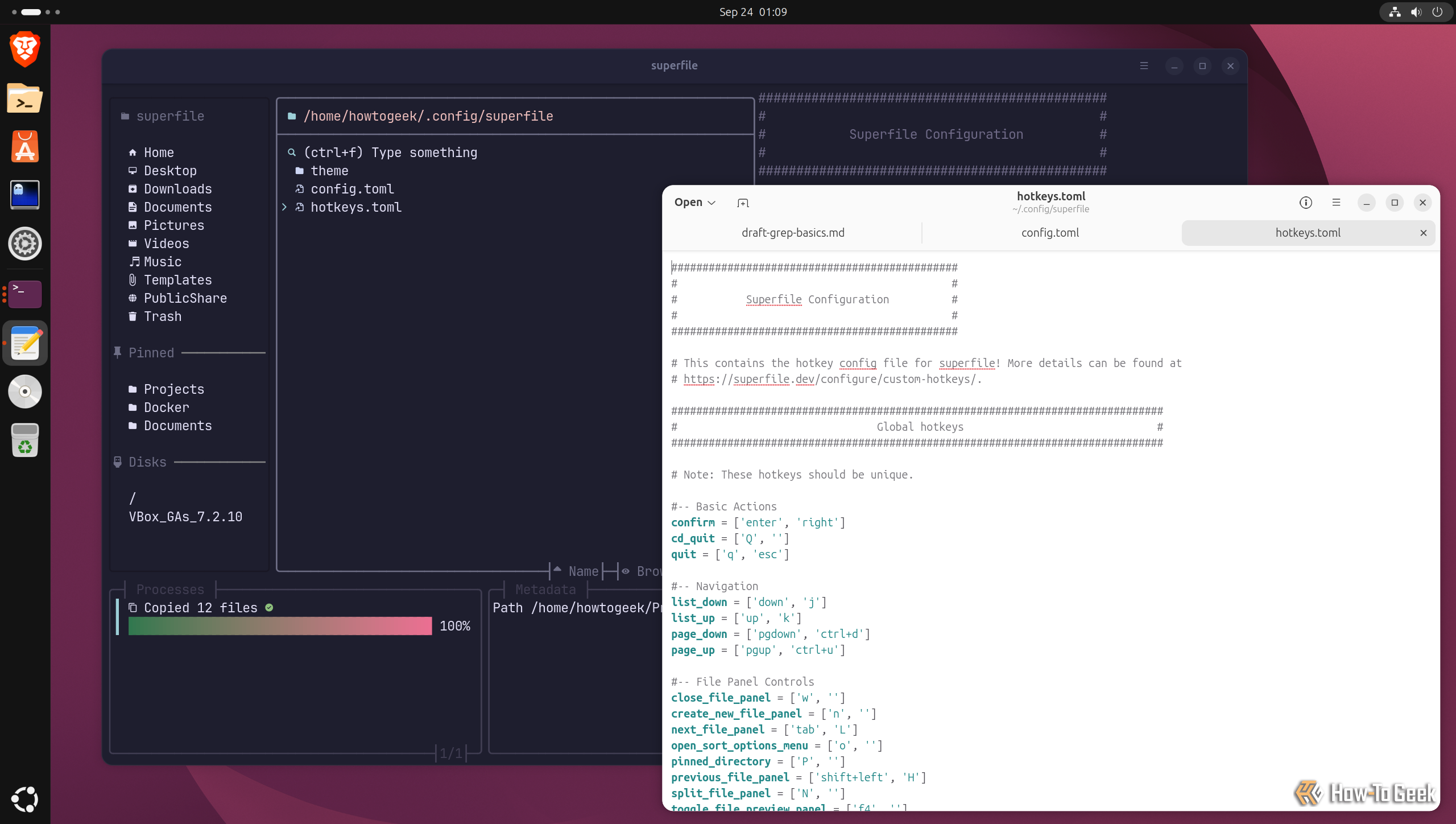
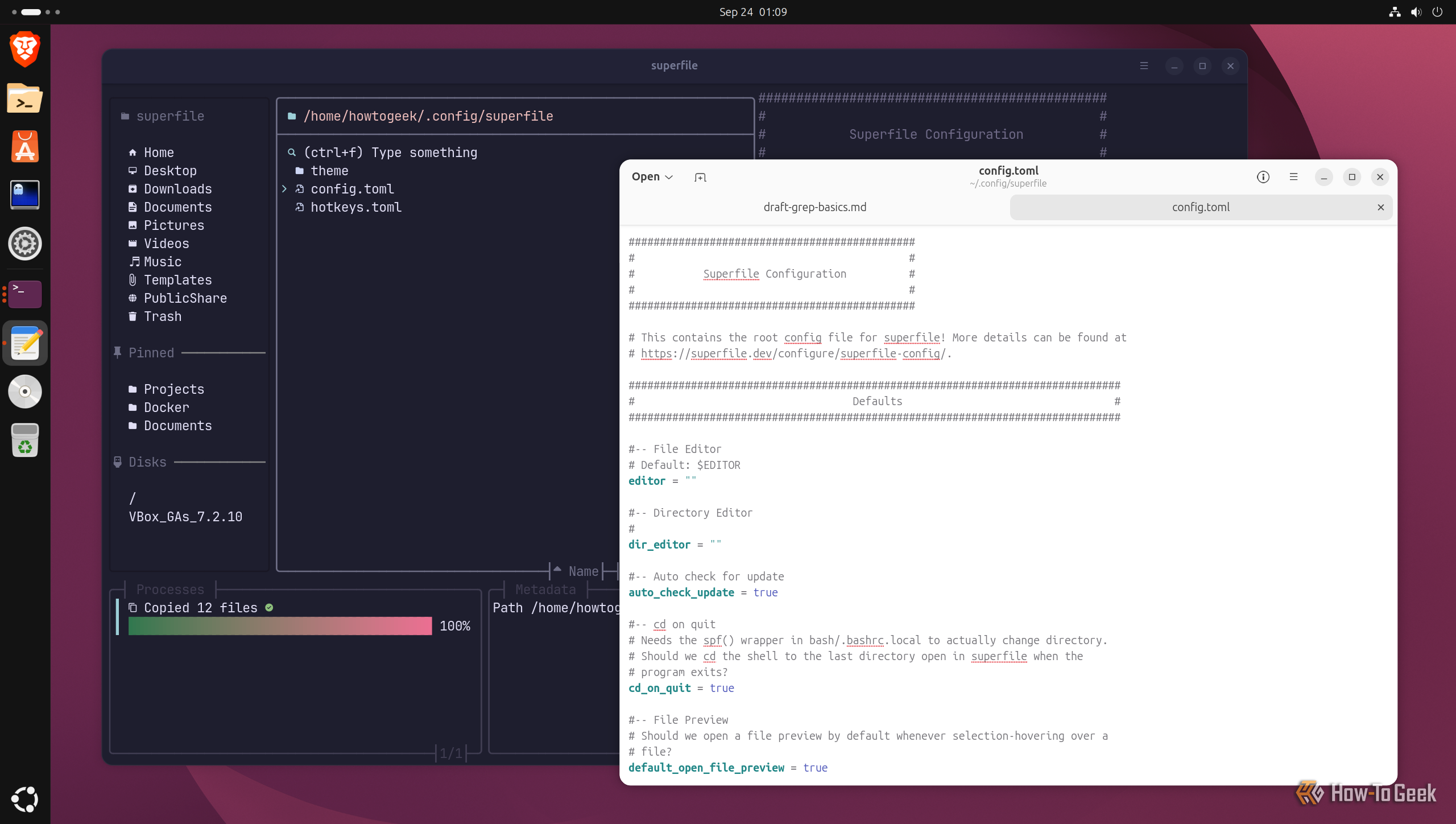
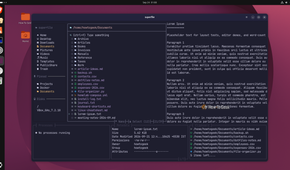
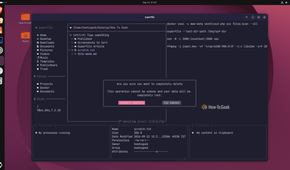
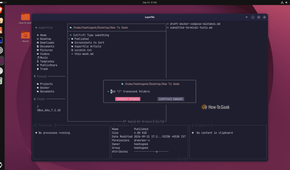
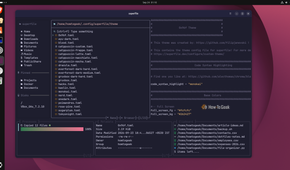
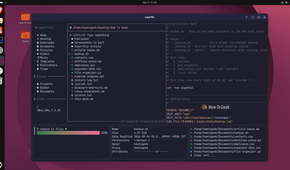
Like most terminal-based file managers, superfile is completely keyboard-driven. You can’t interact with it using your mouse. That’s usually fine if you’re a veteran Linux user who prefers keyboard-first workflows. But even if you aren’t, the keybindings are actually pretty intuitive, and you should get used to them pretty quickly.
First, to launch the app, open your terminal and type spf.
Now, here are the keybindings for moving around inside the app:
- Press S to jump into the sidebar and S again to return to the browser panel.
- Press P to focus on the processes widget.
- Press M to focus on the metadata widget.
- Press N to add an additional directory panel, which lets you easily compare multiple directories.
- Press TAB to switch between all the open directory panels.
- Press W to close the currently focused directory panel.
- Use your arrow keys to navigate inside the selected directory — Up and Down to move through the list, Right Arrow to open the selected file or directory, and Left Arrow to go back to the previous directory.
- Press ESC or Q to quit the app.
- Press . (period) to toggle hidden files.
- Press O to open the sorting options.
Other than that, here are the shortcuts for basic file operations:
- Ctrl+C to copy.
- Ctrl+X to cut.
- Ctrl+V to paste.
- Ctrl+R to rename.
- Ctrl+N to create a new file. Add a trailing forward slash to the name to create a folder instead.
- Ctrl+D to delete the selected file or directory.
- Shift+D to permanently delete the selected file or directory.
- Press V to switch between selection mode and normal mode.
- While in select mode, hold Shift and use your arrow keys to select multiple files.
- Ctrl+A to compress selected files and folders into a ZIP archive.
- Ctrl+E to extract ZIP files.
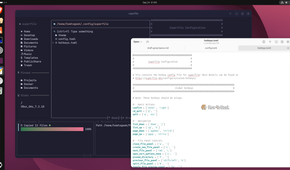
These are just a quick overview of some of the basic functions. There are a lot more hotkey options, and you can check the hotkeys.toml file to see them all. You can also edit the hotkeys to something different from here. To access it, open your terminal and enter this command:
spf pl
It’ll show you where all the superfile configuration files are located.
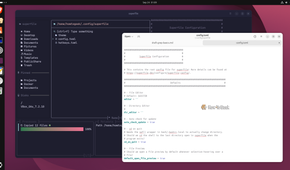
Another file worth noting is config.toml, which is basically superfile’s settings page. Here, you can customize how superfile behaves: change the default app for opening files, choose which panels are visible, select which directories superfile opens to, and even change the theme.
By default, superfile ships with 20+ theme presets, which you’ll find inside the theme folder. Just enter the name of any one of these themes in the theme variable in the config.toml file, and you’ll change the look of superfile.
How to turn superfile into a desktop app
Give the TUI app a desktop app icon
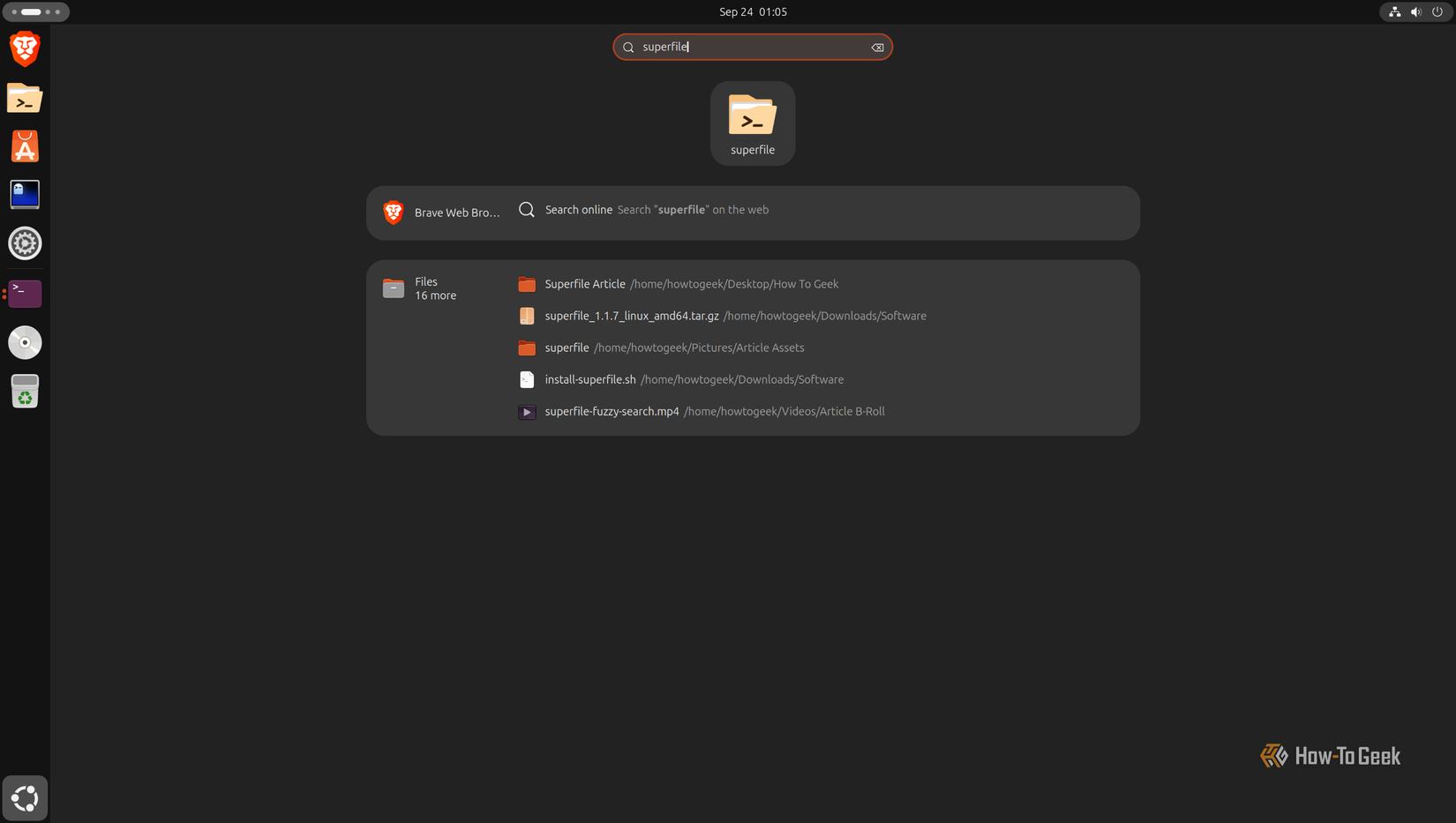
By default, to open superfile, you first need to open the terminal — it’s a terminal-based app, after all. That’s fine if you use it occasionally, but if you want to use it as your default file manager like I do, you’ll want it available as an app icon in your dock or app launcher. Well, setting that up is actually pretty easy.
All you need to do is go to this directory: ~/.local/share/applications/ (create it if it doesn’t already exist) and then create a file called superfile.desktop. Now paste the following content into it:
[Desktop Entry]
Type=Application
Name=superfile
GenericName=File Manager
Comment=Modern terminal file manager
Exec=spf
Icon=system-file-manager
Terminal=true
Categories=System;FileTools;FileManager;ConsoleOnly;
Keywords=files;file manager;spf;terminal;
StartupNotify=false
The line to pay attention to is Icon. I’ve set it to “system-file-manager”, which pulls whatever generic file manager icon your current theme uses and should work across different setups. However, if you want to use the actual superfile logo as the app icon, you’ll need to download it from its GitHub repo, save it somewhere on your machine, and point Icon= to that file path. That’s what I did, so superfile shows up in my app launcher with its own branding.
Why I’m sticking with a terminal file manager
Over a decade of using Linux, I’ve developed an affinity for TUI apps. I like how they look, how fast they load, and how using them gives me hackerman vibes. That said, graphical file managers always felt a bit easier to navigate than your typical TUI file manager, so I was never able to switch to one permanently. But superfile changes that by offering the basic functionality you’d expect from a graphical file manager, packaged in a very intuitive and familiar workflow. That makes it my new default file manager across all my Linux setups — from servers to desktops.