Credit: Hannah Stryker / How-To Geek
If you’ve used Windows for a long time, you probably remember the “My Computer” icon sitting on your desktop, ready to give you access to your drives and folders. These days, Windows calls it “This PC,” but Windows 11 doesn’t put the icon on your desktop by default. If you want that familiar icon back, you can add it in a few clicks.
Why put This PC on your desktop?
Keep your File Explorer sidebar under control

If you pin lots of folders to “Quick access” in File Explorer, the navigation pane can get pretty crowded. Having This PC on your desktop gives you another way to get to your folders without working through that increasingly busy sidebar.
It also gives you a useful starting point for browsing your computer’s files and storage. From there, you can see your internal drives, external drives, and other connected locations in one place.
And if you’ve been using Windows for years, there’s something reassuring about having that familiar computer icon on the desktop where you expect it to be.
How to add This PC to your Windows 11 desktop
The Desktop icon settings method takes a few clicks






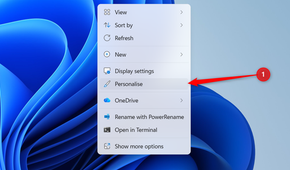
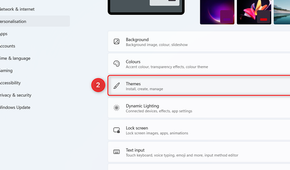


You can drag This PC from File Explorer onto the desktop to create a shortcut. But if you want the actual Windows This PC icon, it’s better to use Windows’ Desktop icon settings. It adds This PC as a built-in Windows icon rather than a shortcut file, and you can switch it on or off (or change its icon) from the same window as the other system icons.
Here’s how to add it:
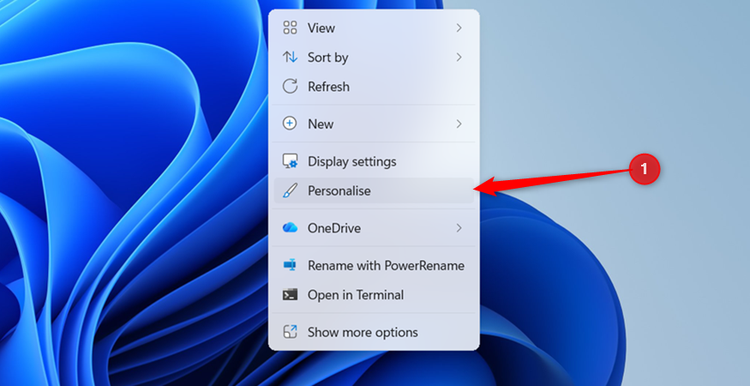
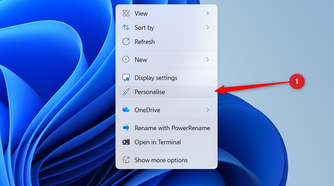
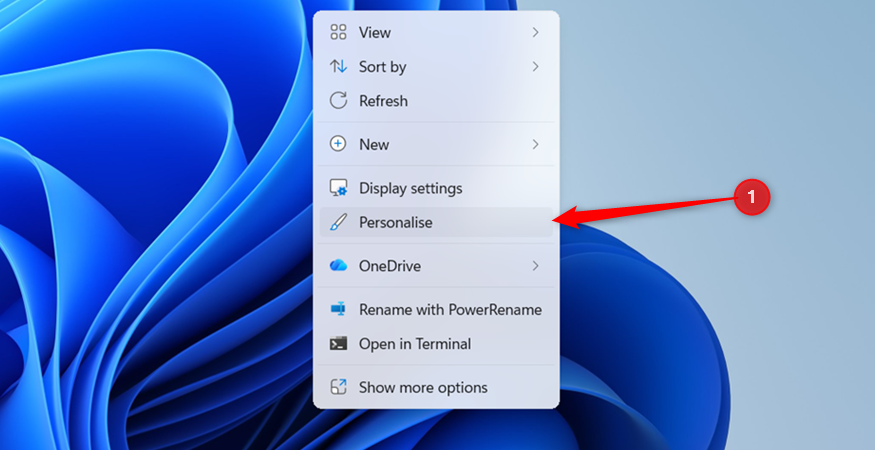
- Right-click an empty area of your desktop and click Personalize.
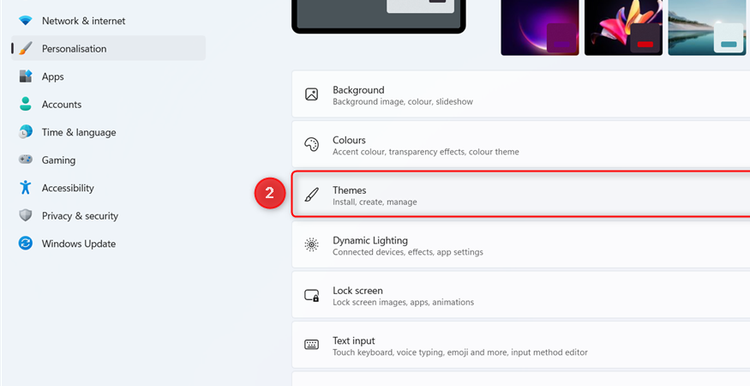
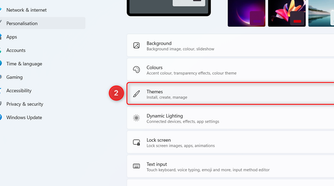
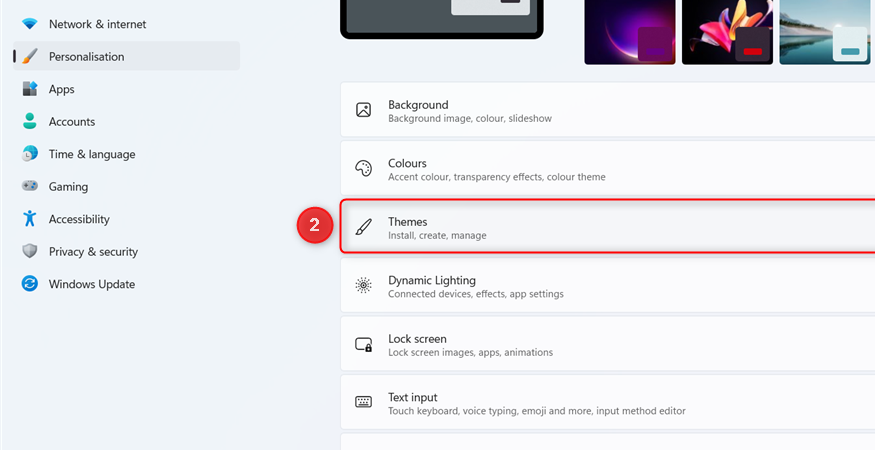
- Click Themes in the Settings window.
- Scroll down to Related settings and click Desktop icon settings. It opens in a small separate window.
- Check the box next to Computer. Don’t worry about the slightly confusing name—this is the setting that adds This PC to your desktop.
- Click Apply, then OK.
You’ll now see the This PC icon on your desktop. Double-click it, and Windows opens the This PC view in File Explorer, where you can browse your drives, folders, and connected devices just as you normally would.
You can drag the icon wherever you want on the desktop, and it behaves like any other desktop icon. You can also right-click it to access other options, including pinning it to Start or opening its properties.
If you change your mind later, you can remove the icon just as easily. Right-click an empty area of the desktop, select Personalize, go to Themes > Desktop icon settings, uncheck Computer, and click Apply.
What to do if you can’t see the This PC icon
Make sure Windows is showing your desktop icons

If you’ve followed the steps above but still can’t see This PC on your desktop, Windows may be hiding your desktop icons altogether. This is easy to check:
- Right-click an empty area of your desktop.
- Hover over View.
- Make sure Show desktop icons is checked.
If Show desktop icons was turned off, Windows hides every icon on your desktop, including This PC. Turn it back on, and the This PC icon you added through Desktop icon settings should appear.
Add other built-in Windows icons to your desktop
Choose the icons you want to see

While you’re in Desktop Icon Settings, you’ll notice that Computer isn’t the only built-in Windows icon you can add to your desktop. The other options are:
- User’s Files: Opens your personal user folder and its associated files and folders.
- Network: Gives you access to computers and other resources available on your network.
- Recycle Bin: Gives you access to files you’ve deleted, so you can restore them or empty the bin. You can also change how Windows handles deleted files from its Properties menu. This icon is usually already on the desktop.
- Control Panel: Gives you a quick way to open the traditional Windows Control Panel.
Just check the boxes for the icons you want, then click Apply and OK.
You can also change the appearance of these icons. Select an icon in the list, click Change Icon, and choose another icon from the available options. You can also create custom icons if you’re feeling creative. If you prefer the familiar Windows icons, though, you can simply leave them as they are.
You don’t have to add all five. If you only want This PC on your desktop, leave the other boxes unchecked.
Take your Windows nostalgia a little further
If you’re adding This PC to your desktop because you miss the way Windows used to look and feel, you can take that nostalgia a little further. StartAllBack lets you change several parts of Windows 11 to resemble earlier versions, including the Start menu and taskbar.