Credit: Justin Duino / How-To Geek
Large airports are a potential security nightmare. There are random, unfamiliar Wi-Fi networks everywhere, charging ports that could be compromised, and more people than you could ever hope to count. I’m also basically always in a rush when I’m in an airport.
The last thing I want to do is dig through my settings to try and lock down my device. I know which toggles I want, but they’re not easy to use while I’m carrying a backpack and a duffel bag through security.
So, I set up a travel mode, which is designed to make locking down my phone as quick and painless as possible.
Android lacks an official travel mode
Multiple settings in one place
 Credit: Nick Lewis / How-To Geek
Android doesn’t have a dedicated “travel mode” button. Instead, I had to piece one together from features that already exist in the operating system.
Critically, this isn’t going to just be Airplane mode. Airplane mode just turns off your wireless connectivity; that can make your device less vulnerable to certain kinds of attacks, but it isn’t a catch-all.
Google’s Advanced Protection Mode is a hardening feature designed to be left on once enabled, not something you flip on and off. Even the Travel Mode featured in some password managers only covers a single app’s vaults.
A locked phone and a hardened phone aren’t the same thing
You might assume that a locked screen is enough security, but a phone that is just locked is more vulnerable than you think. The keys are still in memory, notifications are usually visible on the lock screen, and apps continue running in the background. Background apps have been used to circumvent phone security measures before.
My setup will attempt to combine as many of those features into a one-press setup as possible.
The settings worth changing
Figure out what to change first
 Credit: Cory Gunther / How-To Geek
The first thing I did was figure out what settings I wanted to change and why.
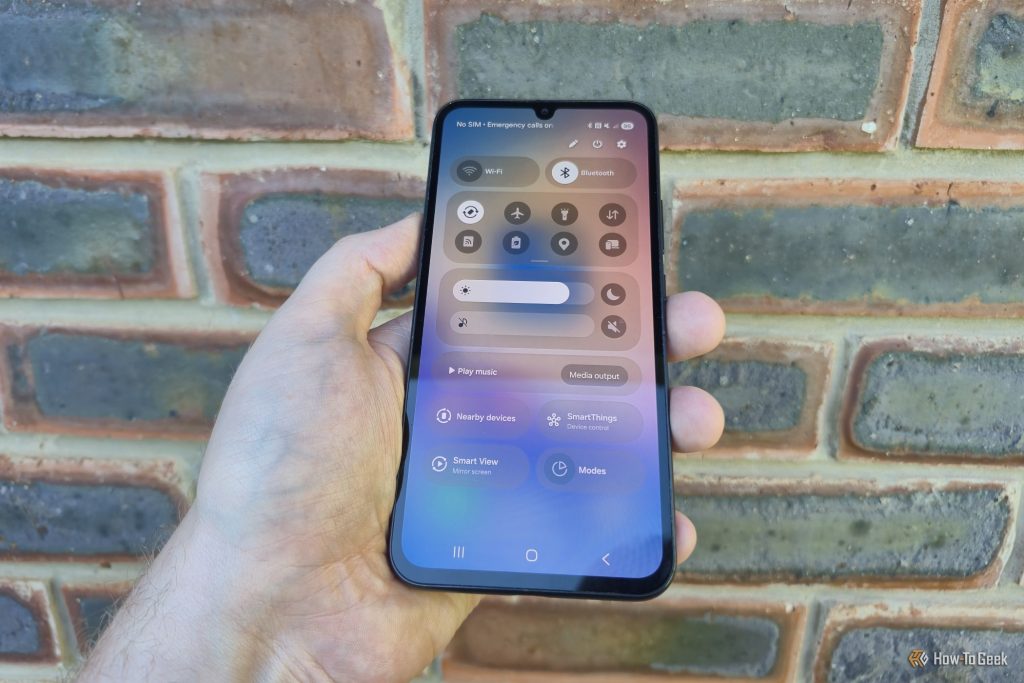
- Airplane Mode disables cellular signals
- Disabling Bluetooth theoretically decreases your attack surface.
- Disabling Wi-Fi ensures your phone won’t accidentally connect to an insecure network
- Disabling Cloud sync temporarily means the data on your phone is the data on your phone, and that something you don’t want to be found won’t be spontaneously downloaded
- Disable lock screen notification so that no sensitive information can be seen while the phone is locked.
You should also enable Advanced Protection Mode. That setting toggles theft detection, USB data blocking, and 2G shutoff already.
The final critical step is a full shutdown or restart any time a phone requires maximum security. Phones are vastly more secure before they’re unlocked for the first time (BFU).
Tasker is almost a one-stop shop
Tasker handles most of the lockdown by itself
Tasker is capable of doing almost everything I want, so that is what I chose to use.
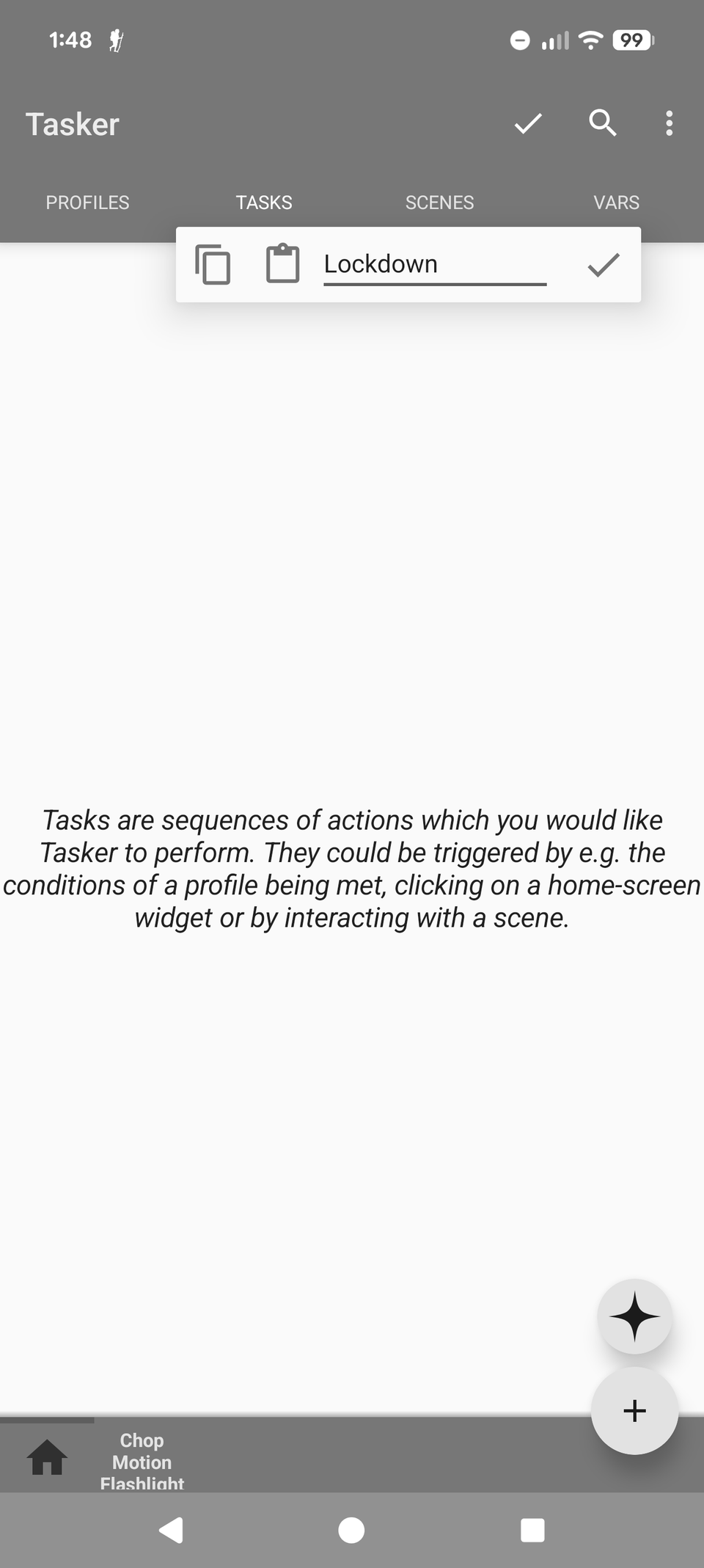
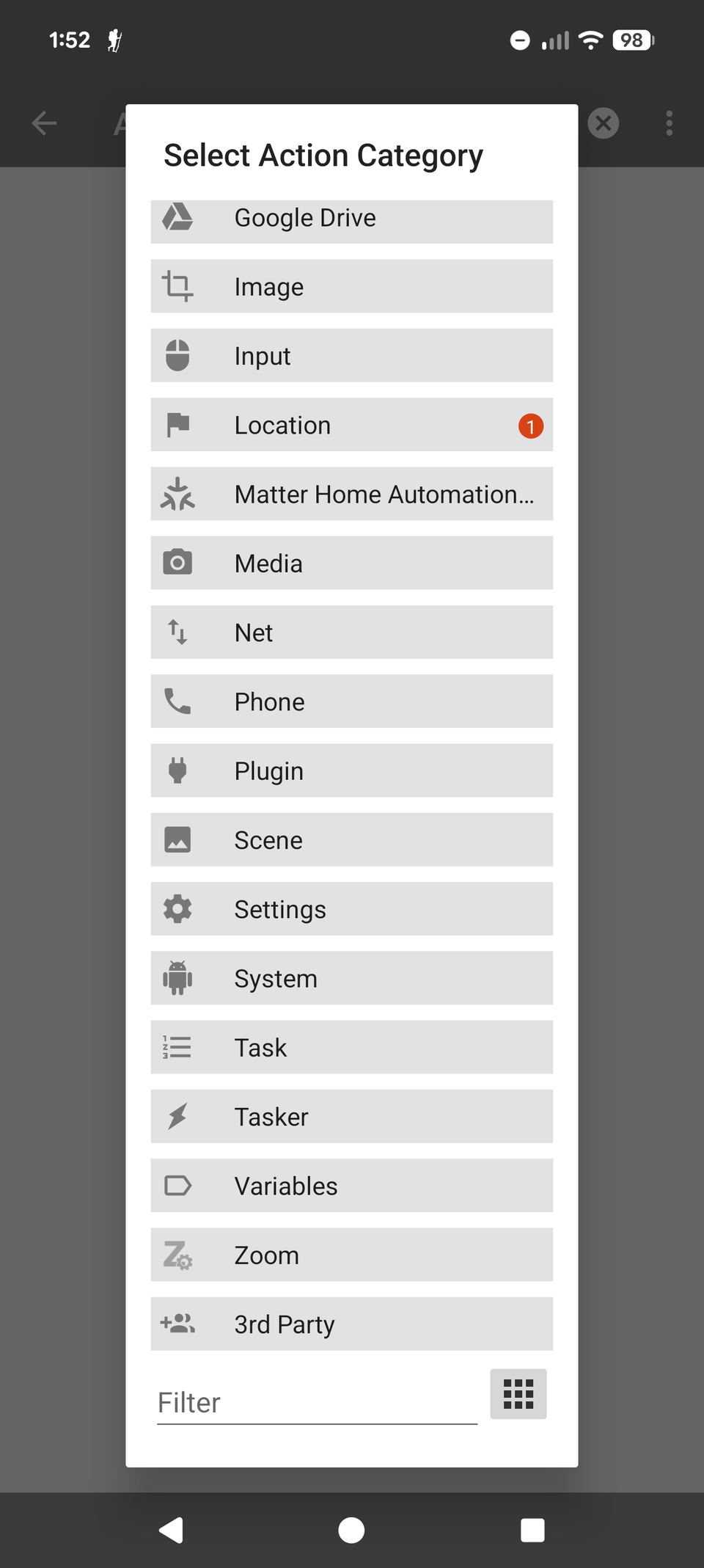
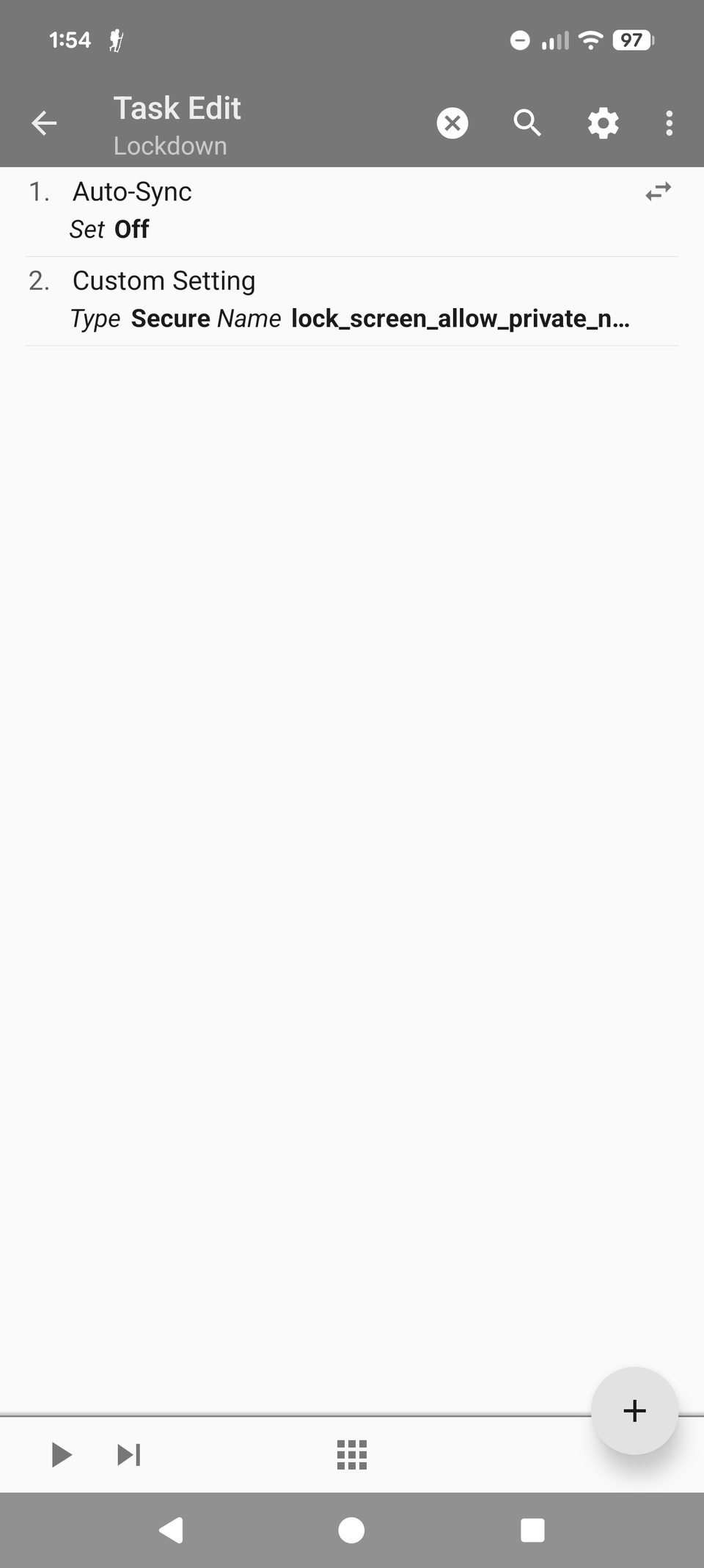
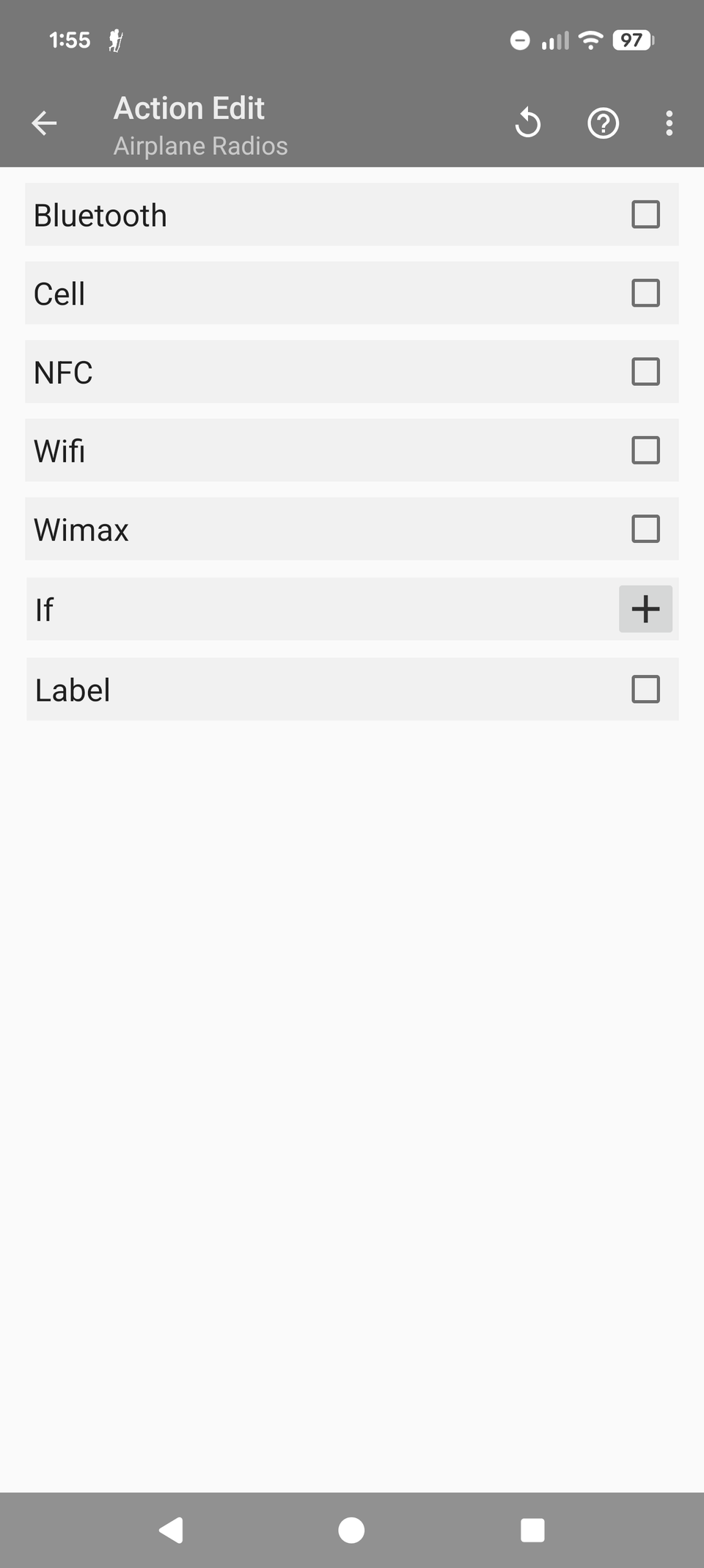
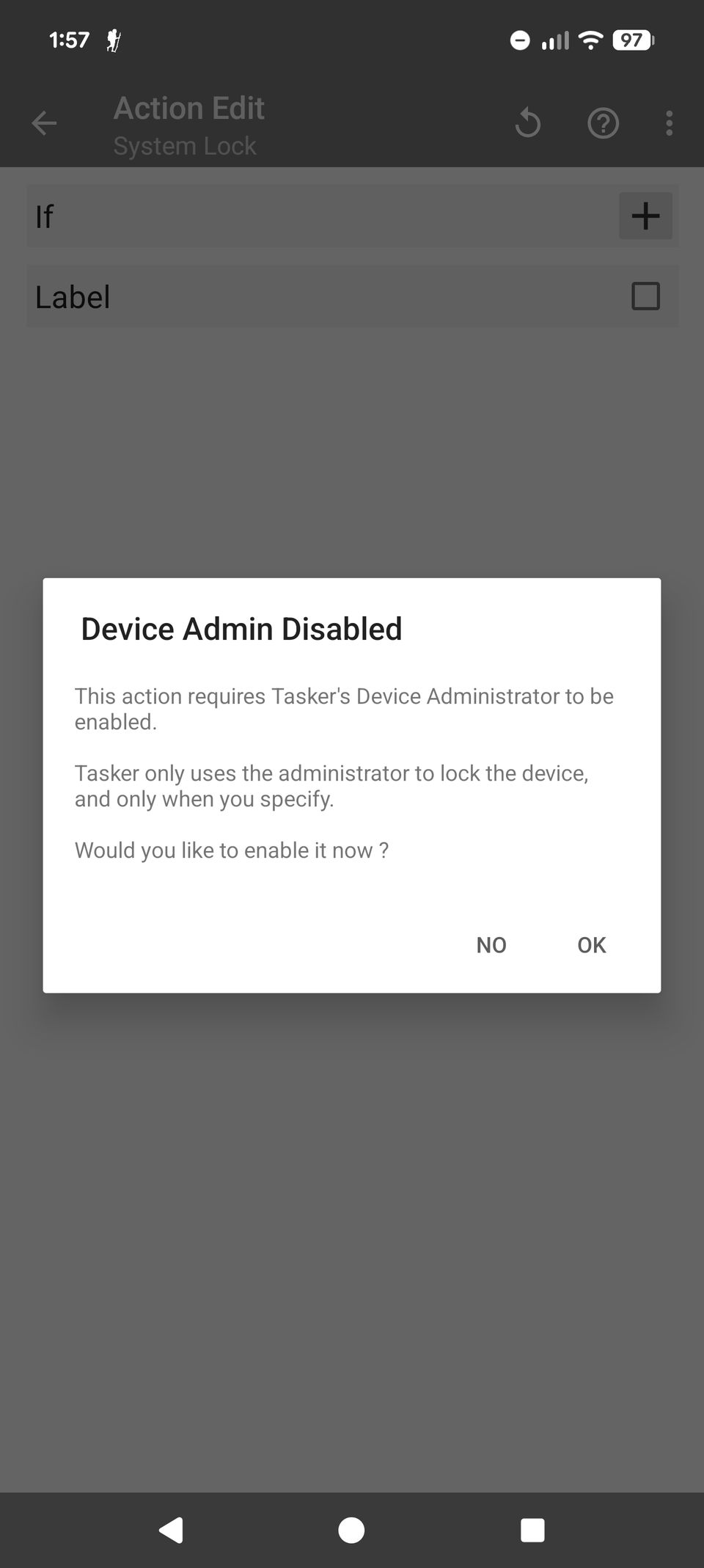
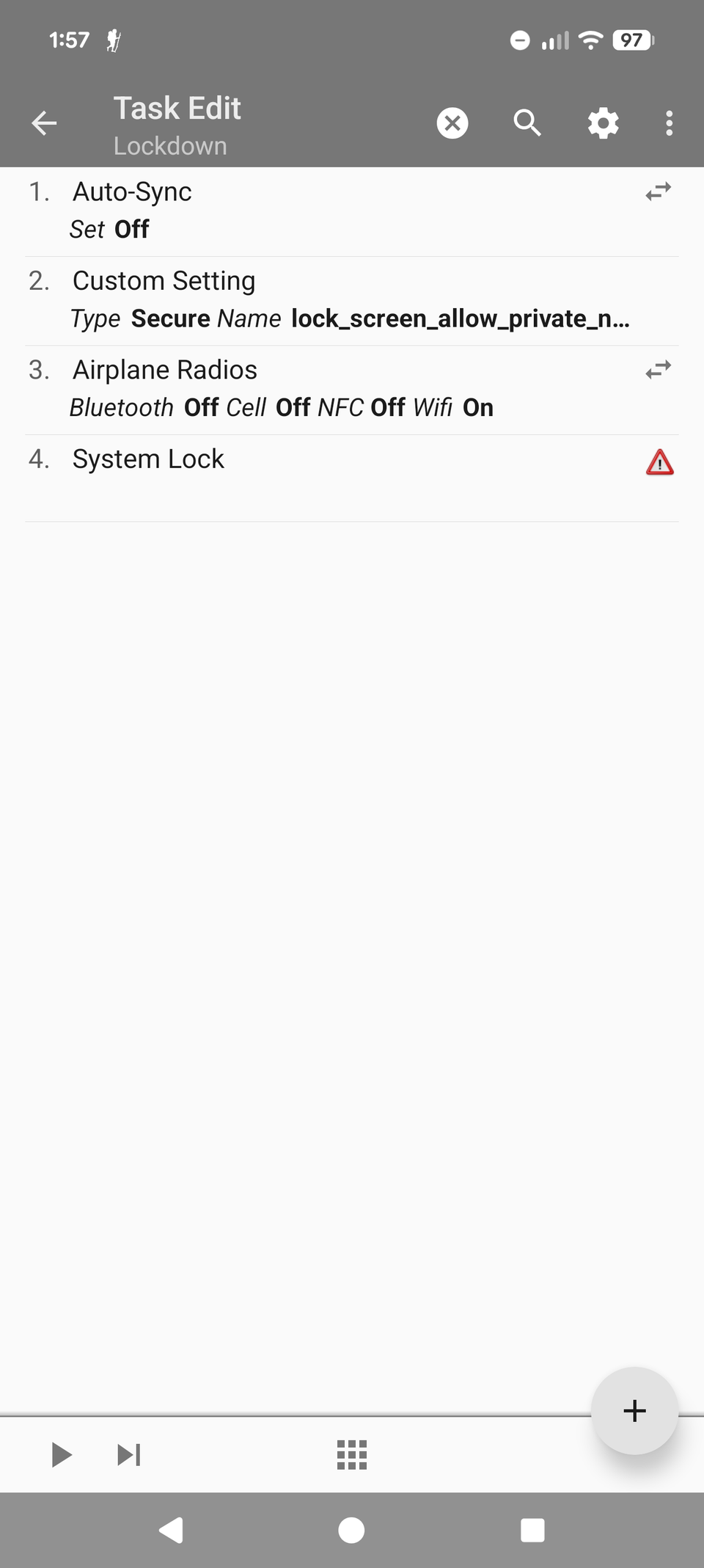
I created a new Task within Tasker called “Lockdown.” There, I added each setting one-by-one from my list. Changing some permissions using Tasker requires special permissions; it’ll tell you when you need to change something. If you can’t find a setting, the search at the bottom of the Category list is very helpful—I use it most of the time.
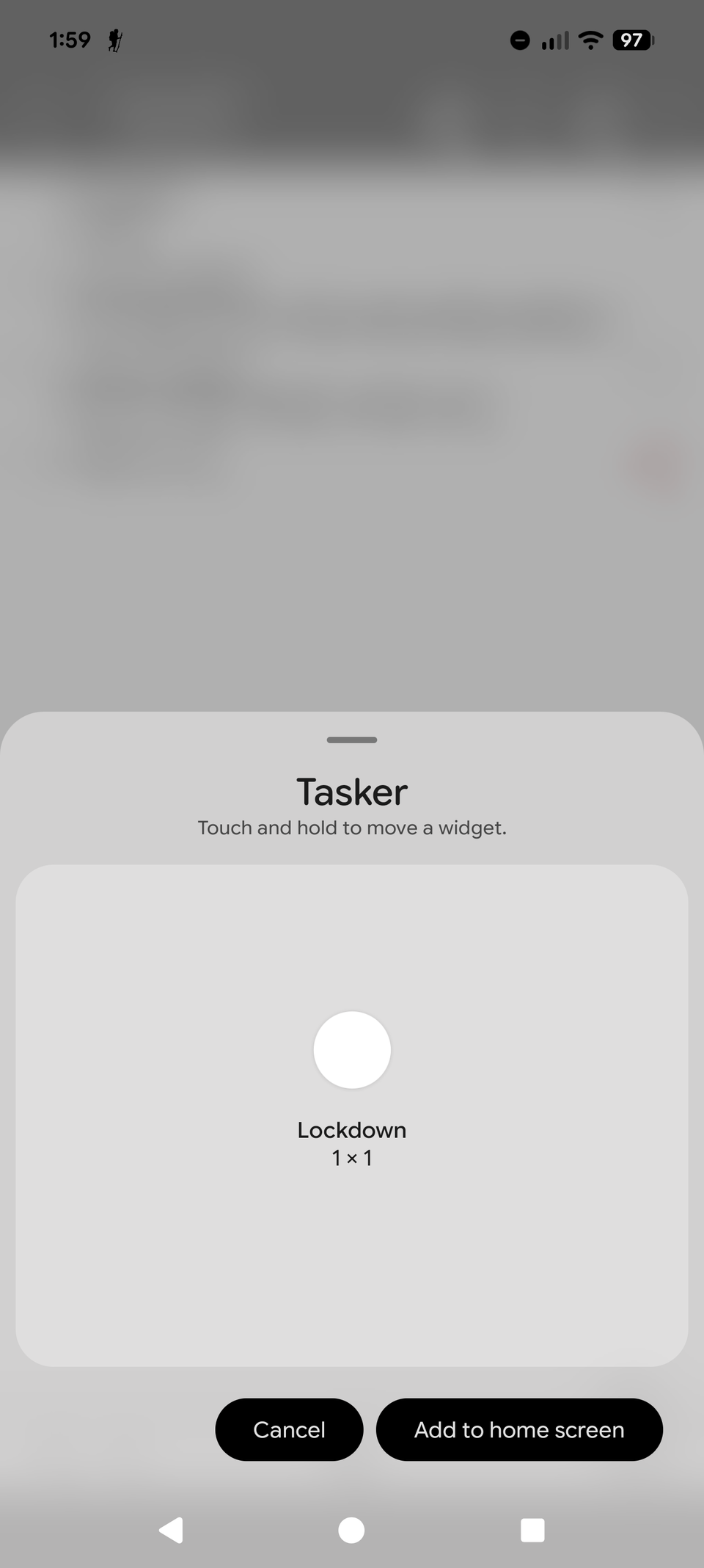
Finally, I created a lock screen widget that allows me to run the task from my home screen.
If you want, you could use an NFC tag or geofencing as the trigger for your tasks, but I prefer a button.
However, undoing all of those settings manually is unnecessarily tedious, so I created a second task that effectively undoes every setting in my lockdown task.
Tasker has a few security limits
Tasker can’t restart an unrooted device, and since the reboot is the single most important security step, I do it manually.
Also, double-check that your Tasker automation still works intermittently. Advanced Protection is beginning to restrict apps that use the AccessibilityService API, which some Tasker plugins use. Be sure to double-check that your automation actually still works before you need it.
Consider setting up Private Space
Only show a limited number of apps
 Credit: Joe Fedewa / How-To Geek
If you’re using a newer version of Android (15+), consider making use of Private Space too. Private Space allows you to set up a separate section on your phone that is isolated from your main profile. It doesn’t share apps, pictures, or other files, and it can have a completely separate pin.
In practice, you could separate your airline app, Uber, and the few other apps you need for travel from the rest of your applications. That way, if your phone does get stolen or otherwise goes missing while it is unlocked, there is a significant barrier between your files and anyone that gets your phone.
I don’t worry about my phone anymore
Airports, and travel generally, can be stressful. My phone is a mobile repository that contains much of my life, and I certainly don’t want any of the data to be compromised.
With one Tasker Automation and the long press of a button, I can be sure that my phone decreases its attack surface and securely encrypts itself.