Credit: David J. Buck / How-To Geek
A few years ago, I discovered the joys of listening to music via the command line. Despite my background in TV and production, I’ve never been much of a video guy. But that changed (slightly) when I discovered a few cool ways to play and stream video to my Linux Terminal.
A quick note about streaming video inside a Linux Terminal
Why would anyone want to do something like this?
 Credit: David J. Buck / How-To Geek
 So, you’ve decided to stream video in a Linux Terminal. If you have VLC media player installed, you can just punch in vlc to have it immediately open the video. You can also open streams and videos in VLC. But that still requires an extra step. When you use the Terminal, you’re using a lightweight, less resource-heavy app while also being able to navigate quickly. No menus, complicated filters, or anything like that. It’s just you and the commands you need.
“Streaming” can also mean a few different things. Are we talking about Twitch or YouTube? Do you want to stream video from your phone over to your PC’s Terminal? Or do you have some DVDs or purchased videos you want to watch on your machine? Those can all be viewed inside your Terminal.
But you can also do some weird stuff with the video outputs.
MPV is your streaming MVP
Watching video on the command line has never been simpler
-
 Credit: David J. Buck / How-To Geek
 -
 Credit: David J. Buck / How-To Geek
 -
 Credit: David J. Buck / How-To Geek
 -
 Credit: David J. Buck / How-To Geek
 -
 Credit: David J. Buck / How-To Geek

-
 Credit: David J. Buck / How-To Geek
 -
 Credit: David J. Buck / How-To Geek
 -
 Credit: David J. Buck / How-To Geek
 -
 Credit: David J. Buck / How-To Geek
 -
 Credit: David J. Buck / How-To Geek

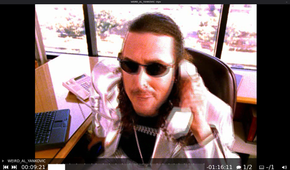
Lousy wordplay aside, MPV is one of the all-time great apps for streaming video from a Linux Terminal. Now, I absolutely adore VLC media player, even if some of my colleagues don’t. That will never change. But I do like to experiment with different media players. I use Cmus (which is still my favorite TUI music player), Sox, and MPD on various Linux machines and Music Bee on Windows in addition to VLC.
MPV is available across multiple platforms and can be run via the command line or through its own GUI. It’s pretty amazing in its own right. But since we’re talking about streaming video in the Linux Terminal, there are a few different things we can do.
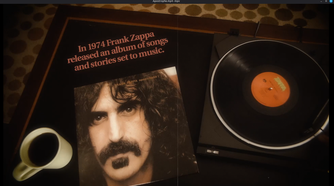
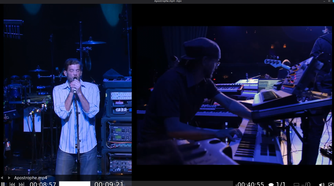
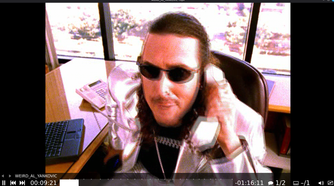
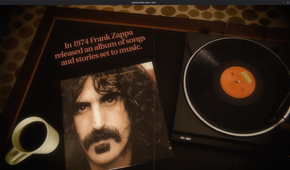
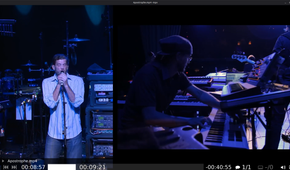
For streaming video directly from your hard drive or external drive, the simplest path is mpv . So in my case, I’m playing the Apostrophe concert, so I’m going to use mpv /home/username/videos/Apostrophe.mp4. You can pause/play with the space bar and seek with the arrow keys.
If you want to get creative and weird, try using some flags in MPV. There’s a bit of a learning curve to it, but the basic syntax is mpv followed by flags for configuration (--no-config) and video output (vo=).
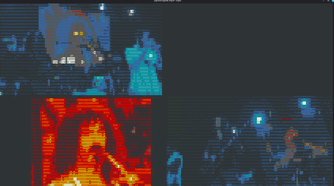
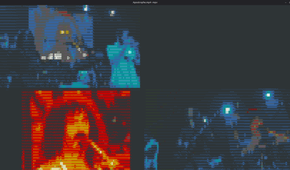
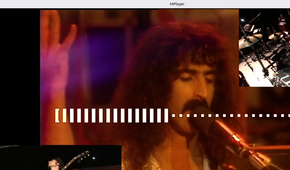
We can get a relatively low-quality, basic stream running a basic command like mpv --no-config --vo=tct . This renders the video in true color blocks, which looks pretty lo-fi and rad.
To render it in ASCII, install the hilariously-named libcaca library. It outputs text, not pixels. So if you like ASCII art, use mpv --no-config --vo=caca .
To play a DVD, the syntax is a little different: mpv --no-config --vo=tct dvd:// --dvd-device=/dev/sr0. It boots right up.
You can also use the standard command syntax to open a YouTube video in your terminal: mpv , as MPV uses YT-DLP
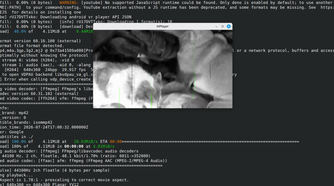
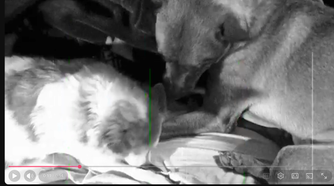
I couldn’t get MPV to load YouTube streams (using yt-dlp) from my PC, but I had no issues loading a video from Termux on my phone. Streaming a YouTube video requires YT-DLP to work. My system was having some issues with not looking past older versions when loading the stream. So I made a quick workaround by externally managing my Python environment and using some tips from a Linux Mint forums thread on the subject. I tested it with one of my own videos and it worked perfectly:
 Credit: David J. Buck / How-To Geek
Mplayer gives you more Terminal viewing options
A simple way to stream with add-ons
-
 Credit: David J. Buck / How-To Geek
 -
 Credit: David J. Buck / How-To Geek
 -
 Credit: David J. Buck / How-To Geek
 -
 Credit: David J. Buck / How-To Geek
 -
 Credit: David J. Buck / How-To Geek
-
 Credit: David J. Buck / How-To Geek
 -
 Credit: David J. Buck / How-To Geek
 -
 Credit: David J. Buck / How-To Geek
 -
 Credit: David J. Buck / How-To Geek
 -
 Credit: David J. Buck / How-To Geek
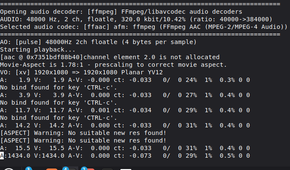
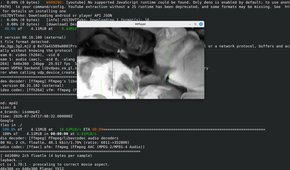
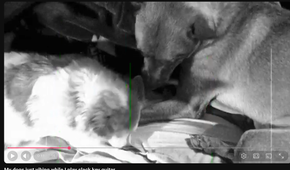
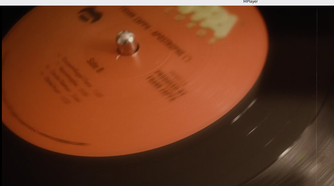
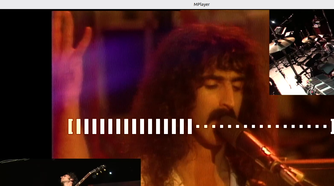
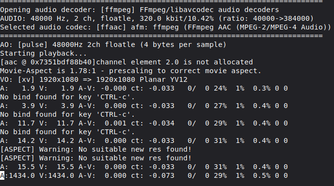
Mplayer is another powerful media player on Linux. It’s fun to use, supports a lot of different file types, and is based on ffmpeg. It has a list of video codecs available that you can use to stream at decent-to-high quality.
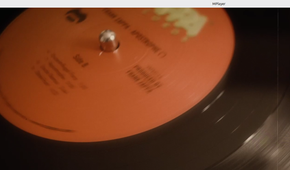
I use -vo xv as I’m working with Linux mint, but there are many others available. Streaming files locally from your hard drive (my favorite use) is mplayer -vo xv (you can substitute a different codec for xv).
Commands are quite simple, and the video quality is good. You can also stream YouTube videos on Mplayer.
I tested this with one of my own YouTube videos. Mplayer isn’t able to stream YouTube vids in the same way MPV does, so you use YT-DLP, set the output with -o, add a |and then tell Mplayer to play the video. But you also limit the RAM, so your video doesn’t freak out. My command looked like this (I chose to limit RAM pre-buffer to 8MB): yt-dlp -o - youtubevideourl | mplayer -vo xu -cache 8192 -
If you want to listen to the audio only, use mplayer -vo dummy file-path to remove the video but keep the audio intact!
Terminal streaming unlocks many possibilities
While this list is far from comprehensive, these are the tools I use most often for watching video from my Linux Terminal. These apps offer a fun way to experiment with video streaming in the Terminal. I had a blast with them and I encourage any Linux fan to give it a try.