Your work laptop might be sharing a network with everything else you own (provided you work from home sometimes, that is). That’s convenient, but it also gives a computer controlled by someone else’s IT department far more local access than it needs.
Don’t want your employer to ever get the chance to spy on you? A simple VLAN setup might do the trick.
Your work laptop shouldn’t share a LAN with your personal devices
A company-controlled computer belongs in a separate trust zone
Credit: Nick Lewis / How-To Geek
Credit: Cianna Garrison / How-To Geek
Credit: Cianna Garrison / How-To Geek
Credit: Adam Davidson / How-To Geek
Credit: Ismar Hrnjicevic / How-To Geek
Credit: Nick Lewis / How-To Geek
Credit: Cianna Garrison / How-To Geek
Credit: Cianna Garrison / How-To Geek
Credit: Adam Davidson / How-To Geek
Credit: Ismar Hrnjicevic / How-To Geek
A VLAN, or virtual local area network, lets one physical home network behave like several smaller, separate networks.
All your stuff can still use the same router, switches, and whatever other networking gear you have at home; it just gets split into different logical groups, usually with their own IP address ranges. Traffic moving from one LAN to another has to pass through the router, where it can be allowed or blocked. It’s super helpful in many ways, although setting it up wrong can expose your entire network.
So, why would you want your work laptop to live on a separate network? Because it’s not really in your control the same way as your personal PC. Your employer is in charge of its security software, VPN client (if you’re even allowed to use one), firewall rules, certificates, updates, remote access tools, and background services. Simply put, it’s not your PC, even if you’ve held it for years now.
Of course, your job’s IT department isn’t spending its free time poking around your network and checking your smart cameras (at least I’d hope not). But the laptop may still be able to discover local devices and see shared folders, and I’d wager you probably don’t want that to happen.
Plus, the unpleasantness works both ways: just as your local network is exposed to your work through your laptop, your work laptop can also become vulnerable through your local network and put the company at risk.
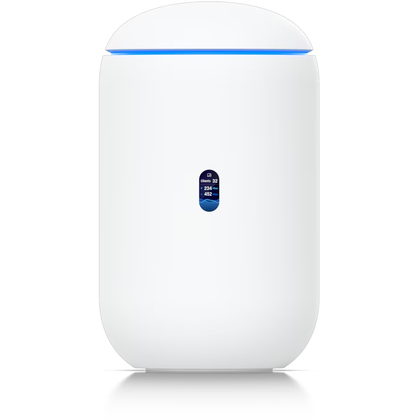
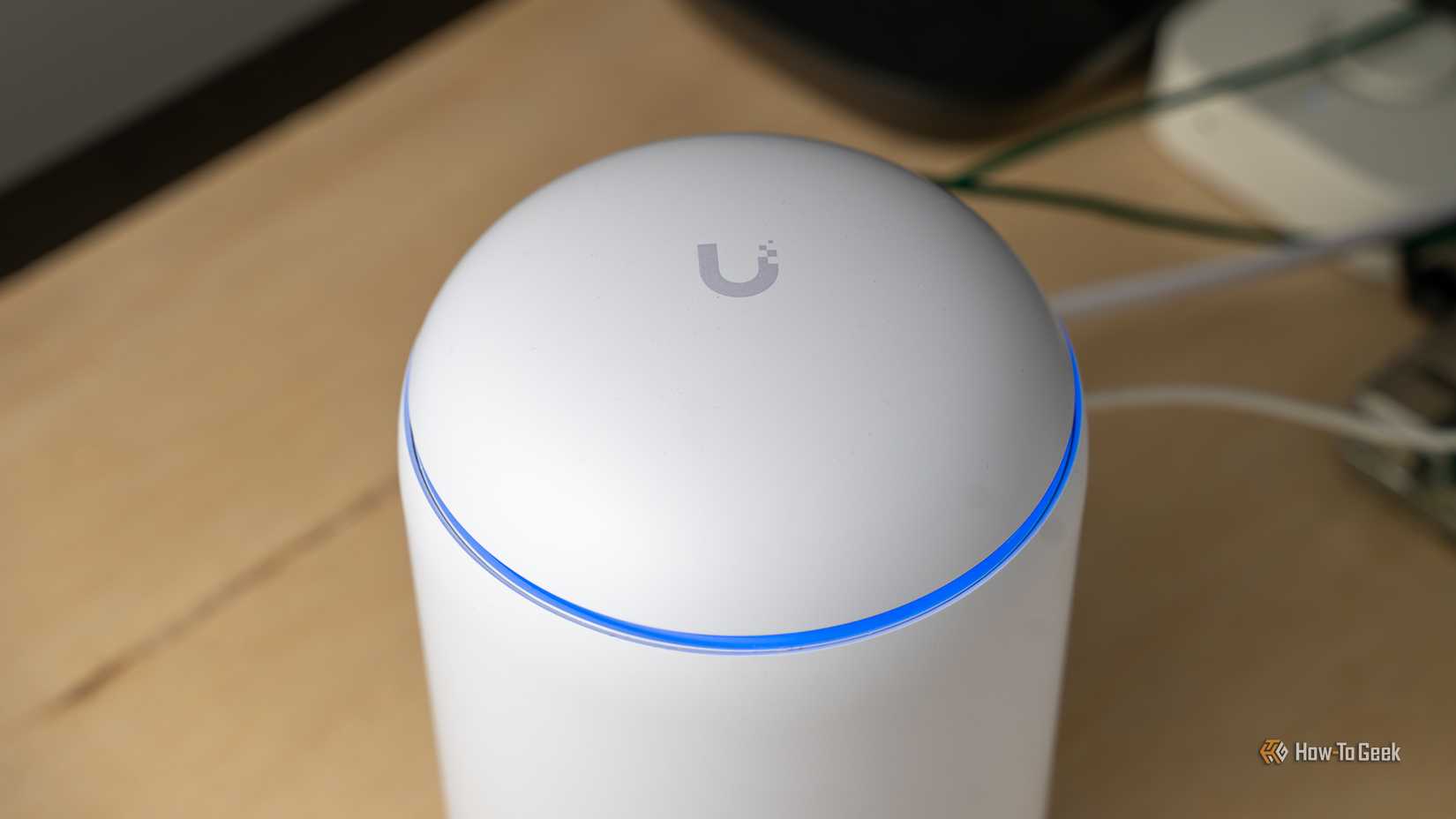
UniFi Dream Router 7
9/10
Brand
Unifi
Range
1,750 square feet
Having a secure router is your first step to a safe network. The UniFi Dream 7 has received glowing recommendations from our reviewers.
Sorting this out should be super easy, so there’s some good news for you here. Not every basic router supports VLANs, though, so you’ll need a router or firewall that lets you create multiple networks and control traffic between them.
First, head into your router’s network settings and create a new virtual network called something obvious. Let’s go with Work.
Give it an unused VLAN ID, like VLAN 20, and its own IP address range, such as 192.168.20.0/24, then make sure DHCP is enabled so your laptop can receive an address automatically.
Of course, as is always the case with any network-related shenanigans, you’ll find that the exact menus depend on your router, so be ready to get curious. In most cases, you’ll find this under Settings > Networks.
Next, create a separate Wi-Fi name, and assign it to the VLAN you just made. Connect the work laptop to that Wi-Fi and make it forget your main network so it can’t just reconnect later. For a wired laptop, assign its managed switch port to the work VLAN instead.
Block the work VLAN from every private network
The firewall rule provides the actual protection
Credit: Patrick Campanale / How-To Geek
If you made the VLAN, you’re halfway there. Halfway, because your router may still allow traffic to pass between it and your other networks, and that’s the opposite of what we’re doing all this for.
Go back into the settings and look for something called Network Isolation, Block Inter-VLAN Traffic, or something along those lines, and enable it for your work VLAN.
If your router makes you create the rule manually, block traffic from the work VLAN to your home, IoT, camera, and any other private subnets. You should still allow it to reach the internet and any essential services supplied by your router, though, such as DNS.
Quiz
8 Questions · Test Your Knowledge
VLANs and home Wi-Fi security techniques Trivia challenge
Think you know how to lock down your home network? Test your skills on VLANs, firewalls, and beyond.
Correct! VLAN stands for Virtual Local Area Network. It allows you to segment a physical network into multiple logical networks, improving both security and traffic management without needing separate physical hardware.
Not quite — the answer is Virtual Local Area Network. VLANs are a foundational concept in network segmentation, letting you logically separate devices even when they share the same physical switches or access points.
02 / 8
VLANs
What is the primary security benefit of placing IoT devices on a separate VLAN in a home network?
Exactly right! Isolating IoT devices on their own VLAN means that if a smart bulb or thermostat is compromised, attackers cannot easily pivot to your laptops or NAS drives. It creates a logical barrier between trust zones in your home.
The correct answer is network isolation. By placing IoT devices on a separate VLAN, you contain any potential breach to that segment. A hacked smart TV, for example, would have no path to your personal files or banking sessions on the main network.
03 / 8
Wi-Fi Security
Which Wi-Fi security protocol is currently considered the most secure for home networks?
Correct! WPA3 is the latest and most secure Wi-Fi security protocol. It introduced Simultaneous Authentication of Equals (SAE), which protects against offline dictionary attacks and improves forward secrecy compared to WPA2.
The correct answer is WPA3. While WPA2 is still widely used and reasonably secure, WPA3 offers stronger protections including resistance to brute-force attacks and better security on open networks via Opportunistic Wireless Encryption (OWE).
04 / 8
Networking
What is a ‘guest network’ feature on a home router primarily designed to do?
Spot on! A guest network creates a separate Wi-Fi segment so that visitors can access the internet without being able to see or interact with your main devices like printers, NAS drives, or smart home hubs. It is a simple but effective security layer.
The right answer is isolation. Guest networks keep visitor devices in their own bubble, preventing them from accidentally — or intentionally — accessing your private files, smart home devices, or other networked equipment on your main LAN.
05 / 8
Best Practices
What is MAC address filtering, and what is its main limitation as a security measure?
Well done! MAC address filtering lets you create an allowlist of devices that can join your network. However, MAC addresses are transmitted in plain text and can be easily spoofed by an attacker who sniffs the air for a valid address, making this a weak standalone defense.
The correct answer is that MAC filtering allows only pre-approved hardware addresses but can be bypassed via spoofing. Because MAC addresses are visible in unencrypted Wi-Fi frames, a determined attacker can clone a legitimate device’s address and gain access.
06 / 8
VLANs
In VLAN terminology, what is a ‘trunk port’?
Correct! A trunk port carries traffic from multiple VLANs over a single physical link by tagging frames with VLAN IDs, typically using the 802.1Q standard. This is essential when connecting managed switches or access points that need to serve several VLANs at once.
The right answer is that a trunk port carries multiple VLANs using 802.1Q tagging. Without trunk ports, you would need a separate physical cable for every VLAN, which would be impractical. Tagging lets one cable do the work of many by labeling each frame with its VLAN ID.
07 / 8
Encryption
What does enabling DNS over HTTPS (DoH) on your home network help protect against?
Exactly! DNS over HTTPS encrypts your DNS queries so that your ISP, router, or anyone monitoring local traffic cannot easily see which domain names you are resolving. Without it, DNS lookups travel in plain text, leaking your browsing habits even if the sites themselves use HTTPS.
The correct answer is privacy from DNS snooping. Traditional DNS queries are unencrypted, meaning anyone on the same network — or your ISP — can log every domain you visit. DoH wraps those queries in HTTPS encryption, making passive surveillance significantly harder.
08 / 8
Best Practices
Which of the following is the best reason to disable WPS (Wi-Fi Protected Setup) on your home router?
Correct! The WPS PIN method uses an 8-digit PIN that is effectively split into two 4-digit halves, reducing the attack surface to just 11,000 combinations. Tools like Reaver can crack WPS PINs in hours, handing an attacker your full Wi-Fi password. Disabling WPS removes this risk entirely.
The real reason to disable WPS is its well-documented vulnerability to brute-force attacks. The WPS PIN can be cracked in a matter of hours using freely available tools, giving attackers your actual Wi-Fi passphrase. It is one of the easiest wins in home network hardening.
Challenge Complete
Your Score
/ 8
Thanks for playing!
Test the isolation first
Internet access alone doesn’t prove it’s all good
Credit: Ismar Hrnjicevic / How-To Geek
With your laptop all set up, check that it can still go online, then try reaching something on your private network. Let’s say, your router’s admin page, your NAS, or a different PC. To do this, find the local IP address of your router, then type it into the web browser and see whether the login page opens.
Those connections should fail. If your work uses a VPN, test with the VPN and without it, too.
I’m not saying your boss is spying on you, but why would you risk it?
In all likelihood, the IT department at your company couldn’t care less what’s happening on your network (unless it’s a danger to the laptop/work network itself). But that doesn’t mean you shouldn’t give your work laptop its own VLAN. Just like you should separate your private and work lives for the sake of staying sane, keeping your laptop on its own little lane has a lot of benefits and few downsides.
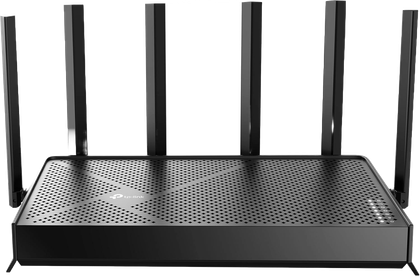
TP-Link Tri-Band BE9700 WiFi 7 Router
$190
$250
Save $60
Brand
TP-Link
This TP-Link router doesn’t cost an arm and a leg, but it still gives you tri-band connectivity and Wi-Fi 7.
Credit: Andy Betts / How-To Geek Gboard has been my go-to Android keyboard for years, but lately, I’ve found myself wondering whether I’m really getting the

 Credit: Hannah Stryker/How-To Geek
 Credit: Nick Lewis / How-To Geek
 Credit: Cianna Garrison / How-To Geek
 Credit: Cianna Garrison / How-To Geek
 Credit: Adam Davidson / How-To Geek
 Credit: Ismar Hrnjicevic / How-To Geek


 Credit: Nick Lewis / How-To Geek
 Credit: Cianna Garrison / How-To Geek
 Credit: Cianna Garrison / How-To Geek
 Credit: Adam Davidson / How-To Geek
 Credit: Ismar Hrnjicevic / How-To Geek



 Credit: Nick Lewis / How-To Geek
 Credit: Patrick Campanale / How-To Geek
 Quiz
Quiz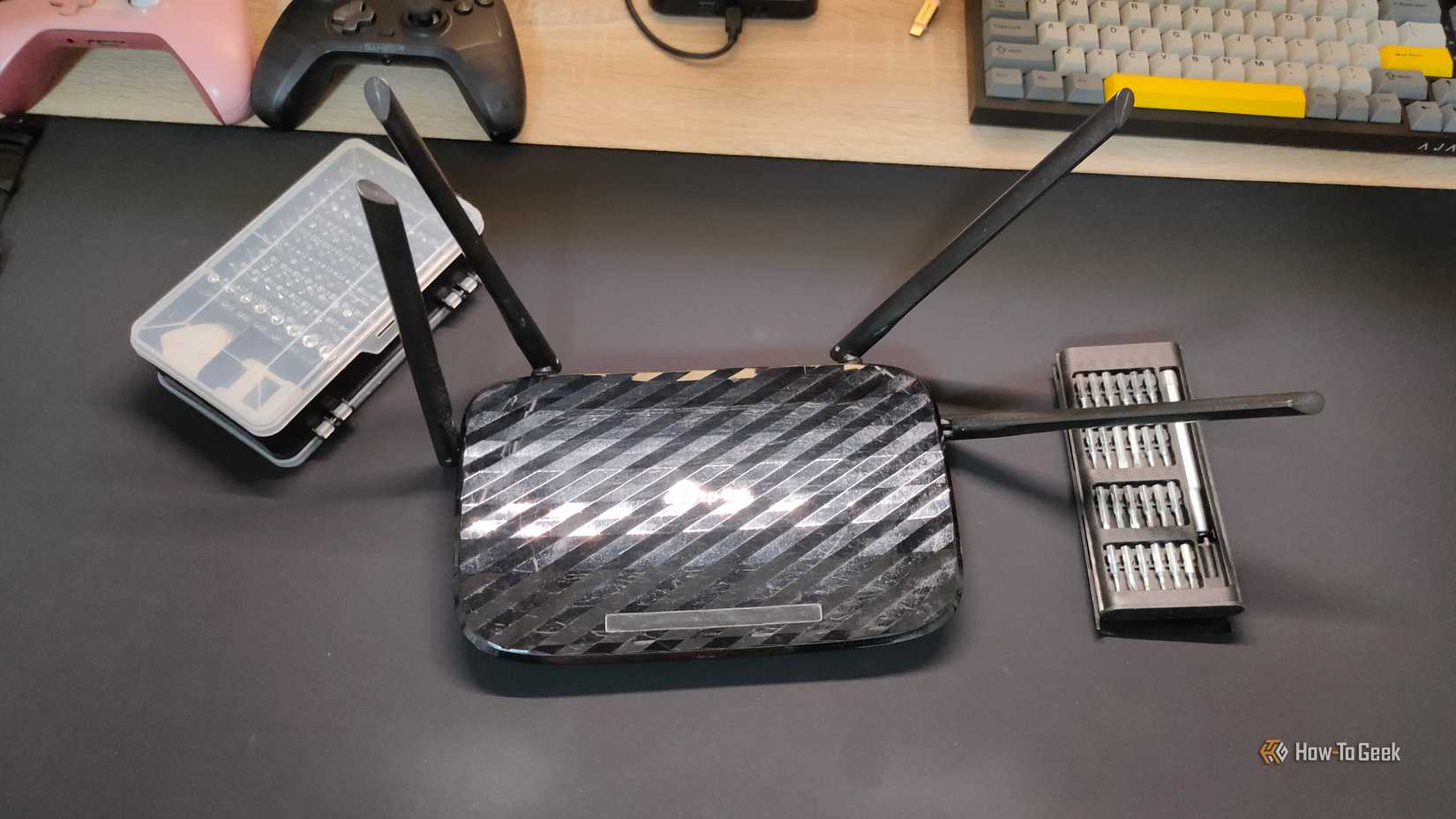 Credit: Ismar Hrnjicevic / How-To Geek