 Credit: Goran Damnjanovic / How-To Geek
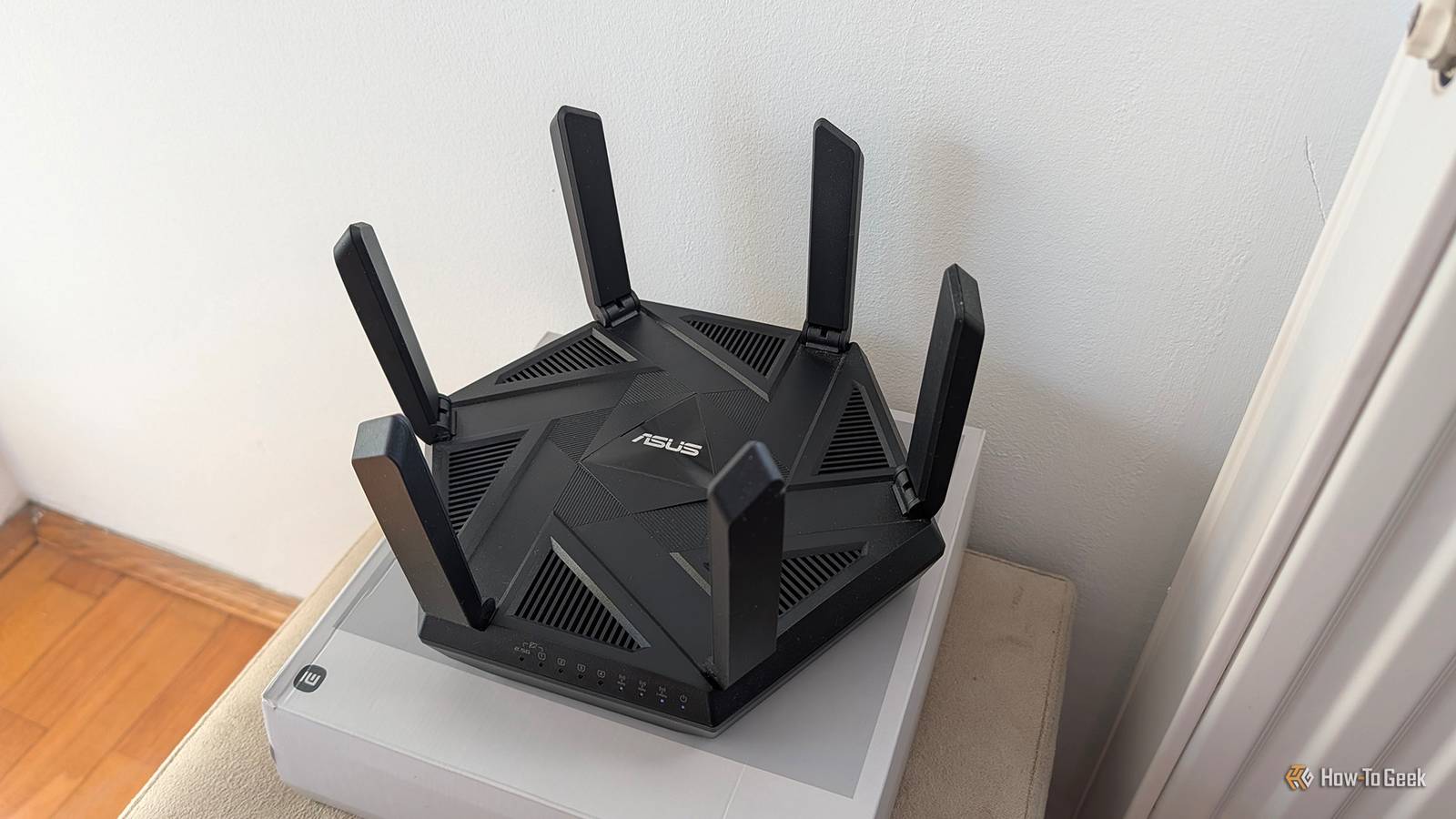
At its core, a router simply directs network traffic between devices and networks. In other words, it doesn’t need internet access to be useful. If you’ve got a spare router around, you can put it to good use in a number of ways, even if you never connect it to the internet.
You can enable Wi-Fi on the router, allowing devices to connect to it, while keeping the entire setup off the internet, making it inherently more secure. While certainly a niche use case, this setup can be handy if you want to, for instance, use a NAS or a network printer but don’t want them connected to the internet.
Use it for local file sharing
Or connect a NAS to it and have a local storage or media server
 Credit: Jerome Thomas / How-To Geek
If the router in question has a USB port and supports SMB (Server Message Block) file sharing, which is a feature many modern routers offer, you can turn the old router into a budget NAS. Just plug a storage drive into its USB port, and you’ll be able to access the files stored on it from any device connected to the router.
Sure, the speeds won’t be great, and you’ll be limited to a single drive (unless your router supports USB hubs, though chances are it doesn’t), but hey, having a NAS is better than not having one.
You can also connect a dedicated NAS to the router and access files on it without allowing the NAS itself to connect to the internet, which can be useful if you, for instance, store sensitive work-related files on it that shouldn’t be accessible from outside your local network. Similarly, you can create a local media server that only serves media to devices connected to the router, whether via Wi-Fi or Ethernet.
 Quiz
Quiz
Connect your IoT devices to it
Use the router to keep your IoT devices off the internet while still being able to control them remotely
Another useful thing you can do with a second router that’s not connected to the internet is connect all your smart devices to its Wi-Fi network, allowing you to control them locally while preventing them from connecting to the internet. This can be handy considering that many smart devices aren’t particularly secure.
Connecting your smart devices to such a router can also be useful if your primary router doesn’t support VLANs. By connecting all your IoT devices to the secondary router, you’ll still be able to use them locally while reducing the number of devices using the primary router’s DHCP server.
If you want to control your smart home devices remotely while keeping them off the internet, you can connect them to the secondary router and then connect the device hosting Home Assistant to that same network. The Home Assistant server itself can also be connected to your primary router for internet access, allowing remote access through a service such as Nabu Casa while keeping the IoT devices isolated from the internet.
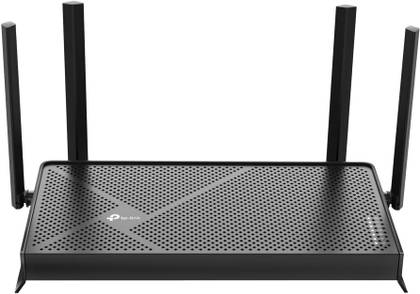
TP-Link Dual-Band BE3600 Wi-Fi 7 Archer BE230
Brand
TP-Link
Wi-Fi Bands
2.4GHz, 5GHz
The TP-Link BE3600 gives you next-gen Wi-Fi 7 performance at a budget price, delivering fast, reliable coverage with multi-gig ports and a powerful quad-core CPU. With strong antennas, EasyMesh support, and modern features like MLO and HomeShield, it’s an easy future-proof upgrade for any home.
Attach a printer to it
Get a network-attached printer everyone can access
 Credit: Andrew Martonik / How-To Geek
A router can be a cheap and cheerful way to create a network-attached printer that every device on the network can access, as long as the router supports printer sharing, even when the router isn’t connected to the internet. Just connect the printer to the router’s USB port and you’ll be able to print from any device connected to the router’s network.
If you want devices on your main network to access the printer as well, switch the secondary router to bridge mode and connect it to the primary router via Ethernet. This way, you can also turn the spare router into an access point to expand your Wi-Fi coverage if needed, though you’ll lose the added security benefits of keeping the printer isolated from the internet. That said, you can keep the printer off the internet through a firewall rule, for example.

6 Privacy-Respecting Smart Home Brands That Won’t Sell You Out
Not every smart home brand requires access to your personal data.
Use it for LAN parties
If you need more ethernet ports, just plug a network switch into it
 Credit: Patrick Campanale / How-To Geek
Last but not least, a secondary router that isn’t connected to the internet can be a great way to enjoy LAN multiplayer. You can host LAN parties with as many people as you’d like; if you need more Ethernet ports, just get a network switch or two and connect them to the router.
Aside from LAN parties, you can also play games that support LAN multiplayer this way. They don’t require an internet connection, so all you need is a local network. You can also host local game servers this way. For instance, you can create a local Minecraft server and enjoy multiplayer gaming without an internet connection.

TP-Link TL-SG105 5-Port Gigabit Ethernet Switch
Type
Ethernet Switch
Connect four devices to a single Ethernet port with TP-Link’s simple five-port powered Ethernet switch.
Don’t forget to set up the router before you start using it
Before you start connecting devices to the router, make sure to access its web interface (just connect to it via Wi-Fi or Ethernet and enter its default IP address into your browser’s address bar) and set it up.

Deals
Score Storage & Networking Deals on Routers & NAS
I recommend changing the Wi-Fi network name and password, as well as configuring file-sharing or printer-sharing options if you plan to use the router for file sharing or connect a printer to it. You may also want to factory reset the router first to restore its default settings, especially if you’ve used it before.
As you can see, a router doesn’t need an internet connection to be useful. Whether you use it for local storage, IoT devices, a printer, or LAN gaming, there are plenty of ways to put a router to good use without connecting it to the internet.